Production orders
The Production Orders page allows you to manage and track all production orders in Vestis Labs from creation through completion and shipment.
Production orders – overview
The Production Orders page allows you to manage and track all production orders in Vestis Labs from creation through completion and shipment. It provides a clear, table-based view of key order details, making it easy to monitor progress, identify issues, and take action when needed.
ProductionOrder Management
Permission: VIEW_BRAND_PRODUCTION
Order list and details
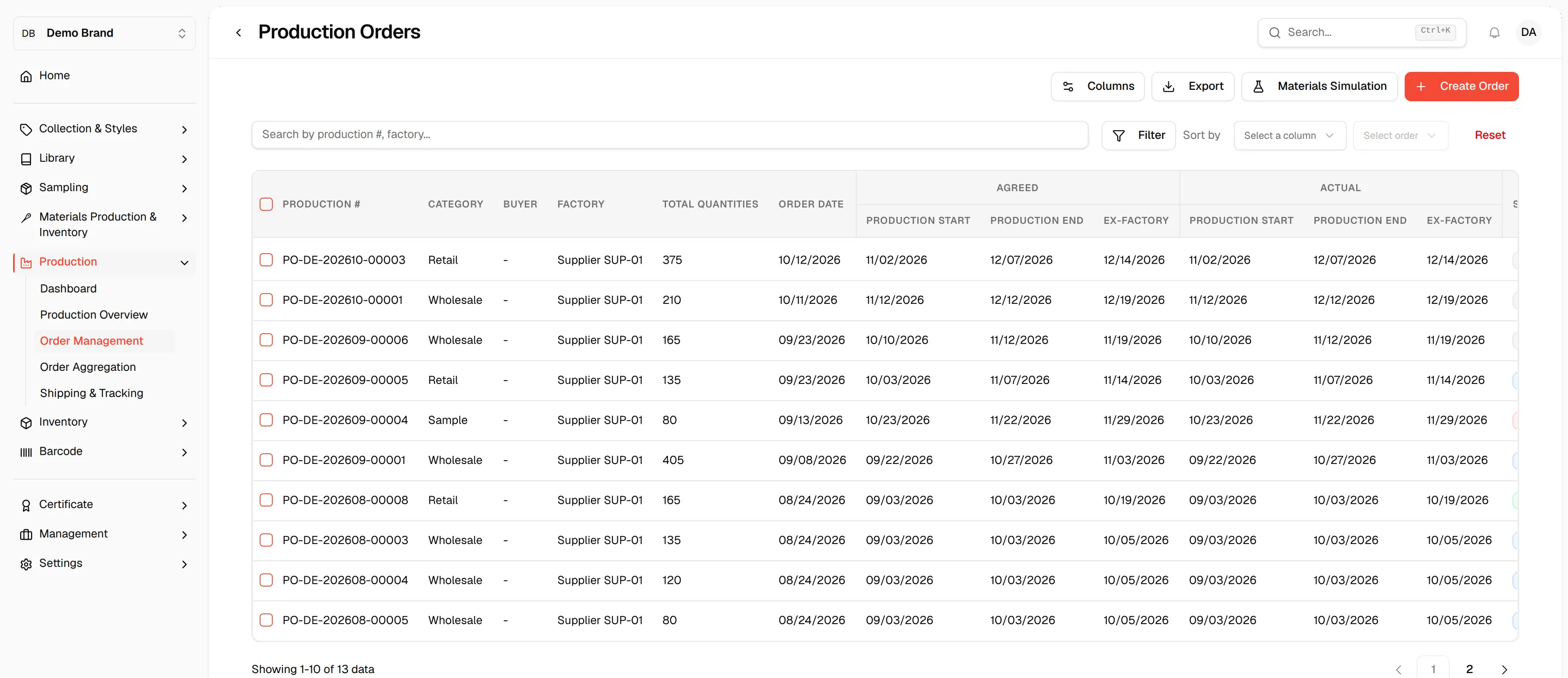
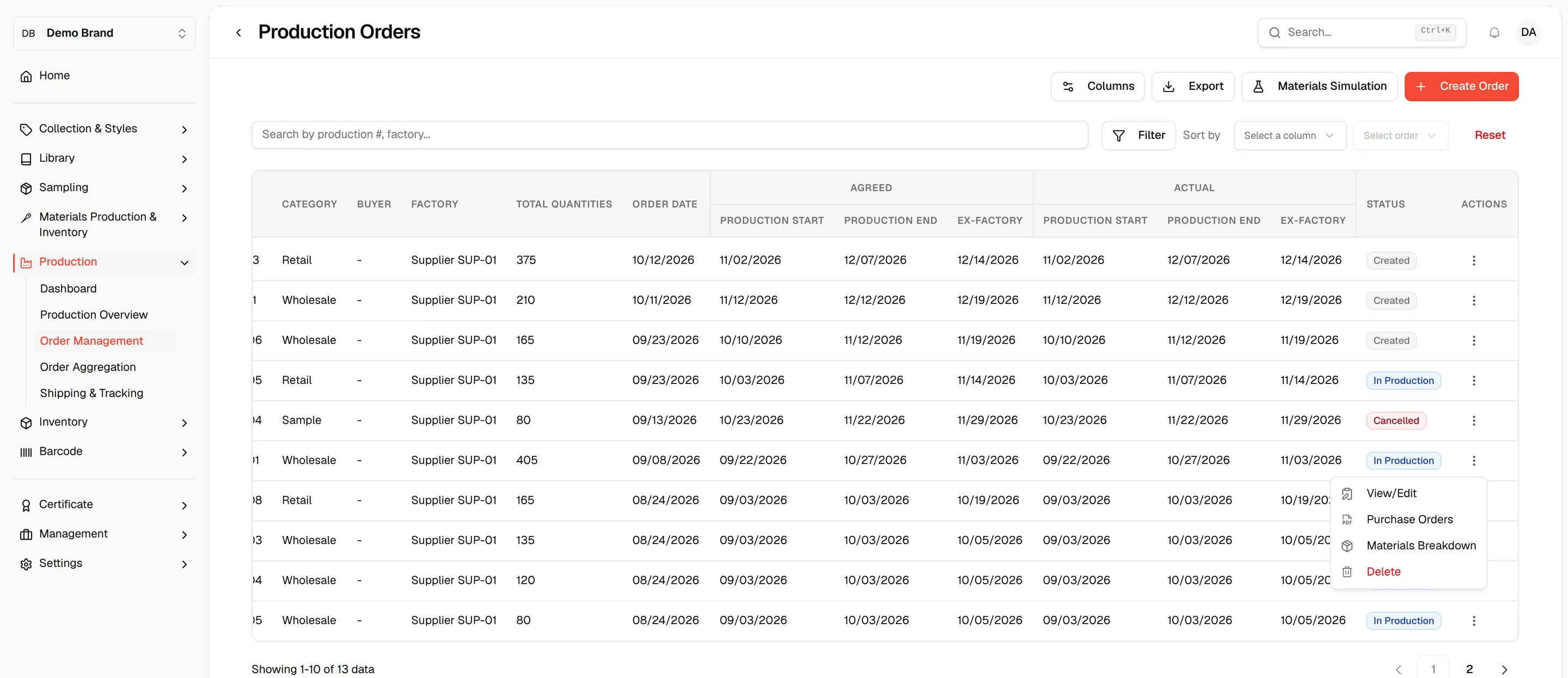
Each production order is displayed in a structured table with a selection checkbox at the start of every row. The table includes:
- Production # – The unique order reference number
- Category – The order category, such as Wholesale, Retail, or Sample
- Buyer – The buyer name entered on the order
- Factory – The production factory or supplier
- Total Quantities – The total units included in the order
- Order Date – The date the order was created
- Agreed – The planned Production Start, Production End and Ex-Factory dates
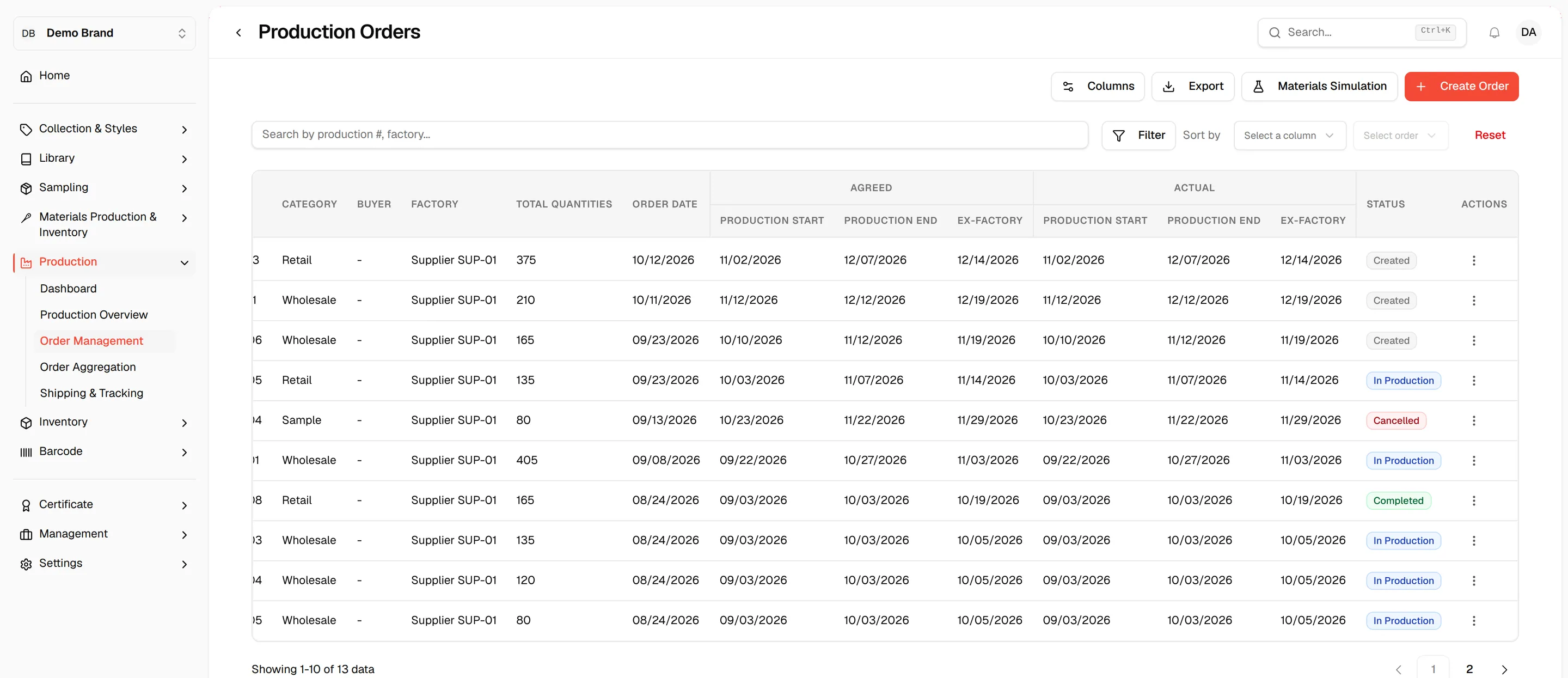
- Actual – The Production Start, Production End and Ex-Factory dates recorded as the order progresses
- Status – Current order status: Created, Delayed, In Production, Completed, Shipped, Delivered or Cancelled
- Actions – The three-dot menu for each order
Note
A cell shows - when the order has no value for that column. Ten orders are shown per page; use the page controls under the table to move between pages.
Search, filter and sorting
At the top of the table, you can:
- Search production orders by production number or factory. The search box reads Search by production #, factory...
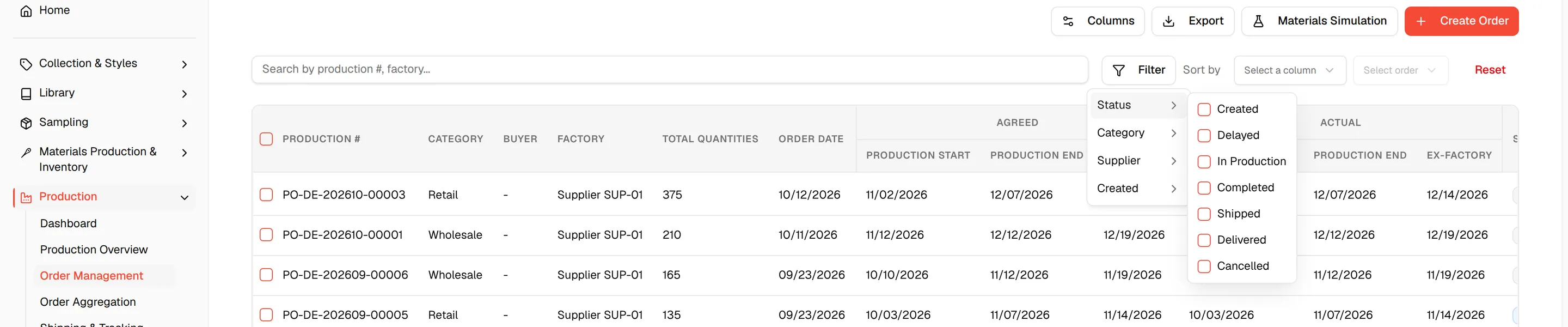
- Filter orders by Status, Category, Supplier or Created. For Created, pick a From and To date to show only orders created in that window.
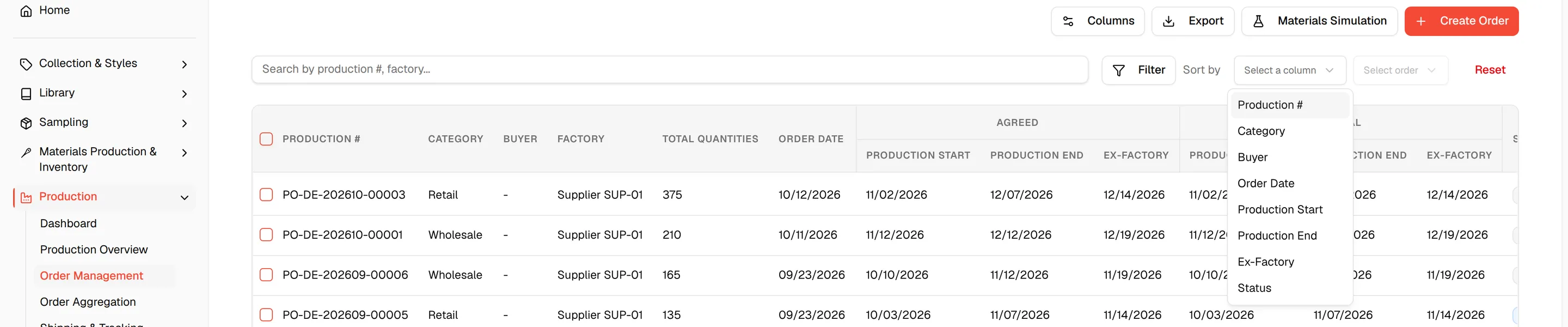
- Sort orders by Production #, Category, Buyer, Order Date, Production Start, Production End, Ex-Factory or Status, in ascending or descending order.
- Reset filters to return to the full list.
Actions and management tools
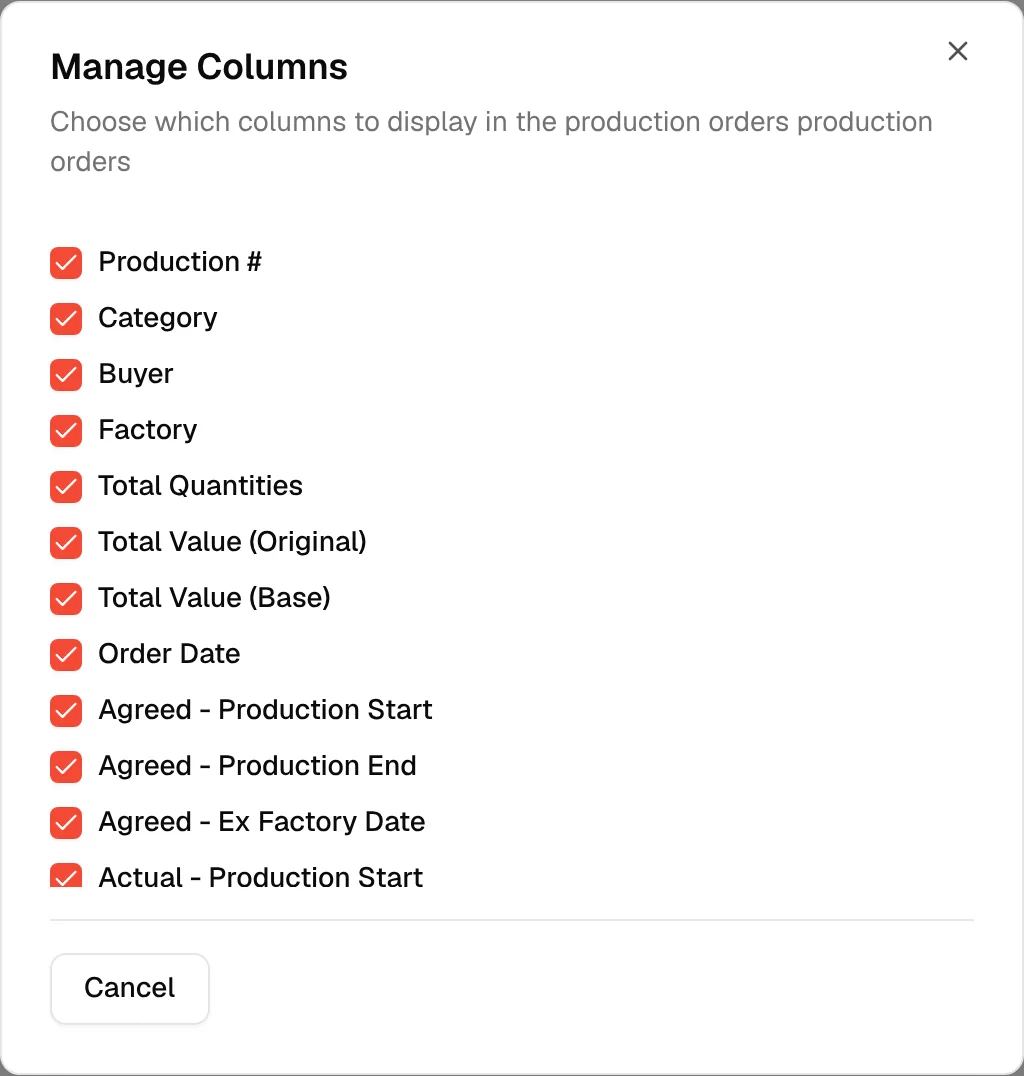
- Manage Columns – Choose which columns the production orders table displays. Your choice is saved for your brand.
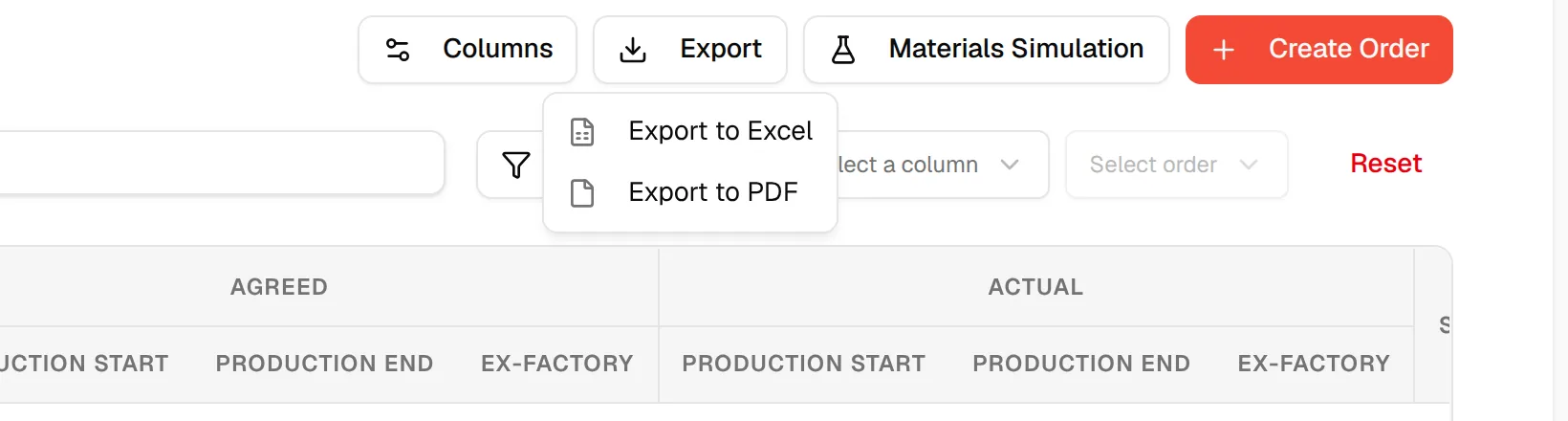
- Export – Download the list as Export to Excel or Export to PDF. See Export and print production orders.
- Materials Simulation – Check what materials a set of styles would need. This button appears only when the materials breakdown feature is switched on for your brand. See Materials simulation.
- Create Order – Start a new production order. This button needs the Update production permission.
- Actions (three-dot menu) – Access additional options for each order, such as viewing details or making updates. See Manage the production order.
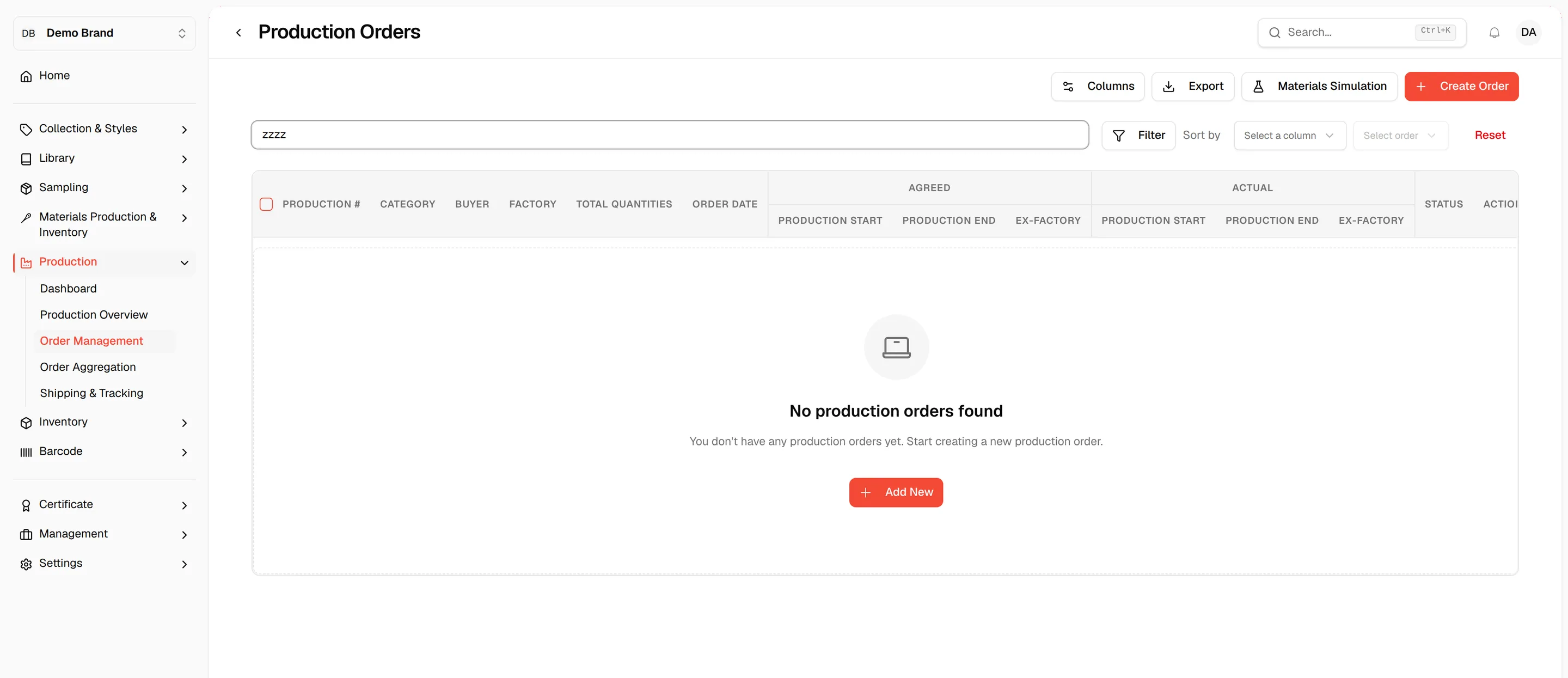
Empty list
If no order matches, the table shows No production orders found. Users with the Update production permission also see an Add New button that opens the same dialog as Create Order.