
Users' permission page
Open the permission page of a user from Management → Users and change which brand permissions the user has.
Under review. This page is published while we check it against the live app, so some details may have changed.
Screenshots may be out of date.
Modify Permission takes you to the permission page of the selected user. There you can change the brand permissions of that user.
ManagementUsers⋮Modify Permission
Permission: UPDATE_USER_PERMISSION
Open the permission page
Open Users
Go to Management → Users.
Open the user menu
Click the three dots on the user's card.
Click "Modify Permission"
Click Modify Permission to open the brand permissions of the user.
Note
Modify Permission is not shown for users with the ADMIN role.
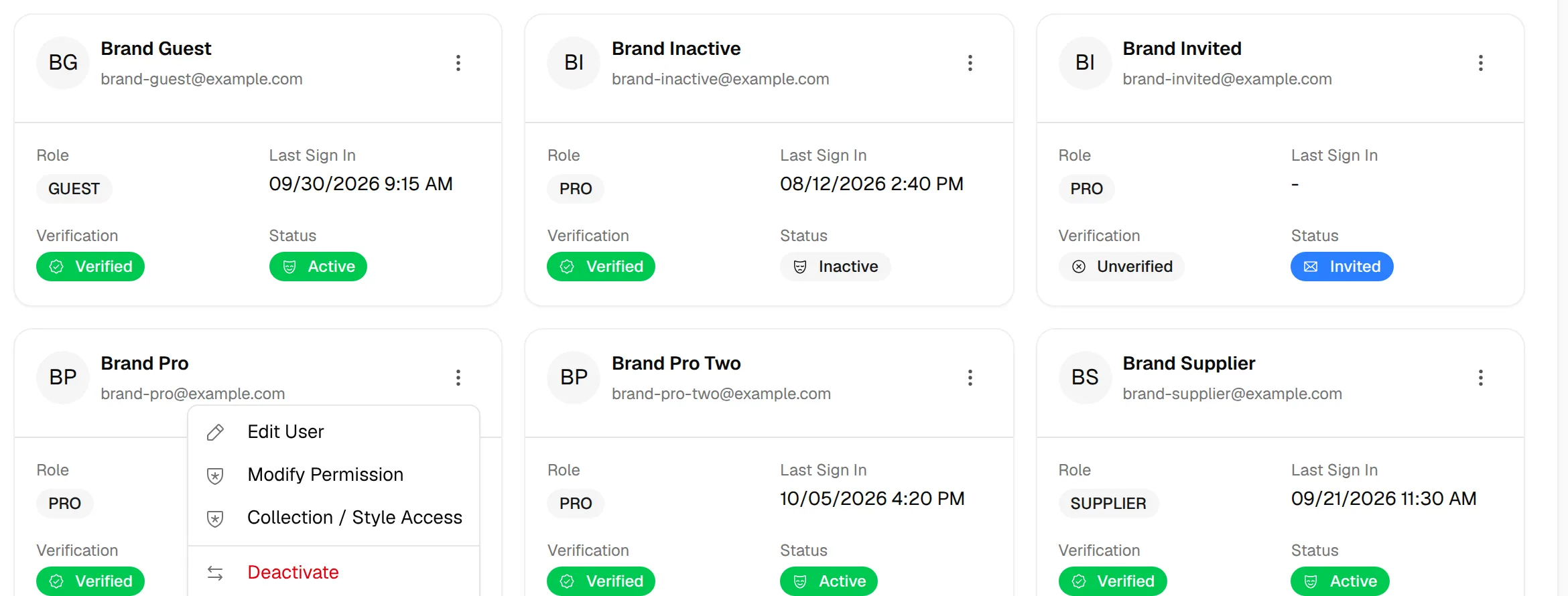
Modify brand permissions
Brand permissions apply inside one brand.
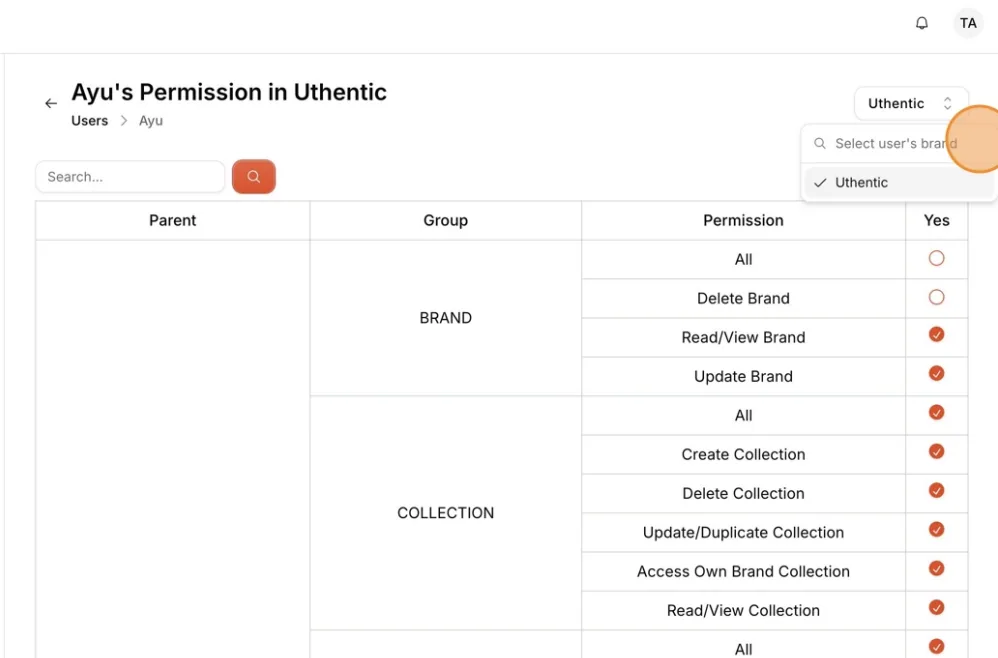
Select the brand
If the user belongs to more than one of your brands, select the brand in the selector at the top right of the page.
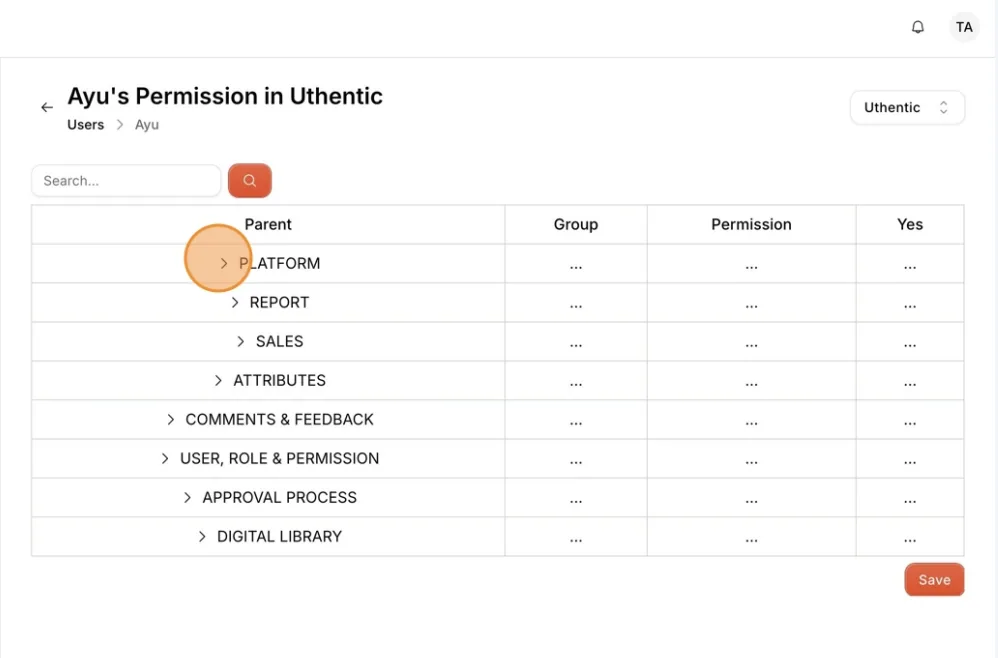
Expand a group
The table has the columns Parent, Group, Permission and Yes. Click a name in the Parent column to expand it.
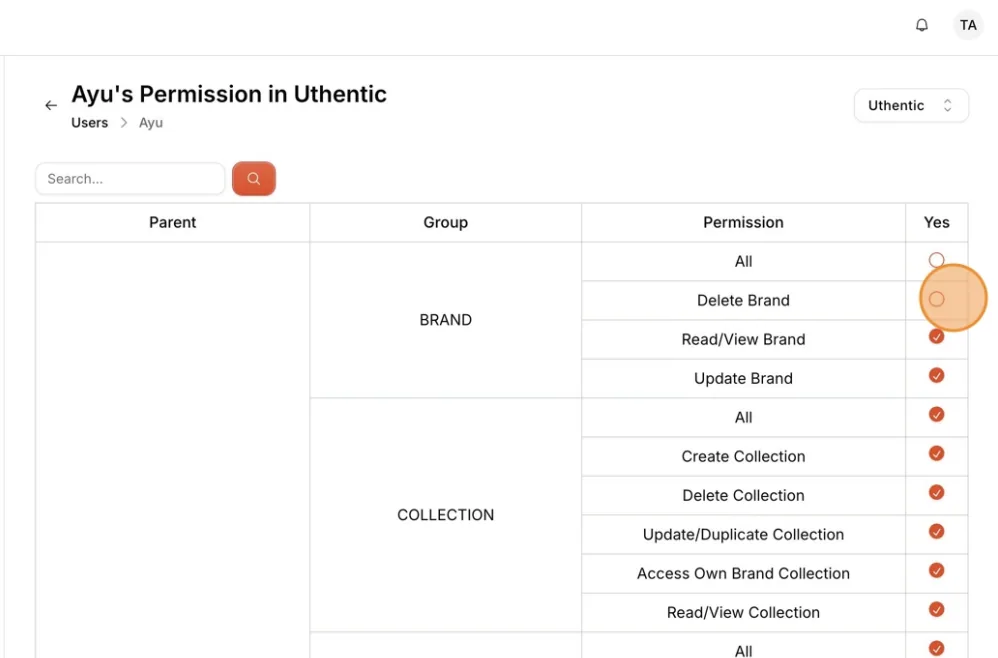
Tick the permissions
In the Yes column, tick the permissions the user needs. Tick All in a group to select every permission in it, and untick it to clear them.
Tip
Use the Search... field to find a permission. The matching groups open automatically.
Click "Save Permissions"
Click Save Permissions. The counter next to it reads X of Y permissions selected.
You see Permissions saved successfully.
Note
Users with the SUPPLIER profile are never offered the Digital ID scan permissions, so those rows are not in the list for them.
Troubleshooting
The page says "User or brand not found". The user is not in the brand you selected. Select another brand, or go back to Users.
The Save Permissions button is missing. You need the Update user permission permission.