Edit supplier
The Supplier Page (Database) stores all the information related to the suppliers created in Vestis Labs.
Under review. This page is published while we check it against the live app, so some details may have changed.
Screenshots may be out of date.
ManagementSupplier
Permission: VIEW_SUPPLIER
Find a supplier
The list shows each supplier's Name, Type, Country, Code, Contact (the first contact) and Brand. Click the Name, Type, Country or Code header to sort.
- Type in Search by name or code... to find a supplier.
- Use the Type and Country filters to narrow the list.
- Click Reset to clear the search, filters and sorting.
If there are no suppliers yet you see No supplier created, with Add New to create the first one. See Create supplier.
Edit supplier information
Select the pencil icon to edit the supplier's details in the Update Supplier window. You need the Update supplier permission. You can change everything you entered when creating the supplier: Name, Company Legal Name, Code, Type, Registration Number, the VAT and tax fields, Notes, the address and contacts, Certificates, Media and the operational information.
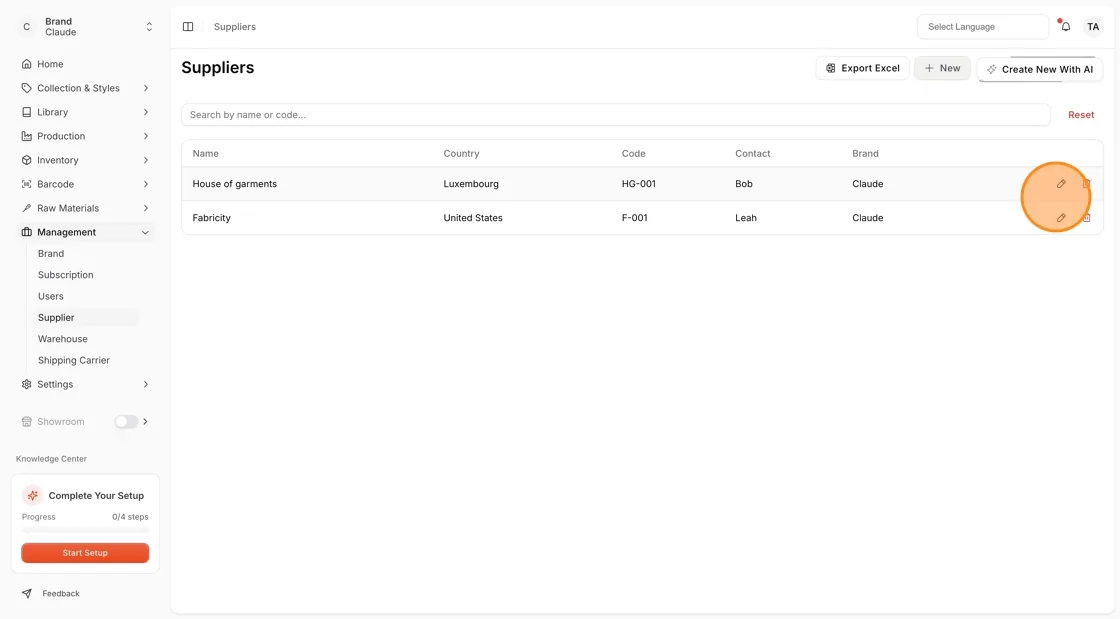
Click Save to apply the changes. You see Supplier updated successfully.
Delete a supplier
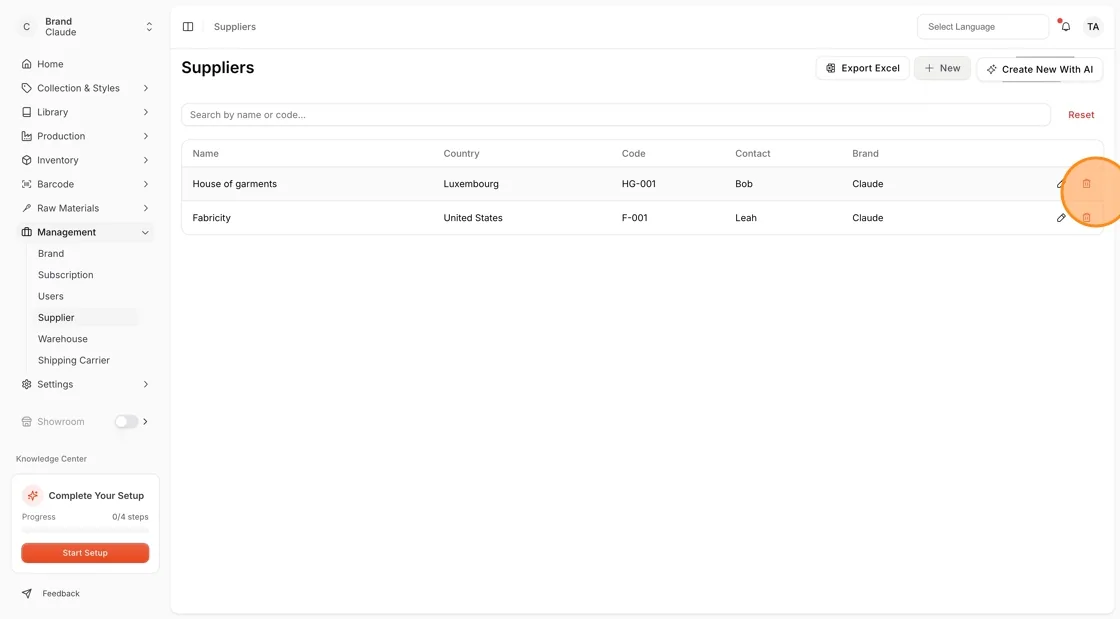
Select the trash icon to remove the selected supplier from Vestis Labs. You need the Delete supplier permission. Vestis Labs first checks whether the supplier can be deleted.
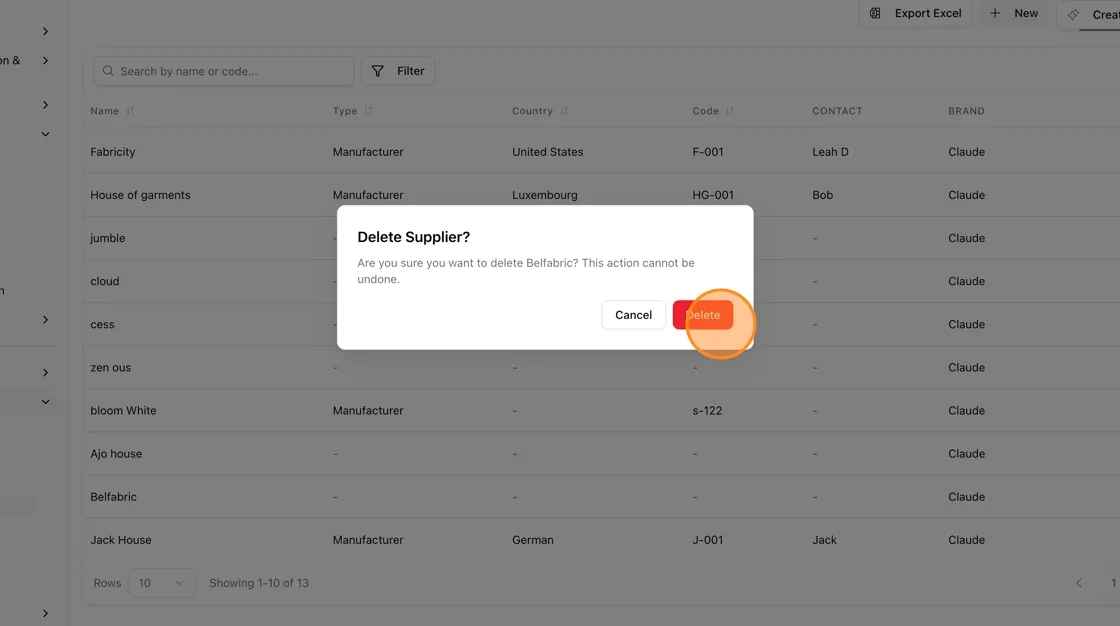
Supplier can be deleted:
A supplier can be deleted if it is not linked to any styles. Click Delete to permanently remove the supplier, or click Cancel to go back.
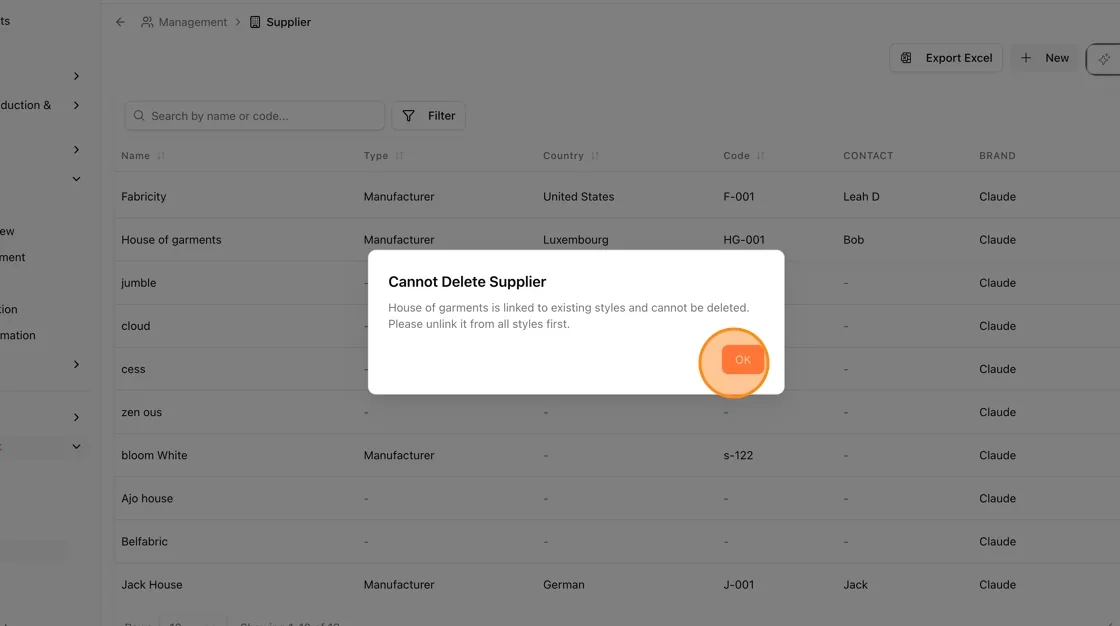
Supplier cannot be deleted:
A supplier cannot be deleted if it is linked to any styles. The message Cannot Delete Supplier asks you to unlink it from all styles first. Once unlinked, return to the Supplier list and try the deletion again.
Export to Excel
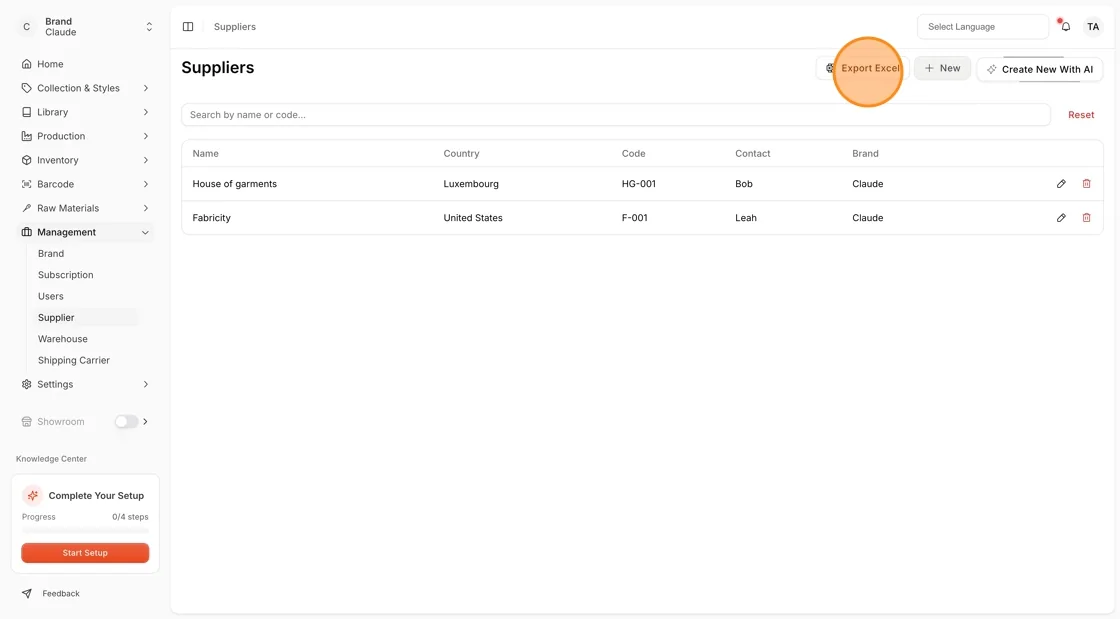
Click Export Excel to download your supplier list as an Excel file.
Note
Export Excel, New and Create New With AI are only shown to users with the Create supplier permission.