
Step 8 of 15 in Publish a Digital ID and product passport
Digital ID customization photo journal
Users can manage photo journals shared by customers.
Under review. This page is published while we check it against the live app, so some details may have changed.
Screenshots may be out of date.
Permission: VIEW_CUSTOMER_PHOTO_JOURNAL
SettingsDigital IDPhoto Journal
To access the Digital ID Customization Page, go to Settings > Digital ID on the left bar menu . Select Photo Journal.
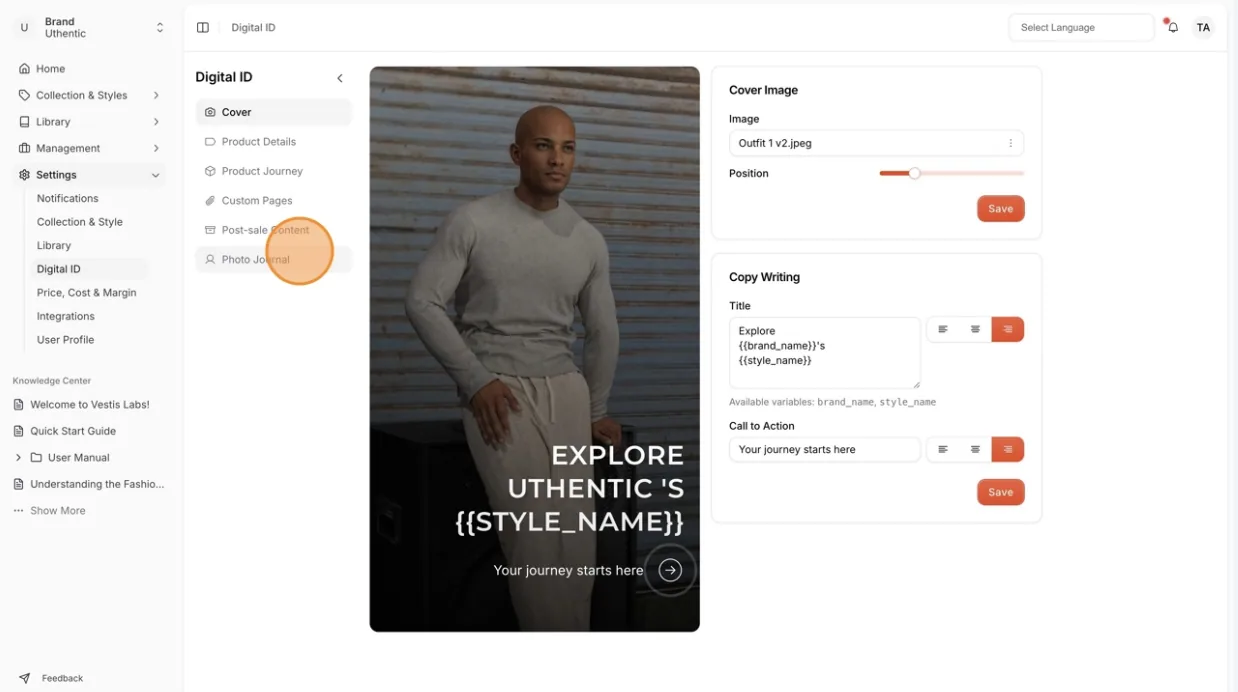
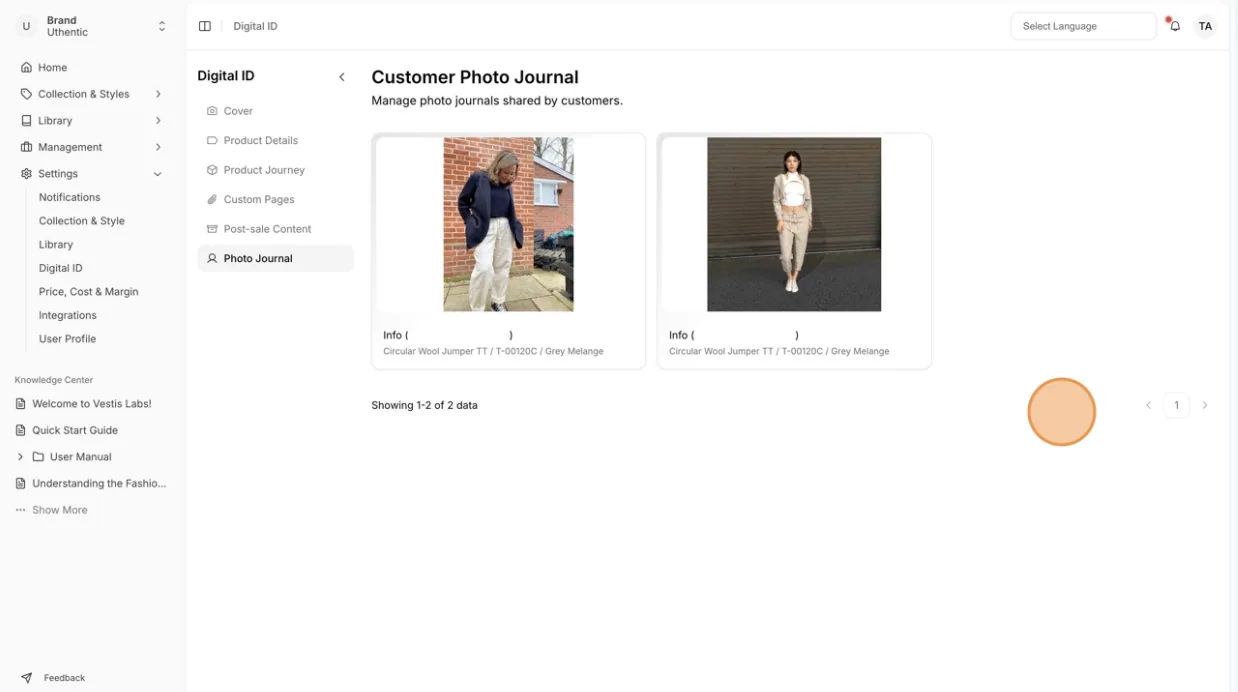
The Photo Journal Page will display all the photo collections shared by your customers from the post-sale content you have created in your Digital ID.
Note
Customers can only share photos if Customer Photo Journal is turned on in Post-sale content.
Browse the shared photo journals
Each card shows the first photo, the customer name and email, the style name, style code and colourway, and the first 50 characters of the caption.
Scroll the list
The page shows 12 photo journals at a time. If none have been shared yet, it shows No Photo Journal shared.
Go to the next page
Click Next or Previous under the cards. The text on the left shows which journals you are looking at, for example Showing 1-12 of 30.
Open a photo journal
Click a card to open its detail page.
View one photo journal
The detail page shows Photo Journal with Shared by and the customer name (or email).
Look through the photos
Click the arrows on the large photo, or click a small photo below it, to move between photos. Click the large photo to open a full-screen view with Previous, Next and a counter such as 1 / 3.
Read the details
The Details card lists Style, Color, Customer Name, Email, Added on, Caption and Tags.
Click "Share"
Click Share at the top right to share the page link through your device. If your browser does not support sharing, a message tells you so.
Click "Download images"
Click Download images to save every photo of the journal to your computer.
Click "Back to list"
Click Back to list to return to all photo journals.
Important
Download images only appears if you have the permission to download and send customer photo journals.