
Open a style from a collection
Open the styles inside a collection, create a new style there, and find every tab of the style page when you arrive through the Collection menu.
You can reach a style in two ways: from Styles in the left sidebar, or from a collection. Both lead to the same style page with the same tabs. This guide shows how to open the styles of one collection, how to add a style to it, and which tab holds what.
Collection & StylesCollectionView Styles
Permission: VIEW_COLLECTION,VIEW_STYLE
Open the styles of a collection
Open the Collection Page
From the left sidebar, click Collection & Styles, then Collection.
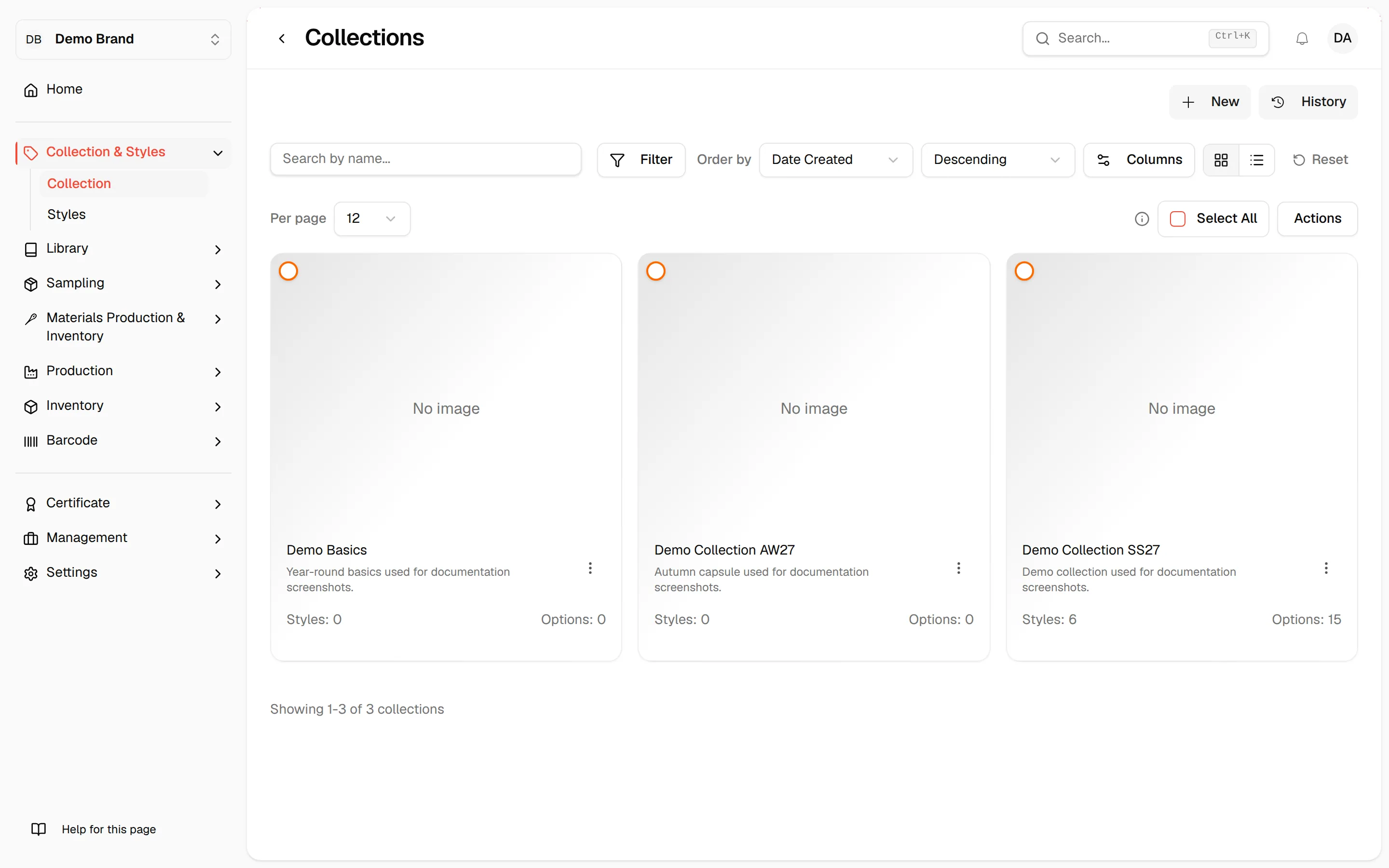
Open the collection
Click the collection's cover picture, or open its three-dot menu and select View Styles.
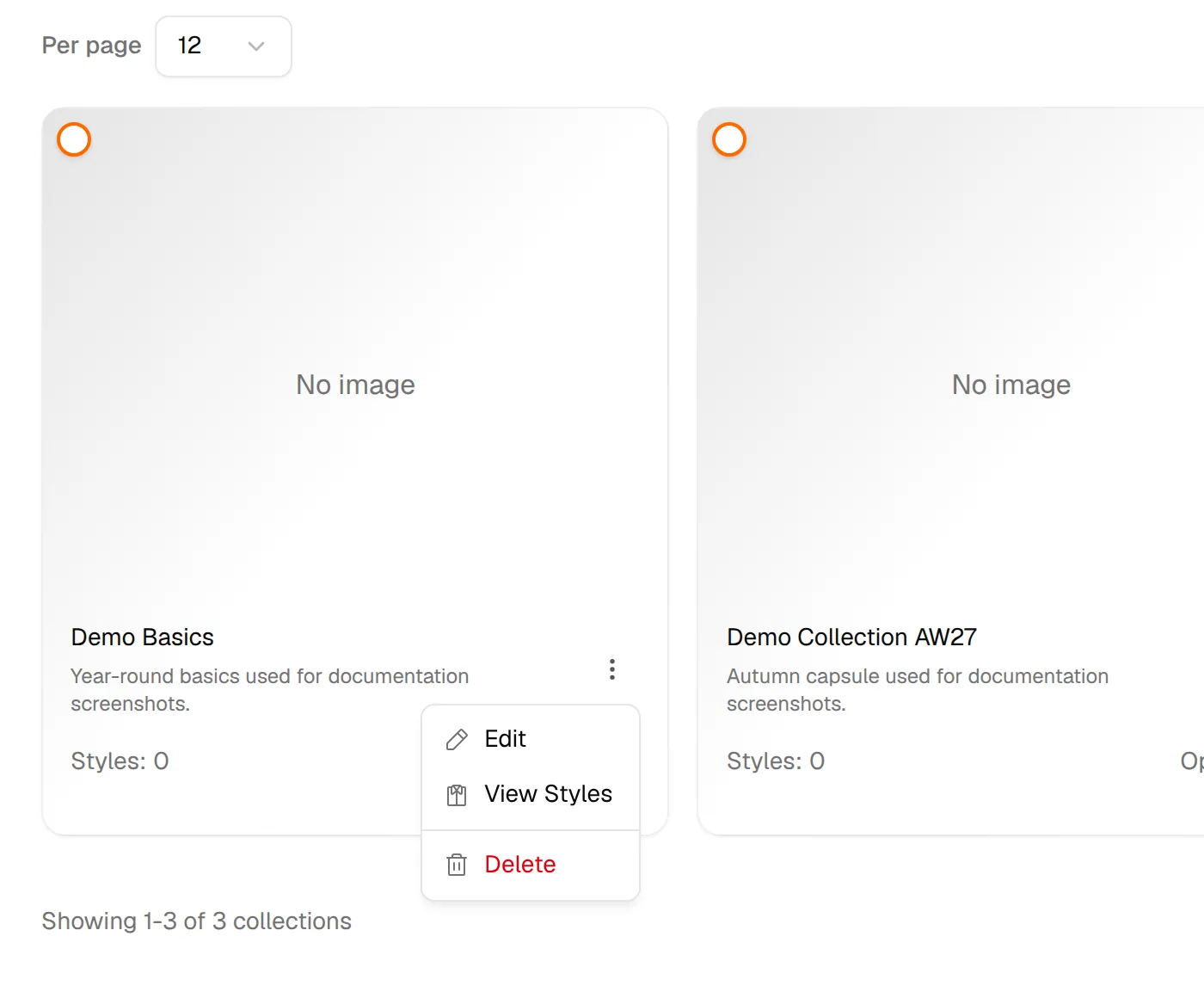
Find your style
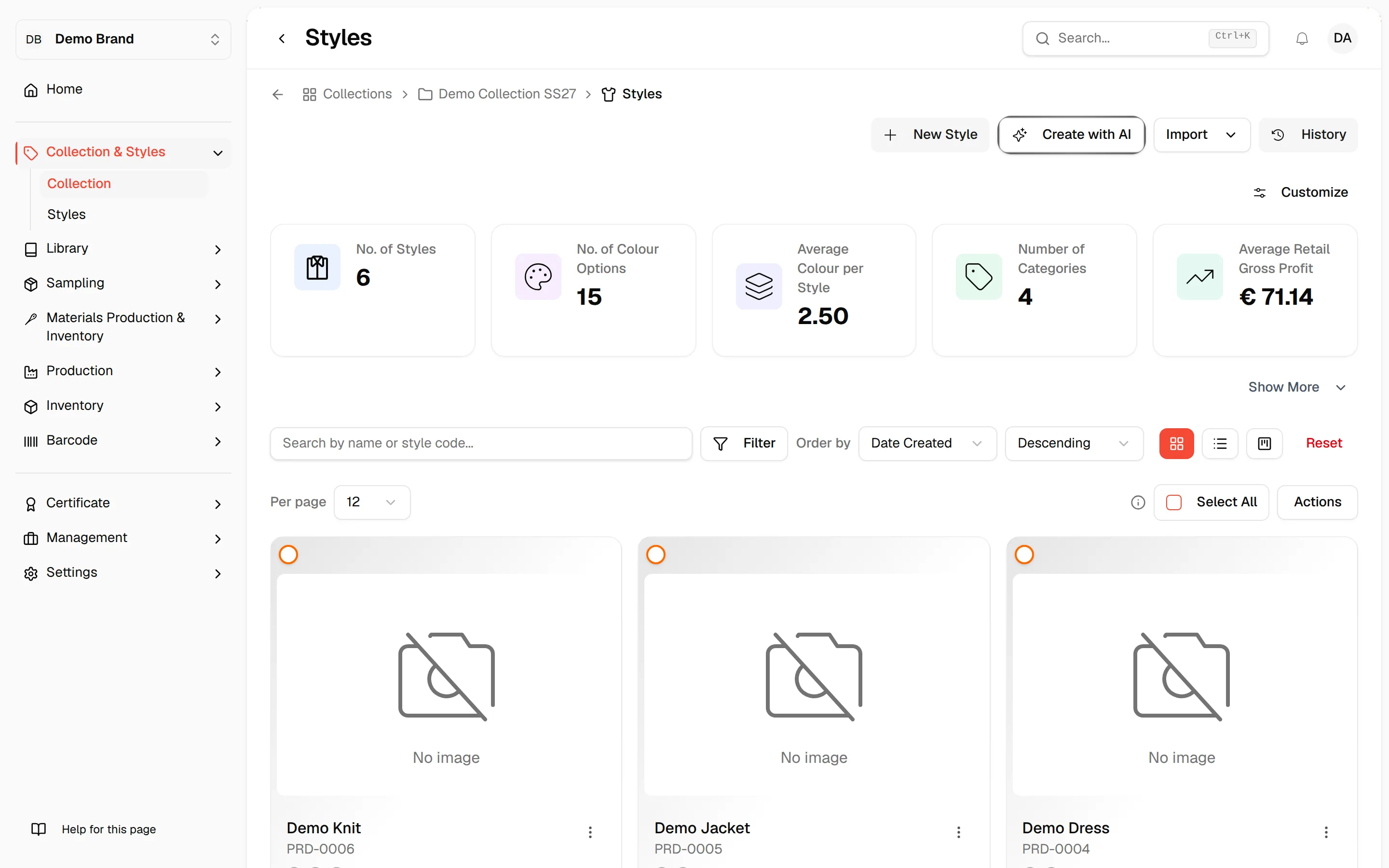
The Styles page lists only the styles of that collection. It works like the main Style dashboard, with the same search, filters, views and actions.
Note
View Styles is only offered if you can view styles. The breadcrumb at the top of the page shows the collection name and Styles, so you can return to the collection list from there.
Add a style to the collection
Permission: CREATE_STYLE
On the Styles page of a collection, click New Style to open the form that creates a style inside this collection. Next to it, Create with AI starts the AI style generator, and Import and History complete the row. Both need the permission to create styles. The steps for filling in the form are in Create a new style.
When your plan's style limit is reached, New Style is disabled and the page shows a message that the limit has been reached, with a link to upgrade your plan. In the empty state, the page shows No Style Created with a New Style button.

The tabs of a style
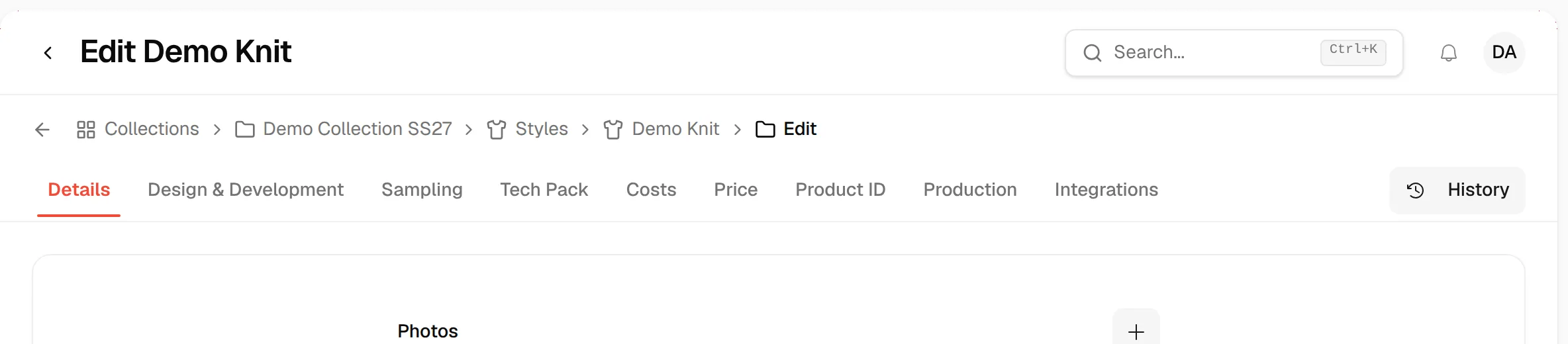
Click a style to open it. A tab bar runs across the top of the style page, and the style name is shown in the breadcrumb. The History button at the right end of the bar shows the changes made to this style.
Some tabs only appear when the feature is turned on for your brand, so you may see fewer tabs than listed here.
| Tab | What it holds | Guide |
|---|---|---|
| Details | The key style information, such as name, code, season, category, colours and suppliers, which you can edit. | Style details |
| Design & Development | The staged board where you upload inputs, review and approve each stage. | Design and development stages |
| Sampling | The sample requests of this style. Shown when Sampling is on. | Style sampling |
| Tech Pack | Sub-tabs Overview, Bill of Material and Measurements (the last one needs the Measurements feature). Shown when Tech Pack is on. | Tech pack overview |
| Costs | Sub-tabs Materials and Total. Shown when style costs are on. | Material cost page |
| Price | Pricing of the style. Shown when style costs are on. | Style pricing |
| Product ID | The Digital ID, passport, size chart and other customer-facing pages of the style. | Product ID tab |
| Production | Production work for this style. Shown when batch production is on. | See below |
| GEO Readiness | The style's GEO readiness. Shown when GEO Readiness is on. | GEO readiness |
| Integrations | Sub-tabs Ecobalyse and Shopify. | See below |
Tech pack sub-tabs
- Overview: the tech pack of the style. See Tech pack overview.
- Bill of Material: the materials used by the style. See Tech pack bill of materials.
- Measurements: measurement cards of the style. See Tech pack measurements.
Costs sub-tabs
- Materials: the cost of each material in the style, see Material cost page. It needs the permission to view costs.
- Total: the full cost build-up of the style, see Pricing and cost analysis. It needs the permission to view costs.
The Price tab needs the permission to view prices.
Production sub-tabs
The Production tab needs permission to update products and to view brand production. Its sub-tabs depend on the features turned on for your brand.
- Production Details: production orders for the style, see Style production orders.
- Create Order: place a production order for the style, see Create order.
- Shipping: shipments of the style with the sub-tabs Active Shipments, Delivered, Analytics and Documents, see Shipping. People who can update brand production also get Columns and a button to create a shipment.
- Batch Production: the production batches of the style, see Batch production. Opening one batch shows its detail page.
- SKU: the SKU codes of the style, see SKU codes.
Integrations sub-tabs
- Ecobalyse: connects the style to the Ecobalyse environmental calculator, see The Ecobalyse integration.
- Shopify: connects the style to Shopify, see Style sync configuration.
Cards in design and development
Click a card on the Design & Development tab to open the card's workspace. See Collaboration for comments and annotations and Download function for downloads.