Composition category settings
This article outlines best practices for setting up and using composition categories in Vestis Labs to support clear organisation and consistent classification of material compositions…
Under review. This page is published while we check it against the live app, so some details may have changed.
Composition category – admin setup
This article outlines best practices for setting up and using composition categories in Vestis Labs to support clear organisation and consistent classification of material compositions throughout the product development process.
Introduction & best practice
Composition categories in Vestis Labs help group materials based on their fibre content or blend type, ensuring clarity and standardisation across your libraries and workflows. By assigning categories—such as cotton blends, synthetic blends, natural fibres, recycled fibres, or performance materials—you create a structured system that improves filtering, reporting, and collaboration between teams.
While composition categories are optional, using them is highly recommended to maintain a scalable and well-organised material library as your assortment expands.
SettingsLibraryComposition Category
Permission: VIEW_STYLE,VIEW_PRODUCT,UPDATE_PRODUCT
Step-by-step guide
Create composition category
Navigate to Settings > Library. Select Composition Category.
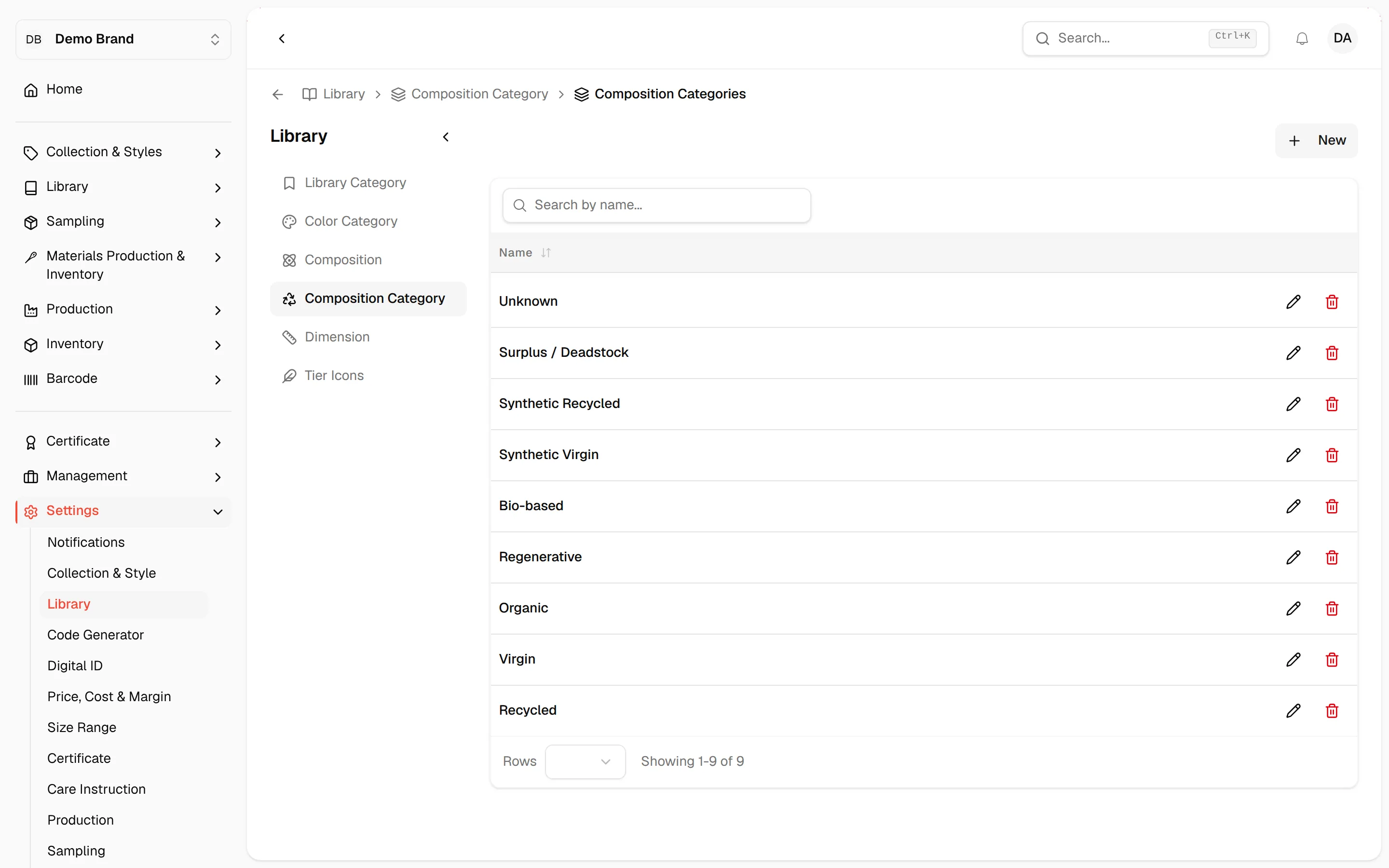
- Click the '+ New' button - a composition category Page will show up.
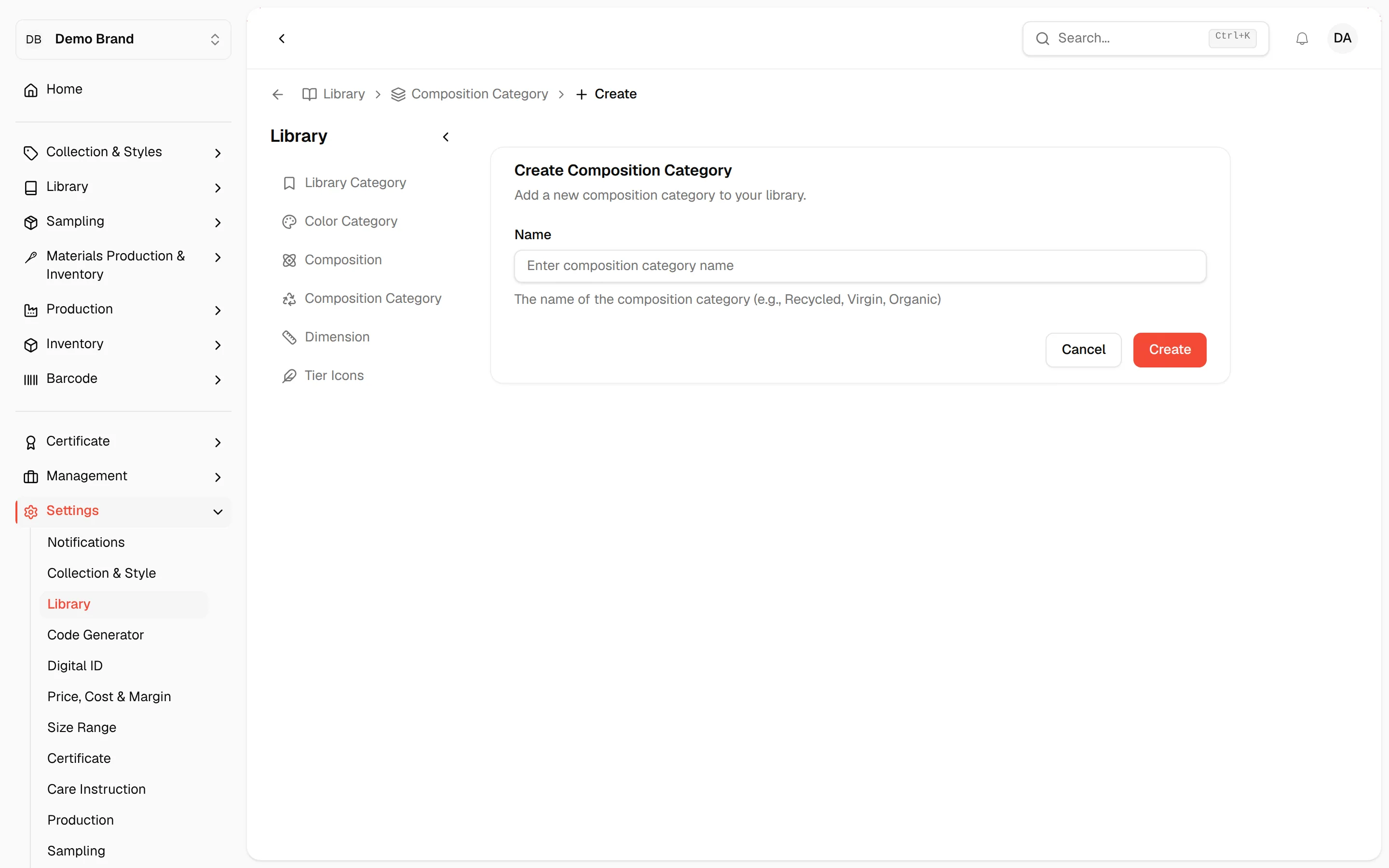
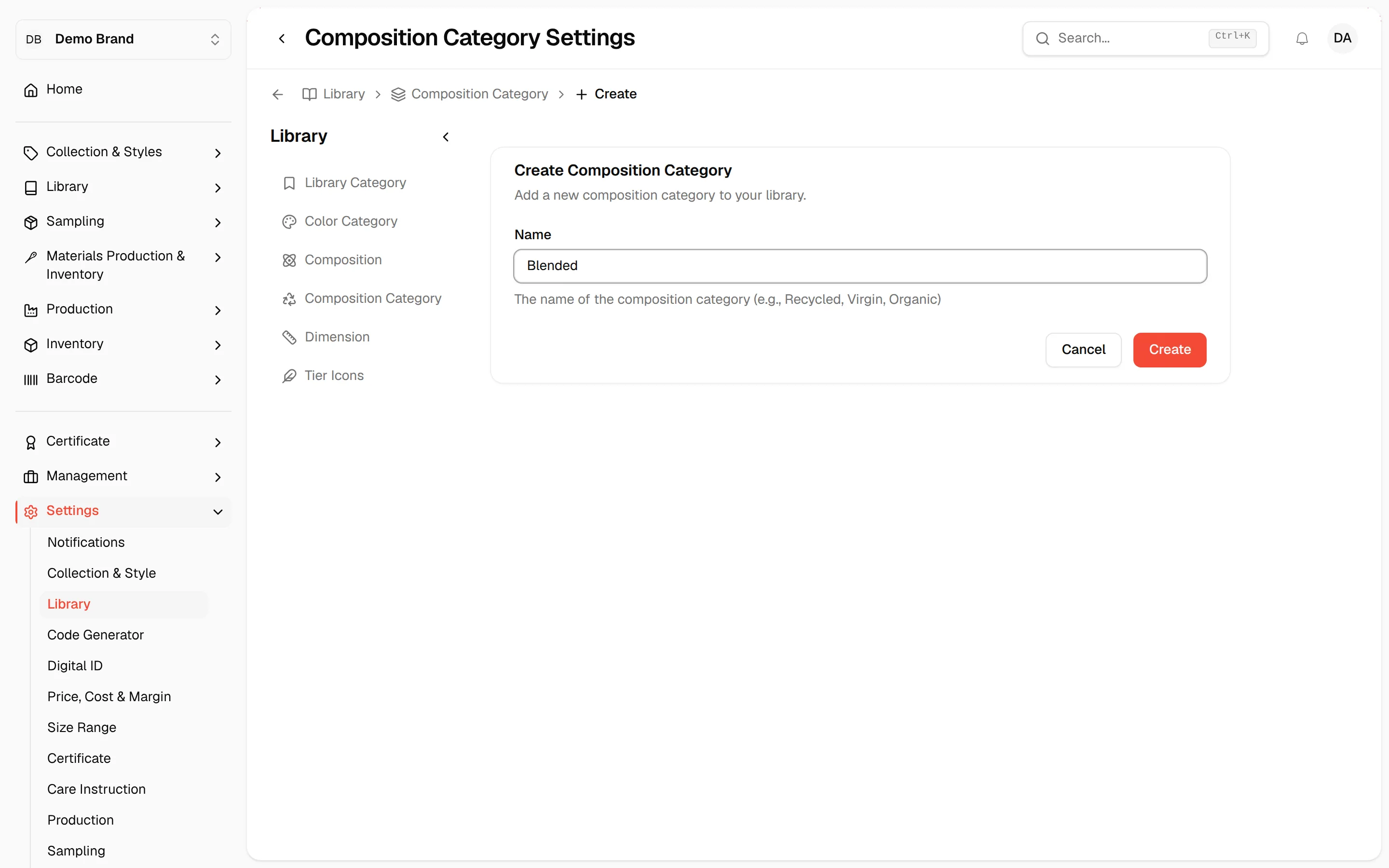
- Name - mandatory. Enter the composition category name, for example Recycled, Virgin or Organic.
- Click Create to finish
Edit composition category
The created Composition Category will be displayed and can be managed on the Composition Category Page. This page stores all information related to the composition categories configured in the Composition Category section within Admin Settings.
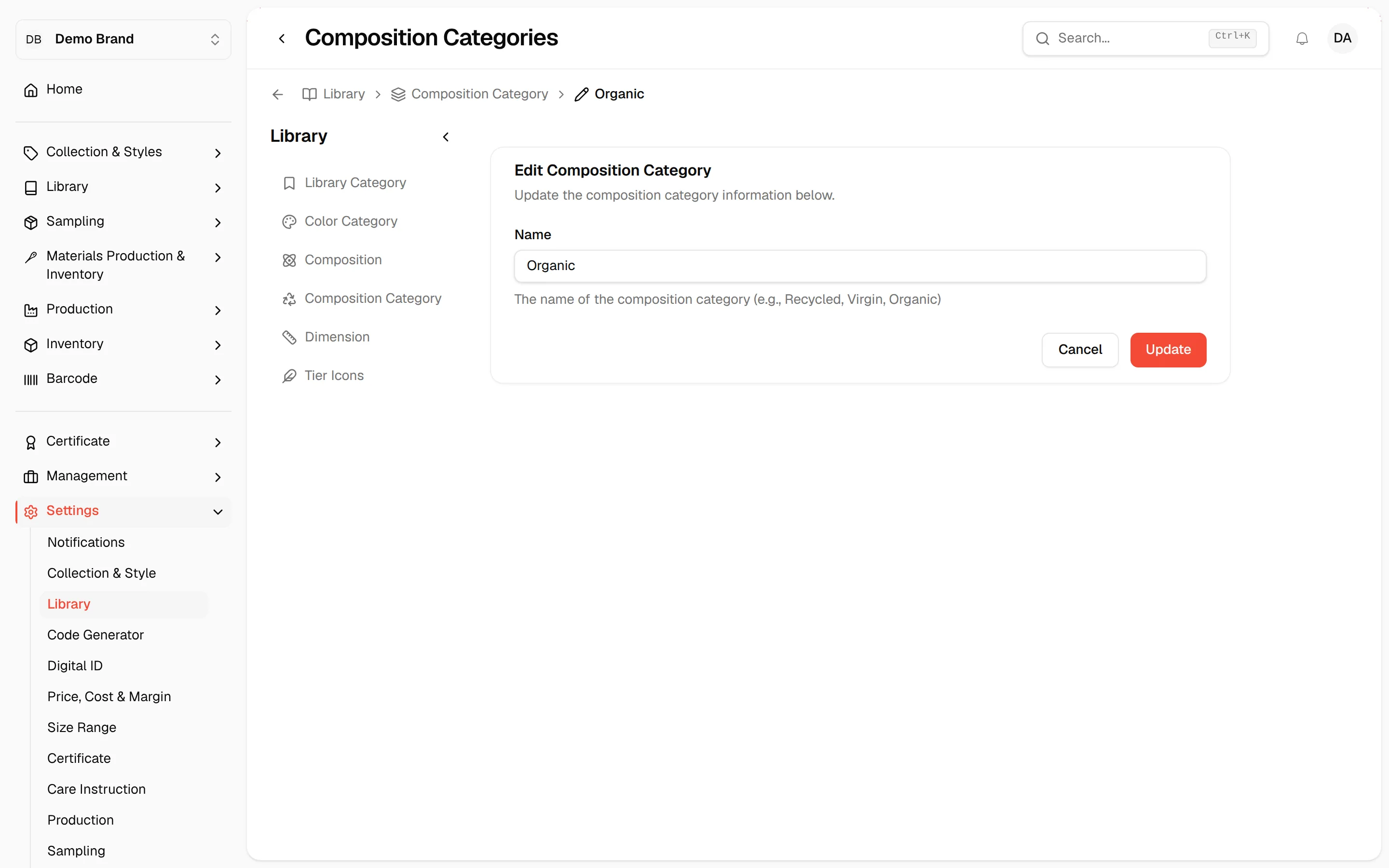
- To change the composition category - Click on the 'pen' icon on its row. The Edit Composition Category page opens
- Change the Name
- Click Update to finish
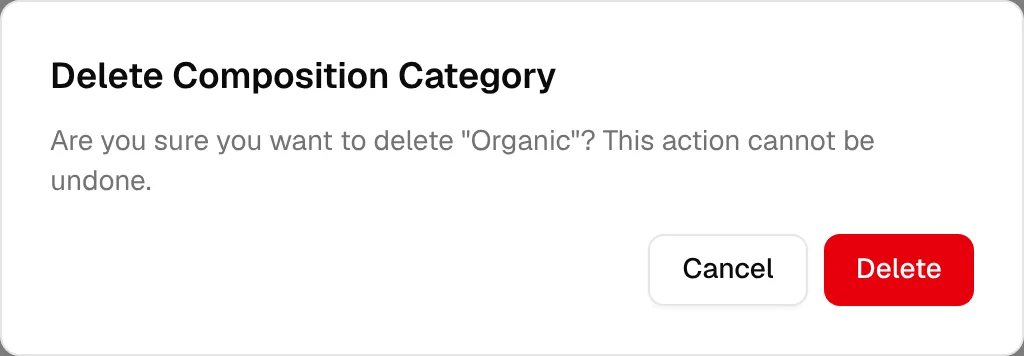
- Select the 'trash' icon (needs the delete product permission) and confirm in the Delete Composition Category window to remove the selected composition category from Vestis Labs. This cannot be undone.
Tip
Use the Search by name... field above the list to find a category, and click the Name column header to sort.