
Step 8 of 13 in Place and track a production order
Update actual production dates
Record when production really started, finished and left the factory, so the order timeline and production health stay accurate.
The actual dates of a production order are when production really started, when it really finished and when the goods really left the factory. Record them as the order progresses. They appear next to the agreed dates on the Production Orders list, and they can change the production health of the order.
ProductionOrder Managementthree-dot menuView/Edit
Permission: UPDATE_ACTUAL_PRODUCTION_DATE
Before you start
- You need the Update actual production date permission. Without it, neither Update actual date nor the Edit button on the Actual Dates card is shown.
- To change the dates you planned with the supplier, use Amend agreed production dates instead.
Update one date
Use this when one milestone has just happened.
Open the order
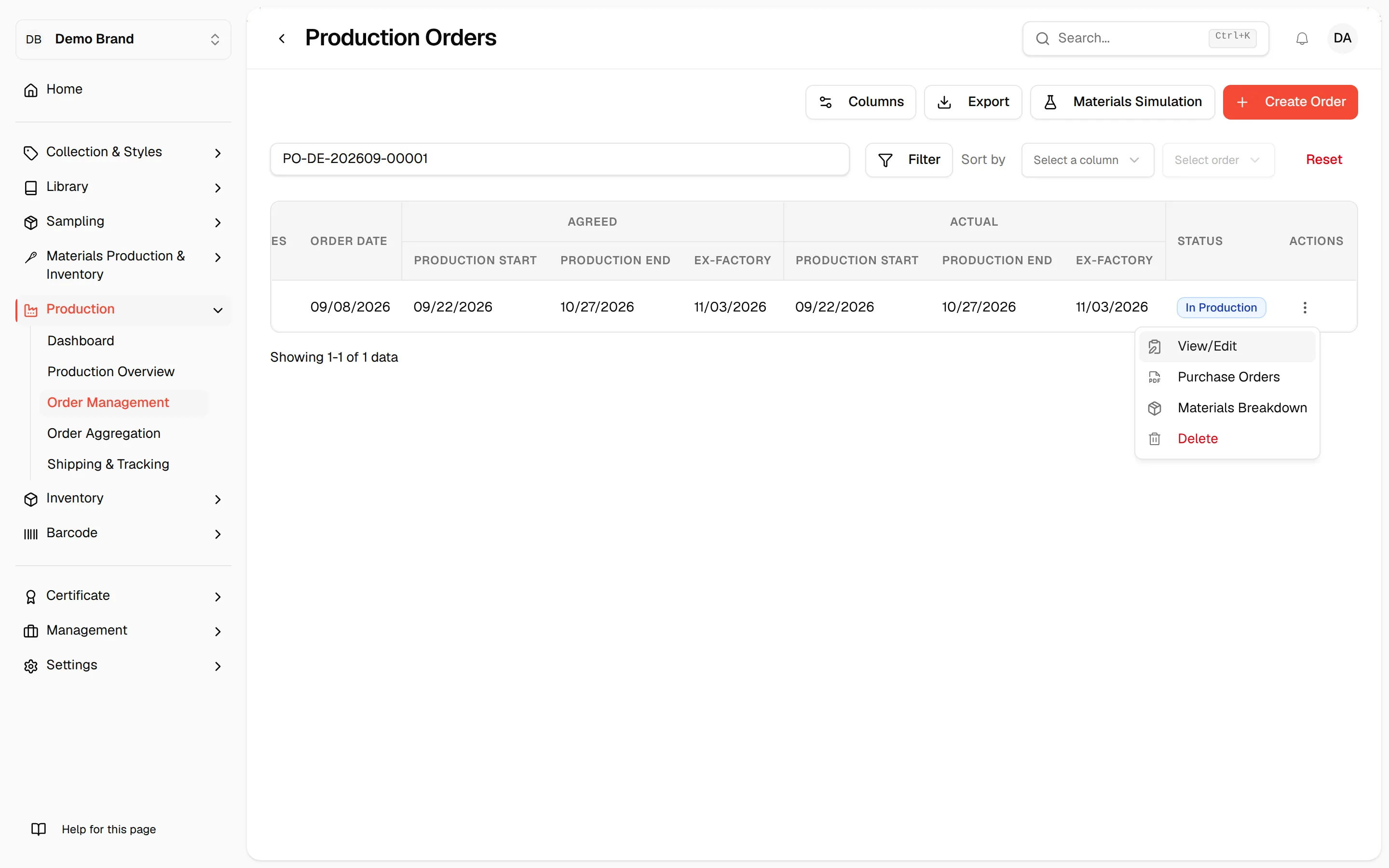
On the Production Orders page, select the three-dot action button on the order's row and click View/Edit.
Click "Update actual date"
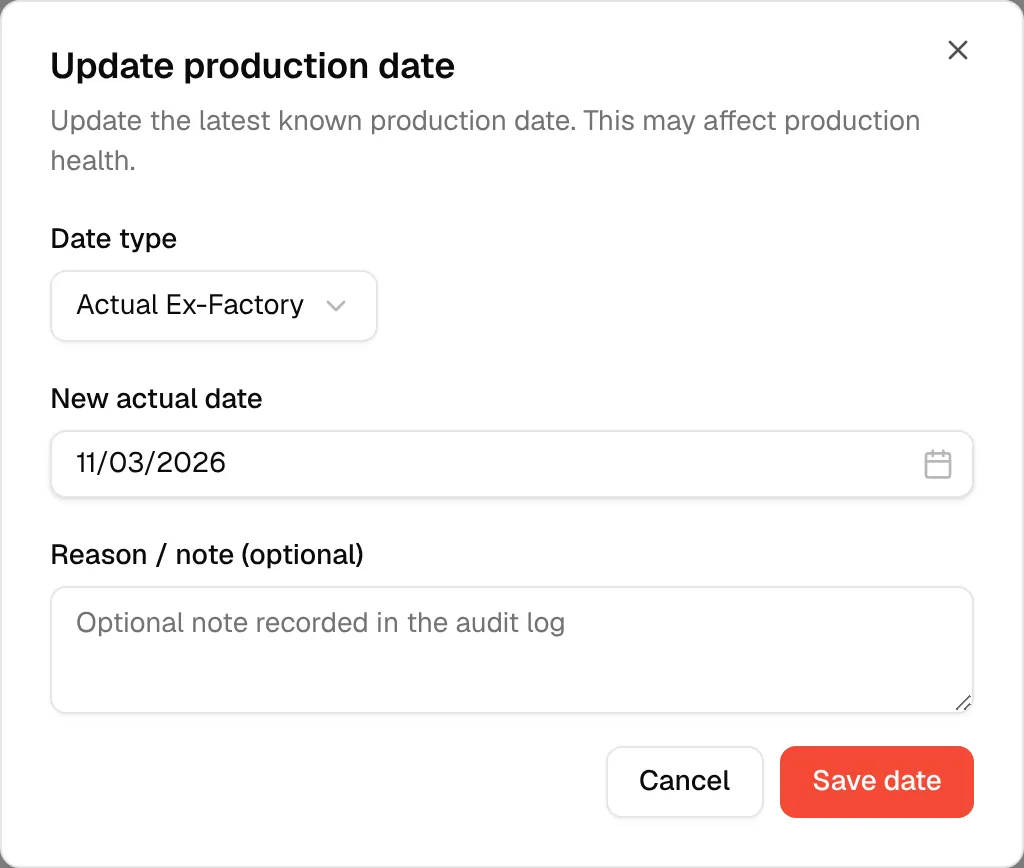
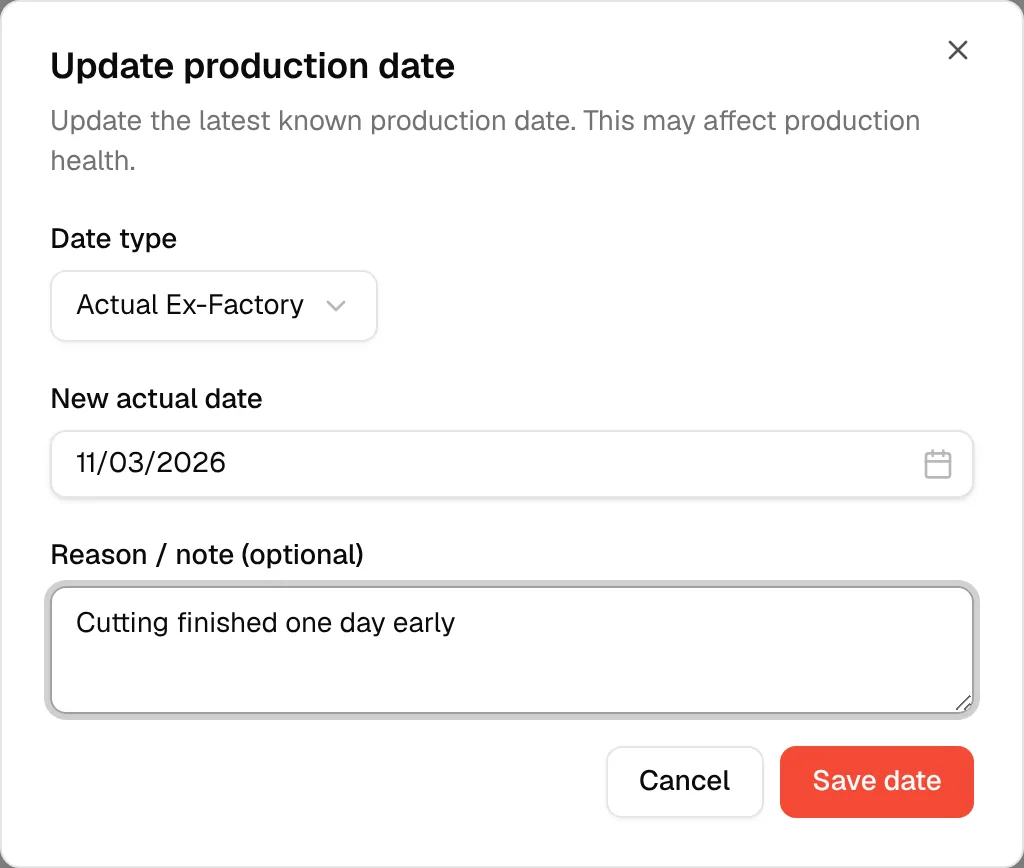
Click Update actual date at the bottom of the order dialog. The Update production date dialog opens: "Update the latest known production date. This may affect production health."
Select the date type
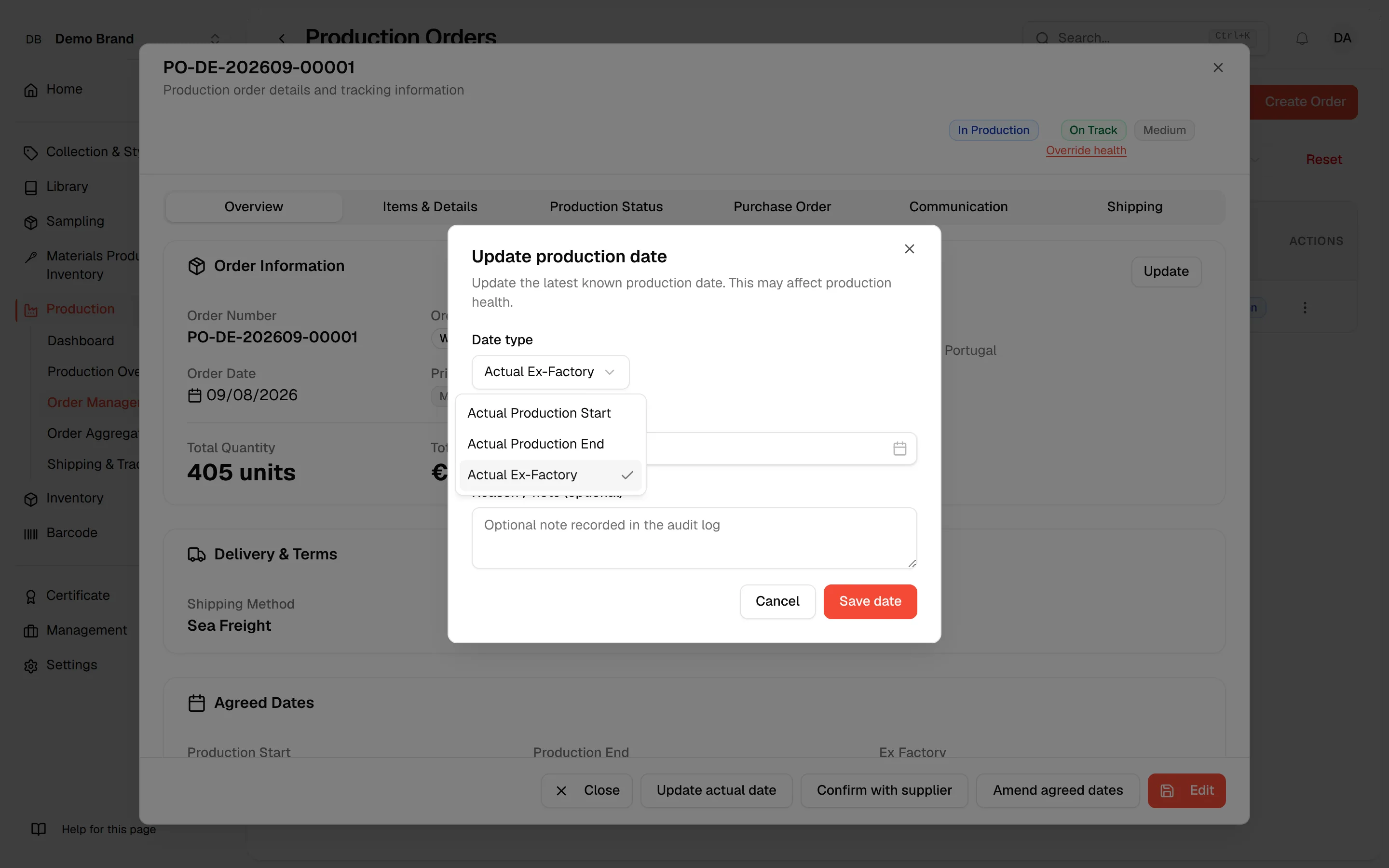
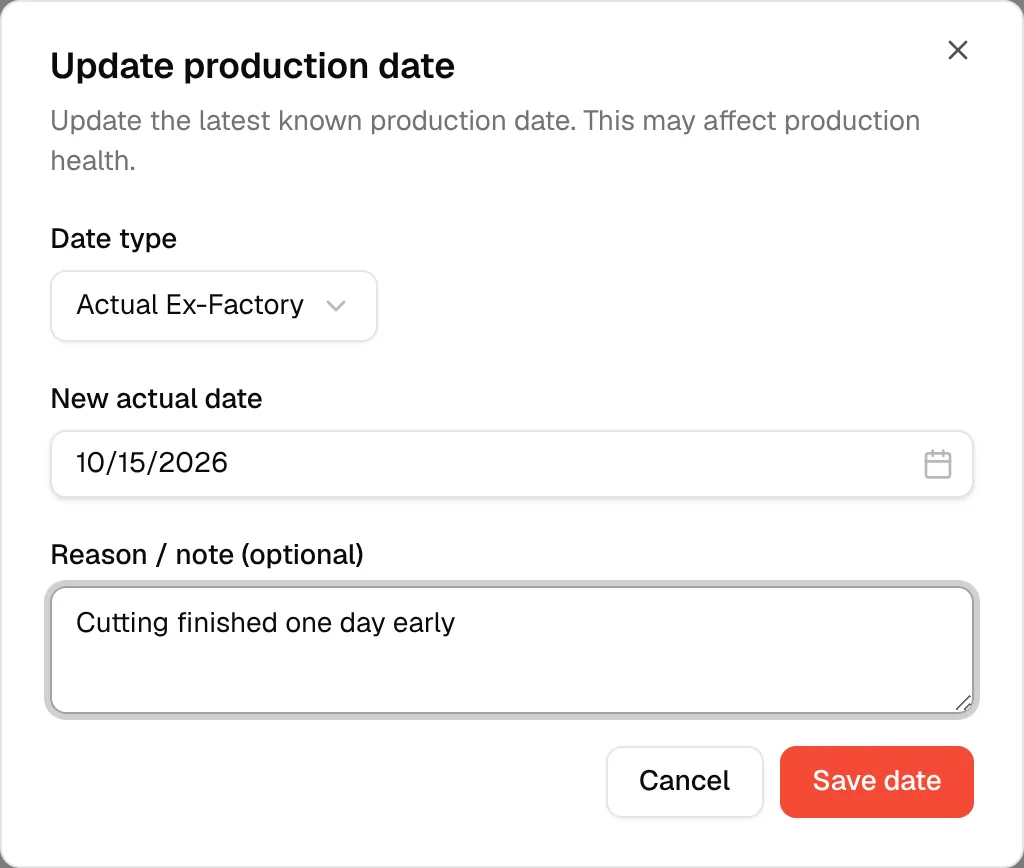
In Date type, select Actual Production Start, Actual Production End or Actual Ex-Factory. Actual Ex-Factory is selected when the dialog opens, and the date field shows the date already recorded for the type you pick.
Choose the new date
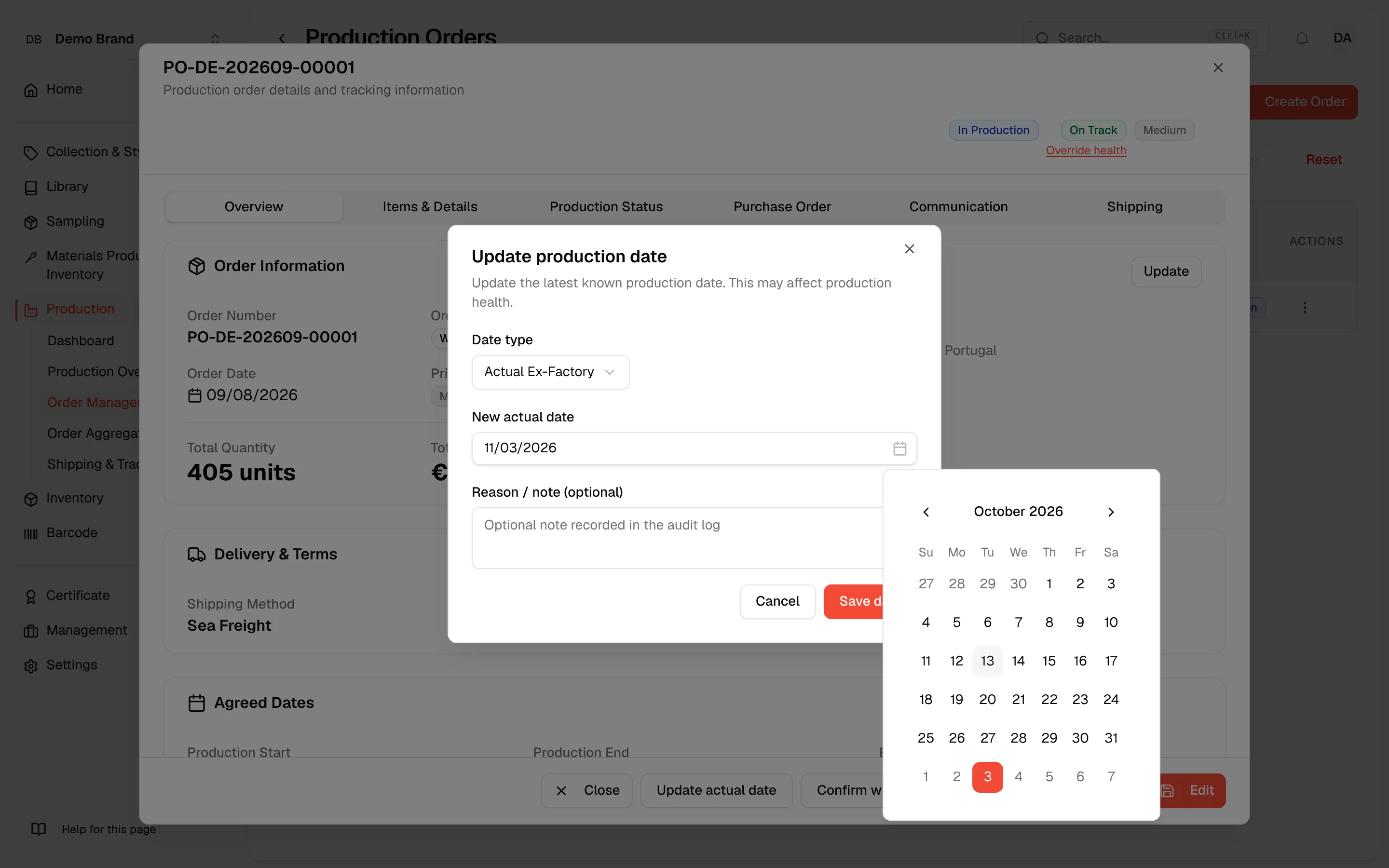
Pick the date in New actual date.
Add a note (optional)
Type a note in Reason / note (optional). The note is recorded in the audit log.
Click "Save date"
Click Save date. The button stays disabled until you choose a date.
Edit all three dates at once
Open the Overview tab
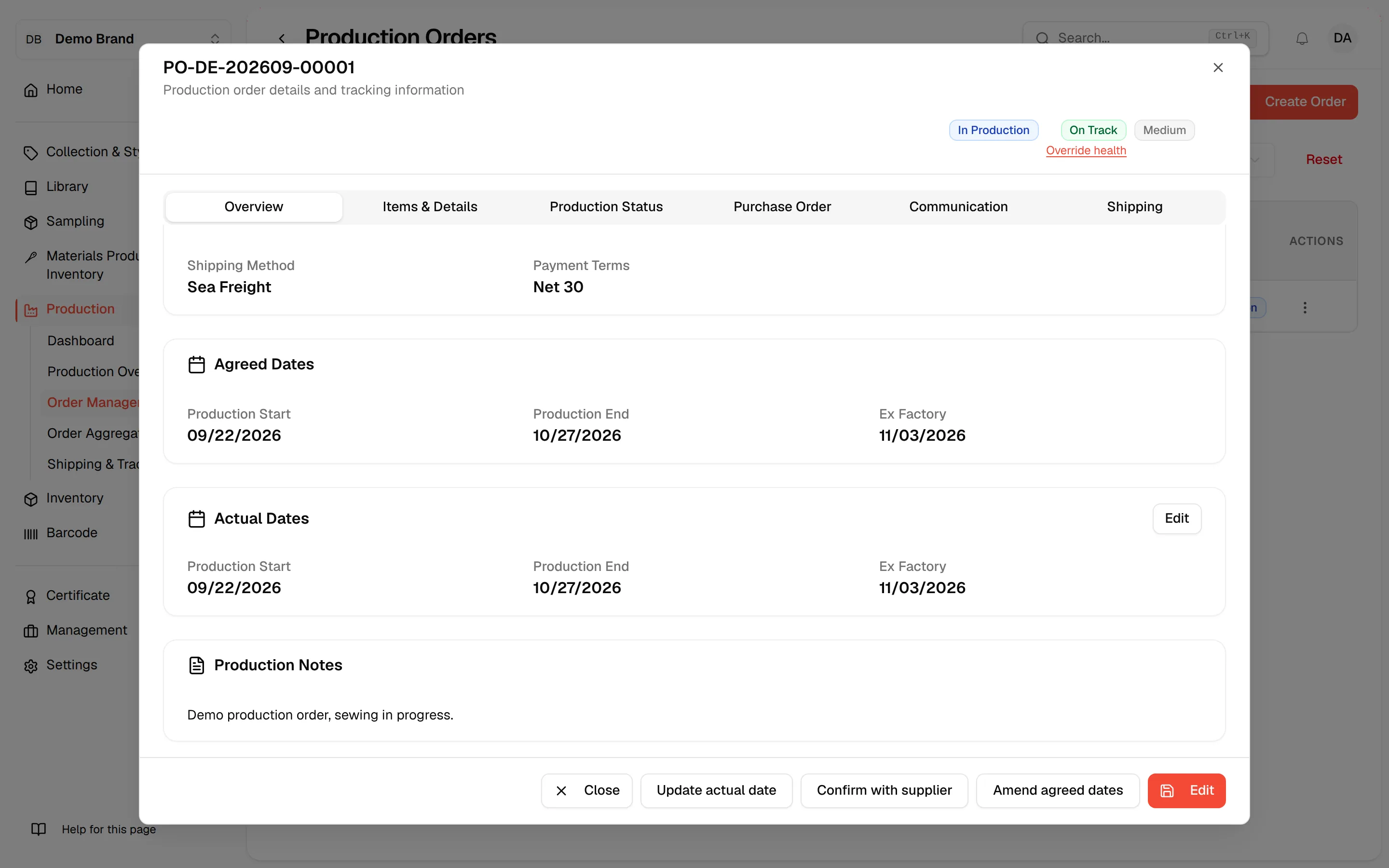
In the order dialog, stay on the Overview tab and find the Actual Dates card.
Click "Edit"
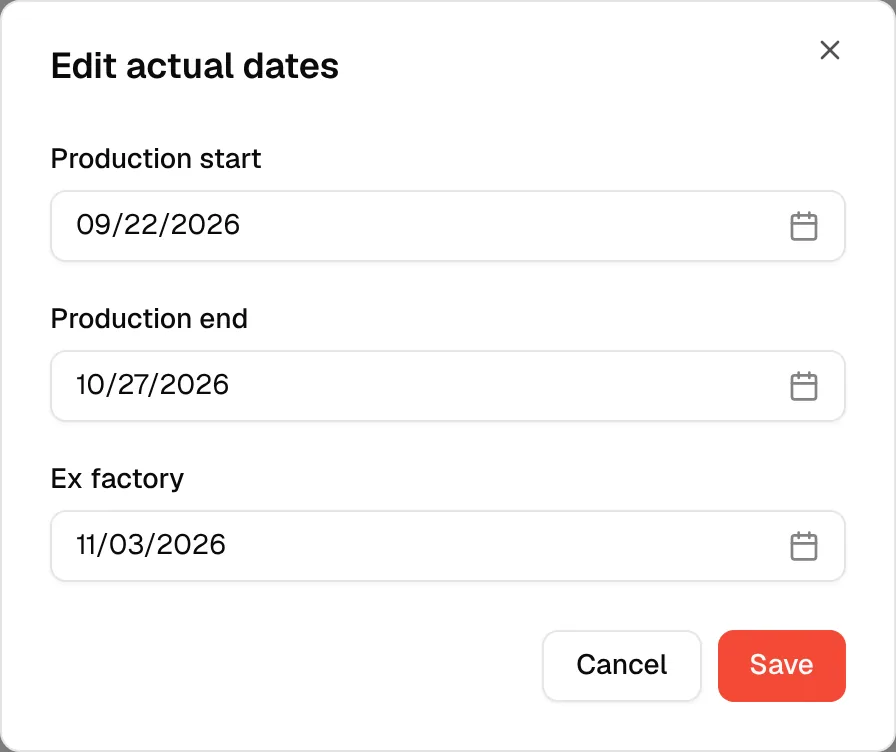
Click Edit on the card. The Edit actual dates dialog opens.
Set the dates
Pick Production start, Production end and Ex factory. Each field shows Pick a date while it is empty.
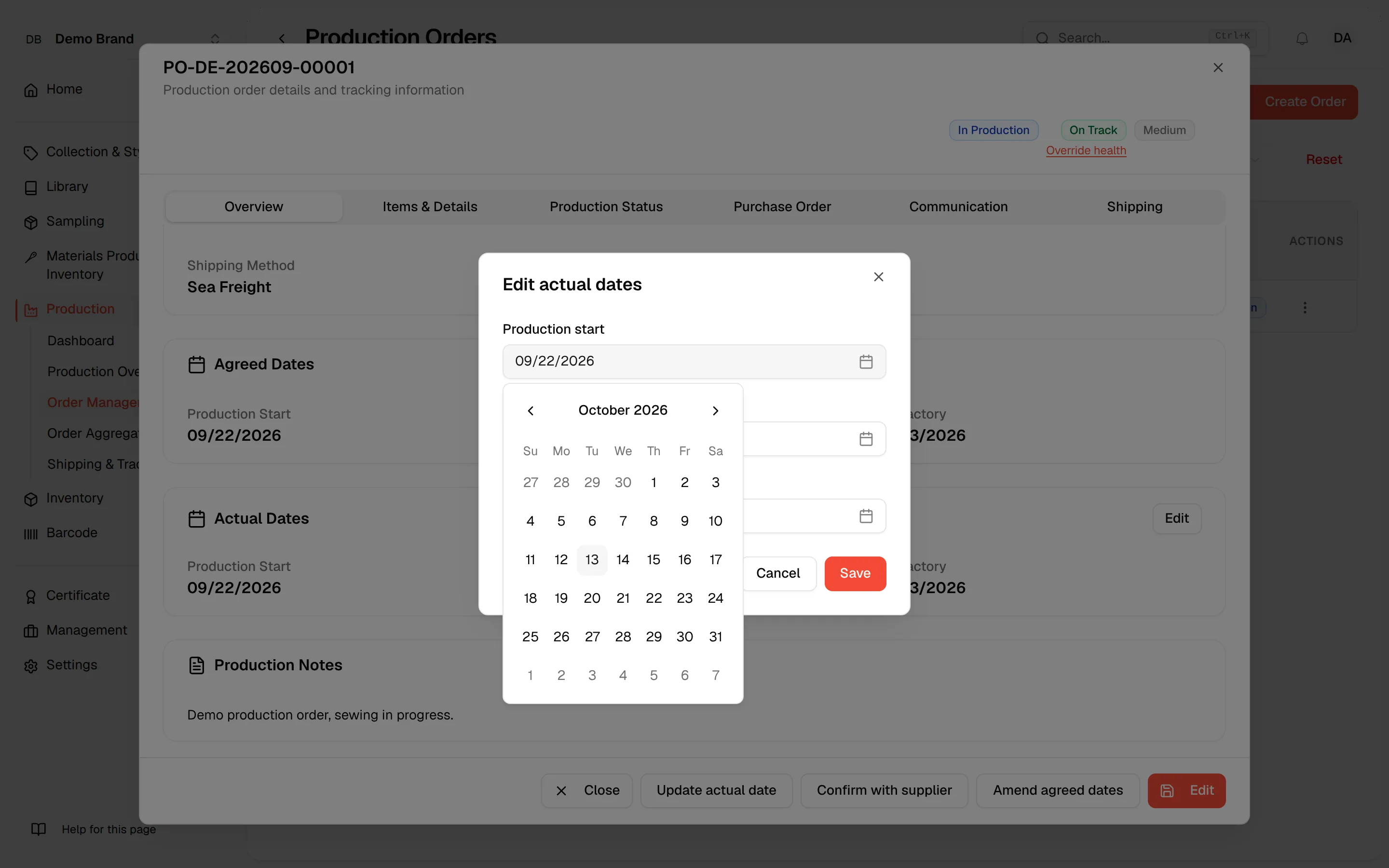
Click "Save"
Click Save to store the dates.
Note
Until an actual date is recorded, the Actual Dates card shows the agreed date for that milestone, and the Edit actual dates dialog starts from it.
Where the dates show
On the Production Orders list, the Actual column group holds Production Start, Production End and Ex-Factory. Use Manage Columns to show or hide them. See Production orders.