
Manage the raw material production order
Users can manage the Raw Material Production Order by creating, editing, and monitoring all production activities efficiently.
Under review. This page is published while we check it against the live app, so some details may have changed.
Screenshots may be out of date.
Users can manage the Raw Material Production Order by creating, editing, and monitoring all production activities efficiently. The Order Management page lists every raw material production order and is where you open, edit, export or delete them.
Materials Production & InventoryProductionOrder Management
Permission: VIEW_MATERIAL_PRODUCTION
Find an order
Use the toolbar above the table to narrow the list.
- Search: Type in the search field (Search by production #, factory...).
- Filters: Use the Status, Category and Supplier filters. Click Reset to clear them.
- Sort: Sort by Production #, Category, Order Date, Production Start, Production End, Ex-Factory or Status.
- Columns: Click Columns and check or uncheck the columns you want to see. Your choice is saved for next time.
- Export: Click Export, then Export to Excel or Export to PDF to download the list as currently filtered.
Note
The table shows 10 orders per page. Use the page controls under the table to move between pages.
If there are no orders yet, the page shows No production orders found. Users who can create orders also see an Add New button there.
Order actions
In Order Management, click the three-dot action button at the end of an order row.
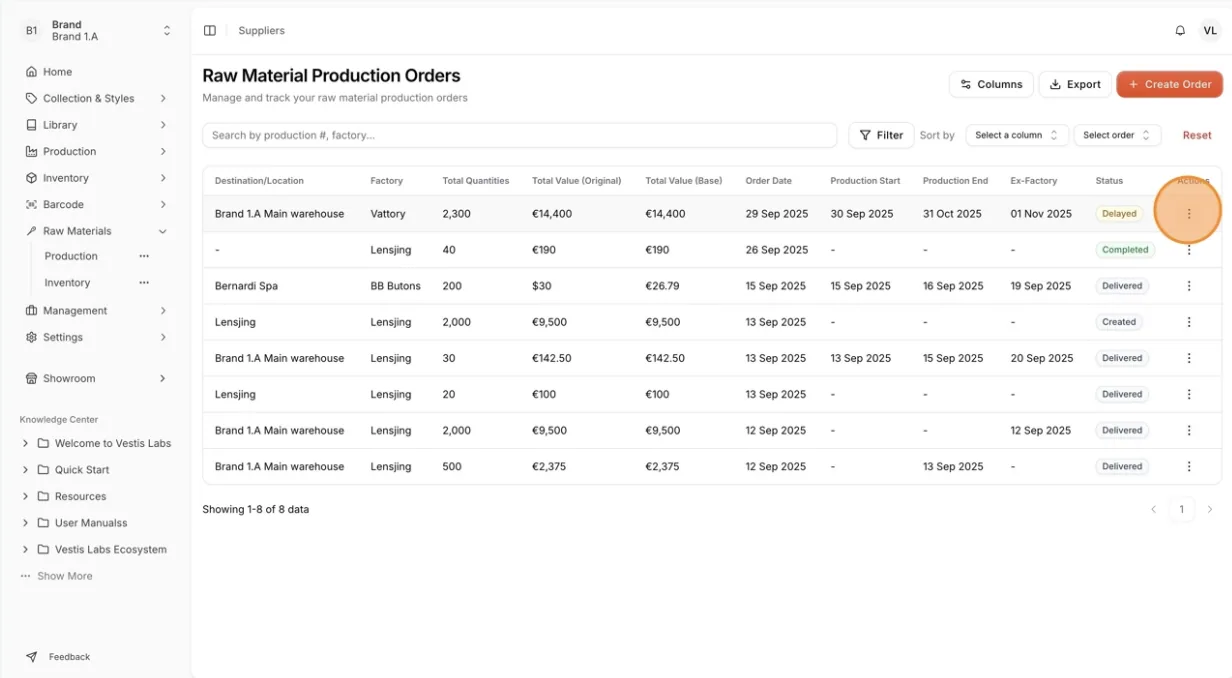
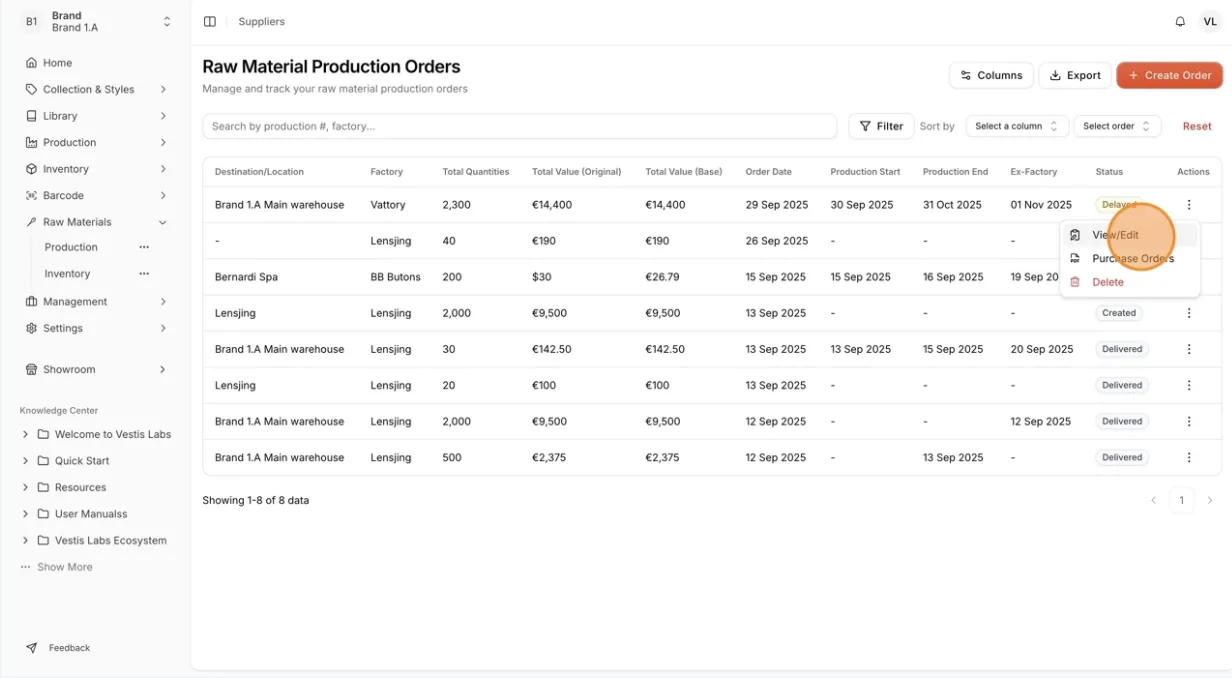
There are three action buttons available to manage your production orders:
- View/Edit– Open and modify the details of the selected production order.
- Purchase Orders– View or create related purchase orders for the selected production.
- Delete – Remove the selected production order from the list permanently.
Note
Delete only appears for users with permission to delete material production orders.
Delete an order
Click "Delete"
In the order's three-dot action menu, click Delete.
Confirm the deletion
In the Delete Production Order window, read the message "Are you sure you want to delete this production order? This action cannot be undone.", then click Delete. Click Cancel to keep the order.
The order is removed from the list.