
Materials breakdown
See which materials a production order needs, how much is in stock or already ordered, and what still has to be bought, then order the shortfall by supplier.
The Materials Breakdown adds up the materials that a production order consumes, compares them with what is already in stock or on order, and shows what you still have to buy. You can open it for one order, for several orders at once, or while you are creating an order. You can export it and turn the shortfall into material orders, one per supplier.
ProductionOrder Management⋮Materials Breakdown
Permission: VIEW_BRAND_PRODUCTION
Before you start
- The materials tools are switched on per brand. If you do not see Materials Breakdown, ask your Brand Admin.
- Styles need a bill of materials (BOM). Styles without one are listed as not counted.
- Creating material orders from the breakdown needs permission to create material production. Without it, the breakdown is read only.
Open the breakdown
For one order
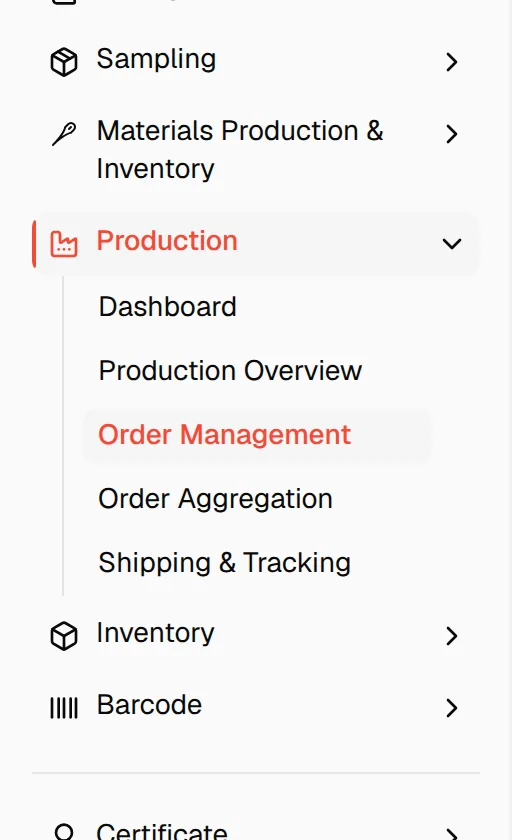
Open Order Management
In the left sidebar, expand Production and click Order Management.
Open the row menu
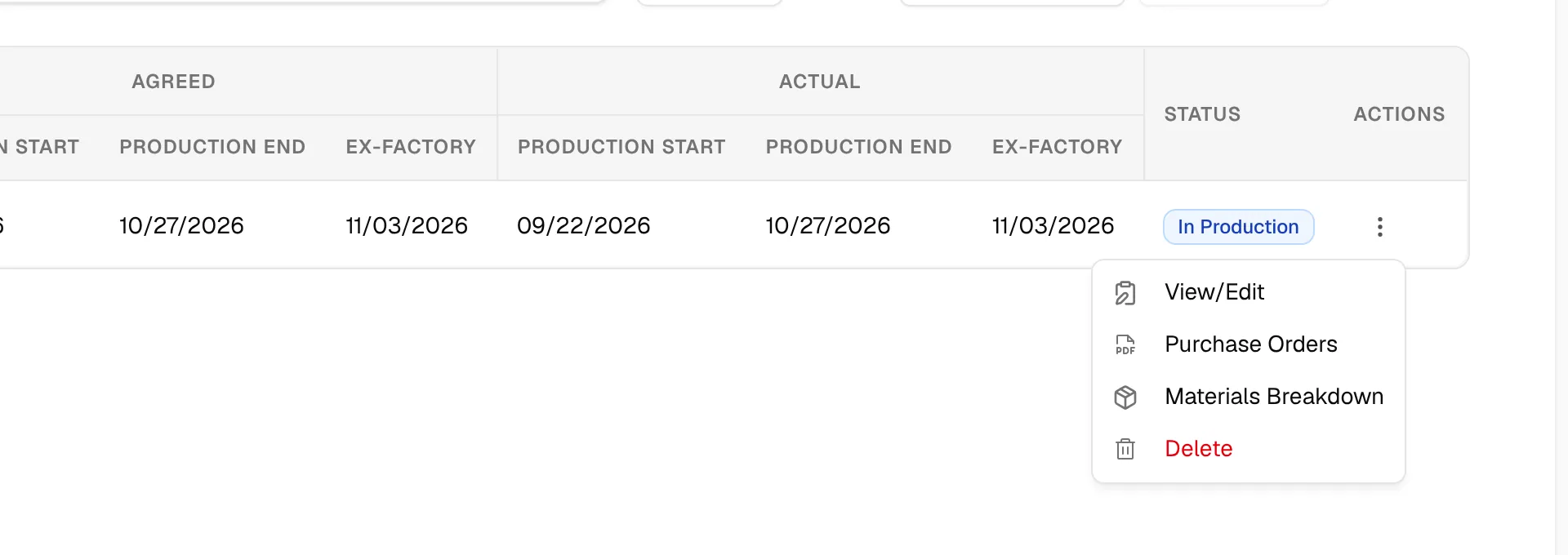
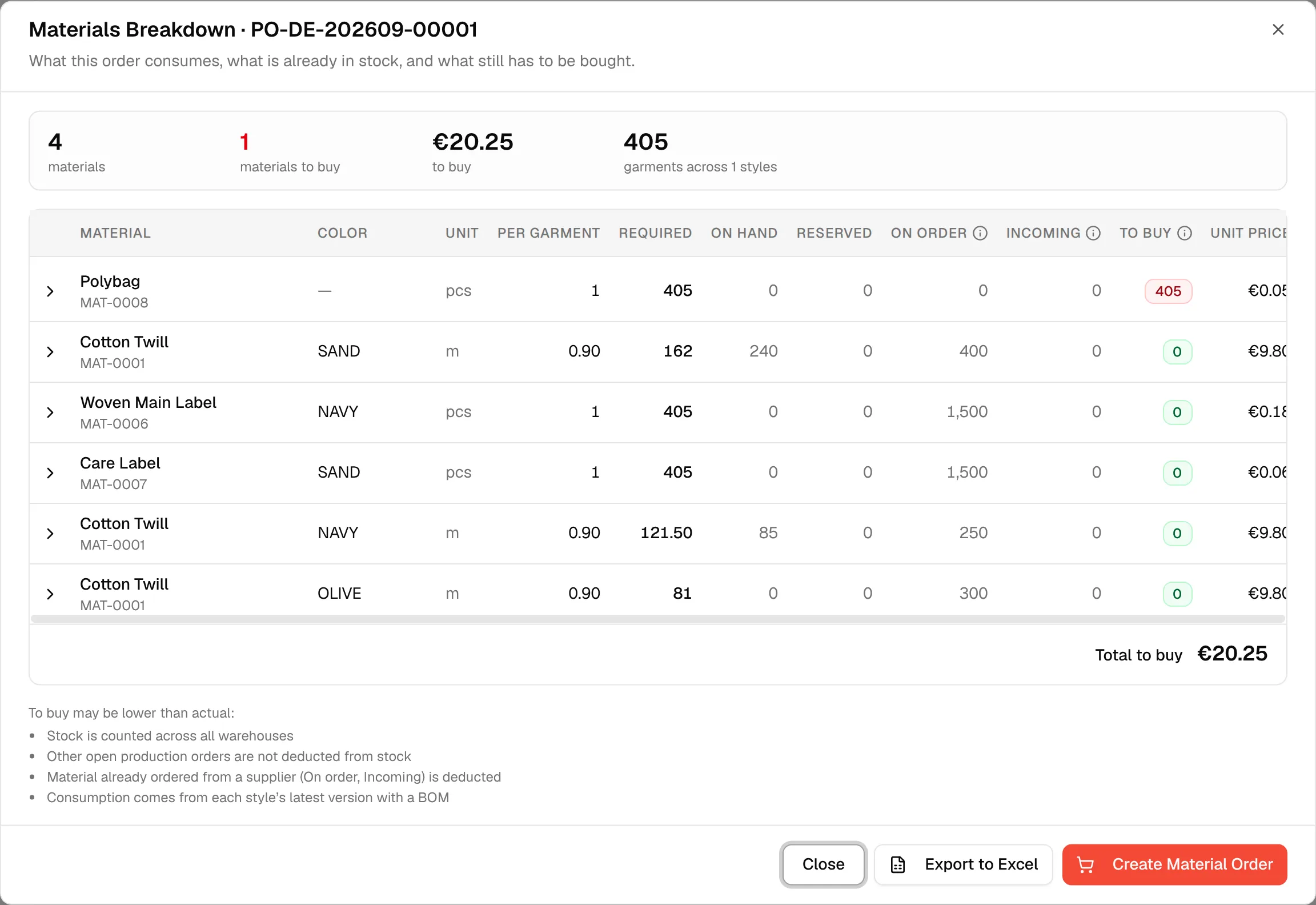
Click the ⋮ icon on the order and click Materials Breakdown. The dialog is titled Materials Breakdown followed by the production number.
For several orders at once
Select the orders
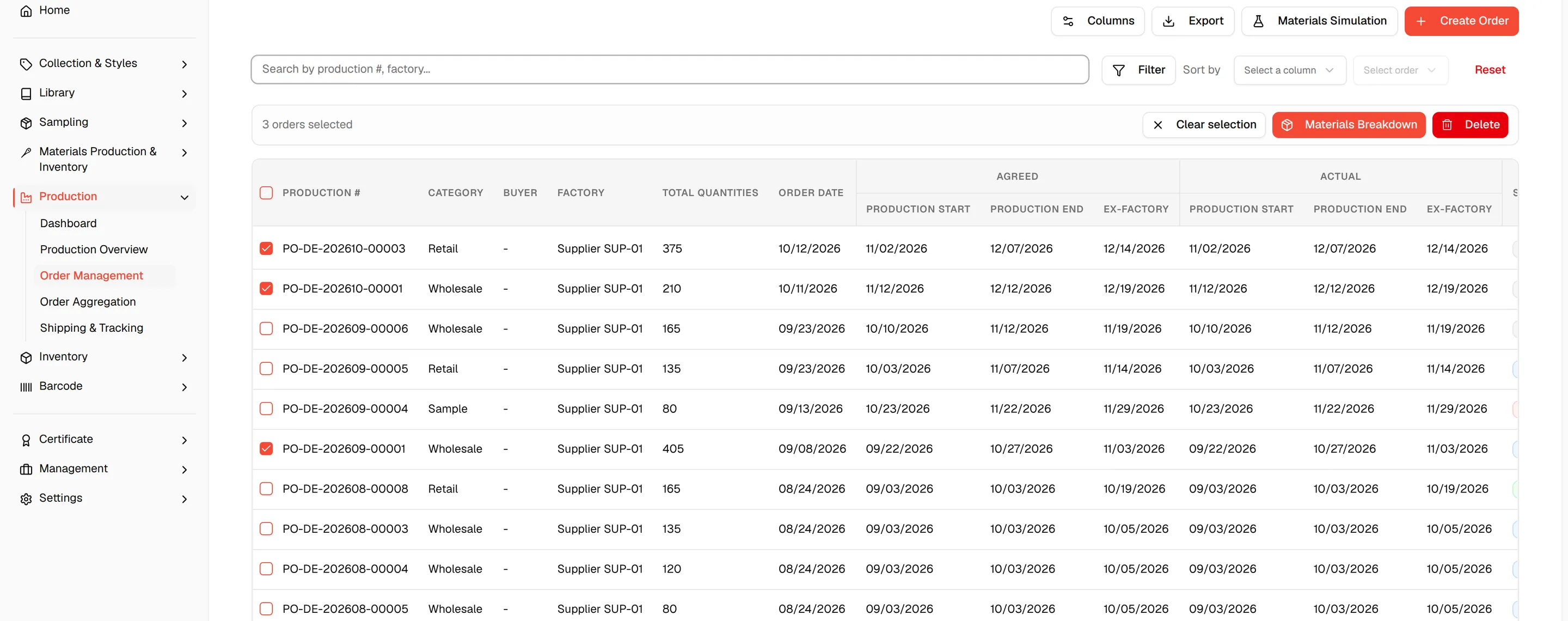
Check the checkbox on each order. A bar shows how many orders are selected.
Click "Materials Breakdown"
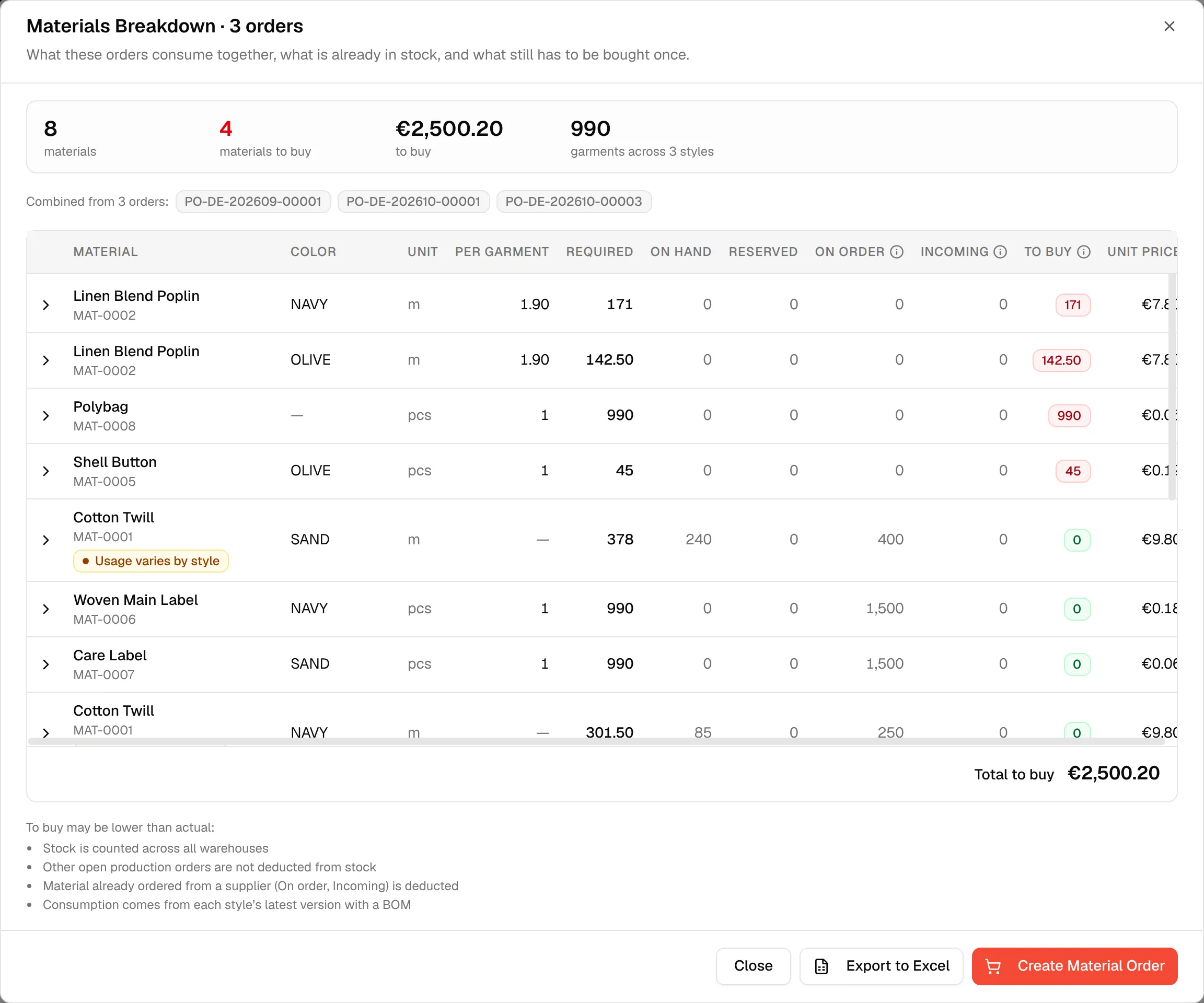
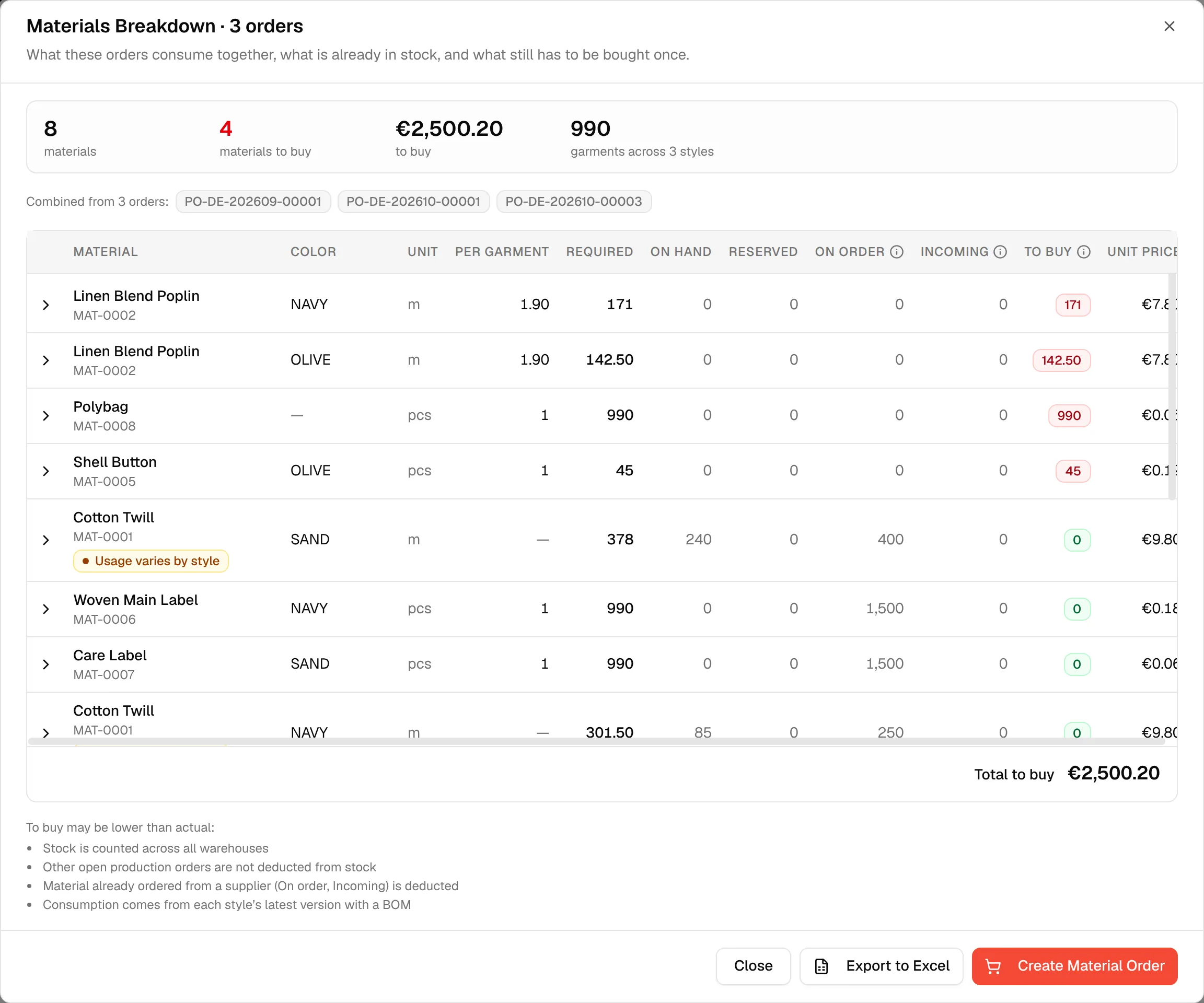
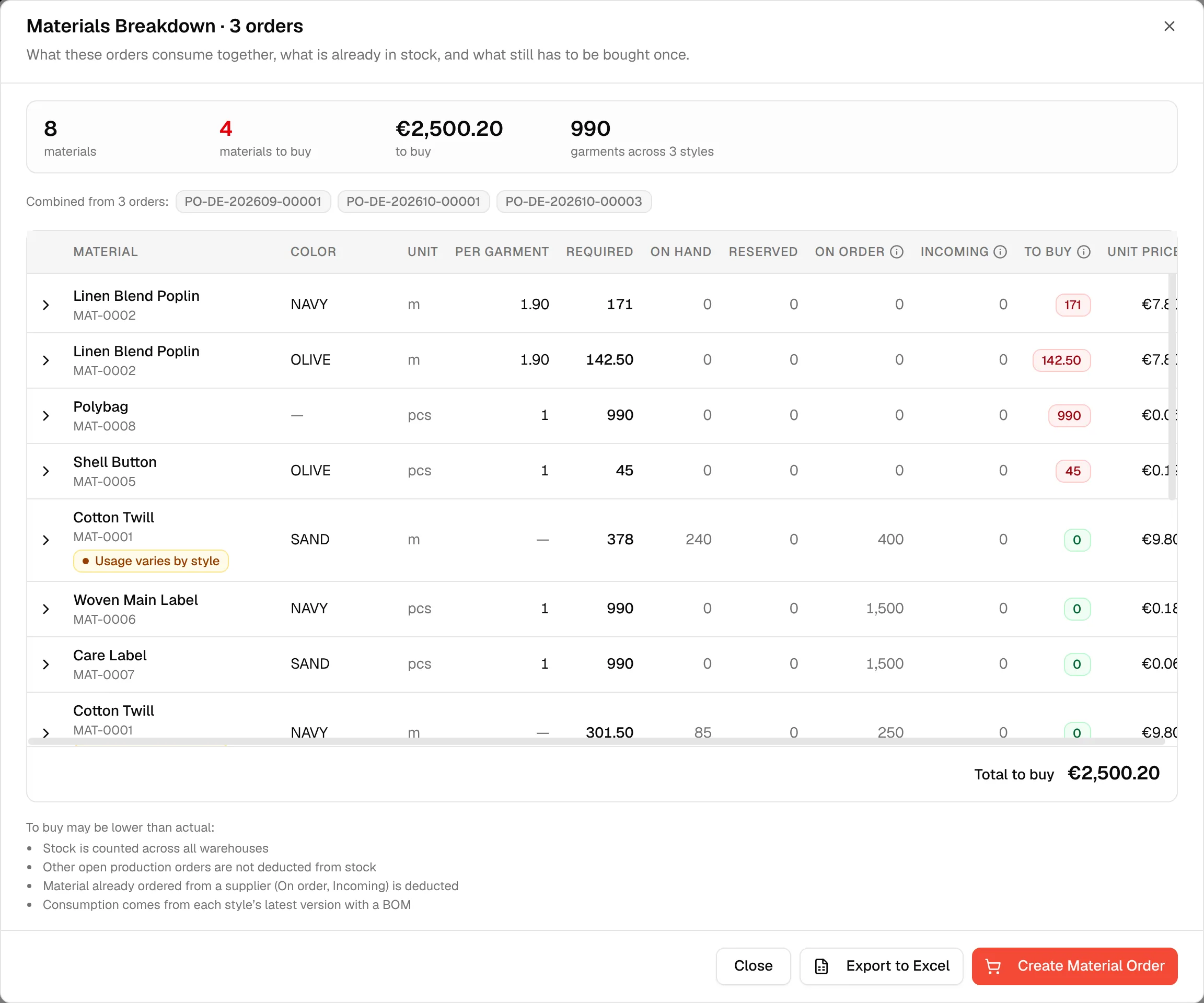
Click Materials Breakdown in the bar. The dialog combines the orders, so you can buy each material once instead of once per order. The orders included are listed as Combined from N orders:.
While you create an order
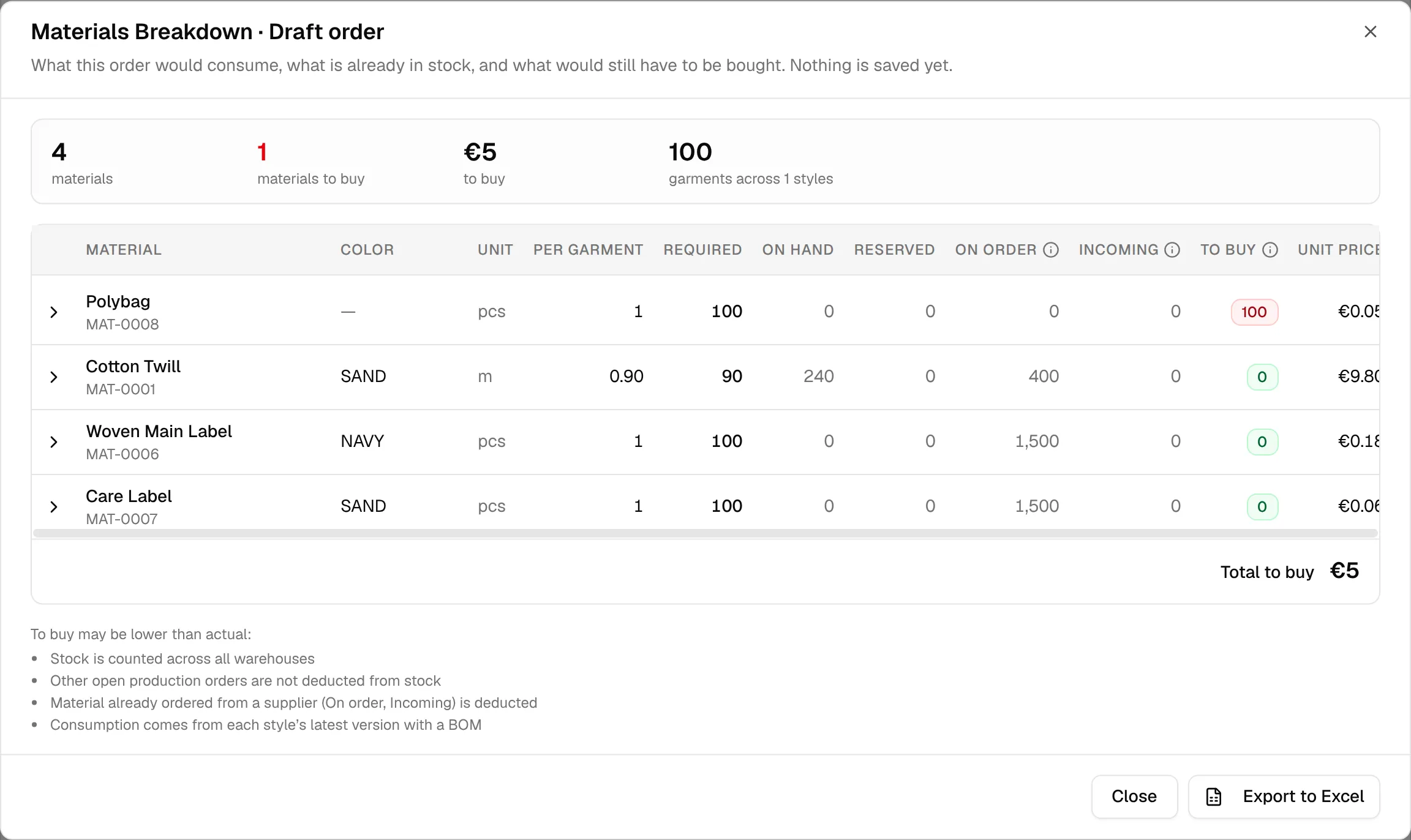
In the last step of the order form, click Review Materials. The button is disabled until the order has at least one style. The breakdown is titled Draft order and reads What this order would consume, what is already in stock, and what would still have to be bought. Nothing is saved yet. In this case the breakdown cannot create material orders.
Read the breakdown
At the top, four figures summarise the result: the number of materials, materials to buy (shown in red when above zero), the to buy value (or to buy (some unpriced)) and the garments across N styles.

If some styles have no BOM, a notice says N styles have no bill of materials. It lists each style with its units and explains that the totals are missing their materials.
The table has one row per material, colour and unit:
| Column | What it means |
|---|---|
| Material | The material name and code, with any warnings. |
| Color | The material colour. |
| Unit | The unit of measure from the BOM. |
| Per garment | How much is used for one garment. |
| Required | The total needed for the order. |
| On hand | What is in stock. |
| Reserved | What is already reserved for other uses. |
| On order | Ordered from a supplier but not yet shipped. |
| Incoming | On a shipment that is in transit or delivered, but not yet received into the warehouse. |
| To buy | Required - (On hand - Reserved) - On order - Incoming. Red when something must be bought, green when covered. |
| Unit price | The price per unit, in your base currency. |
| Cost to buy | The cost of the shortfall. |
Rows that need buying come first, then rows whose requirement is unknown, then rows that are already covered. A dash means the value is not known.
Click the arrow at the start of a row to see Used by N styles: each style with its code, BOM version and units, and how much of the material each colour uses per garment. Below the table, Total to buy shows the total cost, and a line tells you how many rows were left out because they have no price.
Warnings on a material
- Missing quantity: the BOM has no readable quantity.
- Unit conflict: different BOMs use different units for this material, so they cannot be added up. Use one unit on the BOM.
- No exchange rate: the material cannot be priced because there is no exchange rate to your base currency. Add a rate for this currency.
- Usage varies by style: styles use different amounts per garment, so there is no single figure. Expand the row to see each style and colour.
What the figures assume
Below the table, To buy may be lower than actual lists the simplifications: stock is counted across all warehouses, other open production orders are not deducted from stock, and material already ordered from a supplier is deducted. The consumption comes from each style's latest version with a BOM.
Export to Excel
Click Export to Excel in the footer. The workbook holds the figures shown in the dialog. The button appears once the figures have loaded.
Order the missing materials
Click "Create Material Order"
In the footer of the breakdown, click Create Material Order. The button only appears when there is something to buy and you can create material production.
Review the supplier groups
The shortfall is grouped by supplier, because a material order goes to one supplier. Each group shows the supplier, the number of materials, the cost and a table of Material, Color, To buy, Unit price and Cost.
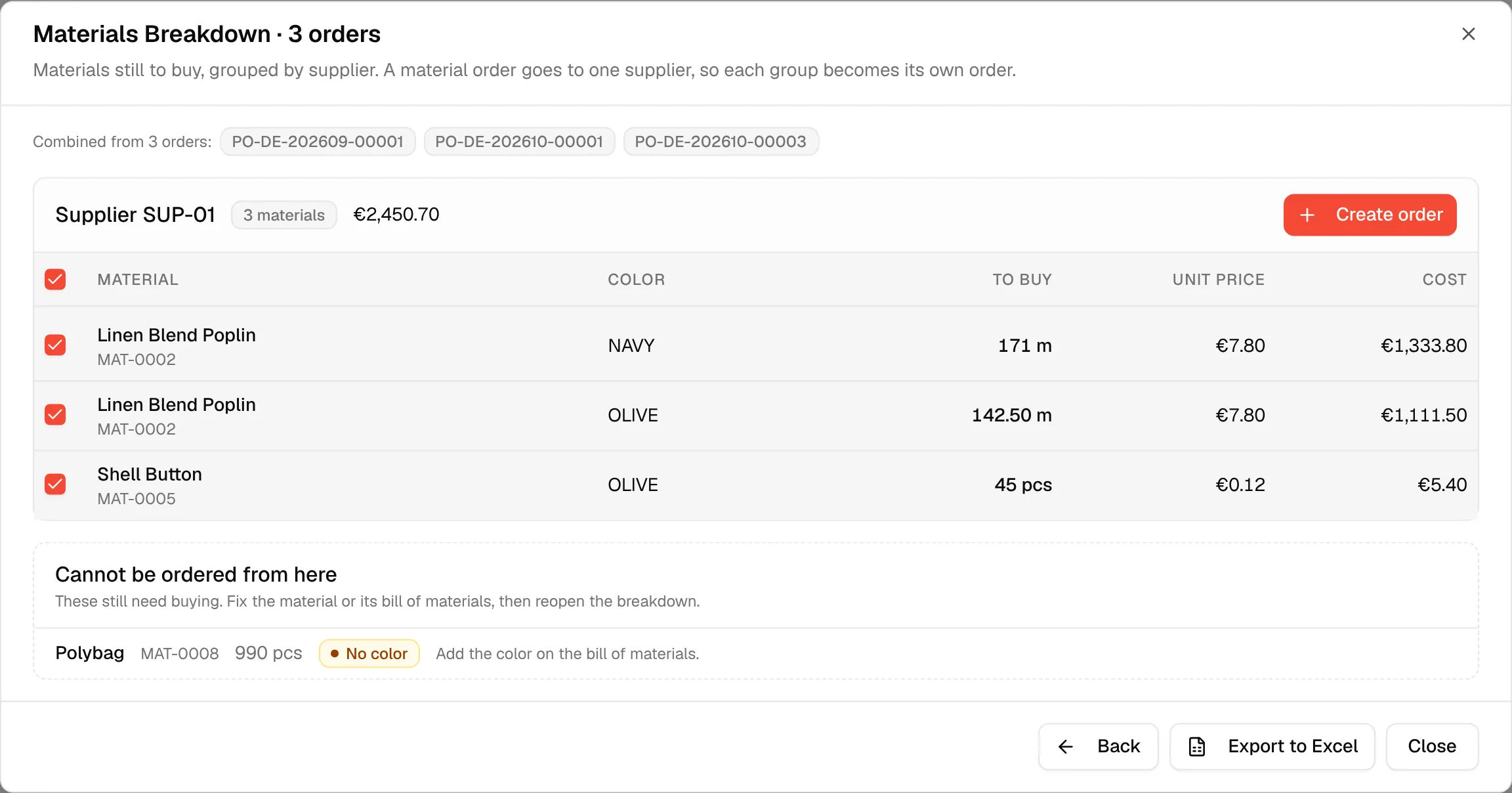
Choose the materials
Every material is ticked by default. Uncheck any you do not want in this order. The group total follows your selection.
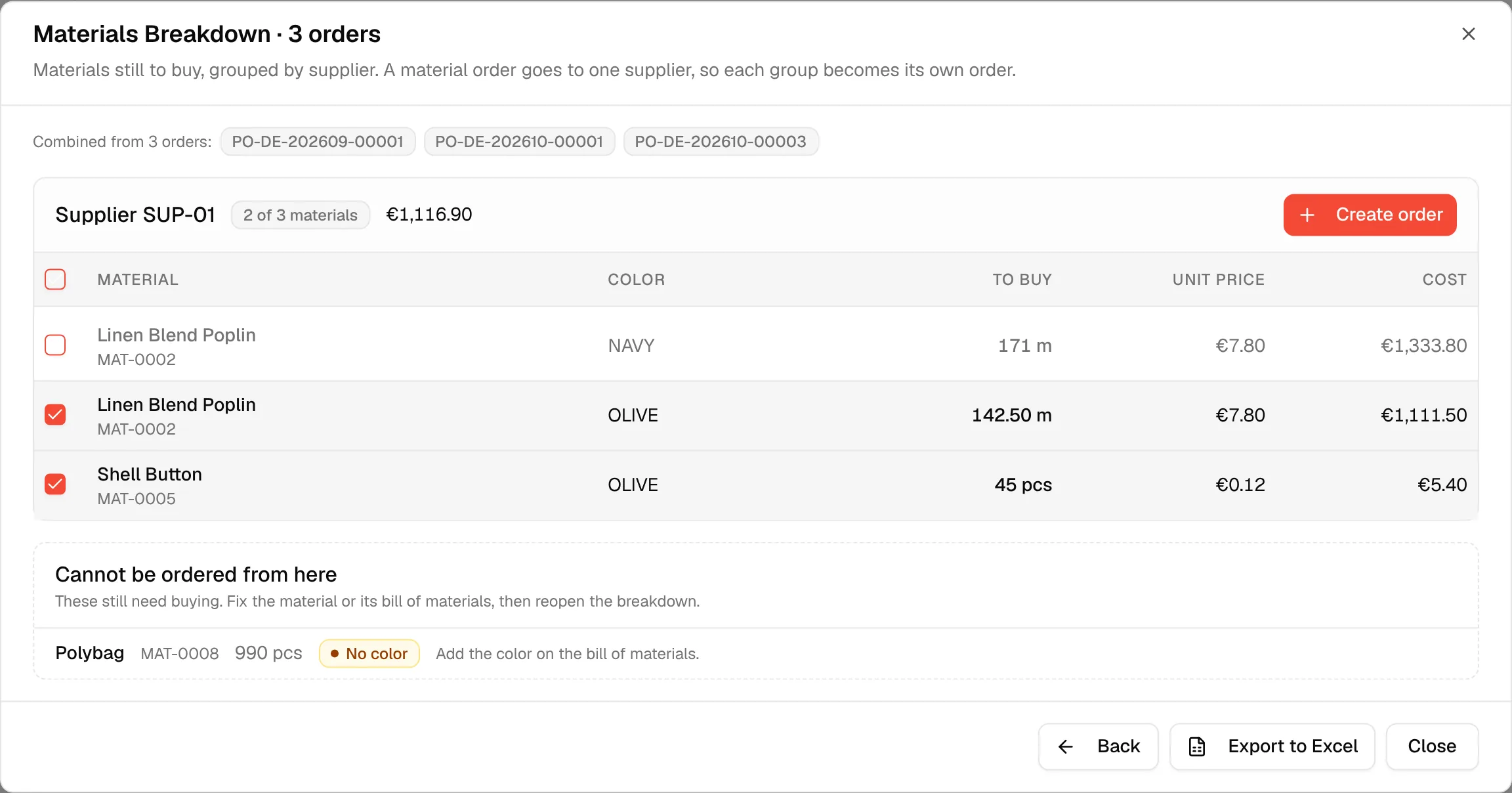
Click "Create order"
Click Create order on the supplier group. The material order form opens with that supplier's materials filled in. Save the order there. The breakdown refreshes afterwards, and the buttons are disabled until it has.
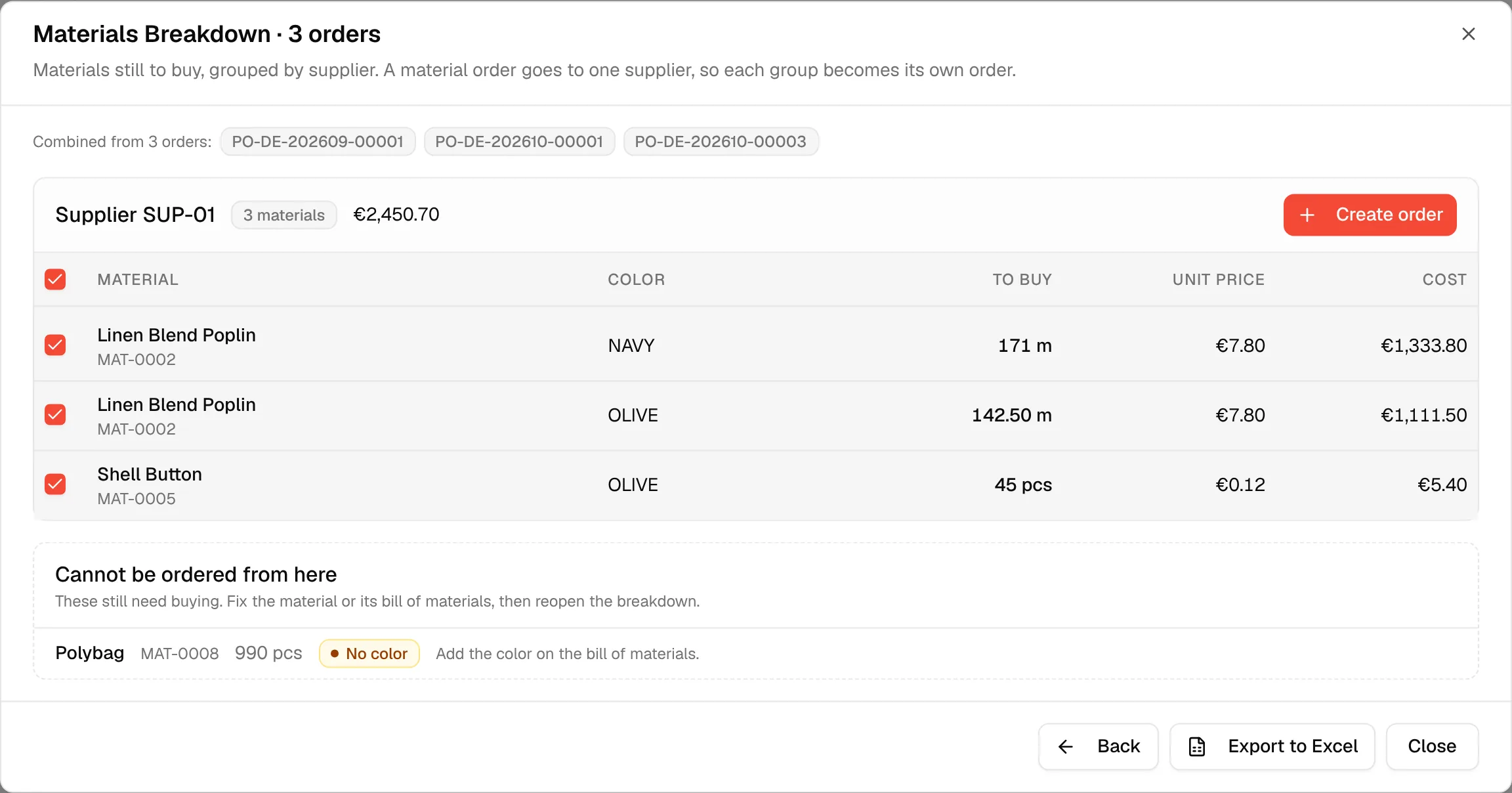
Go back
Click Back to return to the breakdown figures.
Materials that cannot be ordered here
A card called Cannot be ordered from here lists materials that still need buying but are missing something. Each one says what to fix, then reopen the breakdown:
- No supplier: set a supplier on the material.
- No color: add the colour on the BOM.
- Quantity unknown: fix the quantity on the BOM.
- Unit conflict: use one unit for this material across BOMs.
When every material is covered, the step shows Nothing left to buy — every material is covered by stock or open orders.