
Materials simulation
Try out styles and quantities to see the materials they would need and what you would have to buy, before you create any order.
Materials Simulation answers the question "what would it take to make this?" before any order exists. You pick styles, colours and a number of garments, and Vestis Labs shows the materials needed, what is already in stock or on order, and what you would still have to buy. Nothing is saved until you choose to create an order.
ProductionOrder ManagementMaterials Simulation
Permission: VIEW_BRAND_PRODUCTION
Before you start
- The materials tools are switched on per brand. If you do not see Materials Simulation, ask your Brand Admin.
- The button needs only the view permission, because a simulation creates nothing. Creating material orders from it also needs permission to create material production.
- Styles need a bill of materials (BOM). Styles without one are listed as not counted.
Run a simulation
Click "Materials Simulation"
In the left sidebar, expand Production, click Order Management, then click Materials Simulation at the top of the page. The dialog opens on the step Pick styles and quantities to see what materials they would need. Nothing is created until you choose to.
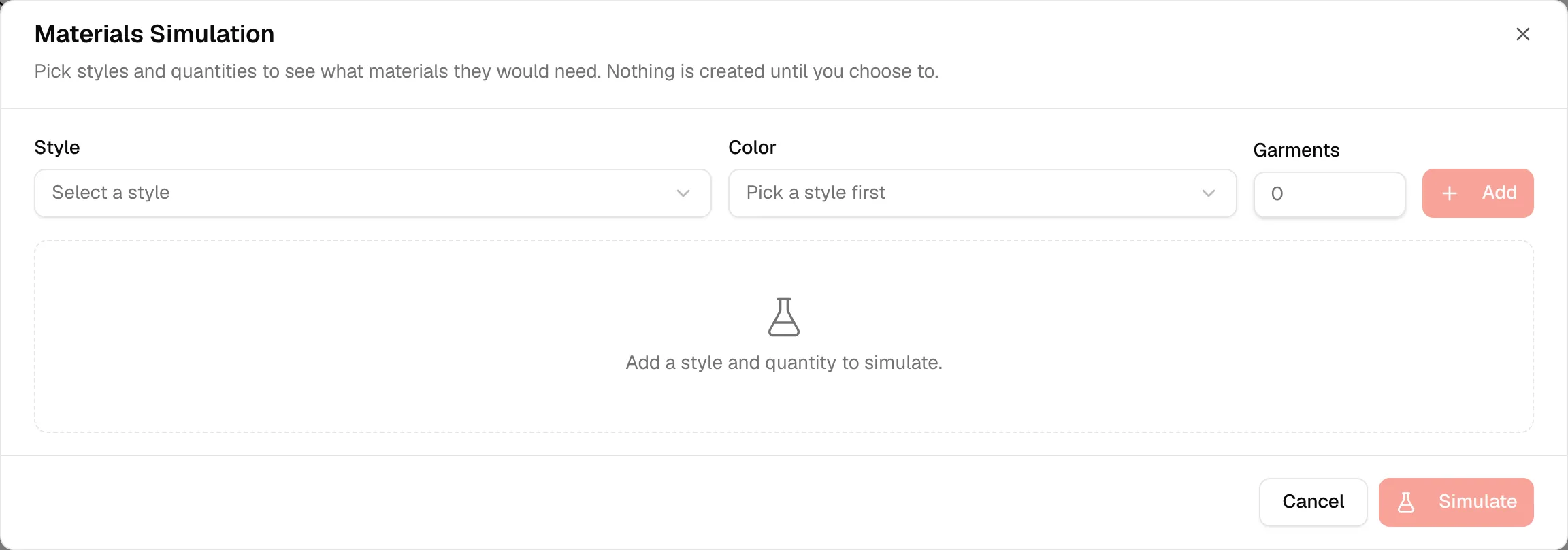
Select a style
In Style, select a style. Each entry shows the style code and name.
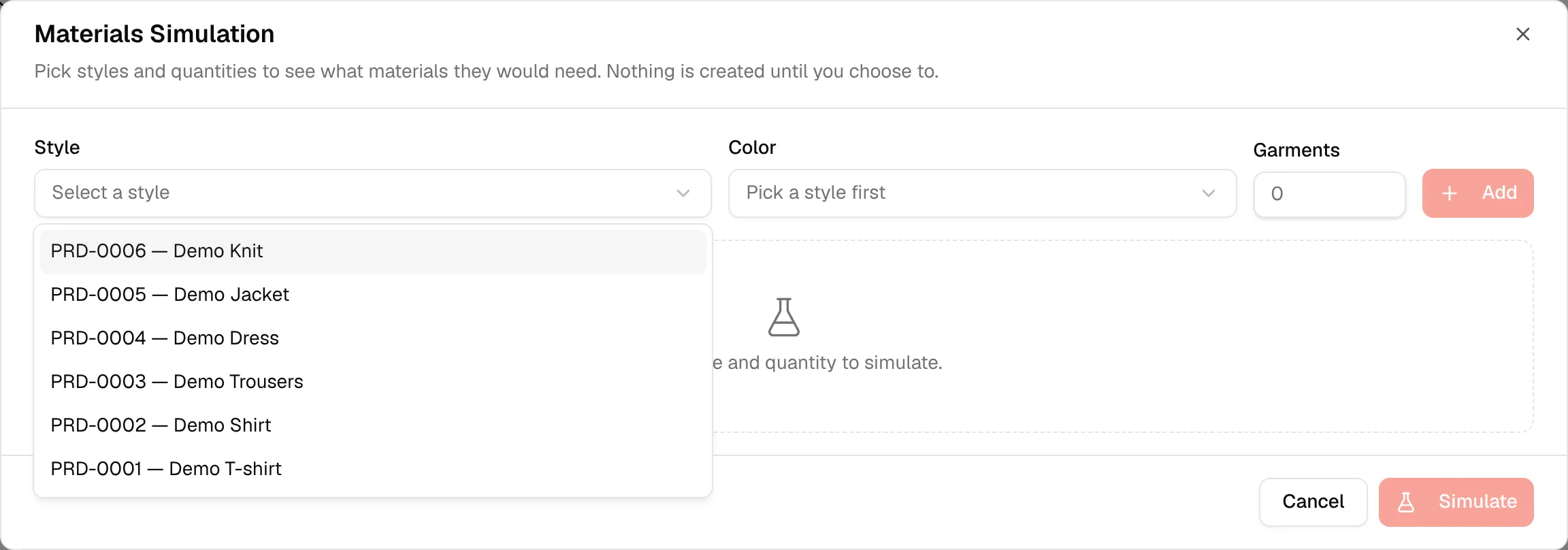
Select a colour
In Color, select a colour. The dropdown reads Pick a style first until you have chosen a style. Colours that were retired are still available, so you can ask what a re-run of an earlier season would cost.
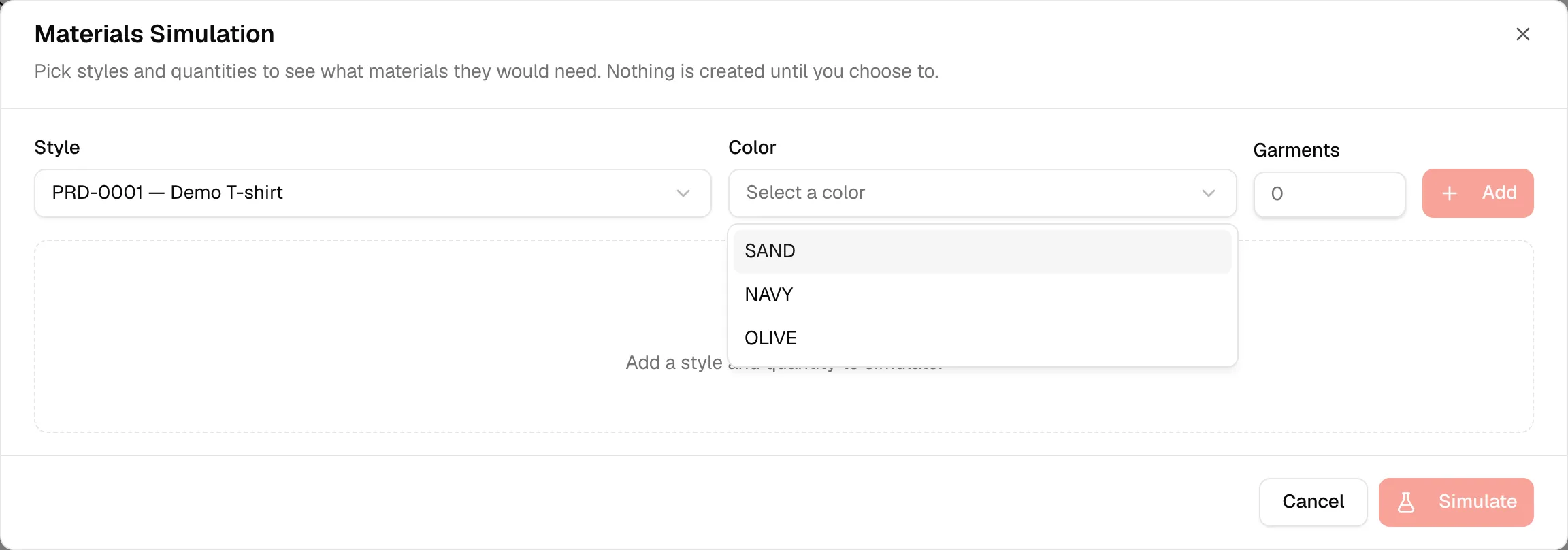
Enter the garments
In Garments, type the number of garments. It is one number per line, not a size breakdown, because a bill of materials does not depend on size.
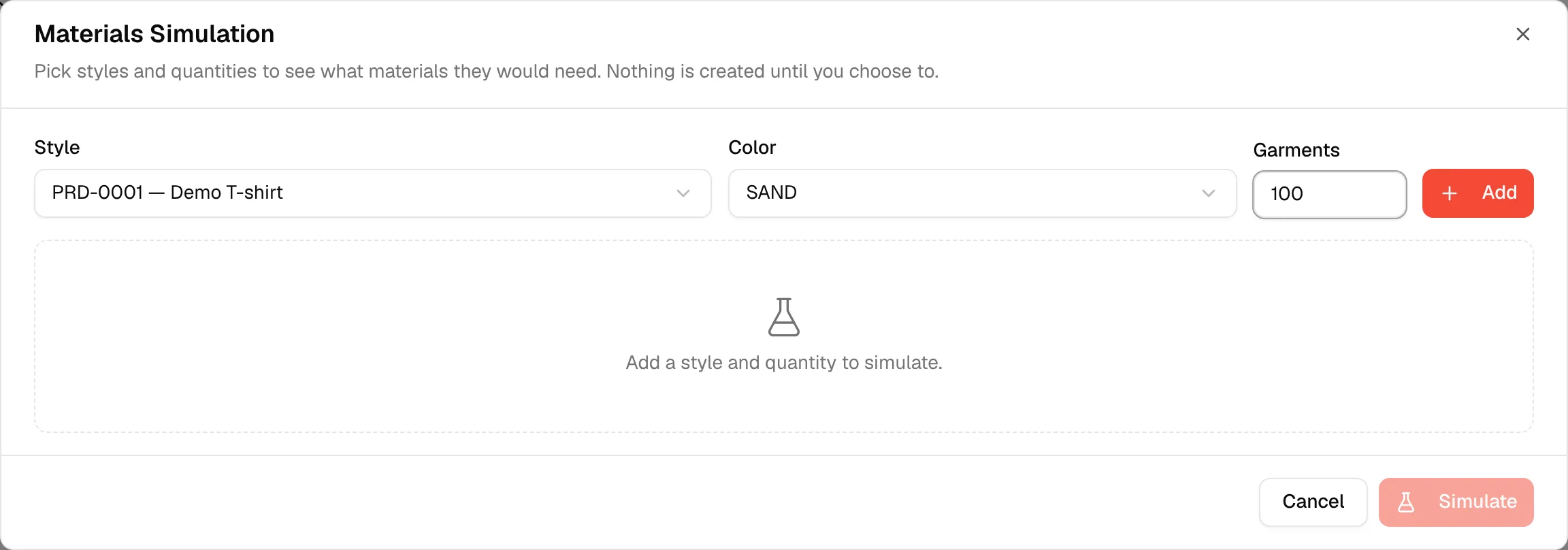
Click "Add"
Click Add. The line appears in the list with the style, colour and garments. Adding the same style and colour again adds to the existing line. Use the bin icon to remove a line. Total garments is shown under the list.
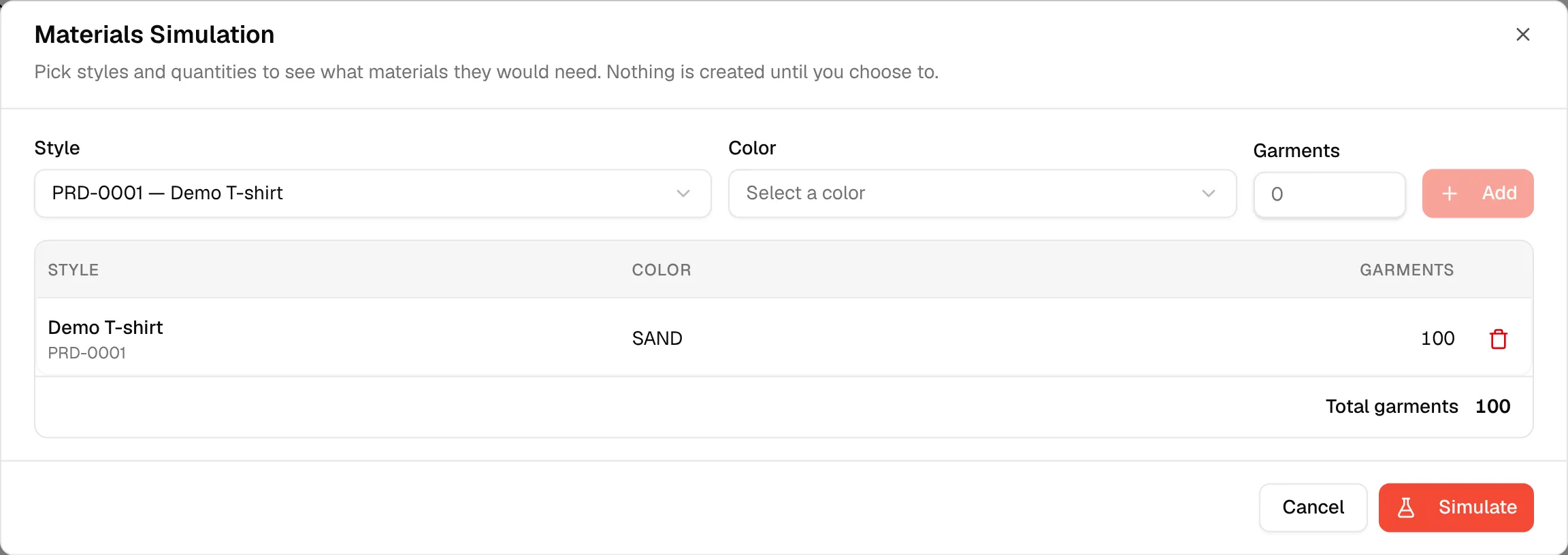
Click "Simulate"
Click Simulate. It is disabled until you have added a line. Click Cancel to close and discard everything.
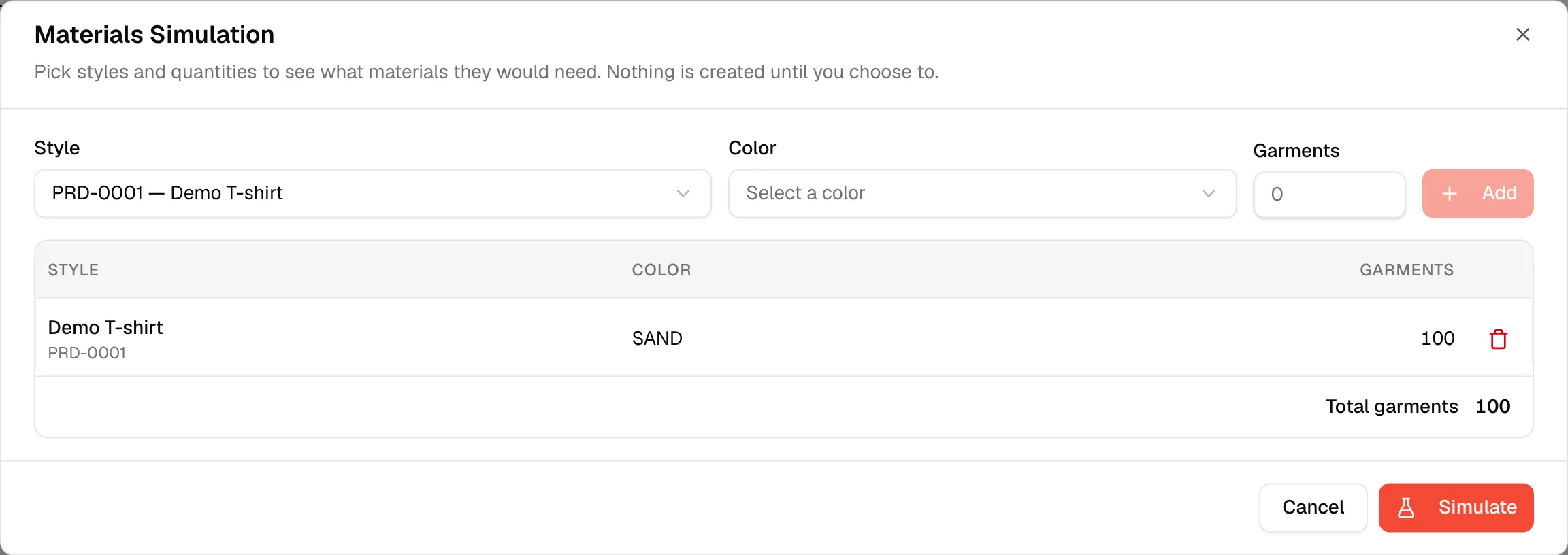
Read the result
The result step shows the same figures as the Materials breakdown: the summary of materials, materials to buy, to buy and garments across N styles, a notice for styles without a BOM, the table of materials with Required, On hand, Reserved, On order, Incoming, To buy, Unit price and Cost to buy, and Total to buy. A line confirms Simulation only — nothing is saved. The assumptions are listed under To buy may be lower than actual.
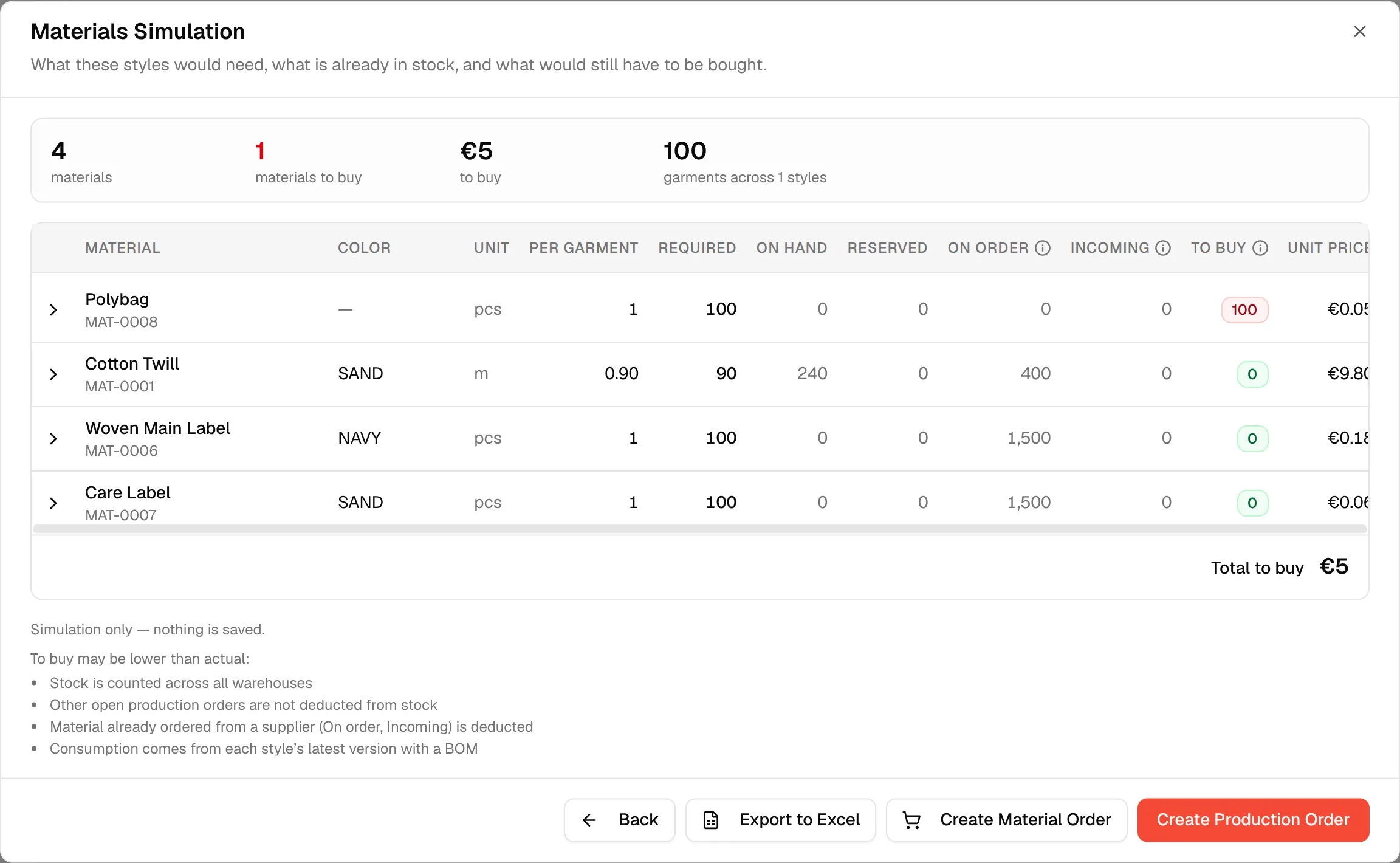
Click Back to change the styles and run it again.
Export the result
Click Export to Excel in the footer. The file is named as a simulation, not as an order.
What to do with the result
- Create Material Order (only if you can create material production, and when there is something to buy): opens the shortfall grouped by supplier. Choose the materials and click Create order on a supplier to open the material order form. Click Back to return to the result. The step reminds you Simulation only — nothing is saved until you create an order.
- Create Production Order: opens the production order form with the styles and quantities from your simulation already added. See Create production order.

Note
Closing the dialog discards your simulation. The next time you open it, it starts empty.