Step 4 of 12 in Connect Shopify
Style with production batch sync configuration
Open the style in Collection & Styles
Under review. This page is published while we check it against the live app, so some details may have changed.
Screenshots may be out of date.
Open the style in Collection & Styles
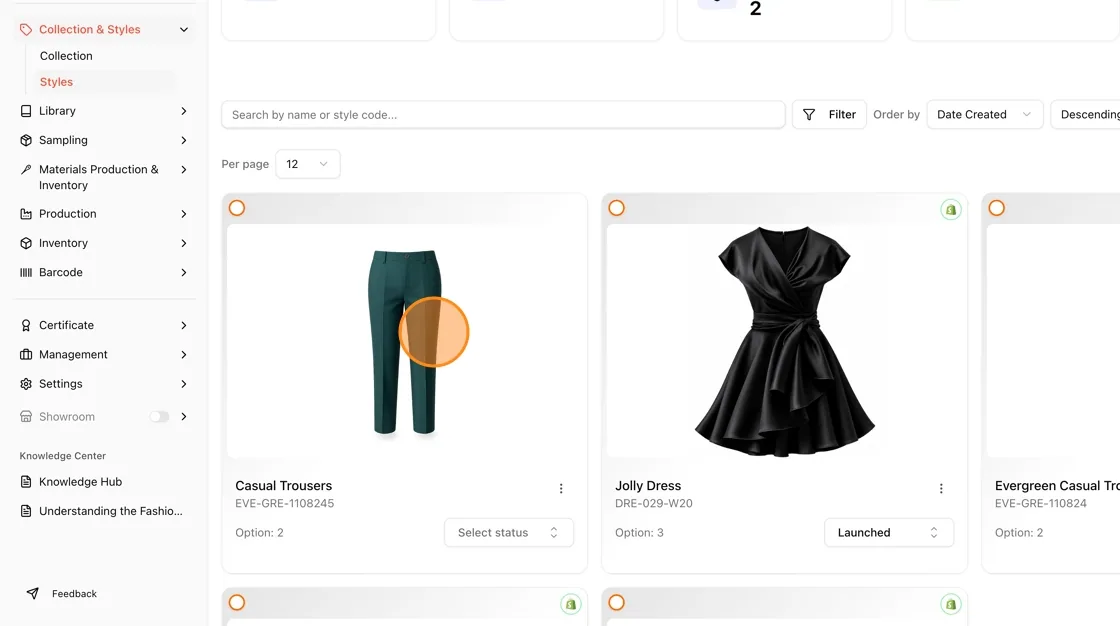
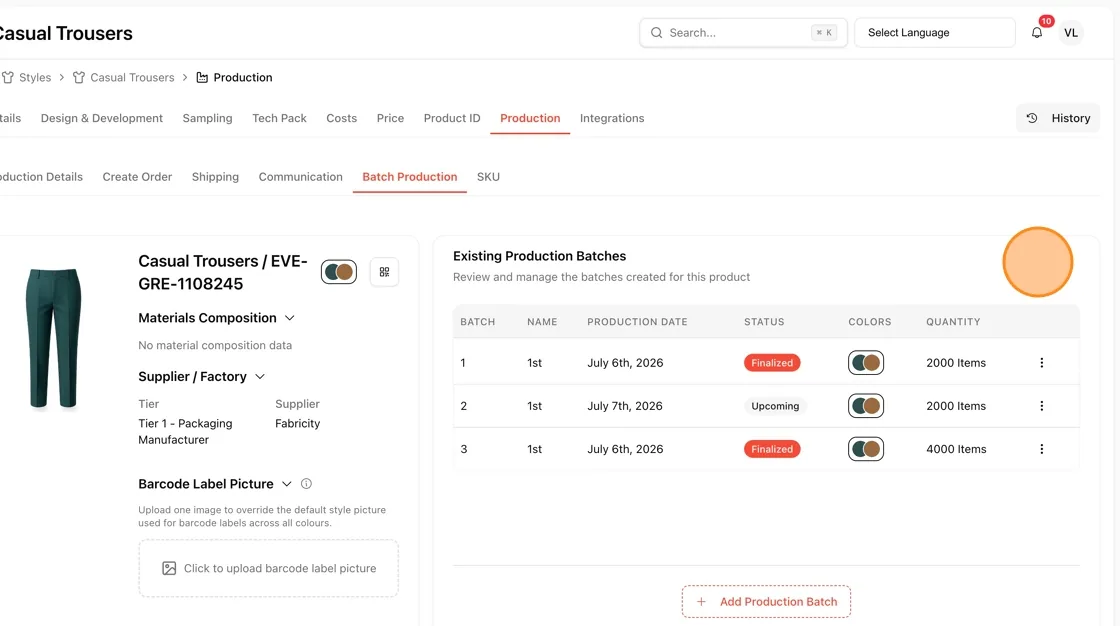
Go to Collection & Styles > Styles, then click on the product you want to sync.
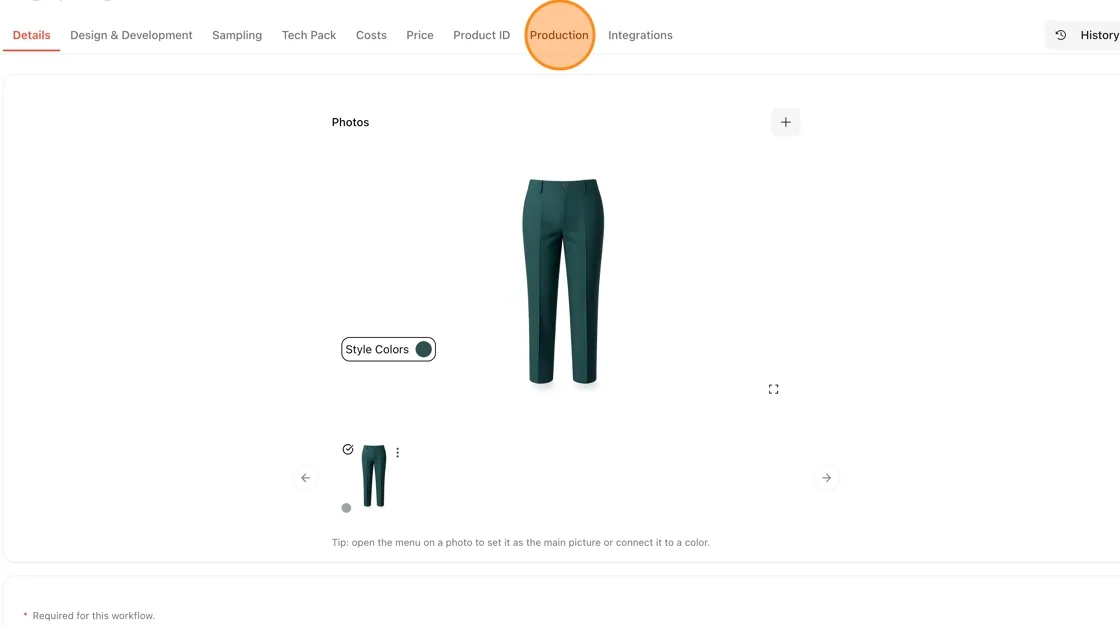
On the style's detail page, click the Production tab in the top navigation.
Within the Production section, select the Batch Production sub-tab.
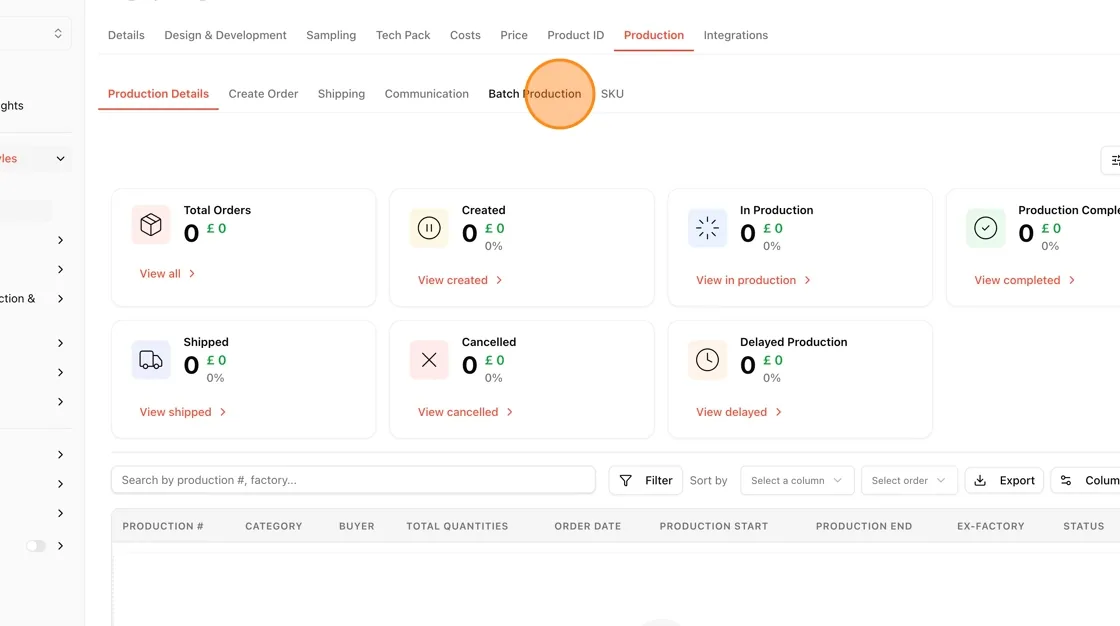
Confirm the style has the batches you expect (production date, status, colors, and quantities). This inventory will later be used to populate Shopify stock.
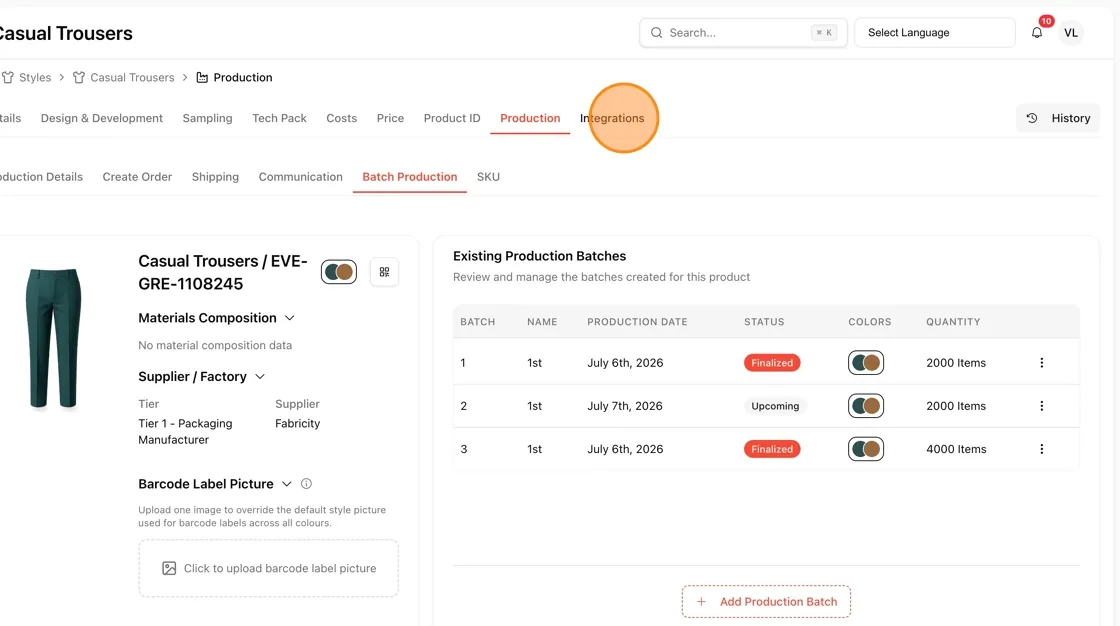
Switch to the Integrations tab
Still on the Production page, click the Integrations tab.
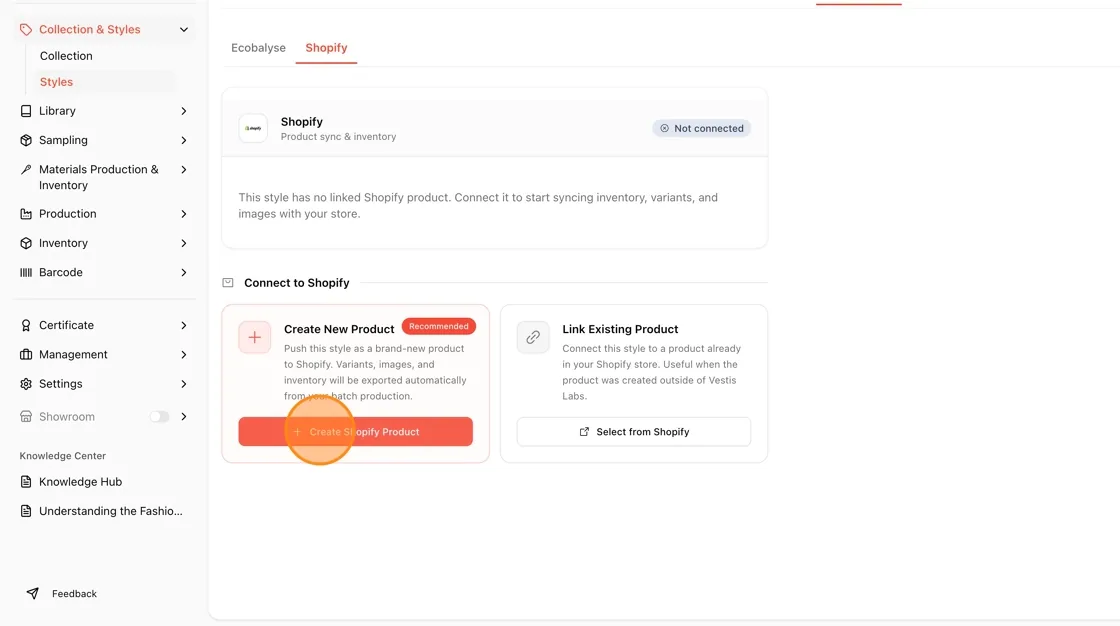
Select Shopify and create a new product
Under the Shopify sub-tab, you'll see the style is Not connected. In the "Connect to Shopify" section, click Create Shopify Product (the recommended option) to push the style as a brand-new product.
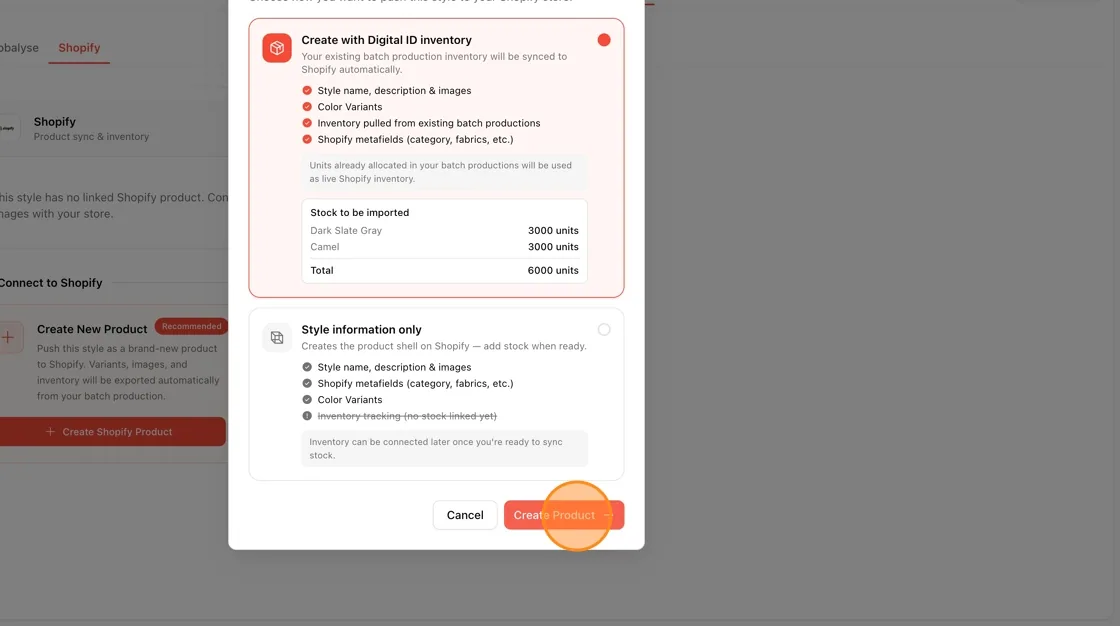
Choose "Create with Digital ID inventory"
In the Create Shopify Product modal, select Create with Digital ID inventory. This option automatically syncs:
- Style name, description & images
- Color variants
- Inventory pulled from existing batch productions
- Shopify metafields (category, fabrics, etc.)
Review the Stock to be imported summary to confirm the units per color and total quantity.
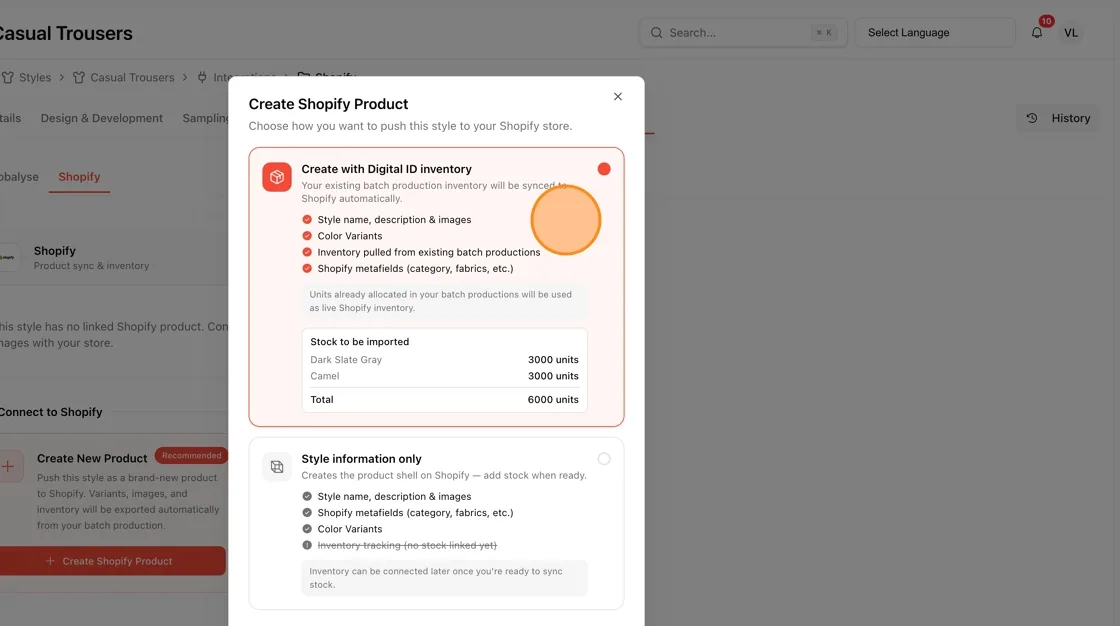
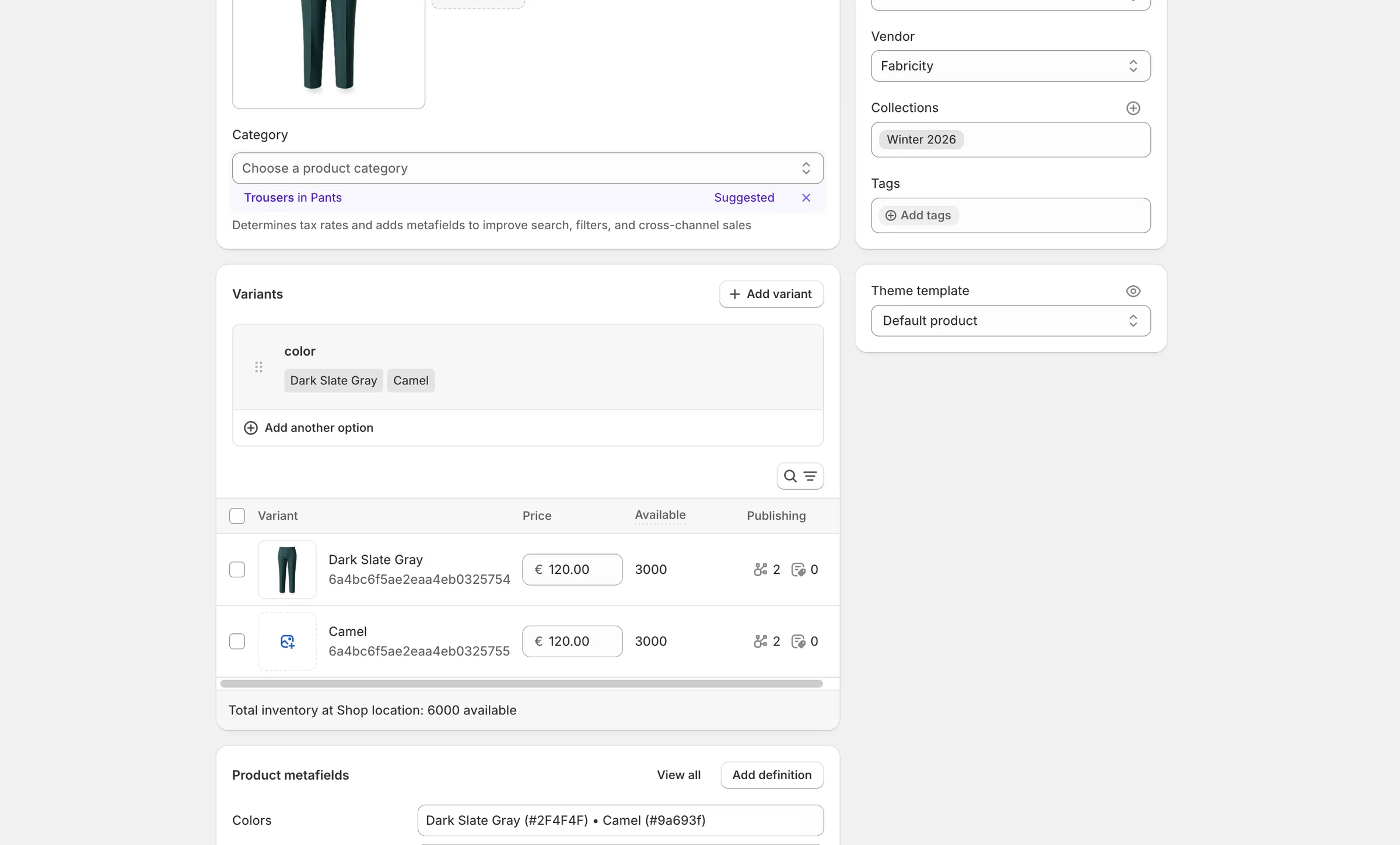
Click Create Product to finalize. The style will be pushed to Shopify with its variants, images, and live inventory synced from your batch production.
Once complete, the style will show as connected to Shopify, and any future inventory changes from batch production can sync automatically.