
Create a library attribute
This article outlines best practices for setting up and using library attributes in Vestis Labs to support consistent organisation, classification, and improved data management across all…
Under review. This page is published while we check it against the live app, so some details may have changed.
Screenshots may be out of date.
Library attributes – admin setup
This article outlines best practices for setting up and using library attributes in Vestis Labs to support consistent organisation, classification, and improved data management across all library items.
Introduction & best practice
Library attributes in Vestis Labs define the key characteristics of your trims, artworks, prints, washes, packaging items, or any other components stored in the library. By assigning attributes—such as category, material type, usage purpose, supplier, region, or compliance requirements—you create structured and standardised data that enhances searchability, reporting, and cross-team visibility.While library attributes are optional, using them is highly recommended to ensure scalability and maintain clean, organised data across your growing material and component libraries. Clear attribute definitions configured in Admin help ensure consistent application of attributes by all users, reduce duplication, and support efficient filtering and selection during product development.
Navigate to the Create Material Library Page. Select Add Attribute to add a new attribute.
Nb: You can also update the attributes to the created Material Library,
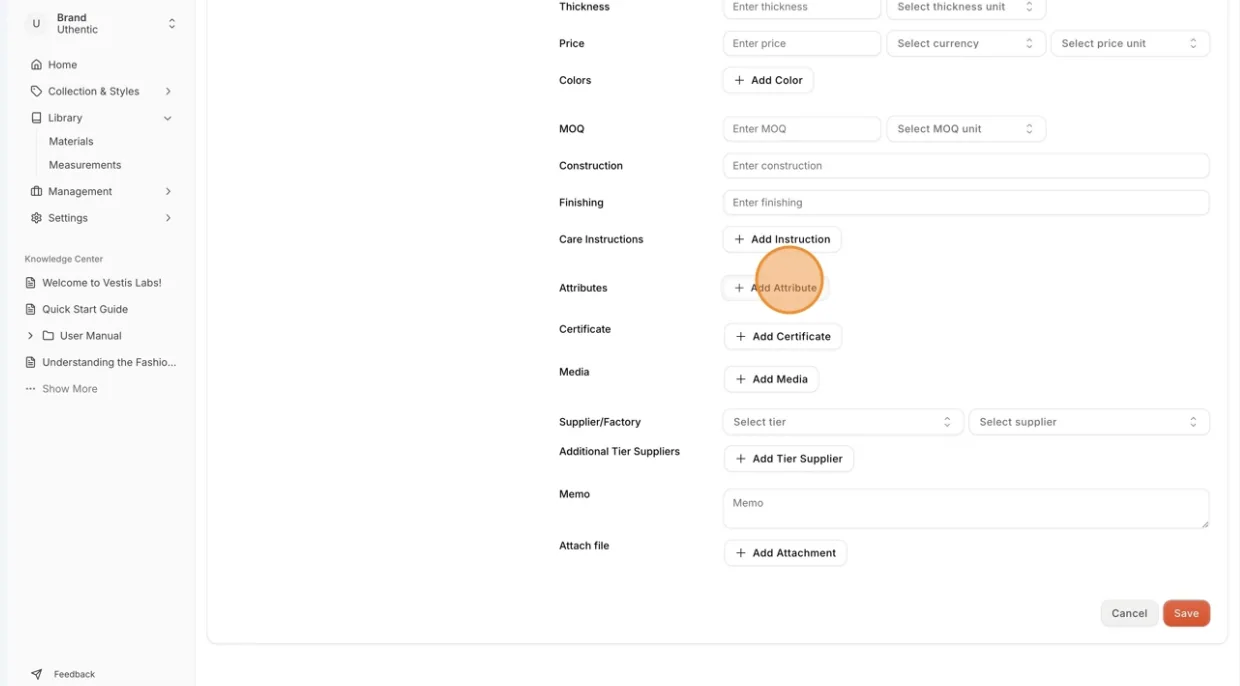
- Select Add Attribute. In the Add Product Attribute window, select a Product Attribute Master (or type a new name to create one), then select one or more values under Product Attribute (or type new values to create them). After filling out the fields, select Add.
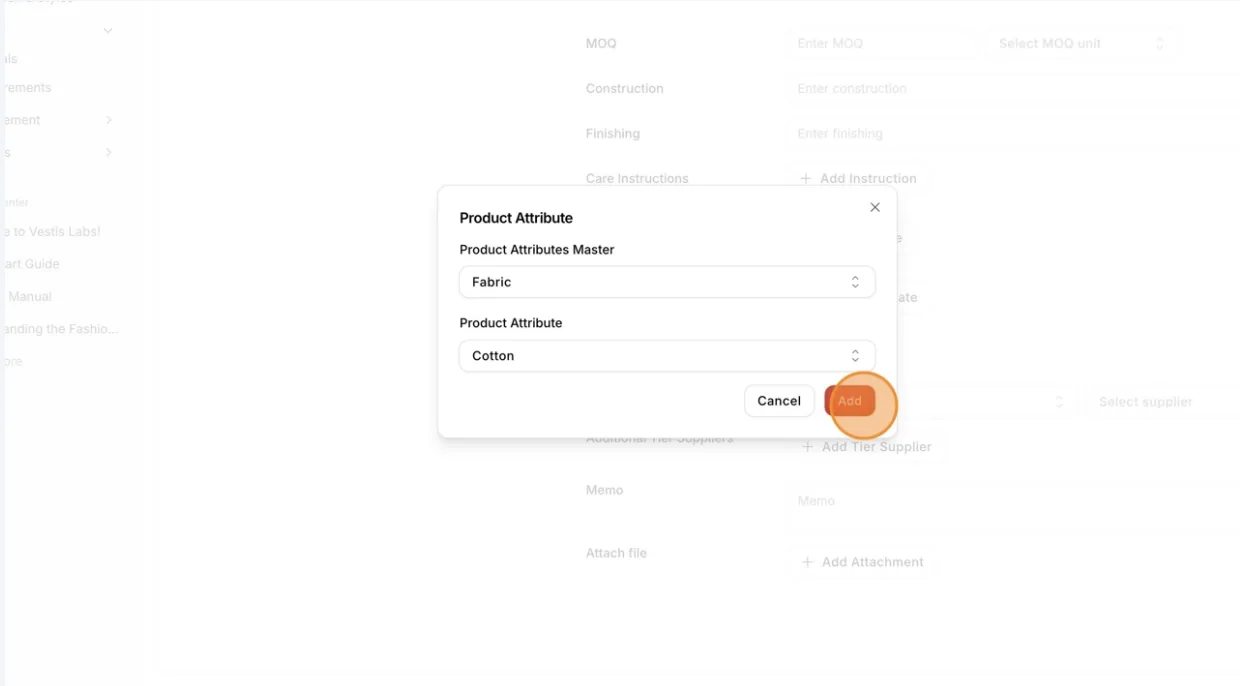
- Product Attribute Master: Select an existing master, or type a new master name and create it.
- Product Attribute: Select existing attributes of that master, or type a new attribute name and create it.
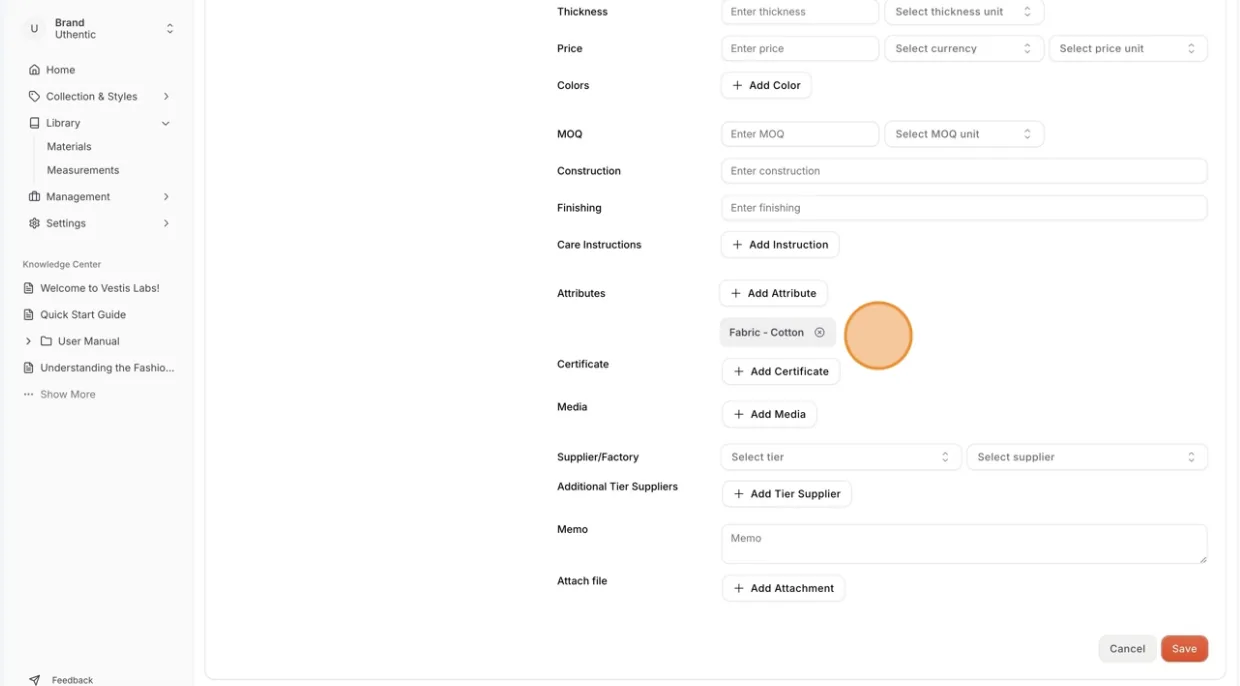
Nb: Users can create and assign multiple Library Attribute to a Style.