
Step 2 of 12 in Connect Shopify
Integrating Vestis Labs with Shopify for product management
This guide demonstrates how to connect your Vestis Labs account to Shopify to streamline product syncing and inventory management.
Under review. This page is published while we check it against the live app, so some details may have changed.
Screenshots may be out of date.
This guide demonstrates how to connect your Vestis Labs account to Shopify to streamline product syncing and inventory management. You will learn how to link styles, create Shopify products directly from your dashboard, manage batch inventory, and sync product updates between the two platforms.
Shopify app installation
Open the Style Dashboard
- From the main dashboard, note your collection overview stats (No. of Styles, Colour Options, Average Retail Gross Profit, etc.)
- Locate the left sidebar navigation to begin accessing settings.
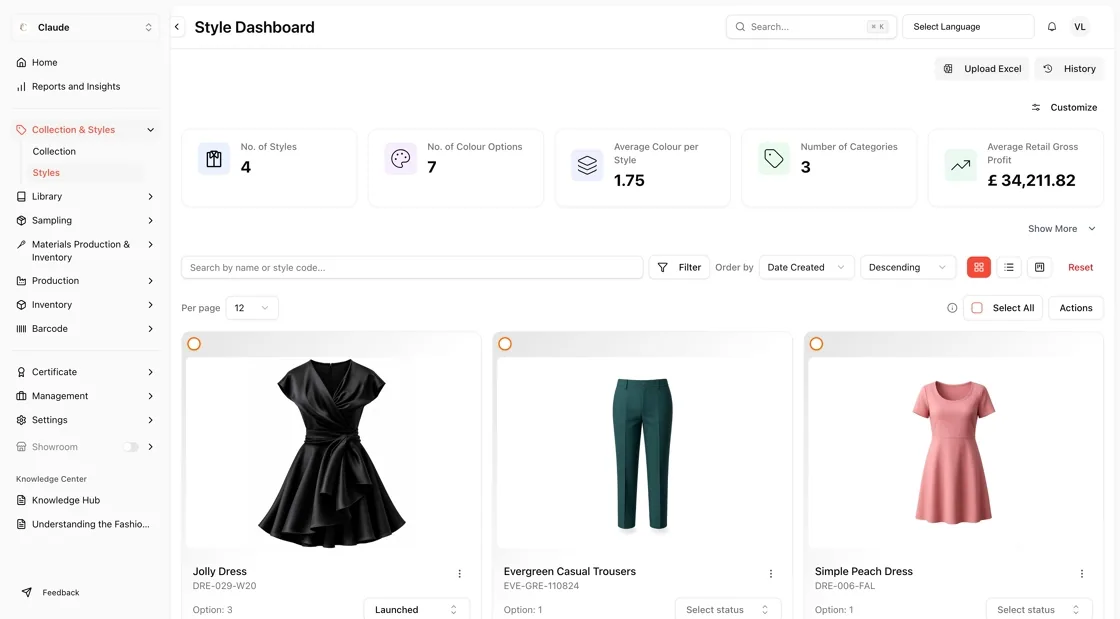
Navigate to Settings
- In the left sidebar, click on Settings to expand the settings menu.
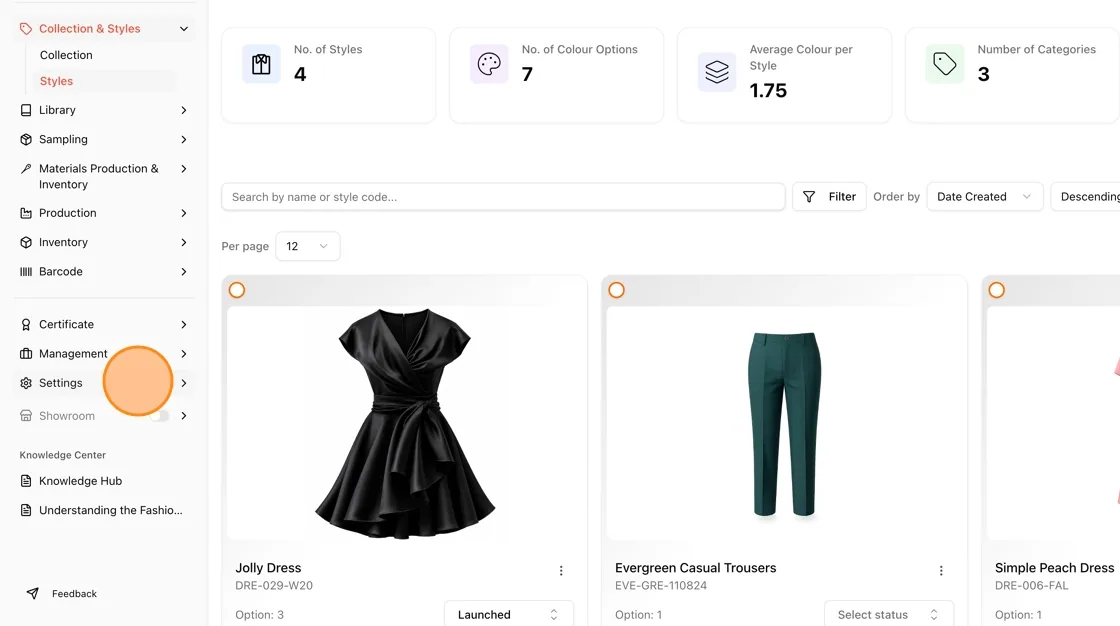
Open Integrations
- Under the expanded Settings menu, scroll down and click Integrations.
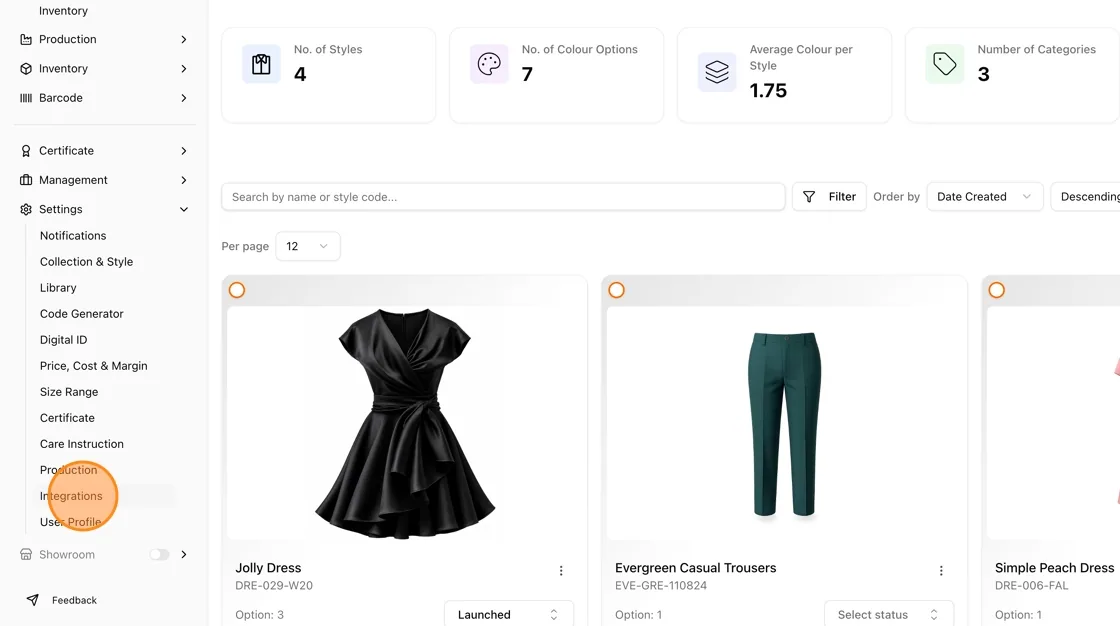
Choose Shopify
- On the Integrations page, you'll see available integration options: Shopify and Ecobalyse.
- Click on the Shopify tile to begin the connection process.
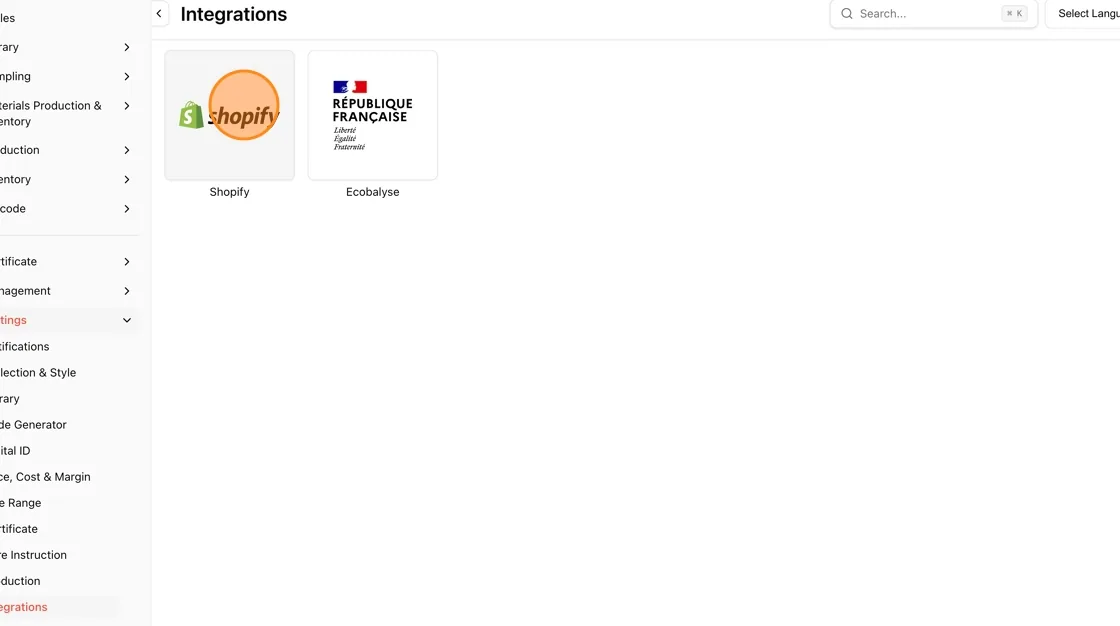
View the Shopify Integration screen
- You'll land on the Shopify Integration page, which instructs you to install the app from the Shopify App Store first in order to receive a code.
- Note the Code field (for a 5-character code) and the Link Token button — these will be used later, once you have your code.
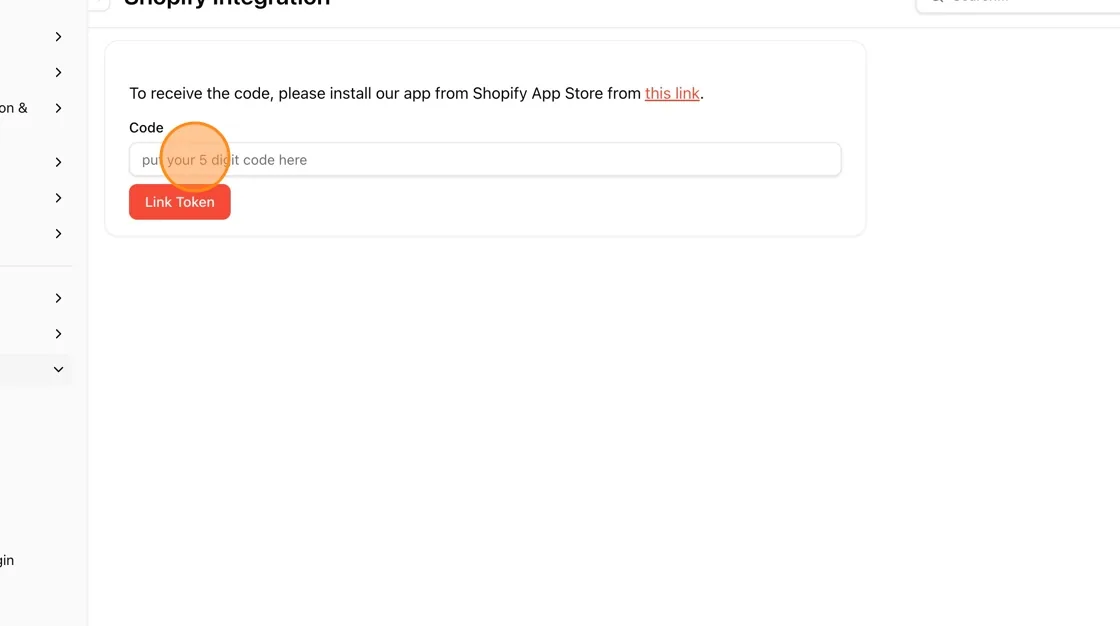
Click "Open Shopify App Store"
- Click Open Shopify App Store to open the Shopify App Store in a new tab and locate the Vestis Labs app.
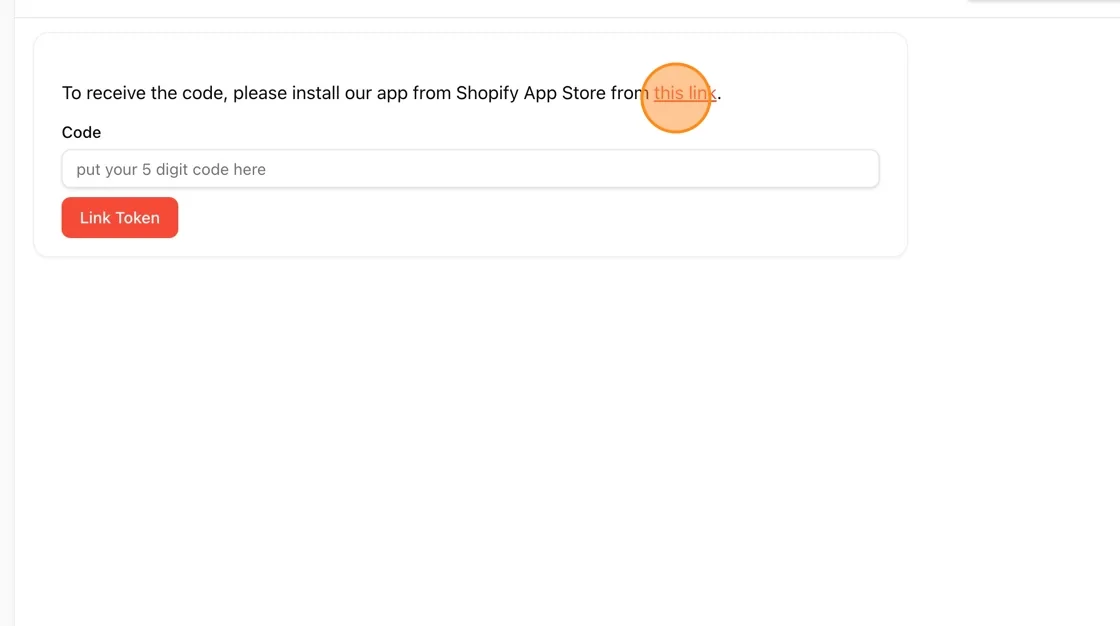
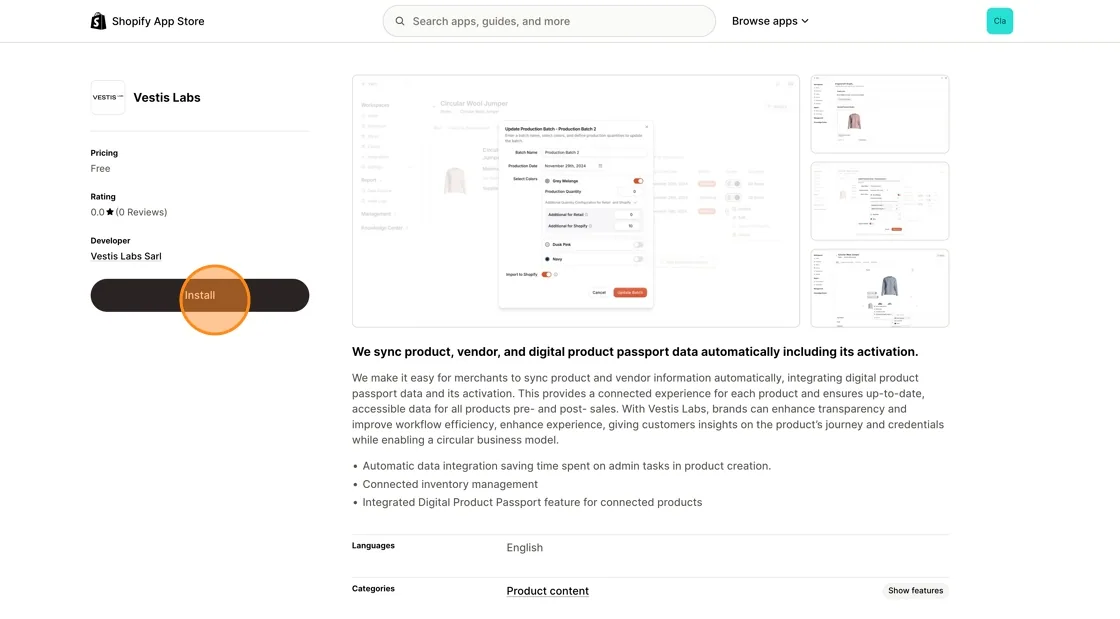
Install Vestis Labs from the Shopify App Store
- On the Vestis Labs app listing page, review the app details (free pricing, sync features for product/vendor/passport data).
- Click Install to begin installing the app to your Shopify store.
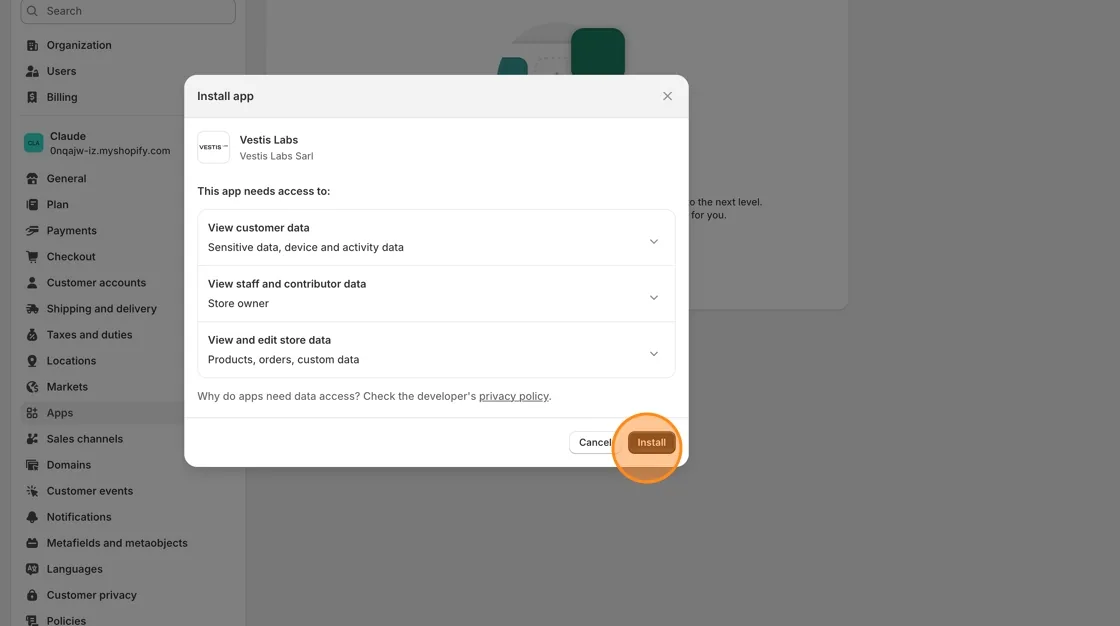
Approve app permissions
- A modal will appear titled Install app, listing the data access Vestis Labs requires (customer data, staff data, store data).
- Click Install to confirm and grant access.
Request your code via email
- After installation, you'll be prompted to enter your email address registered with Shopify.
- Enter your email and click Send OTP Email to receive your one-time 5-character code. Check your registered email.
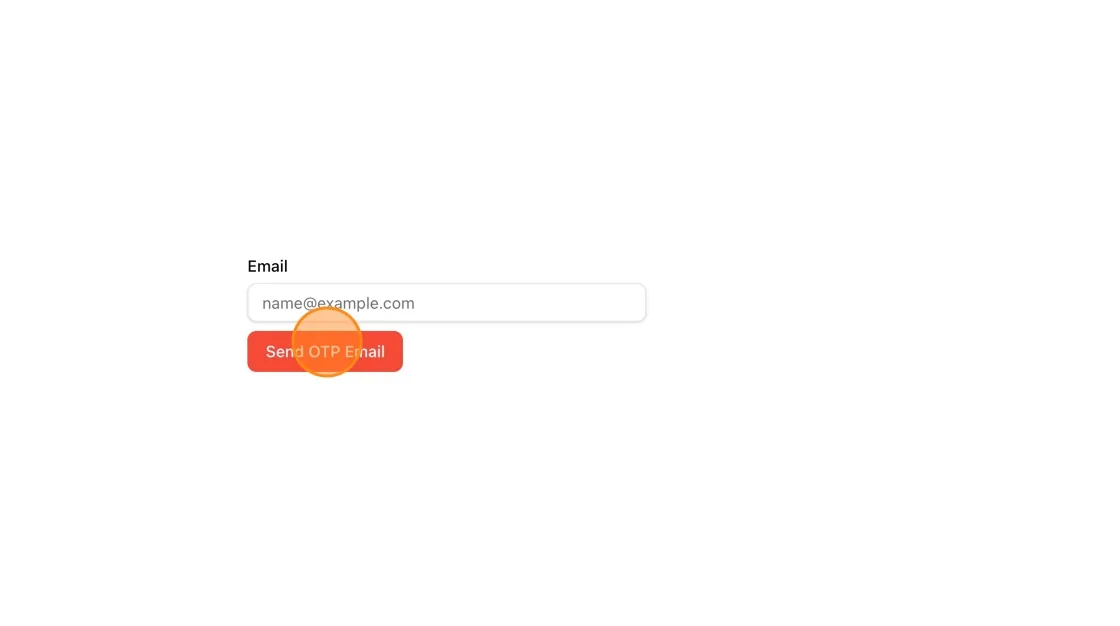
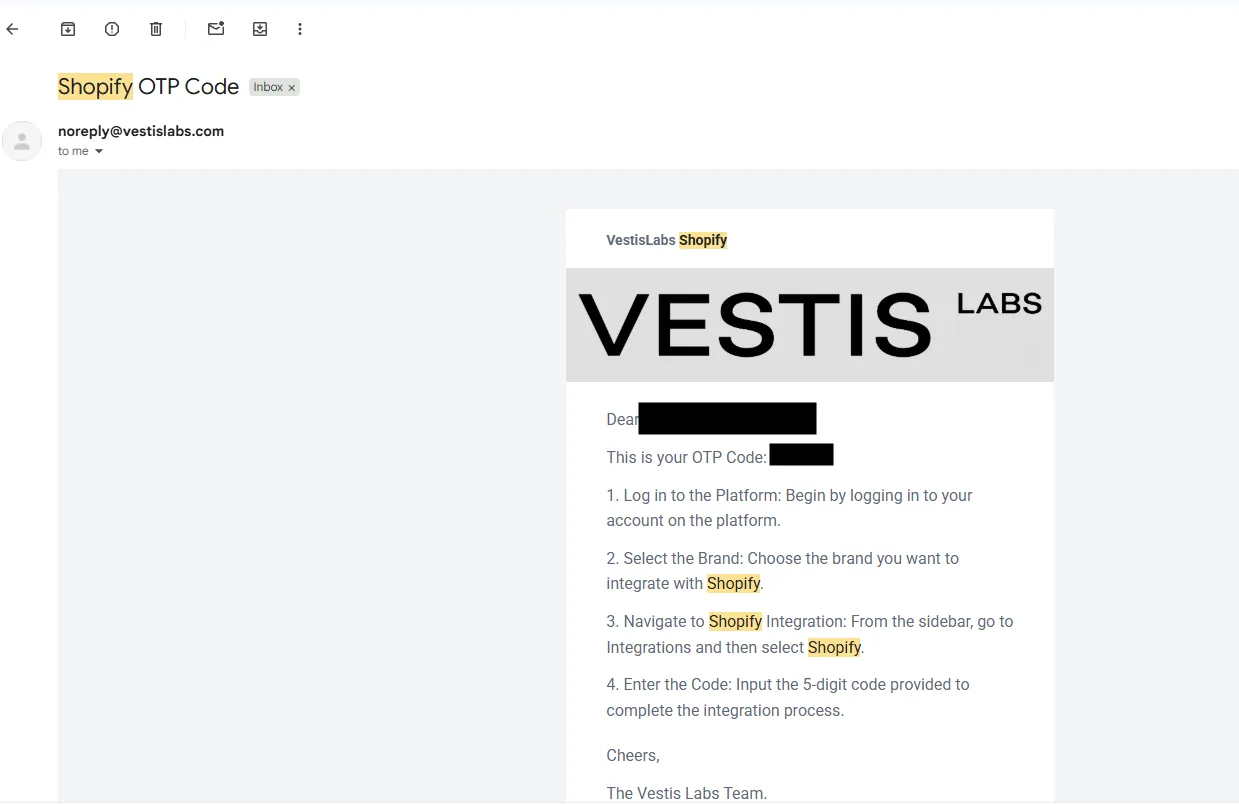
You will receive the above email from noreply@vestislabs.com. If you don't receive the email, do check your junk box.
**
**
Return to the Shopify Integration page
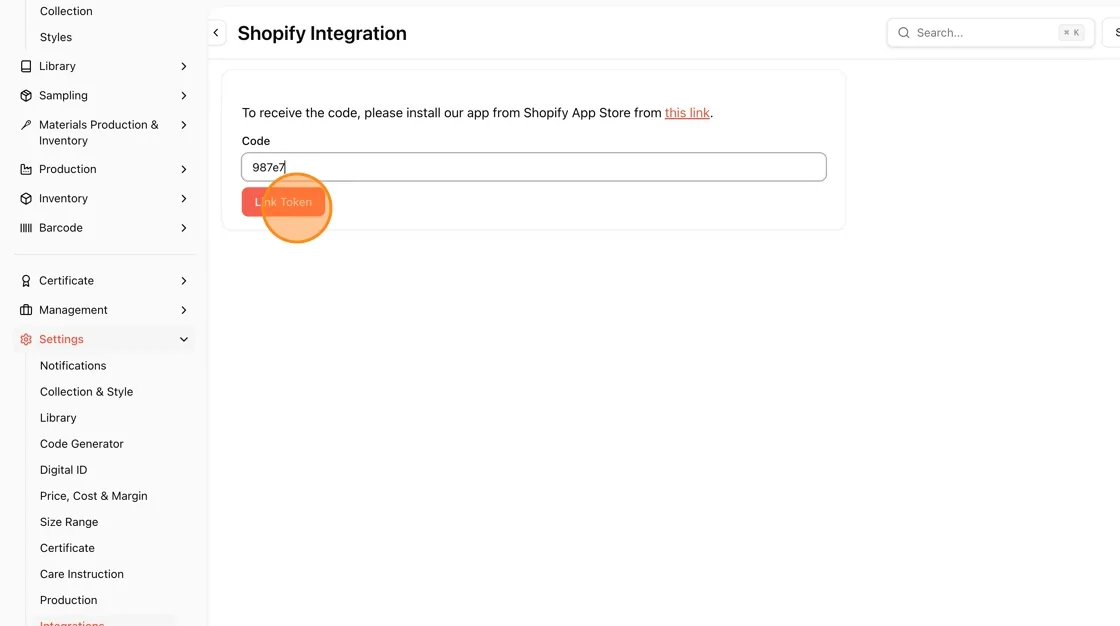
Go back to your dashboard's Shopify Integration page (Settings > Integrations > Shopify) where the Code field is waiting.
Type the 5-character code you received via email into the Code field (e.g., "987e7").
Click Link Token to submit and link your Shopify account.
**
**
Confirm the connection
Once linked, you'll see a confirmation: "Brand your brand name has been connected to shopify."
You can click Go to Store Page to view your connected store.
Further down, there's a Product Journey Embed for Shopify code snippet you can add to your Shopify theme's <head> section to display Product Journey info on linked products.
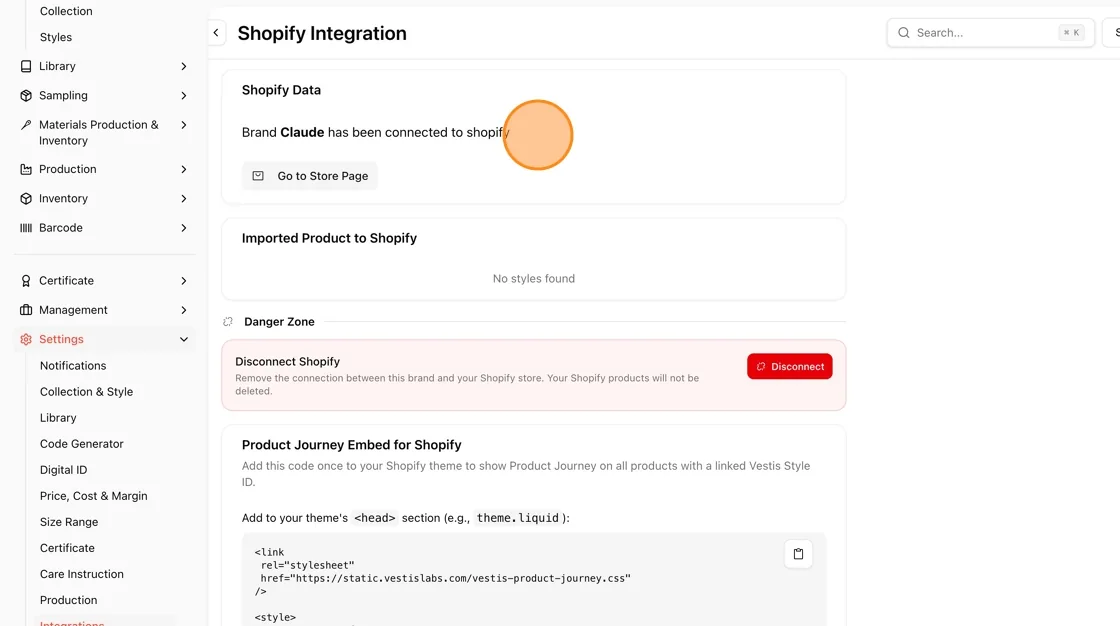
- Danger Zone with a Disconnect Shopify option if you ever need to remove the connection.
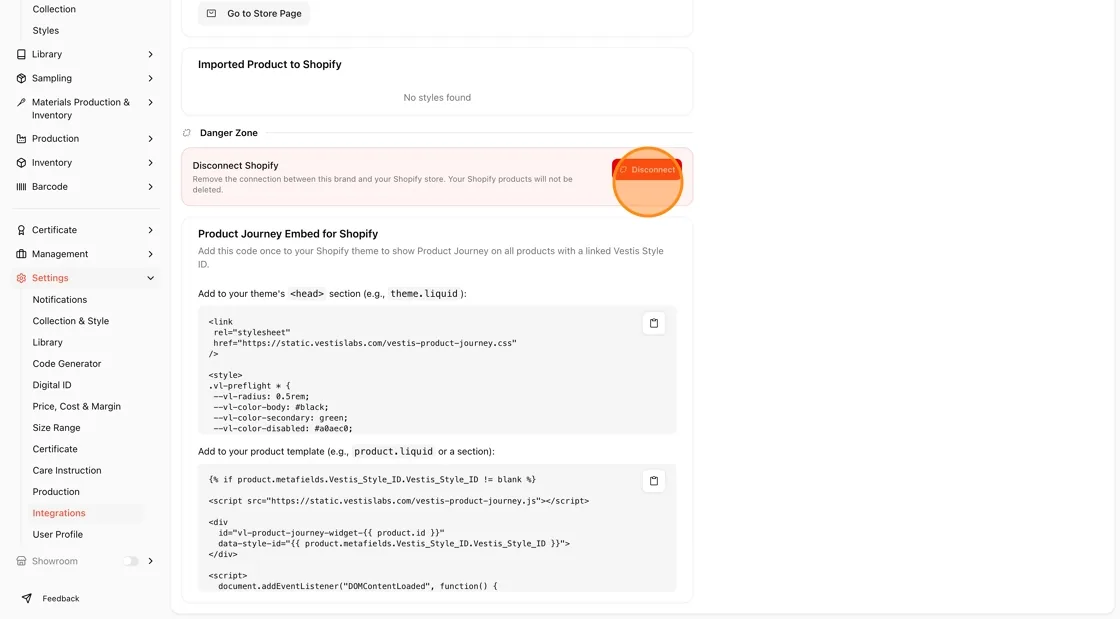
What the Shopify Integration page shows
Once the brand is linked, Settings → Integrations → Shopify shows these cards:
- Shopify Data says which brand is connected and has a Go to Store Page button that opens your store.
- Imported Product to Shopify lists the styles already sent to Shopify, each with its picture, style code and collection. Click a style to open it. When no style has been sent yet, it says No styles found.
- Danger Zone has Disconnect Shopify and only shows to users who are allowed to update the brand. A confirmation, Disconnect Shopify?, lists what is removed and states that your Shopify products are not deleted.
- Product Journey Embed for Shopify has the code to paste into your theme. If the Product Journey options are not set up yet, it links to Configure in settings first. See Integrating VestisLabs custom Liquid code into Shopify themes.
Before the brand is linked, the page shows Connect your Shopify store with three numbered steps: Install the VestisLabs app, Copy your 5-character code and Enter the code to link. The Link Token button finishes the link, and a Token has been set message confirms it.
Note
Not sure what to read next? See the Shopify integration overview.