
Step 10 of 13 in From idea to a production-ready tech pack
Tech pack measurements
A tech pack's measurement specification sheet is a table of detailed measurements for a garment that defines its fit and sizing.
Under review. This page is published while we check it against the live app, so some details may have changed.
Screenshots may be out of date.
Collection & StylesStyles(select a style)Tech PackMeasurements
Permission: VIEW_TECH_PACK_MEASUREMENT
A tech pack's measurement specification sheet is a table of detailed measurements for a garment that defines its fit and sizing.
These steps will guide users to understand how to use the Tech Pack Measurements Features.
To create measurements, there are three options:
- Create a New Measurement Card through the Design and Development Page.
- Create a New Measurement Card through the Measurements Library page.
- From the File on your device.
To access the Tech pack Measurement Page, select…
To access the Tech pack Measurement Page, select Collection & Style > Style from the left bar menu. Select your created style and click Tech pack > Measurement on the style menu.
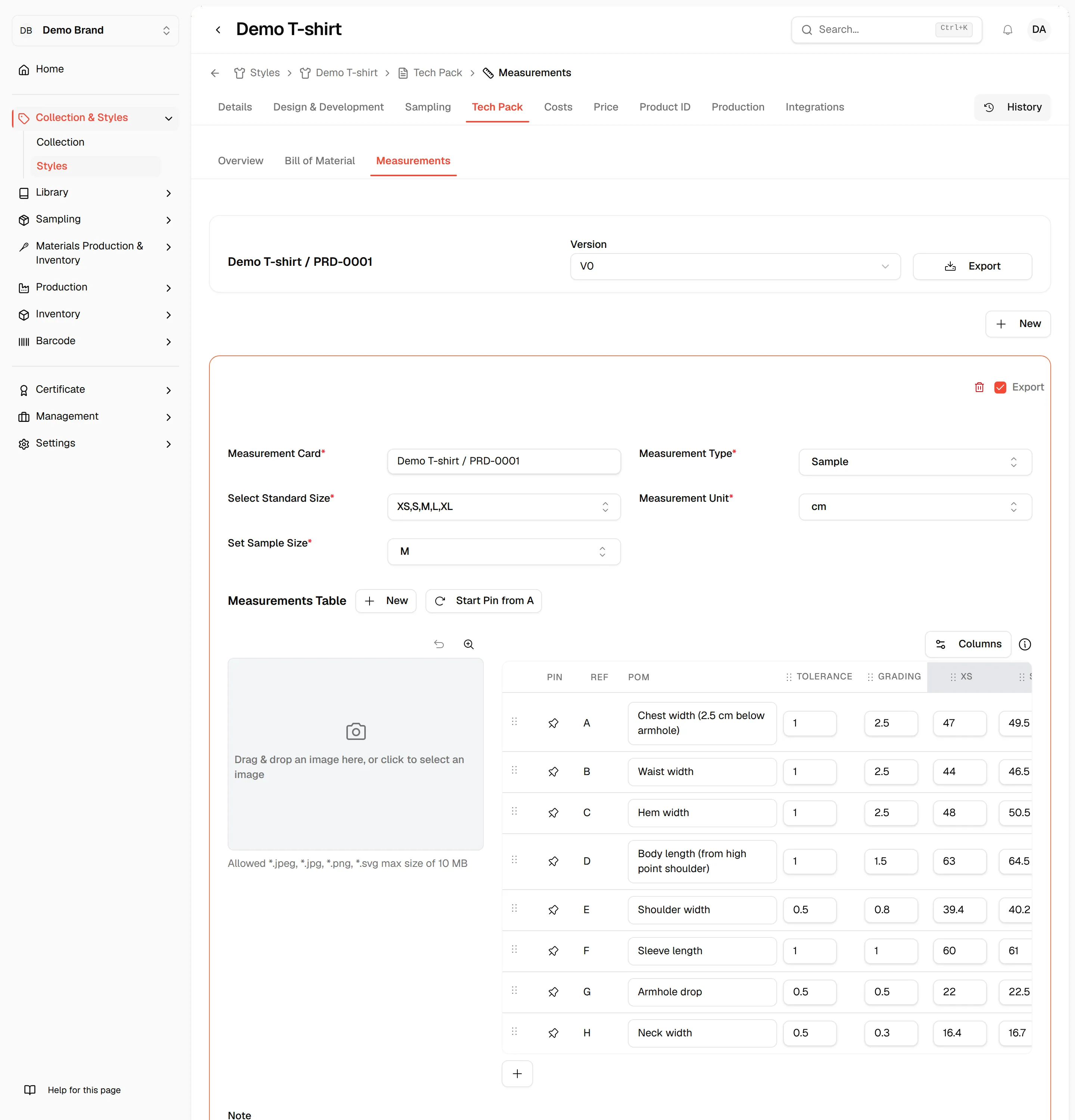
The Tech Pack Measurements page will display the…
The Tech Pack Measurements page will display the Measurement card from the input page that Users have assigned in the design and development page.
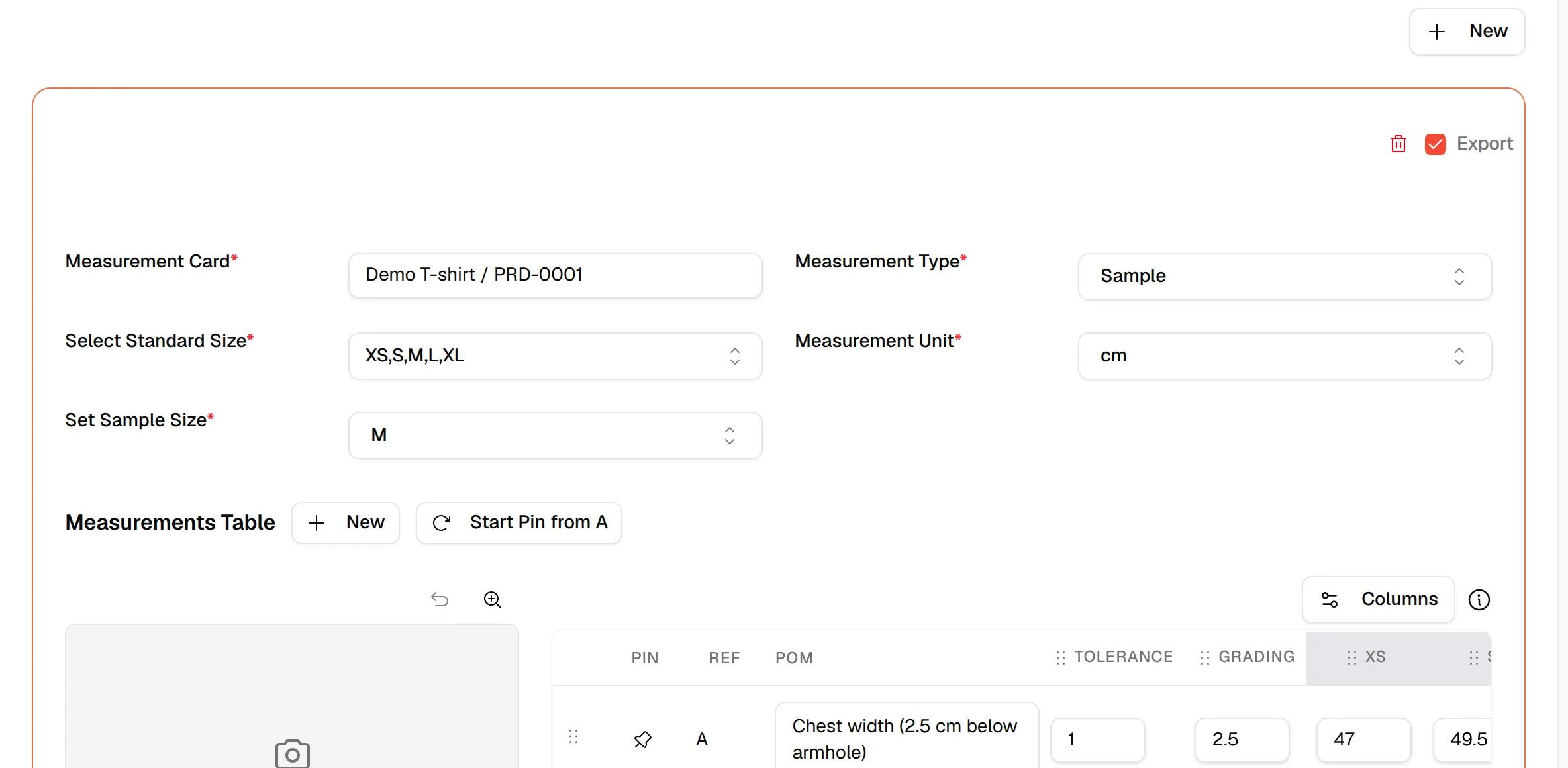
Select the final version card of the style.
Nb: the Version that corresponds to the version of the Input Page on Design and Development in the version section.

The Tech Pack Measurements content is automatically added…
The Tech Pack Measurements content is automatically added from the input page on the library of the Design and Development Page.
Users can create the Tech Pack Measurements content manually on the Page.
This page allows users to modify or create…
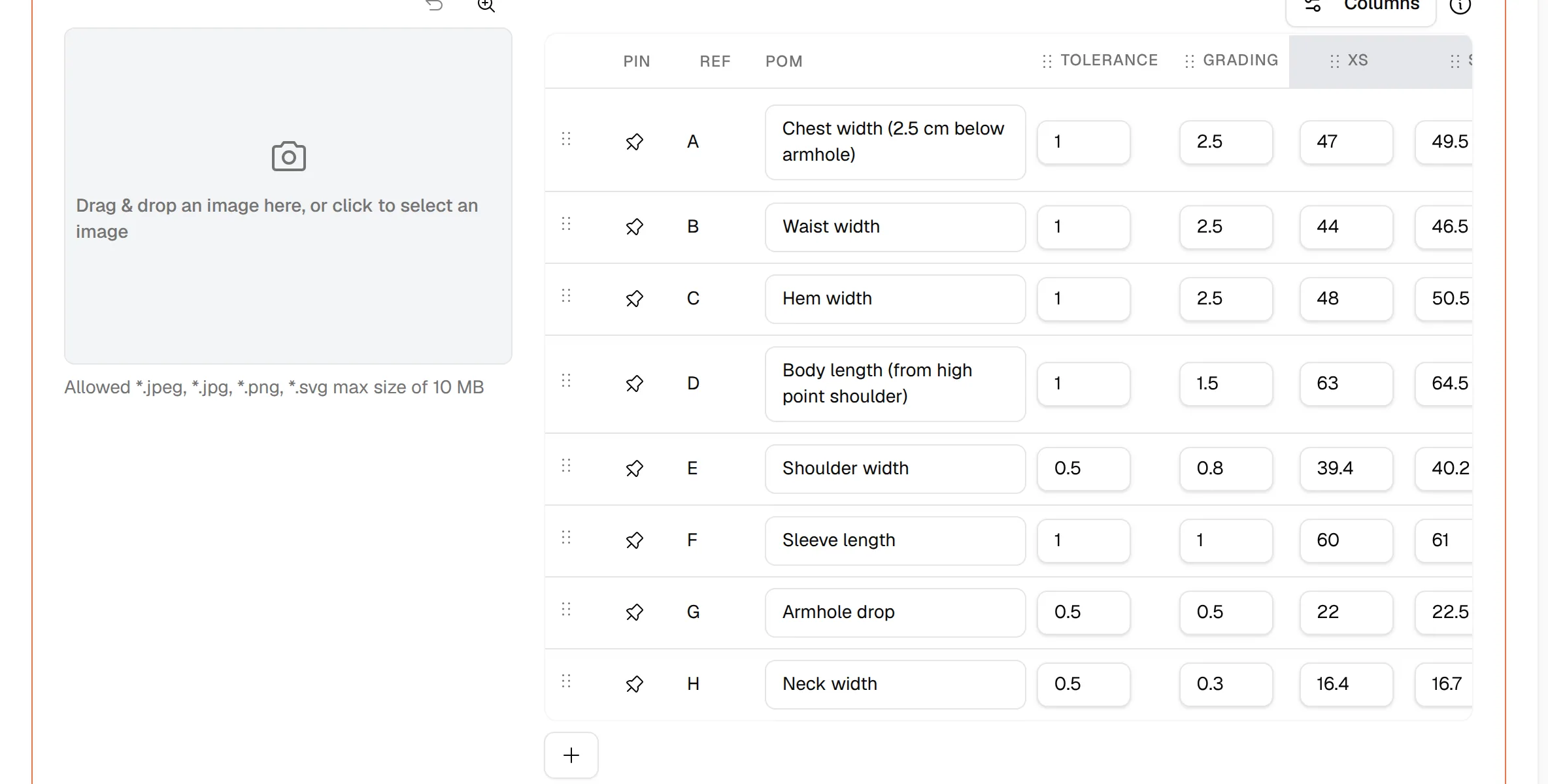
On this page you can edit the measurement card directly: Measurement Card (the name), Measurement Type, Select Standard Size, Set Sample Size, Measurement Unit, the image and the measurement tables. Use New above the tables to add another measurement table, and Start Pin from A to reset the pin references.
**
**
Nb: You must complete all the required fields when you update the measurement. You can follow this instruction to update the page or when creating a Product measurement.
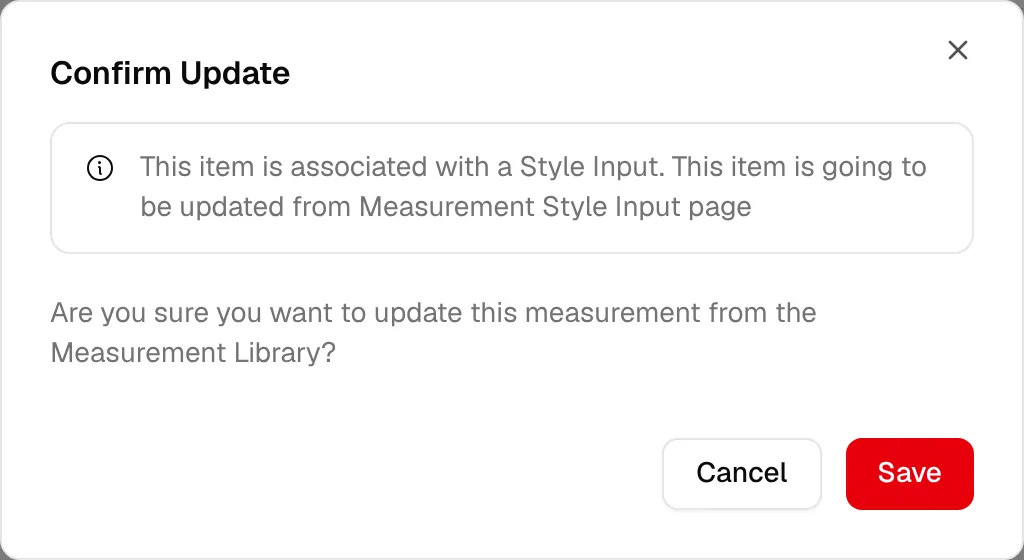
Select Save in the lower-right corner.
Click Save at the bottom of the card, then confirm with Save in Confirm Update.
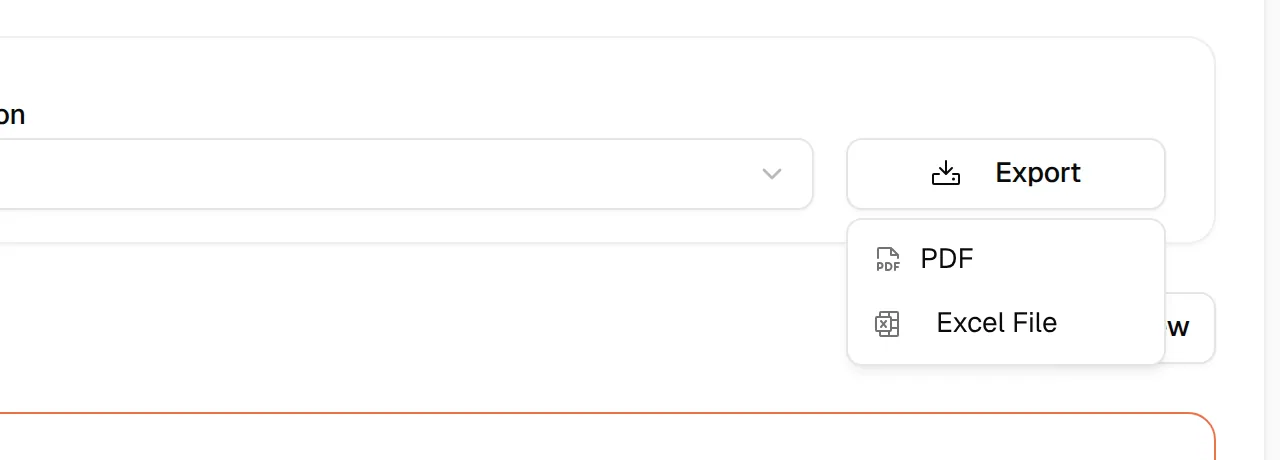
Select Export on the upper right of the…
Click Export on the upper right of the page. Each measurement card also has an Export checkbox at its top right: check it for the cards you want in the Excel file.
Select Export on the upper right.
The product material is available in two file formats: PDF and Excel File. Choose one in the Export menu. Users may select their preferred format when saving the product material.
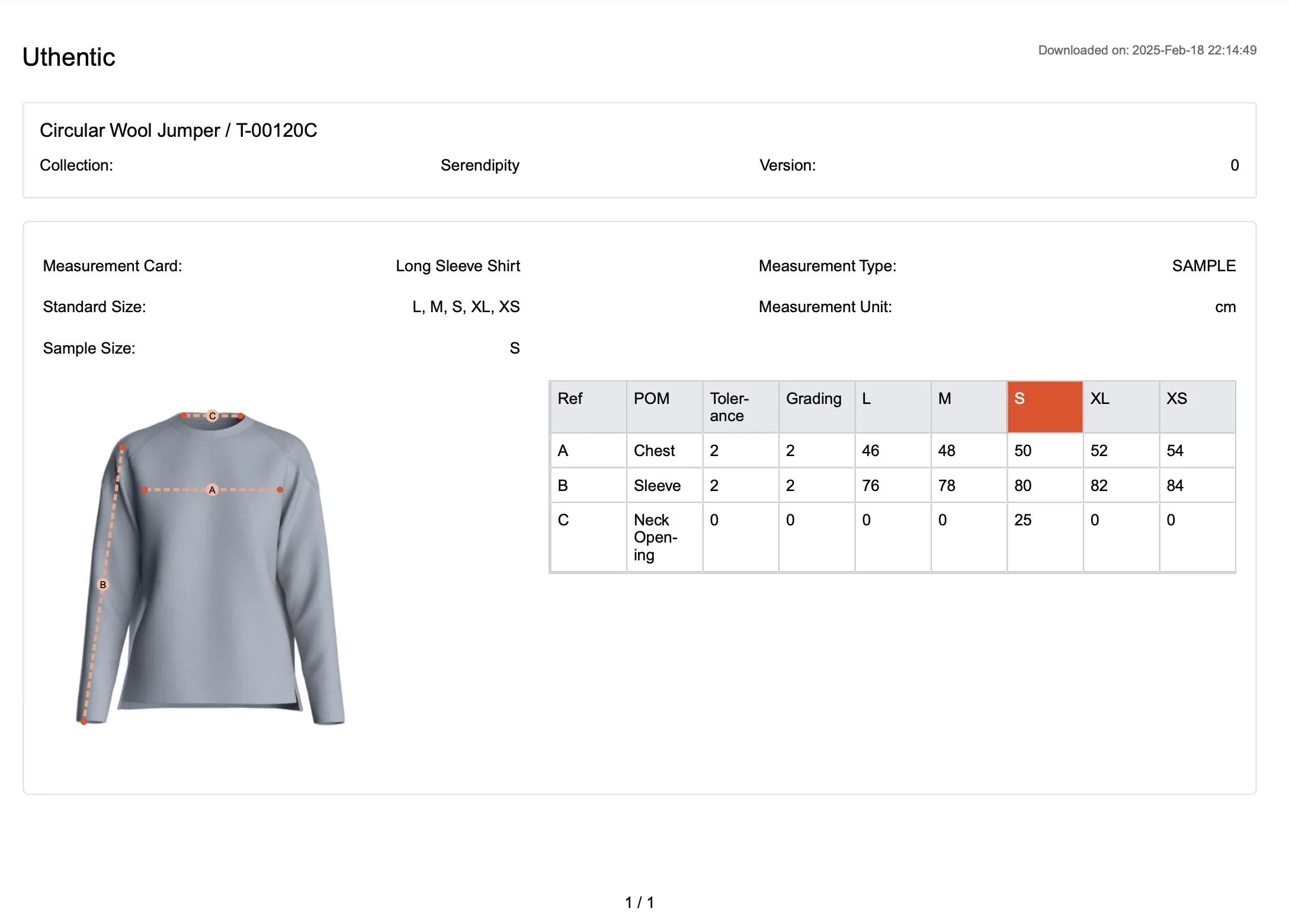
The downloaded file in PDF (Landscape) Format, you'll receive the file that looks like this:
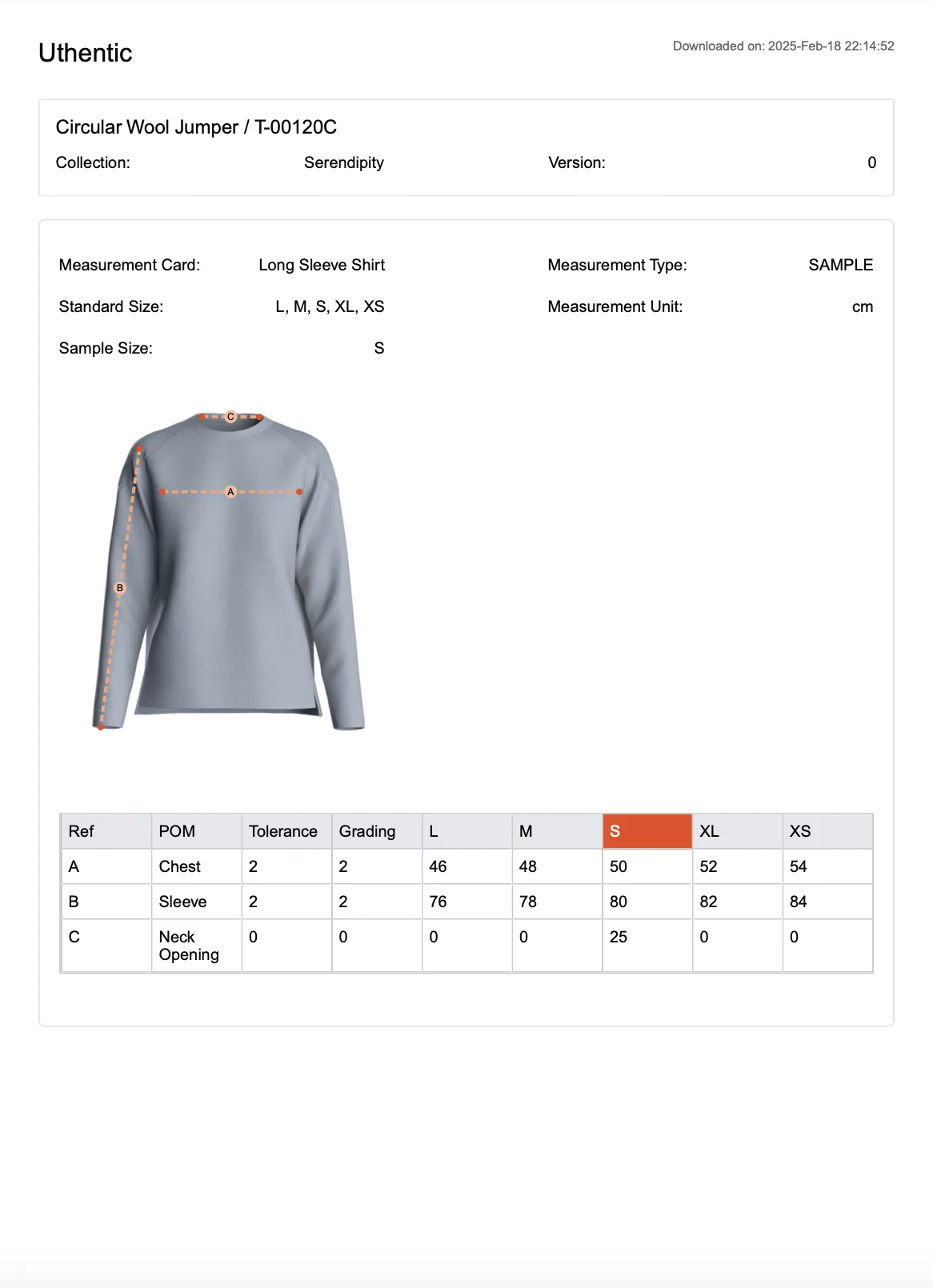
The downloaded file in PDF (Portrait) Format, you'll receive the file that looks like this:
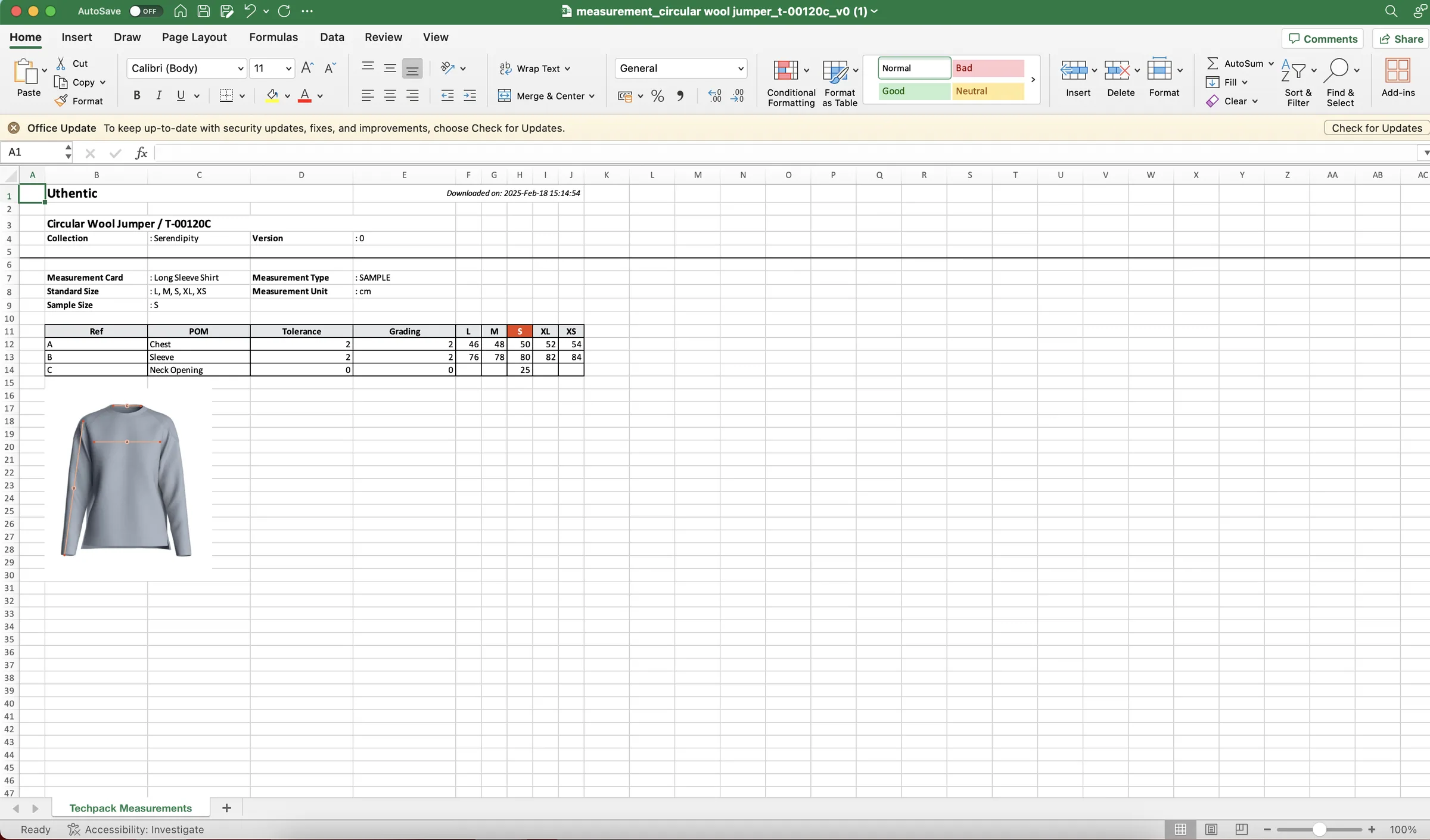
The downloaded file in Excel Format, you'll receive the file that looks like this:
Export a measurement sheet
- Export → PDF opens the print view of all measurement cards for the selected version in a new tab. See Print and share a tech pack.
- Export → Excel File downloads only the cards whose Export box is checked. All cards are checked by default.
Delete a measurement card
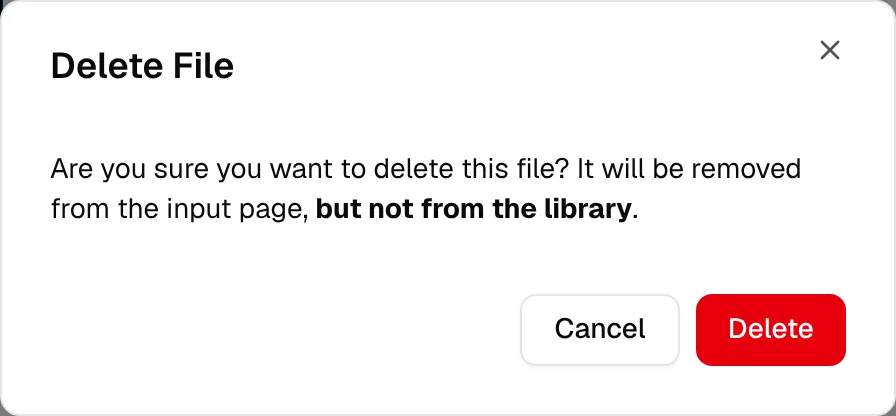
Click the bin icon (Delete Measurement) at the top right of a card and confirm in Delete File. The card is removed from the input page of the style, but not from the library.
Troubleshooting
There is no Measurements tab. The Measurements tab only shows when the measurement feature is turned on for your brand. Contact support to turn it on.