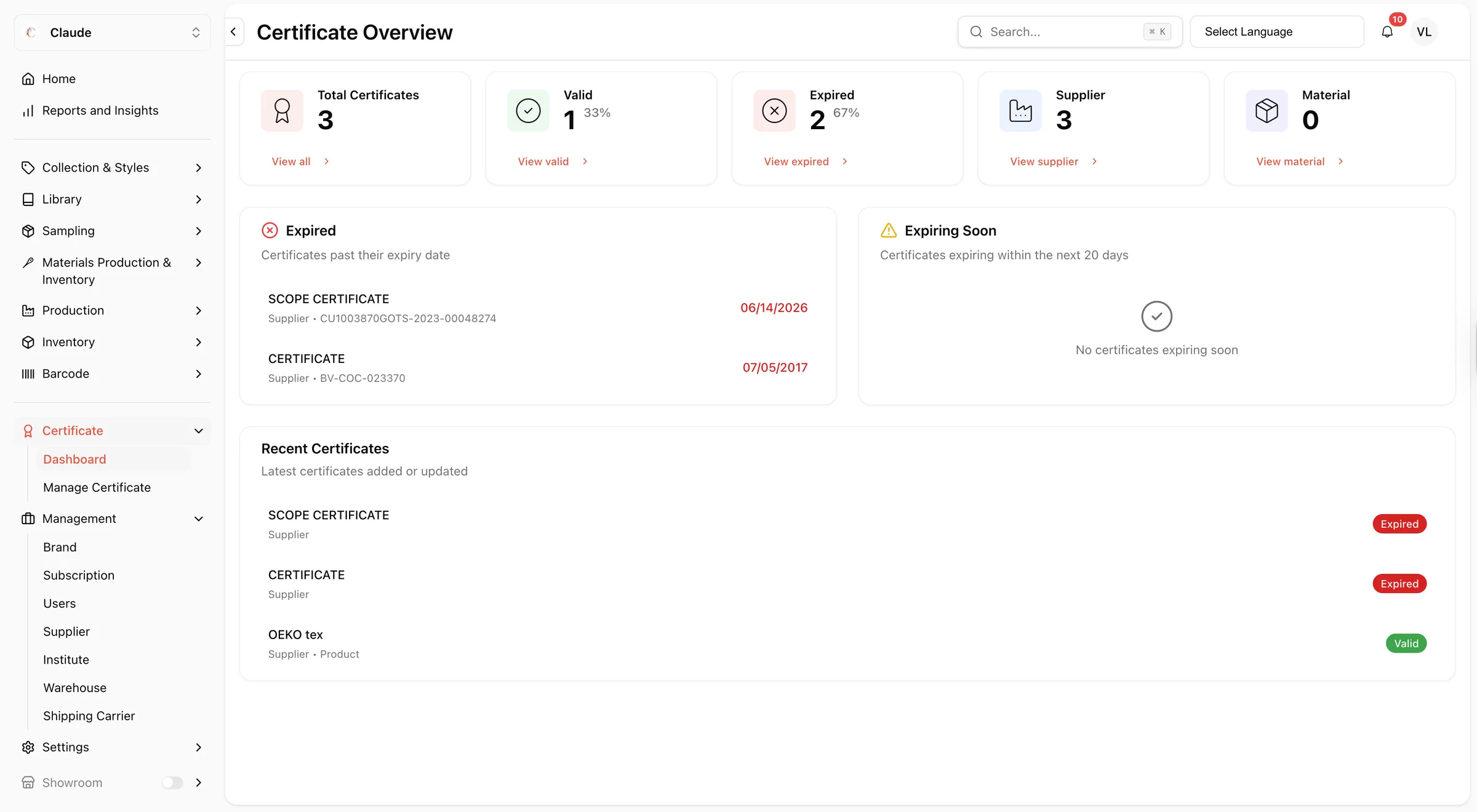
Certificate dashboard
Certificate Dashboard serves as the central hub for monitoring certificate compliance across your workspace.
Under review. This page is published while we check it against the live app, so some details may have changed.
Screenshots may be out of date.
Certificate Dashboard serves as the central hub for monitoring certificate compliance across your workspace. From this page, users can track certificate validity, identify expiring or expired certificates, and review recent certificate activity in one place.
This dashboard is designed to give you quick visibility into your certificate status while providing direct access to detailed views.
CertificateDashboard
Permission: VIEW_CERTIFICATE_MANAGEMENT
Key features on the certificate dashboard
At the top of the dashboard, you will find an overview of your certificate activity:
- Total Certificates — Displays the total number of certificates recorded in your workspace.
- Valid — Shows how many certificates are currently valid, along with the percentage of your total certificates this represents.
- Expired — Shows how many certificates have passed their expiry date, along with the percentage of your total certificates this represents.
- Supplier — Displays the total number of suppliers linked to certificates.
- Material — Displays the total number of materials linked to certificates.
Each card has a link at the bottom (for example View valid or View supplier) that opens Certificate management already filtered.
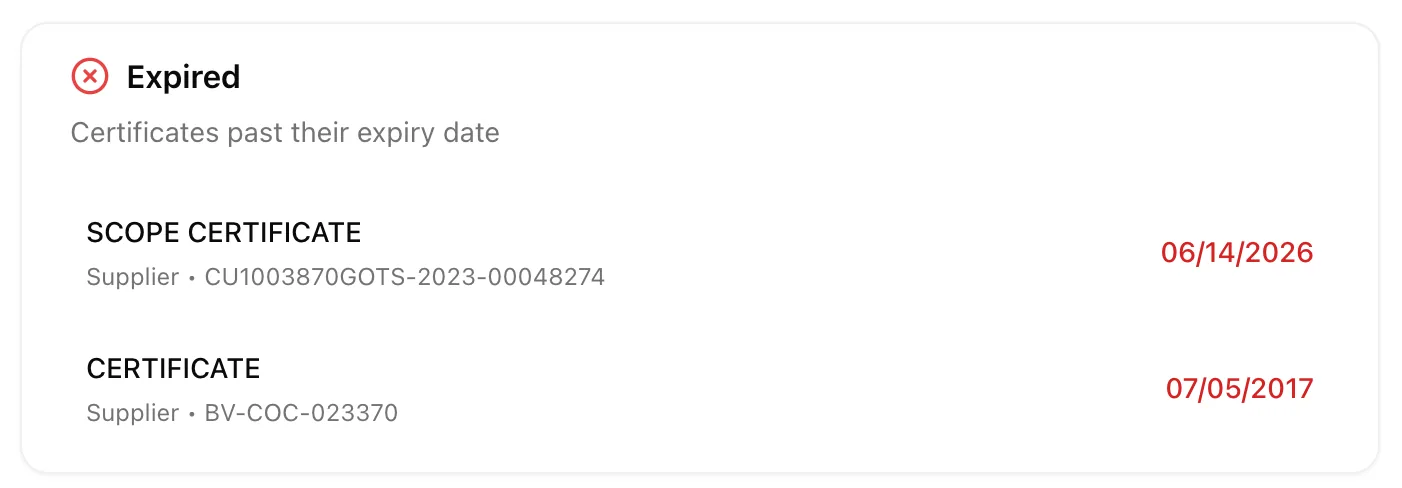
Expired
This section lists certificates that are past their expiry date.
What you can see:
- Certificate type or name (e.g., Scope Certificate, Certificate)
- Linked entity (e.g., Supplier) and certificate/licence number
- The expiry date, shown in red for visibility
Use this section to quickly identify which certificates need immediate renewal or follow-up action.
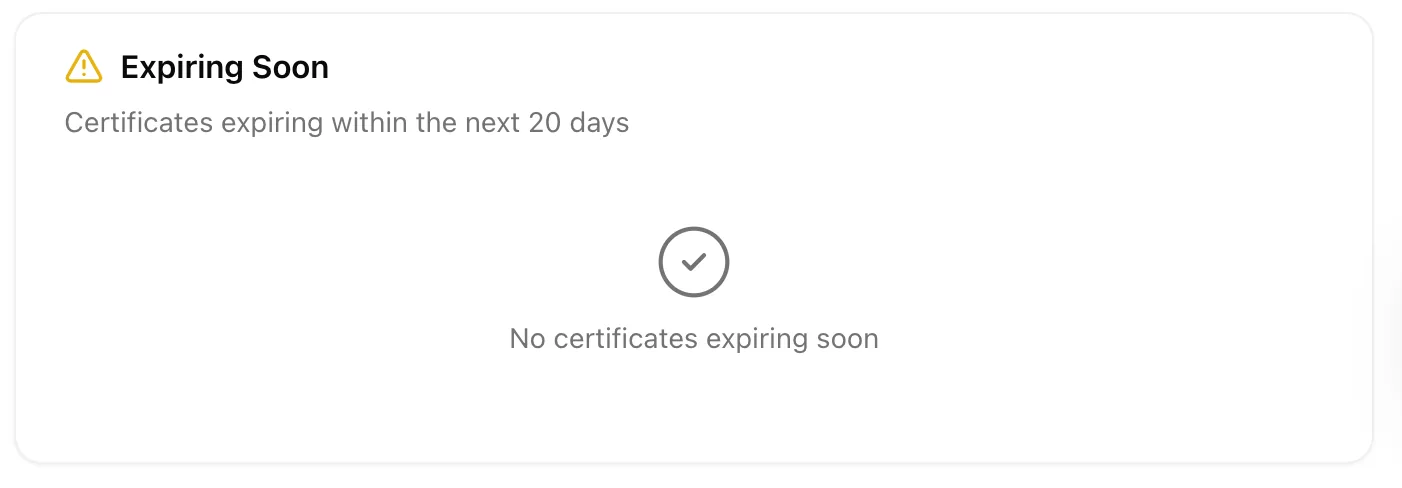
Expiring Soon
This section lists certificates expiring within the next 30 days by default, so you can stay ahead of renewals before they lapse. The number of days is the expiring-soon threshold you set in Certificate settings. If no certificates fall within this window, the dashboard displays "No certificates expiring soon."
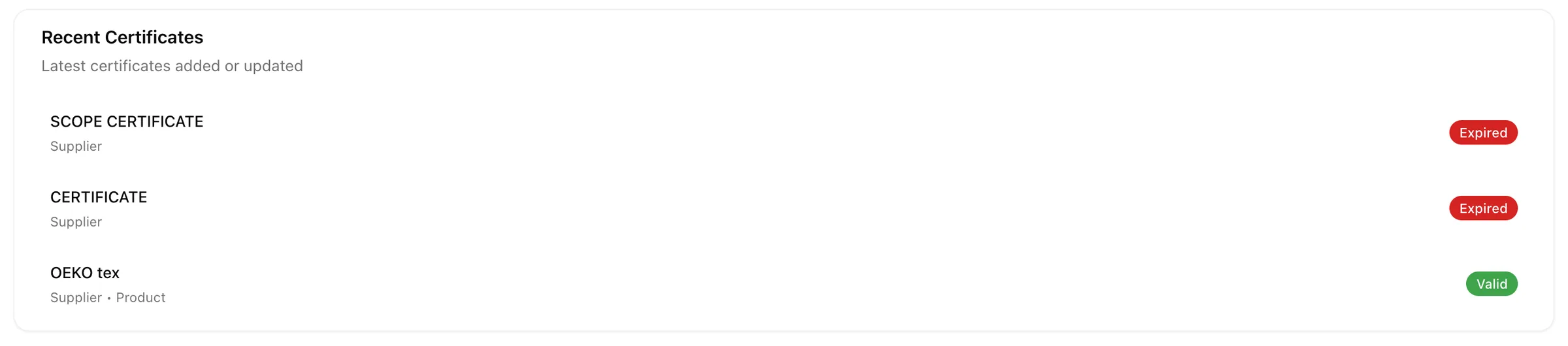
Recent Certificates
This section shows the latest certificates added or updated in your workspace.
What you can see:
- Certificate name and linked entity type
- A status badge (for example Valid or Expired) indicating its current state at a glance
The list shows the five most recently created certificates. Click any certificate in the Expired, Expiring Soon or Recent Certificates lists to open it in the certificate form.
This gives you a quick log of recent certificate activity without needing to open the full Certificate Management list.