
Edit a measurement card
Open a measurement card, change its details, status, tables and note, switch the display unit and understand when changes are saved.
Open a measurement card from the Measurement Library to change its sizes, measurement rows, picture, status and note. The edit page uses the same form as creating a card, and adds a status, an Action menu, a unit switch and automatic saving.
LibraryMeasurements(card)Edit
Permission: UPDATE_PRODUCT,VIEW_PRODUCT
Open a card
Open the Measurement Library
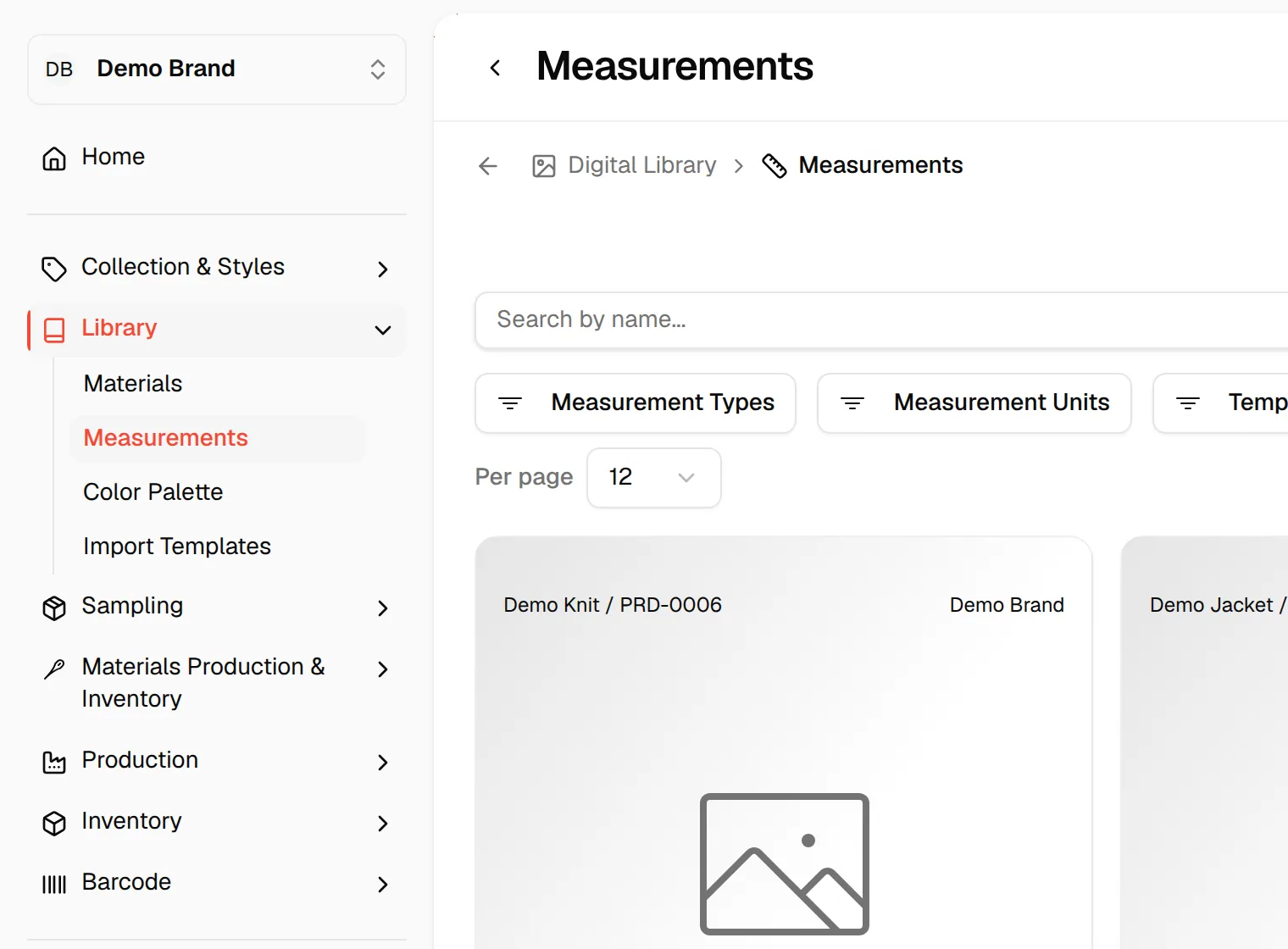
From the left sidebar, click Library, then Measurements.
Open the card
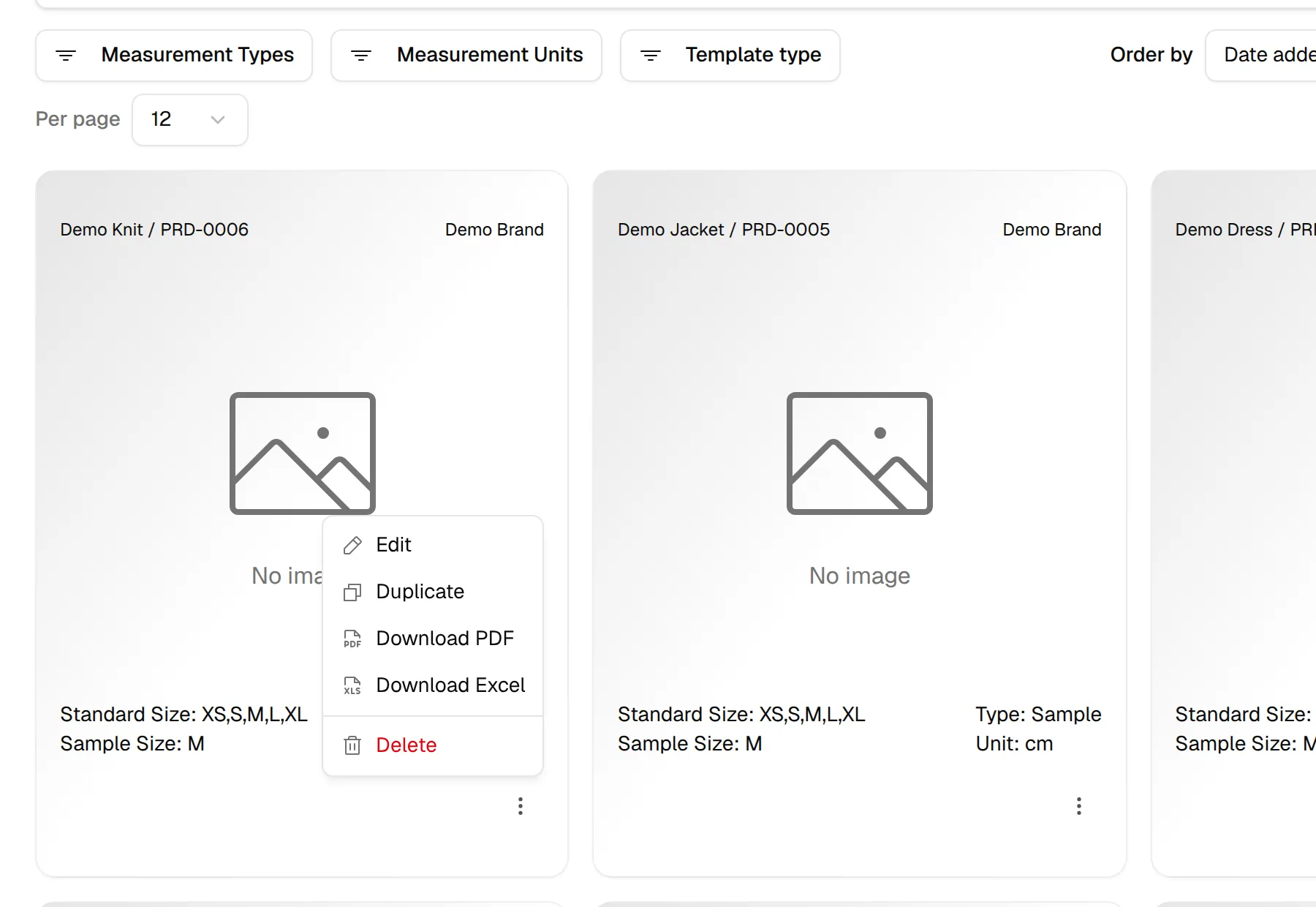
Click the image of the card, or click the three dots on the card and then Edit.
The breadcrumb at the top shows the name of the card. If you came from a style's Design & Development, a Back to Design & Development button appears at the top left.
The top bar
At the top right of the page you find:
- Select status : the status of the card. See Change the status.
- Action : Save as Template, Download PDF and Download Excel.
- History : opens the change history of the card.
- Save : saves the card and returns to the list. While it works, the button shows Saving....
- Last updated : under the buttons, shows when the card was last changed, for example "3 minutes ago".
Change the status
Open the status list
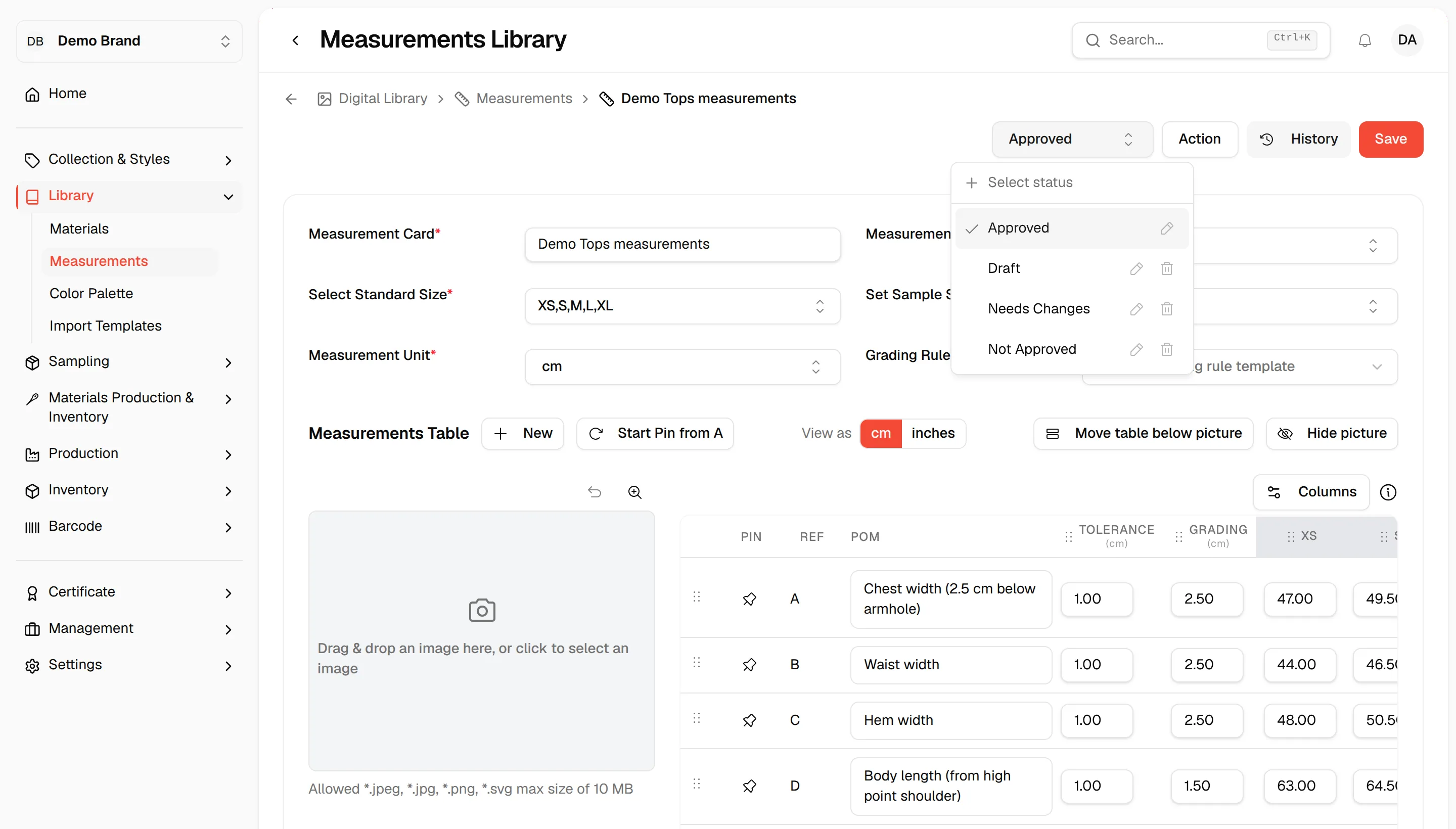
Click the Select status dropdown at the top right.
Select a status
Select a status, for example Draft, Needs Changes, Approved or Not Approved.
Add your own status (optional)
Type a new name in the field at the top of the dropdown and add it. You see Status added and the new status is selected.
Next to your own statuses, you can click the pencil to rename them or the trash icon to delete them. The system statuses and the default status cannot be edited or deleted. Manage the full list, order and default in Measurement card status settings.
Edit the card details
The form at the top of the page has the same fields as when you create a card: Measurement Card, Measurement Type, Select Standard Size, Set Sample Size, Measurement Unit and Grading Rule. All are described in Create a digital measurement library.
Note
Measurement Card, Measurement Type, Set Sample Size and Measurement Unit are required. If one is empty you see "Measurement Card must not be empty", "Measurement Type must not be empty", "Sample Size must not be empty" or "Measurement Unit must not be empty".
Next to each option in Measurement Type and Measurement Unit, click the three dots to Edit the name, or to Delete it. You cannot delete the option that is currently selected.
How saving works
On the edit page changes are saved automatically about a second and a half after you stop typing. A change is only sent when the card is valid, for example when no required field is empty, so you may not see a message while you are in the middle of an edit.
Click Save at the top right or at the bottom of the page to save straight away and go back to the list. If a save fails, you see Failed to update product or a message that names the row that has a problem.
Click Cancel at the bottom to leave without saving more. If you have changes that are not saved yet, Unsaved Changes asks "You have unsaved changes. Are you sure you want to leave? Your changes will be lost." with Stay and Leave.
Important
If you open a template card from a style, changes cannot be saved back to the template. A Template Cannot Be Auto-Saved window offers Save as New Card, with a Card Name field, or Discard Changes.
View the card in another unit
Above the measurements table, View as lets you switch between cm and inches. When you view in another unit than the saved one, a "saved in cm" note appears next to it.
- This only changes how the values are shown. The card keeps its own unit.
- The PDF and Excel you download from this page follow the unit you are viewing.
- If the card uses another unit such as m or mm, the toggle is switched off and shows "Conversion is only available for cm and inches."
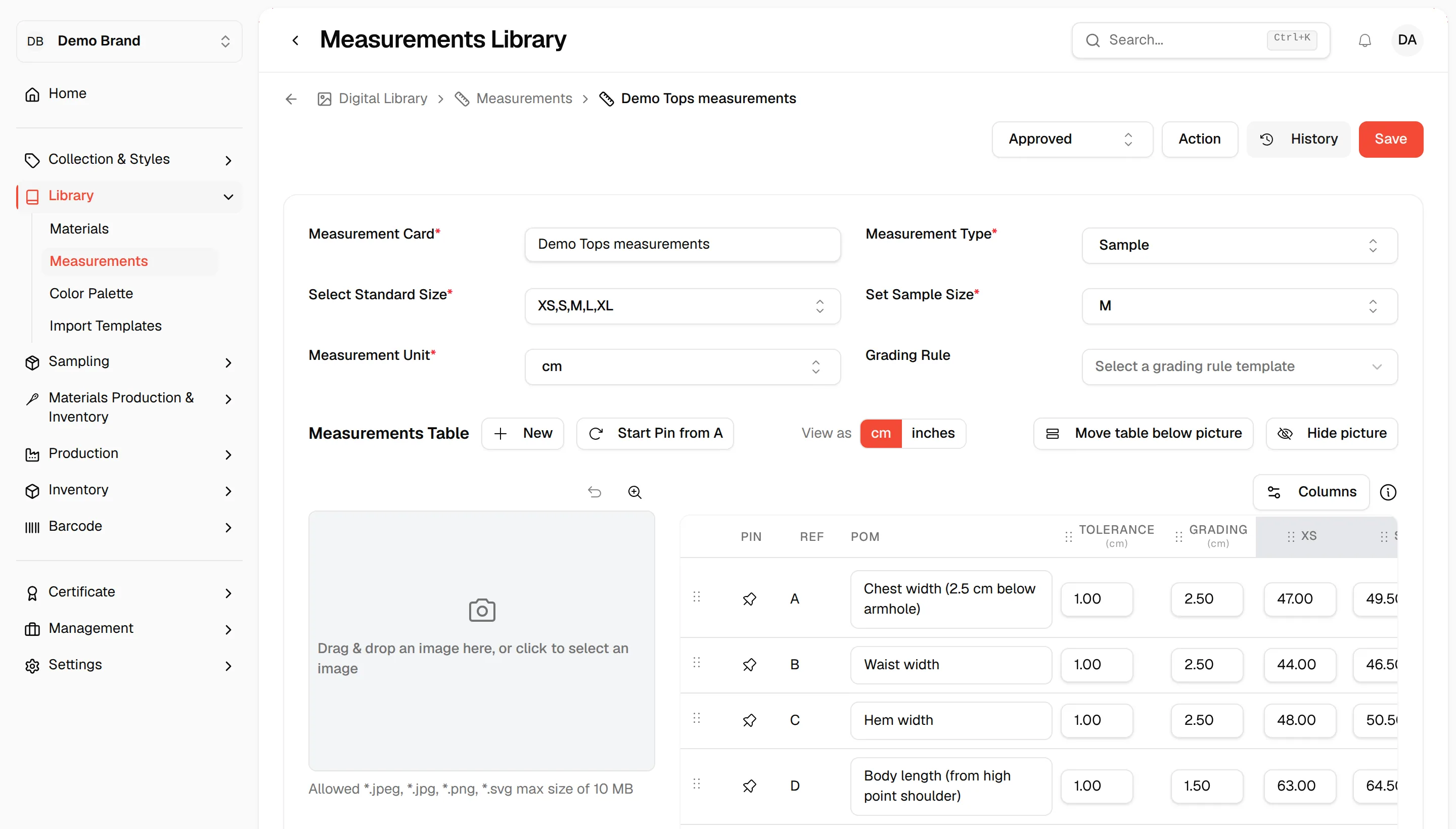
Table and picture tools
Above the measurements table you find:
- New : adds a new measurement table to the card. The tooltip reads New Measurement Table.
- Start Pin from A : resets all pin references across all tables, starting from A. You are asked to confirm in Reset Pin References, and the action cannot be undone.
- Move table below picture / Move table beside picture : gives the table the full width under the picture, or puts it next to it.
- Hide picture / Show picture : hides the picture so the table gets the full width.
- Zoom In / Zoom Out, Undo Pin Changes and Delete picture, above the picture. Deleting the picture asks you to confirm in Delete File, and clears the pins.
- Delete next to a table: removes that table after you confirm in Delete Measurement Table.
The choices for the table position and the picture are remembered in your browser. They are not part of the card.
For the columns of the table, see Measurement table columns.
Add a note
Scroll below the table to Note. Write free text with the editor toolbar. A note can be at most 20,000 characters. Click the image icon in the toolbar to add a picture to the note.
Save the card as a template
Click Action, then Save as Template. The steps for publishing and unpublishing a template are in Manage a created measurement card.
Download the card
Click Action, then Download PDF to choose Landscape or Portrait and click Download, or Download Excel to download the card as a spreadsheet.