
Users collection and style permission page
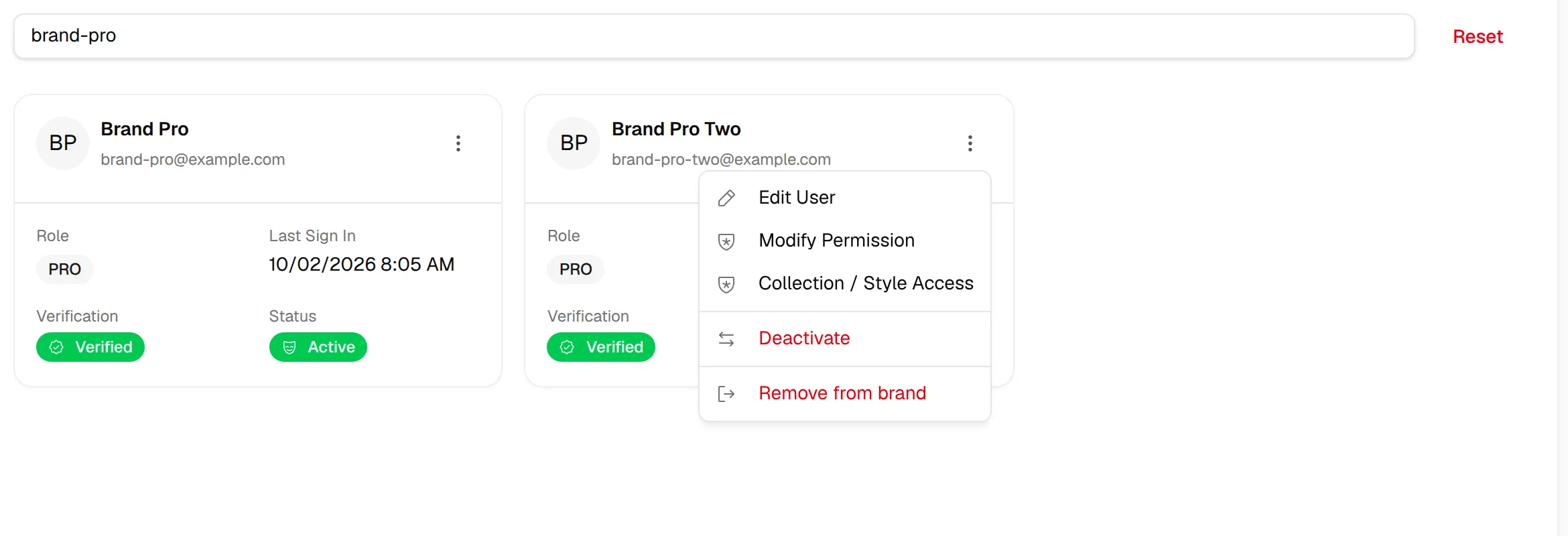
Collection / Style Access: Users will be directed to the Collection /Style access page, where they can manage selected users' Collection or Style access.
Under review. This page is published while we check it against the live app, so some details may have changed.
ManagementUsers
Permission: VIEW_COLLECTION_ACCESS,VIEW_STYLE_ACCESS
Three dots at the end of a user row open the action menu for that user.
- Select Collection / Style Access. The item is not shown for users with the Admin role.
The Collection & Style access page will display all the existing Collection & Styles.
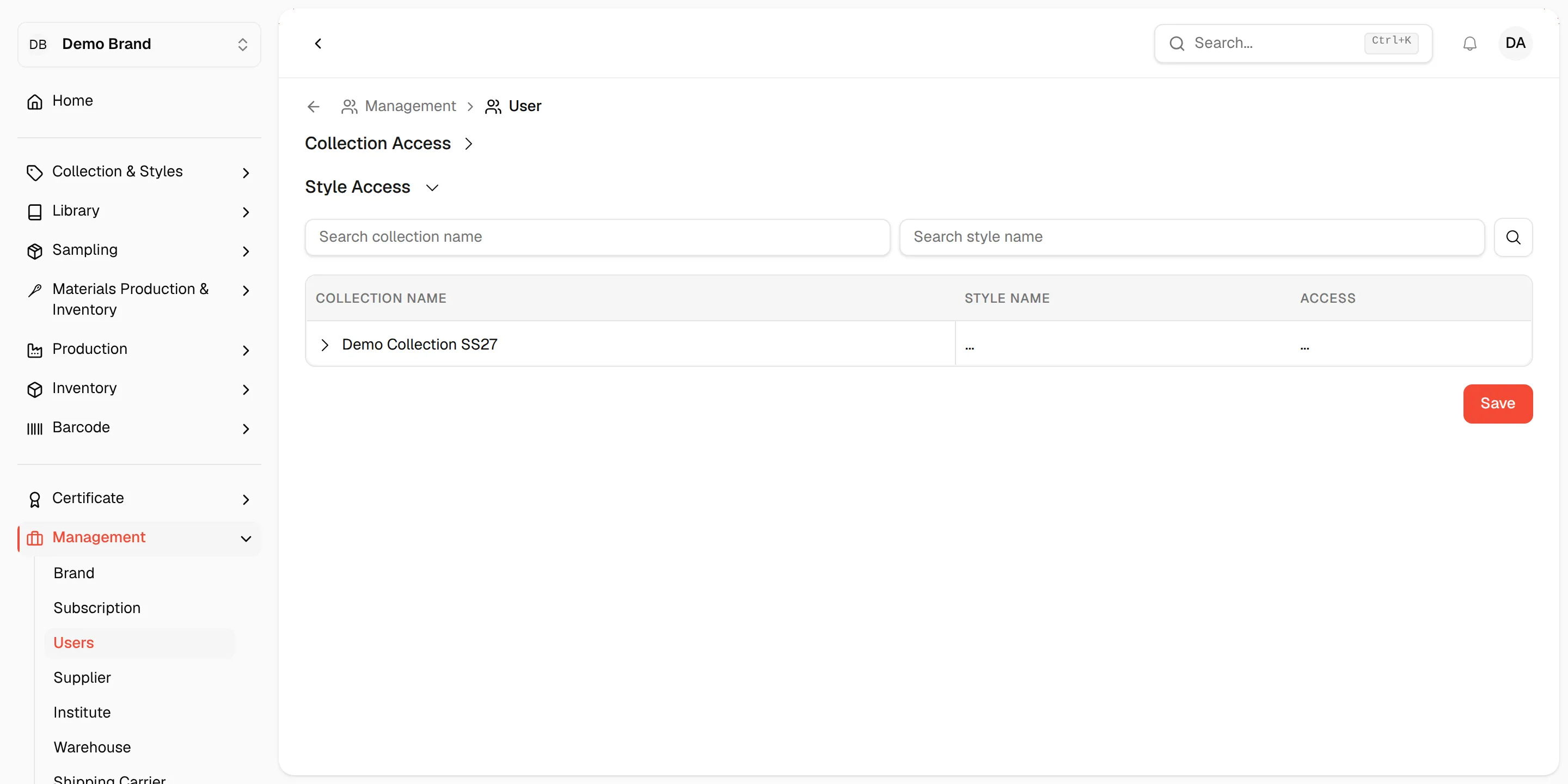
- Select the Dropdown to expand the Collection & Style Access detail.

- Search Collection - Enter the name of your collection in the field to locate a specific collection.
- Search Style - Enter the name of your collection and style in the field to locate a specific style.
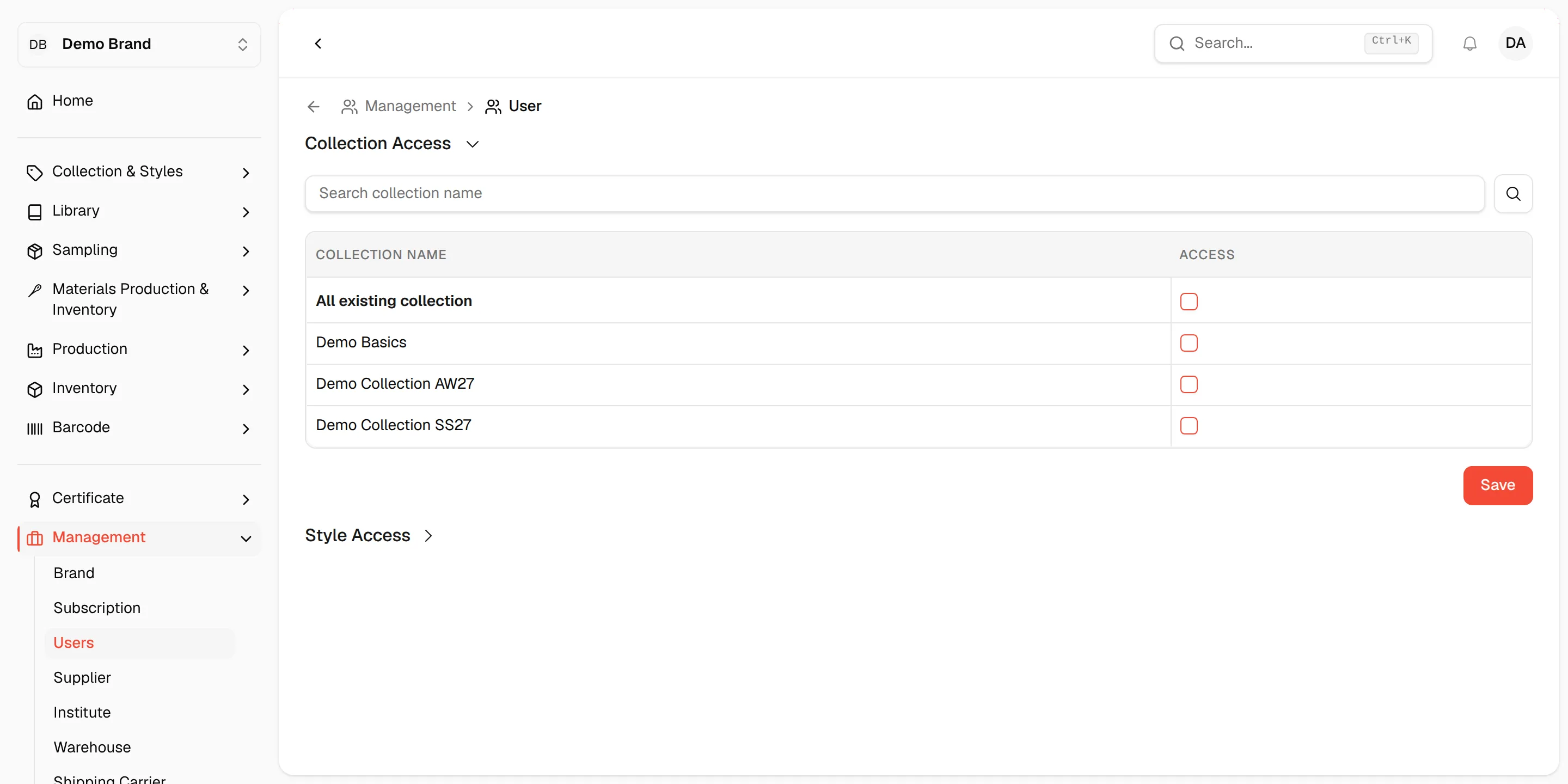
Select the collection access.
Select Save in the lower-right corner to update the Collection Access.
The Styles access will automatically be selected due to the collection access, or you can select the style access manually
Select Save in the lower-right corner to update the Style Access.
Users have Access Own Brand Collection and Style permission; all the Collection and Style access will automatically be selected.
The Collection & Style access button will automatically be disabled if the user has the Admin role.
The page has two collapsible sections, Collection Access and Style Access. Each has its own Save button. You should see Collection access saved successfully or Style access saved successfully.