Create a new ai-powered library material
Learn how to efficiently add new material entries to your digital library using AI-assisted tools.
Under review. This page is published while we check it against the live app, so some details may have changed.
Screenshots may be out of date.
Learn how to efficiently add new material entries to your digital library using AI-assisted tools. This guide covers the entire workflow from uploading specifications and defining compositions to finalizing your material entry for production.
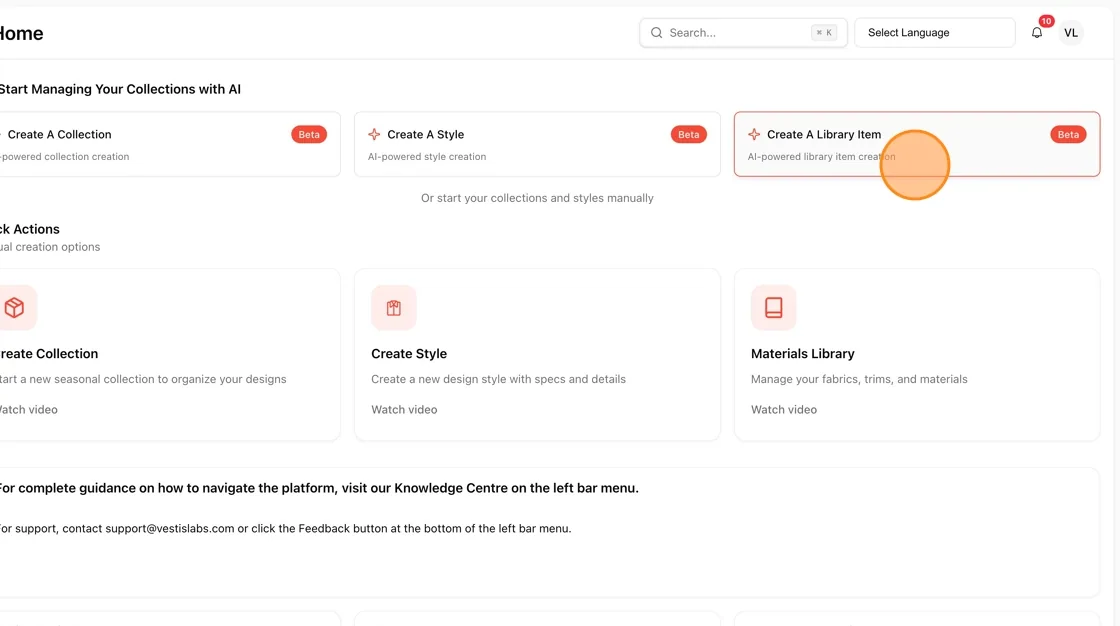
On the Home screen, find the Create A Library Item card under "Start Managing Your Collections with AI". Click it to launch the AI creation flow. Alternatively, go to Library → Materials in the left sidebar.
Another option
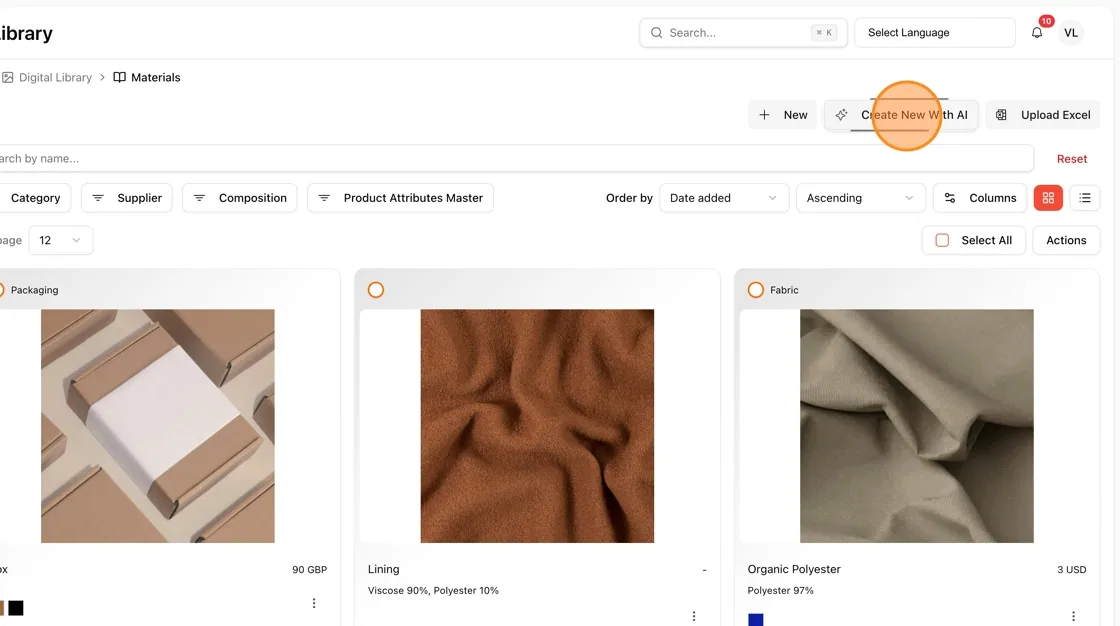
In the sidebar, expand Library and click Materials. On the Materials list page, click Create New With AI in the top-right toolbar.
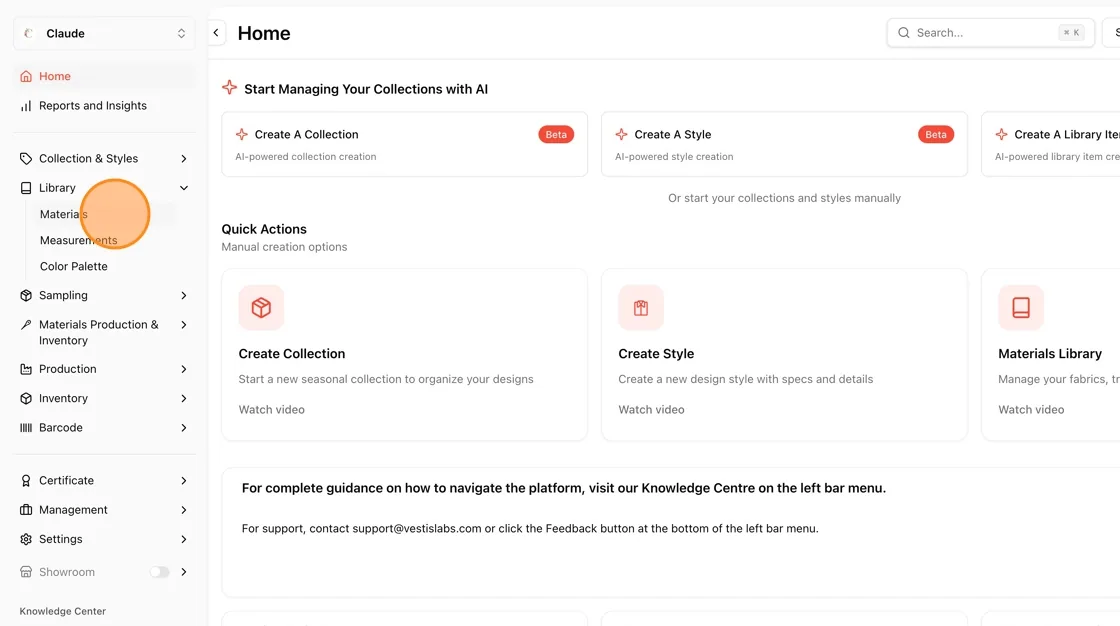
In the sidebar, expand Library and click Materials. On the Materials list page, click Create New With AI in the top-right toolbar.
In the page, you can manually type a material name and SKU code — or tick the checkbox "Leave it empty, let AI generate material name and code for you" to let the AI fill these in based on your uploaded file.
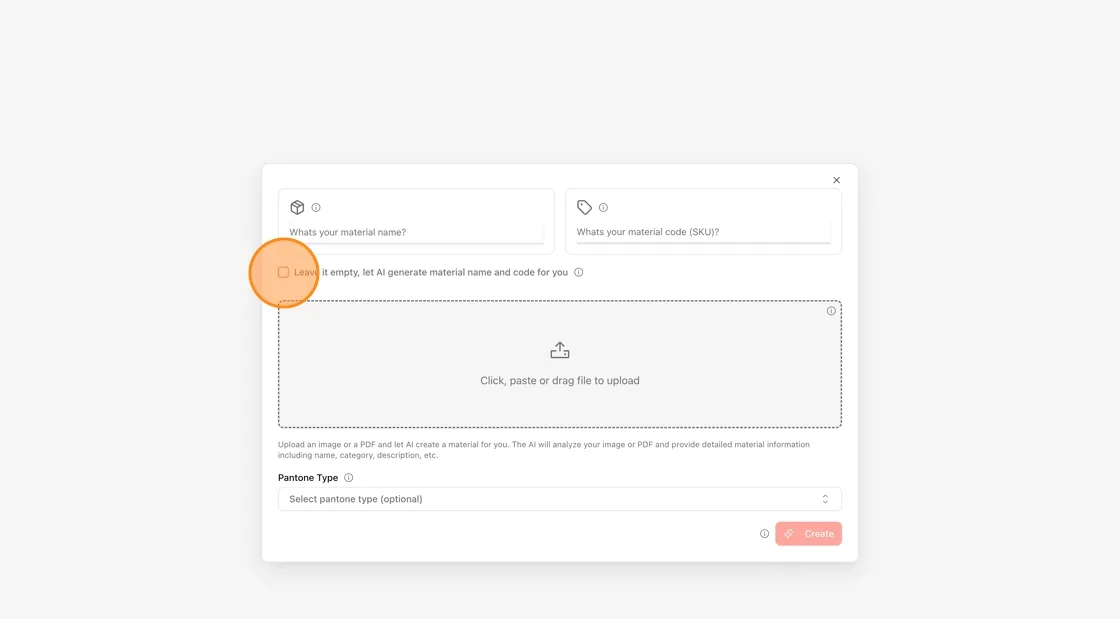
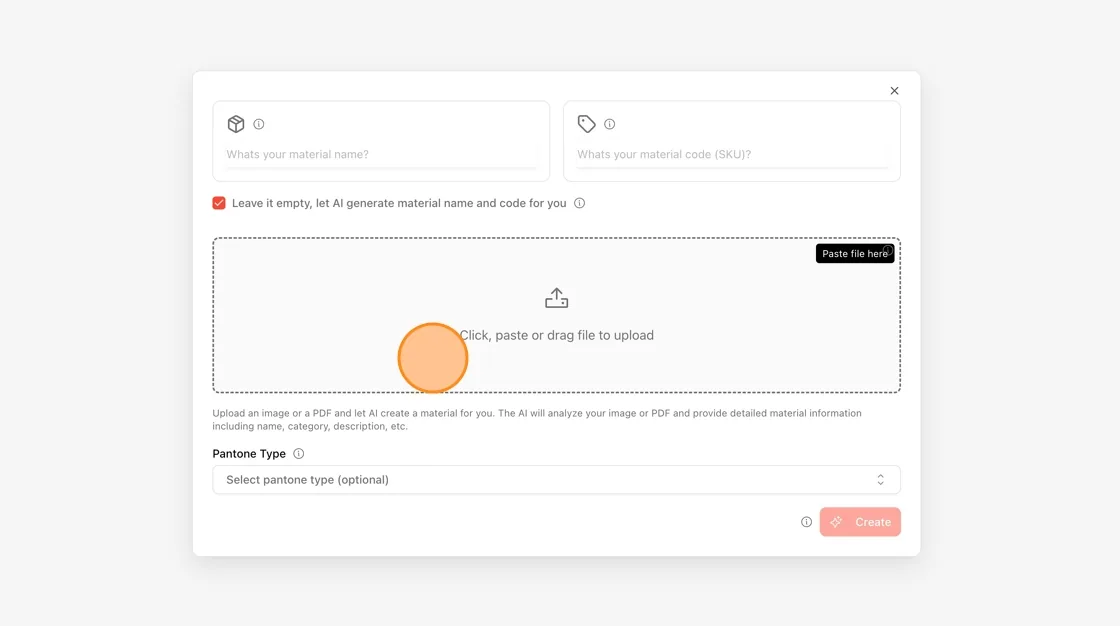
Click, paste, or drag a file into the upload area. The AI accepts product images or PDF documents (such as a Bill of Materials spec sheet). It will analyse the file to extract name, category, composition, description, and other material details automatically.
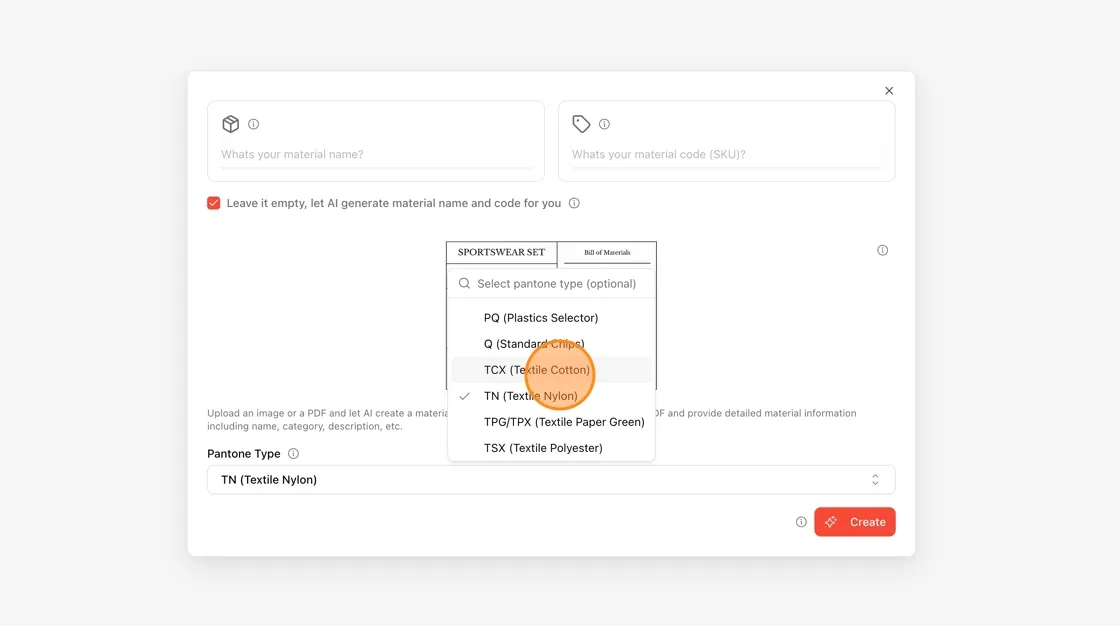
Click the Pantone Type dropdown and choose the standard that matches your material — for example TCX (Textile Cotton), TN (Textile Nylon), TSX (Textile Polyester), TPG/TPX (Textile Paper Green), or others such as C (Coated) or U (Uncoated). This helps the AI match detected colors to the correct Pantone codes.
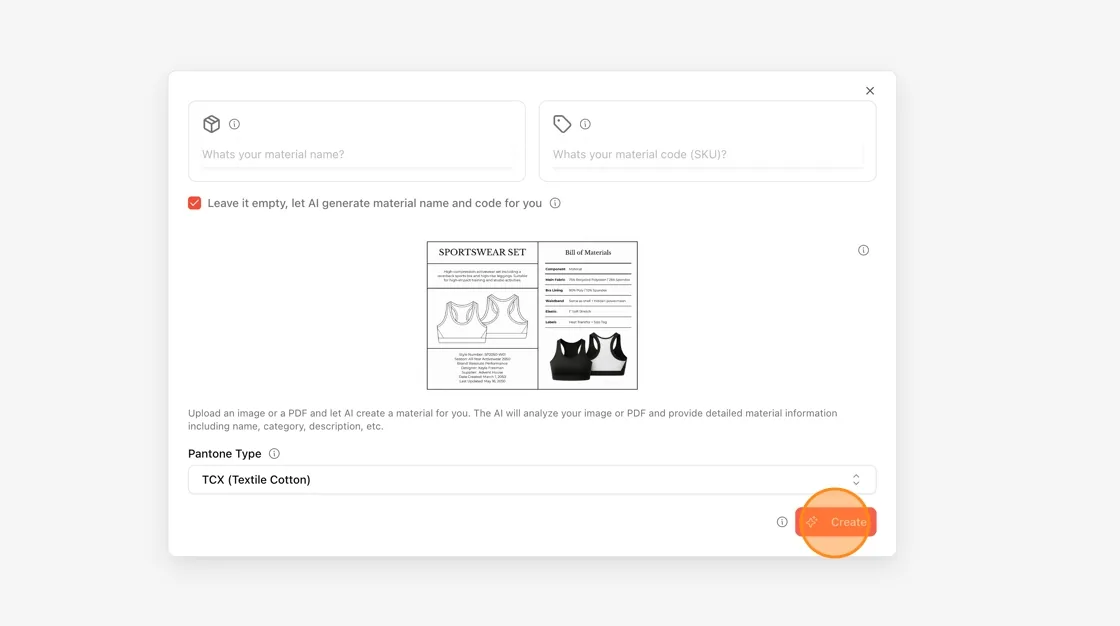
Once a file is uploaded, the Create button becomes active. Click it to start AI processing. Choosing a Pantone type is optional.
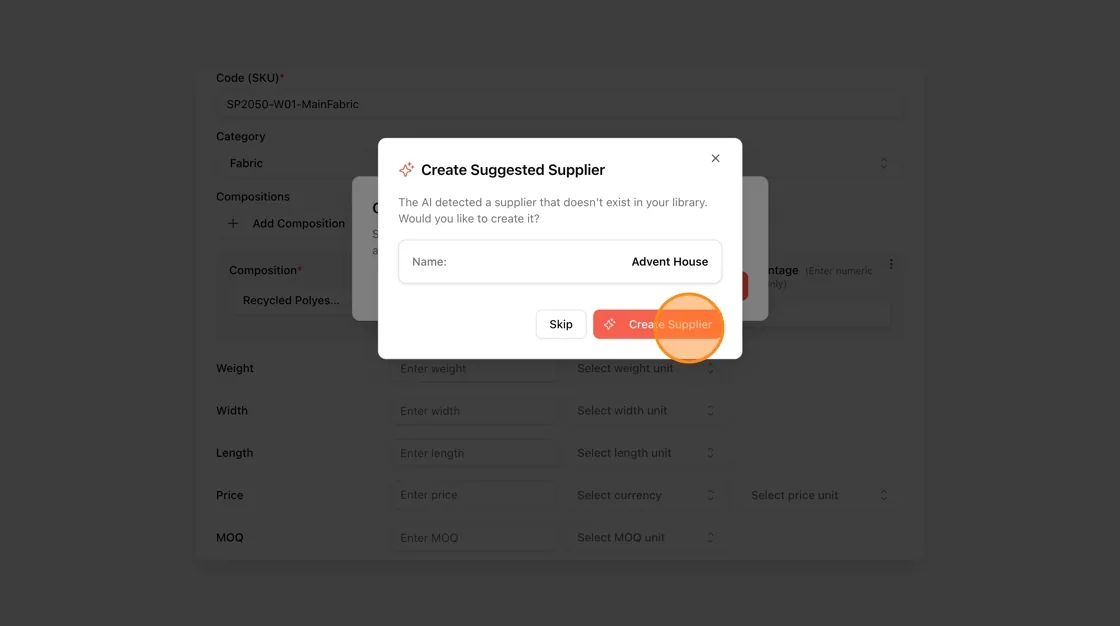
If the AI detects a supplier in your document that doesn't exist in your library. Click Create Supplier to add it, or Skip to ignore.
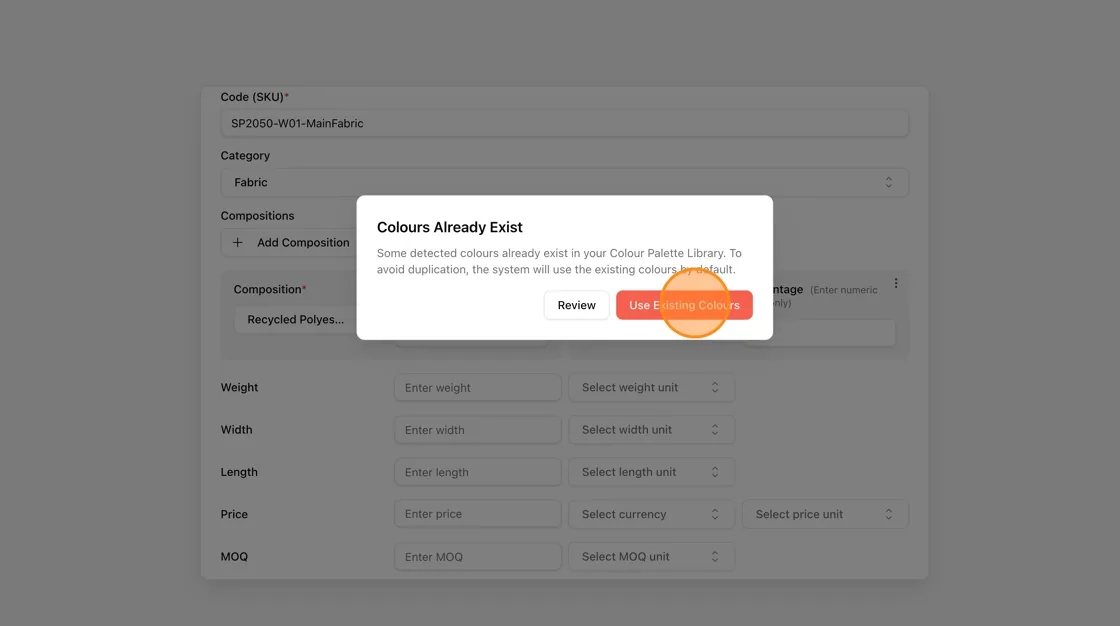
If the AI detects colors that already exist in your Colour Palette Library. Click Use Existing Colours to proceed, or Review to check them first.
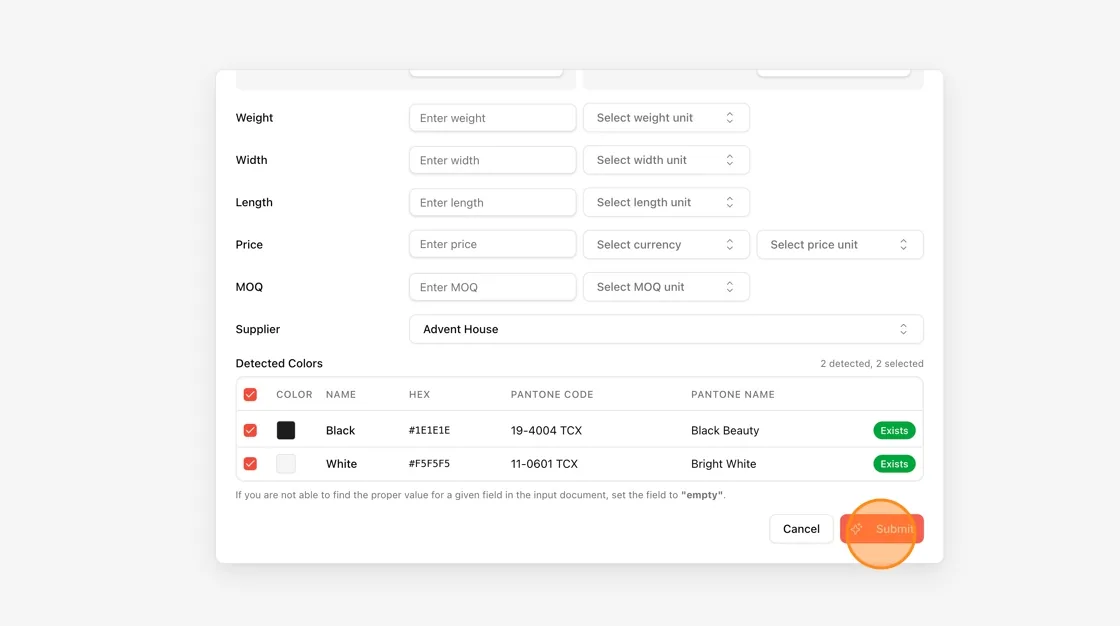
The AI shows a Detected Colors table listing each color with its name, HEX value, Pantone code, and Pantone name. Colors already in your library are marked Exists. Review the list, uncheck any you want to exclude, then click Submit.
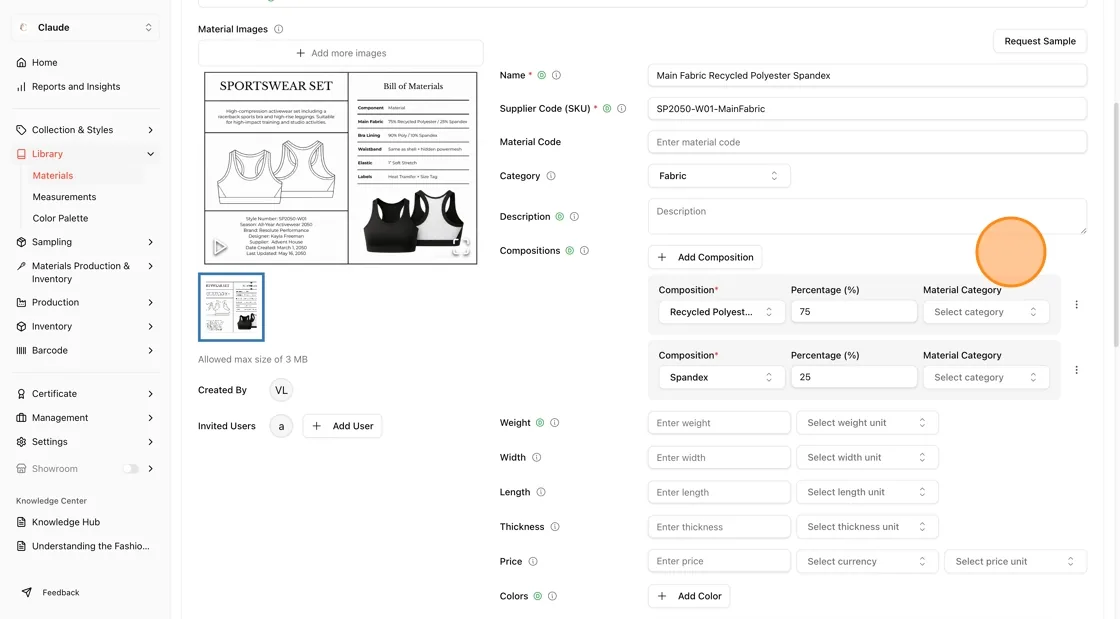
The AI creates a full material record. The uploaded document images appear in the Material Images section.
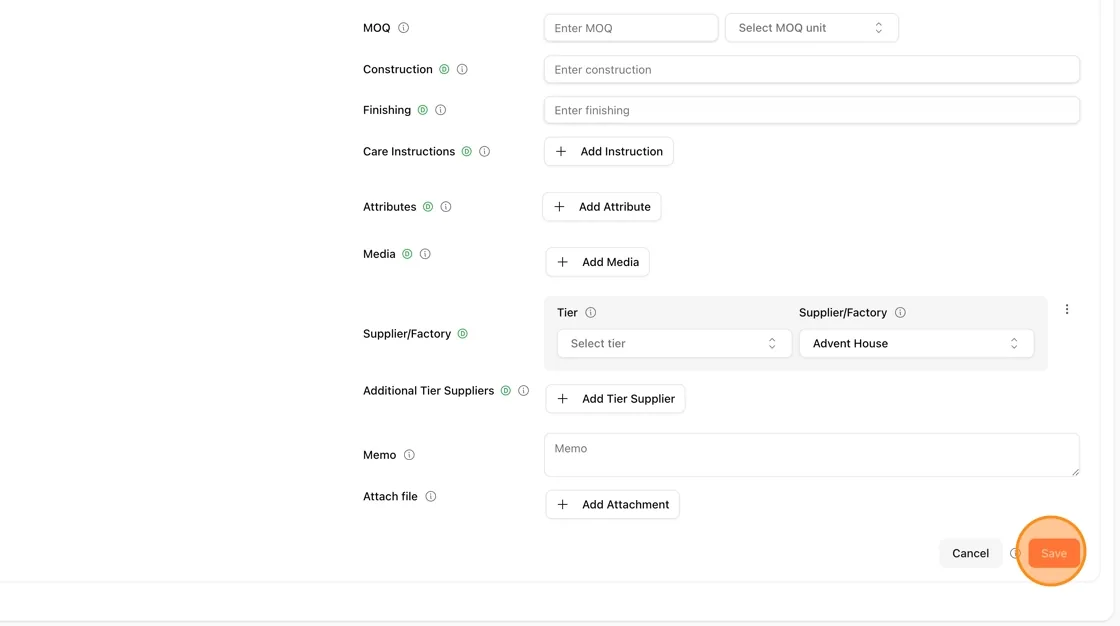
Scroll through the record to complete any fields the AI could not extract: weight, width, length, thickness, price, MOQ, construction, finishing, care instructions, attributes, media, supplier/factory tier, additional tier suppliers, memo, and attachments.
After you click Submit, the material is created and opens on its Details page. Review it, change anything you need, and click the red Save button at the bottom-right. The new material is in your Materials Library and is ready to link to styles.