
Step 4 of 13 in Place and track a production order
Review and confirmation production order
In the Review and Confirmation step of the Production Order, carefully check all entered details, product quantities, and supplier information to ensure accuracy before proceeding.
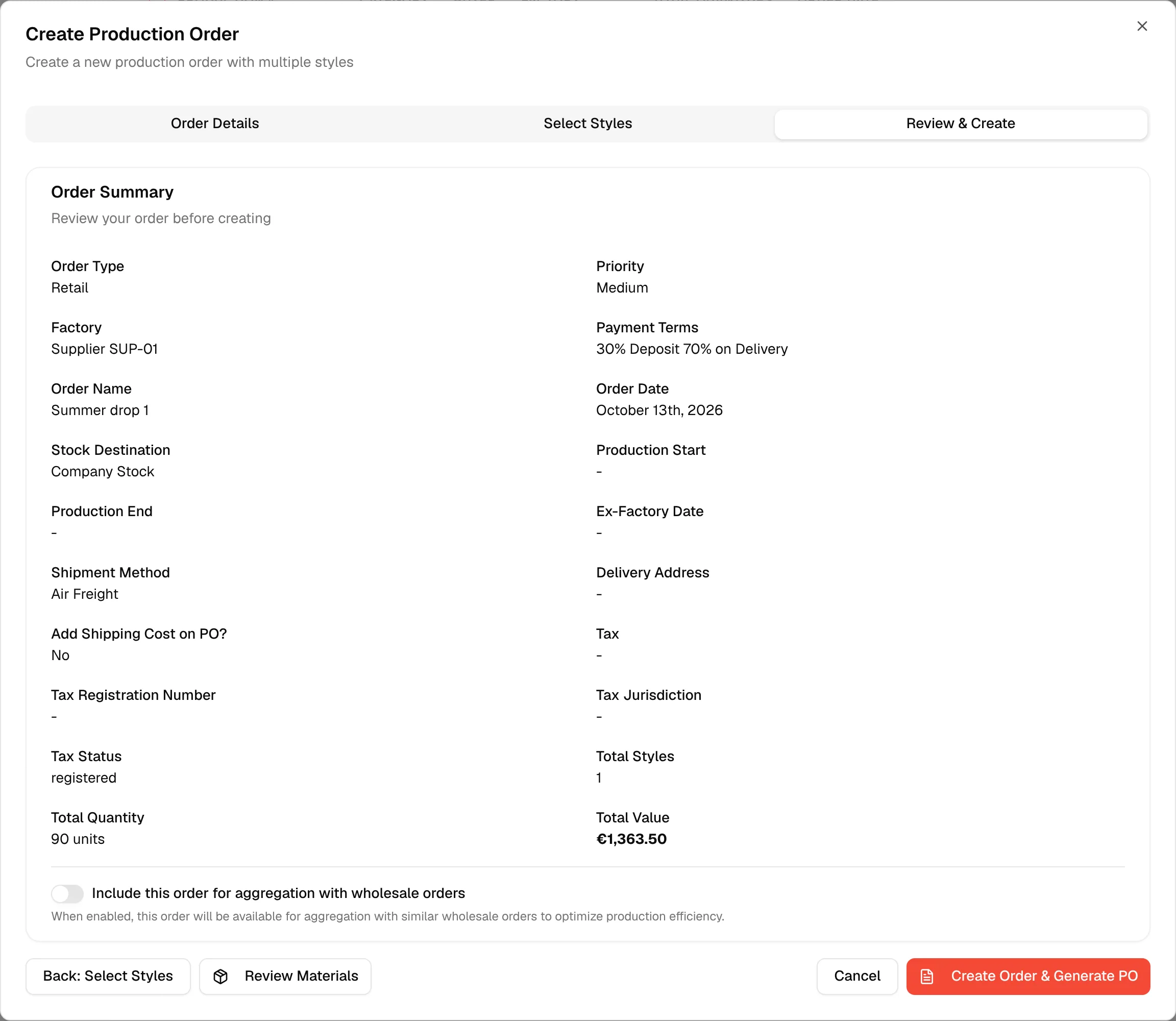
In the Review and Confirmation step of the Production Order, carefully check all entered details, product quantities, and supplier information to ensure accuracy before proceeding. This is the third tab, Review & Create, of the Create Production Order dialog.
ProductionOrder ManagementCreate OrderReview & Create
Permission: UPDATE_BRAND_PRODUCTION
What the review shows
Carefully review all the order details, including product quantities, dates, tax information, and notes. The Order Summary card, with the description "Review your order before creating", lists:
- Order Type, Priority, Factory, Payment Terms, Order Name and Order Date
- Stock Destination, and Buyer Name when the stock is reserved for a buyer
- Production Start, Production End and Ex-Factory Date
- Shipment Method, Delivery Address, Add Shipping Cost on PO? and, if it is on, Shipping Cost
- Tax, Tax Registration Number, Tax Jurisdiction and Tax Status
- Total Styles, Total Quantity (in units) and Total Value
- Notes, when you entered production notes
A field you left empty shows -. To change anything, use Back: Select Styles, and then Back: Order Details; the details you entered are kept.
Create the order
If everything is correct, click Create Order & Generate PO to finalize the production order and generate the Purchase Order.
Note
The button stays disabled while the form is invalid, for example when Stock Destination is Reserved for Buyer and no buyer name was entered, and while the order is being created.
Click Cancel to close the dialog without creating the order. If you entered anything, the platform asks Discard unsaved changes? first.
Include the order in aggregation
Use the toggle to Include this order for aggregation with wholesale orders

Note
When enabled, this order will be available for aggregation with similar wholesale orders to optimize production efficiency.
If the order contains styles from more than one supplier and the toggle is off, the platform shows Multiple Suppliers Detected and asks you to click Enable Order Aggregation or Cancel.
Review materials before you create the order
If the materials breakdown feature is switched on for your brand, a Review Materials button appears next to Back: Select Styles. It opens the Materials Breakdown for the draft order, which shows what the order would consume and what you would still have to buy. Nothing is saved. See Materials breakdown.
After creation
After creation, the dialog closes and the Production Orders list refreshes so you can review and manage your newly created order from the order list. The purchase order generated with it is on the Purchase Order tab of the order. See Purchase orders.