Communicate about a production order
Send messages and files to your team and the factory on a production order, reply, pin or star messages, and find shared files.
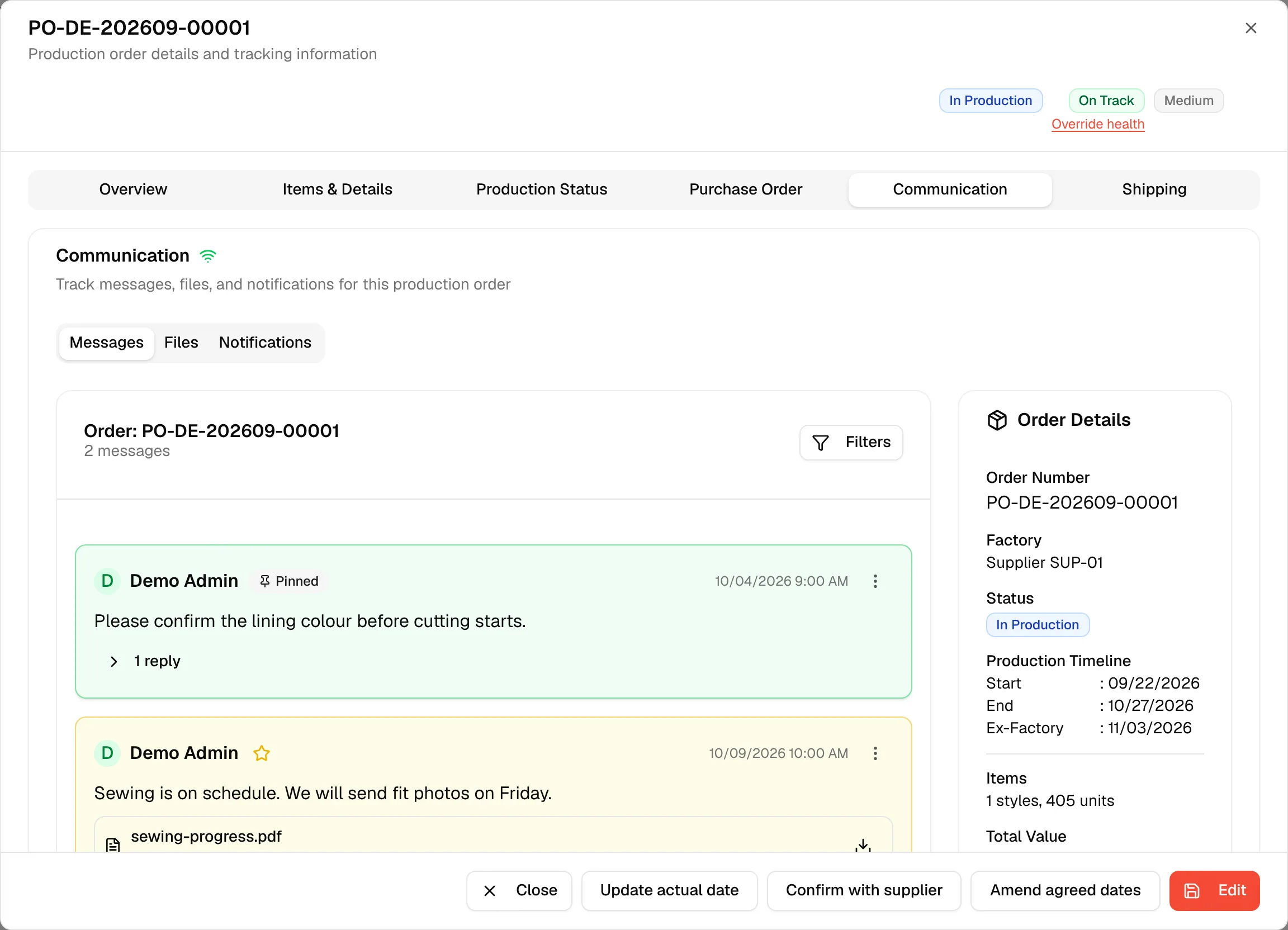
The Communication tab of a production order keeps every message and file about that order in one place, so the team and the factory work from the same thread. New messages from other people appear without reloading the page.
ProductionOrder Managementthree-dot menuView/EditCommunication
Permission: VIEW_BRAND_PRODUCTION
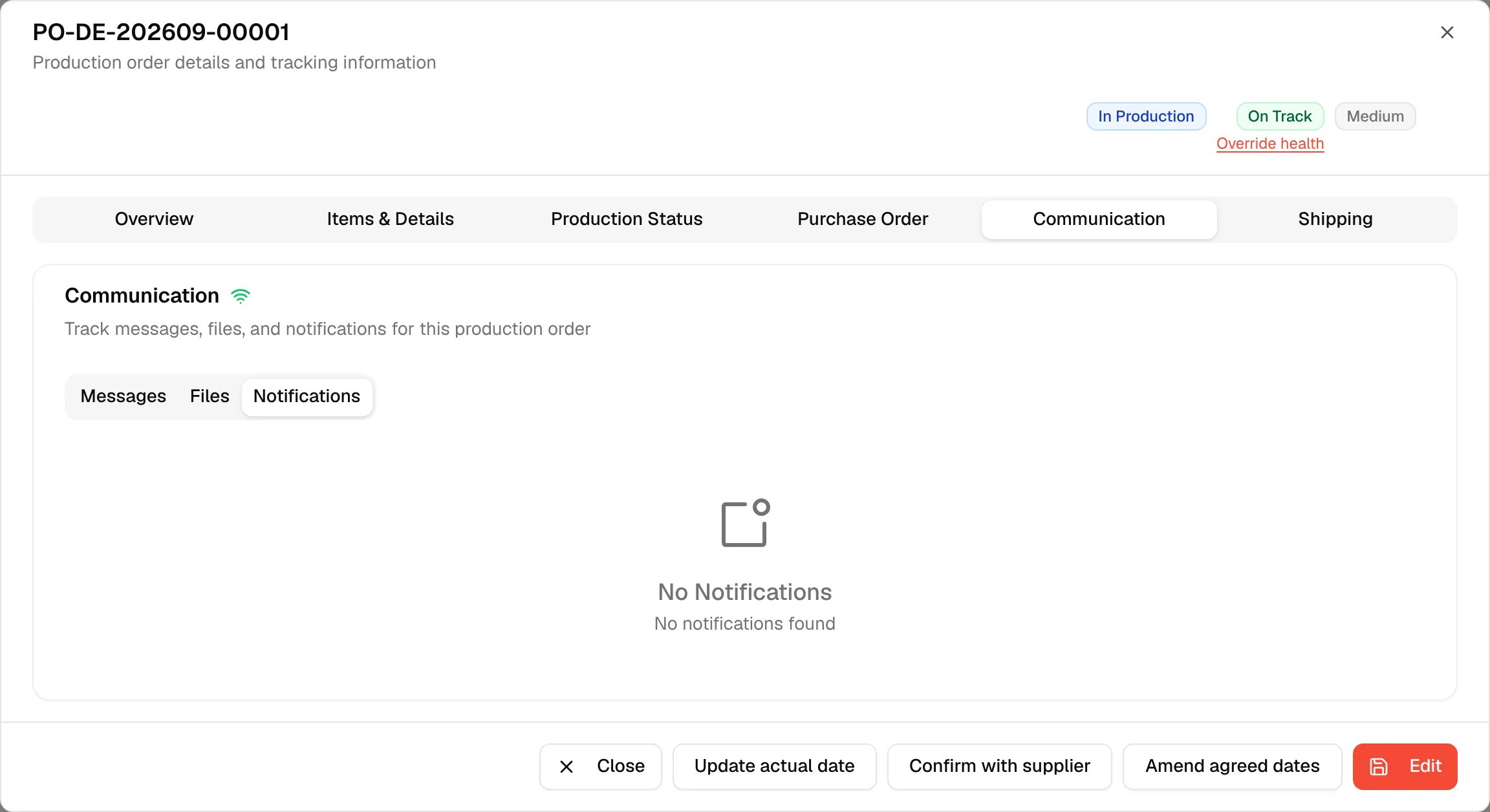
The tab is titled Communication with the description "Track messages, files, and notifications for this production order". A small connection icon next to the title shows whether live updates are connected (green) or not (red). It has three tabs: Messages, Files and Notifications.
Send a message
Open the Communication tab
Open the order with View/Edit and click the Communication tab. The Messages tab is selected.
Type your message
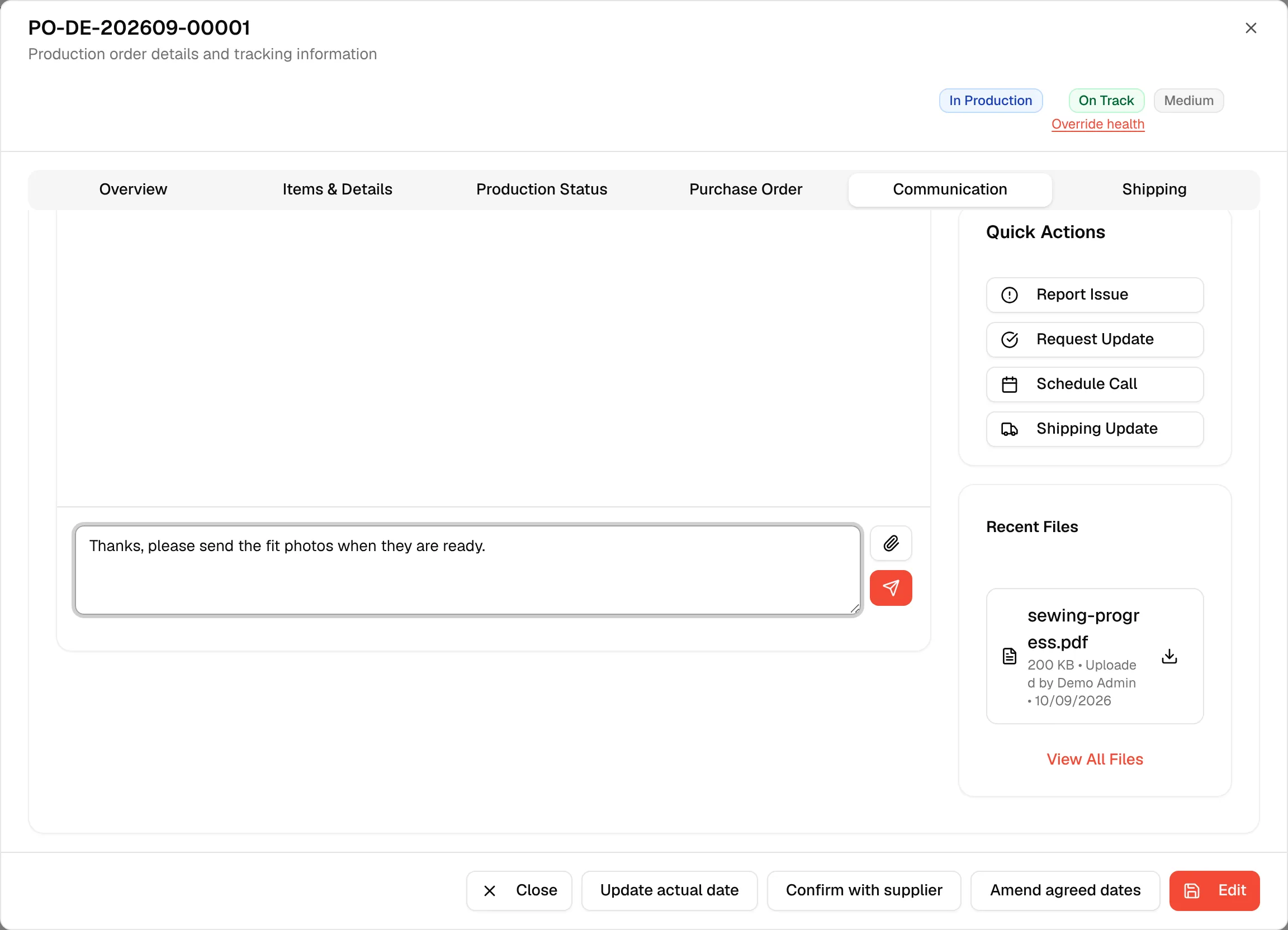
Type in the box at the bottom, which shows Type your message...
Attach files (optional)
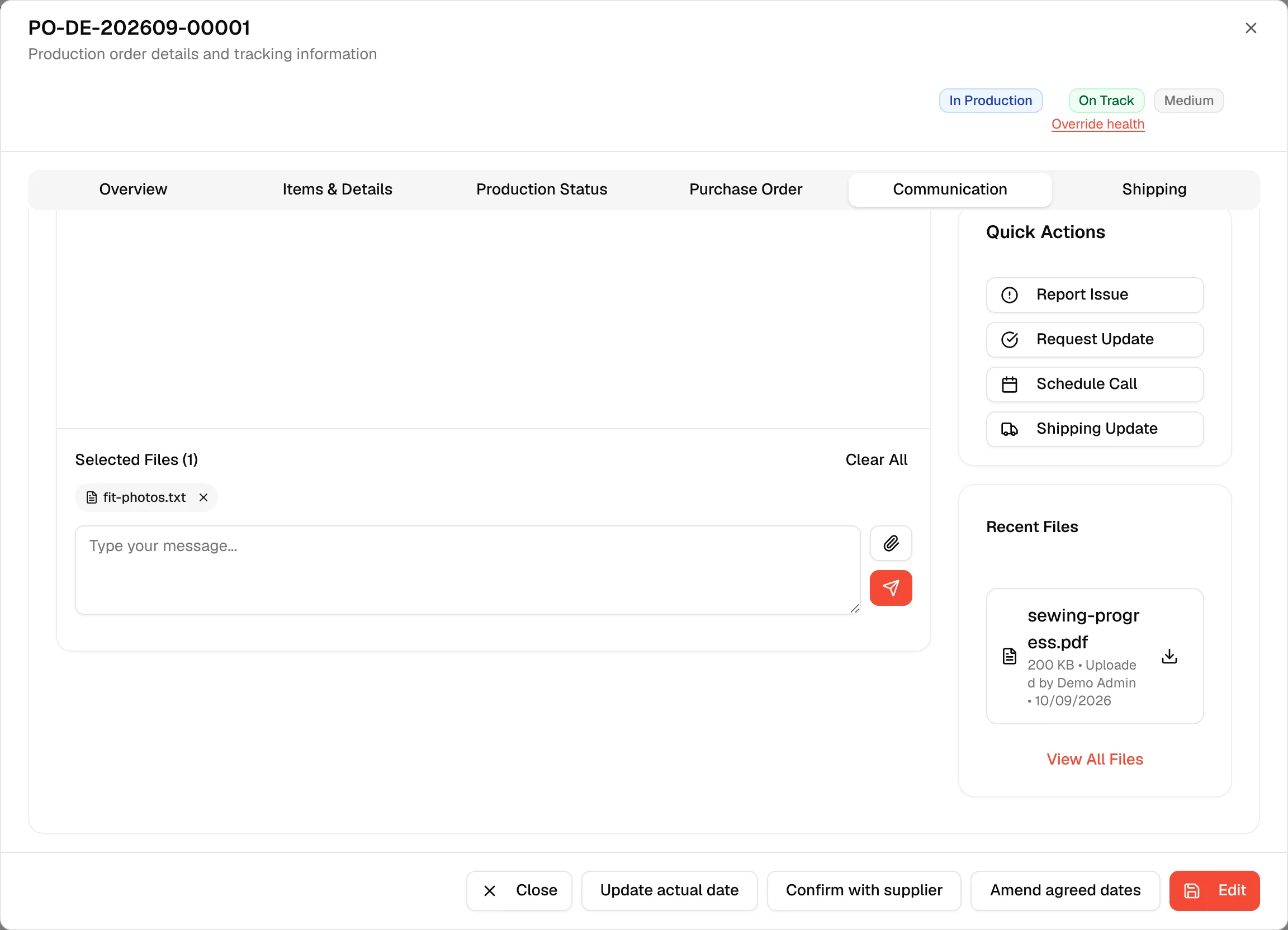
Click the attach button to choose one or more files. The files appear under Selected Files (n). Remove one with its x, or click Clear All to remove them all.
Send the message
Click the send button. It stays disabled until you type something or select a file, and while files are uploading.
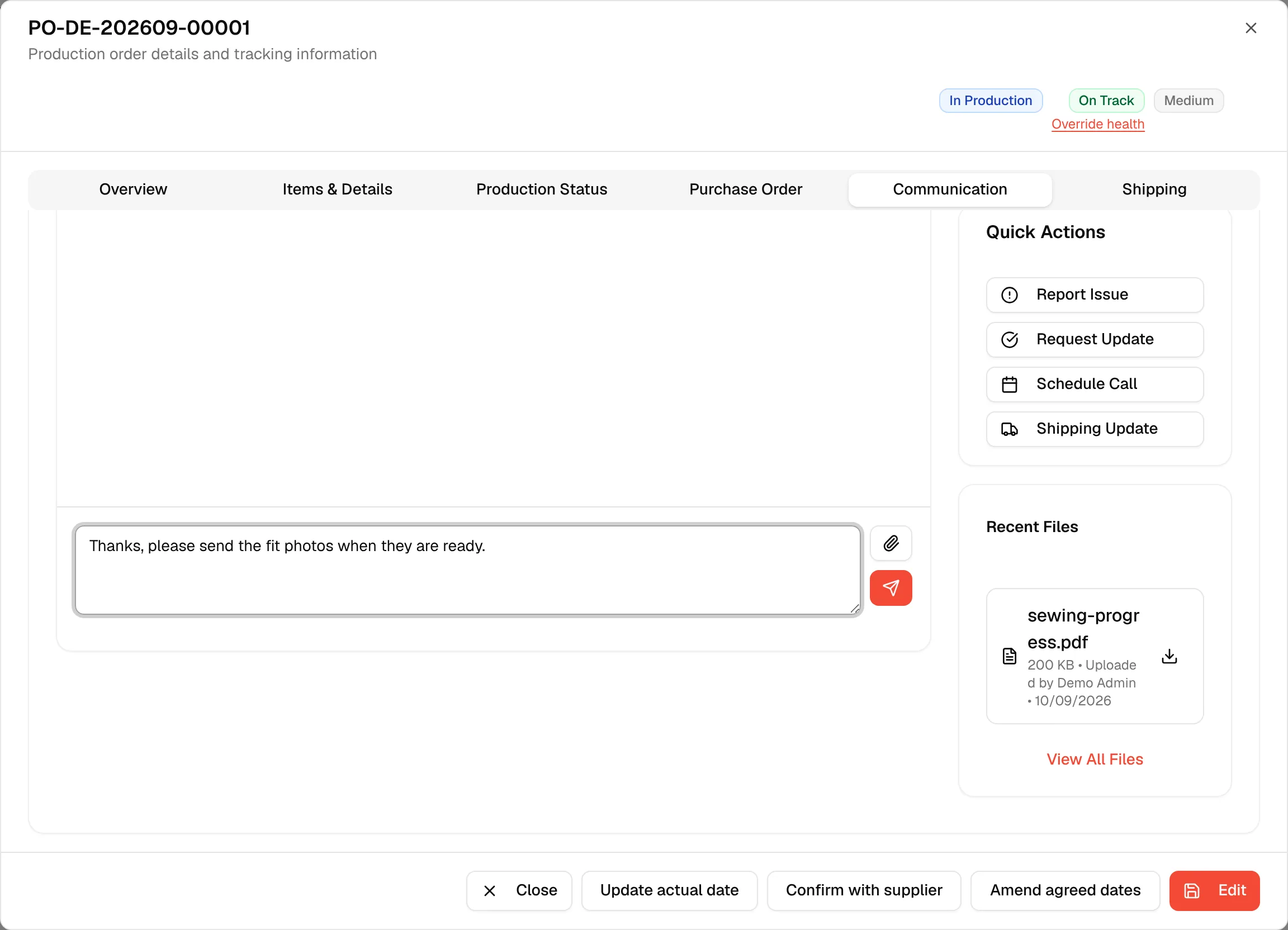
The message appears at the bottom of the thread with the sender's name and time.
Reply, pin, star and delete
Open the three-dot menu on a message to:
- Reply – The composer shows Replying to the sender's name and its box changes to Type your reply.... Click the x next to Replying to to cancel the reply.
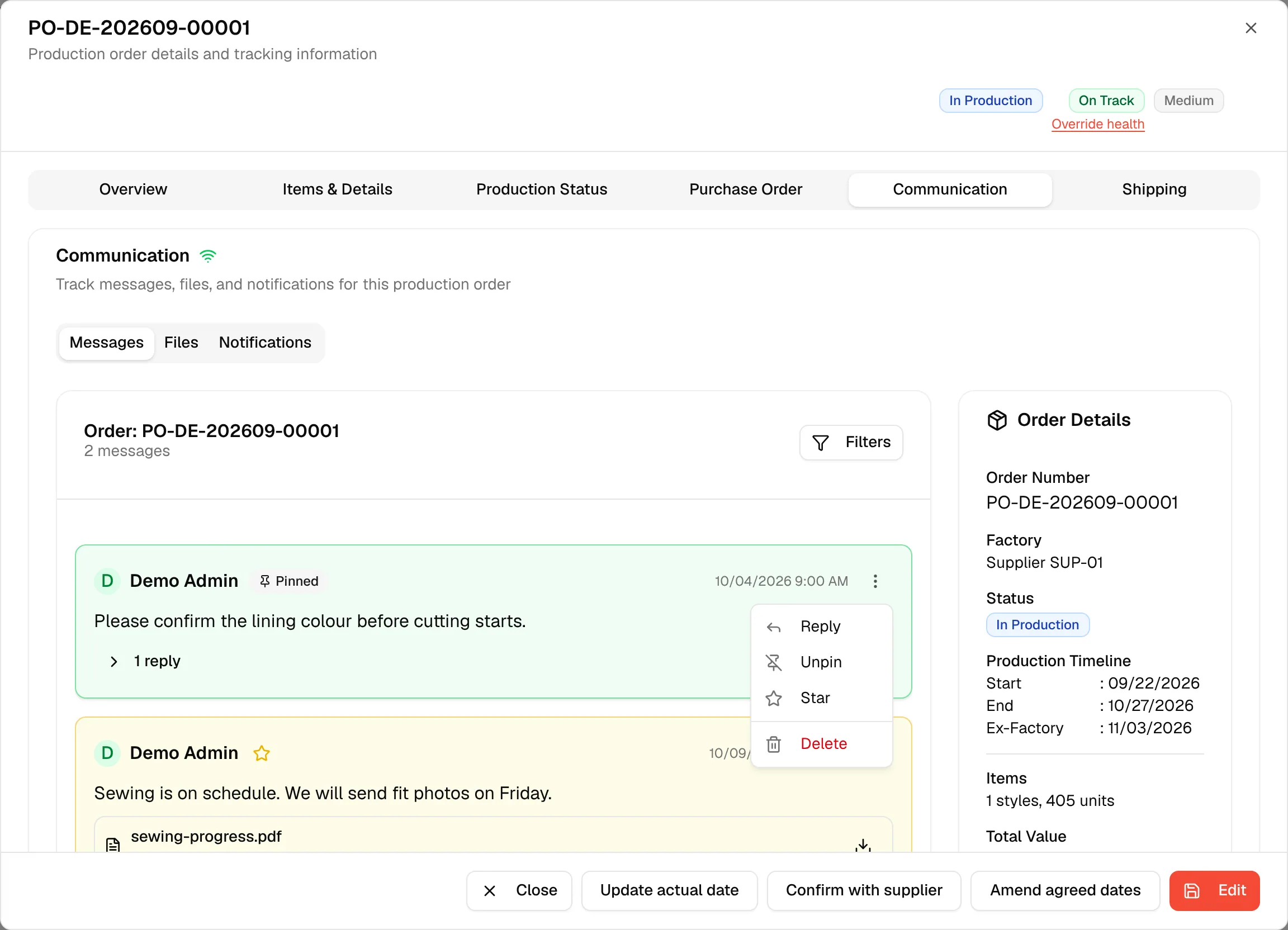
- Pin or Unpin – Mark the message as pinned.
- Star or Un-Star – Mark the message as starred.
- Delete – Remove the message.
Replies are folded under their message. Click the reply count, for example "2 replies", to expand them. Each reply has its own Delete option.
Find a message
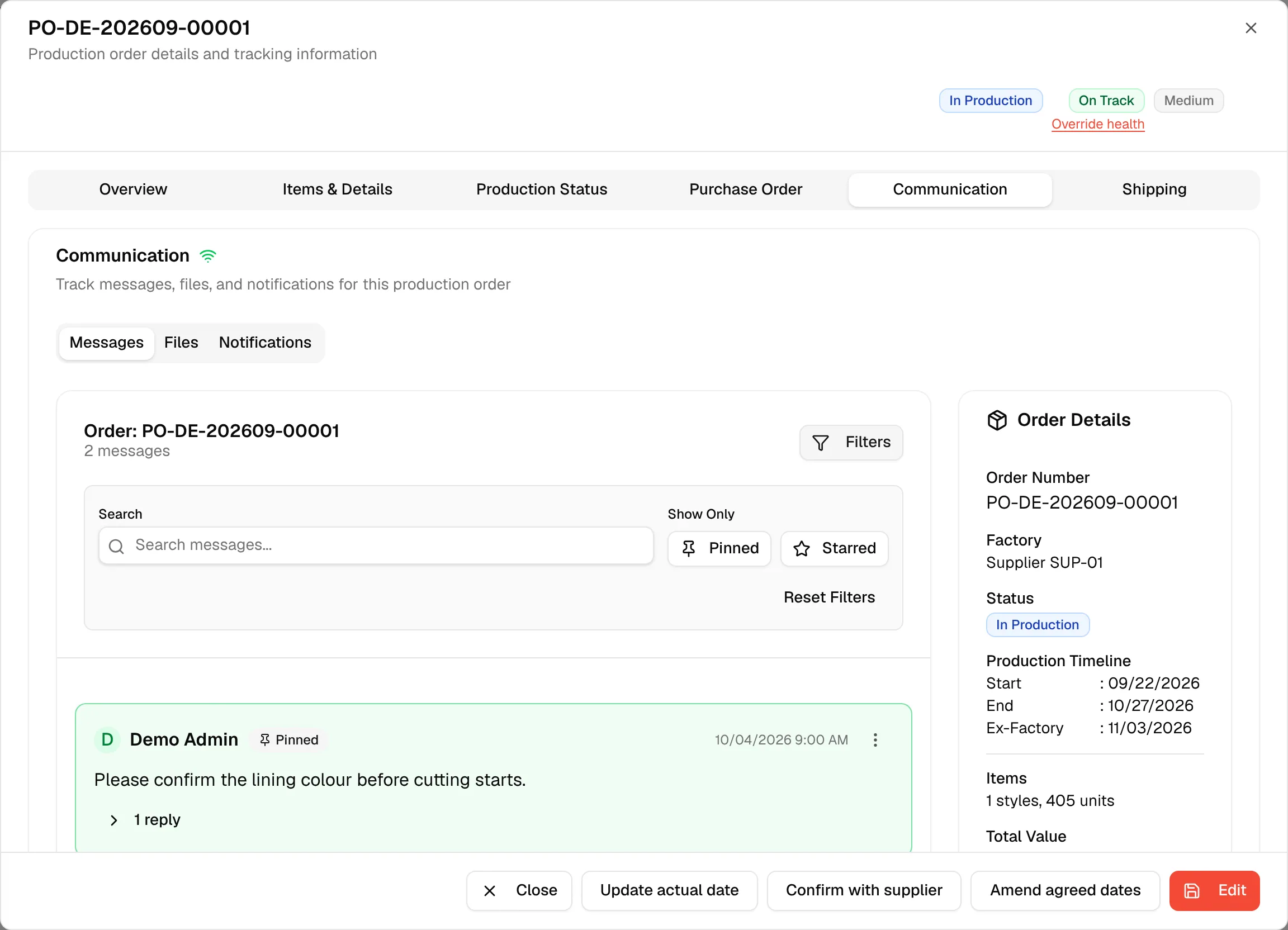
Click Filters above the thread to show the filter bar:
- Search messages... – Search the text of the messages.
- Pinned – Show only pinned messages.
- Starred – Show only starred messages.
- Reset Filters – Clear the search and both buttons.
If nothing matches, the thread shows No messages found and a Clear filters link.
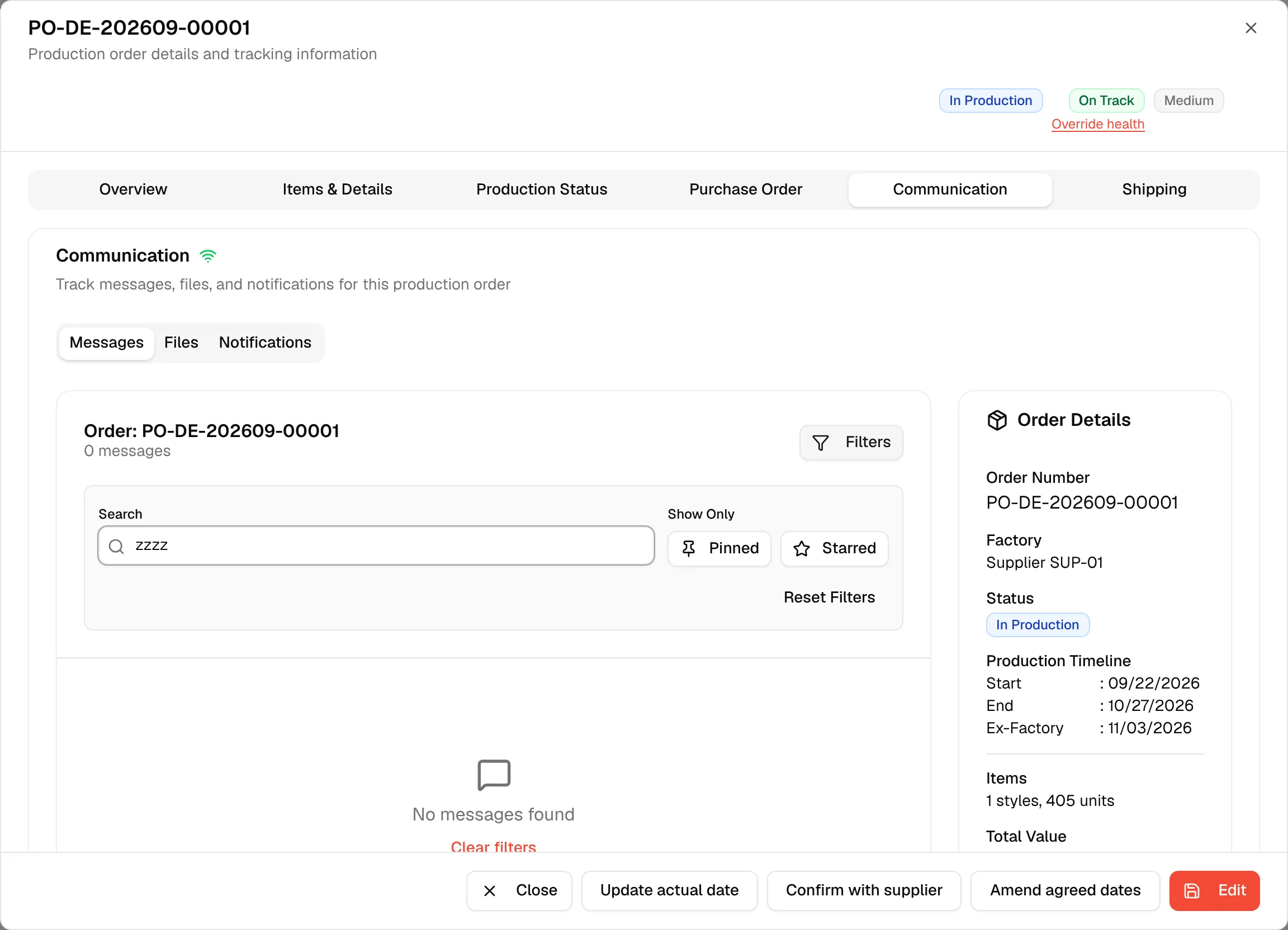
Order details beside the thread
The panel at the right of the Messages tab always shows the order's number, status, Start, End and Ex-Factory dates, the number of styles and units, and the total value. Under Recent Files it shows the latest three attachments. Click View All Files to jump to the Files tab. Above Recent Files, a Quick Actions card shows the buttons Report Issue, Request Update, Schedule Call and Shipping Update. They do not do anything yet.
Files
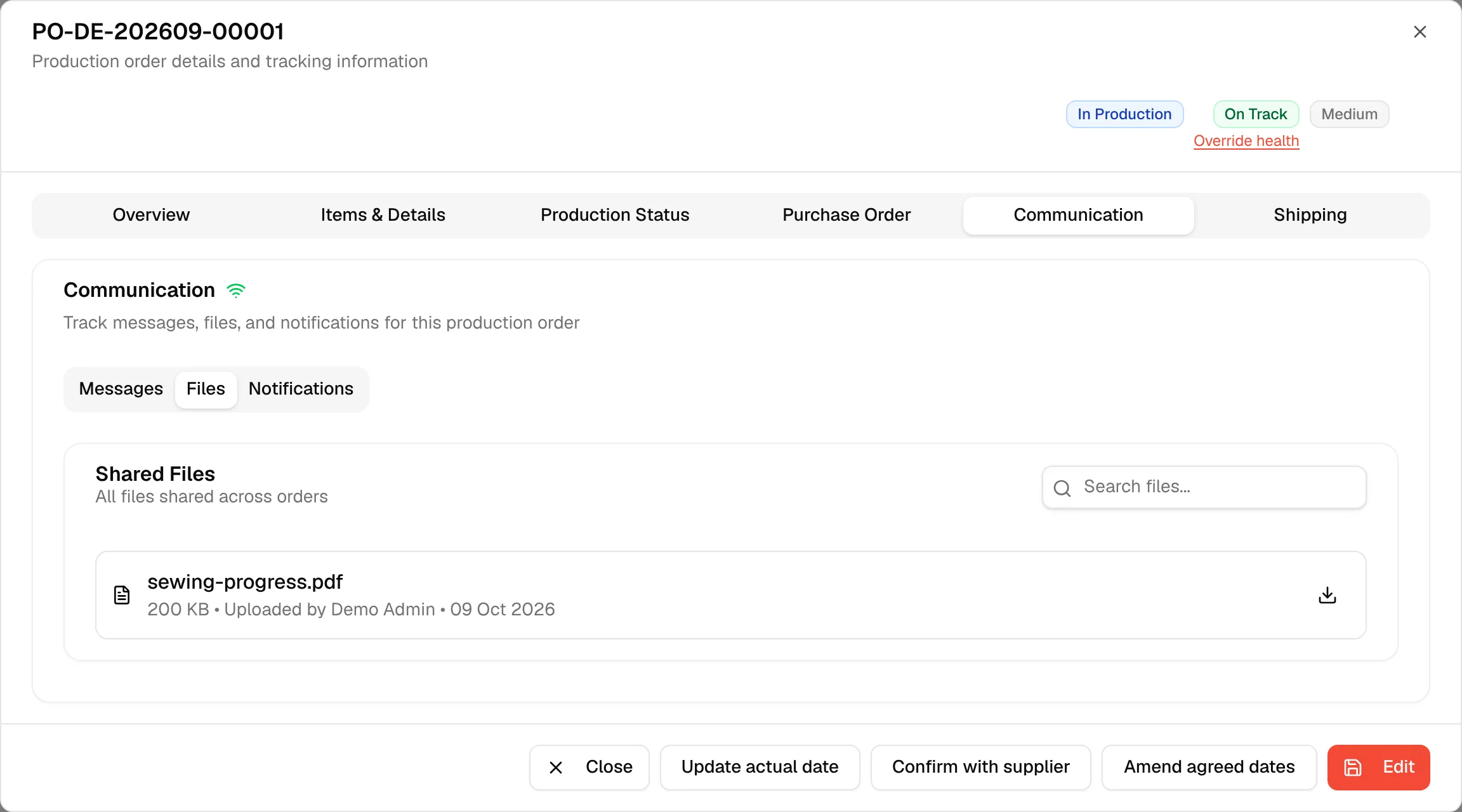
The Files tab, titled Shared Files, lists every file attached to the messages and replies of the order, with its size, who uploaded it and when. Use Search files... to find a file by name, and click the download icon to download it.
Notifications
The Notifications tab shows No Notifications ("No notifications found"). Notifications are not available on this tab yet.