
Set quantity-break pricing for a material
Price a material with a single price or with quantity breaks, add surcharges, and see what each quantity range costs.
Under review. This page is published while we check it against the live app, so some details may have changed.
A material can have one price, or quantity breaks: a price table where the unit price drops as the order quantity grows. You set both in the pricing dialog of the material form.
LibraryMaterials(open a material)DetailsPrice
Permission: UPDATE_PRODUCT,VIEW_PRODUCT
Before you start
- Create the material, or open an existing one. The pricing button is on the Price line of the form. It reads Set pricing when you create a material and Edit pricing when you edit one.
- The currency and the price unit (per metre, per piece, per yard) are chosen inside the same dialog and apply to every price of the material.
Set a single price
Click "Set pricing"
On the Price line, click Set pricing (or Edit pricing on an existing material). The pricing dialog opens.
Choose the currency and price unit
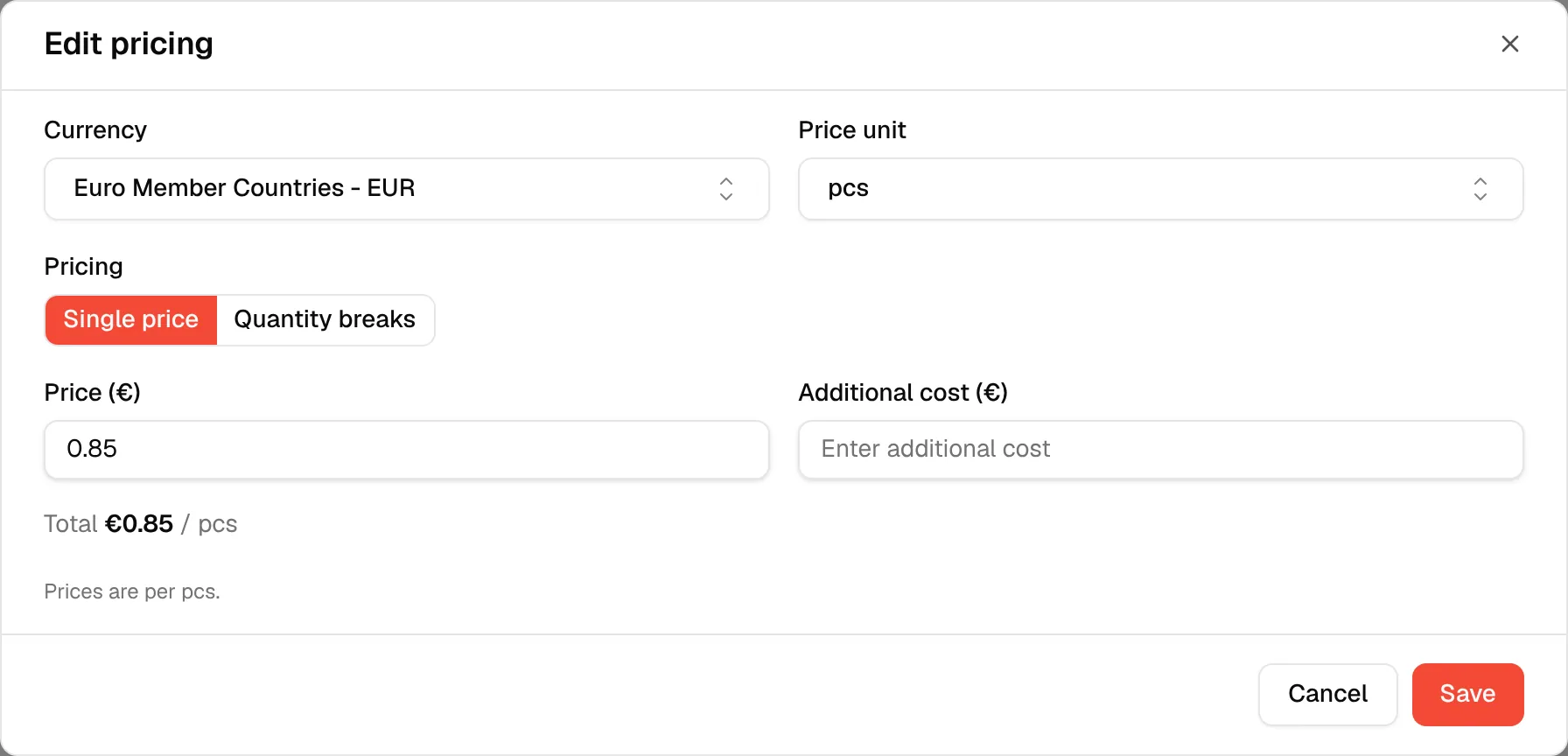
Select a Currency and a Price unit. You can type a new unit to create it.
Keep "Single price" selected
Under Pricing, Single price is the default choice.
Enter the price
Type the Price and, if there is a surcharge, the Additional cost. Both must be 0 or more ("Enter a price of 0 or more", "Enter an additional cost of 0 or more").
Check the total
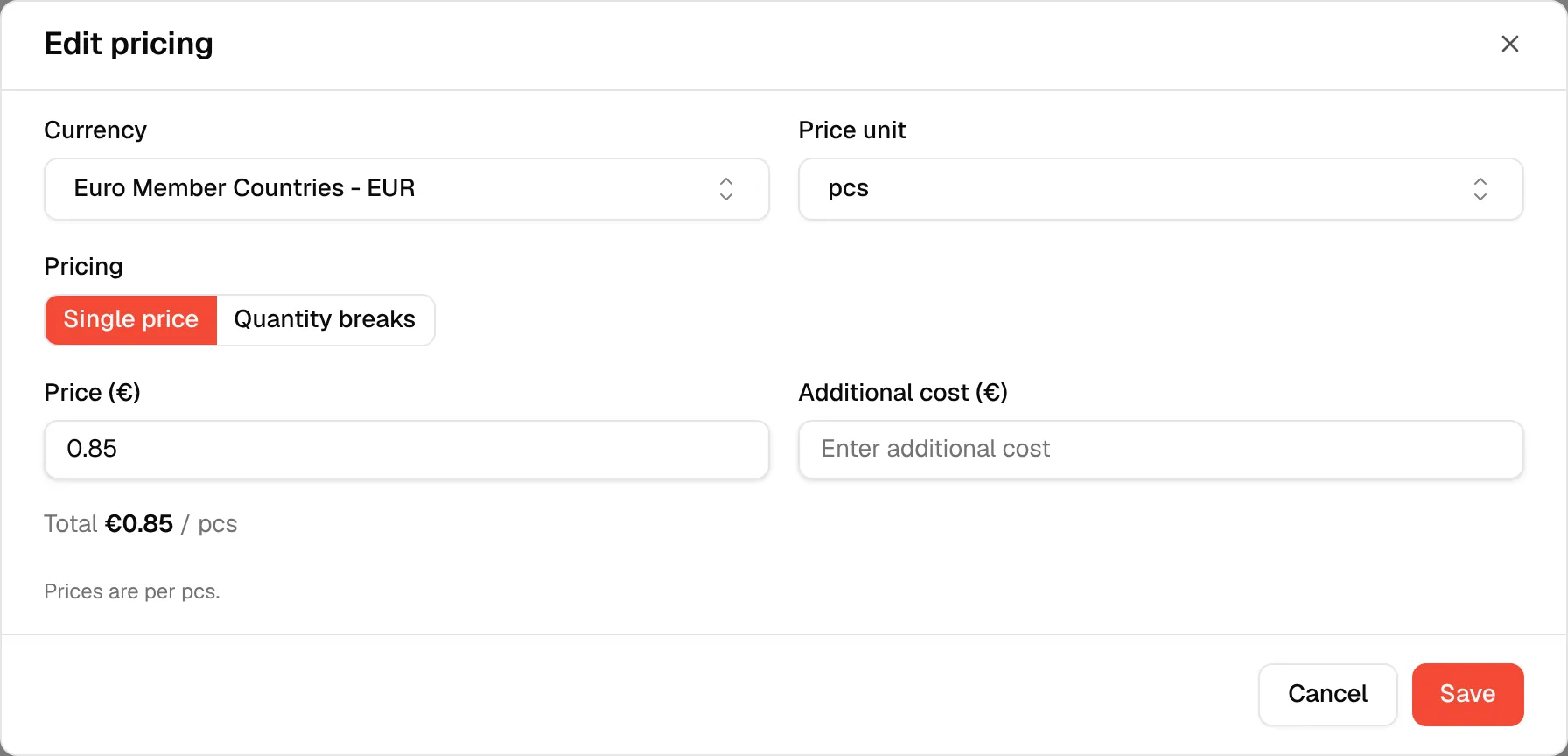
Below the fields, Total shows the price plus the additional cost, per unit.
Click "Save"
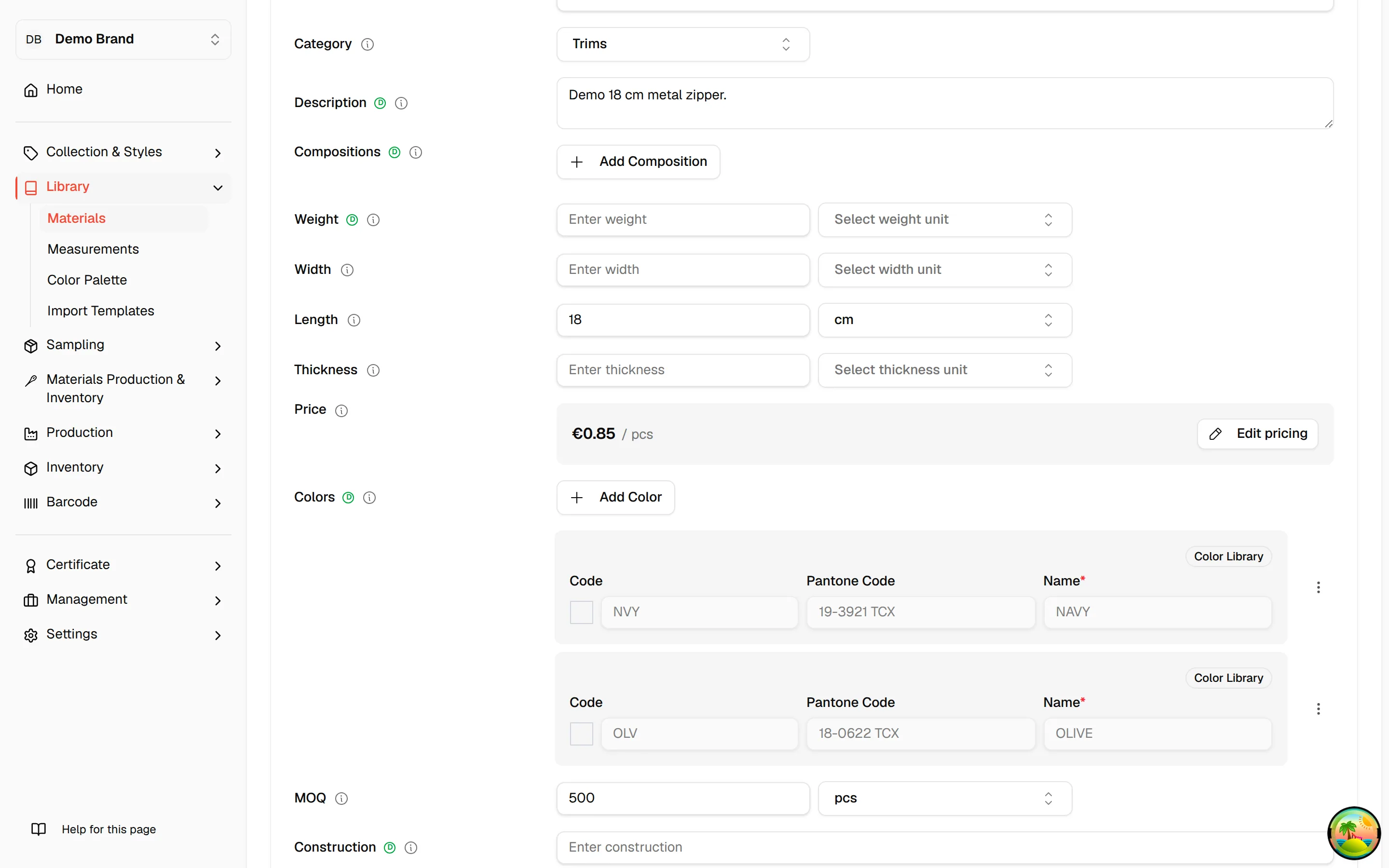
Click Save. The Price line now shows the total price, for example €0.85 for a zipper, and a breakdown when there is an additional cost.
Note
On the create form the price is stored when you save the material. On the edit form your change is saved automatically a moment after you close the dialog.
Set quantity breaks
Open the pricing dialog
Click Set pricing (or Edit pricing).
Select "Quantity breaks"
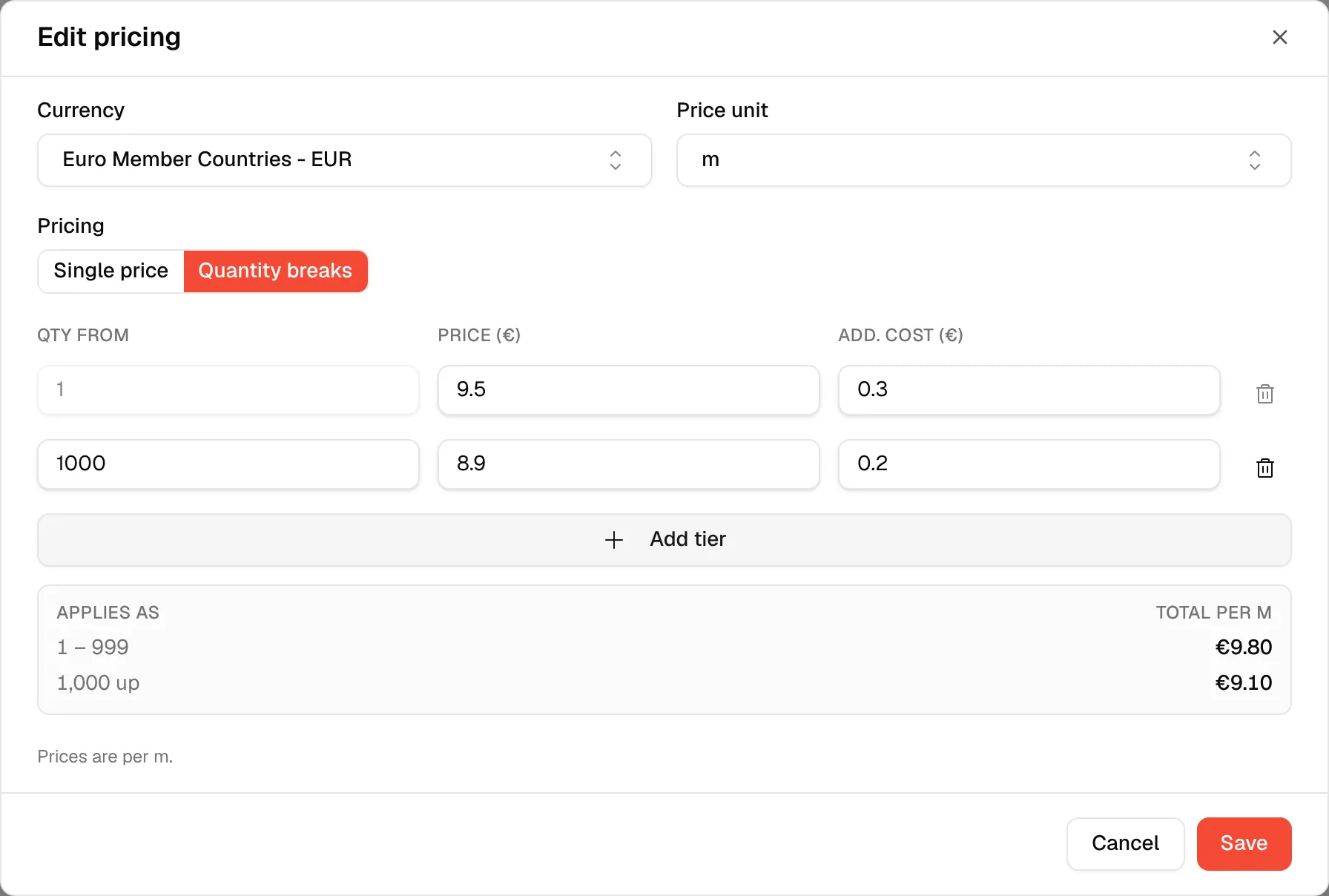
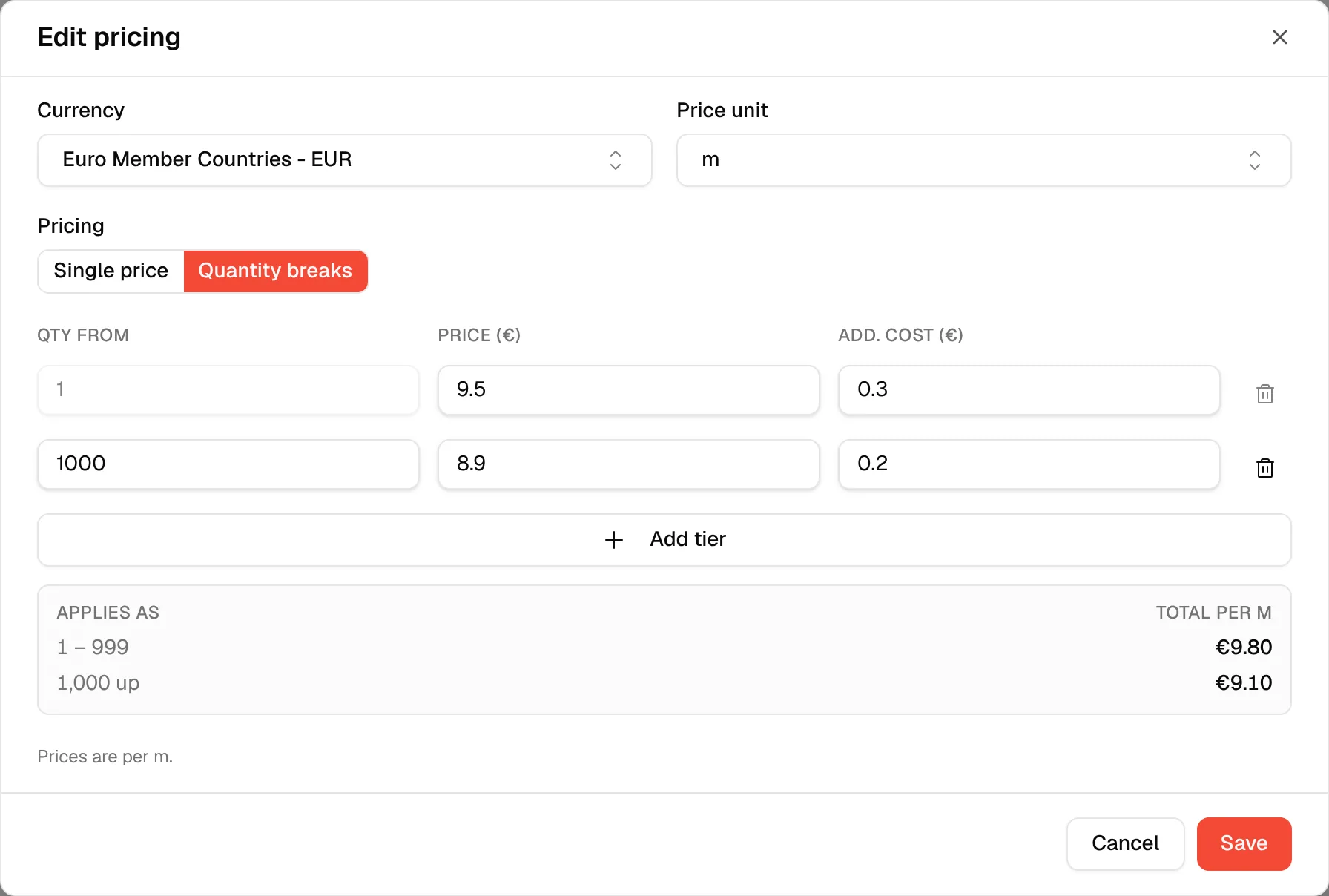
Under Pricing, select Quantity breaks. If you had already typed a single price, it becomes the first row so you do not retype it.
Fill in the first row
The first row starts at quantity 1 and cannot be changed. Enter its Price and Add. cost.
Click "Add tier"
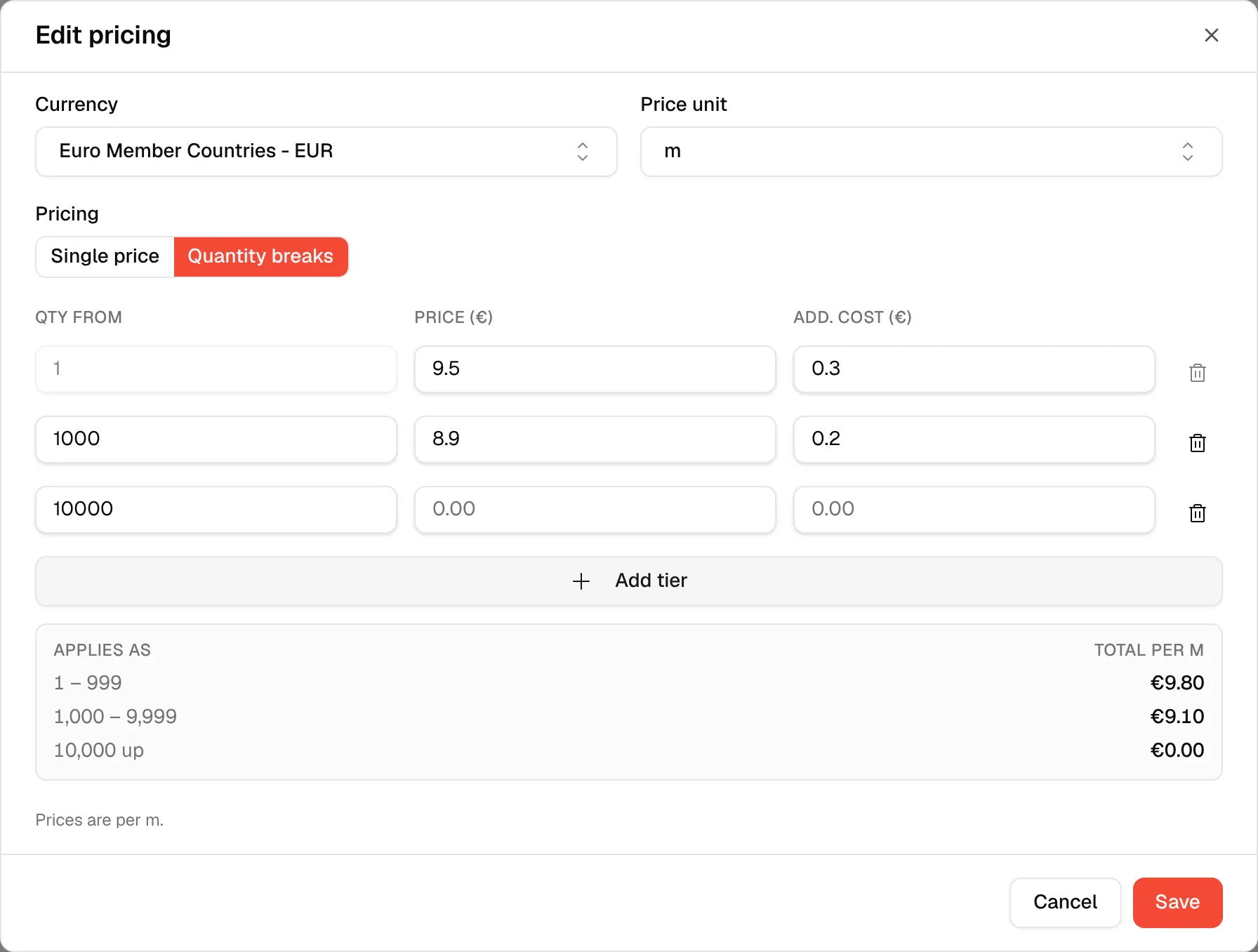
Click Add tier for each further break. Vestis suggests a starting quantity ten times your highest one.
Enter the start of each range
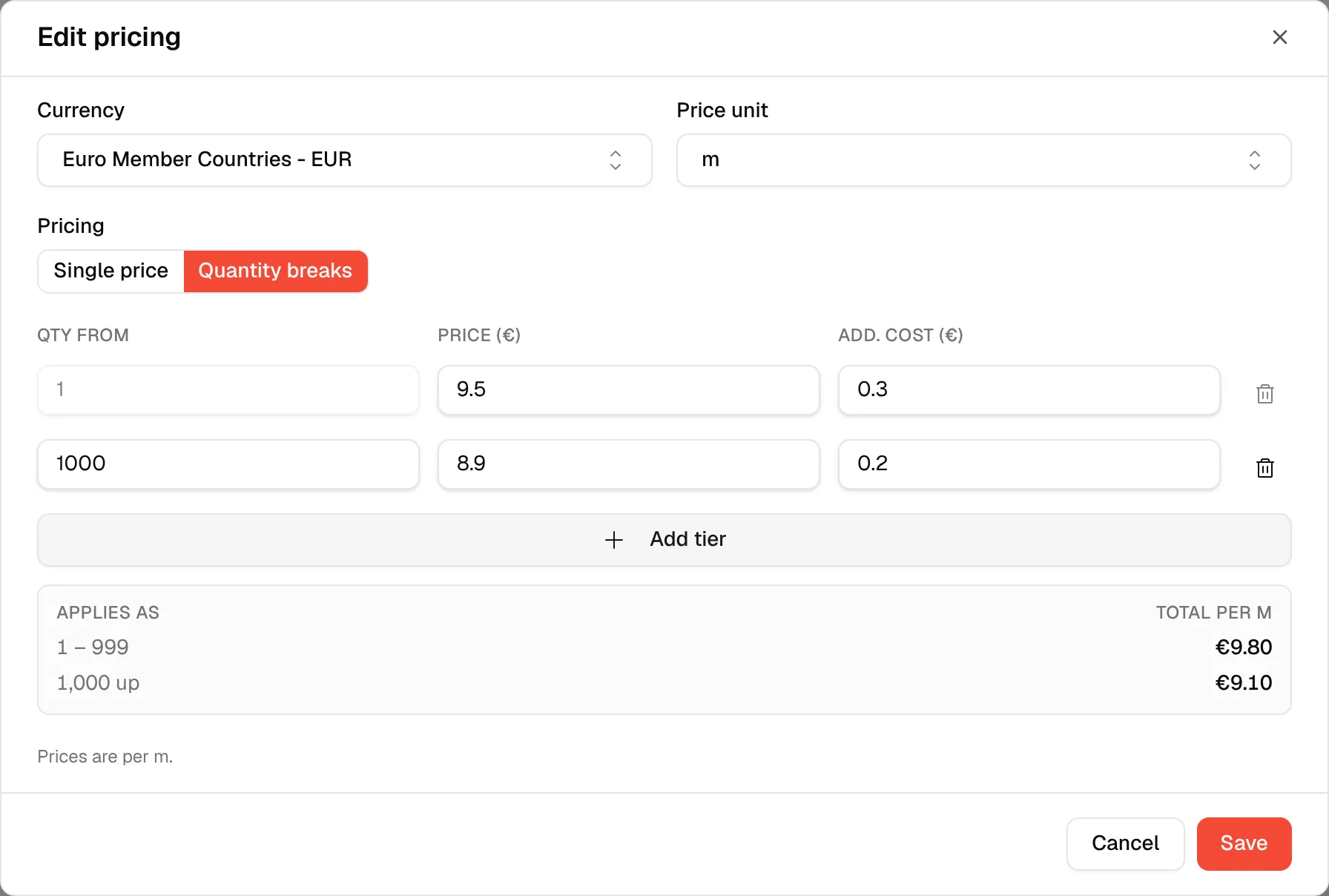
In Qty from, type the quantity where the new price starts, then its Price and Add. cost. Quantities must be whole numbers of 1 or more. When you leave the field, the rows are sorted from lowest to highest.
Read the preview
The Applies as box turns each starting quantity into a range, for example "1 – 999", "1,000 – 4,999" and "5,000 up", with the total per unit next to it.
Click "Save"
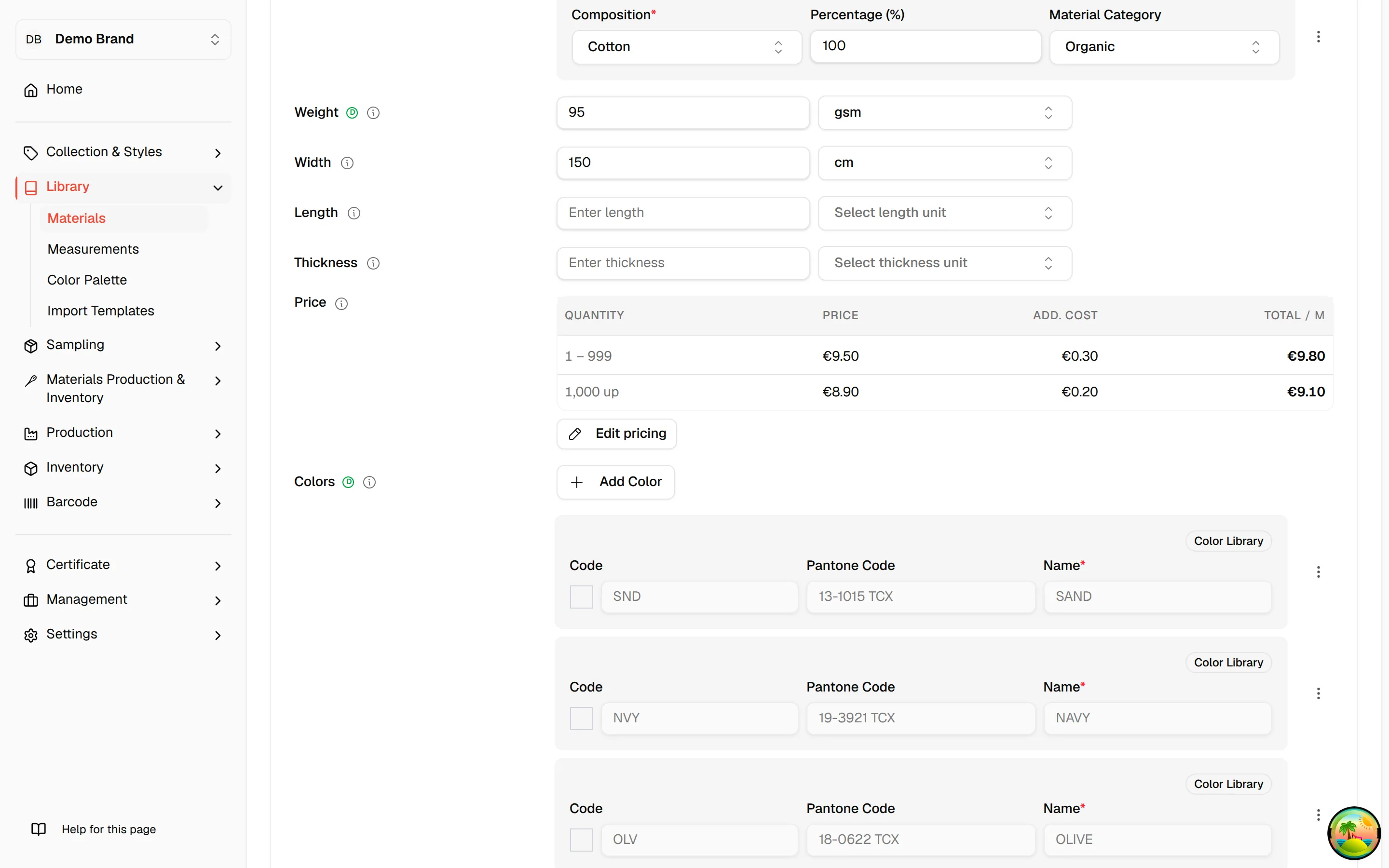
Click Save. The Price line shows a table with Quantity, Price, Add. cost and Total columns.
Use the bin icon at the end of a row to remove a break. The first row cannot be removed, and neither can the last remaining row.
Messages you may see
| Message | What to do |
|---|---|
| Enter a quantity | Fill in Qty from on that row. |
| Quantity must be a whole number | Remove the decimals. |
| Quantity must be 1 or more | Use 1 or higher. |
| Two tiers start at the same quantity | Give each tier its own starting quantity. |
| Add at least one price tier | Keep at least one row when Quantity breaks is selected. |
| Enter a price | Fill in Price on that row. |
What happens to the other price fields
- Costings and BOMs read the single price field. When you save quantity breaks, Vestis copies the lowest break, the one that starts at 1, into the price and the additional cost.
- With quantity breaks selected, a percentage surcharge is switched back to a fixed value, because a percentage is ambiguous when there are several prices.
- If you close the dialog after changing something, Discard unsaved changes? asks you to choose Keep editing or Discard changes.
Price a single colour differently
Each colour of a material follows the material price unless you override it. See Set prices for colour variants.