
Stock overview for a material
Find, filter and manage the stock lines of one material by colour and location, and export, adjust, transfer or delete them.
Under review. This page is published while we check it against the live app, so some details may have changed.
The Stock Overview tab lists every stock line held for one material, one line per colour and location. Use it to see what is available, reserved and incoming, to change a line, or to export the list.
LibraryMaterialsopen a materialInventoryStock Overview
Permission: VIEW_PRODUCT,UPDATE_PRODUCT
Before you start
- The Inventory tab only appears on materials in your own library, and only when the material production feature is on for your brand.
- The row actions Adjust Stock, Transfer Stock, Edit Notes and Change Status need the permission to update material inventory. Delete needs the permission to delete material inventory. Receive needs the permission to create material production.
Open the stock overview
Open the material
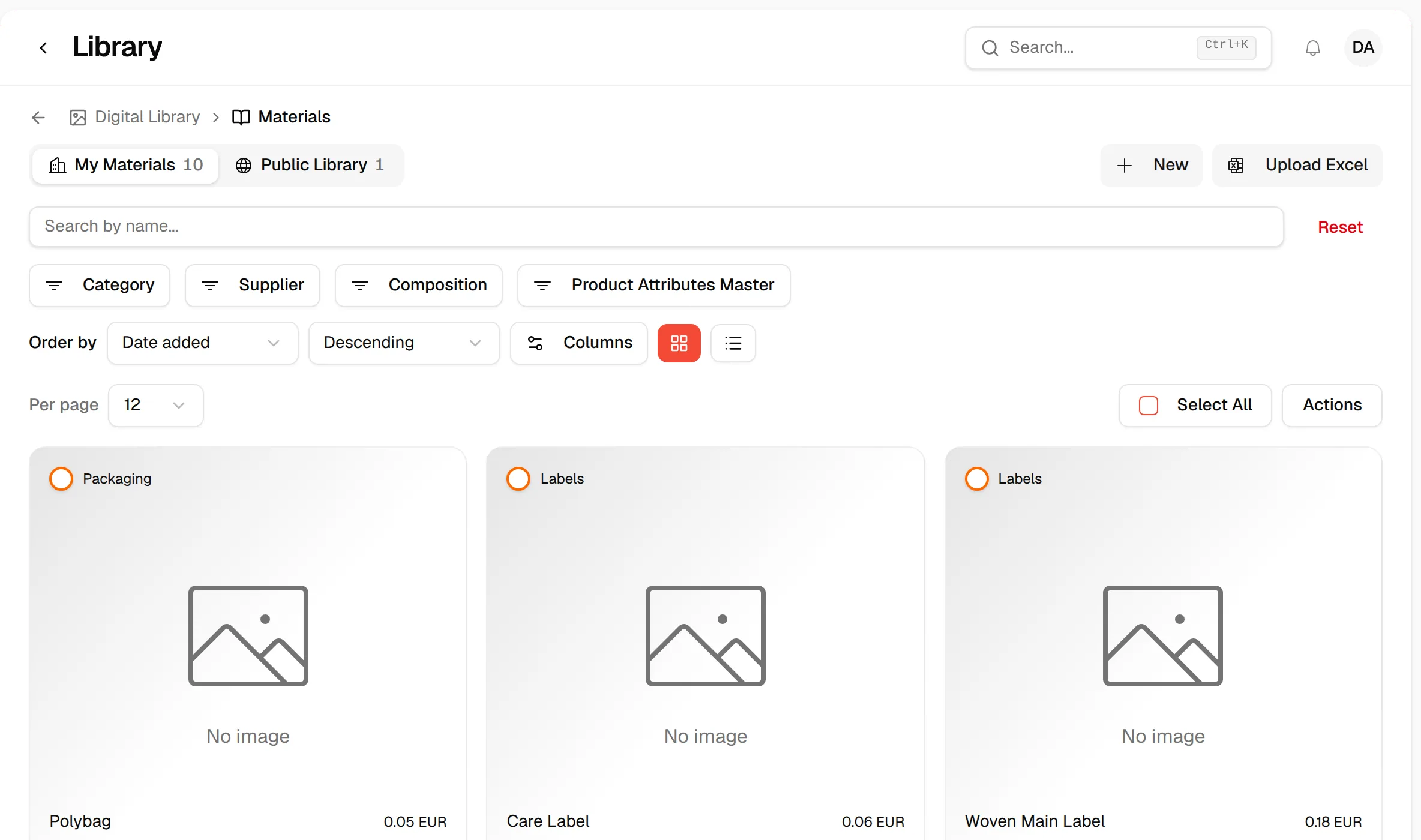
From the left sidebar, click Library, then Materials, and click the material you want.
Click "Inventory"
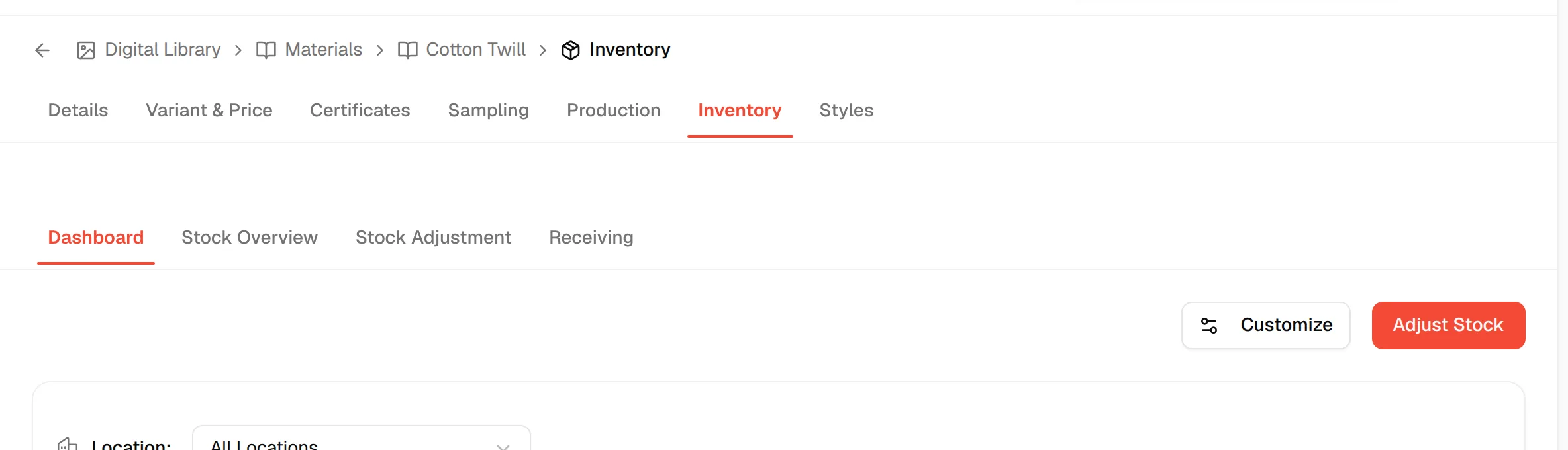
Click the Inventory tab at the top of the material.
Click "Stock Overview"
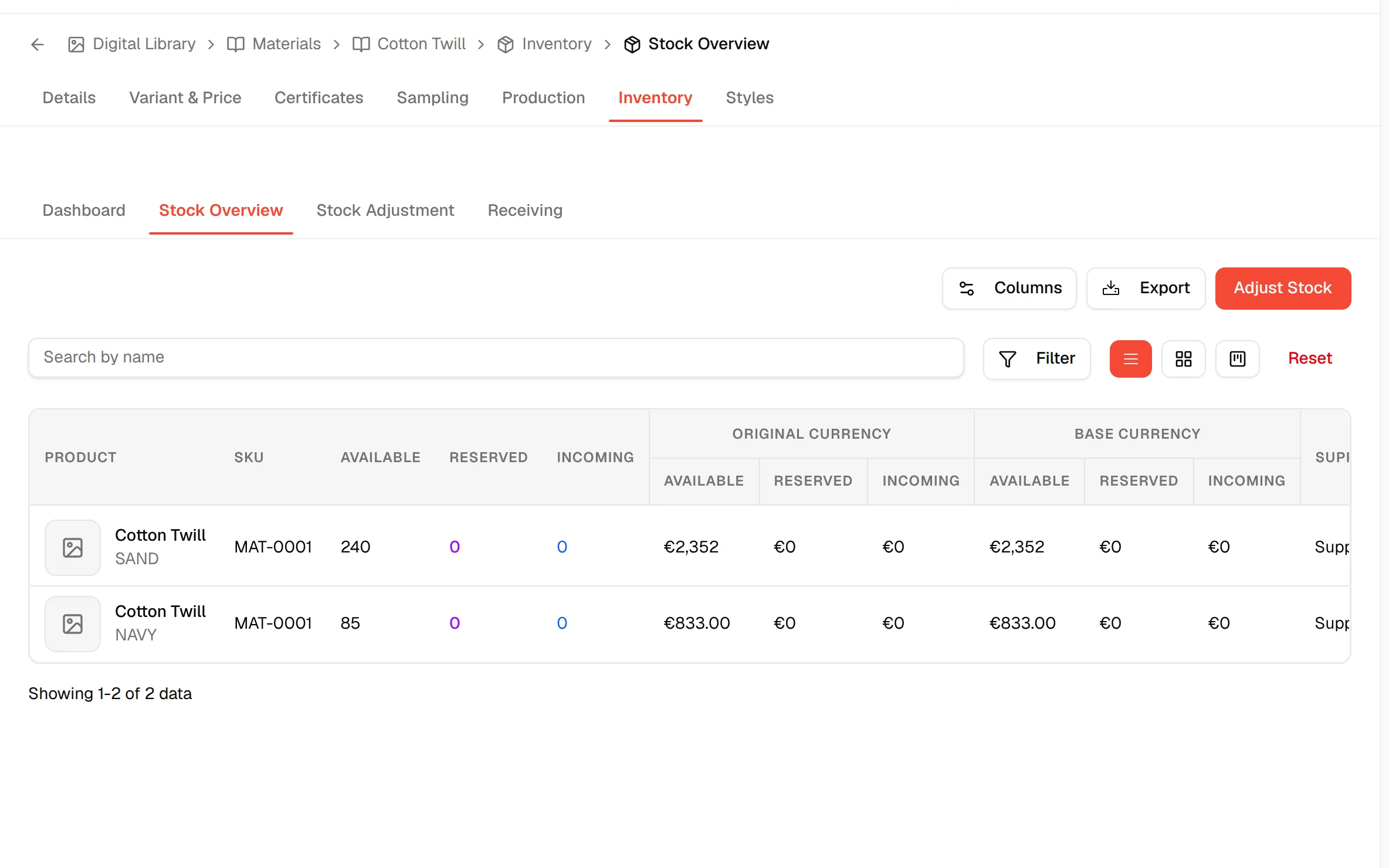
Click the Stock Overview tab.
Search, filter and change the view
Search by name
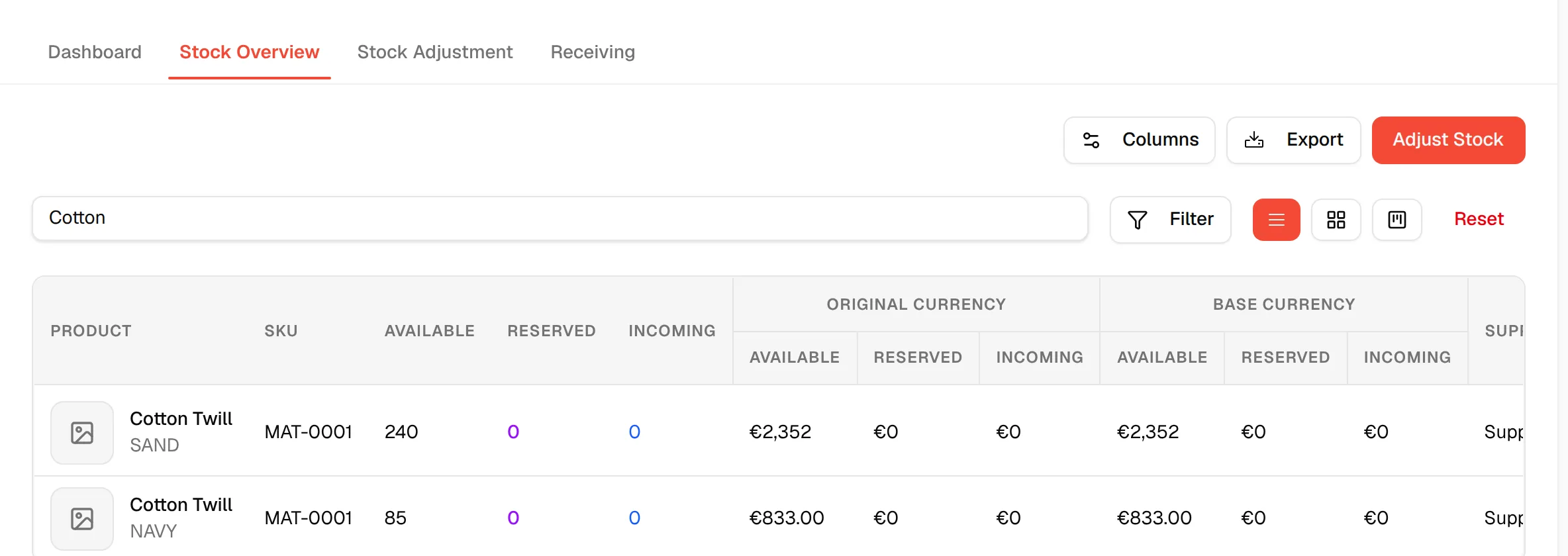
Type in the Search by name field above the list.
Filter the list
Open the filter and choose one or more values under Supplier, Location or Status. The status values are In Stock, Out of Stock, Low Stock and Overstock.
Switch the view
Click List view, Grid view or Kanban view to see the same stock lines as a table, as cards, or as a board.

Reset the filters
Click Reset to clear the search and all filters.
Note
The list shows 10 lines per page. The grid view shows 8 per page.
Table columns
The table can show the columns below. Click Columns at the top right to choose which ones are shown.
| Column | What it shows |
|---|---|
| Product | The material picture, name and colour. |
| SKU | The material code. |
| Available | The quantity in stock at that location. |
| Reserved | The quantity reserved. When part of it is reserved from incoming stock, a small Incoming figure shows under it. |
| Incoming | The quantity still to arrive. |
| Available Stock Value (Original Currency), Reserved Stock Value (Original Currency), Incoming Stock Value (Original Currency) | The value of each quantity in the material's own currency, under an Original Currency heading. |
| Available Stock Value (Base Currency), Reserved Stock Value (Base Currency), Incoming Stock Value (Base Currency) | The same values converted to your base currency, under a Base Currency heading. |
| Supplier | The material's supplier. |
| Location | The warehouse or supplier that holds the stock. |
| Status | A badge such as In stock. |
| Last Updated | The date and time of the last change. |
| Notes | The note saved on the line, if any. |
| Actions | The three-dot menu for the line. |
Tip
If the material's currency is different from your base currency and no exchange rate is set, the base-currency value column shows Set Exchange Rate. Click it, choose a rate under Select Exchange Rate, and click Set Exchange Rate to confirm.
Export the list
Click "Export"
Click Export at the top right of the page.

Choose a format
Click Export to Excel to download a spreadsheet, or Export to PDF to open a printable page in a new tab. Both follow the search, filters and sort you have applied.
Row actions
Click the three dots in the Actions column of a line to open the menu.
- Adjust Stock opens the stock adjustment window already set to this material, colour and location. See Adjust the stock of a material.
- Transfer Stock moves available quantity to another warehouse or supplier location. The window shows the material, colour, location and Available quantity.
- Receive opens the Receive Items window for this material, so you can book in quantities from production orders that are on their way.
- Edit Notes saves a note on the line.
- Change Status sets the line status.
- Delete removes the stock line.
Transfer stock
Choose the destination
In the Transfer Stock window, select a supplier or warehouse in Destination.
Enter the quantity
Type the amount in Quantity. The field shows Max with the available quantity. If you go over it, the message Quantity exceeds available. appears.
Select the reason
Select a Reason (required), or type a new one to create it.
Add a note (optional)
Type in Notes if you want to record why you are moving the stock.
Confirm
Check the Transfer Summary (material, from, to, quantity, reason), then click Transfer. The button stays disabled until the destination, reason and a valid quantity are set.
Edit a note
In the Edit Note window, type your text in Note (up to 500 characters). A Preview shows how it will look. Click Update Note. The button stays disabled while the note is empty.
Change the status
In the Change Status window, select a new status under Select New Status and click Update Status. The button is disabled while the current status is selected. The options are:
| Status | Meaning shown in the window |
|---|---|
| In Stock | Item is available and ready for use |
| Low Stock | Item quantity is below recommended level |
| Out of Stock | Item is not available |
| Overstock | Item quantity exceeds recommended level |
Delete a stock line
Click Delete in the row menu. In Delete Material Inventory, click Delete to confirm, or Cancel.
Warning
Deleting a stock line cannot be undone.
When the list is empty
If nothing matches, the page shows No Inventory Found with Adjust Stock (if you may create stock) so you can add the first line.