Shipping carrier management
This article outlines best practices for setting up and managing shipping carriers in Vestis Labs to support reliable deliveries, accurate shipment tracking, and efficient logistics…
Under review. This page is published while we check it against the live app, so some details may have changed.
Screenshots may be out of date.
Shipping carrier management – admin setup
This article outlines best practices for setting up and managing shipping carriers in Vestis Labs to support reliable deliveries, accurate shipment tracking, and efficient logistics operations across your supply chain.
Introduction & best practice
Shipping carrier management in Vestis Labs allows you to define and organise the carriers used to move goods between warehouses, suppliers, and customers. By setting up shipping carriers such as local couriers, international freight forwarders, or third-party logistics (3PL) partners you ensure consistency in how shipping information is captured and managed across the system.
ManagementShipping Carrier
Permission: VIEW_BRAND_PRODUCTION
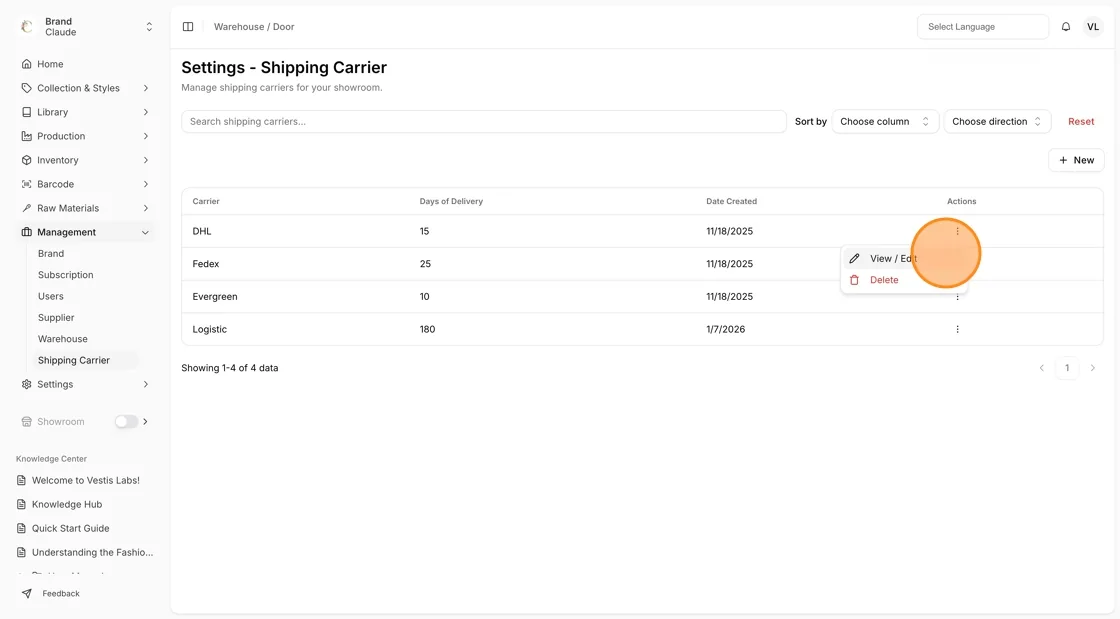
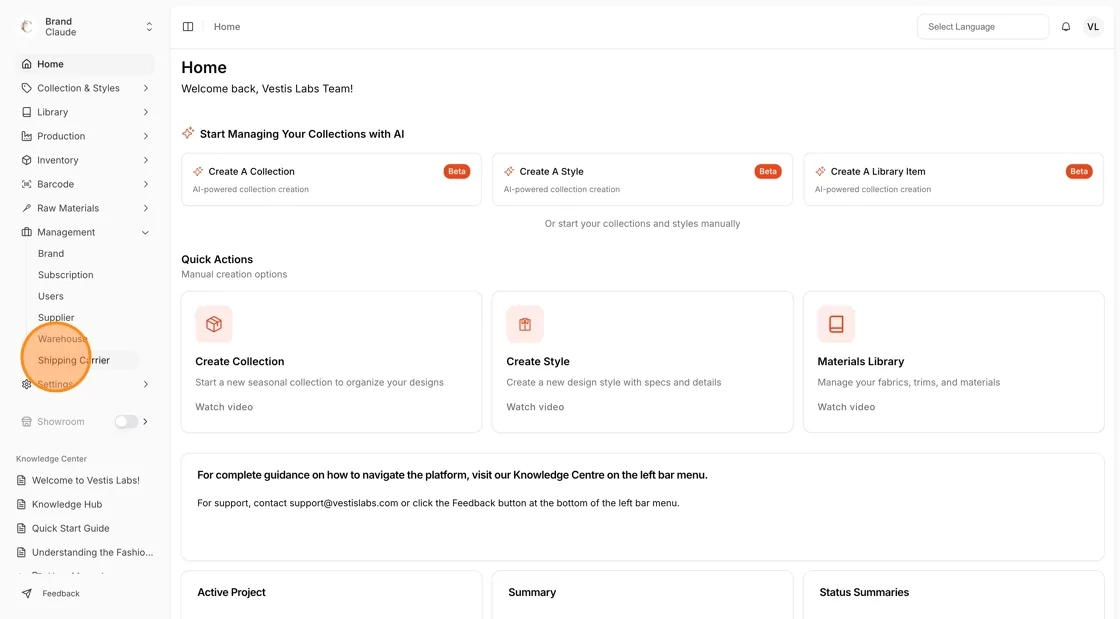
Navigate to Management → Shipping Carrier. The list shows the Carrier name, the Days of Delivery and the Date Created. Type in Search by carrier name... to find a carrier, and click Reset to clear the search.
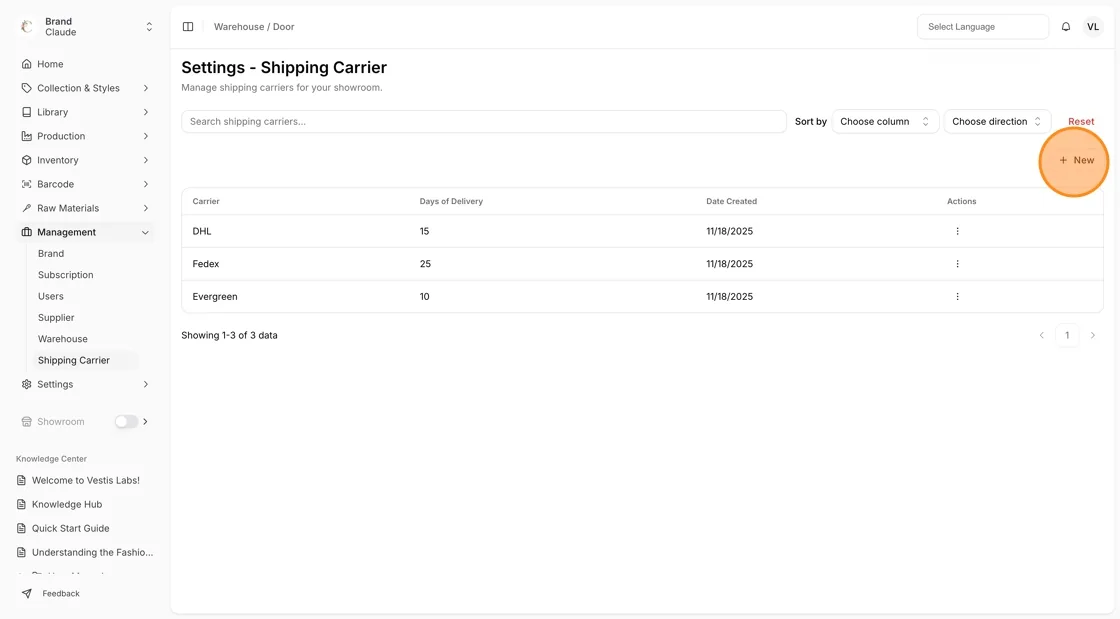
Click New to create a new shipping carrier. You need the Update brand production permission.
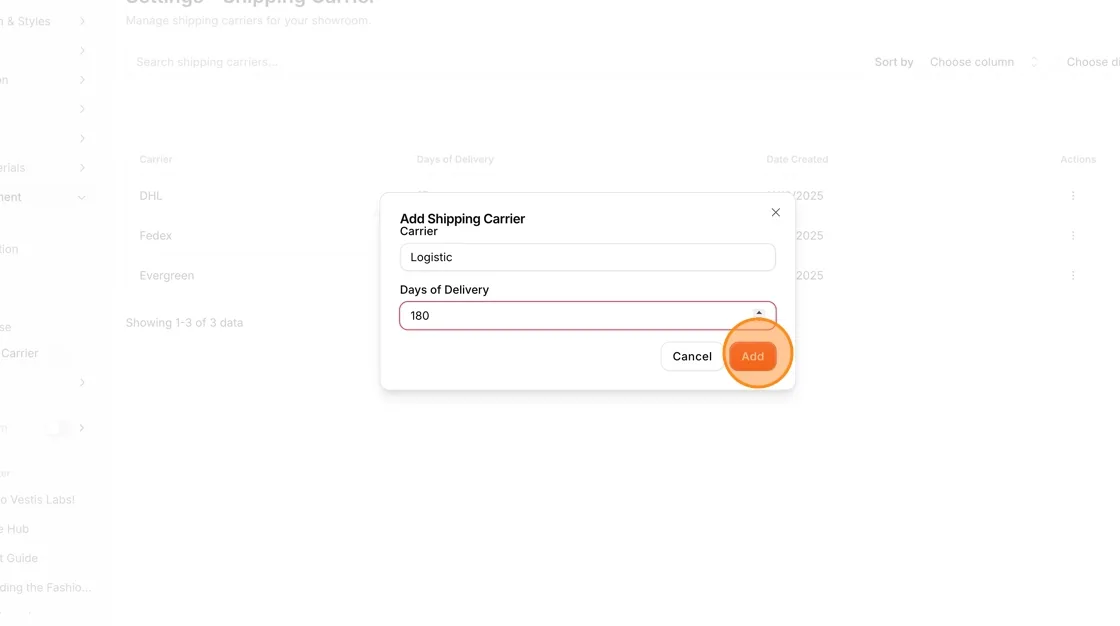
Complete the shipping carrier details:
- Carrier – Enter the shipping carrier name. Required.
- Days of Delivery – Specify the estimated delivery duration in whole days, at least 1. Required.
Click Add to create the shipping carrier. You see Shipping carrier created successfully.
Use the icons at the end of the row:
- Select the pencil icon (Edit) to update the shipping carrier information, then click Save.
- Select the trash icon (Delete) to remove the shipping carrier, then click Delete to confirm. The message says that this action cannot be undone.