Step 5 of 12 in Connect Shopify
Connect your style production batches in Vestis Labs to Shopify
From the Shopify Integration page, Click "Styles" to view the Style page.
Under review. This page is published while we check it against the live app, so some details may have changed.
Screenshots may be out of date.
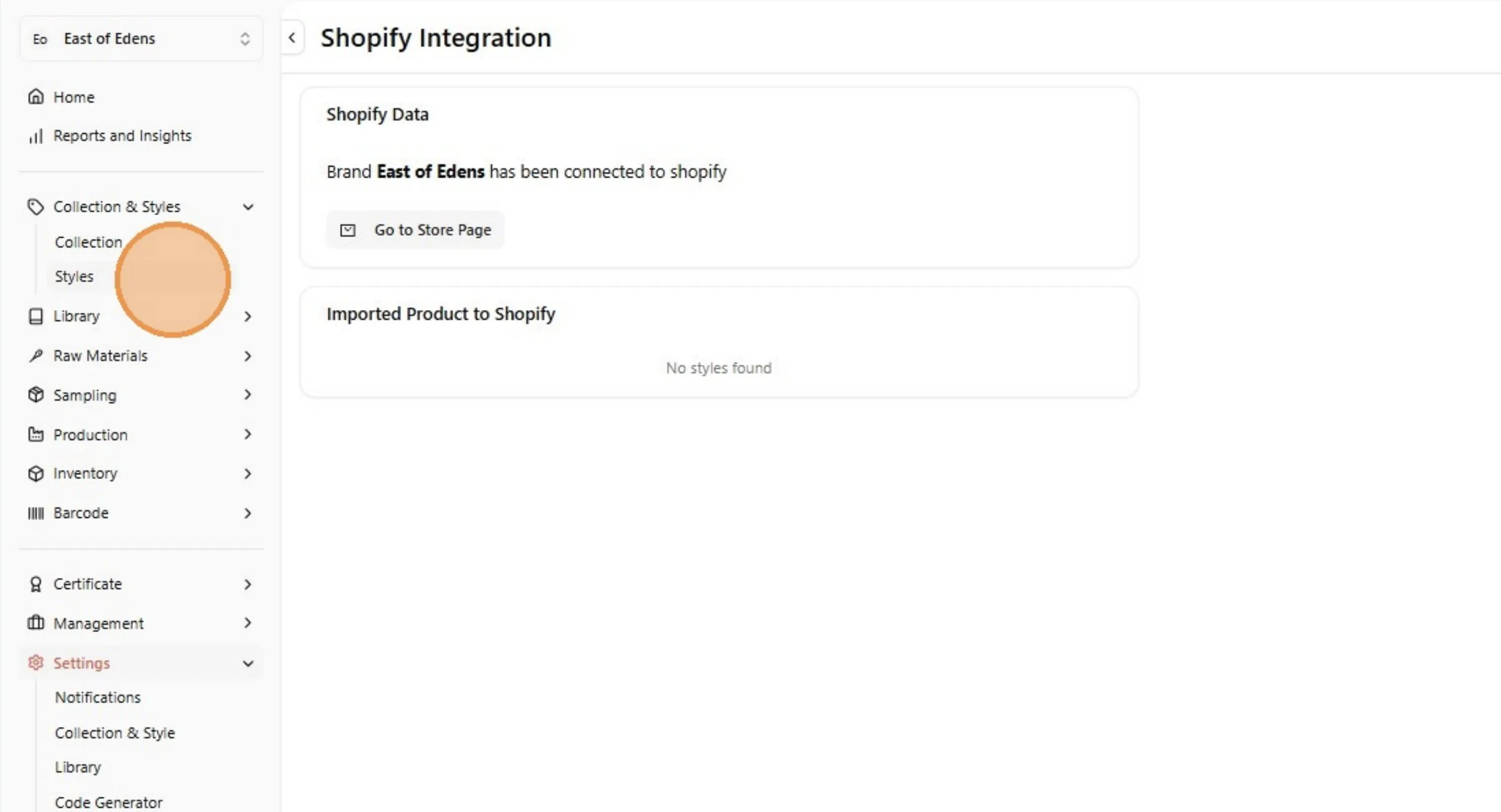
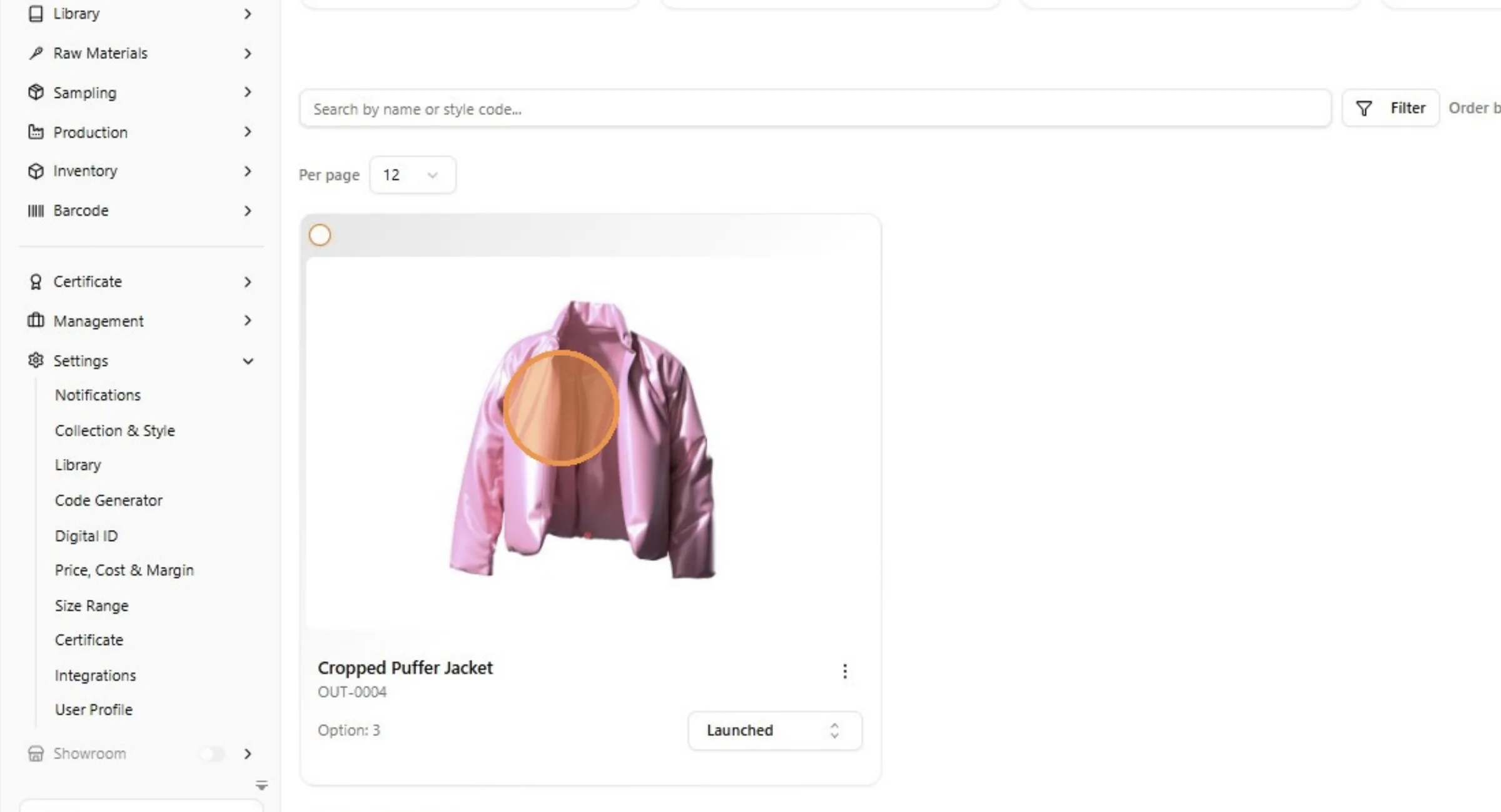
Click on the Styles.
User can connect pictures to a color, when the system is integrating to Shopify, the picture will be used as a picture for the color variant.
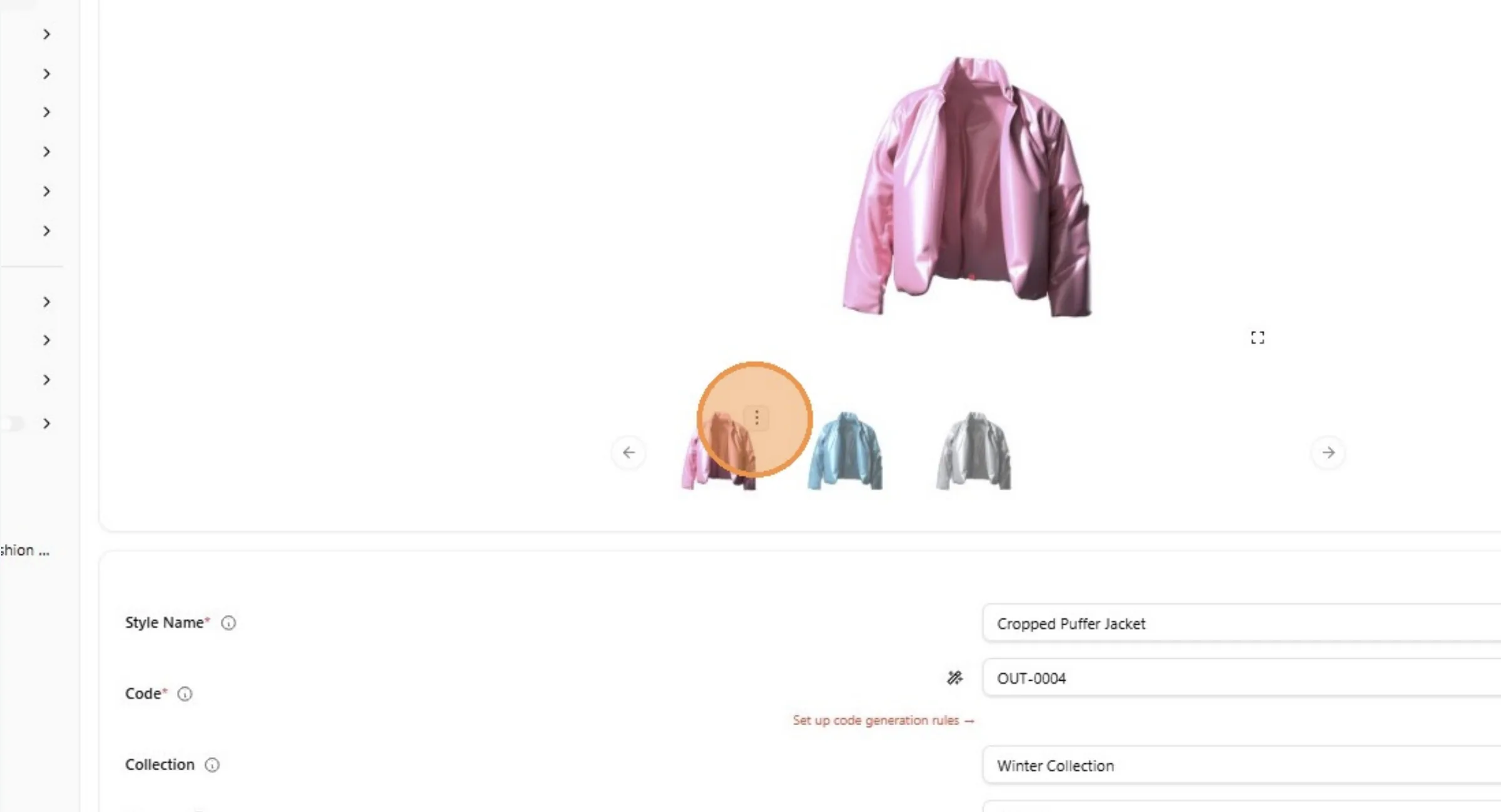
Click "Connect to color".
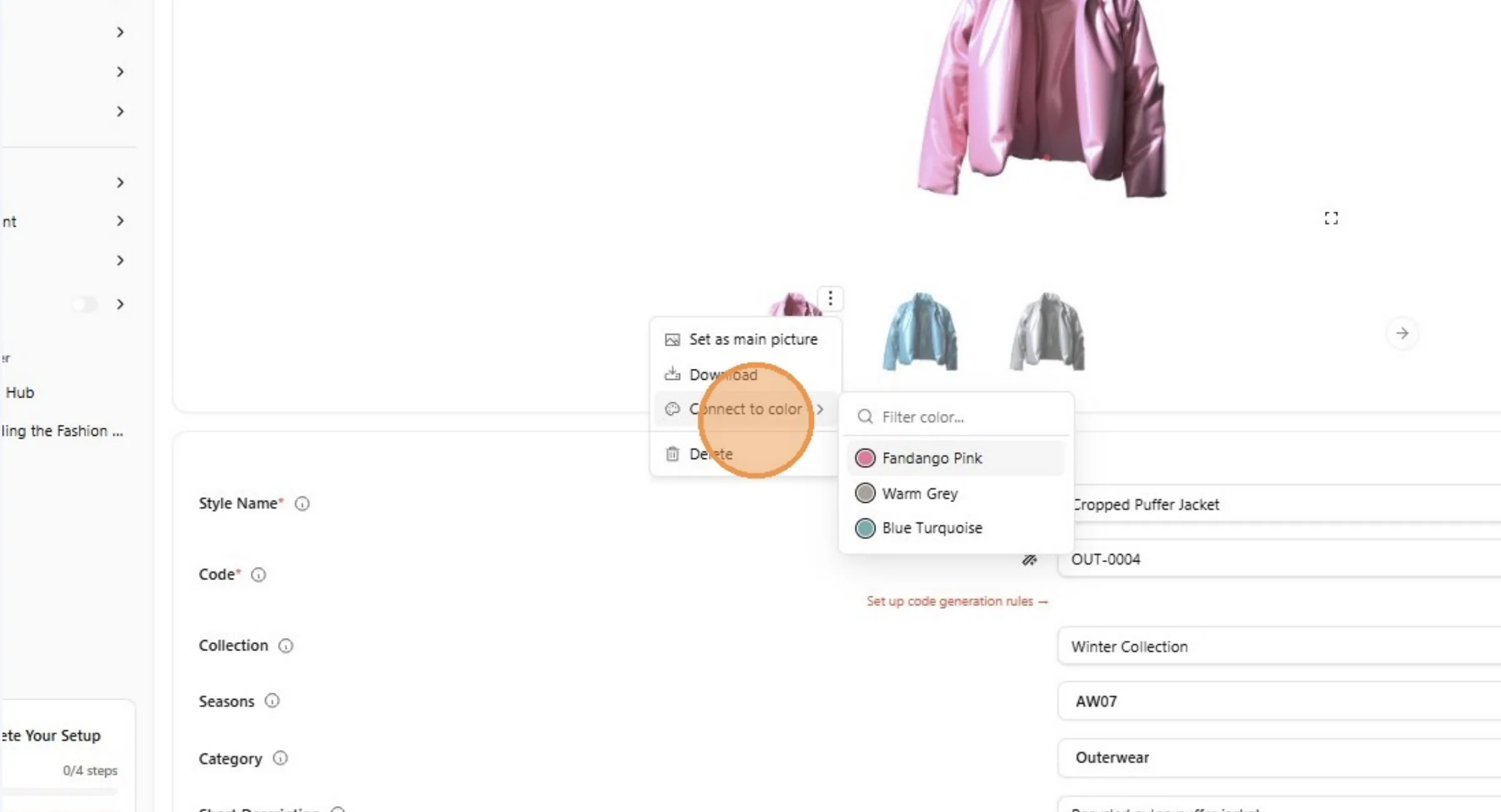
For example: Click "Fandango Pink".
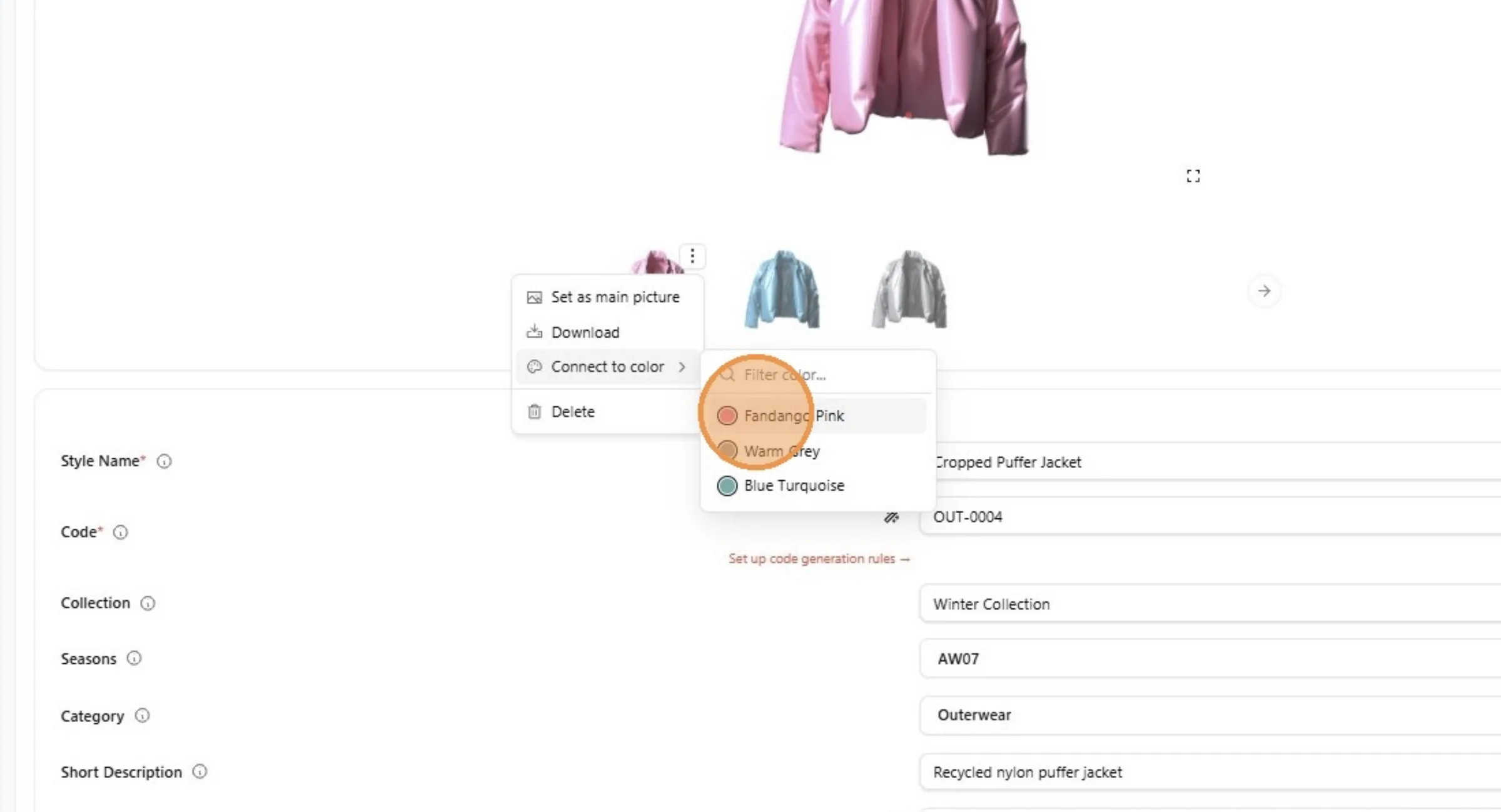
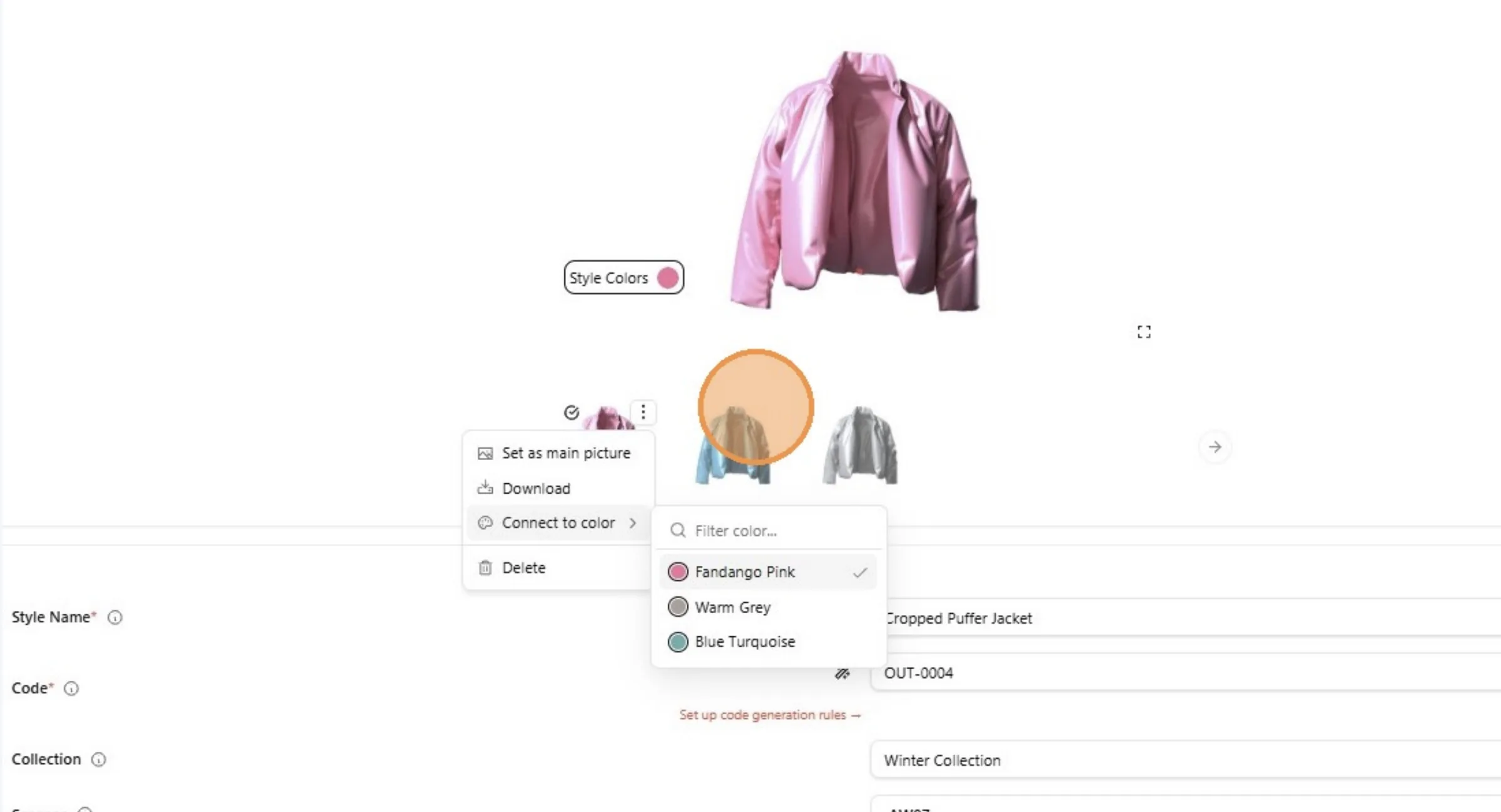
Note
Repeat the previous step for all style colors.
Click on Batch Production to access the Batch Production feature.
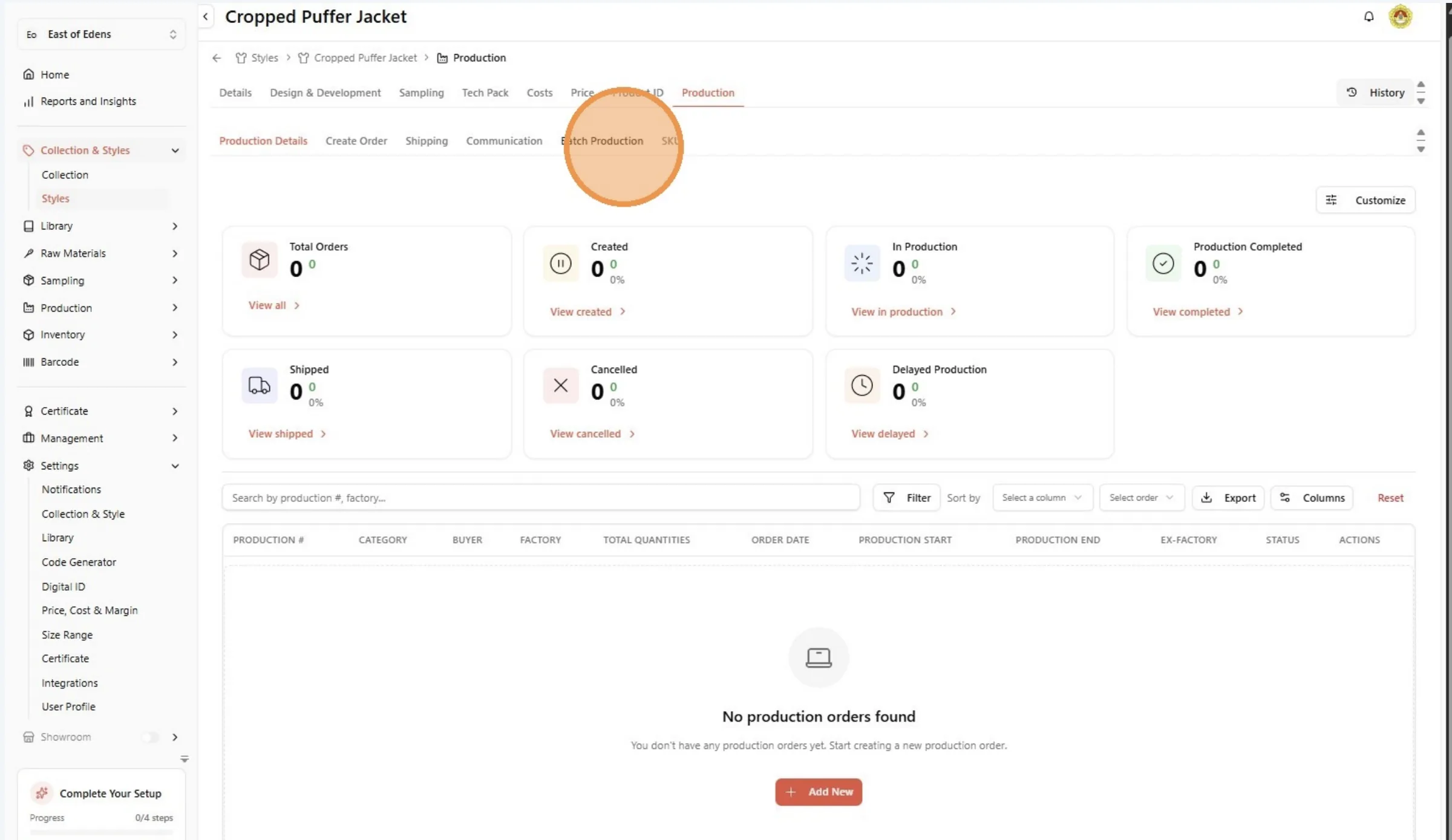
Navigate to Style - Batch Production.
Click "Add Production Batch"
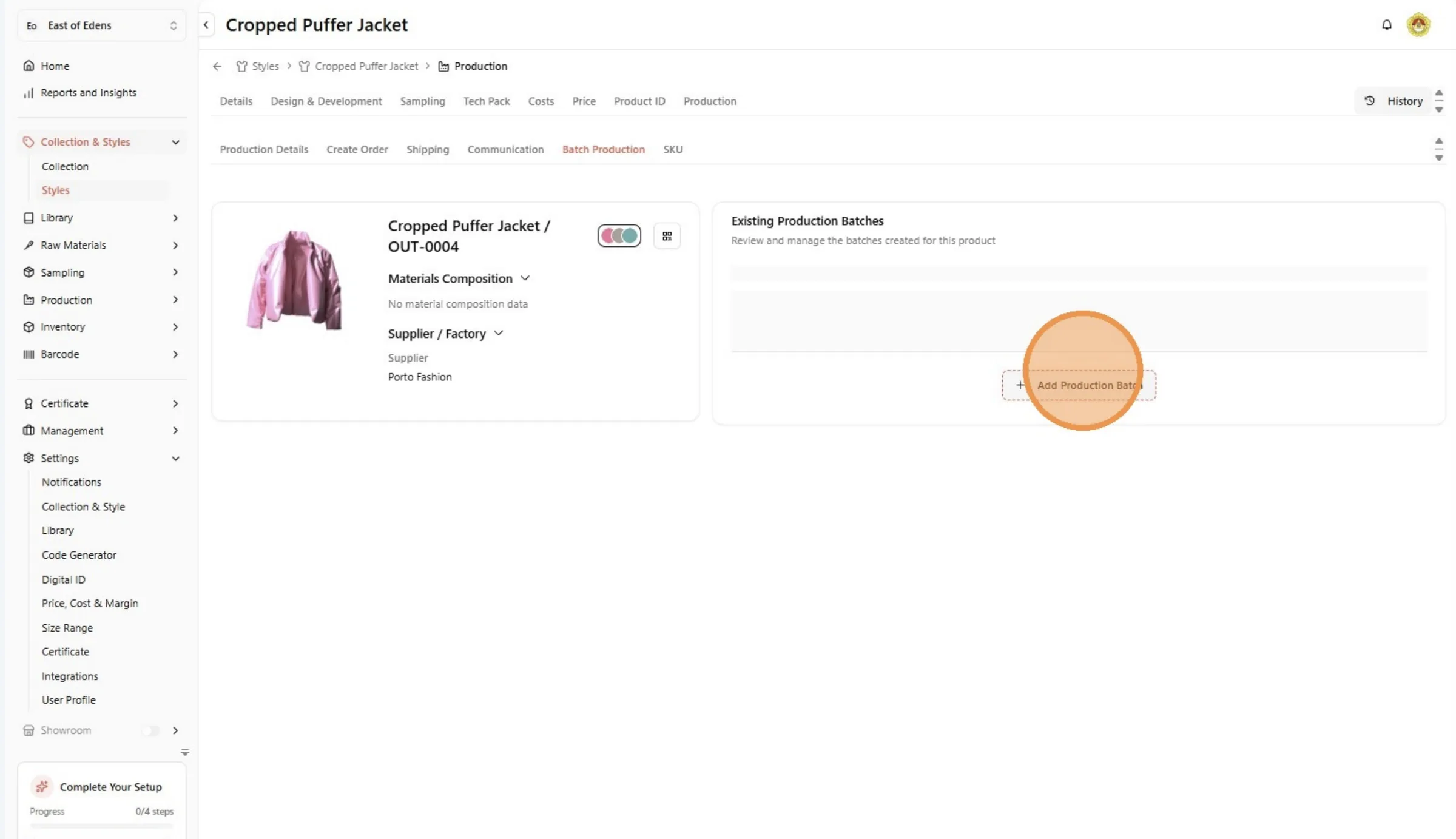
User need to add stock for the Shopofy, to integrate and add stocks on the product on Shopify. Click the "Batch Name" field.
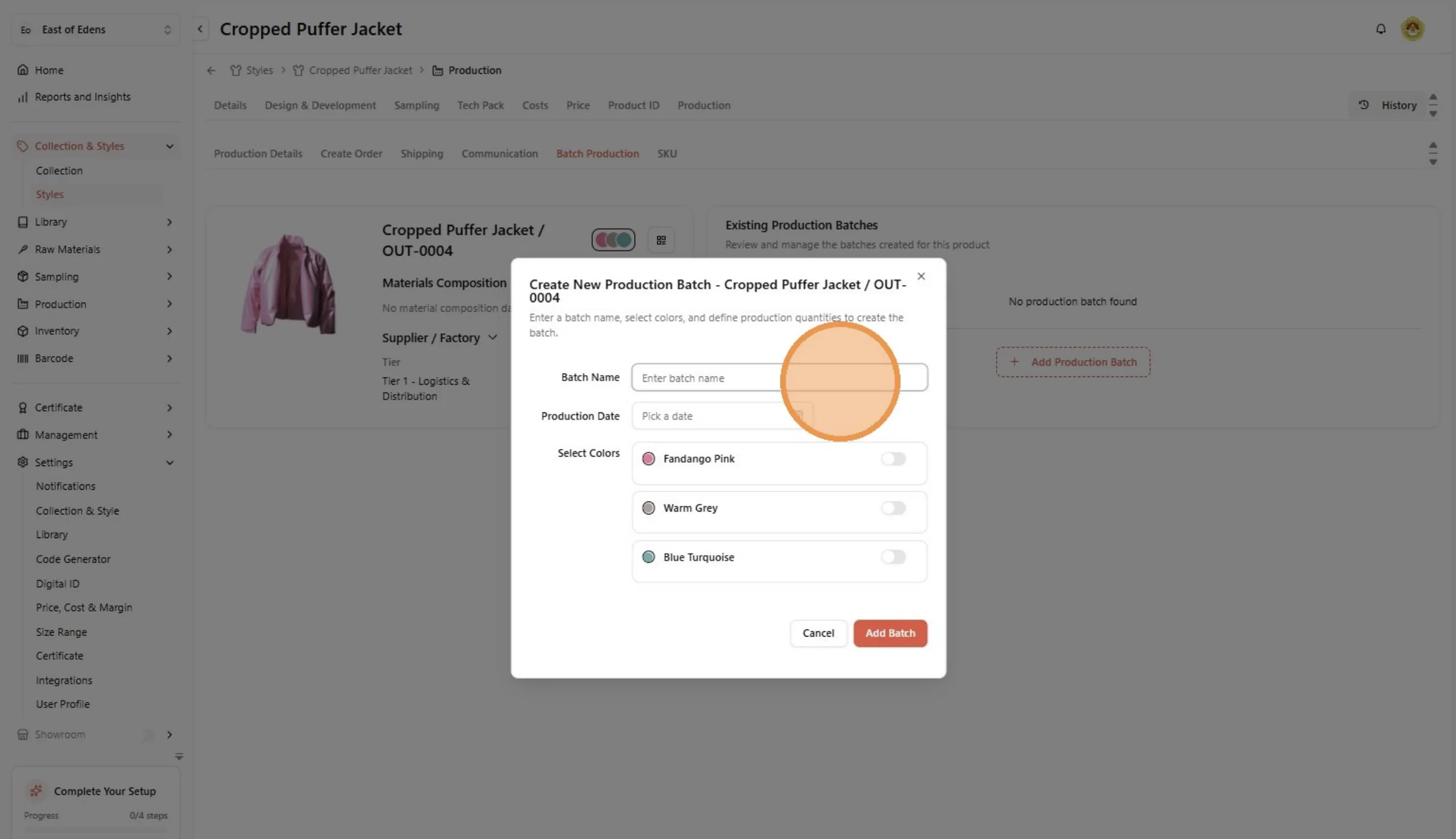
Click "Pick a date"
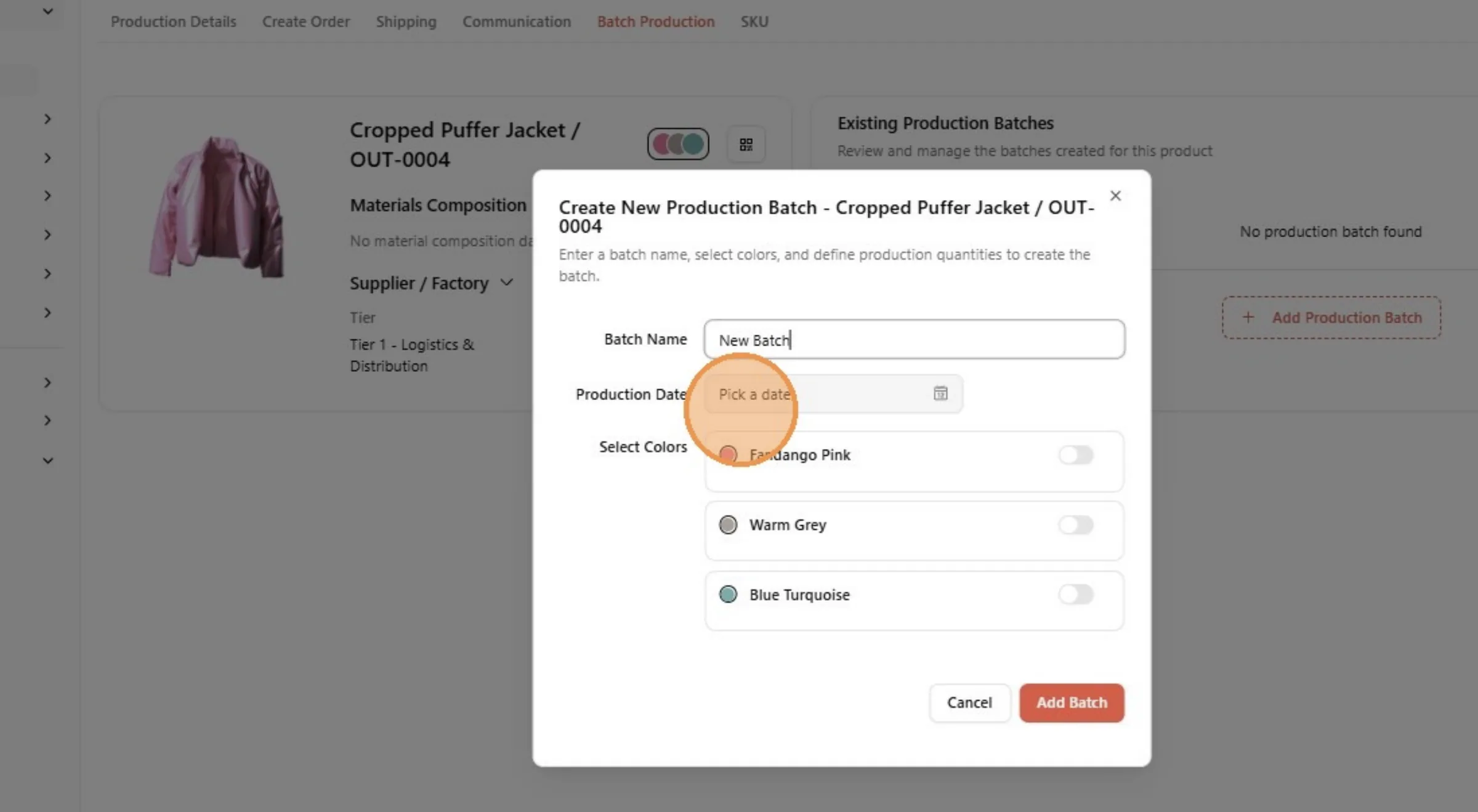
Select the Production Date.
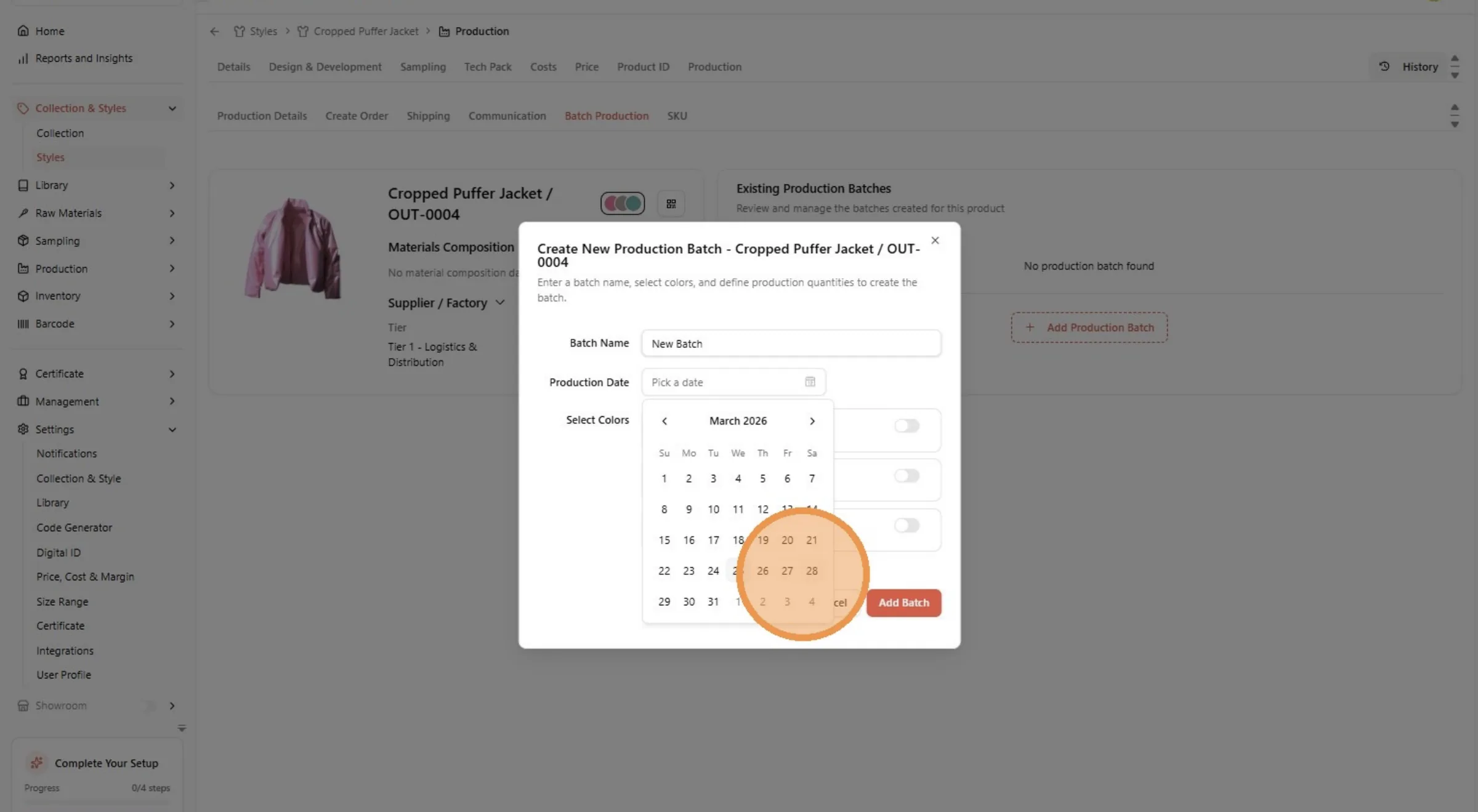
Click on the color arrow button to view the additional quantity of the product
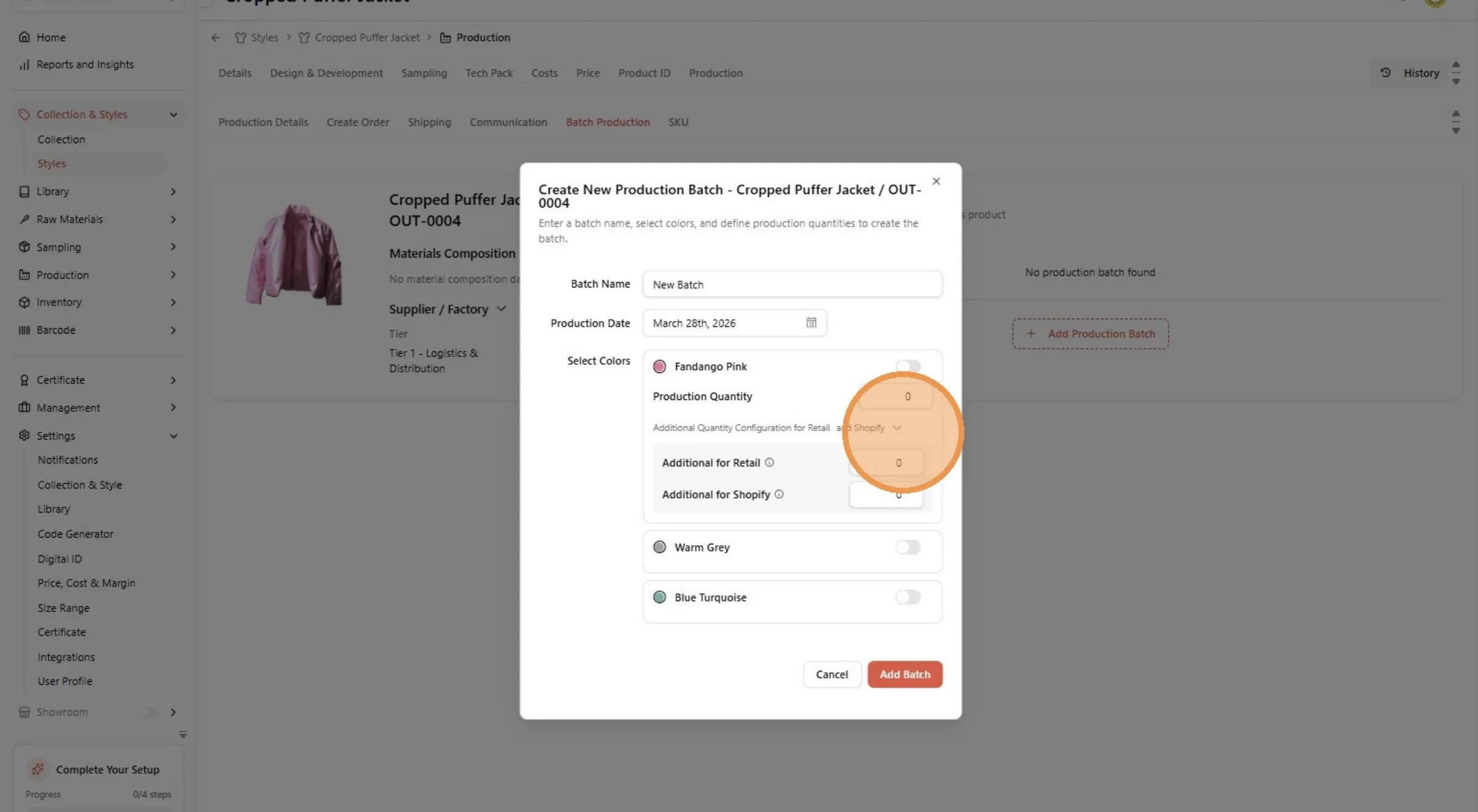
Click the "Additional for Shopify" field. Input the quantity for Shopify.
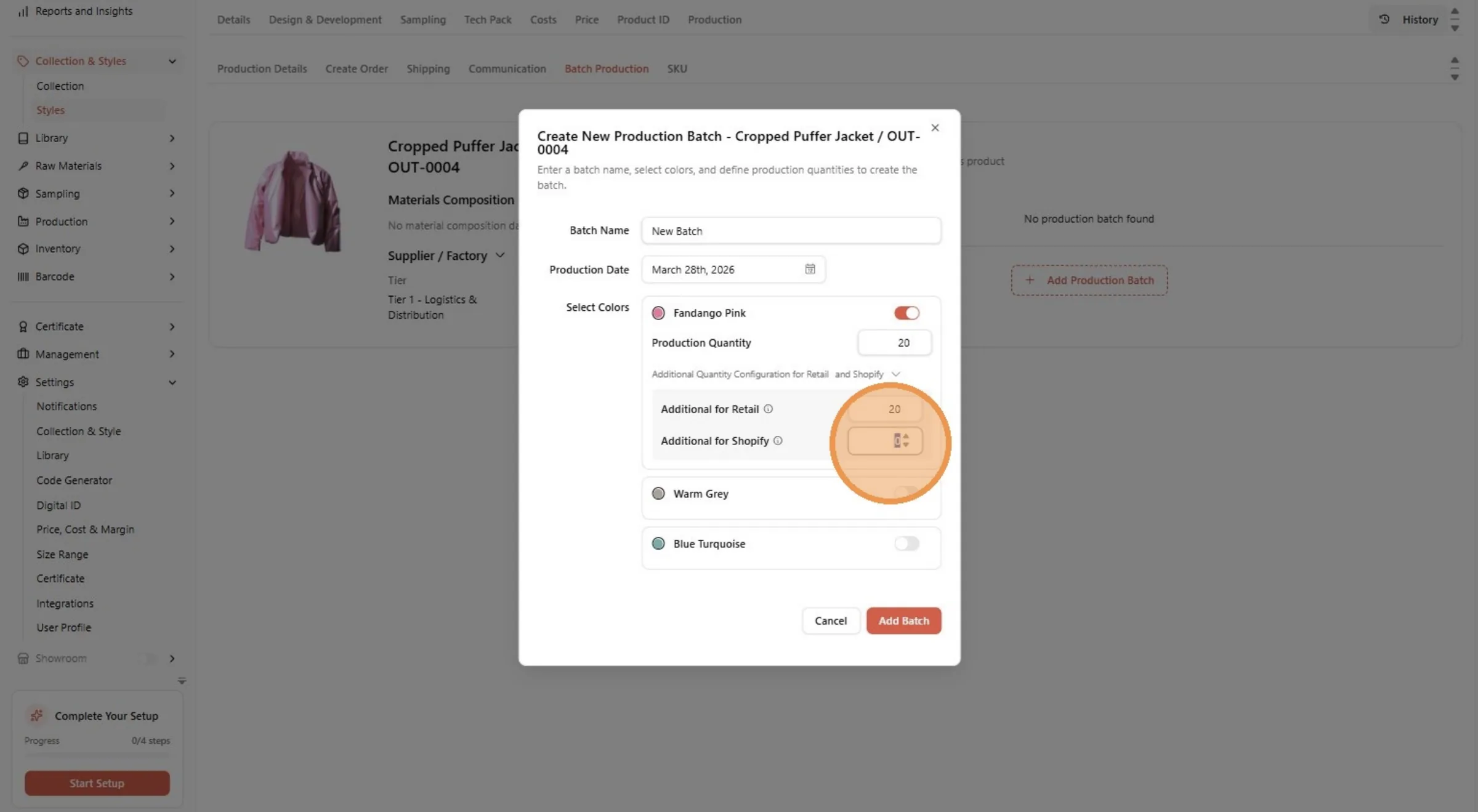
Repeat the steps on another color.
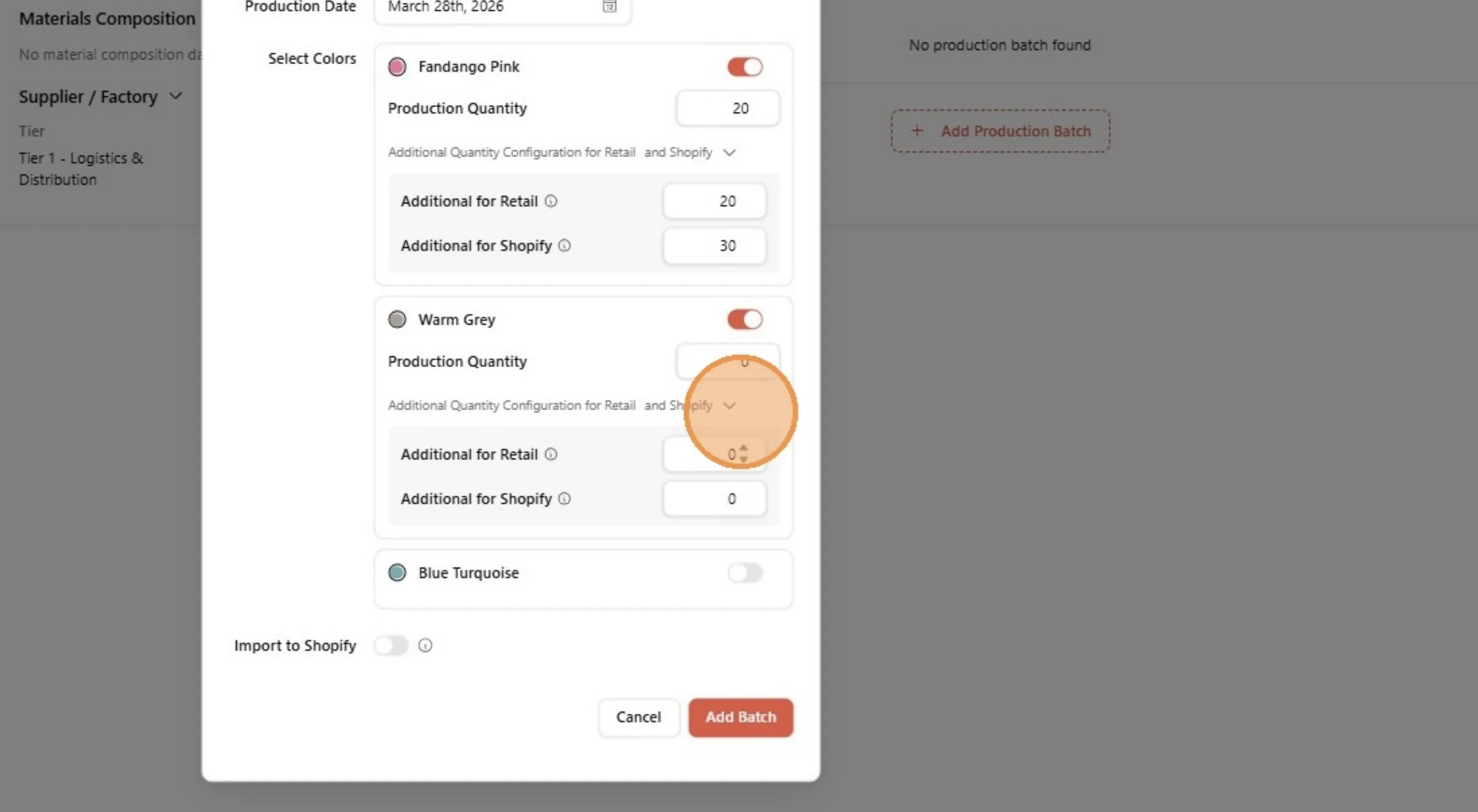
Click the "Additional for Shopify" field.
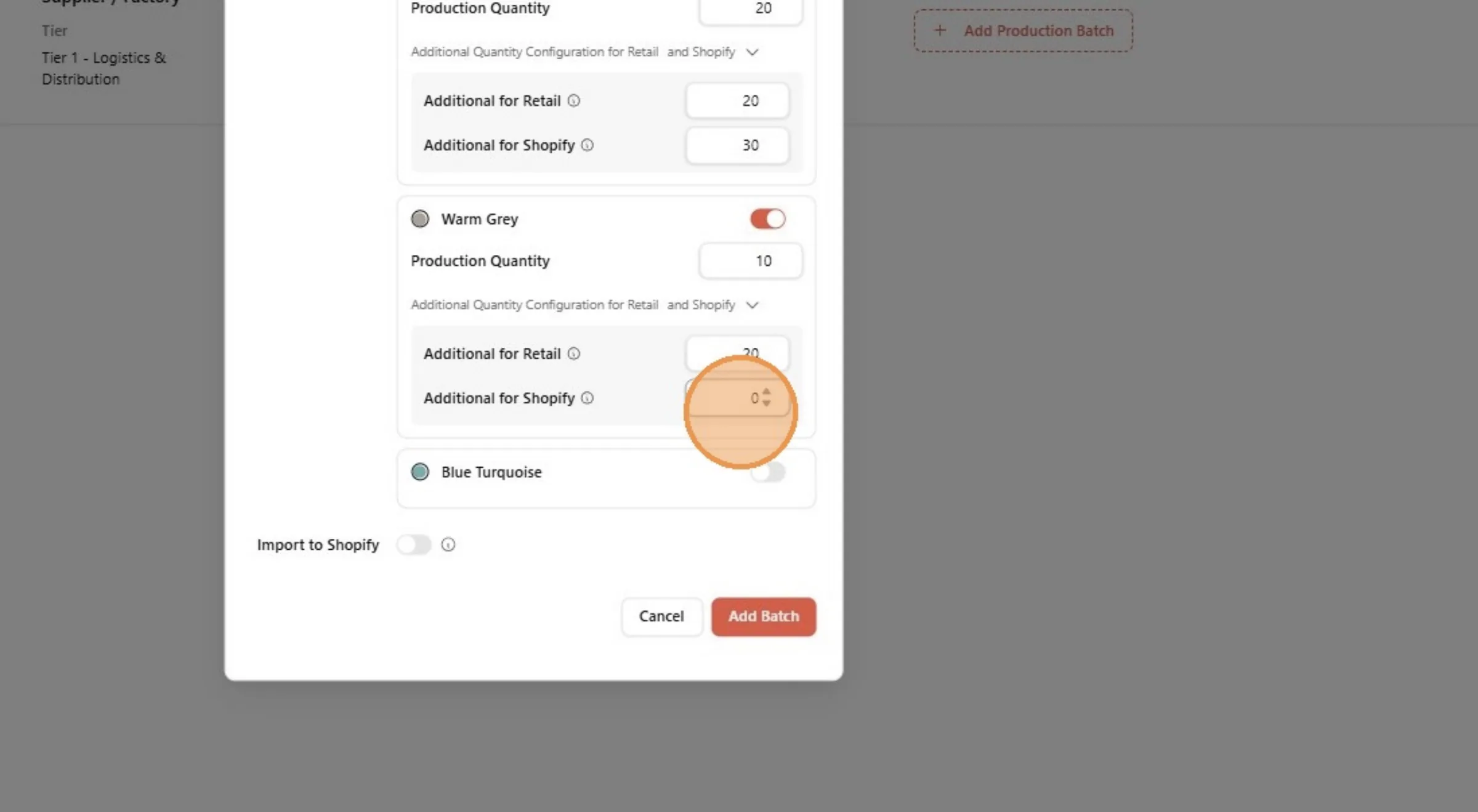
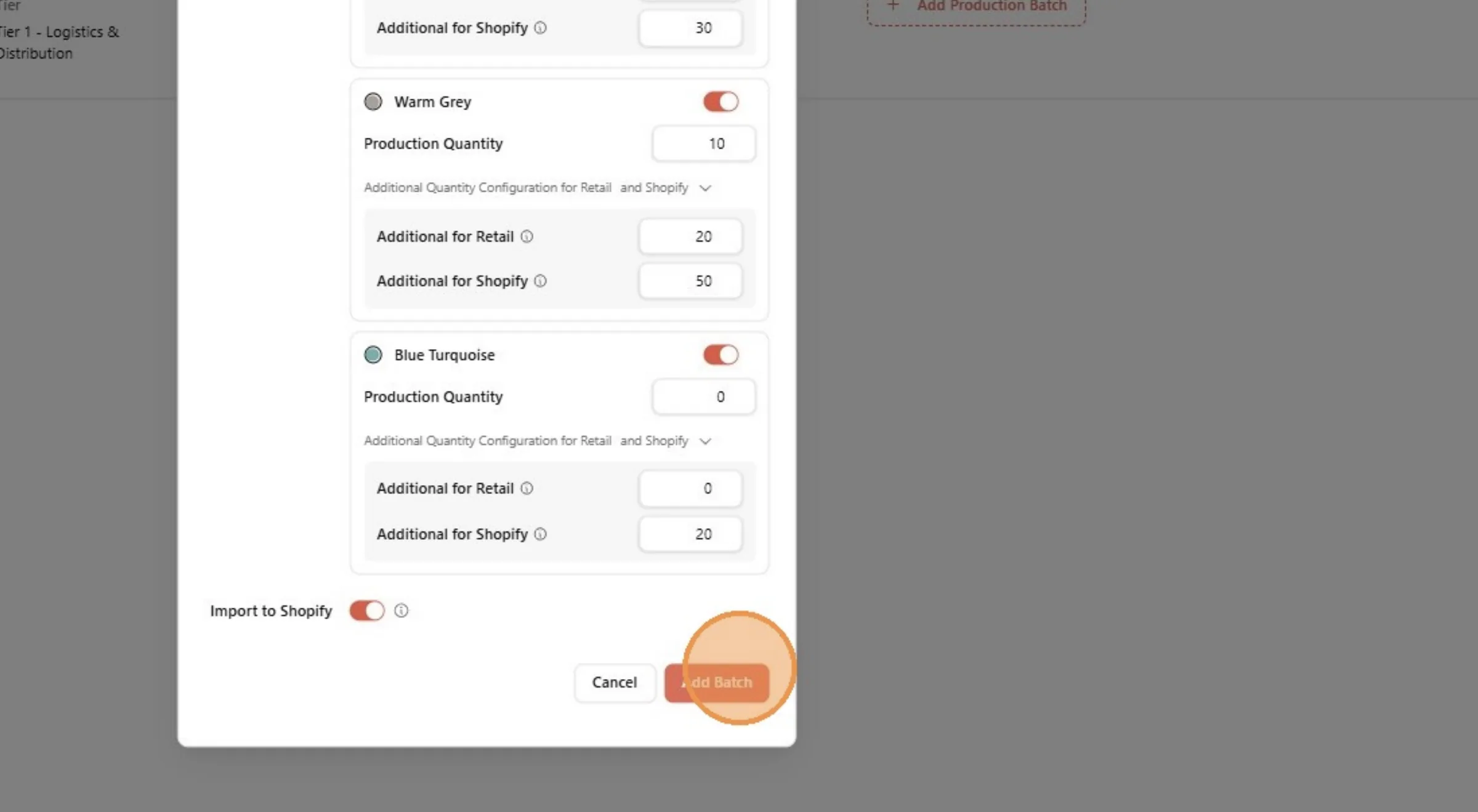
Turn on the Sync Inventory to Shopify toggle. It shows once you enter a Shopify quantity, and stays switched off until the style is linked to a Shopify product.
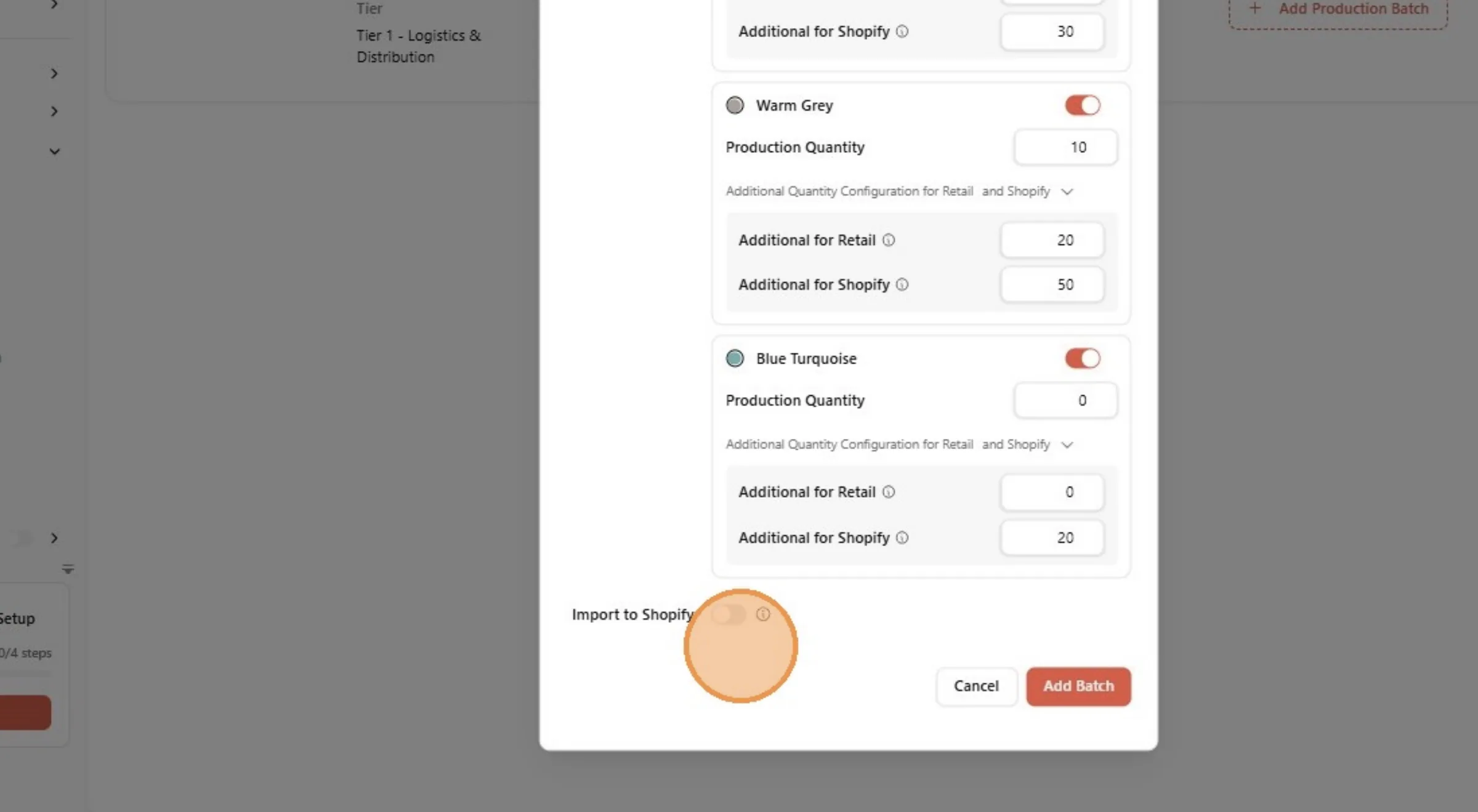
Click "Add Batch" to create the batch production and integrate the Style & Style quantity to Shopify
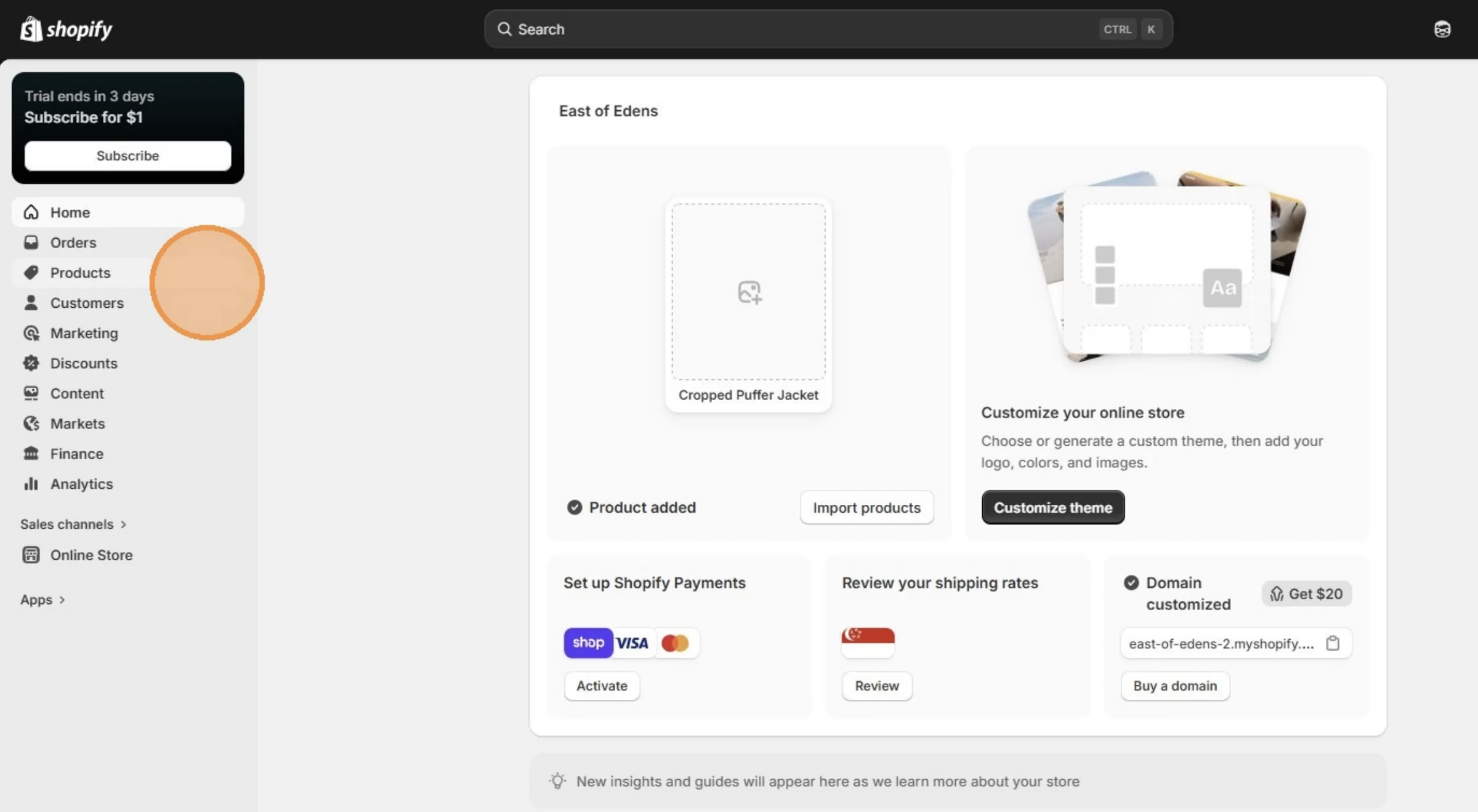
Switch the browser tab to Shopify. Click "Products"
After the user successfully integrated the Style, then the Style will be displayed on the Product page.
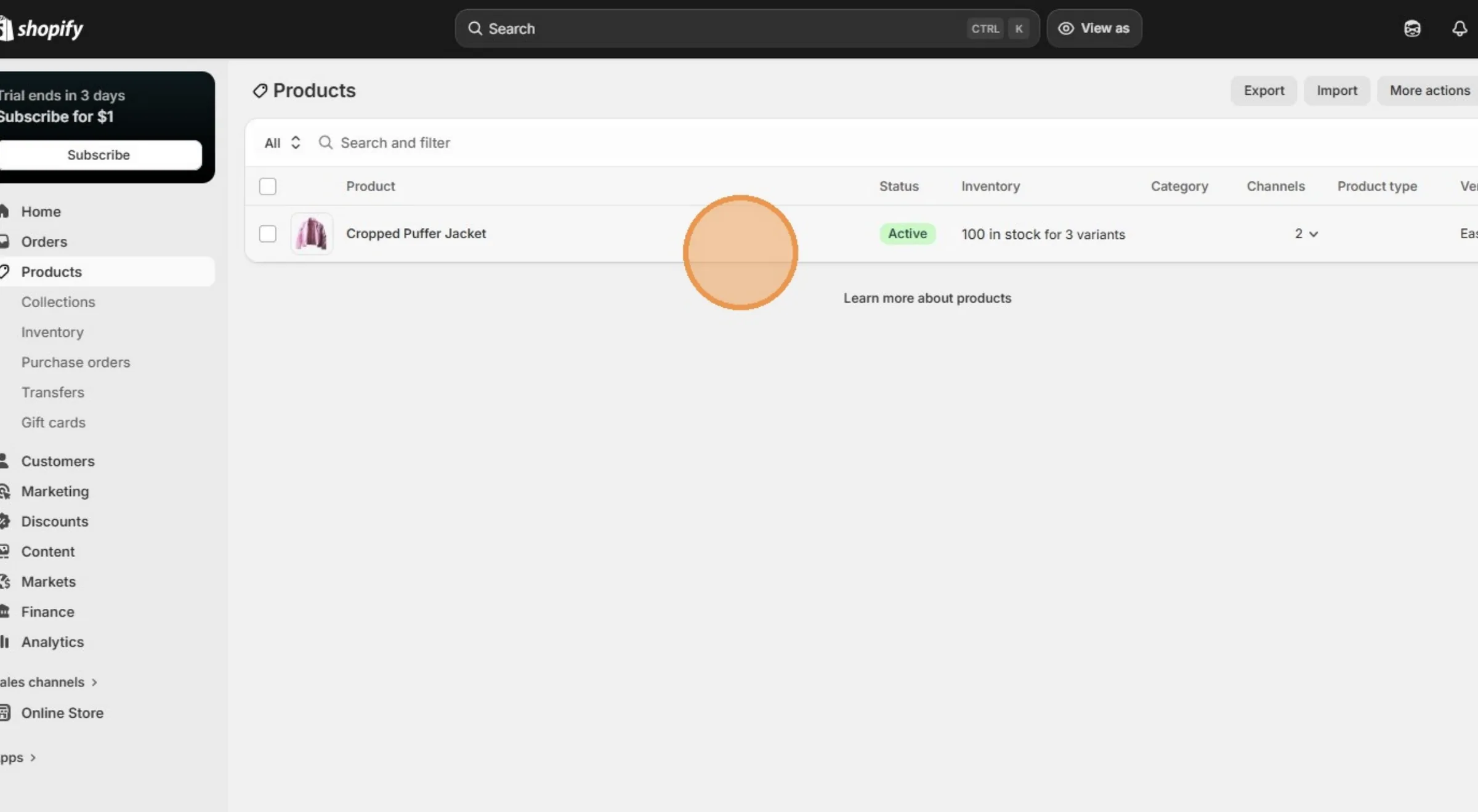
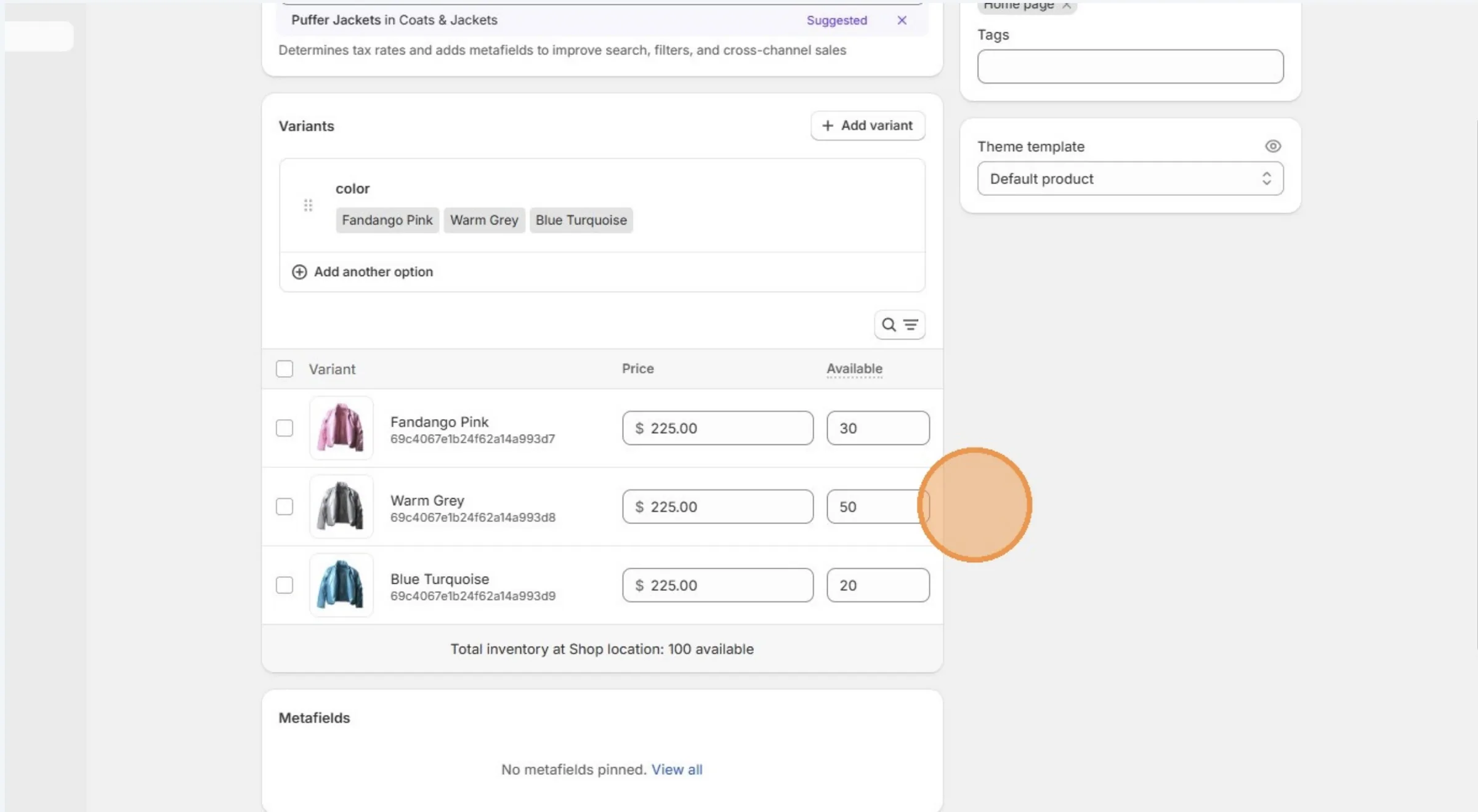
Shopify will also receive and display the Style Name, Description, Category, Supplier, Colors, Price and the Quantity of each color variant.
When a user updated the Style, it will also be reflected on the Shopify.