
Step 7 of 10 in See the business view: reports, pricing and margin
Multi currency setup
Set up and manage supported currencies, exchange rates, and pricing rules in Vestis Labs to enable accurate multi-currency costing and consistent pricing across collections and styles.
Under review. This page is published while we check it against the live app, so some details may have changed.
Screenshots may be out of date.
Multi currency – admin setup
Set up and manage supported currencies, exchange rates, and pricing rules in Vestis Labs to enable accurate multi-currency costing and consistent pricing across collections and styles.
Introduction & best practice
Multi-currency settings in Vestis Labs let you easily choose which currencies your brand supports and how they’re used for costing and pricing. Exchange rates then handle accurate conversions from your base currency to other trading currencies, while pricing rules help keep prices consistent and structured across different markets. We recommend setting up supported currencies, exchange rates, and pricing rules at the start of each season to avoid rework later. A well-configured multi-currency setup makes cost calculations faster, reduces manual adjustments, and ensures your pricing stays clear and consistent.
SettingsPrice, Cost & MarginMulti Currency Setup
Permission: UPDATE_BRAND
Step by step
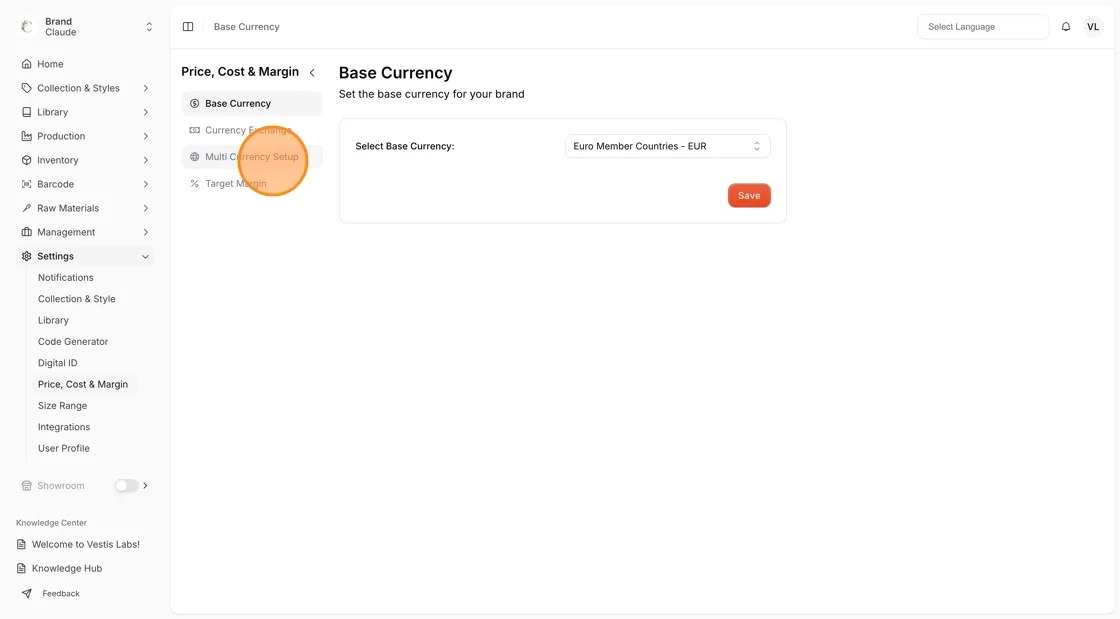
Navigate to Settings > Price, Cost, & Margin.
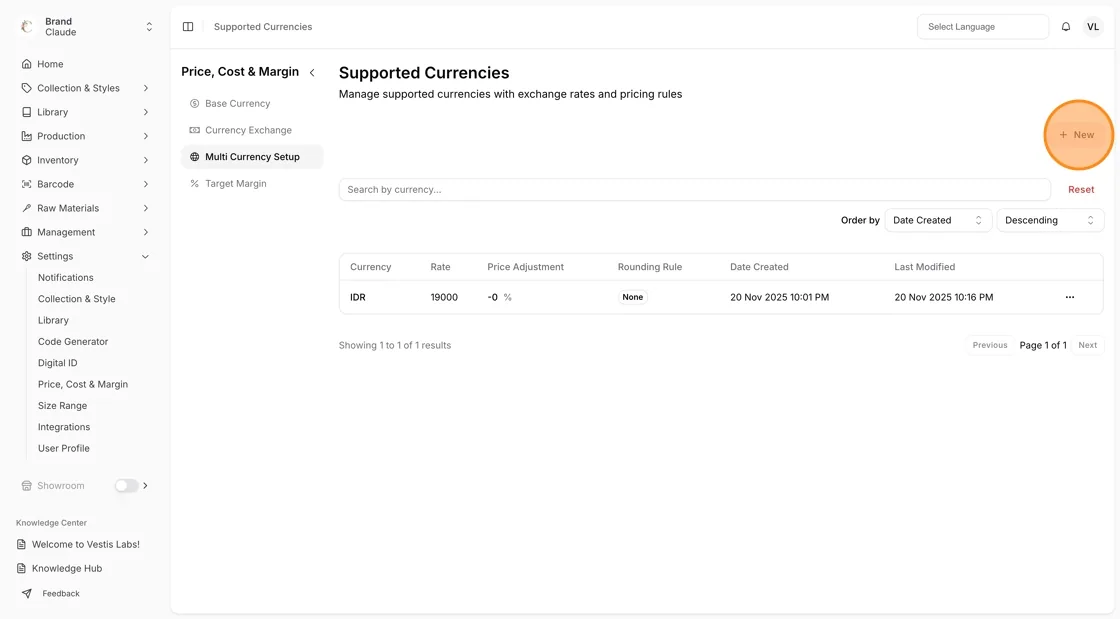
- Select Multi Currency Setup to view and manage your supported currencies. The list shows Currency, Rate, Exchange Lists, Price Adjustment, Rounding Rule, Date Created and Last Modified.
- Click New to start adding supported currencies. If your plan's currency limit is reached, New is disabled and a "Currency limit reached!" notice explains that you need to upgrade your plan or add currency add-ons.
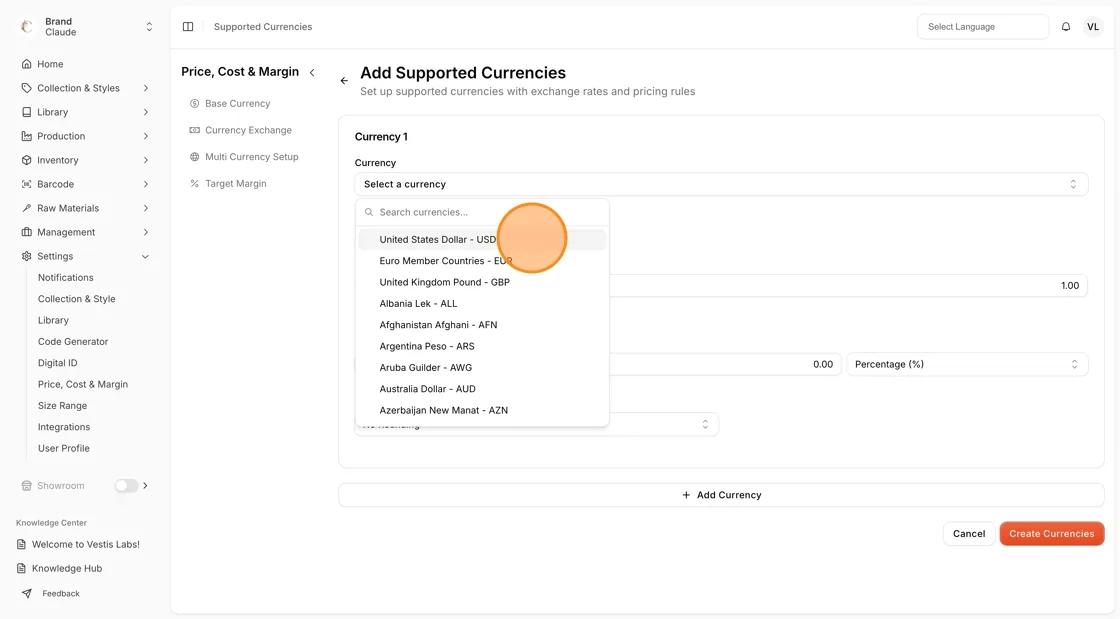
- From the Currency dropdown (Select a currency), select the currency you want to support. If no base currency is set yet, the page shows "Base Currency is not set" with a button to set it.
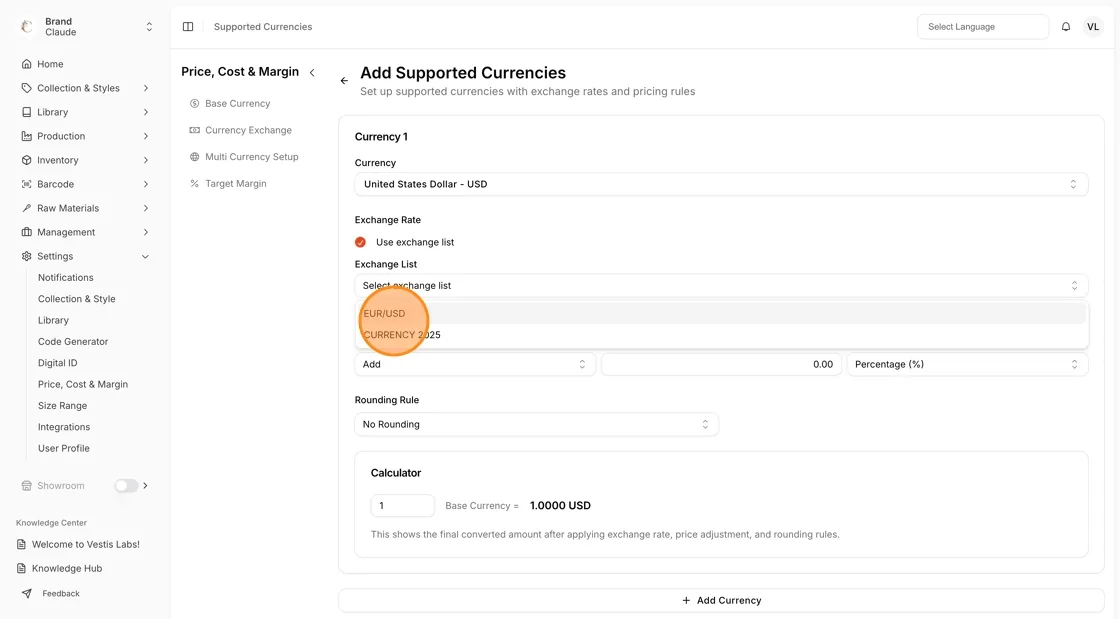
Configure the Exchange Rate:
- Keep Use exchange list checked to select one or more exchange lists that contain the chosen currency from the Exchange List field (you can also select all lists), or
- Uncheck Use exchange list and enter a new Rate manually (up to four decimals, must be greater than 0). Choose the currency first, then you can click Live Rate to fetch it automatically if your plan includes it.
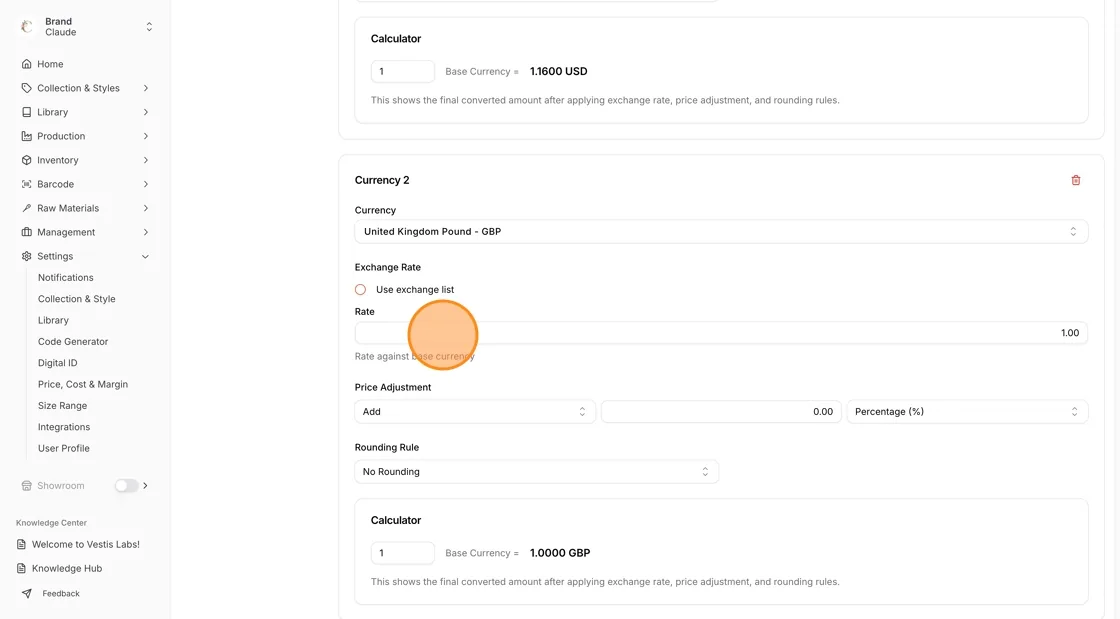
Note
All exchange rates are calculated against your base currency.
Set the Price Adjustment:
- Choose Add or Subtract to define how the price is adjusted.
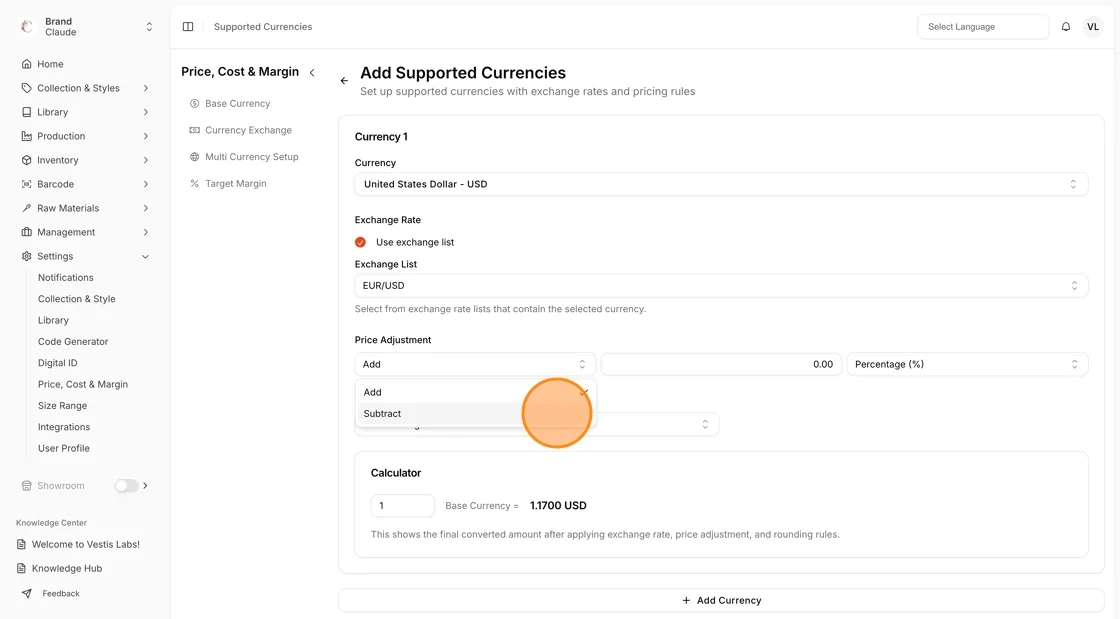
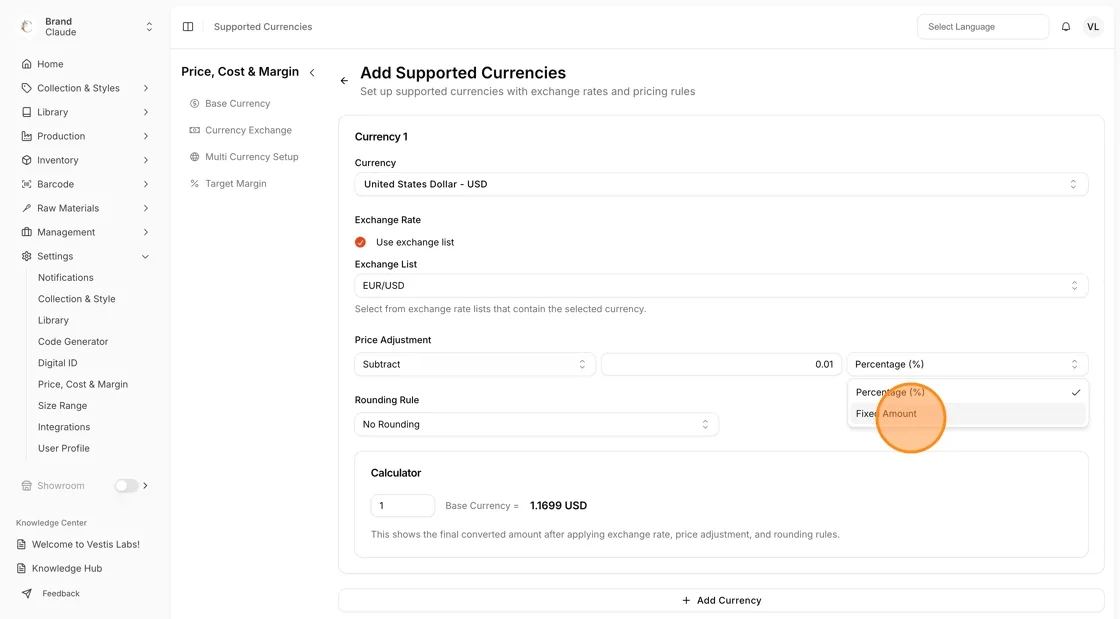
- Enter the value and choose Percentage (%) or Fixed Amount, depending on your pricing strategy.
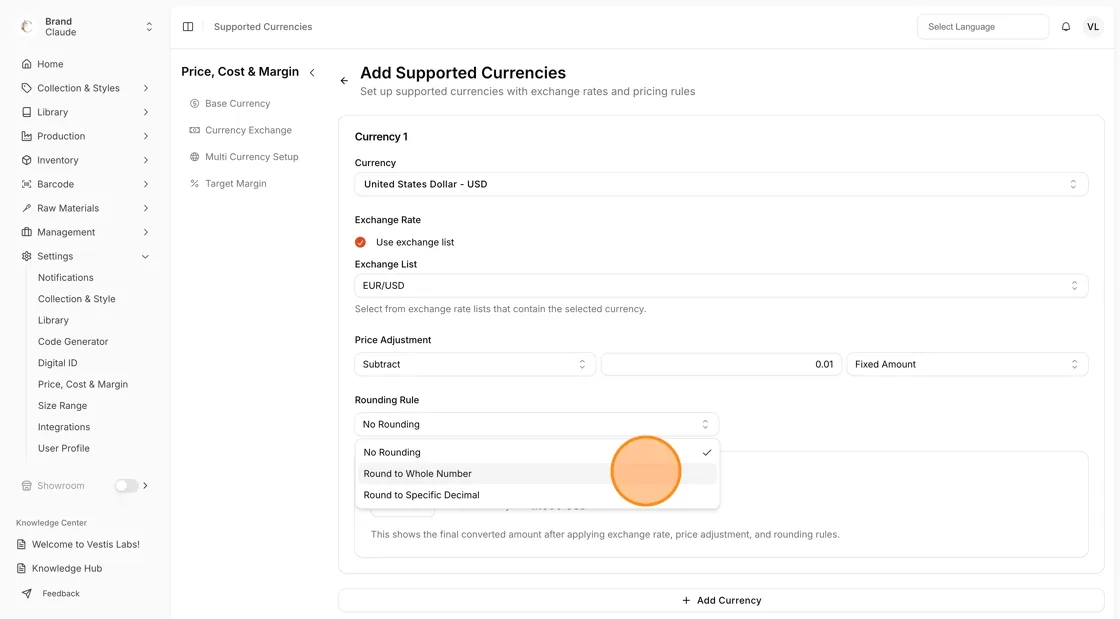
Select a Rounding Rule:
- No Rounding – keeps the calculated price as is.
- Round to Whole Number – rounds the final price to the nearest whole value.
- Round to Specific Decimal – enter the decimals to round to, for example 50 rounds to .50 and 99 rounds to .99.
Review the Calculator preview, which displays the final amount after the exchange rate, price adjustment, and rounding rules are applied. It is only shown for manual rates, not when an exchange list is used.
- Click Add Currency to include another currency. Each one appears as its own Currency 1, Currency 2 card.
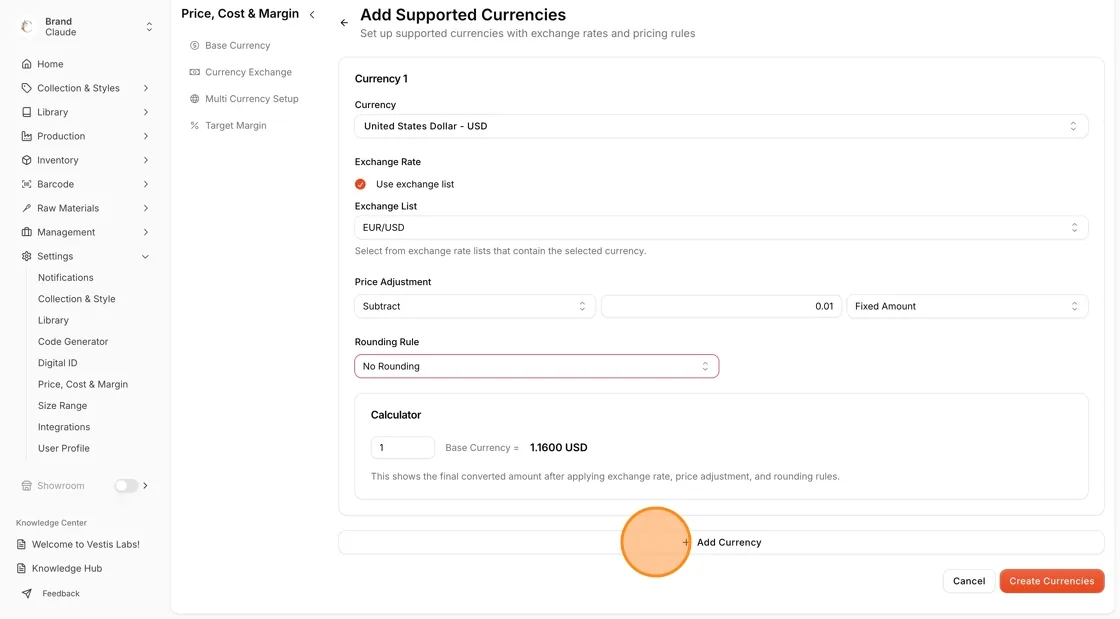
Repeat the previous instructions for each additional currency you want to support.
- Select Create Currencies to save all configurations.
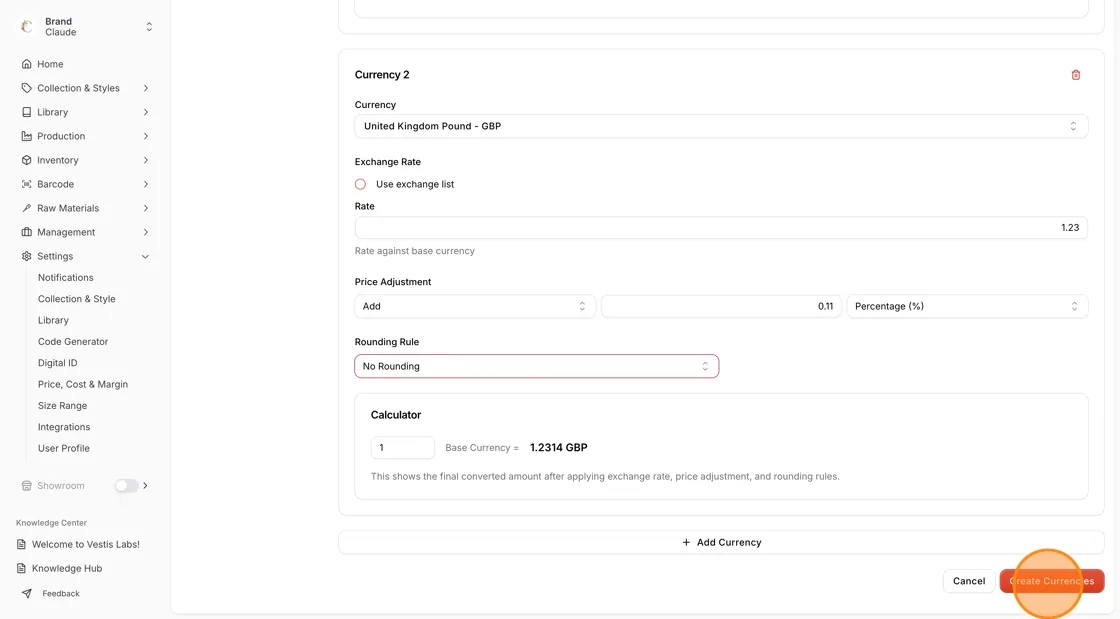
Manage supported currencies
Each supported currency row has an action button with View, Edit and Delete:
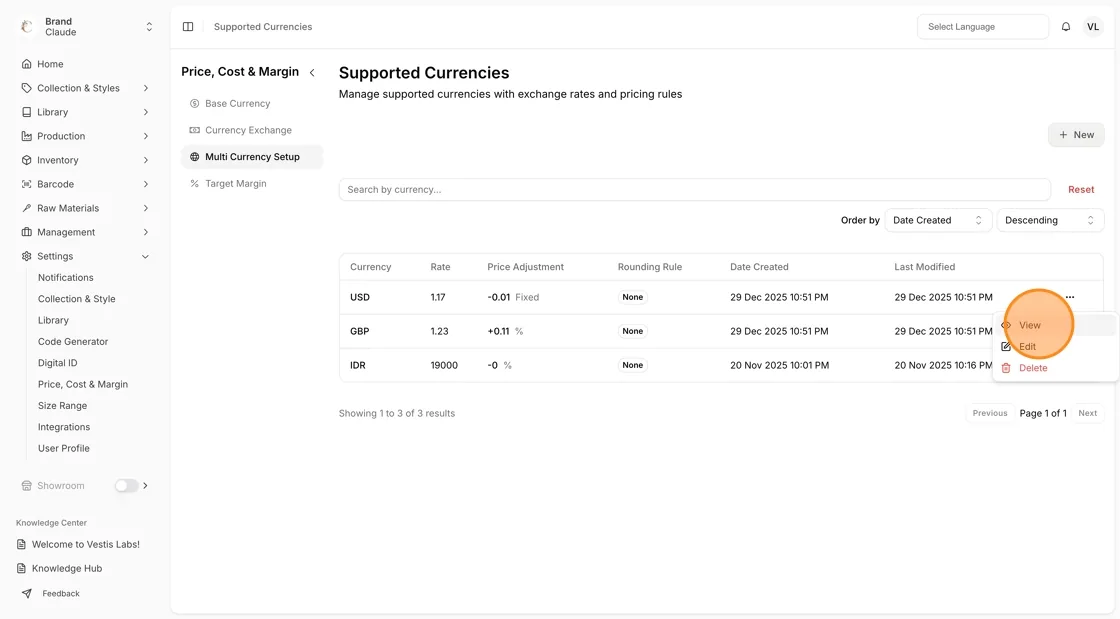
- Edit - Update the exchange rate, price adjustment, or rounding rules.
- Select Update Currency to apply and save your changes.
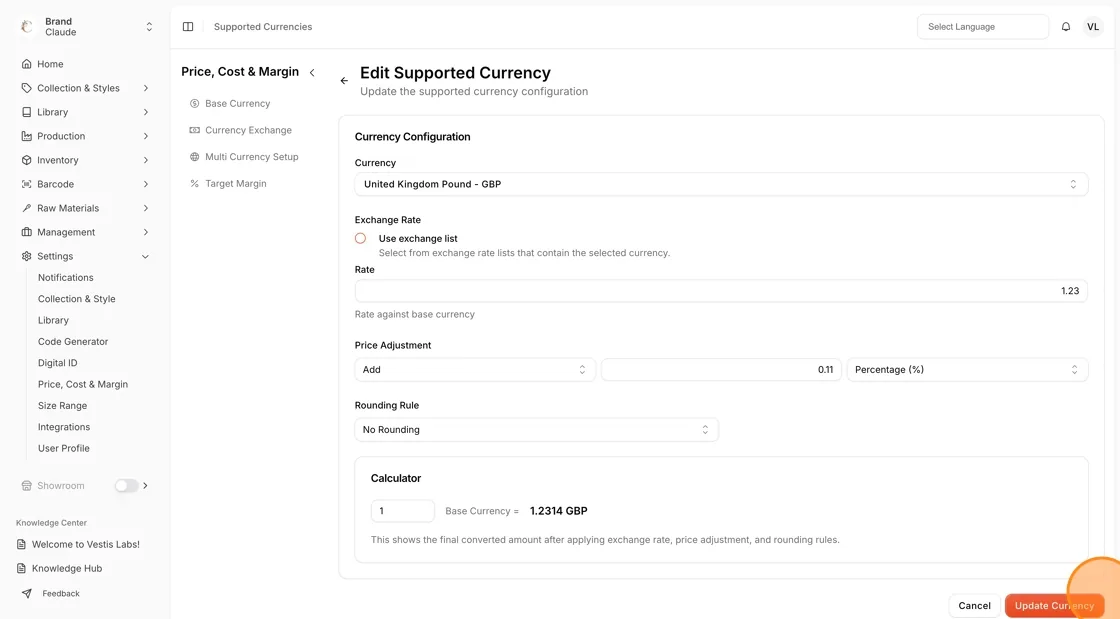
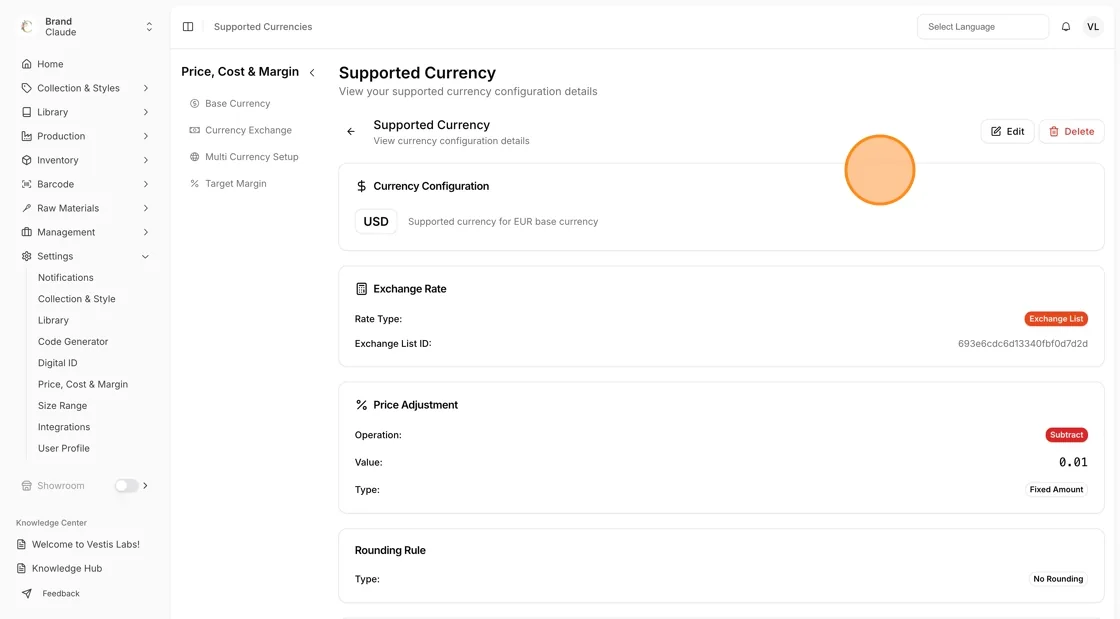
- View - View the supported currency configuration details, including the exchange rate and pricing rules.
- From this view, you can also edit or delete the selected currency with the Edit and Delete buttons.
- Delete - Remove the currency from the supported currencies list entirely. Confirm in the "Are you sure?" window. This cannot be undone.