
Step 6 of 12 in Connect Shopify
Manage style production batches in Vestis Labs to Shopify
Whenever a user modify the quantity on Vestis Labs, it will also reflected on the Shopify quantity.
Under review. This page is published while we check it against the live app, so some details may have changed.
Screenshots may be out of date.
Change the Shopify quantity of a production batch in Vestis Labs and the stock of the linked Shopify product follows. Use this when stock for the online store changes after the batch was created.
Collection & StylesStylesyour styleProductionBatch Production
Permission: VIEW_STYLE, VIEW_BRAND_PRODUCTION
Before you start
- The style is already linked to a Shopify product. See Style with production batch sync configuration.
- The batch has a Shopify quantity. See Connect your style production batches in Vestis Labs to Shopify.
Update the Shopify quantity of a batch
Open the three dot menu
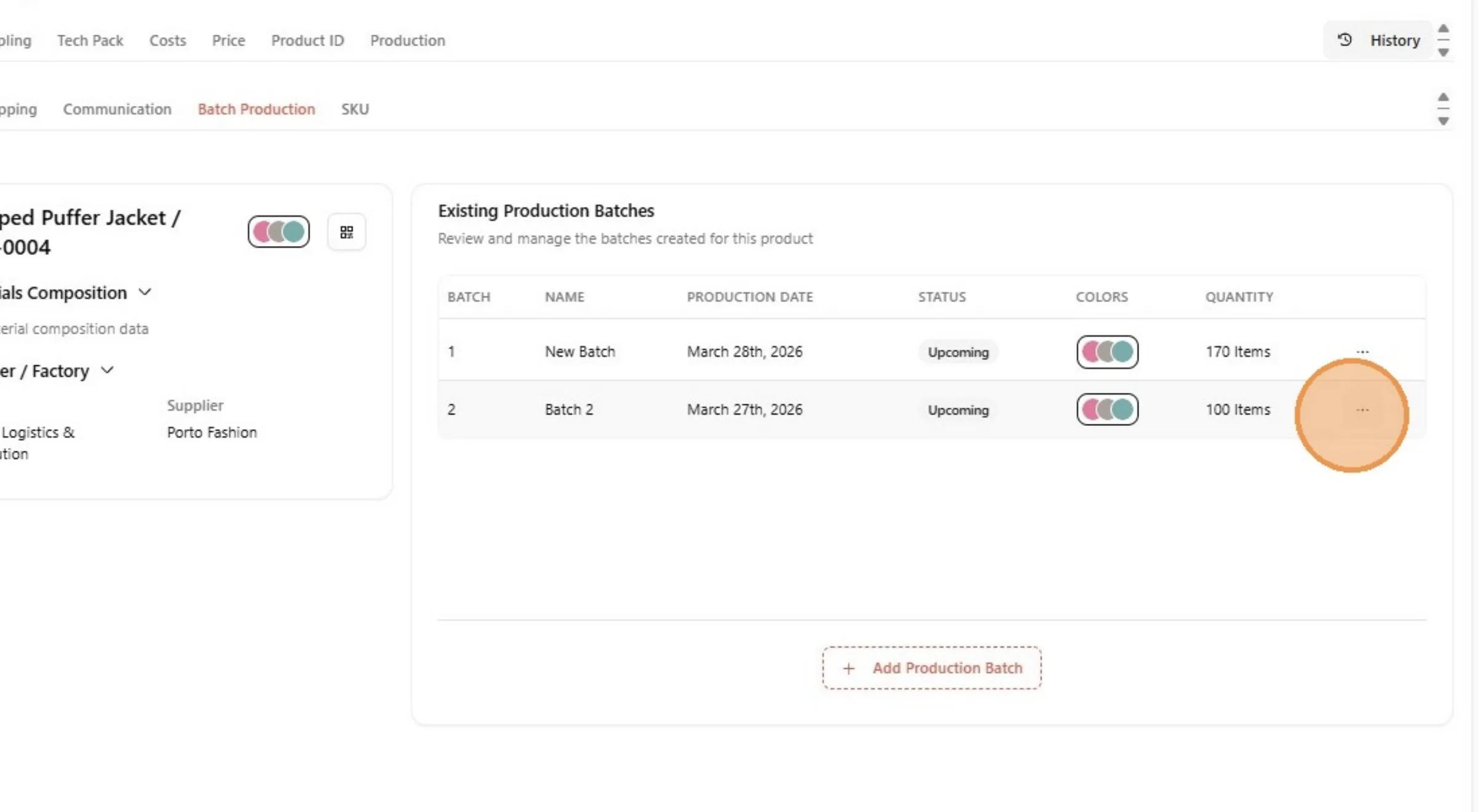
On the Batch Production list, click the three dot button at the end of the batch row.
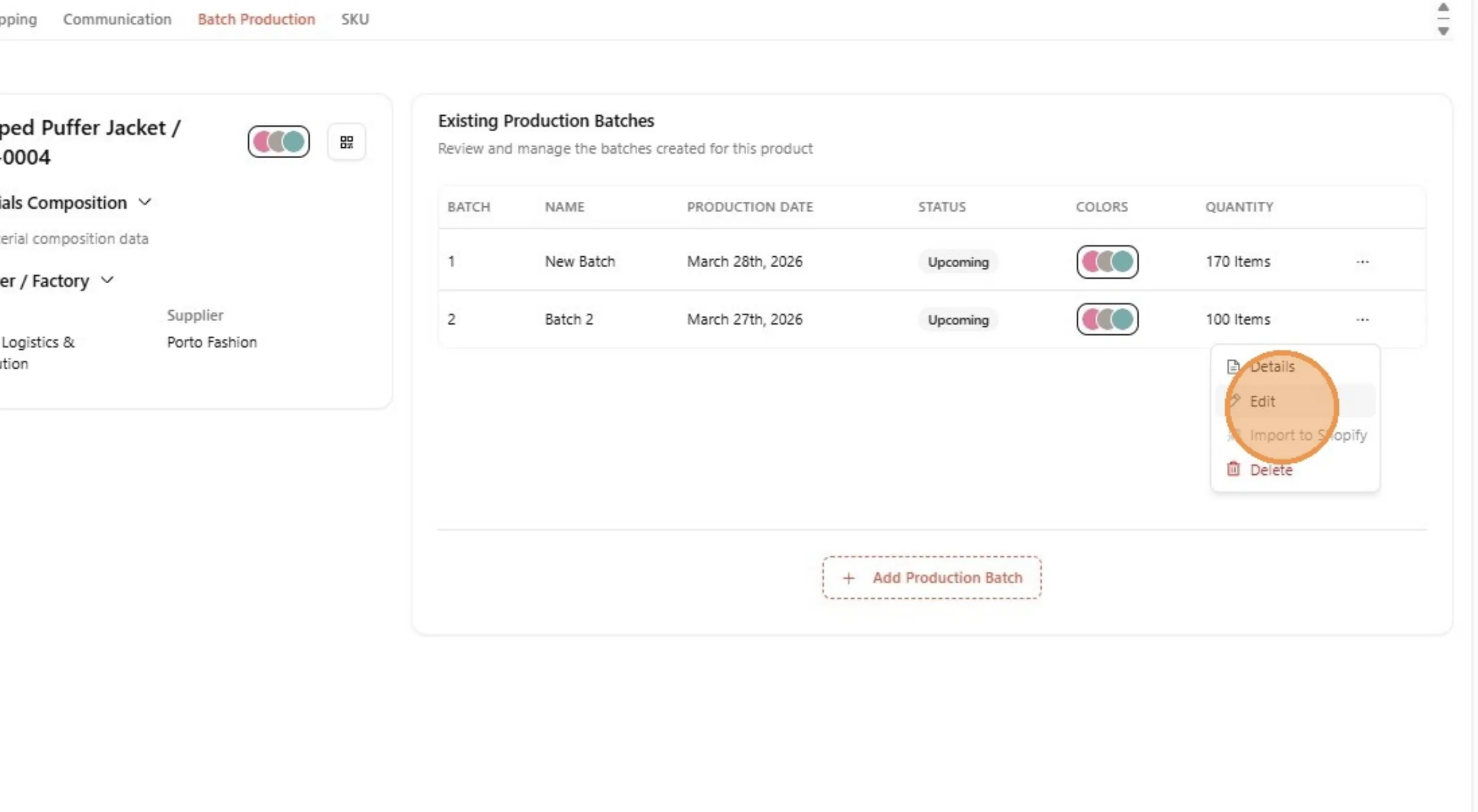
Click "Edit"
Click Edit to open the Update Production Batch dialog.
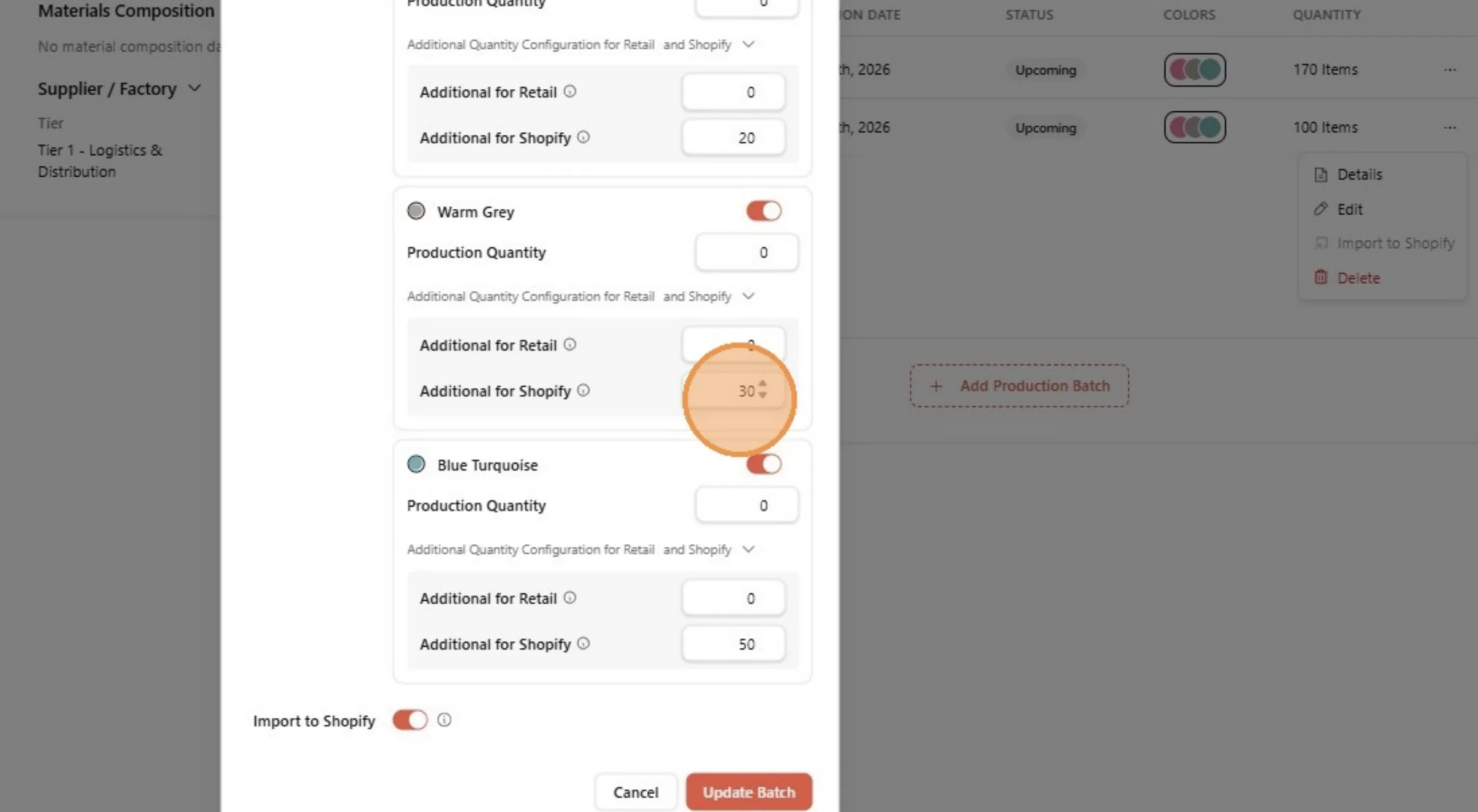
Enter the Shopify quantity
Under Additional Quantity Configuration for Retail and Shopify, enter the new number in the Additional for Shopify field of the colour.
Note
The Shopify column only shows when your brand is connected to a Shopify store.
Check "Sync Inventory to Shopify"
Make sure the Sync Inventory to Shopify toggle is on, so the new quantity is sent to the Shopify product.
Note
If Shopify inventory is already synced, a message says that stock quantities update automatically and the toggle is not shown. If the Shopify quantity adds a colour that is not yet a Shopify variant, a notice lists the colours that will be added as new variants.
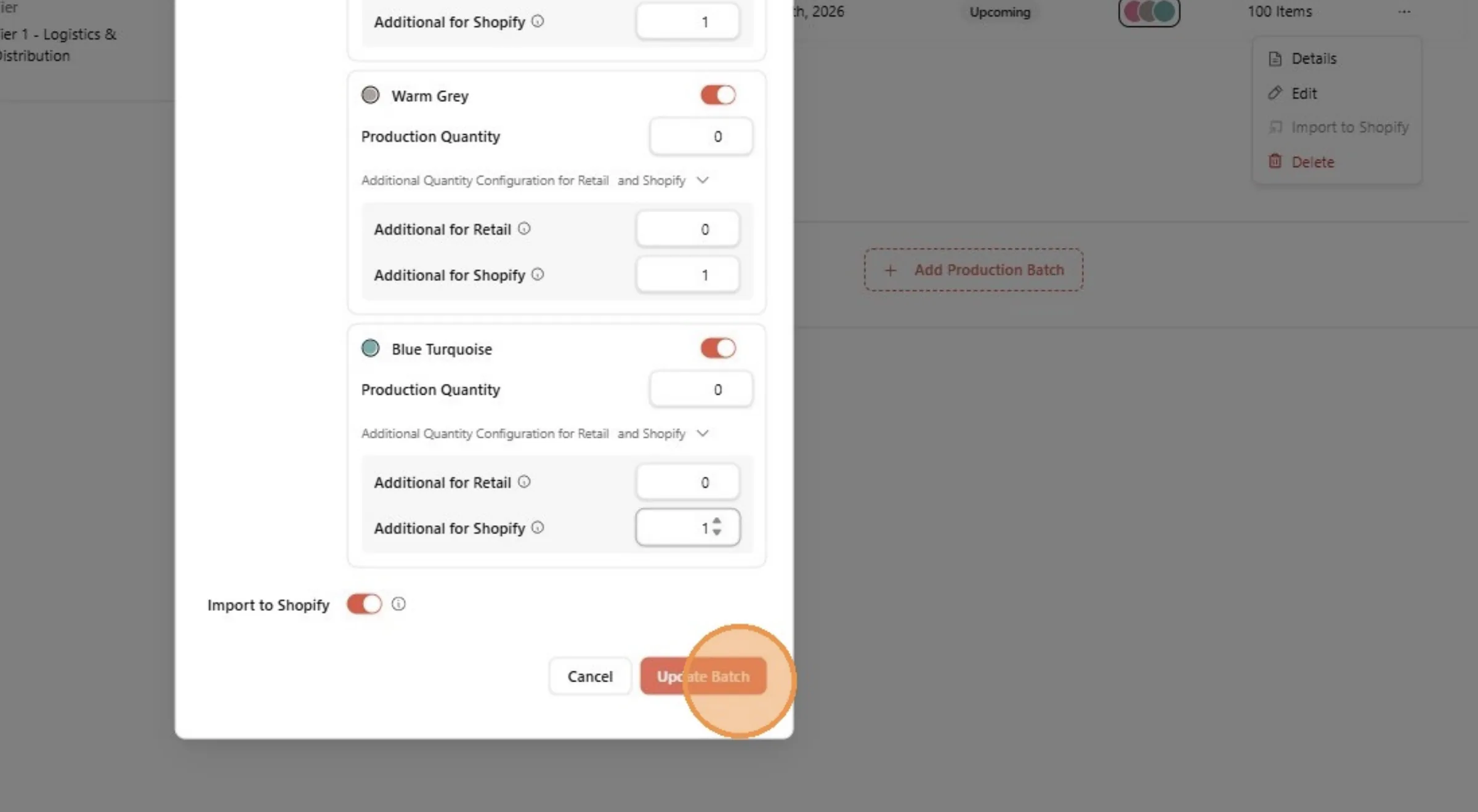
Click "Update Batch"
Click Update Batch to save the batch.
Warning
If the production date has already passed, you are asked to confirm in an Update Batch Production dialog that warns This batch has been finalized. Quantity fields are locked for a finalized batch.
Reload to see the change
Reload the page to see the updated quantity on the batch.
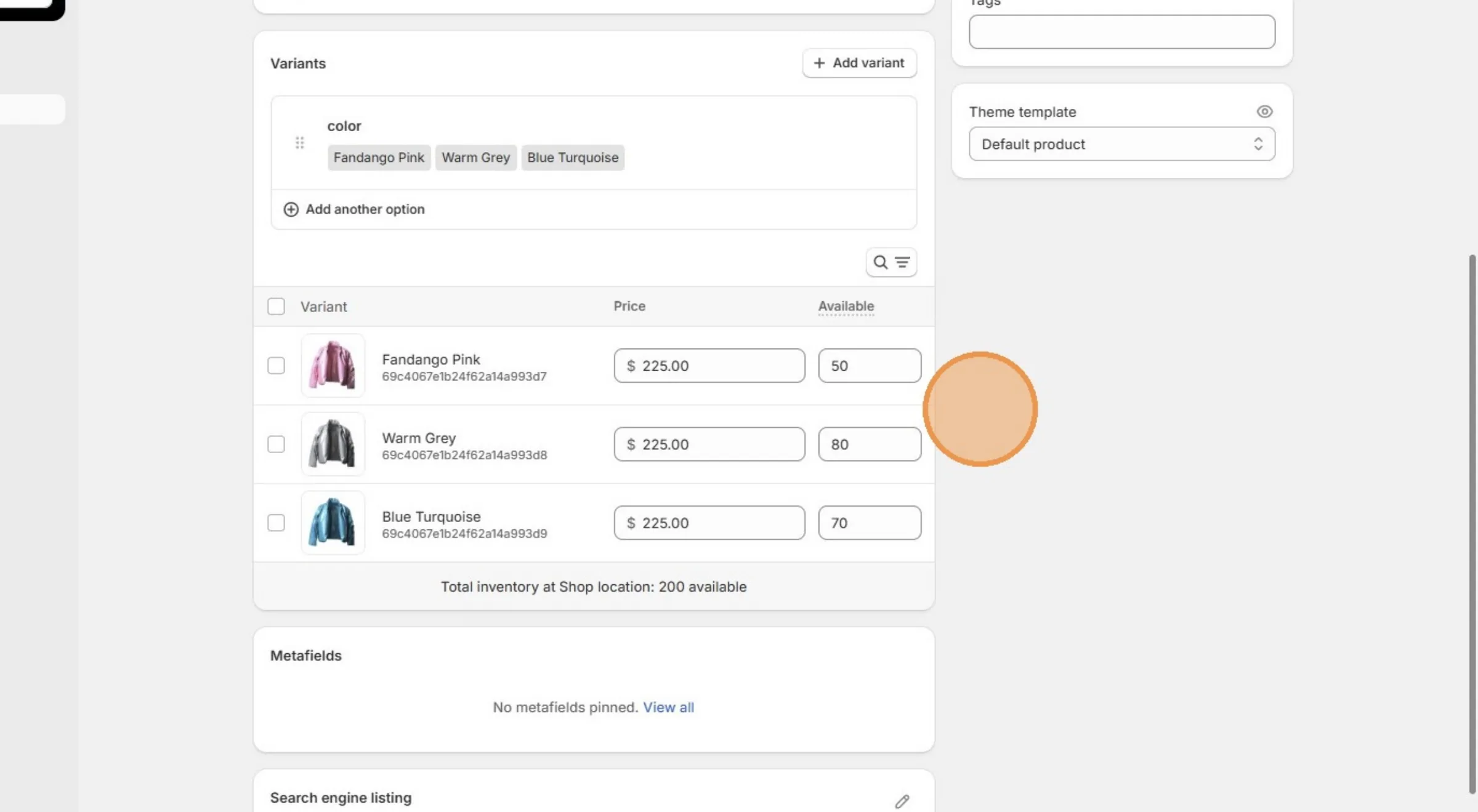
The Shopify stock now matches the production batch, because stock is driven by the batches of the style.