Step 1 of 9 in Run a sampling round
Sampling dashboard
The Sampling Dashboard provides a centralized overview of all sampling activities across collections, suppliers, and categories.
Sampling dashboard — feature description
The Sampling Dashboard provides a centralized overview of all sampling activities across collections, suppliers, and categories. It enables teams to monitor sample progress, review recent activities, and analyze sample distribution in real time for faster decision-making and improved workflow visibility.
SamplingDashboard
Permission: SAMPLING_VIEW
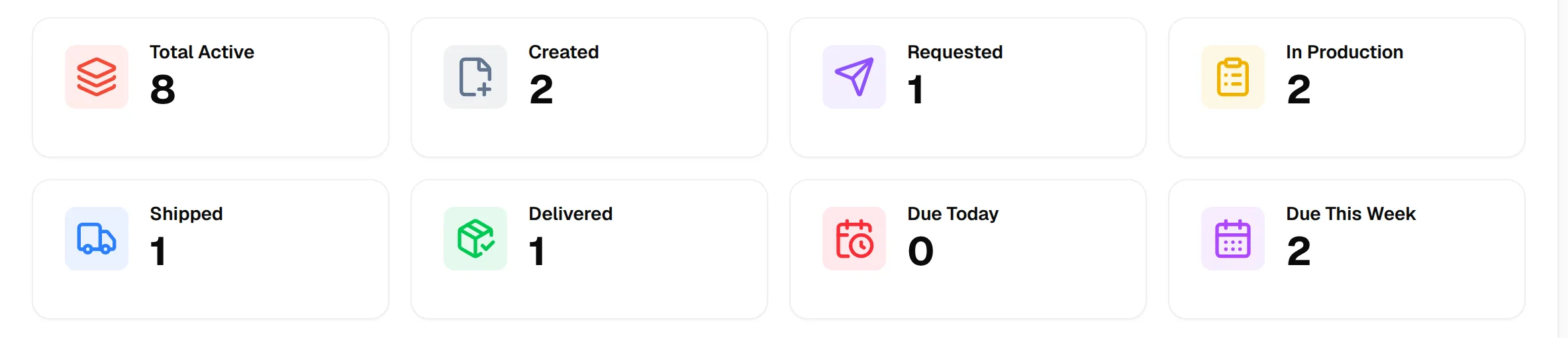
Sample stage counters
Quick-access statistic cards provide a high-level overview of overall sampling performance and operational status. Users can instantly monitor the total number of samples in progress, how many sit in each stage, and which are due soon.
- Total Active — the total number of samples currently in progress
- Created — samples that have just been logged and haven't started production
- Requested — samples whose request has been sent
- In Production — samples actively being made
- Shipped — samples that have left the factory
- Delivered — samples confirmed received
- Due Today — samples with a due date of today
- Due This Week — samples due within the current week
This gives a quick pulse check on where the bulk of your samples sit at any moment.
Sampling health summary
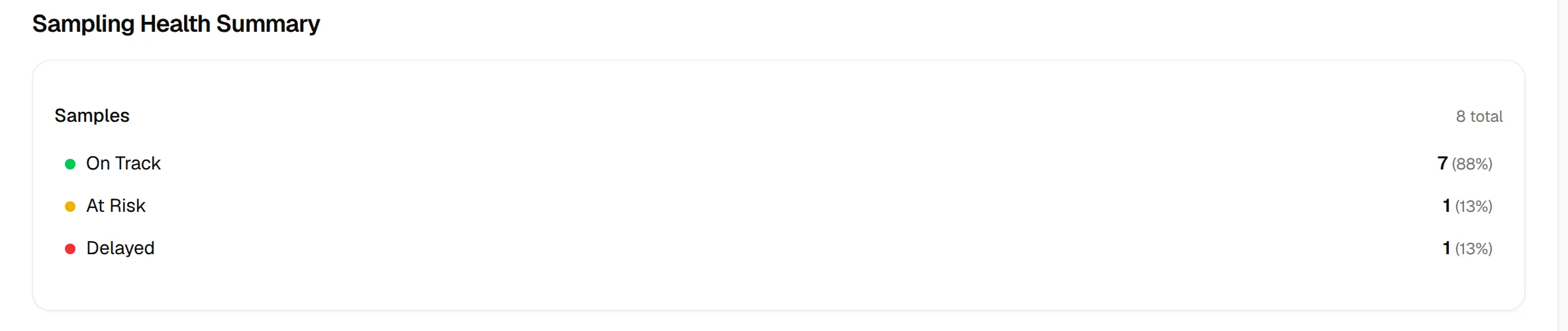
A rollup of all active samples, classified by schedule status:
- 🟢 On Track — samples progressing on schedule
- 🟡 At Risk — samples close to slipping
- 🔴 Delayed — samples that have missed their agreed date
Each status shows both a count and a percentage of the total, with the total number of samples shown as Samples and n total, making it easy to spot when a large share of your pipeline needs attention.
Create sample
The Create Sample button provides direct access to initiate new sample requests from the dashboard. This feature streamlines the sampling workflow and improves operational efficiency by reducing navigation steps. When the samples are created you are taken to Sample Management. The button is shown only to users who can create samples. See Create sampling.
Active alerts
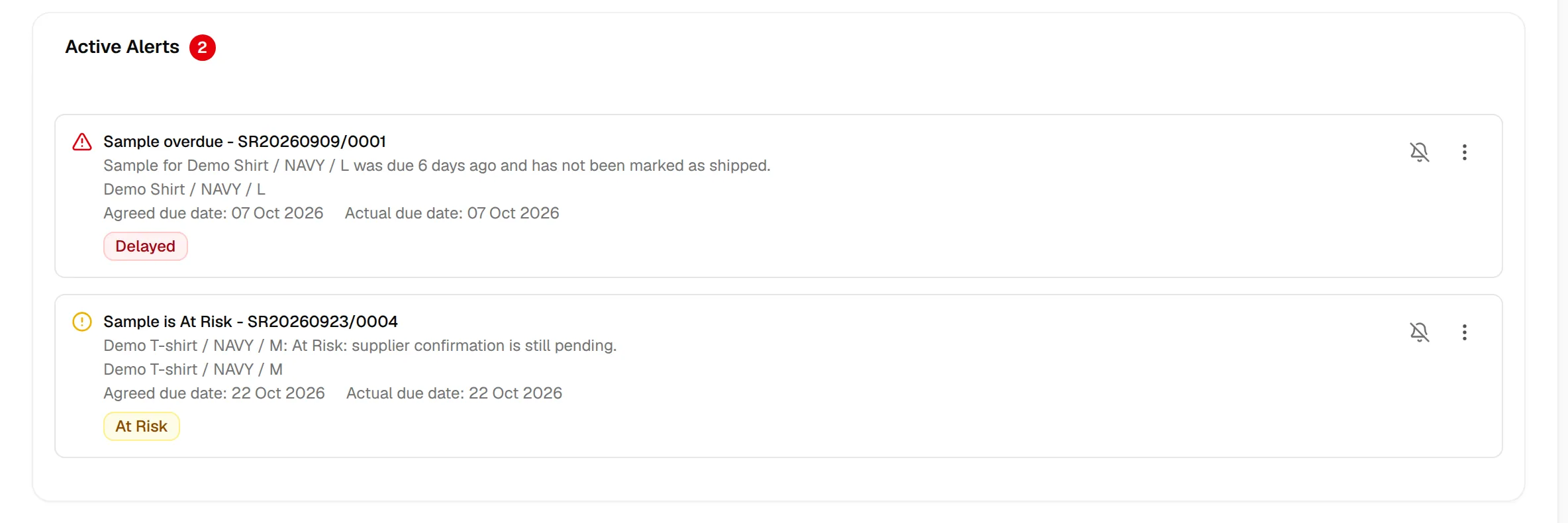
A live feed of the samples that need attention. The Active Alerts title carries a badge with the number of alerts, and the panel says No active alerts. when there are none. Each alert is shown as its own card with:
- A title with the request number, one of Sample due today, Sample overdue, Sample due date moved, Sample is Delayed or Sample is At Risk
- A sentence that says why, for example how many days ago the sample was due
- The item, colour and size, and the Supplier
- Agreed due date and Actual due date, so you can see exactly how far the sample has slipped
- The health badge
At the right of each alert there are two controls:
- The bell icon, Snooze reminder, which mutes the reminder for that sample.
- A three-dot menu with the actions below.
| Action | What it does | When it is shown |
|---|---|---|
| View | Opens the Sample Details window of the sample. | Always |
| Update date | Opens the same window so you can change the due dates. | Always |
| Mark as Shipped | Asks Mark this sample as Shipped? and, on Mark as Shipped, sets the status to Shipped and records it as confirmed ex-factory. | Due today and overdue alerts, for users who can update samples |
| Confirm with supplier | Opens the supplier confirmation window. | For users who can manage supplier confirmations |
| Override health | Opens the health override window. | Date moved, Delayed and At Risk alerts, for users who can update samples |
| Dismiss | Removes the alert. | For users who can update samples |
The alert count includes every type of alert, so it can be higher than the Delayed number in the health summary.
Filter bar
A filter toolbar lets you narrow the dashboard view by:
- Level (dropdown): Style Level, Colour Level or Size Level. It changes how the stage counters and the health summary are counted.
- Season
- Supplier
- Category
- Collection
- Type
- Status
- Health
- Created At (date range)
Click Reset Filters to clear them. These filters let you slice all the metrics above — stage counts, health summary, alerts, recent activities, and category breakdown — down to a specific season, supplier, or collection.

Recent activities and samples by category
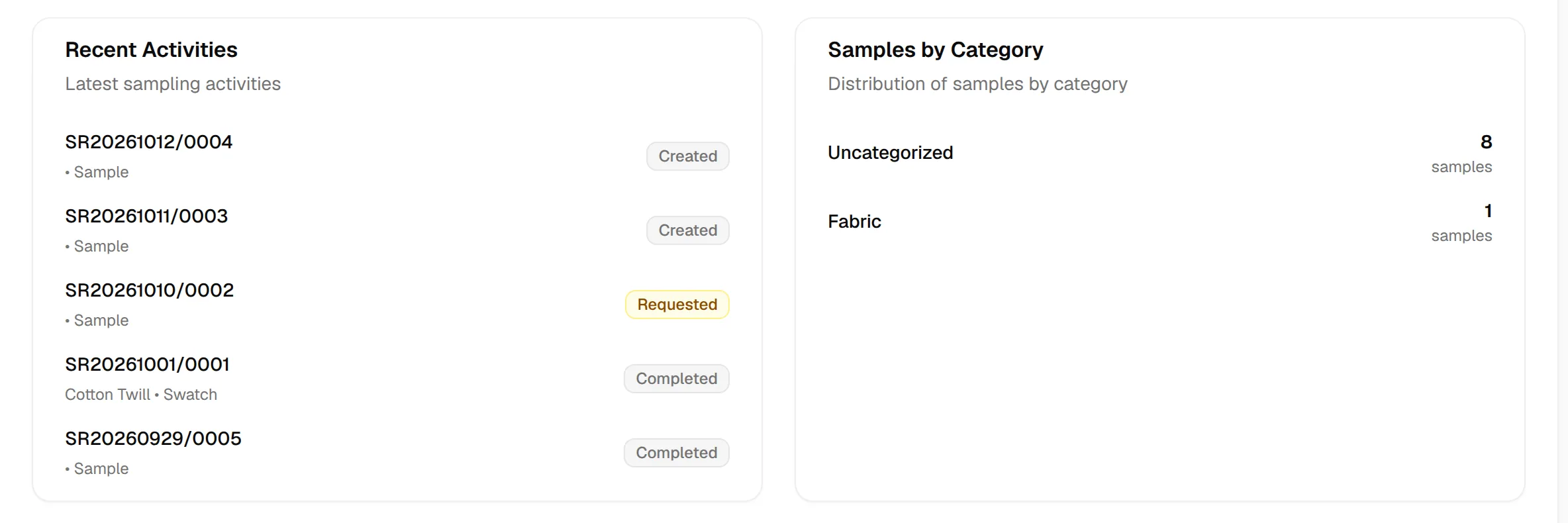
Recent Activities, with the text Latest sampling activities, lists the five most recently created samples, each with its request number, product name and type, and a status badge. It shows No recent activities when empty.
Samples by Category, with the text Distribution of samples by category, counts samples for each category, largest first. It shows No category data available when empty.
This gives you a running log of what's moving through the pipeline most recently, without needing to open each sample individually.
This shows where sampling effort is concentrated. Samples that have no category are counted under Uncategorized, so a large number there tells you that many samples are not yet assigned a category.