
Step 7 of 9 in Run a sampling round
Track sample shipments
Follow active and delivered sample shipments in a table or kanban board, filter and sort them, open the details, edit the status and delete a shipment.
The Active Shipments and Delivered tabs of Shipping & Tracking list every sample shipment, so you can see where it is, when it should arrive and what it contains.
SamplingShipping & TrackingActive Shipments
Permission: SAMPLING_VIEW
Viewing is open to everyone who can view samples. Edit Shipment needs the permission to update samples, and Delete needs the permission to delete them.
Choose a view
Two icons at the top right of the list switch between the table and the kanban board.
Table view
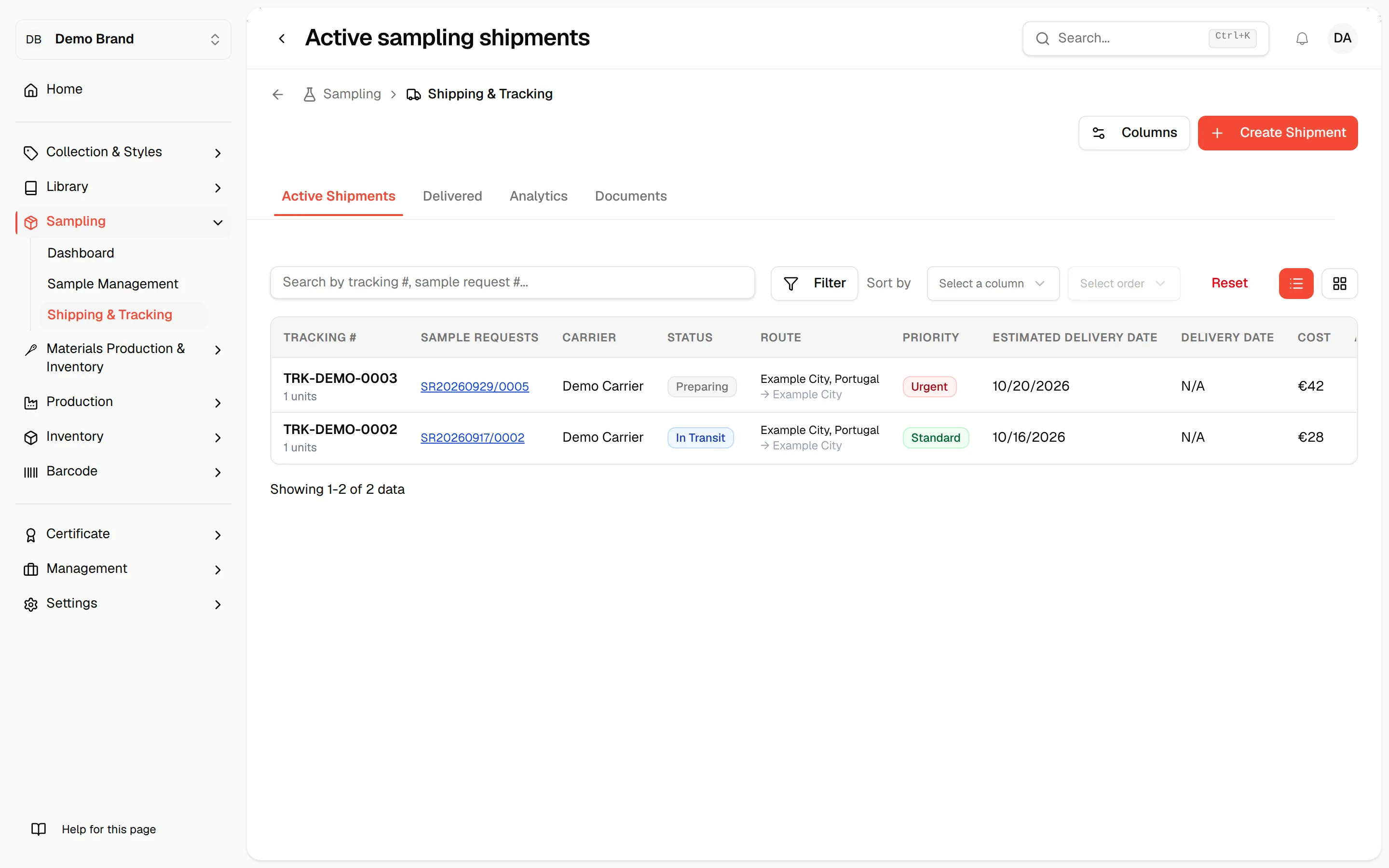
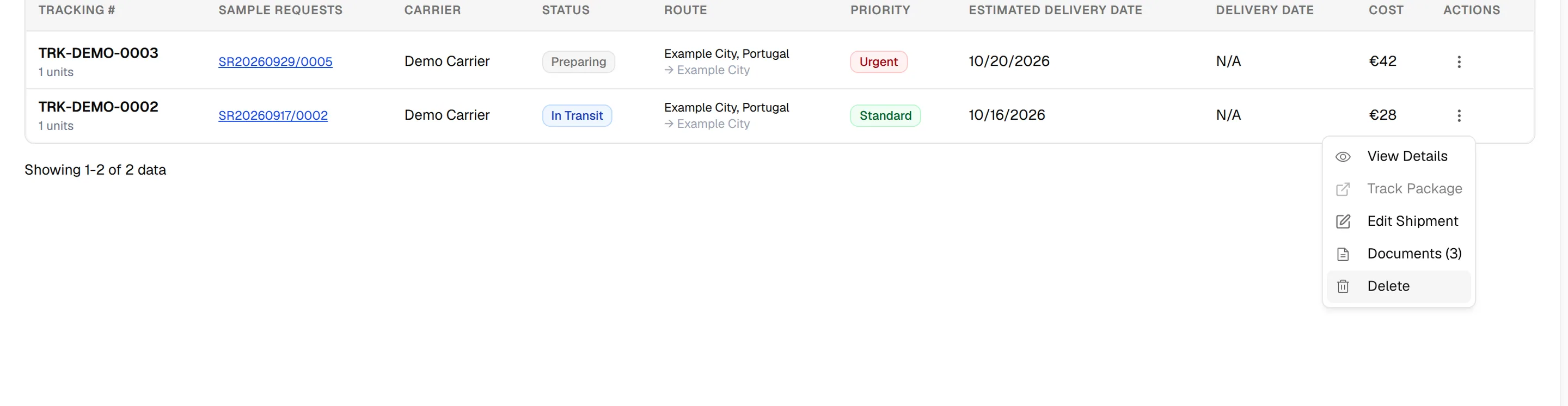
Click the list icon. Each shipment has a row with the columns Tracking # (with the number of units below it), Sample requests, Carrier, Status, Route, Priority, Estimated Delivery Date, Delivery Date, Cost and Actions. Ten shipments are shown per page; use the page buttons below the table.
Kanban view
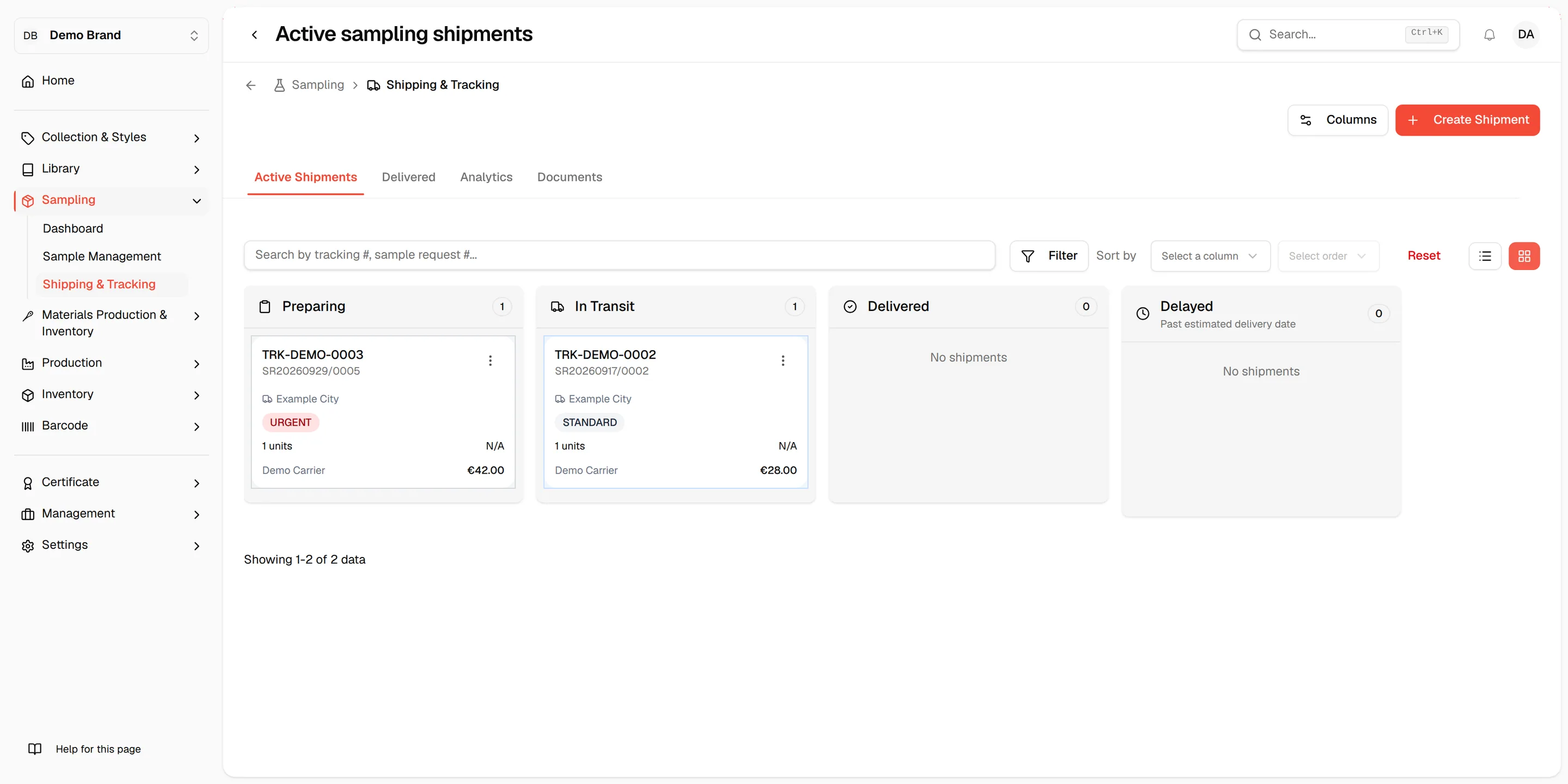
Click the grid icon. The board has the columns Preparing, In Transit, Delivered and Delayed. A card shows the tracking number, the sample requests, the destination, the priority, the units, the delivery date, the carrier and the cost. The Delayed column holds shipments that are not delivered and are past their estimated delivery date, and the card shows how many days overdue.
Move a card to change the status
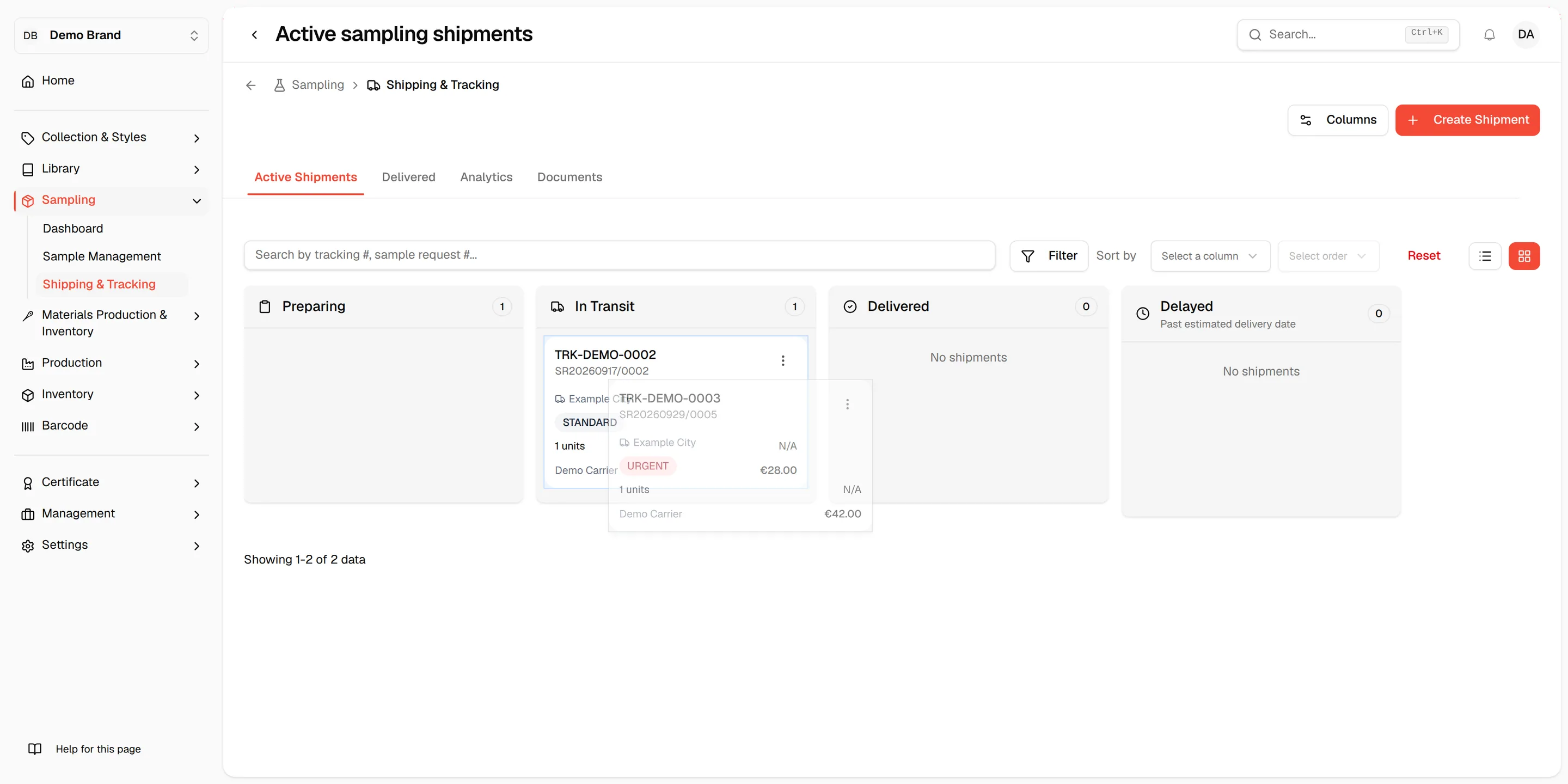
Drag a card to another column to change the status of the shipment. You cannot drop a card into Delayed: it fills by itself, and a message says Shipment cannot be moved to delayed column. When you move a delayed or delivered shipment back, its estimated delivery date is set to tomorrow.
Search, filter and sort
Search
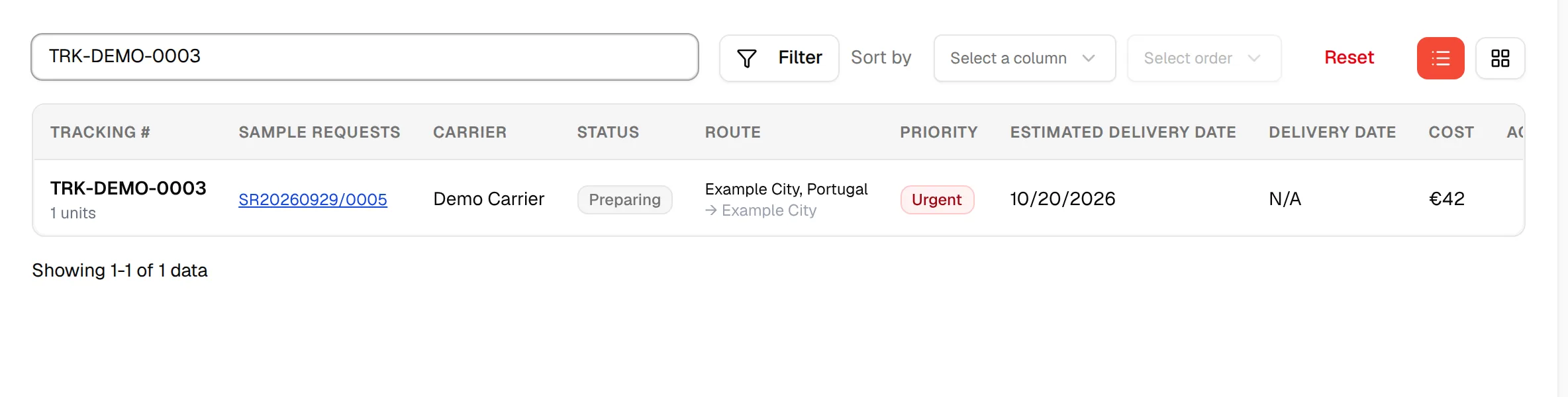
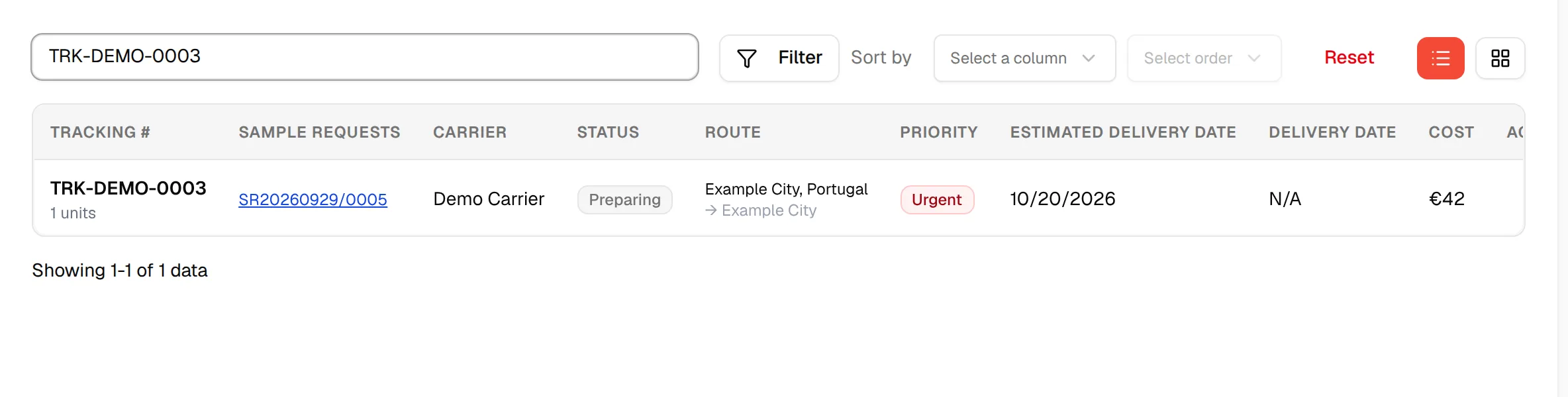
Type in Search by tracking #, sample request #... to find a shipment by its tracking number or one of its sample requests.
Filter
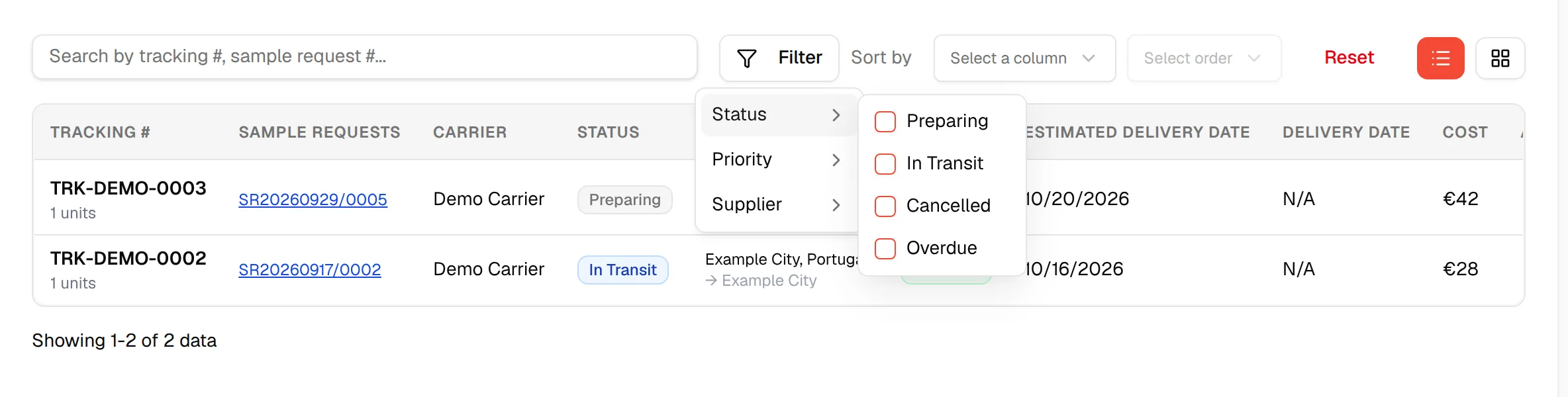
Open the filter and check values under Status (Preparing, In Transit, Cancelled, Overdue), Priority (Standard, Express, Urgent) and Supplier. On the Delivered tab there is no Status filter.
Note
Without a status filter, the Active Shipments tab shows shipments that are Preparing, In Transit or Cancelled.
Sort
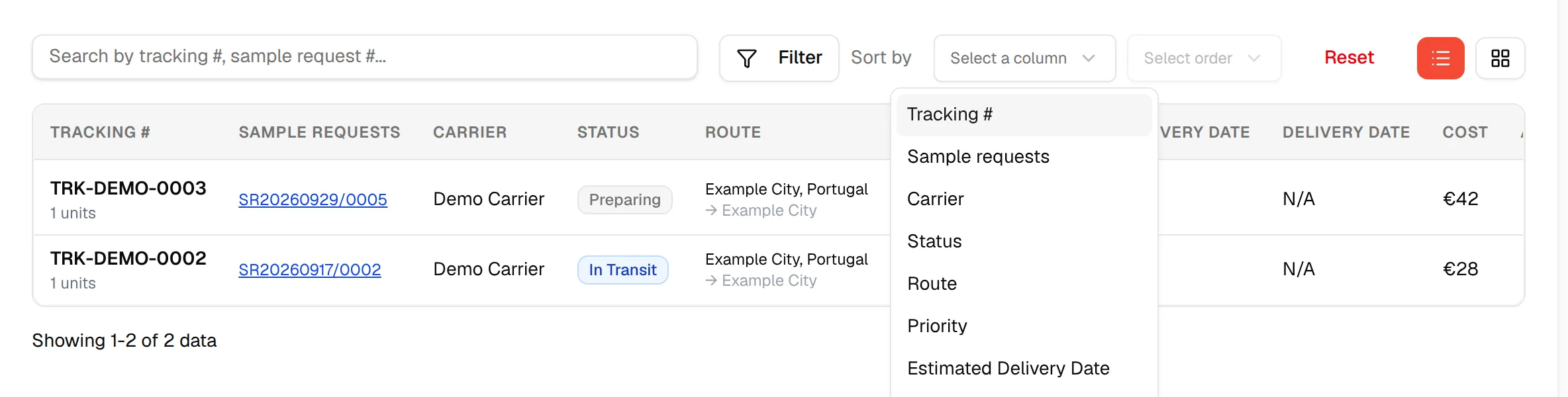
Use the sort control to choose the column to order by and the direction, ascending or descending.
Clear everything
Click Reset to clear the search, the filters and the sort.
Choose the table columns
Click Columns at the top right of the page (next to Create Shipment) and check or uncheck the columns. See the Manage Columns window in Sampling; it works the same way and saves as you click. The button is shown to users who can update samples.
Open the details of a shipment
Open the actions
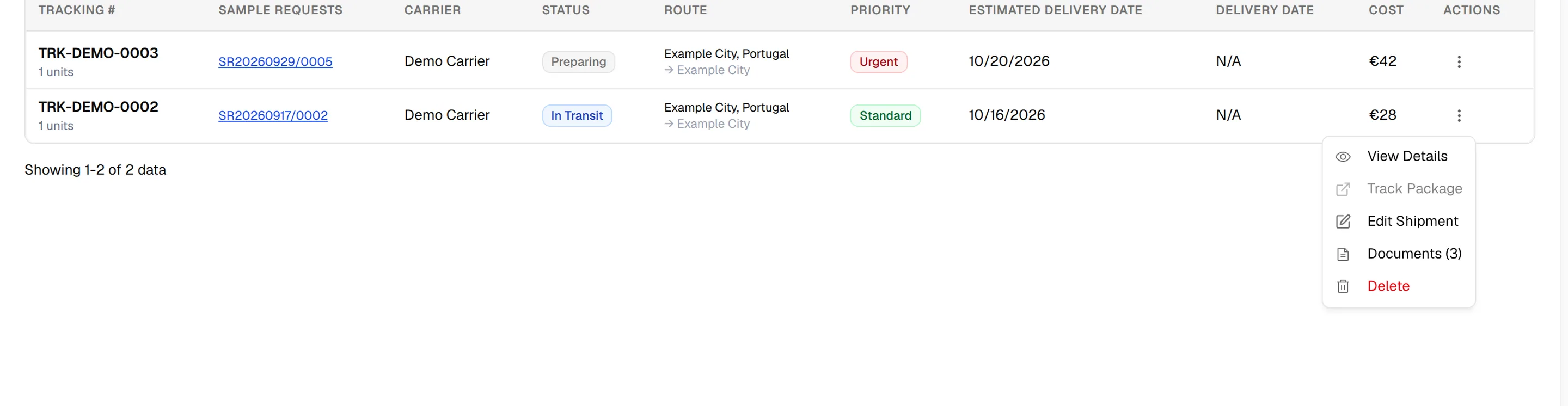
Click the three-dot menu in the Actions column of the row, or on the card.
Select "View Details"
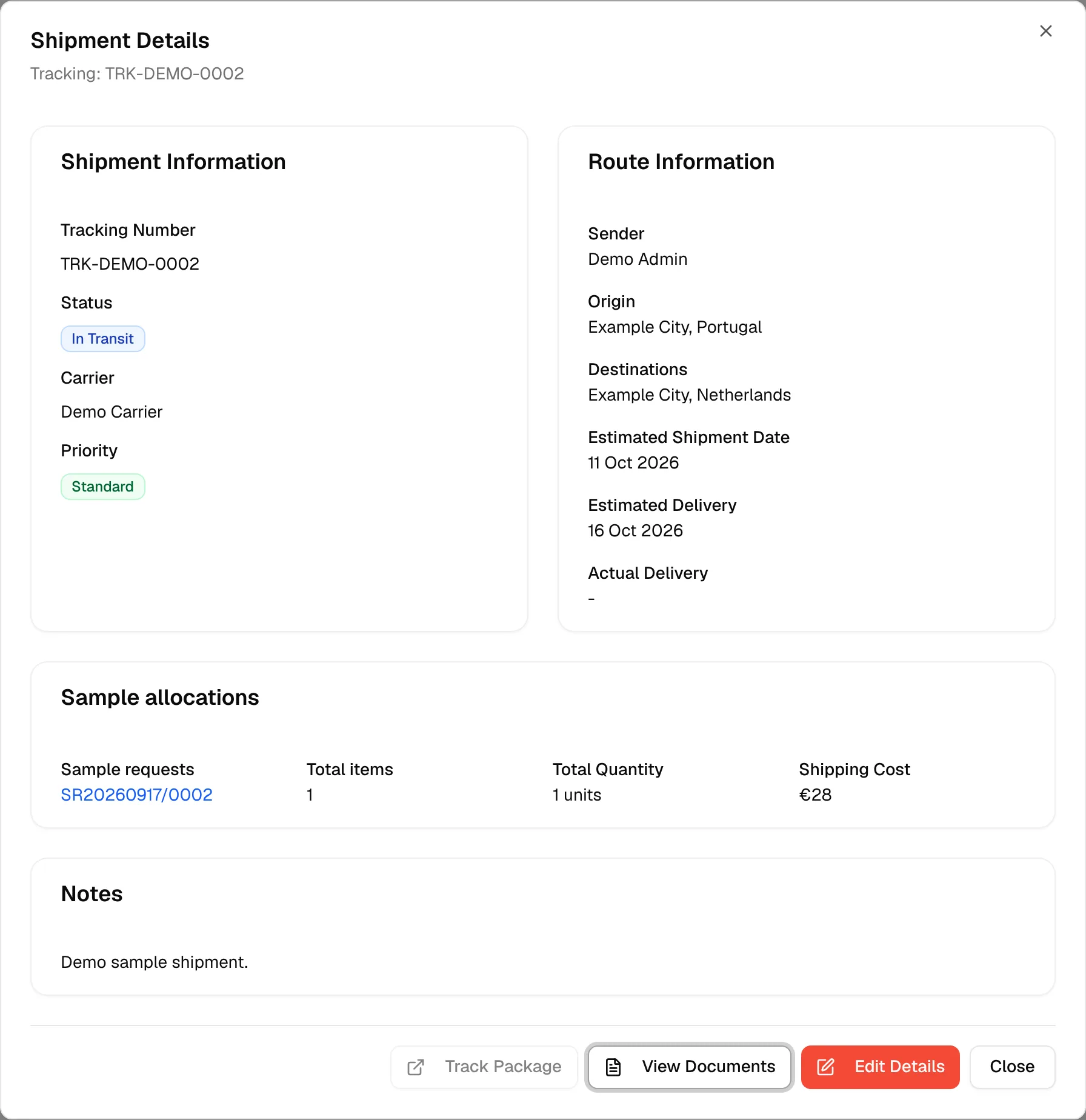
The Shipment Details window opens, headed by the tracking number. It has Shipment Information (Tracking Number, Status, Carrier, Priority), Route Information (Sender, Origin, Destinations, Estimated Shipment Date, Estimated Delivery, Actual Delivery), Sample allocations (the sample requests, Total items, Total Quantity and Shipping Cost) and, when there are any, Notes.
Use the buttons at the bottom
Track Package opens the tracking link of the carrier in a new tab, and is disabled when no tracking link was entered. View Documents opens the documents of the shipment. Edit Details opens the edit window. Close closes the window.
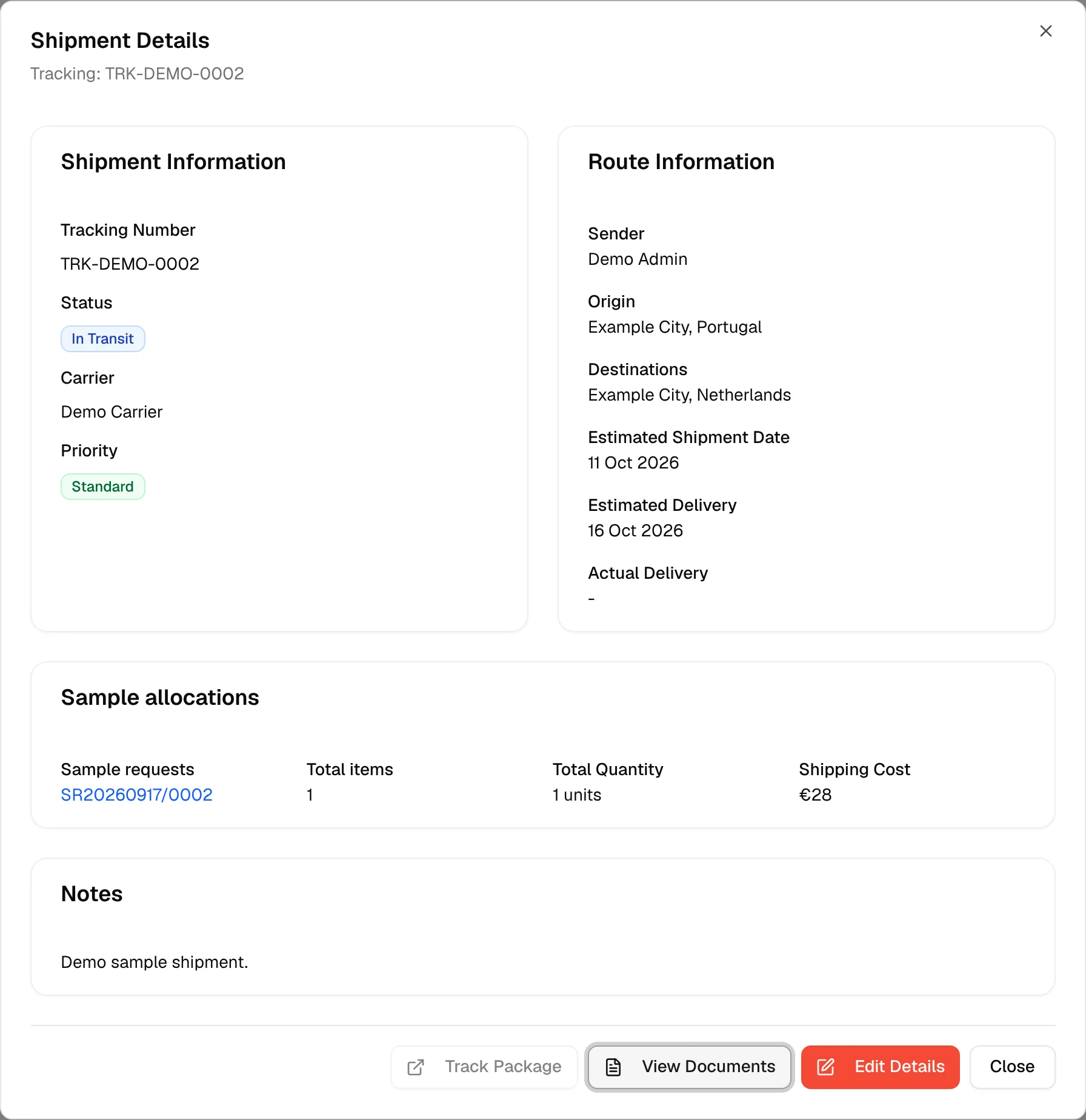
The same menu also has Track Package, Edit Shipment, Documents (with the number of documents) and Delete.
Edit a shipment
Select "Edit Shipment"
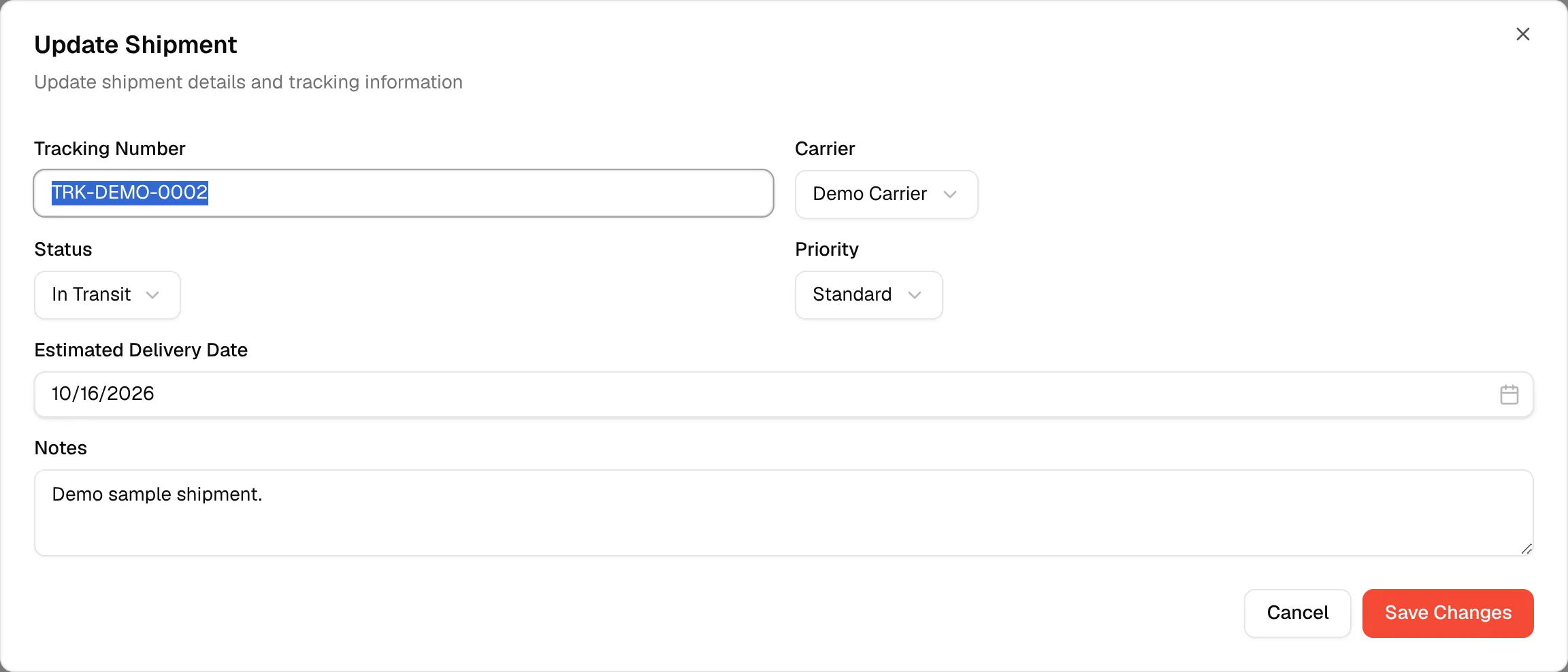
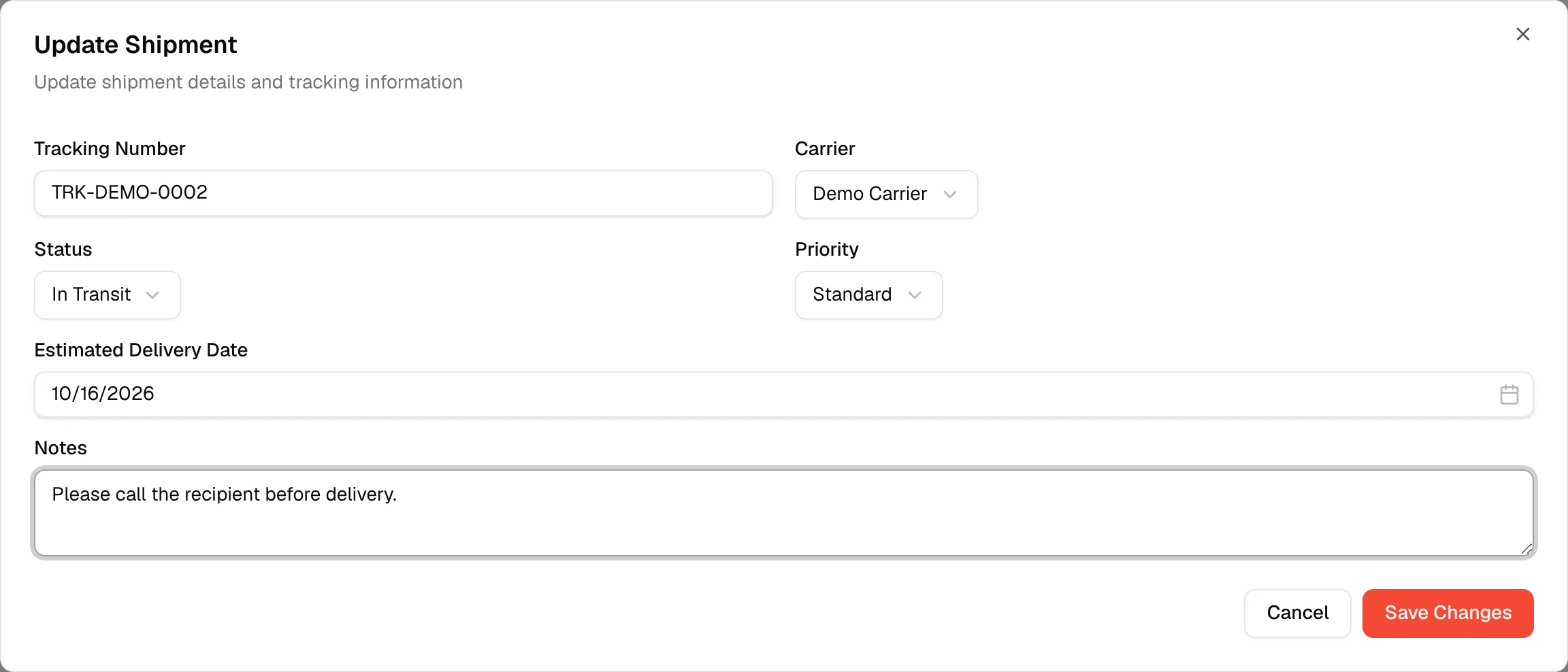
Open the menu of the shipment and click Edit Shipment, or Edit Details in the details window. The Update Shipment window opens with the text Update shipment details and tracking information.
Change the details
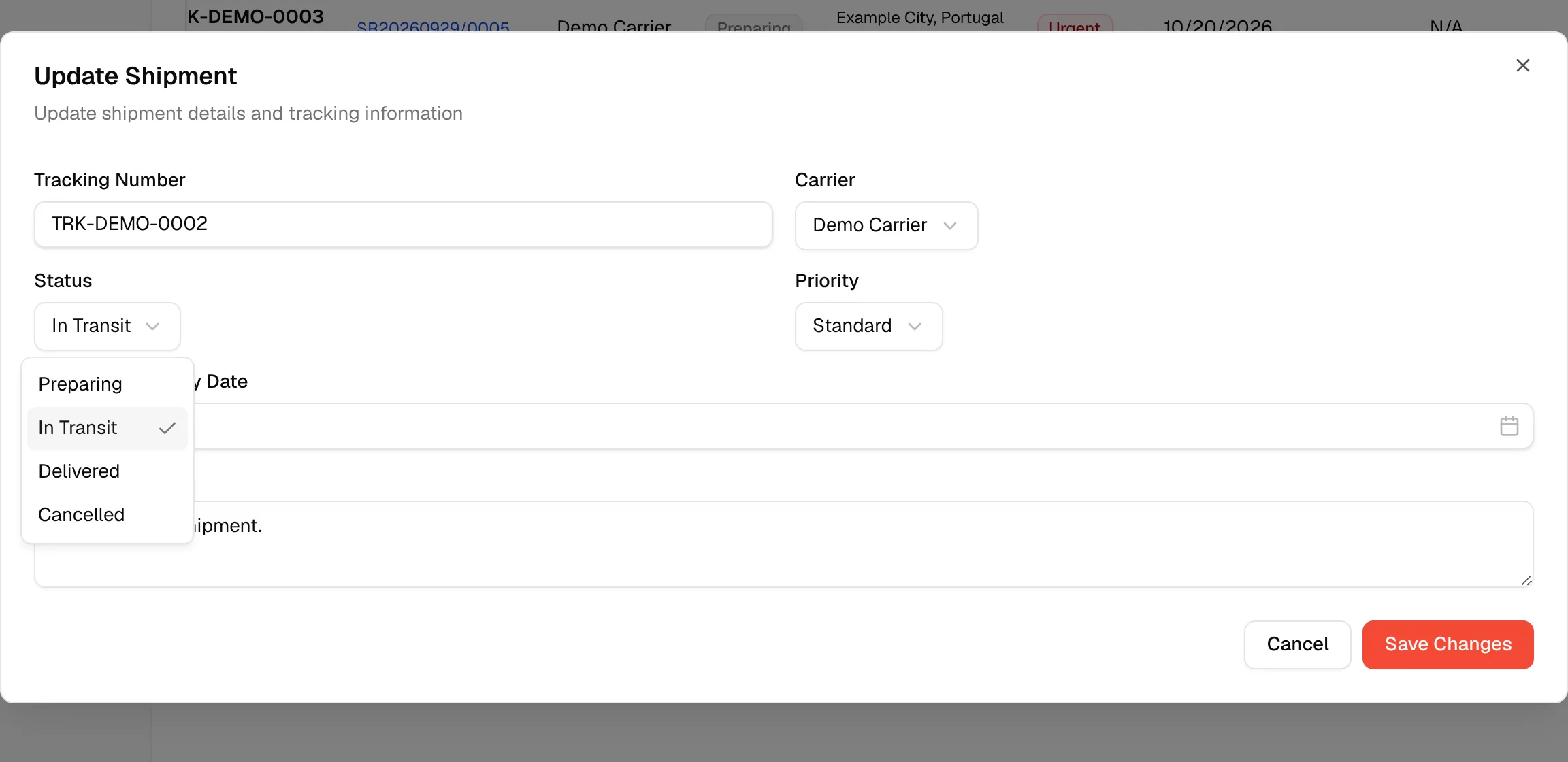
You can change Tracking Number, Carrier, Status (Preparing, In Transit, Delivered or Cancelled), Priority, Estimated Delivery Date and Notes.
Click "Save Changes"
Click Save Changes. Click Cancel to close without saving.
Delivered shipments
Click the Delivered tab to see the shipments that have been marked as delivered. You can search, filter by Priority and Supplier, sort, switch between the table and the kanban view, and open the details exactly as on the Active Shipments tab.
To move a shipment here, set its Status to Delivered, in Edit Shipment or by dragging its card to the Delivered column. To bring it back, change the status again.
Delete a shipment
Select "Delete"
Open the menu of the shipment and click Delete.
Confirm the deletion
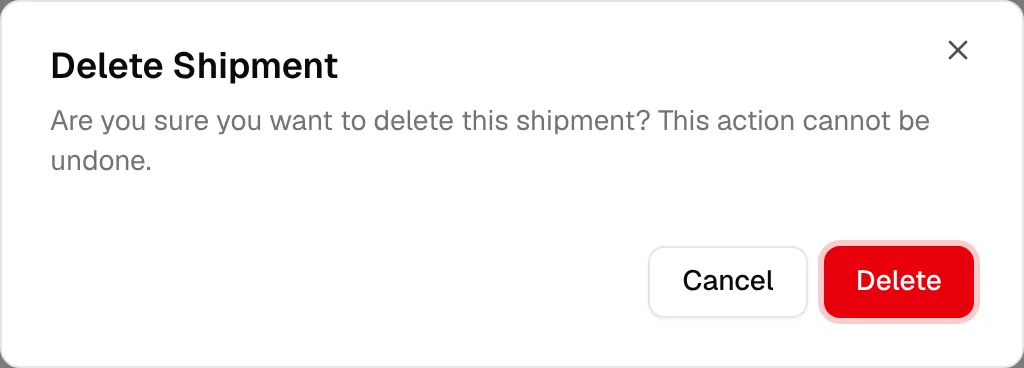
The Delete Shipment window asks Are you sure you want to delete this shipment? This action cannot be undone. Click Delete to confirm, or Cancel.
Warning
Deleting a shipment cannot be undone.