
Step 12 of 13 in From idea to a production-ready tech pack
Pricing and cost analysis
The Total Cost Page, where you can manage a full-cost pricing strategy from materials and manufacturing to freight and duty with a markup for profit.
Under review. This page is published while we check it against the live app, so some details may have changed.
The Total Cost Page, where you can manage a full-cost pricing strategy from materials and manufacturing to freight and duty with a markup for profit. Make informed decisions with pricing for wholesale and retail based on the total landed cost to decide the selling price for your product without compromising your profits.
Landed cost of a product is the total cost involved in bringing a product to the warehouse apart from the cost of goods. This is usually the freight, shipping charges, customs, and other charges that the seller may incur till he procures the goods. Tracking the landed cost helps determine the overall cost incurred in procuring the product.
Permission: VIEW_COSTS, VIEW_STYLE
Collection & StylesStyles(your style)CostsTotal
To access the Total Cost Page, select Collection & Styles > Styles from the left bar menu.
Select your created style and click Costs > Total on the style menu.
The Total Cost Page will display the Total…
The Total Cost Page will display the Total Materials cost that comes from the material cost page.
In the Total Cost Page, you must fill out all the required fields.
Select the Tier and the Supplier under Supplier / Factory from which you would like to allocate the cost and the landed cost. Selecting one saves it to the style straight away.

Nb: All the data will automate cost calculation in Base currency, displaying the total landed cost bill on the right-hand.
Enter the data in the following fields: First/Make…
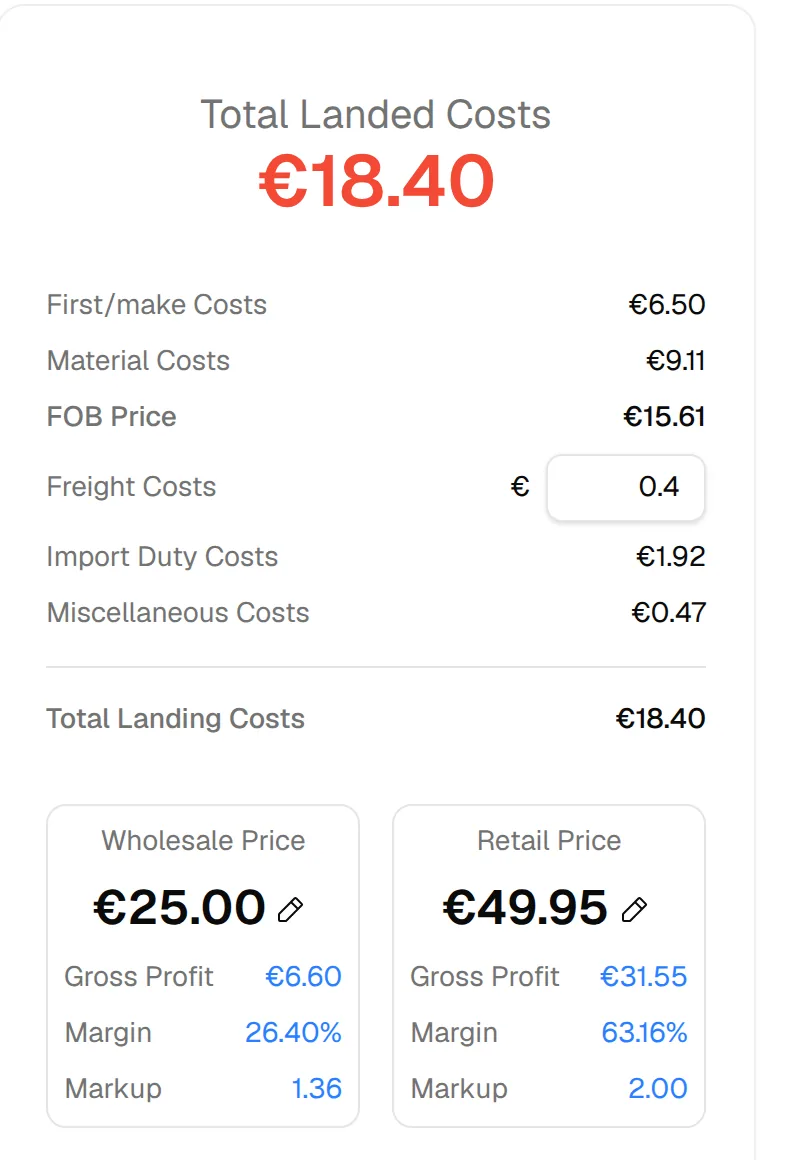
Enter the data in the following fields: First/make Costs (Amount and Currency), Lead Time (a number and a unit such as days or weeks) and MOQ (a number and a unit) in each field if you want to change the costs calculated.
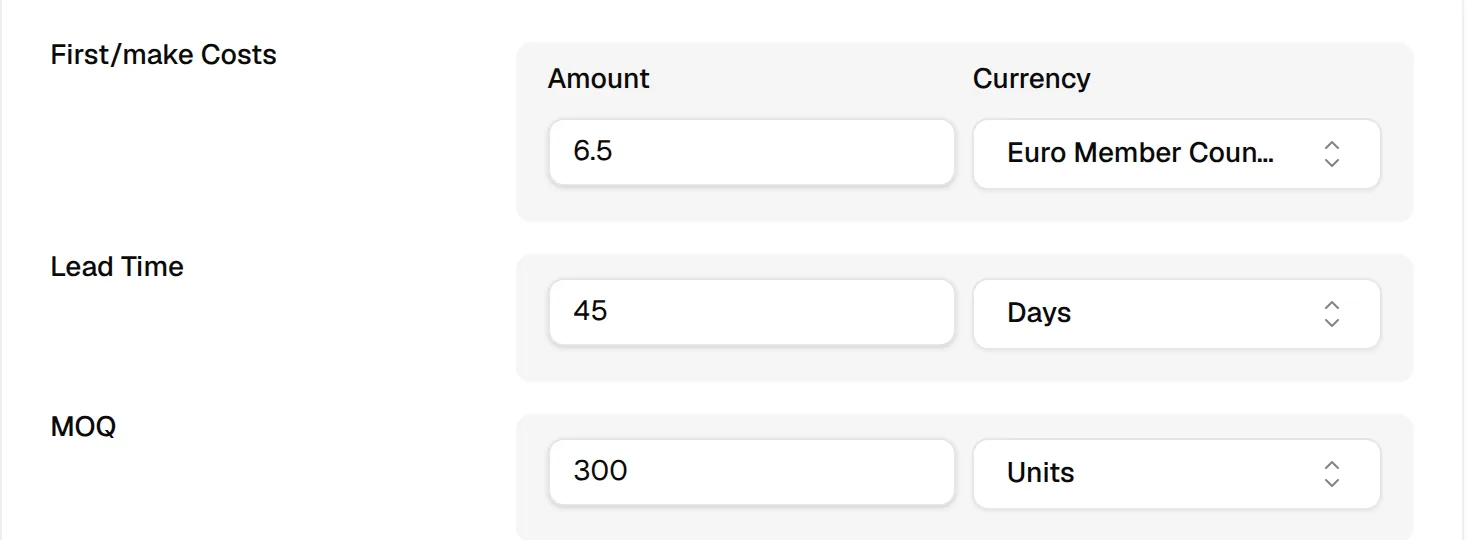
Comments: Enter the additional comments in the comment field.
Attach file: Upload additional attachment files.
Click Add Attachment, then Upload attachment and choose the file. Users can assign multiple attachment files. The three dots next to a file offer Download Attachment, Change attachment and Delete.
Freight method: The freight method is available in three options: by Air, Sea, or Land.
Users may select their preferred option of the freight method.
Import Duty: Enter the percentage of the Import Duty.

Miscellaneous Method: The Miscellaneous Method is available in…
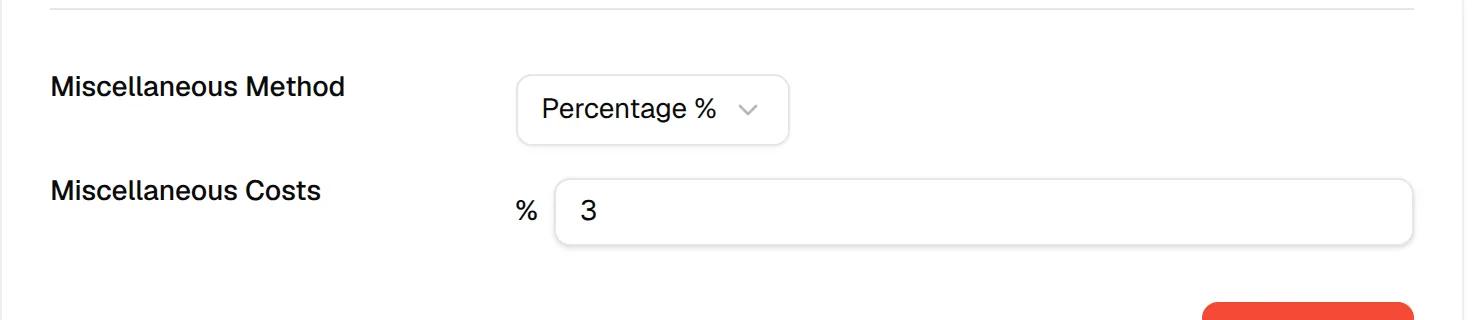
Miscellaneous Method: The Miscellaneous Method is available in two options: Percentage % or your base currency (for example EUR). Users may select their preferred option of the Miscellaneous Method.
Miscellaneous Costs: Enter Miscellaneous expenses, which refer to the costs of several unpredictable and assorted costs.
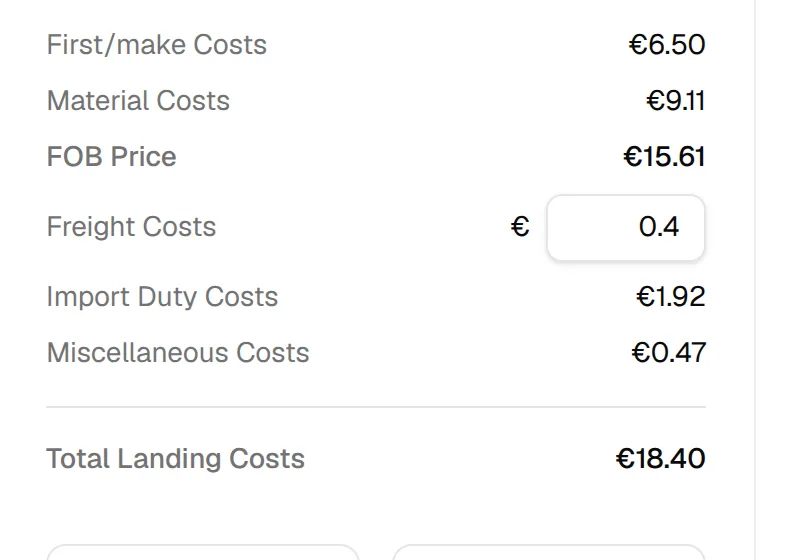
Freight Costs: Enter the total charges involved in transporting goods.
Type the amount in the Freight Costs field in the cost summary on the right-hand side.
Select the pencil icon to change the Wholesale Price or Retail Price.
The pencil icon opens Edit Wholesale Price or Edit Retail Price. After creating the adjustment, select Save.
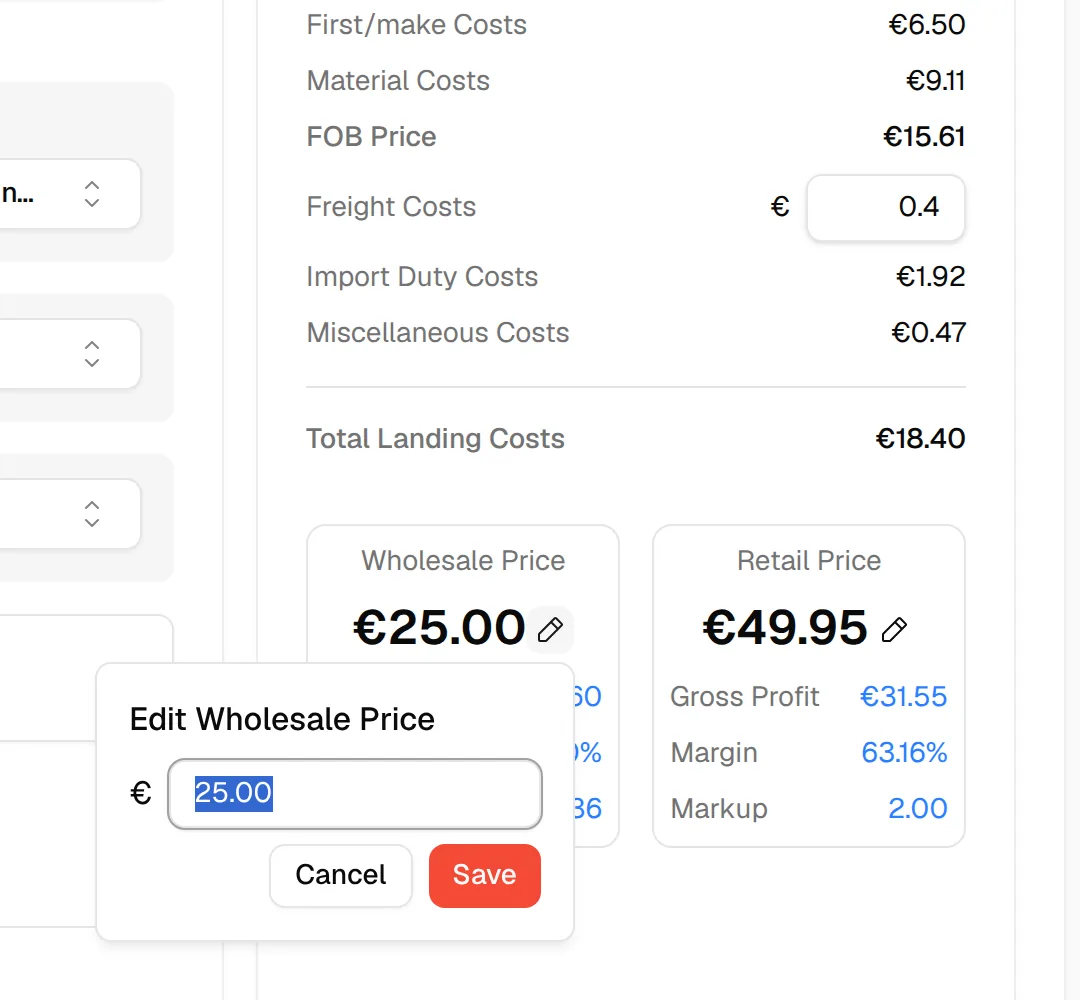
Nb: All the data will automate cost calculation in Base currency, displaying the total landed cost bill on the right-hand side every time you update the charge field or the Wholesale and retail price.
Select Save Costs in the lower-right corner.
Click Save Costs below the cost fields. The page also saves your changes automatically a moment after you stop typing, as long as every field holds a valid value.

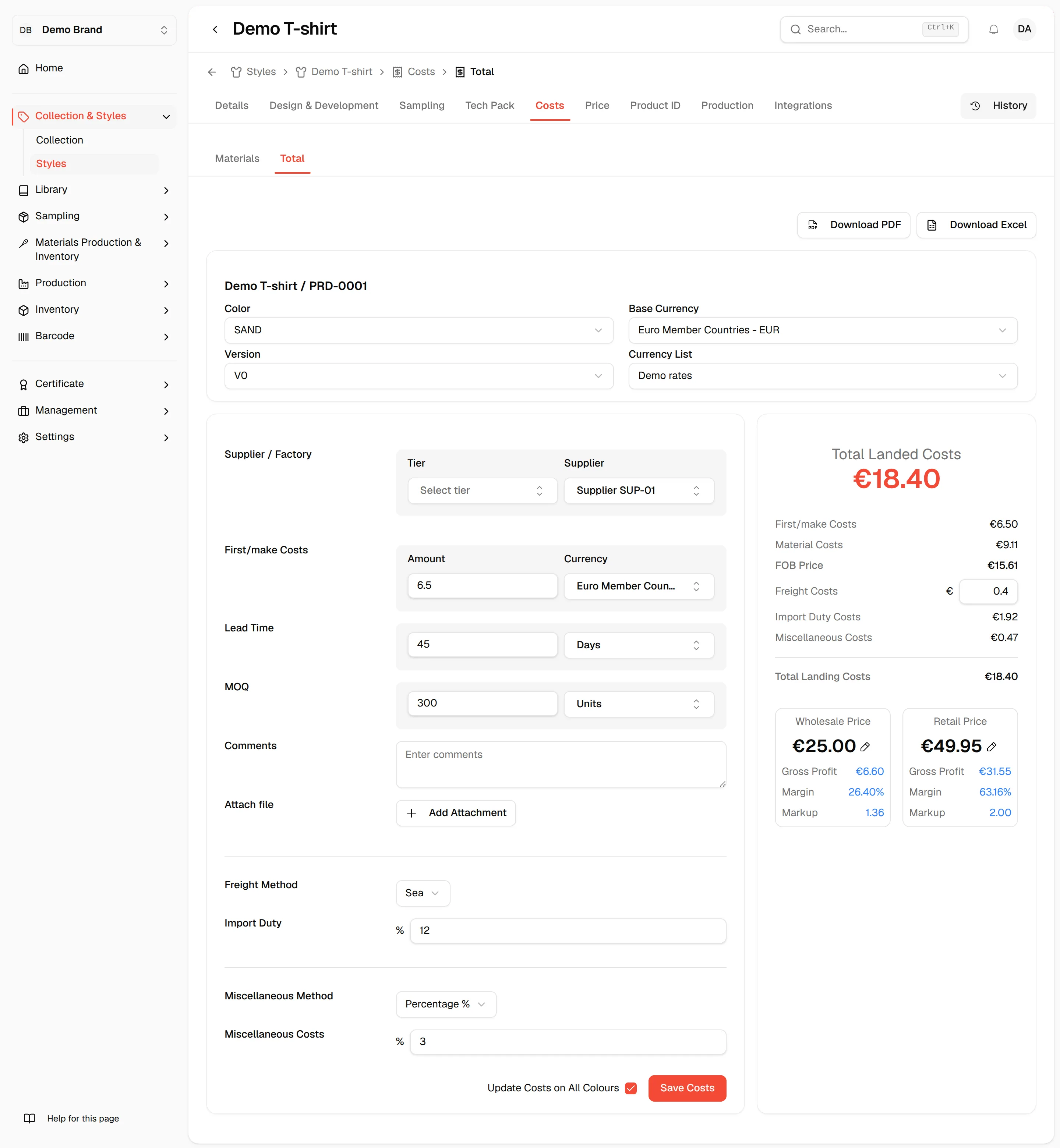
The cost summary
The panel on the right-hand side shows the result in your base currency:
- Total Landed Costs at the top.
- First/make Costs, Material Costs, FOB Price, Freight Costs, Import Duty Costs and Miscellaneous Costs.
- Wholesale Price and Retail Price, each with Gross Profit, Margin and Markup. These two blocks appear only if you are allowed to view prices; the pencil icon only if you are allowed to edit them.
Color, version and currency list
At the top of the page, select the Color and the Version the costs belong to. The Base Currency is shown for reference and cannot be changed here. Select a Currency List so costs in other currencies can be converted.
Note
If the first/make cost is in a currency other than your base currency, a Currency List with a rate for that currency is required. Until then the first/make cost counts as 0 and a warning explains why.
Note
A style without colours shows a warning instead: add or select a colour first, because the currency list, material costs and saved costs belong to a colour.
Update costs on all colours
Next to Save Costs, the Update Costs on All Colours checkbox is on by default. When it is on, saving copies these costs to every colour of the version. Turn it off to save them for the selected colour only.
Download the total cost
Click Download PDF or Download Excel at the top right and choose Export Current Color or Export All Colors in Version.
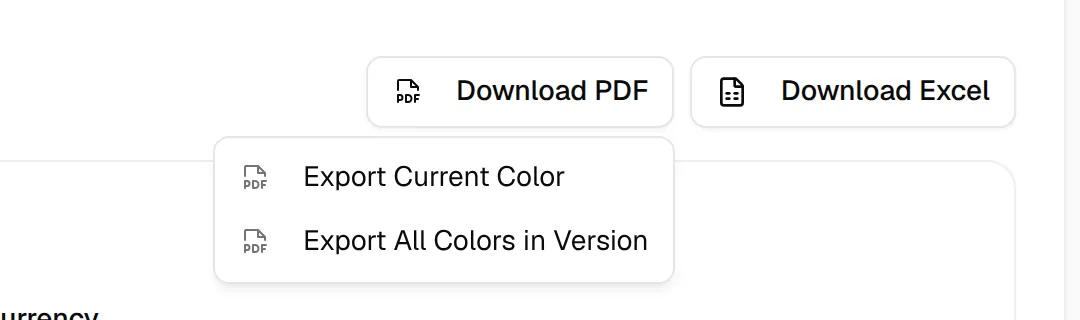
- Download Excel downloads a spreadsheet straight away.
- Download PDF opens a print page in a new tab with one section per colour. It lists Tier, Supplier, First/make Costs, Lead Time, Minimum Order Quantity, Freight Method, Import Duty, Miscellaneous Method, Miscellaneous Costs, Comments and Total Landed Costs.
- On the print page, click the gear icon to set the Layout to Landscape or Portrait, then click the print button to save it as a PDF.