
Document page in the raw materials shipping & tracking
The Document page in the Raw Materials Shipping & Tracking allows users to manage all shipment-related documents in one place efficiently.
Under review. This page is published while we check it against the live app, so some details may have changed.
Screenshots may be out of date.
The Document page in the Raw Materials Shipping & Tracking allows users to manage all shipment-related documents in one place efficiently. Users can view, upload, and organize files related to raw material shipments for easy access and tracking.
Materials Production & InventoryProductionShipping & Tracking
Permission: VIEW_MATERIAL_PRODUCTION
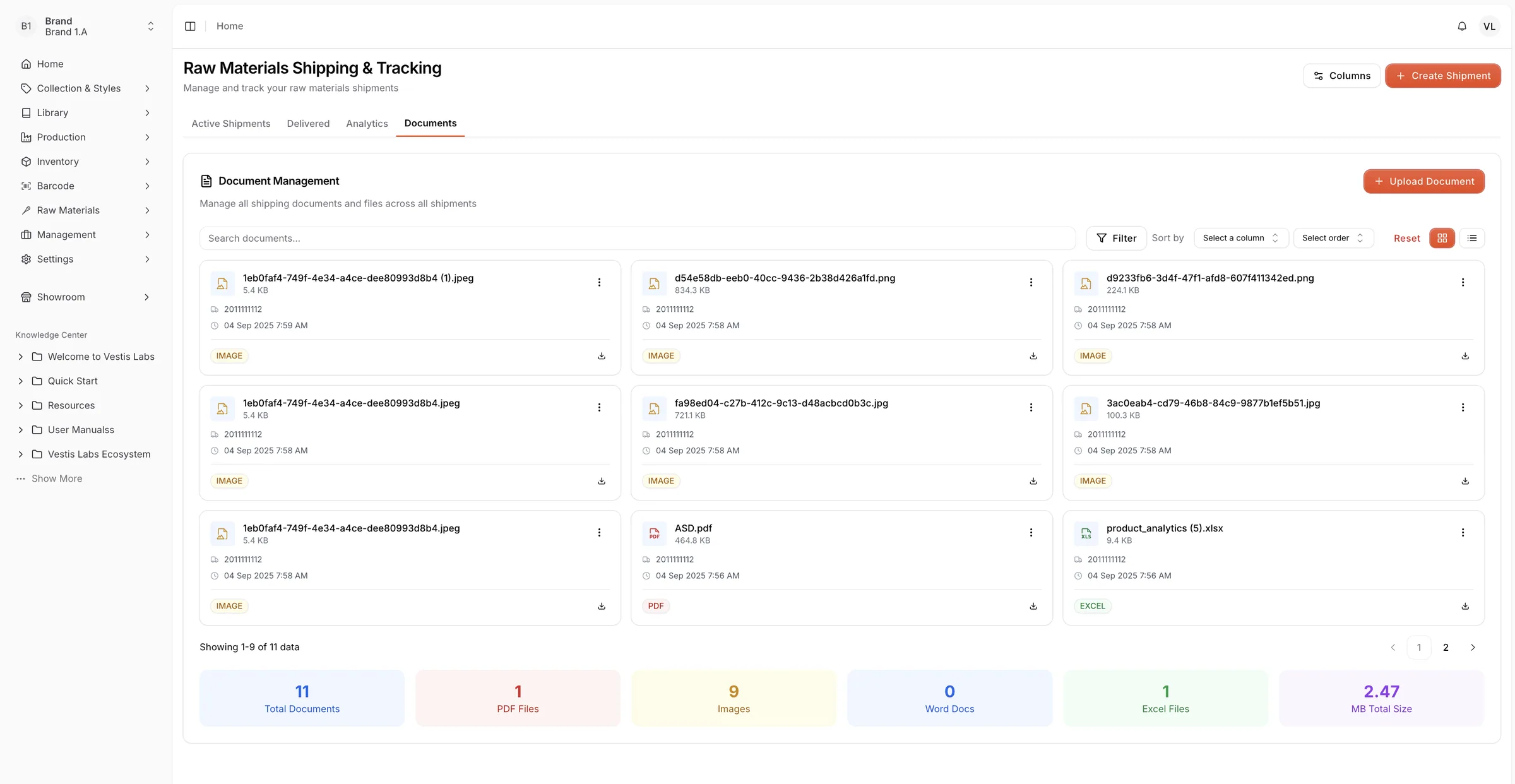
Open the Documents tab on the Shipping & Tracking page. The card is titled Document Management ("Manage all shipping documents and files across all shipments").
- Document Management Section: Displays all uploaded shipment documents, including file name, type, upload date, and associated shipment ID.
- Upload Document Button: Click Upload Document, select the shipment in the Upload Document window ("Select the shipments you want to upload documents for."), then add the file in the Shipment Documents window. Files can be PDF, DOC, XLS, JPG or PNG, up to 20MB in size.
- Filter and Sort Options: Helps users quickly find specific documents by searching (Search documents...), filtering by File Type, or sorting by column. Use the card and list buttons at the top right to switch the view.
- Document Cards: Each file is shown with its type label (e.g., IMAGE, PDF, EXCEL) and quick Download and Delete actions.
- Summary Bar: At the bottom, users can see an overview of total documents, categorized by file type (PDF, Image, Word, Excel) and the total storage size used.
This page helps maintain organized and accessible shipment documentation, ensuring efficient record management for all raw material shipping activities.