Step 9 of 13 in Place and track a production order
Override the production health
Understand the On Track, At Risk and Delayed health of a production order, check a partial issue, and override the calculated health with a reason.
Under review. This page is published while we check it against the live app, so some details may have changed.
Every production order can carry a health badge next to its status: On Track, At Risk or Delayed. The platform calculates it. When you know something the platform does not, you can override it with a reason.
ProductionOrder Managementthree-dot menuView/EditOverride health
Permission: UPDATE_BRAND_PRODUCTION
What the health means
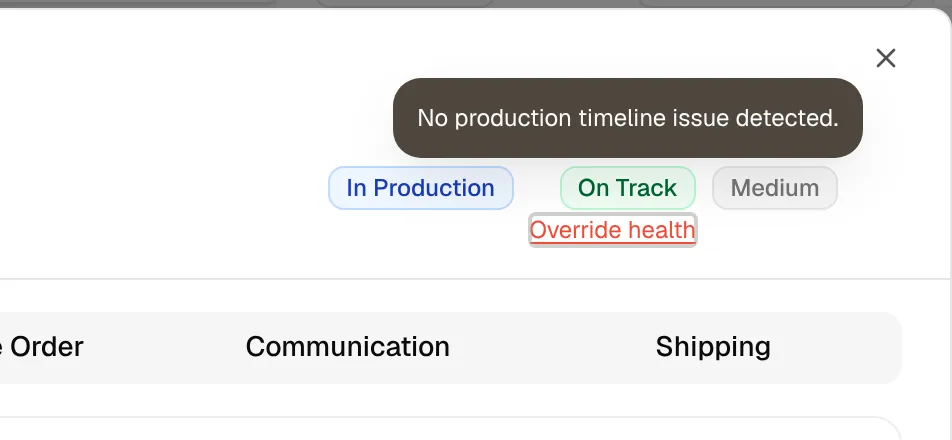
Hover over the badge to read its explanation:
| Health | Meaning |
|---|---|
| On Track | No production timeline issue detected. |
| At Risk | Warning signs detected. Review dates, milestone confirmations, or supplier response. |
| Delayed | Agreed ex-factory has been missed or a later ex-factory date has been confirmed. |
If the platform does not calculate a health for an order, no badge is shown.
Partial issues
When only part of an order is At Risk or Delayed, a Partial issue link appears under the health badge. Click it to open the Partial production issue dialog: "Only part of this PO is At Risk or Delayed. Review the affected items below."
The dialog shows Styles shipped (for example "1 of 3"), Affected, Units outstanding and the PO number. A table lists each affected style with its Units, Outstanding units, Value, Health, Reason, Agreed Ex-Factory, Actual Ex-Factory and Shipment status. If nothing is affected, it shows No affected items.
Override the health
Open the order
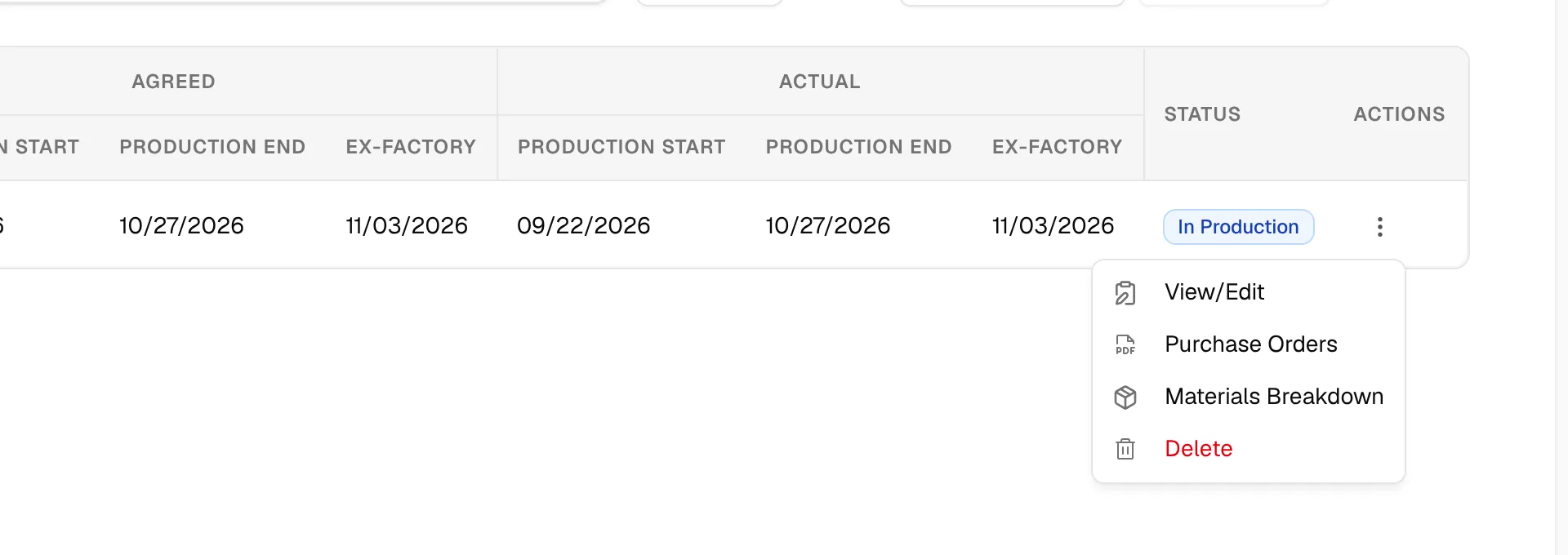
On the Production Orders page, select the three-dot action button on the order's row and click View/Edit.
Click "Override health"
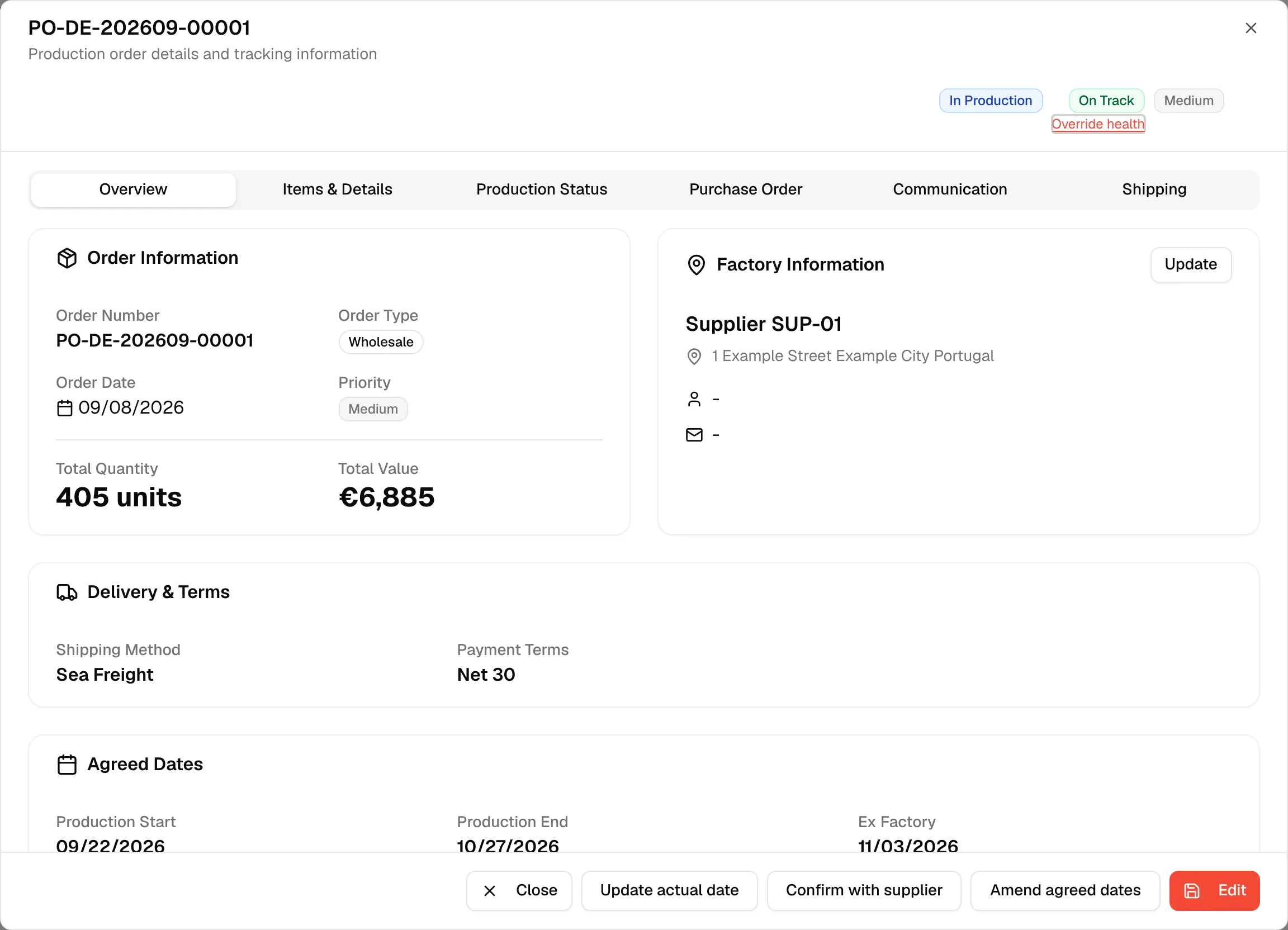
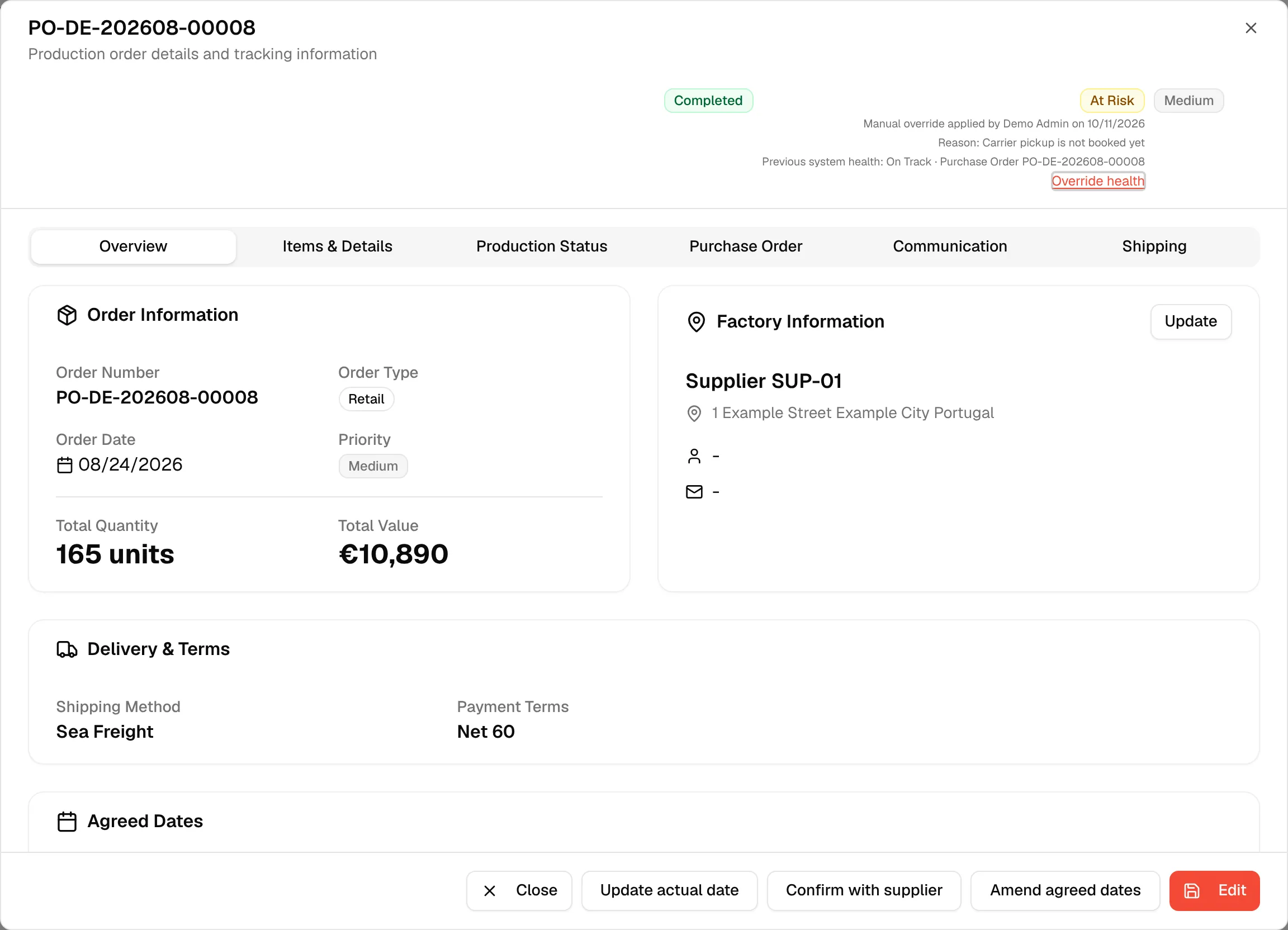
Click Override health under the health badges at the top right of the order dialog. The link is not shown to supplier users.
Select the health
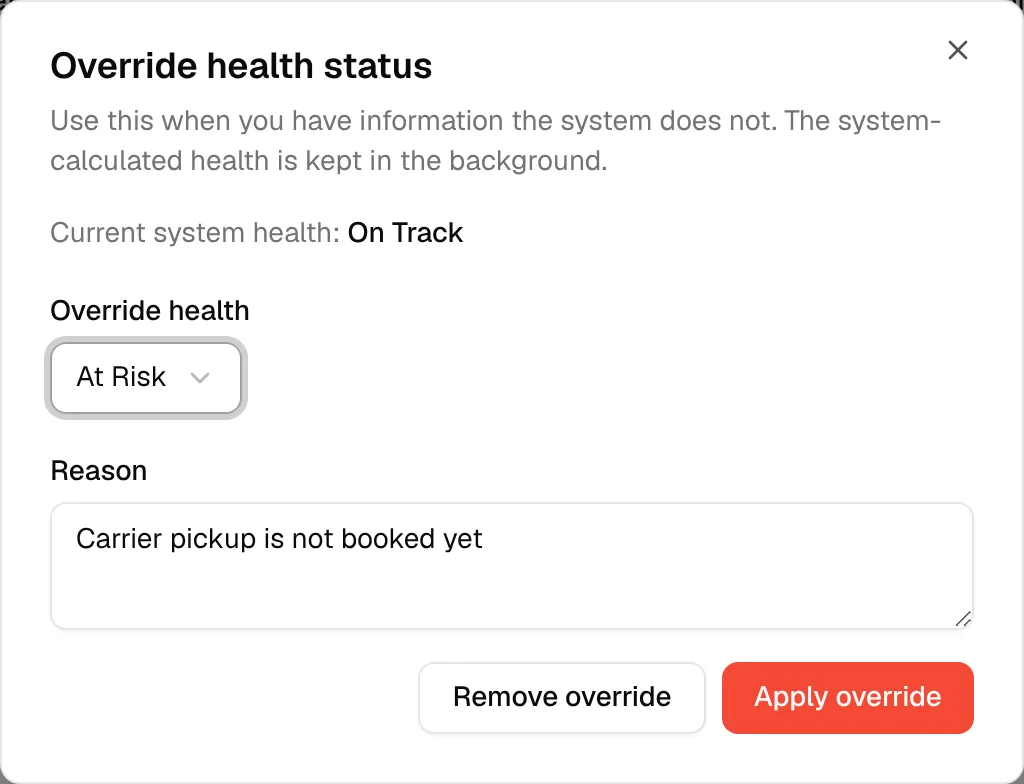
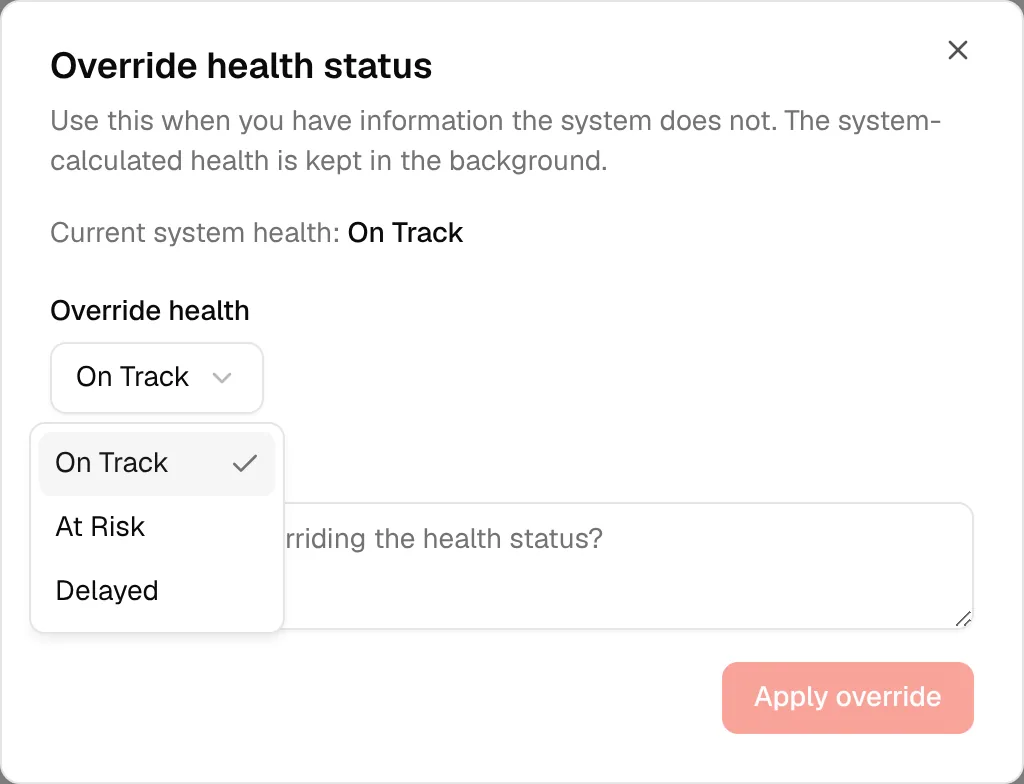
The Override health status dialog says: "Use this when you have information the system does not. The system-calculated health is kept in the background." It shows the Current system health. In Override health, select On Track, At Risk or Delayed.
Enter the reason
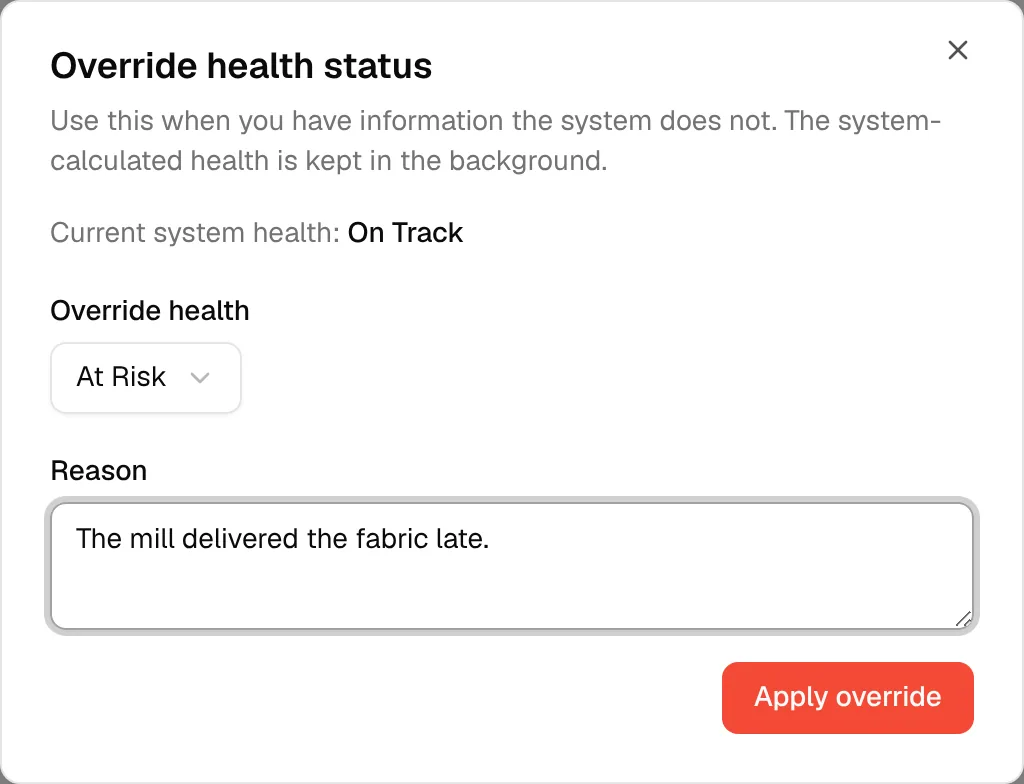
Type why in Reason ("Why are you overriding the health status?"). The reason is required.
Click "Apply override"
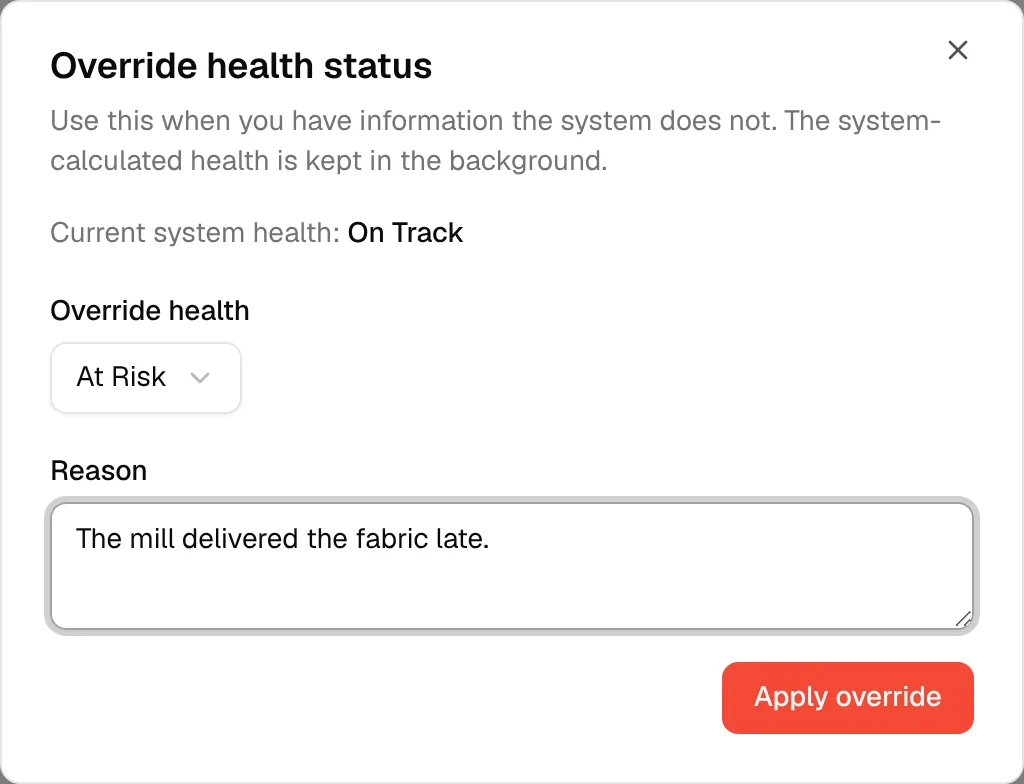
Click Apply override. The button stays disabled until you enter a reason.
The badge now shows your health. Under it the order shows who applied the override and when ("Manual override applied by ... on ..."), your reason, and the previous system health.
Remove an override
Click Override health again and click Remove override. The platform's calculated health is shown again.