
Step 4 of 12 in Stock materials and finished goods
Stock overview page
The Stock Overview page allows users to manage and track all raw material inventory levels across different locations.
Under review. This page is published while we check it against the live app, so some details may have changed.
Screenshots may be out of date.
The Stock Overview page allows users to manage and track all raw material inventory levels across different locations. It provides detailed visibility of available quantities, stock statuses, supplier information, and incoming materials from production.
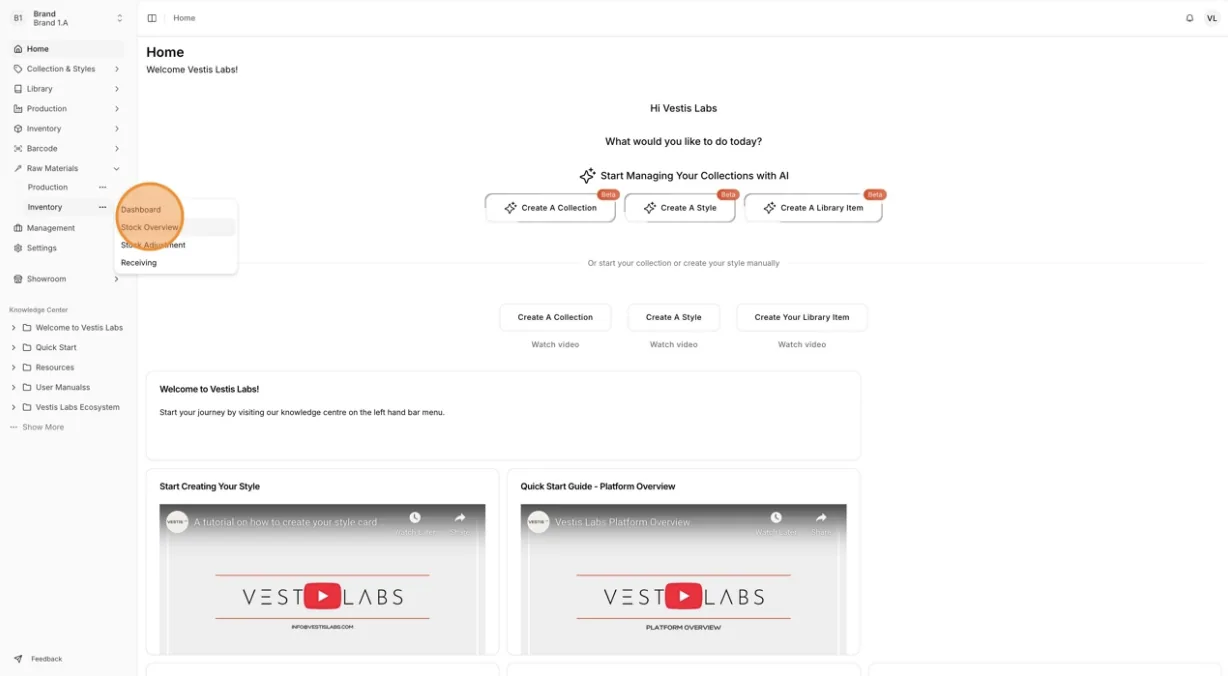
From the left-side menu, navigate to Materials Production & Inventory → Inventory → Stock Overview.
Materials Production & InventoryInventoryStock Overview
Permission: VIEW_MATERIAL_INVENTORY
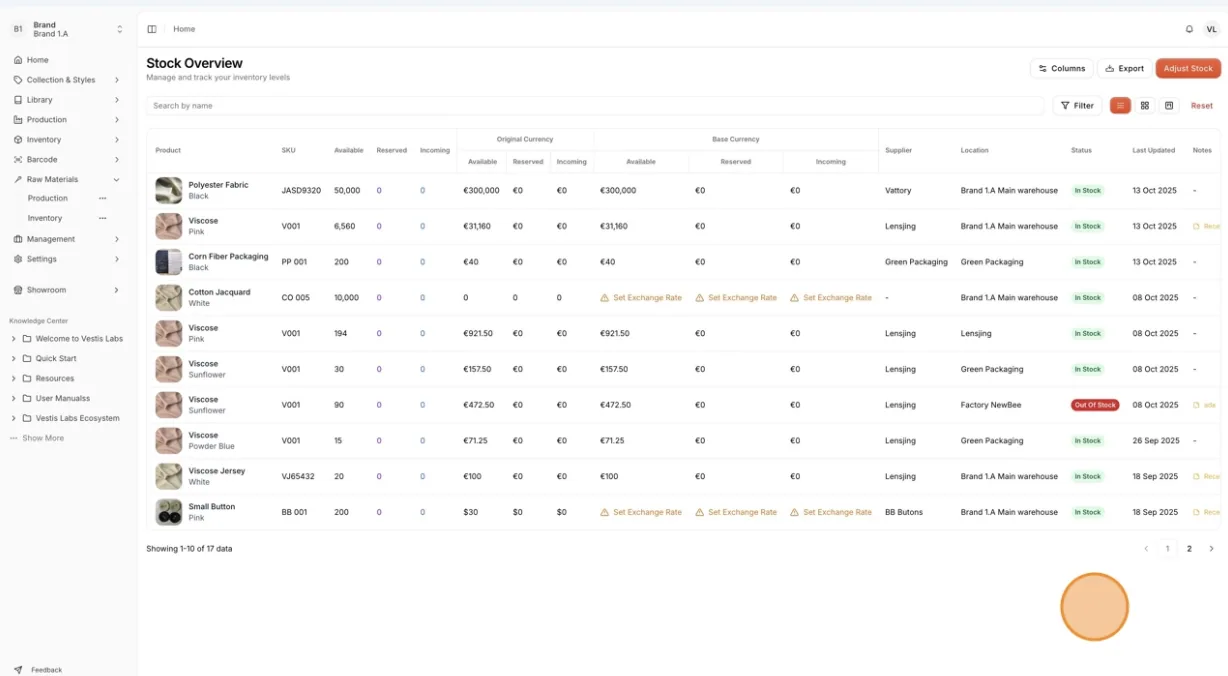
The page will display a complete list of all raw materials. The Stock Overview table includes the following columns:
- Product : Displays the name of the raw material.
- SKU : The unique product identifier (Stock Keeping Unit).
- Available : The total number of items currently in stock.
- Reserved : The number of items that have been allocated for production or orders.
- Incoming : Quantities expected to arrive from production or transfers.
- Stock Value (Original Currency / Base Currency) : Separate columns show the value of the available, reserved and incoming stock in both the material's original currency and your base currency, for financial tracking. A Set Exchange Rate link appears in the base currency columns when the material's currency differs from your base currency and no exchange rate is set.
- Supplier : The vendor or factory that supplies the material.
- Location : Indicates the warehouse where the material is stored.
- Status : Displays whether the material is In Stock, Low Stock, Out of Stock or Overstock.
- Last Updated : Shows the latest date the stock information was modified.
- Notes : Displays remarks such as received items or other activity records.
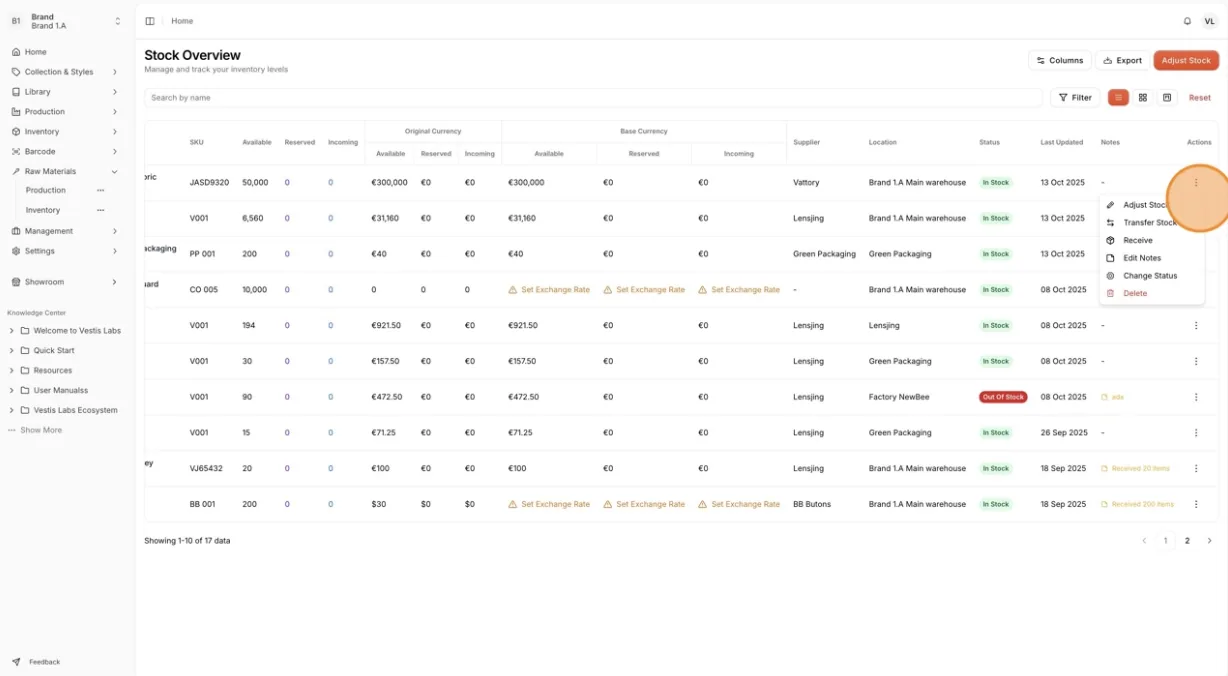
Each material record includes a three-dot Actions Menu. Users can perform the following actions:
- Adjust Stock : (requires permission to update material inventory) Manually increase or decrease the stock quantity when physical counts differ from system records.
- Transfer Stock : (requires permission to update material inventory) Move available quantity to another warehouse or supplier. In the Transfer Stock window, choose the Destination, enter the Quantity (up to the available amount), select a Reason (required), add optional Notes, check the Transfer Summary and click Transfer.
- Receive : (requires permission to create material production orders) Confirm and record materials received from production. The Receive Items window lists the production orders that contain this item; if there are none it shows No production orders found containing this item.
- Edit Notes : Add or update notes to document important stock-related information. In the Edit Note window, type the Note and click Update Note (it stays unavailable while the note is empty).
- Change Status : Update the item’s stock status. In the Change Status window, select In Stock, Low Stock, Out of Stock or Overstock and click Update Status.
- Delete : (requires permission to delete material inventory) Remove a material record from the list if it is no longer needed. Confirm Delete Material Inventory; this cannot be undone. (Use with caution)
Users can also used the addtional Features:
Filter: Narrow down your view by Supplier, Location or Status.
List, grid and kanban views: Use the view buttons next to the search bar to change how the stock is shown.
Columns: Customize the visible columns in the table for a personalized view.
Export: Download the stock data for analysis or reporting. Choose Export to Excel or Export to PDF.
Reset: Clear the search and all filters.
Search Bar: Quickly locate a specific material by typing its name (Search by name).
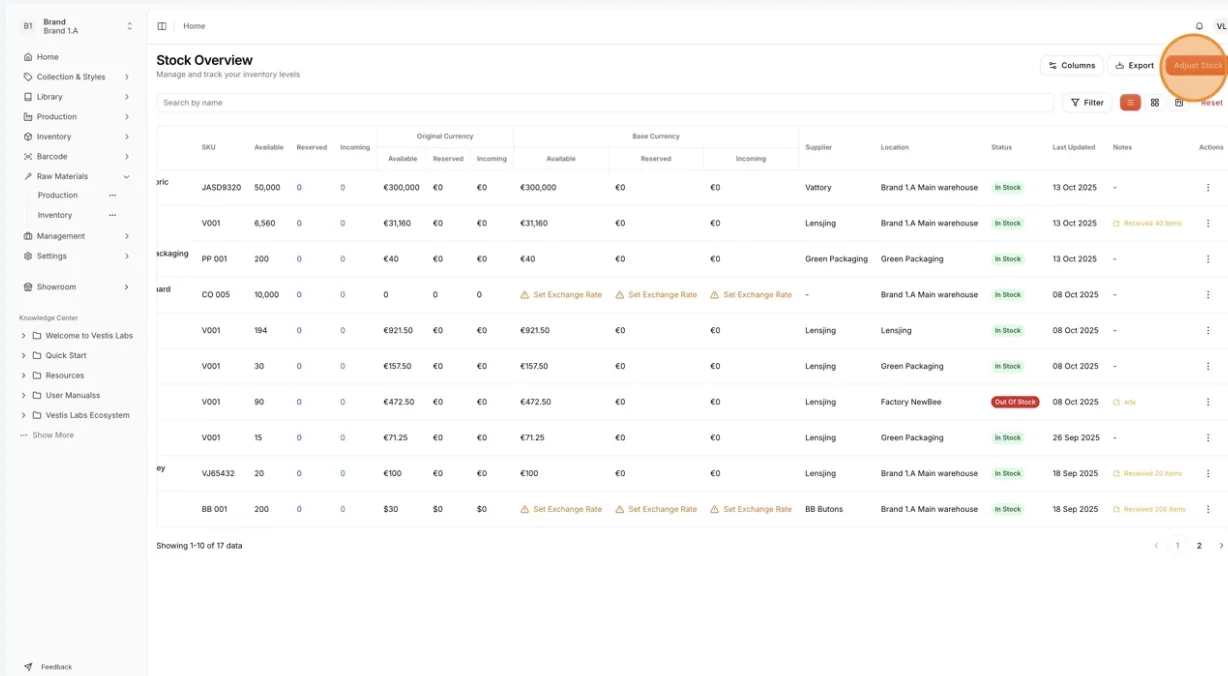
The Adjust Stock button at the top right of the page opens the same adjustment window. If there is no stock yet, the table shows No Inventory Found.