
Step 8 of 9 in Run a sampling round
Sample shipment documents
Upload, find, download and delete the documents of your sample shipments, such as invoices, customs forms and delivery proofs.
The Documents tab of Shipping & Tracking is where you manage shipping documents (invoices, customs forms, packing lists, proof of delivery and so on) for your sample shipments. Every document belongs to one shipment.
SamplingShipping & TrackingDocuments
Permission: SAMPLING_VIEW,SAMPLING_UPDATE
Upload a document
Click the "Documents" tab
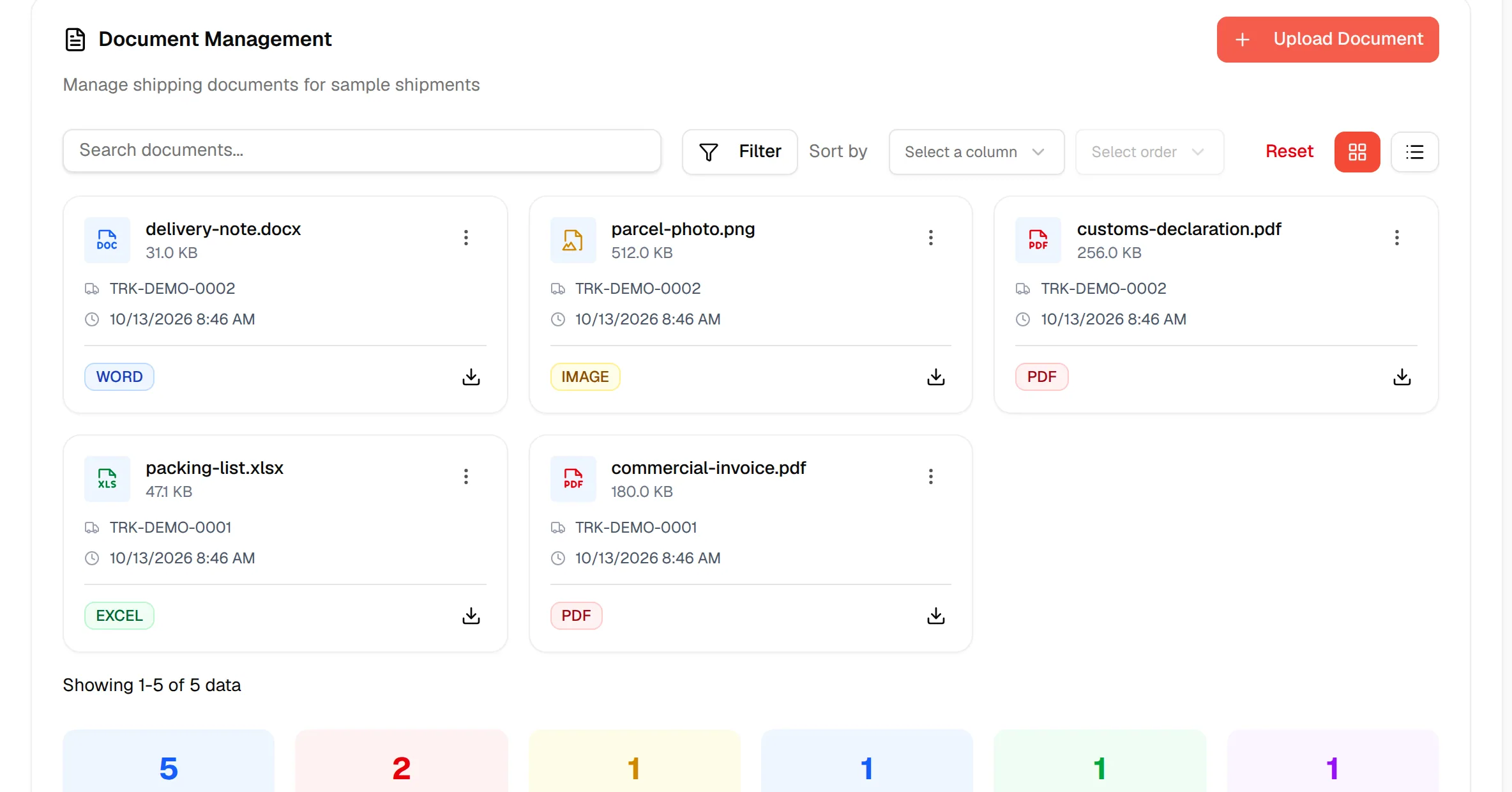
Click Documents above the list. The Document Management page opens with the text Manage shipping documents for sample shipments. If nothing has been uploaded yet, it reads No documents uploaded and Upload your first shipping document to get started.
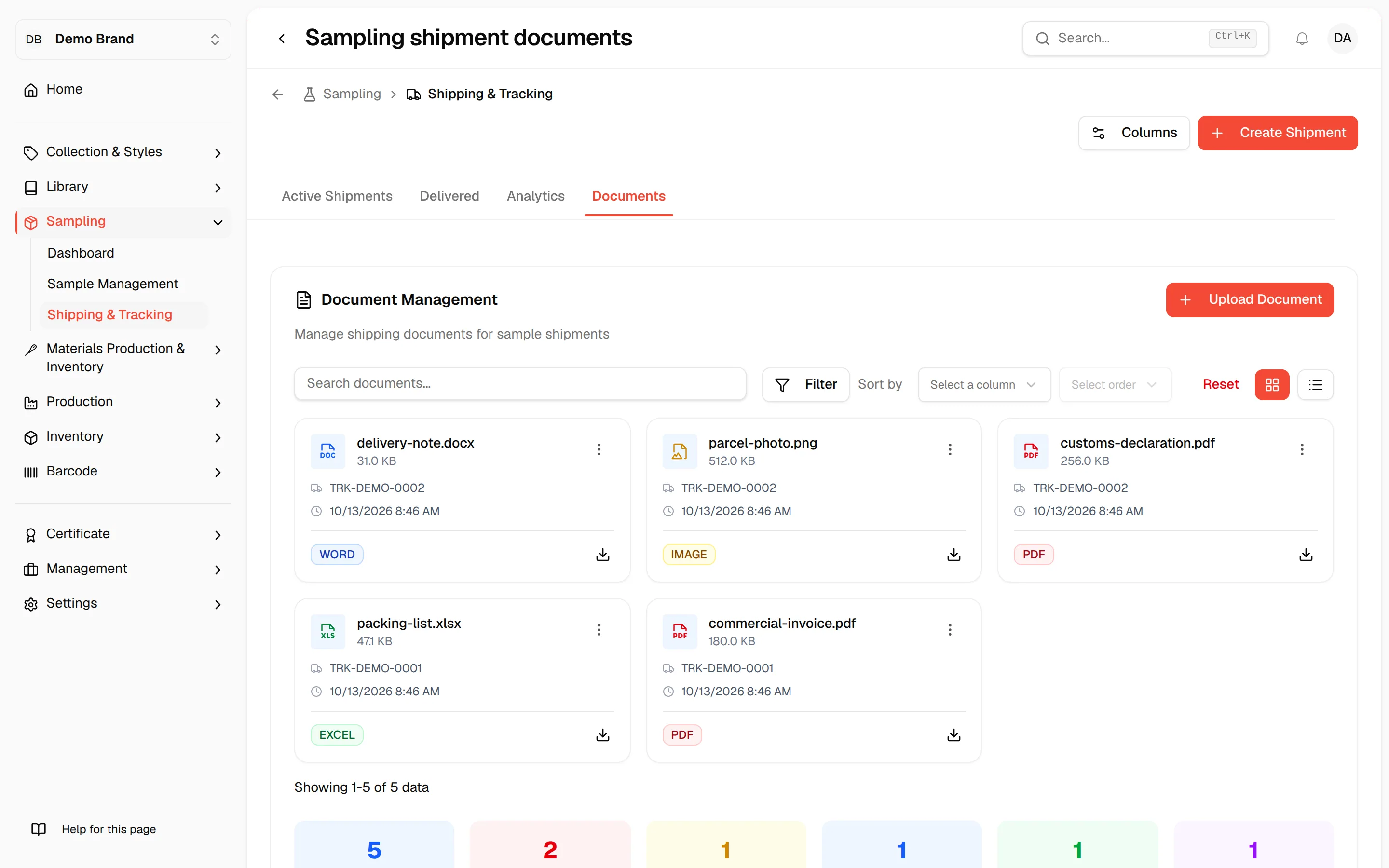
Click "Upload Document"
Click Upload Document at the top right of the card, or the same button in the centre of an empty page.
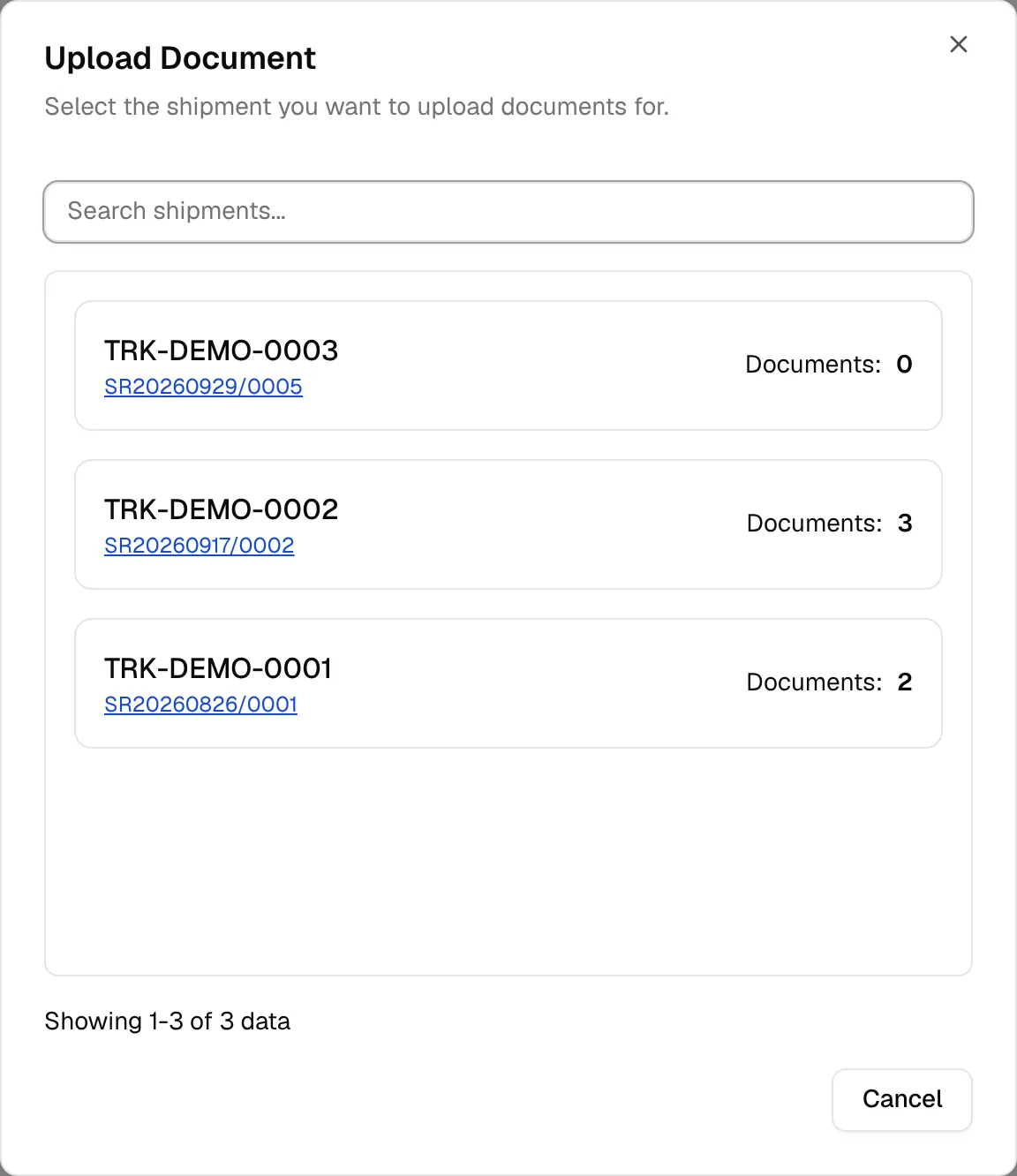
Select the shipment
The Upload Document window lists your shipments, with the tracking number, the sample requests and the number of documents already uploaded. Type in Search shipments... to find one, then click it.
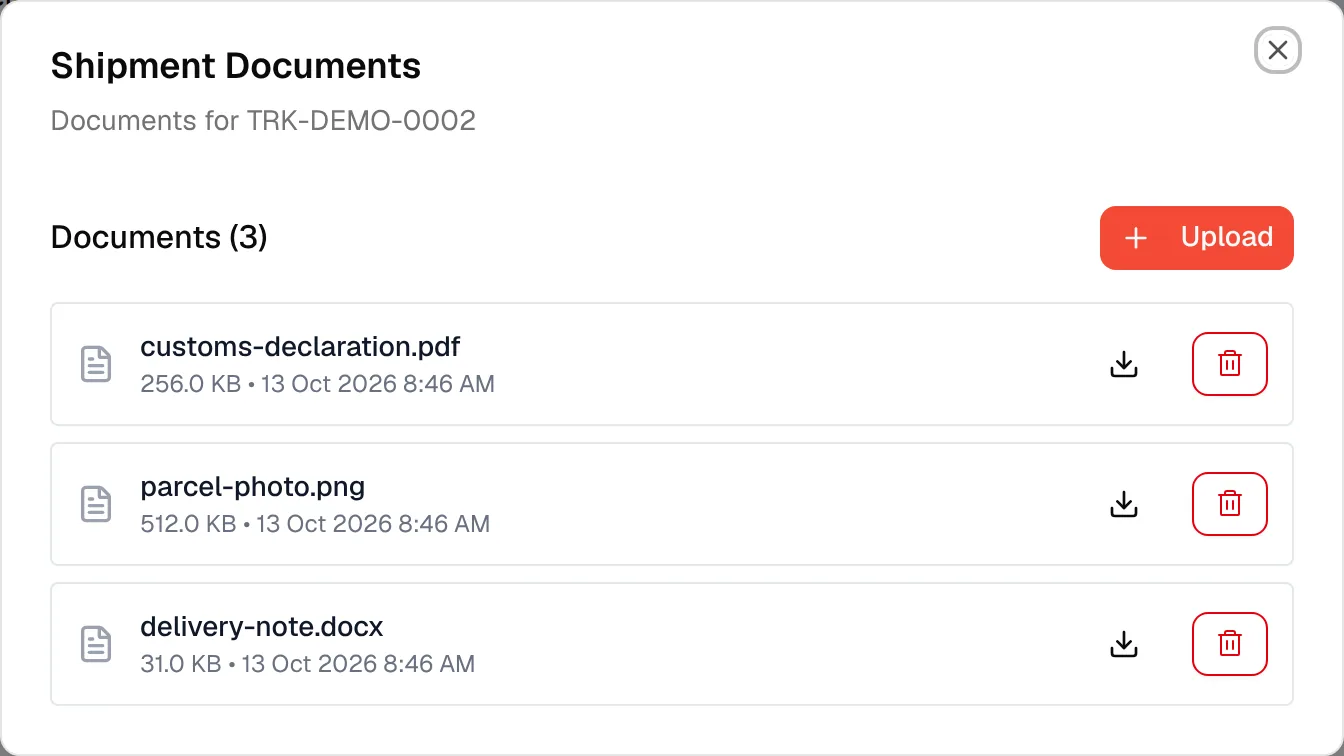
Click "Upload"
The Shipment Documents window opens for that shipment, with the title Documents (n). Click Upload.
Add the file
In the Upload Document window (Upload documents for this shipment), drop the file into the area or browse for it. Word, PDF, image and spreadsheet files are accepted, and the size limit is shown under the area.
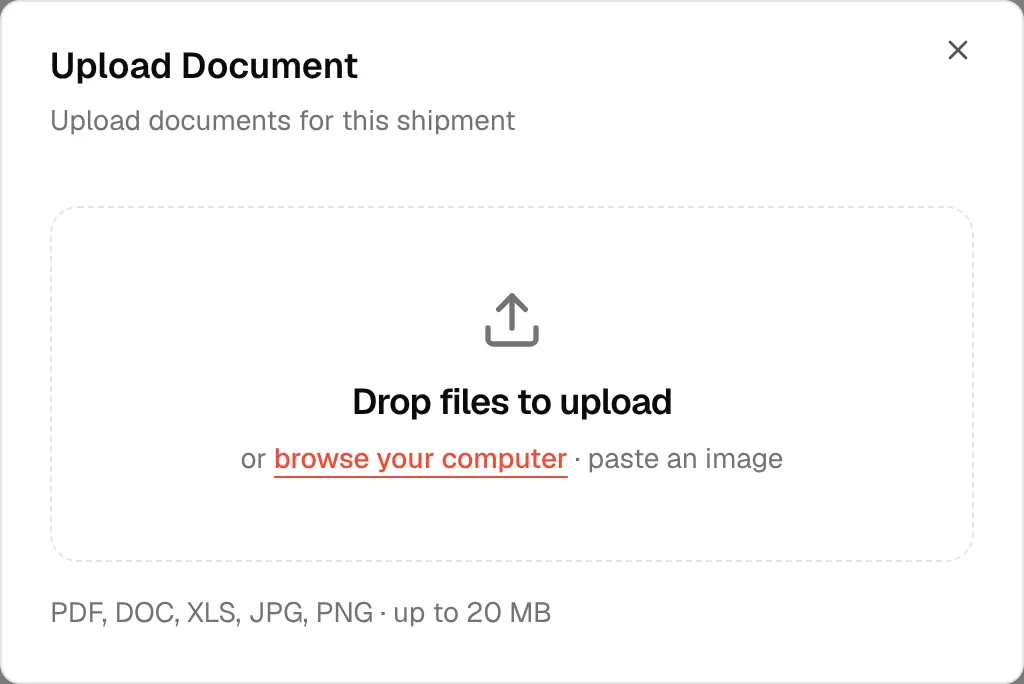
When the upload finishes, the window closes and the document appears in the list with its name, size and date. The document count updates when you close the Shipment Documents window.
You can open the same Shipment Documents window from a shipment: in Active Shipments or Delivered, open the menu of a shipment and click Documents, or click View Documents in its details.
Download or delete a document
In the Shipment Documents window, each file has a download icon and a delete icon. Click the download icon to save the file. Click the red delete icon to remove it; a file removed here is deleted at once, without a confirmation.
Find documents
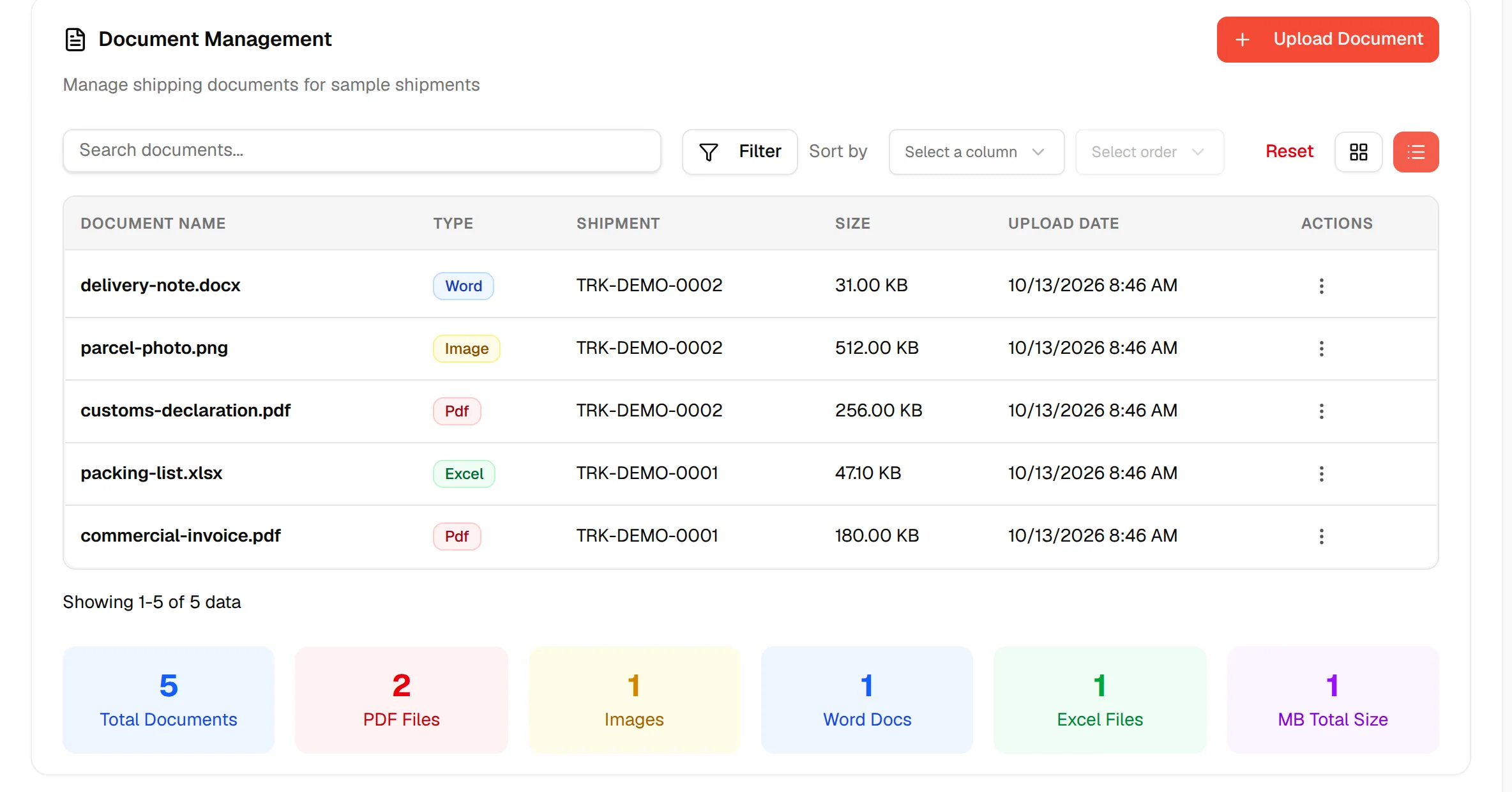
The page lists documents of all shipments, in a card view or in a table.
Choose the view
Use the two icons at the right of the filter bar. The card view is the default and shows nine documents per page. The table view shows ten and has the columns Document Name, Type, Shipment, Size, Upload Date and Actions.
Search
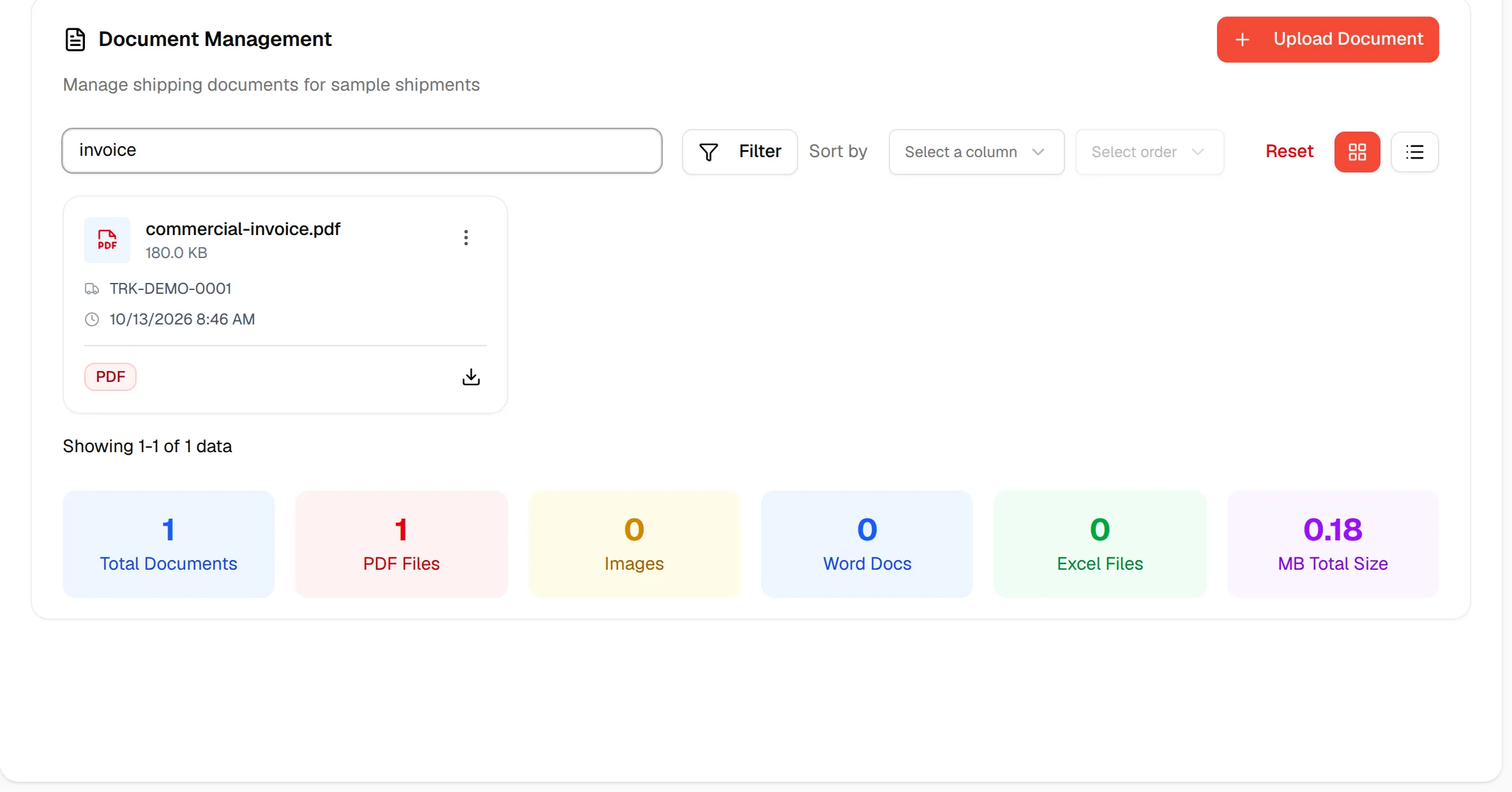
Type in Search documents....
Filter by file type
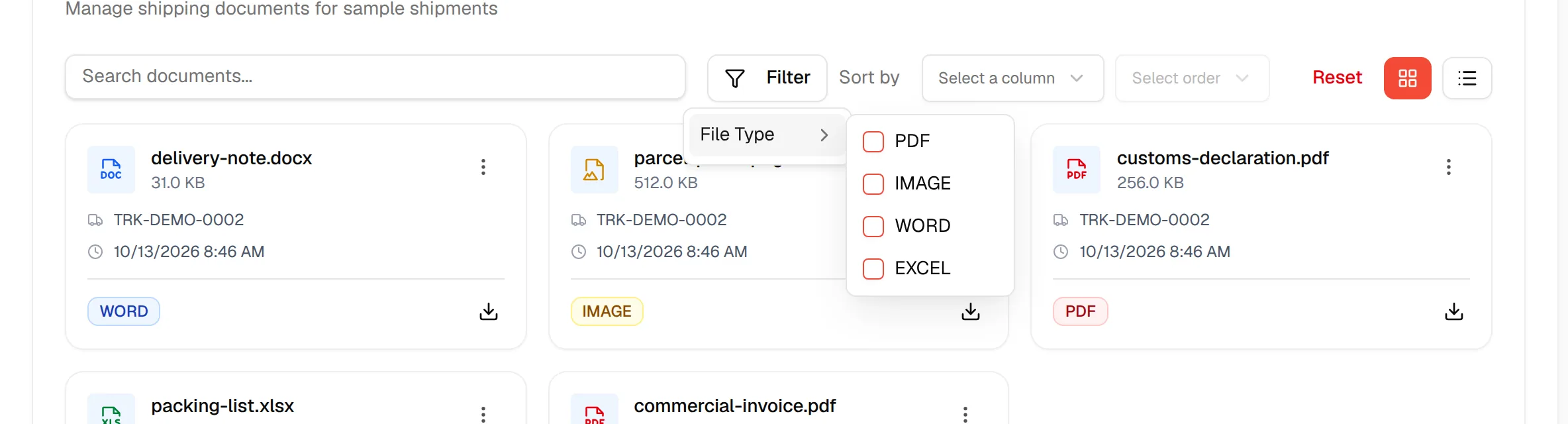
Open the filter and check File Type values: PDF, IMAGE, WORD or EXCEL.
Sort and reset
Use the sort control to order by name, type, shipment, size or upload date, ascending or descending. Click Reset to clear the search, filter and sort.
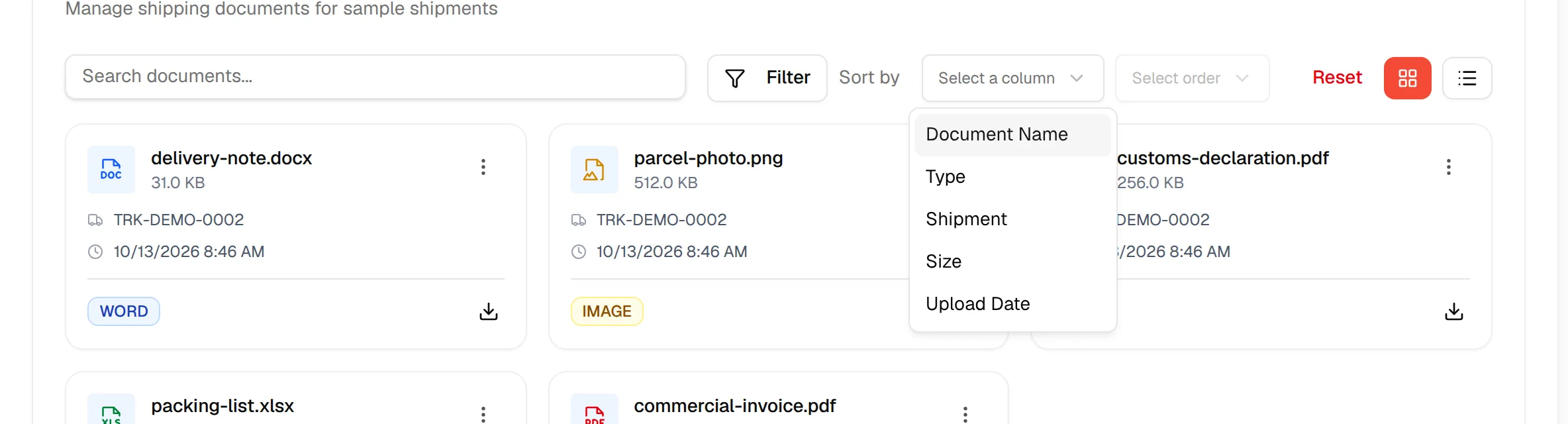
Below the list, a summary counts the Total Documents, PDF Files, Images, Word Docs, Excel Files and the MB Total Size.
Download or delete from the list
Open the actions
Click the three-dot menu on the card or on the row.
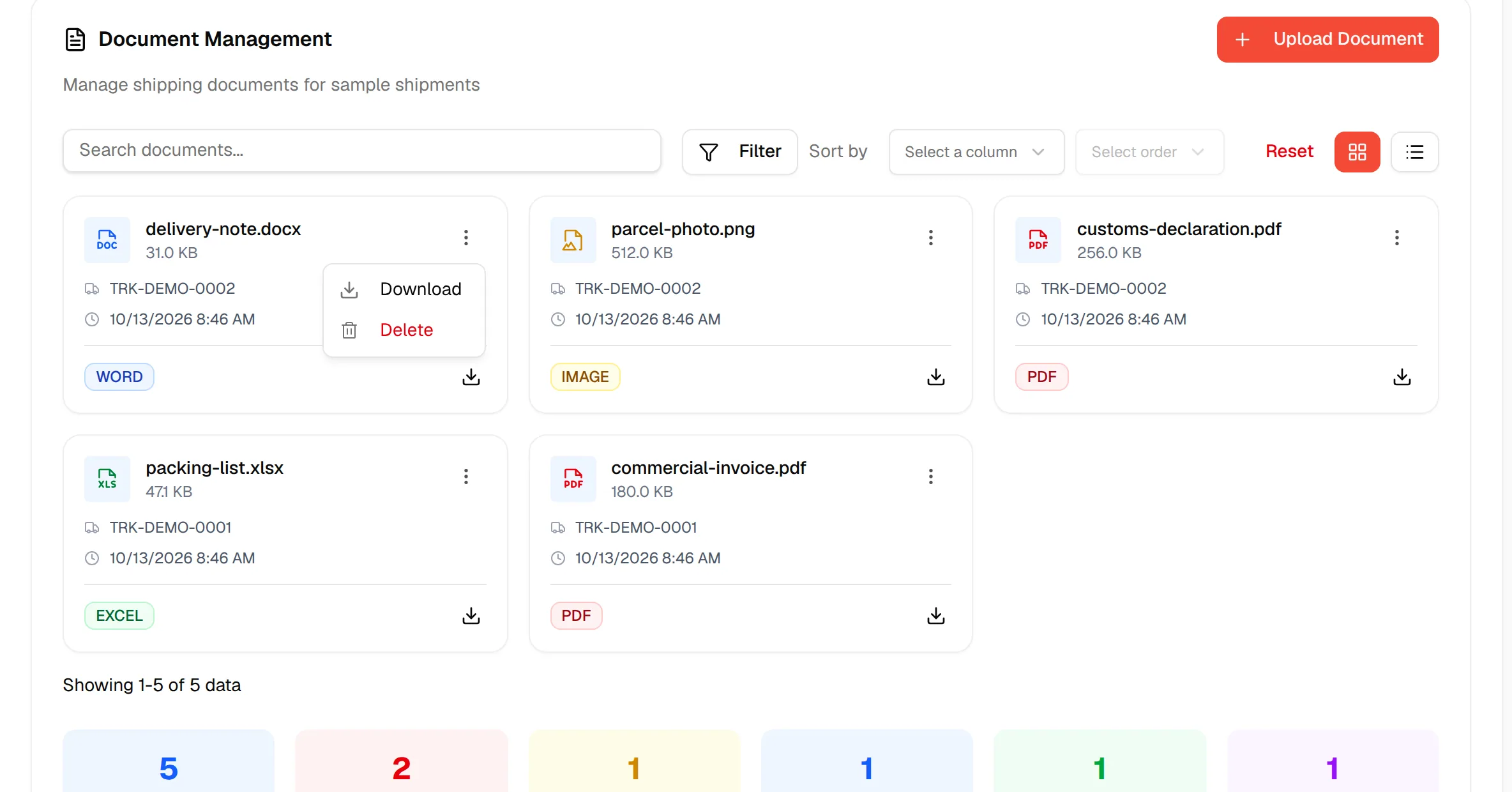
Select "Download" or "Delete"
Download saves the file. Delete is shown to users who can update samples. The Delete Document window asks Are you sure you want to delete this document? This action cannot be undone. Click Delete to confirm, or Cancel.
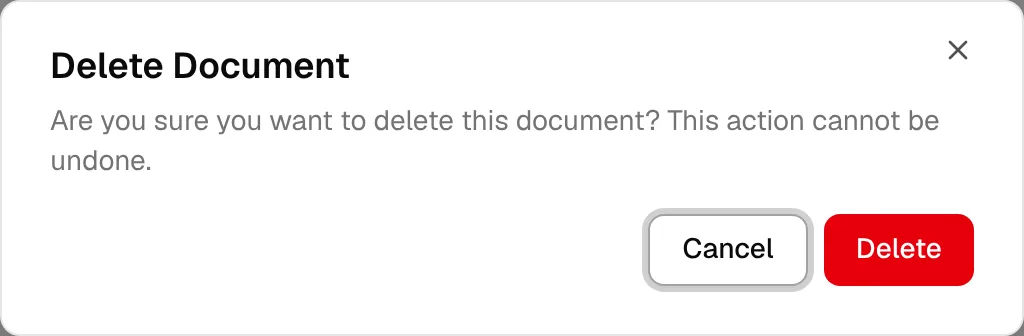
Warning
A deleted document cannot be recovered.