
Step 5 of 12 in Stock materials and finished goods
Adjust your inventory of raw materials
This feature is used to correct stock discrepancies, update material counts, or record new material receipts.
Under review. This page is published while we check it against the live app, so some details may have changed.
Screenshots may be out of date.
Materials Production & InventoryInventoryStock Adjustment
Permission: UPDATE_MATERIAL_INVENTORY
From the left sidebar menu, click Materials Production & Inventory, then Inventory.
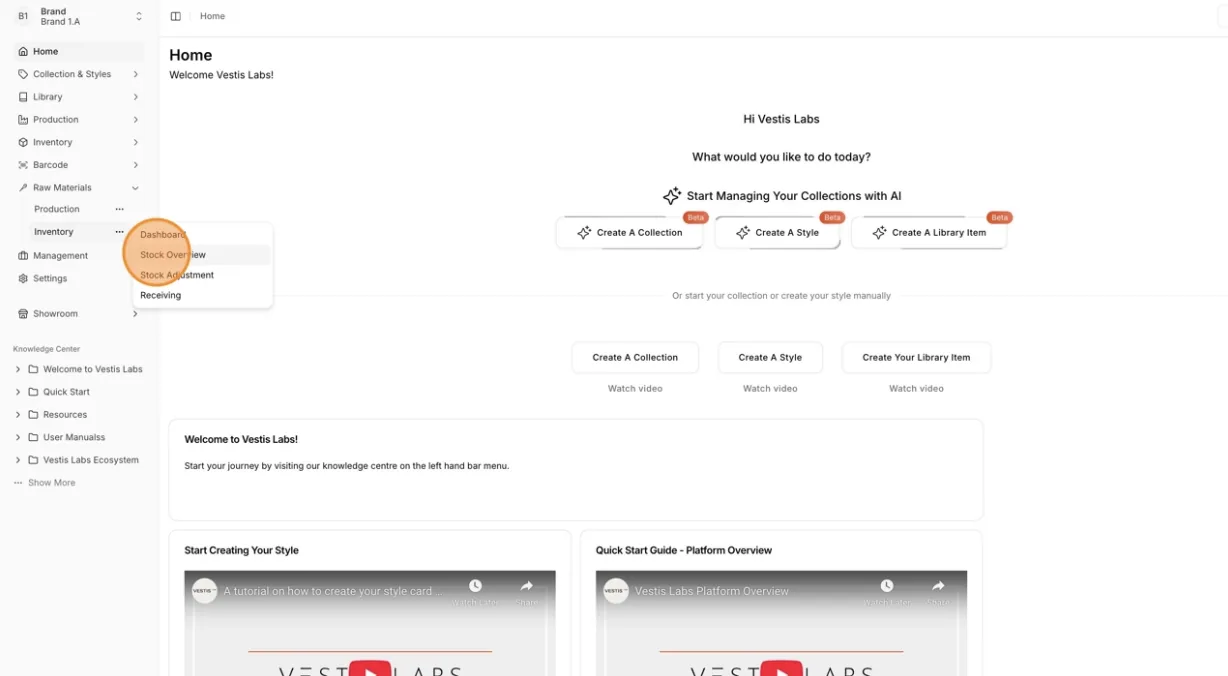
In the Inventory section, click Stock Adjustment.
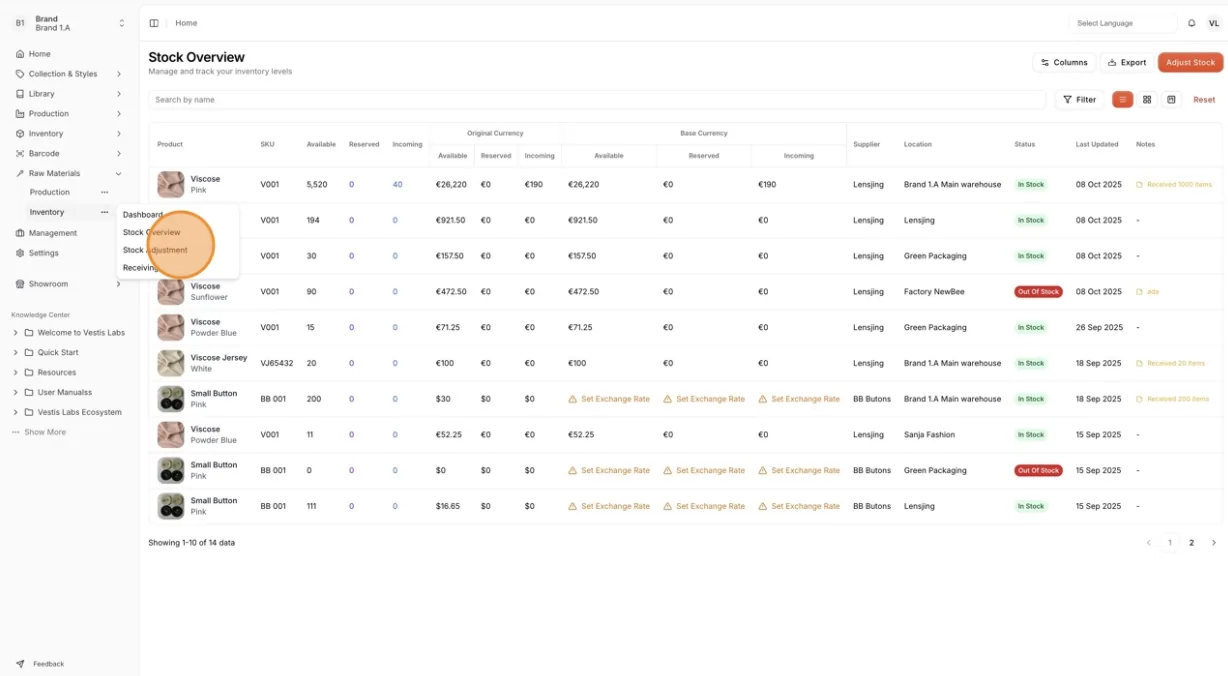
Click the Adjust Stock button to start updating the quantity. The Adjust Stock - Select Material & Variant window opens.
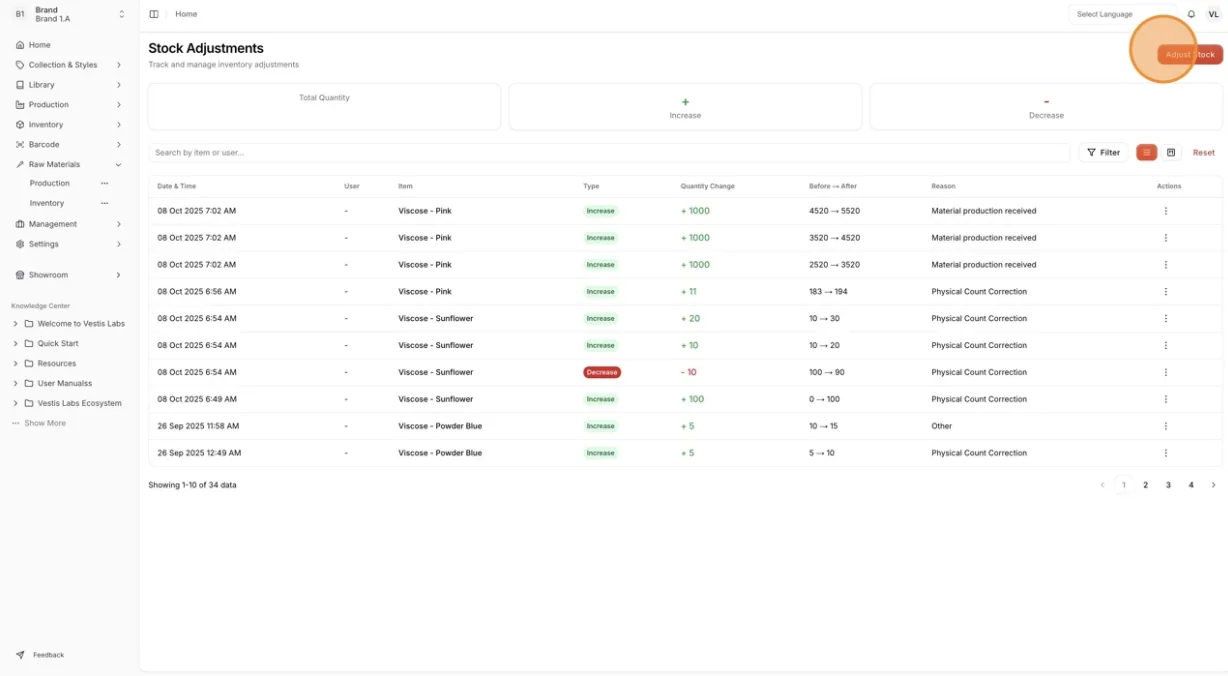
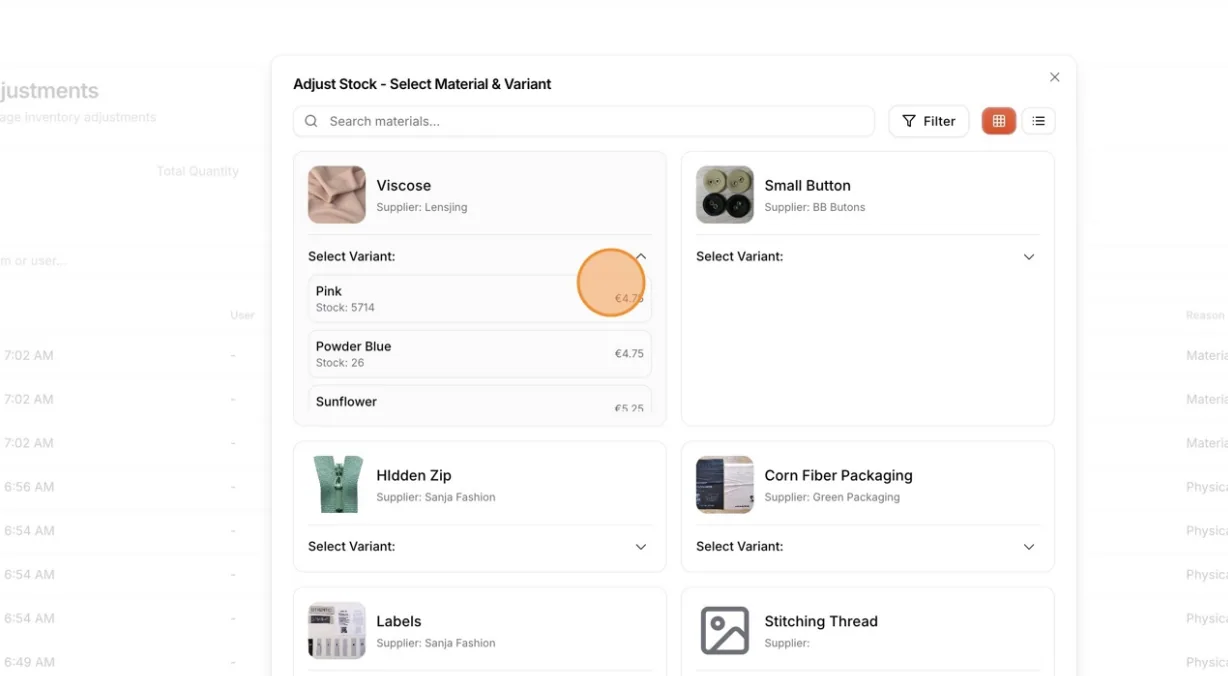
Find and select the item you want to adjust. Use Search materials... or the filters to narrow the list.
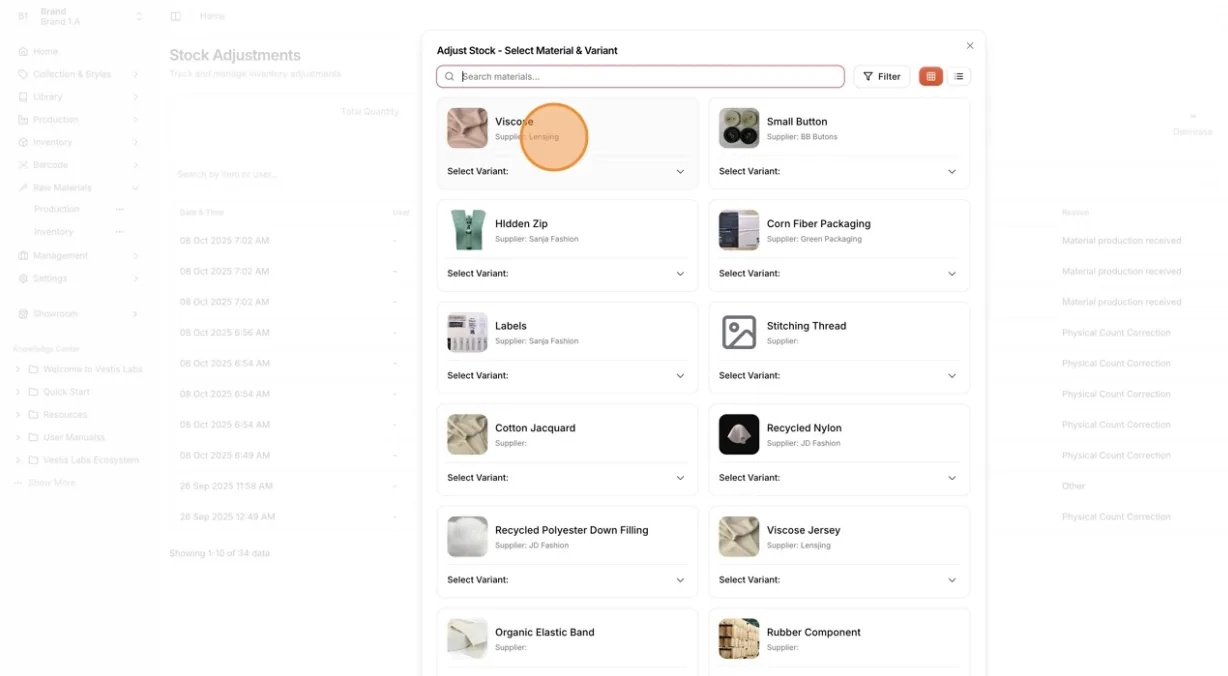
Click the dropdown menu to select the variant of the item.
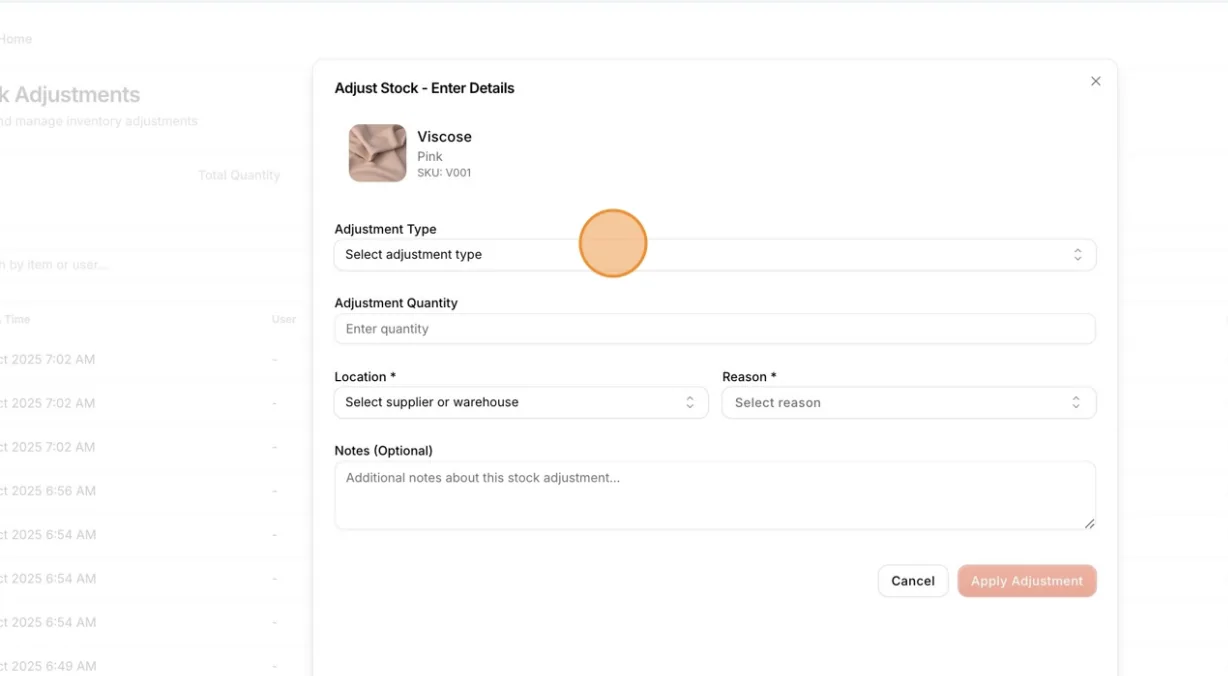
Click Select Adjustment Type.
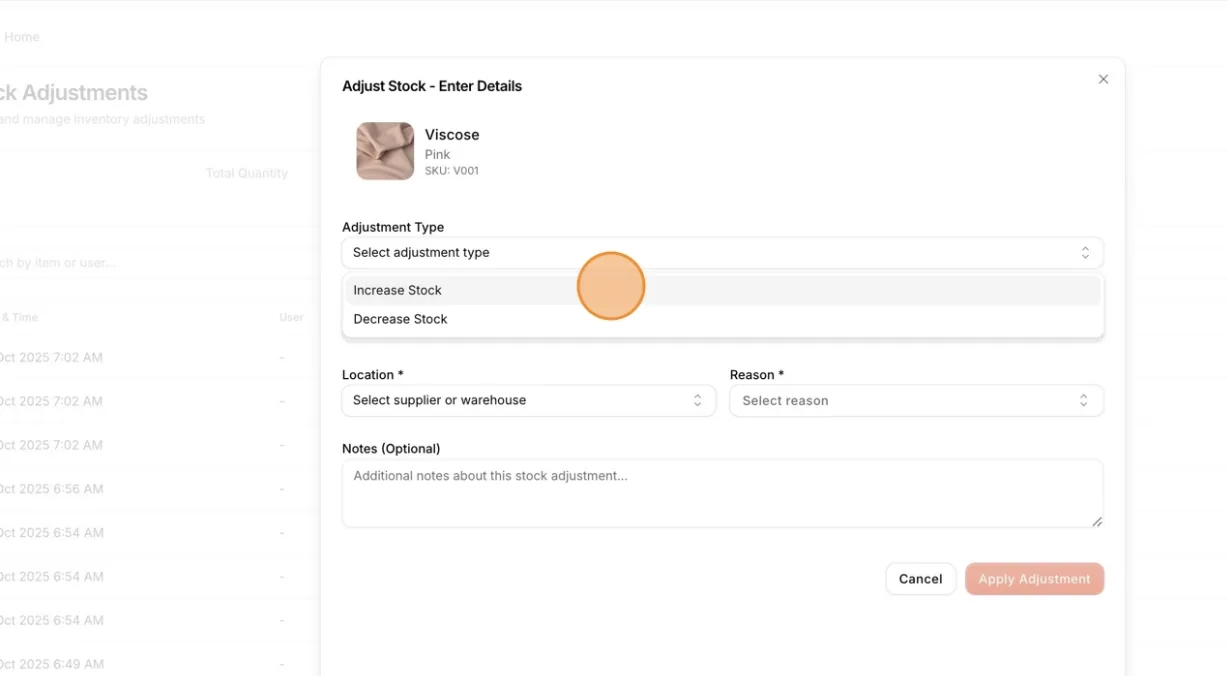
Choose Increase Stock or Decrease Stock, depending on your adjustment purpose.
- Increase Stock: When receiving new materials or correcting missing items.
- Decrease Stock: When removing damaged, lost, or consumed materials.
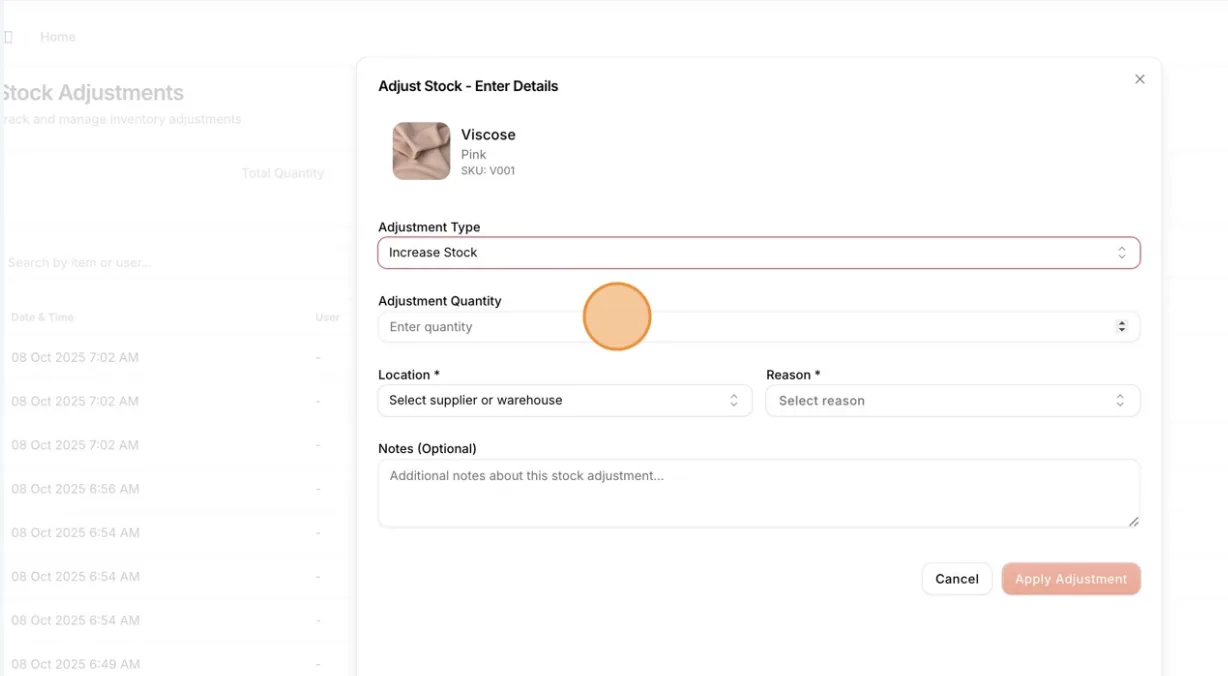
Click on the Adjustment Quantity field. Enter the number of items you want to add or remove.
Click Select Location (a supplier or a warehouse). This field is required.
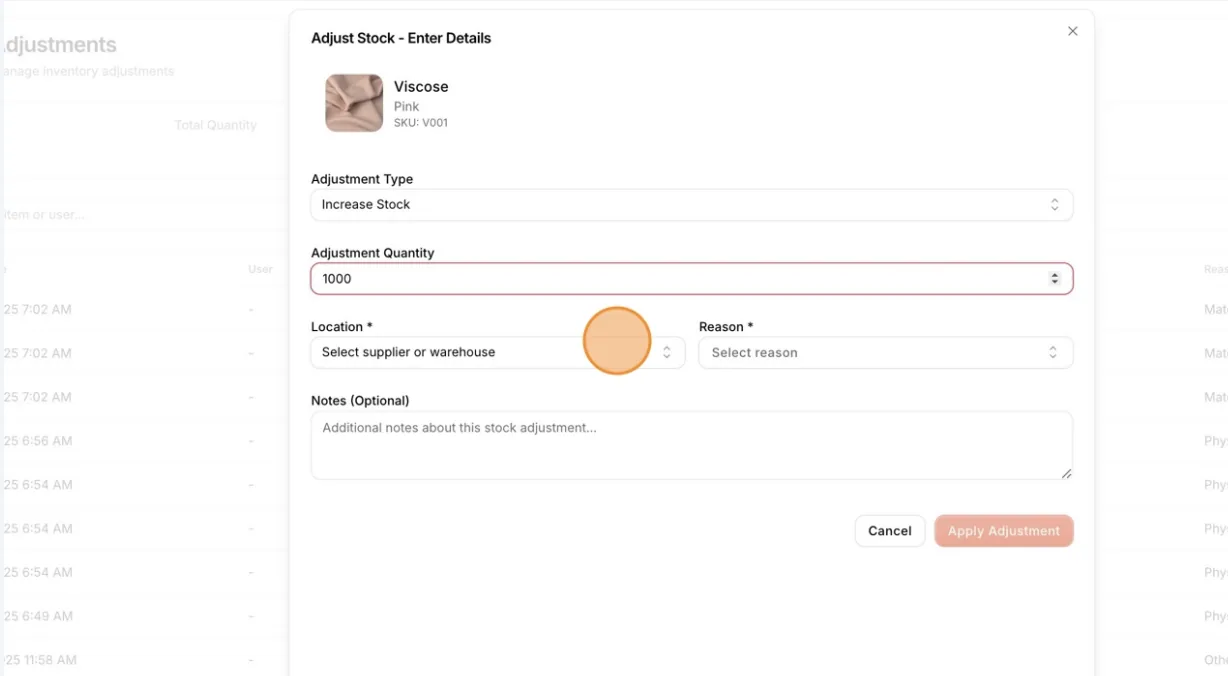
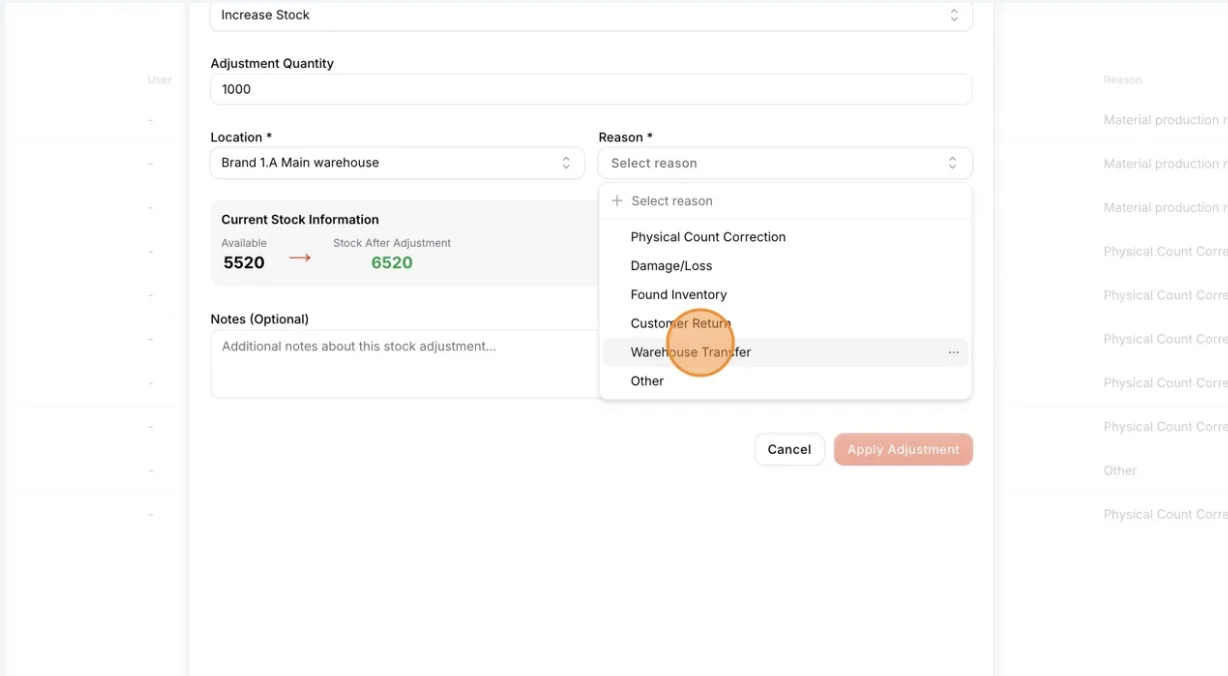
Click Select Reason. From the options, choose an appropriate reason. This field is required.
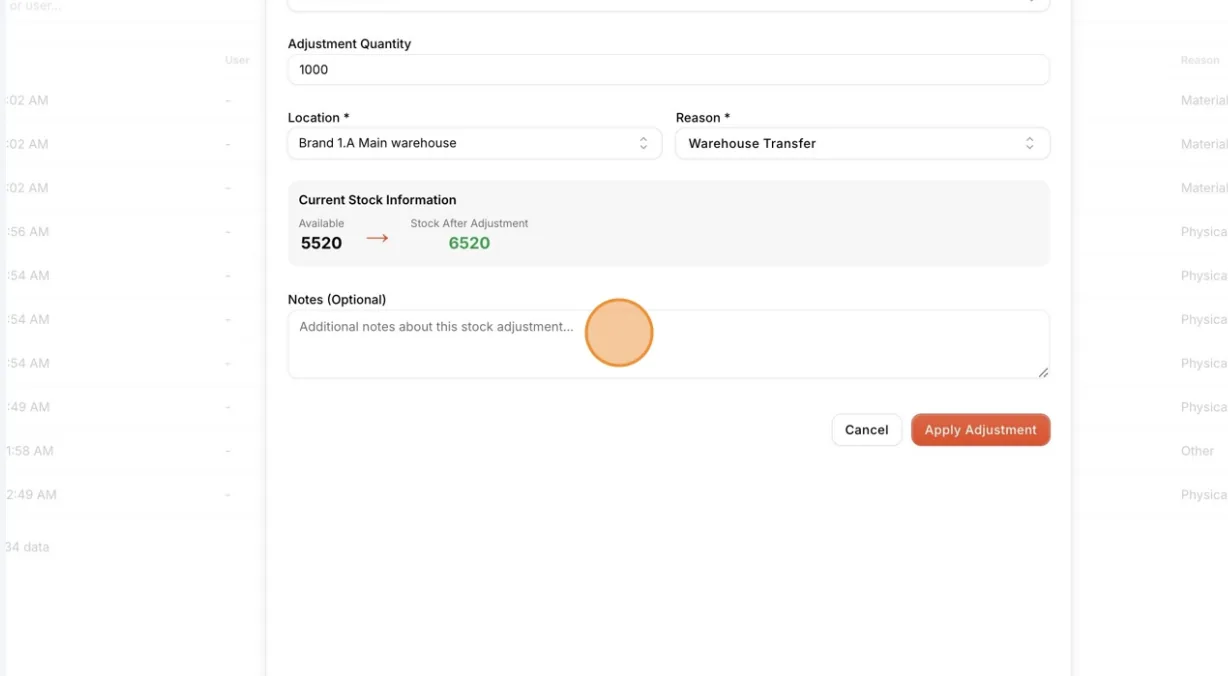
Users can add additional notes (Notes (Optional)).
Click Apply Adjustment to save your changes. The button stays unavailable until the type, quantity, location and reason are filled in.
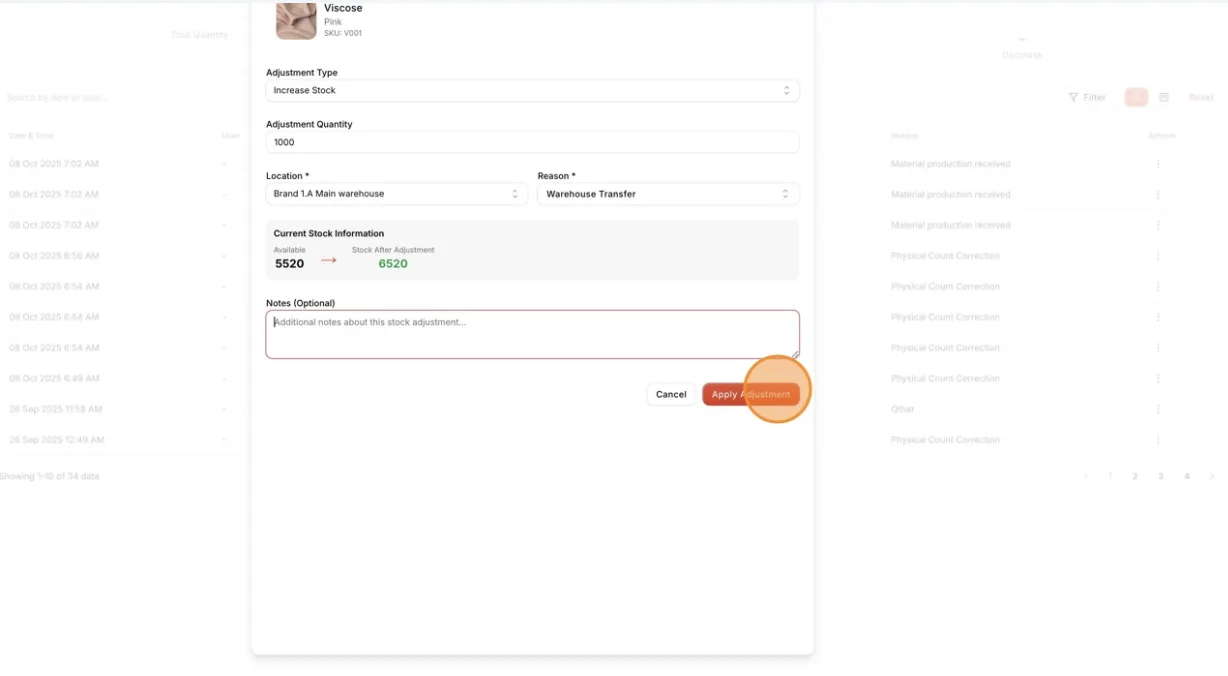
The system will update the item’s stock quantity automatically.