
Step 9 of 9 in Run a sampling round
Sample shipment analytics
See how many sample shipments you have in total and how many are preparing, in transit, delivered or cancelled.
The Analytics tab of Shipping & Tracking gives you a quick count of your sample shipments by status.
SamplingShipping & TrackingAnalytics
Permission: SAMPLING_VIEW
Open Shipping & Tracking
From the left sidebar, click Sampling, then Shipping & Tracking.
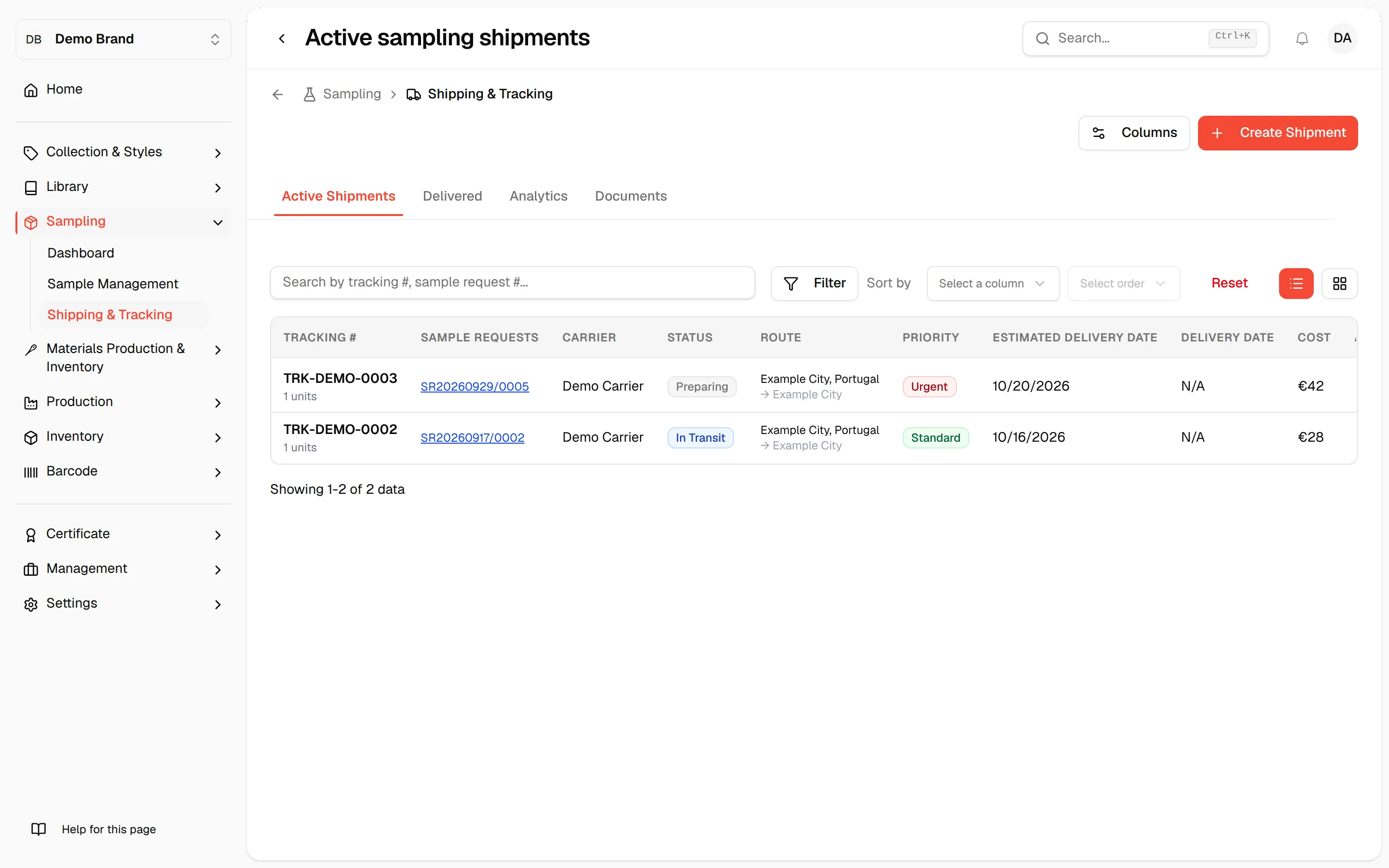
Click the "Analytics" tab
Click Analytics in the tabs above the list. The Sampling shipment analytics card opens with the text Performance metrics and insights.
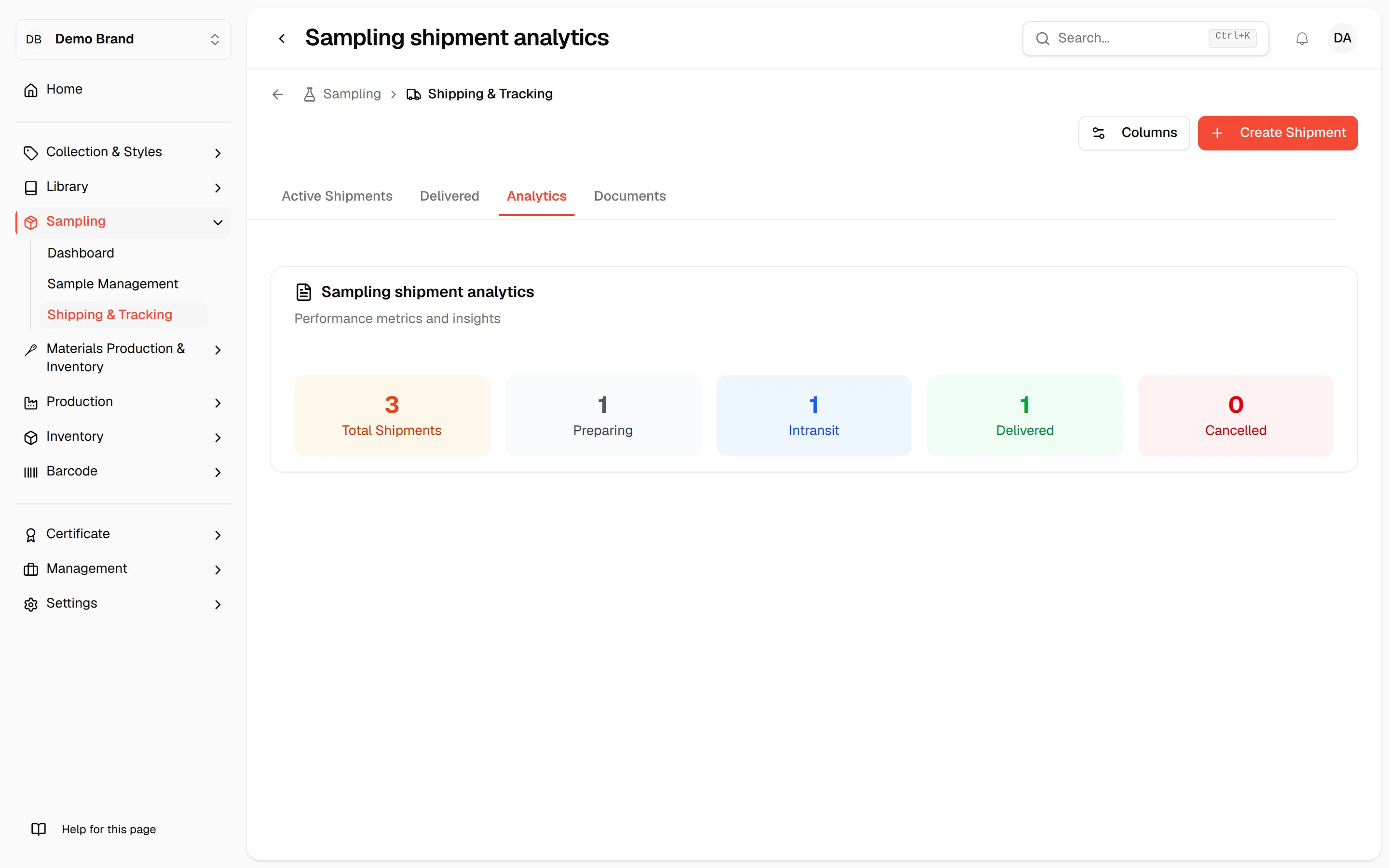
Read the numbers
The first tile is Total Shipments. The next tiles count the shipments that are preparing, in transit, delivered and cancelled.
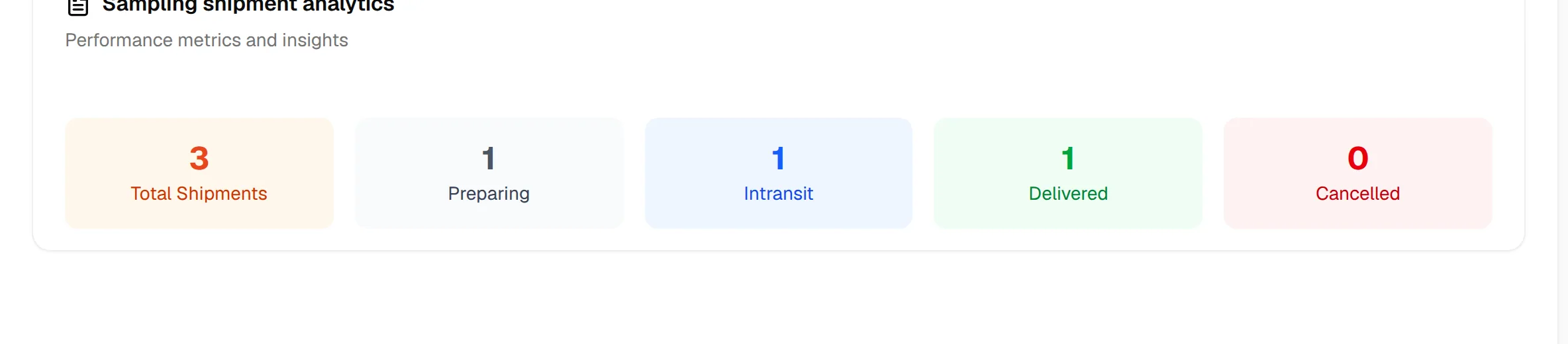
The tiles are counts only. To see the shipments behind a number, go to Active Shipments or Delivered and filter by status. See Track sample shipments.