
Raw material inventory dashboard
Read the raw material inventory dashboard: total items and value, low stock, out of stock, incoming materials and recent activity.
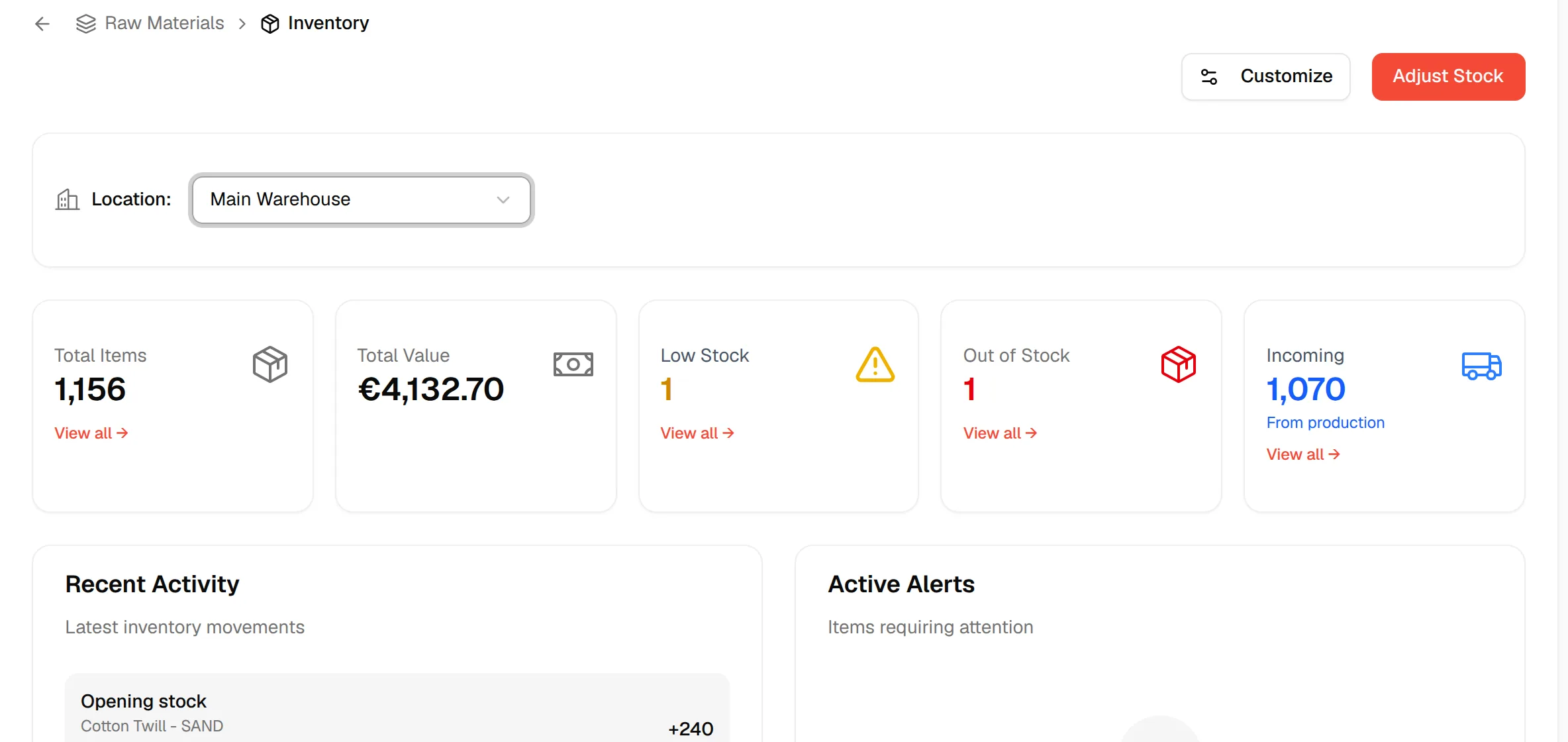
The inventory Dashboard gives you a quick summary of your raw material stock: how many items you hold, what they are worth, which are running low or out, and what is on its way from production.
Materials Production & InventoryInventoryDashboard
Permission: VIEW_MATERIAL_INVENTORY
What the dashboard shows
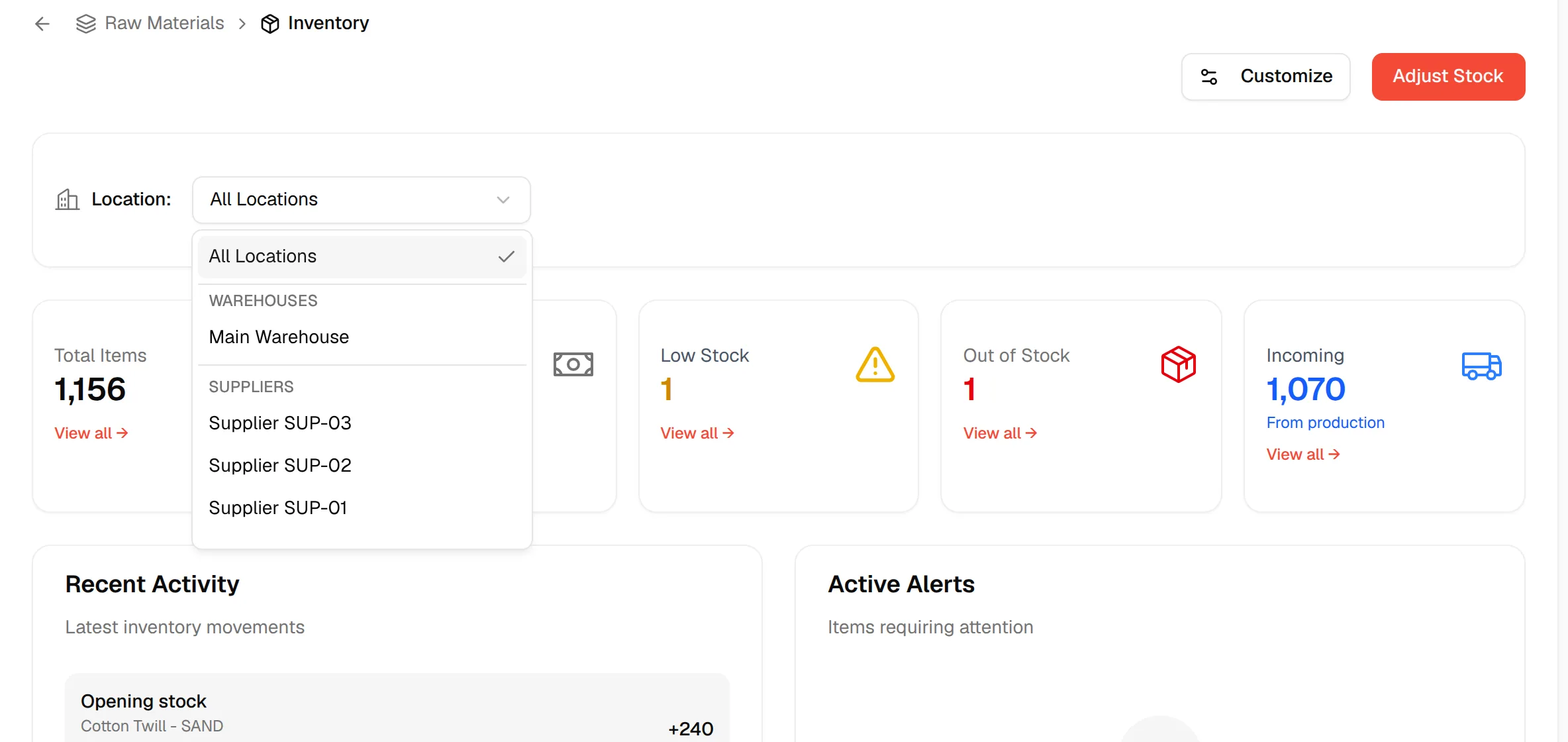
- Location: A selector at the top of the page. Choose All Locations, one of your Warehouses, or one of your Suppliers to see the figures for that place only.
- Total Items: The number of raw material items in stock.
- Total Value: The overall value of the stock.
- Low Stock: Items flagged as low in stock.
- Out of Stock: Items that are currently unavailable.
- Incoming: Quantities on the way, shown with the note From production.
- Recent Activity: The three latest stock movements, each with the reason, material, location, time and the quantity added (+) or removed (-). If there are none, it shows No recent activity.
The Total Items, Low Stock and Incoming cards each have a View all → link. They open Stock Overview (all items, or filtered to low stock) and Receiving respectively.
Choose a location
Open the Location selector
Click the Location: selector near the top of the dashboard.
Select a location
Select All Locations, a warehouse or a supplier.
Customise the dashboard
Click "Customize"
Click the Customize button at the top right.

Choose the cards to show
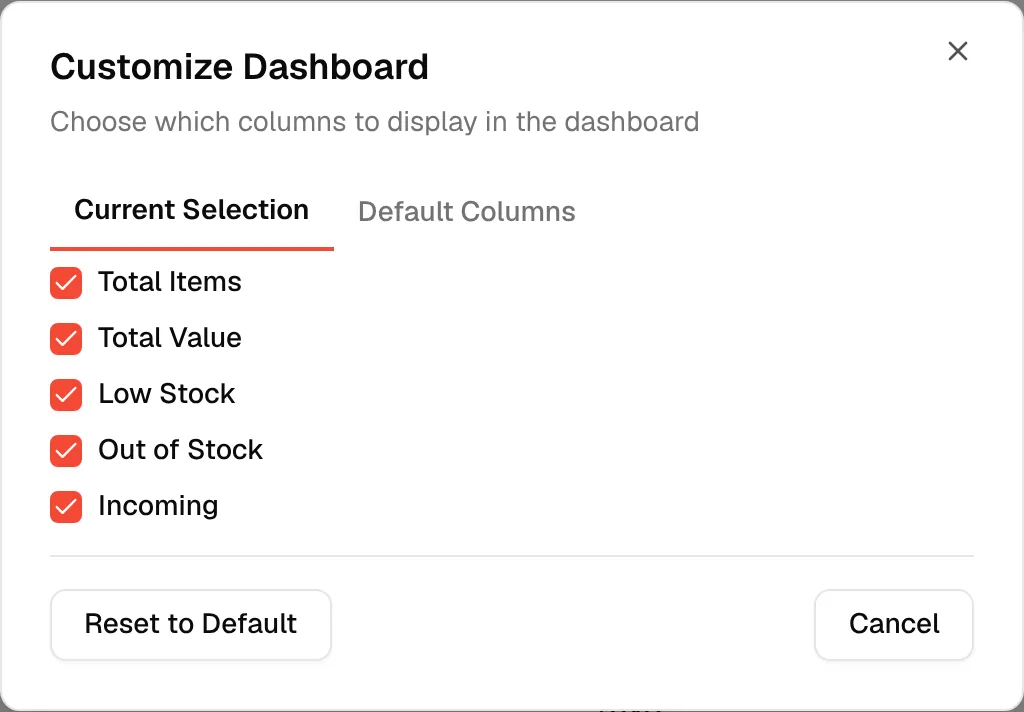
In the Customize Dashboard window ("Choose which columns to display in the dashboard"), check the cards you want: Total Items, Total Value, Low Stock, Out of Stock and Incoming.
Adjust stock from the dashboard
Users with permission to update material inventory see an Adjust Stock button at the top right. It opens the same window as on the Stock Adjustment page. See Adjust your inventory of raw materials.