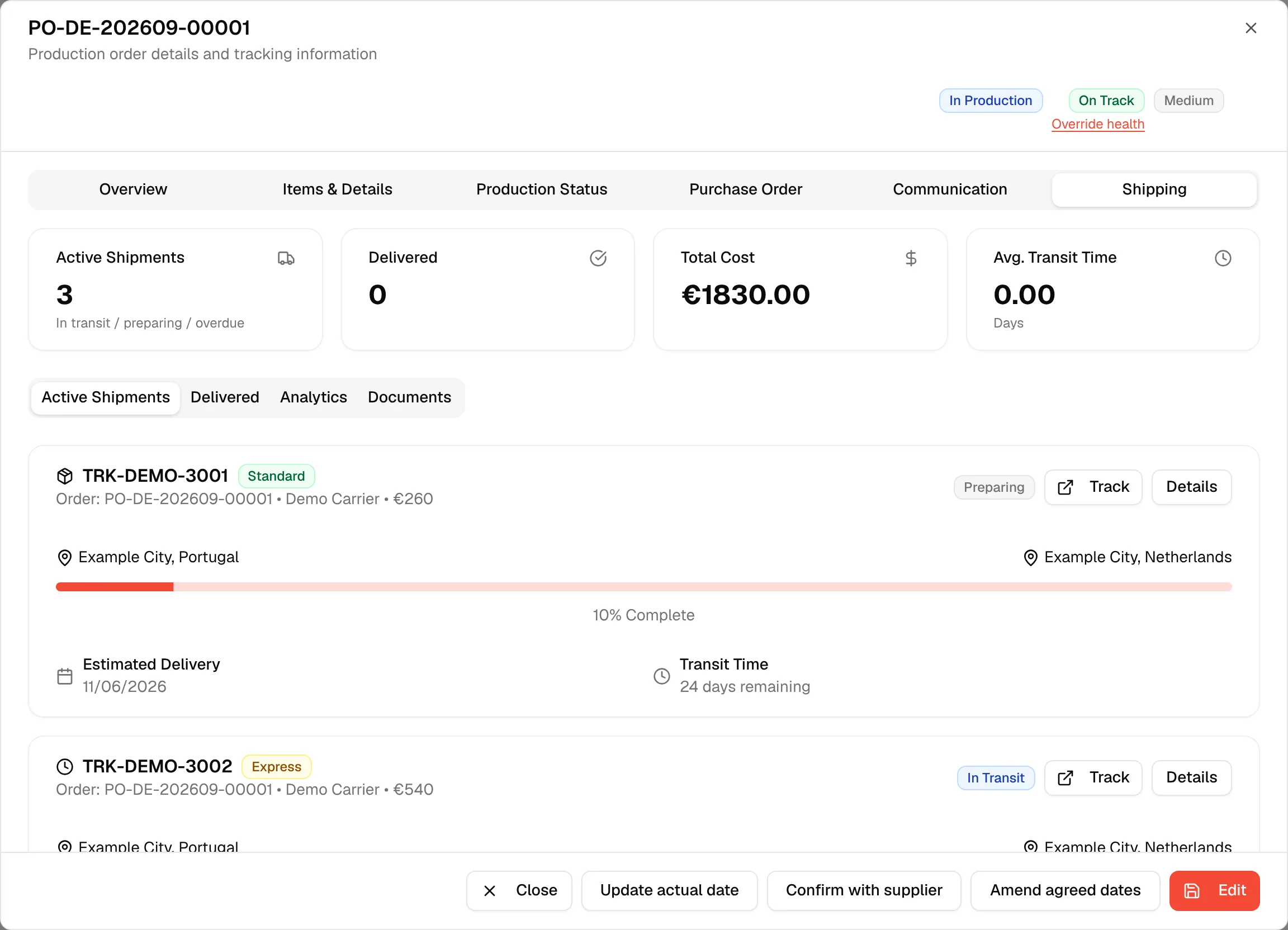
Shipping tab of a production order
Create a shipment for a completed production order and follow its active and delivered shipments, costs, route and documents from the order itself.
The Shipping tab of a production order shows every shipment created for that order, with its cost, route, delivery dates and documents. It is the quickest way to see where one order's goods are.
ProductionOrder Managementthree-dot menuView/EditShipping
Permission: VIEW_BRAND_PRODUCTION
Before you start
- To create a shipment you need the Update production permission. Without it, the Create Shipment button is not shown.
- The order needs a factory (supplier).
- The order status must be Completed or Shipped. Until then Create Shipment is disabled, and hovering over it explains why: "Assign a factory to this order before creating a shipment." or "Shipments can be created once production is completed."
Create a shipment from the order
Open the Shipping tab
Open the order with View/Edit and click the Shipping tab.
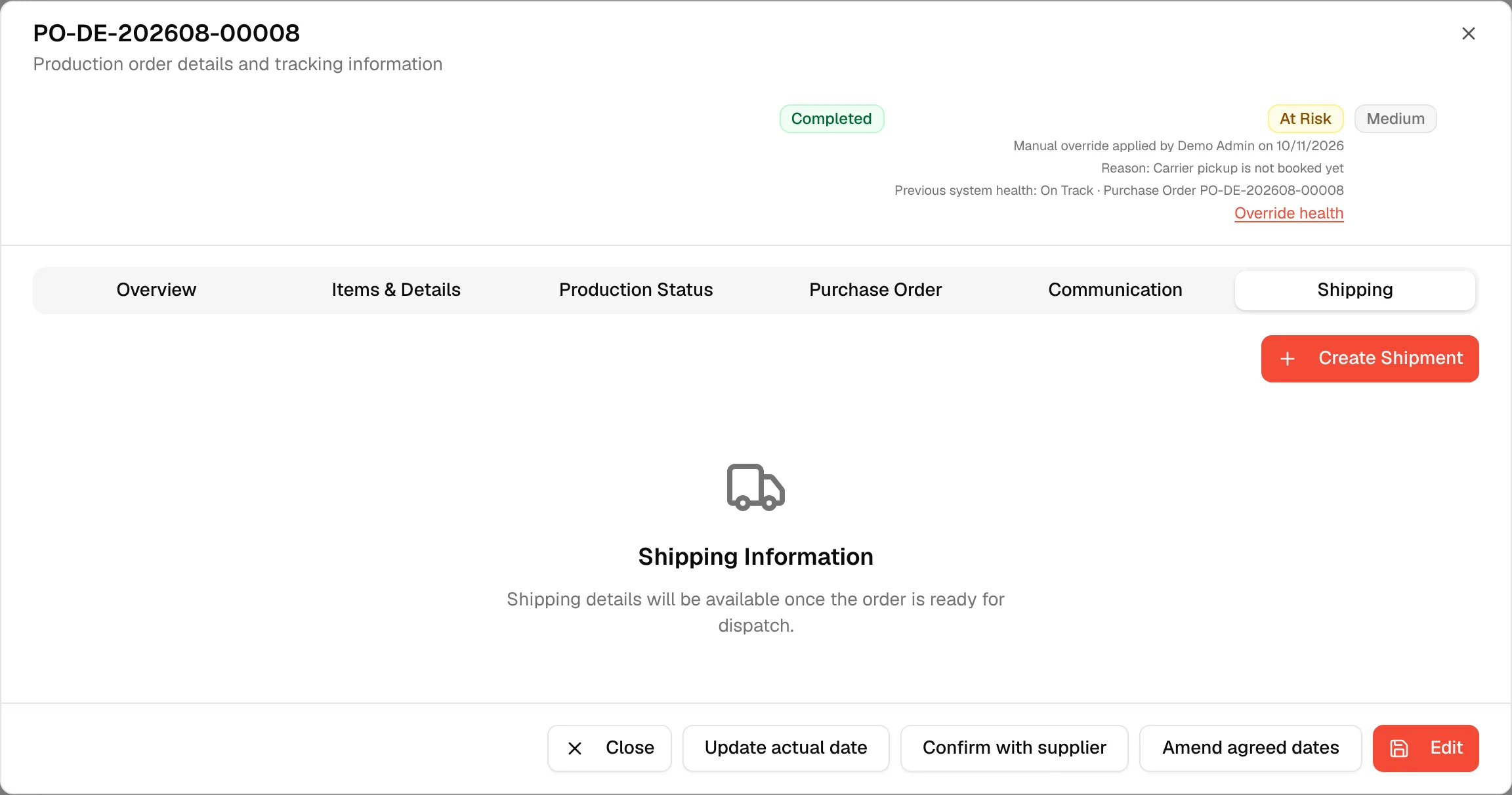
Click "Create Shipment"
When the order has no shipments yet, Create Shipment is shown at the top right of the tab and the page reads "Shipping details will be available once the order is ready for dispatch."
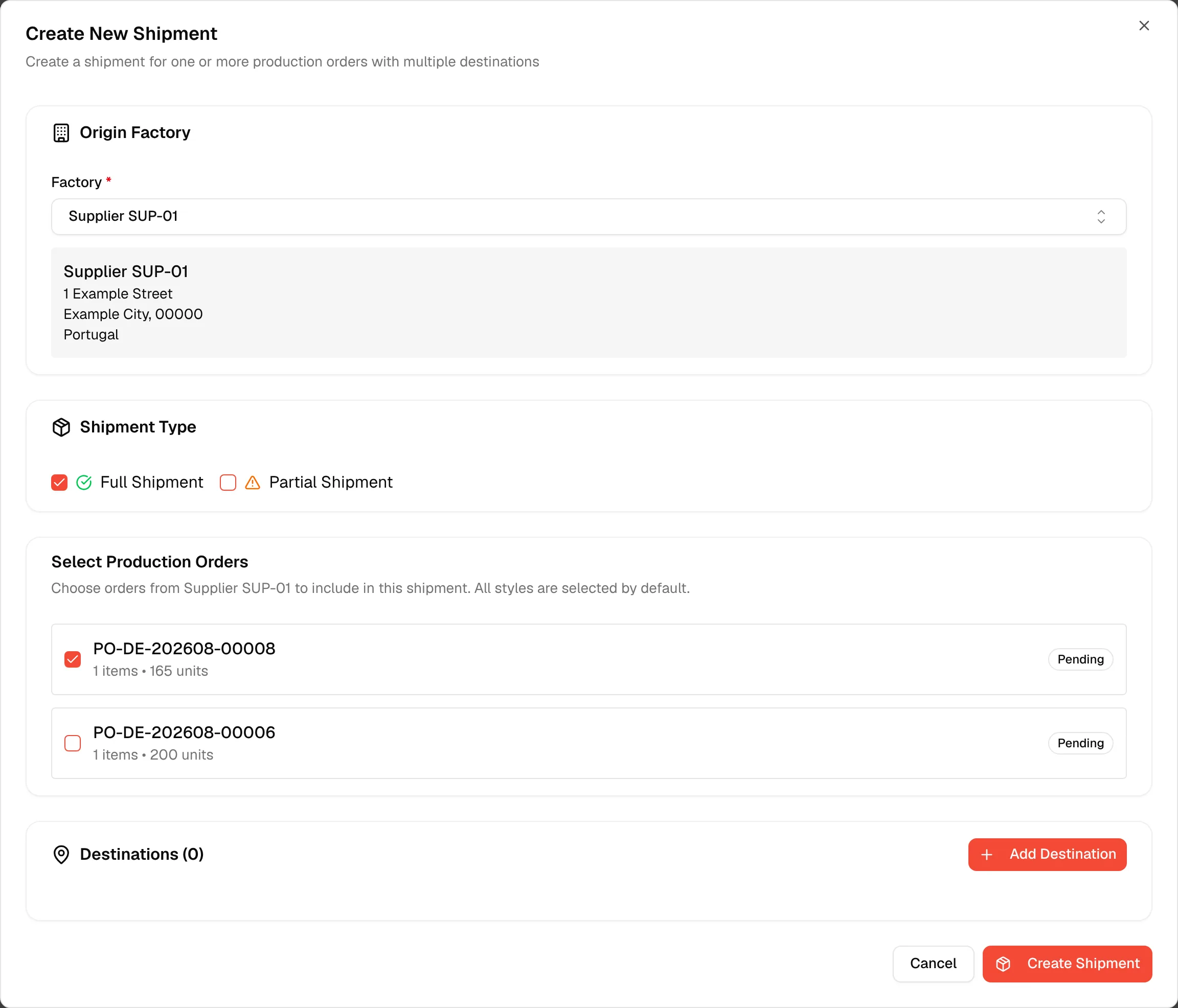
Fill in the shipment
The Create New Shipment dialog opens with this order already selected. Complete the factory, shipment type, destination and shipment details, then click Create Shipment. See Create a shipment for each field.
The new shipment appears on the Shipping tab.
The summary cards
Once the order has shipments, four cards sit above the tabs:
- Active Shipments – The number of shipments that are preparing, in transit or overdue.
- Delivered – The number of delivered shipments.
- Total Cost – The sum of the shipping costs of all shipments, in the brand's base currency.
- Avg. Transit Time – The average transit time of the shipments.
The four tabs
Active Shipments
Each active shipment is a card with its tracking number, a priority badge, the order number, the carrier, the shipping cost and a status badge. Under it you see the route from the factory's city and country to the delivery location, a progress bar with the percentage complete, the Estimated Delivery date and the days remaining.
- Click Track to open the carrier's tracking page in a new tab. Nothing opens if the shipment has no tracking number and tracking link.
- Click Details to open the shipment details dialog.
If there is nothing to show, the tab reads "No shipping information available for this status."
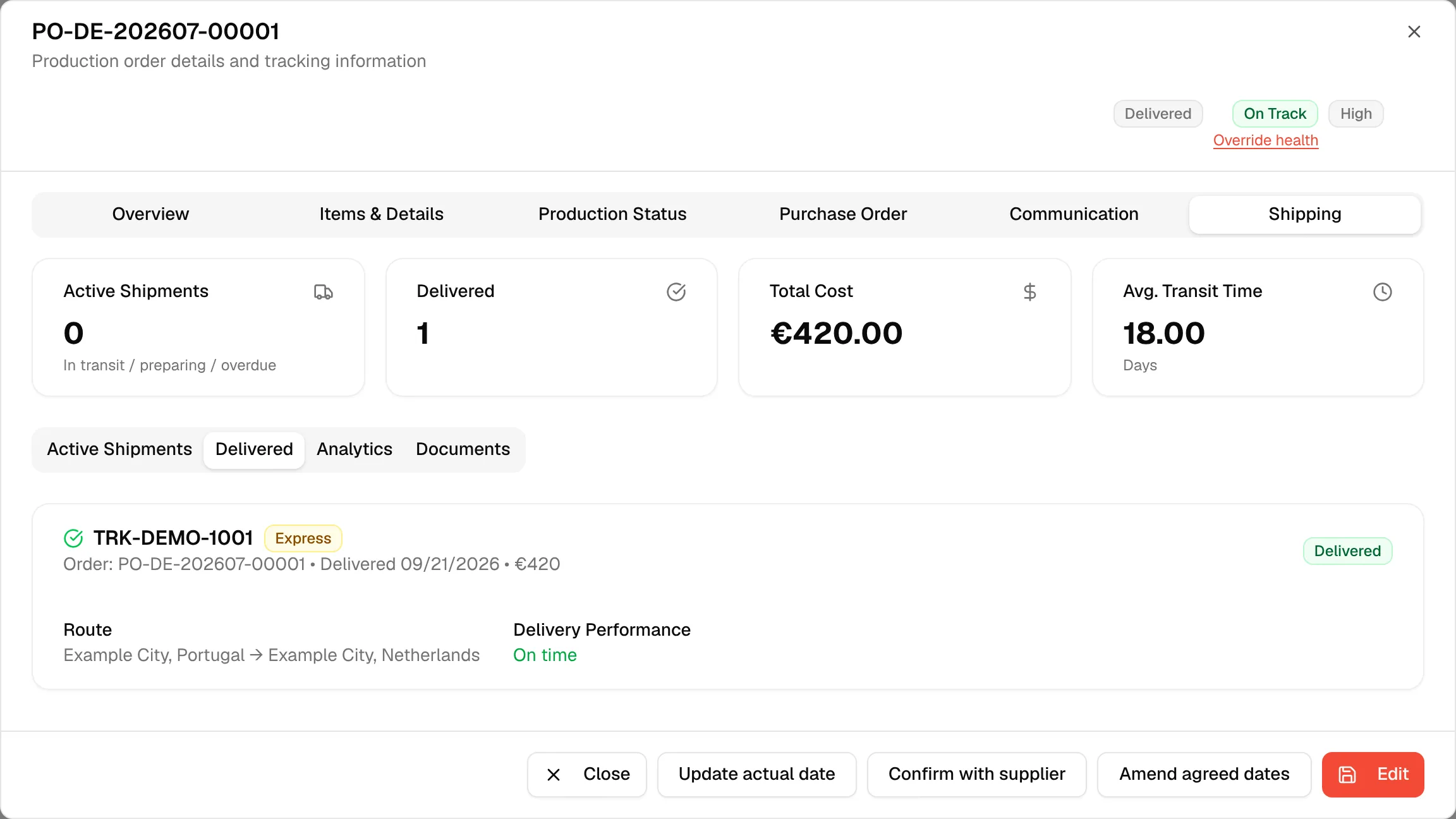
Delivered
Delivered shipments show the tracking number, priority, the order number, the delivery date and cost, the route, and a Delivery Performance of On time or Delayed.
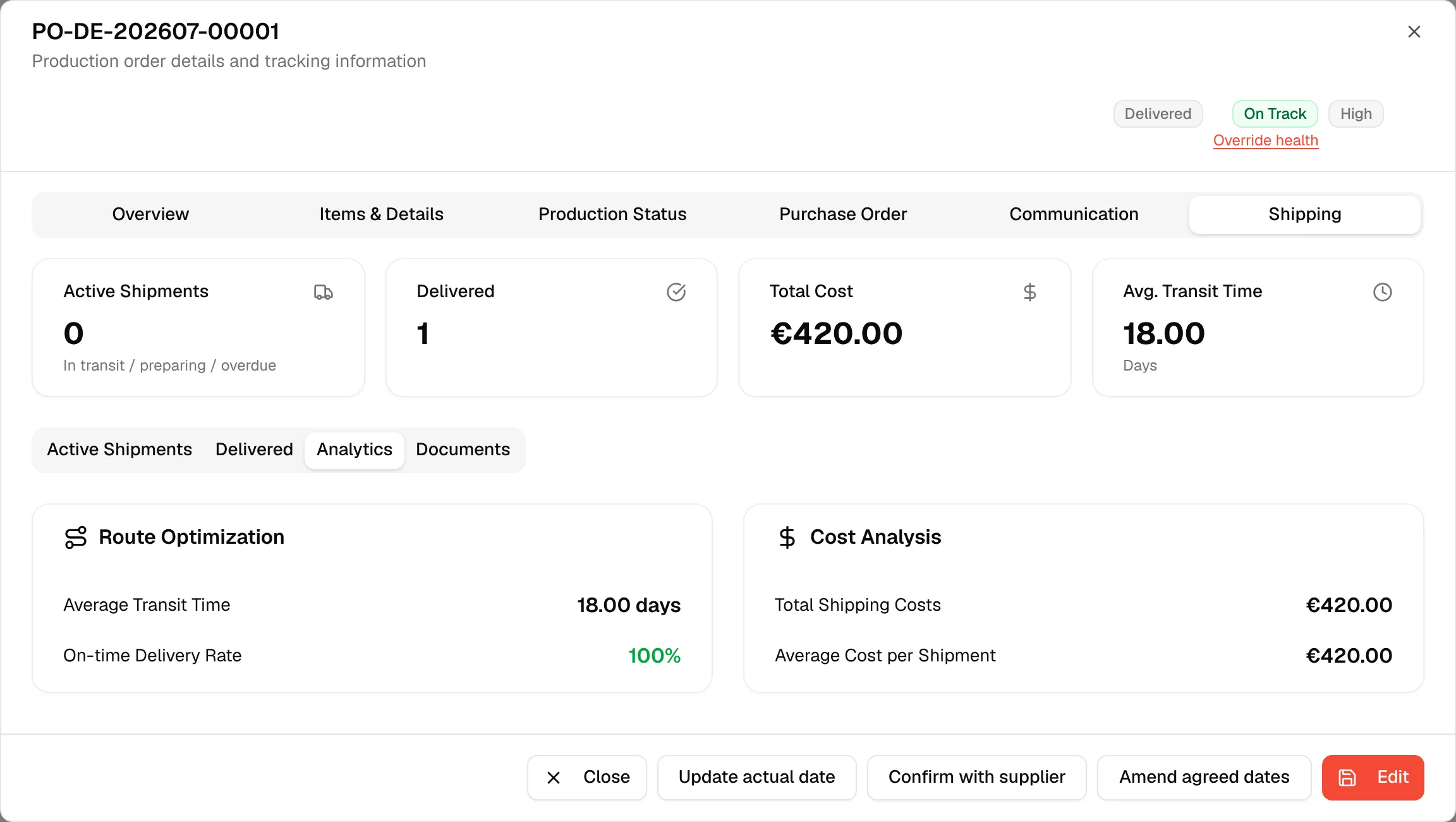
Analytics
Two cards summarise the order's shipments. Route Optimization shows the Average Transit Time in days and the On-time Delivery Rate. Cost Analysis shows the Total Shipping Costs and the Average Cost per Shipment.
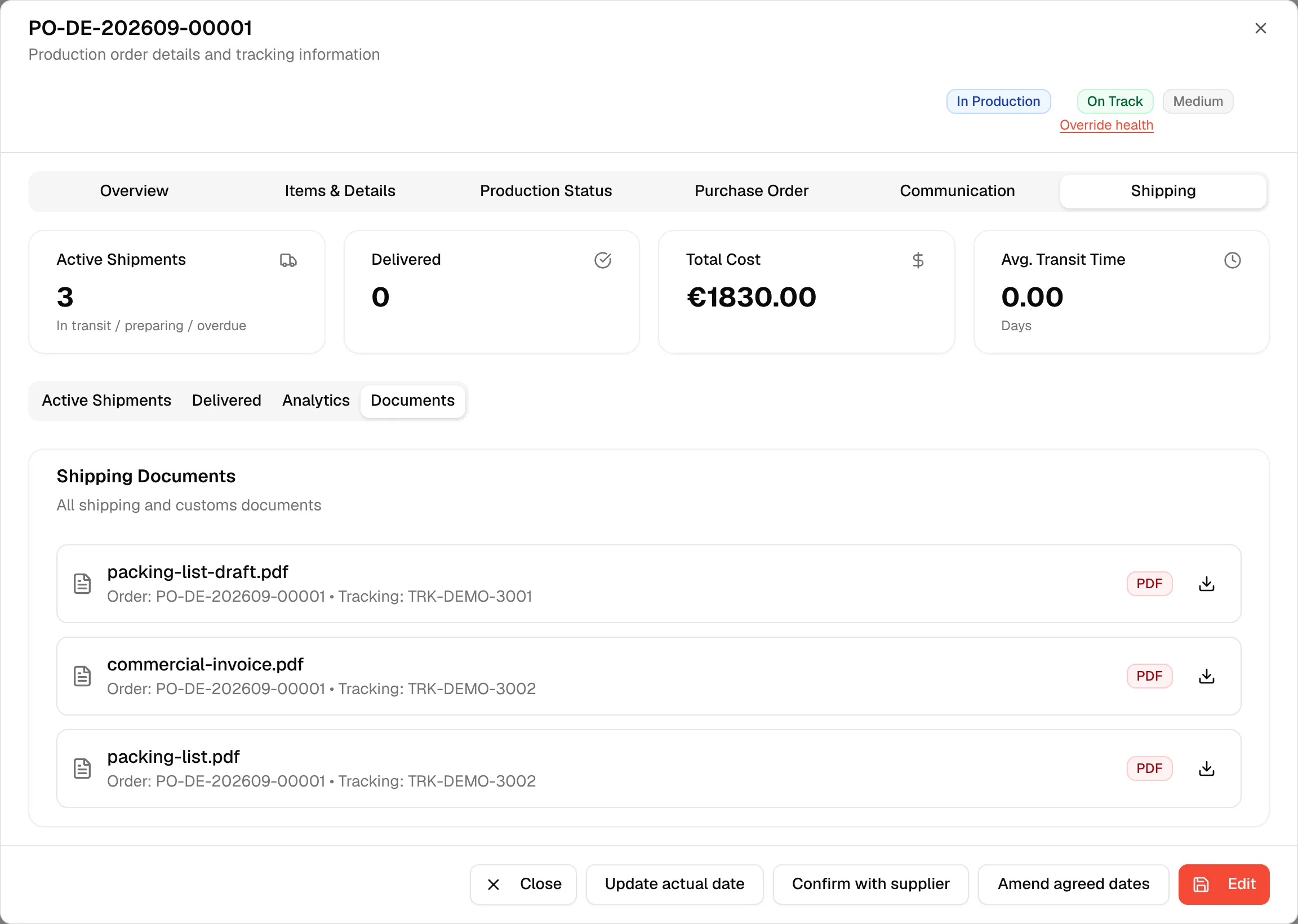
Documents
Shipping Documents ("All shipping and customs documents") lists every document uploaded to the order's shipments, with the order number, the tracking number and its type, for example PDF or Excel. Click the download icon to download it. If there are none, the tab reads "No documents available for this shipment."
Shipment details
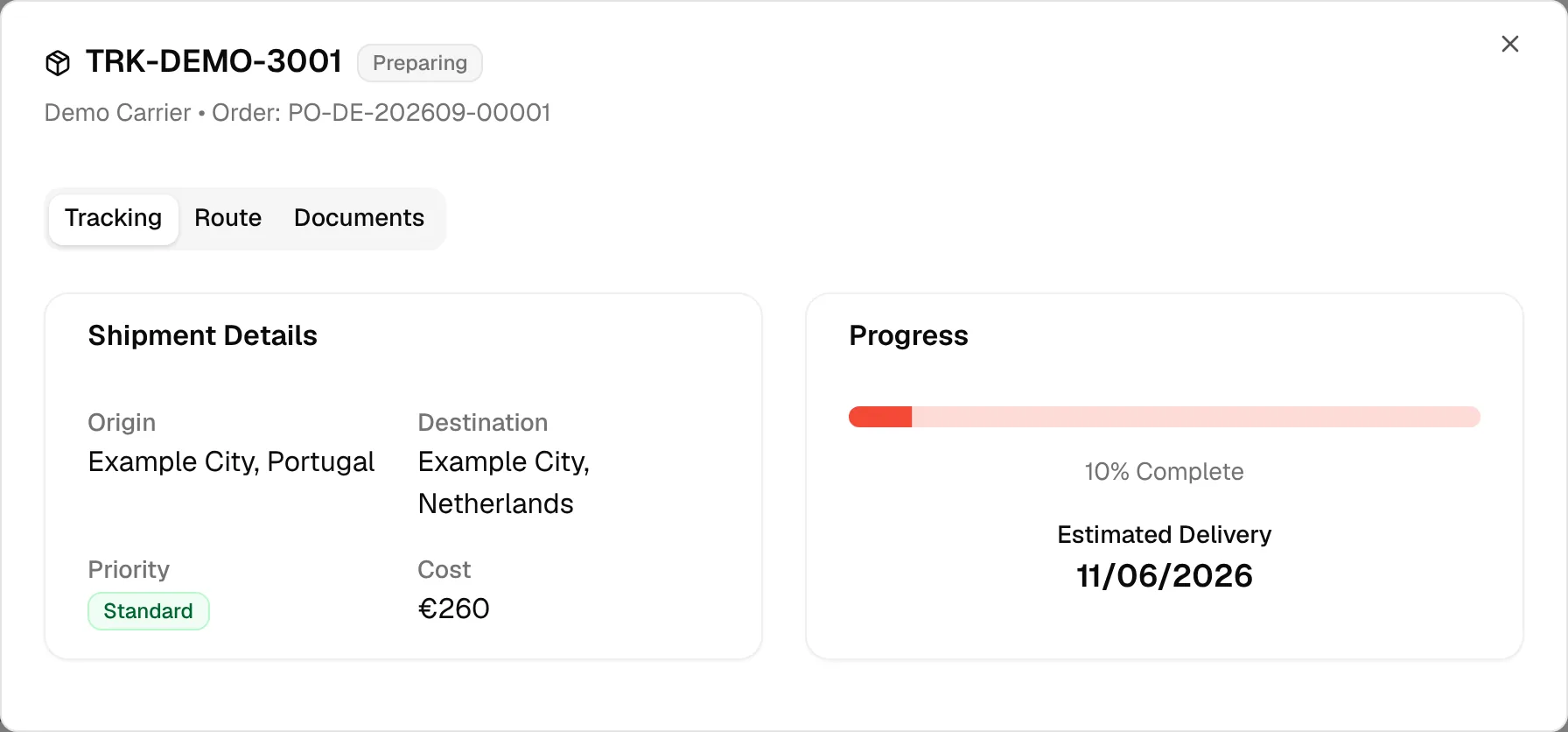
Details opens a dialog titled with the tracking number and status, with three tabs:
- Tracking – Shipment Details (Origin, Destination, Priority, Cost) and Progress with the percentage complete and the estimated delivery date.
- Route – A timeline of Shipment Preparation, In Transit and Delivered, with the start date, the actual dates reached and the estimated delivery date. Steps not reached yet read Pending.
- Documents – The documents of this shipment, with the upload date and a download icon.