
Open and edit a material
Open a material from the library, understand its tabs, edit its details with autosave, and know when a material is read-only.
Every material has its own page with a row of tabs. The first tab, Details, holds the same form you used to create the material, and you can change anything on it. Most edits are saved for you as you type.
LibraryMaterials(open a material)Details
Permission: UPDATE_PRODUCT,VIEW_PRODUCT
Open a material
Open the Material Library
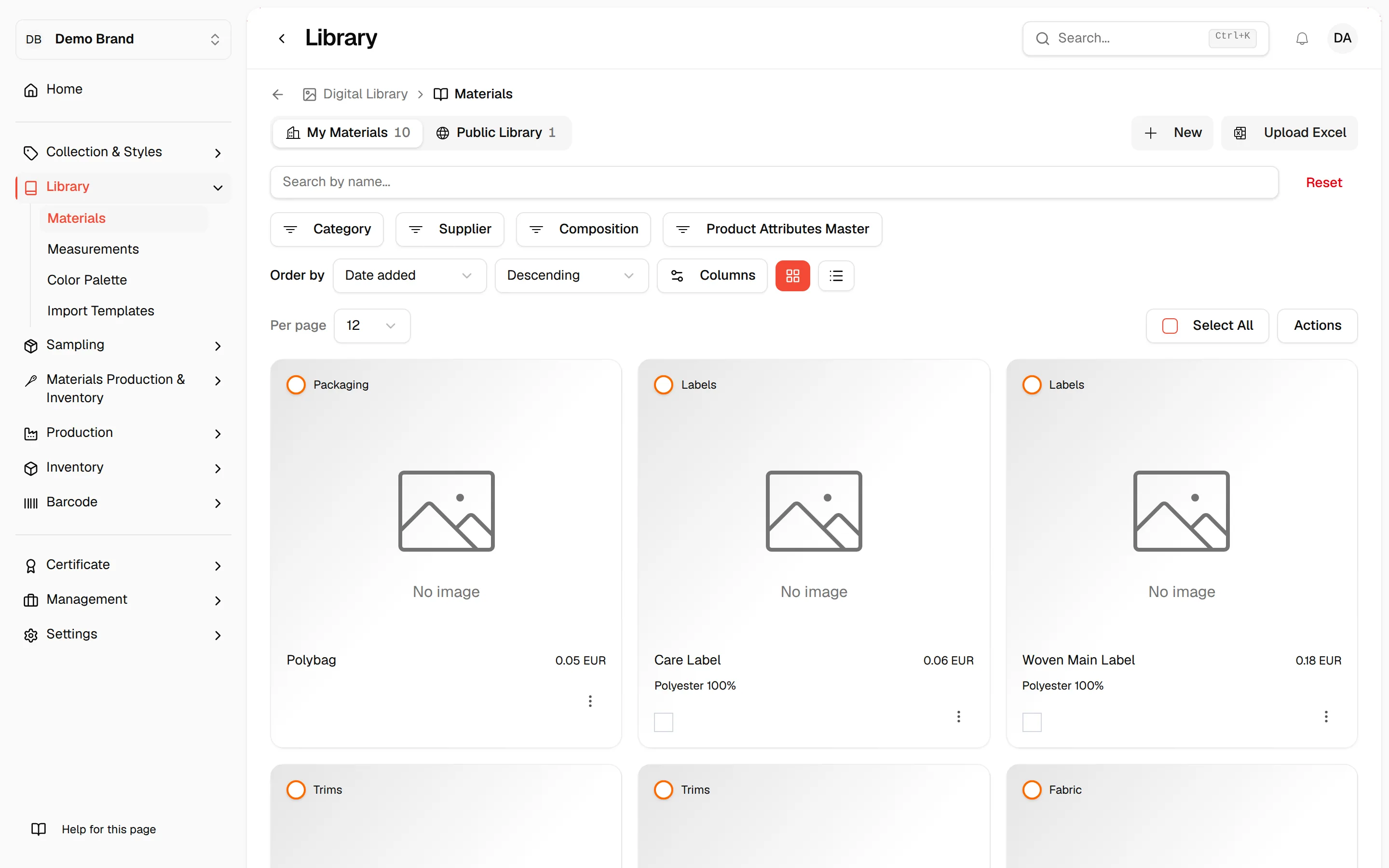
From the left sidebar, click Library, then Materials.
Open the material
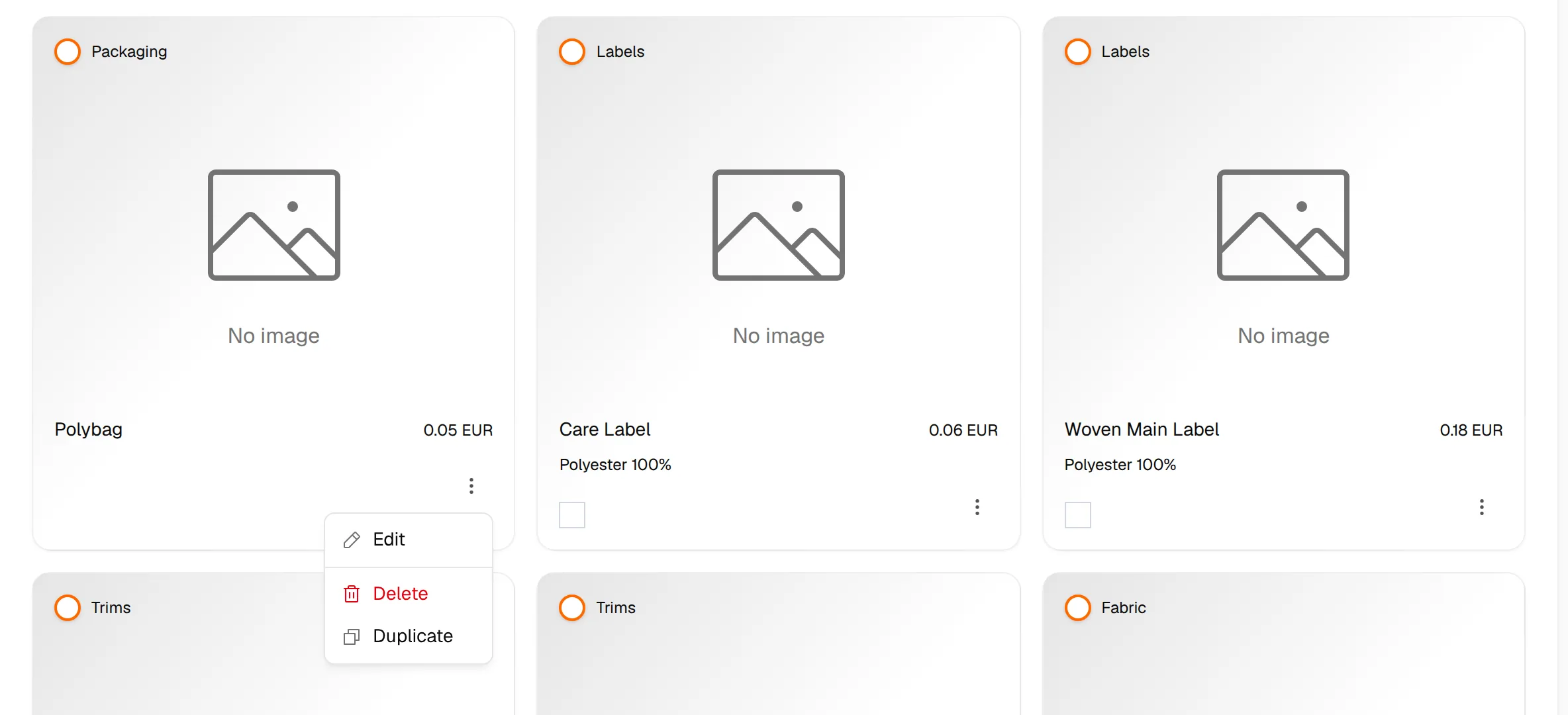
In the card view, click the material image. In either view, click the three dots and then Edit.
Choose a tab
The material opens on Details. Use the tab row at the top to move to the other tabs.
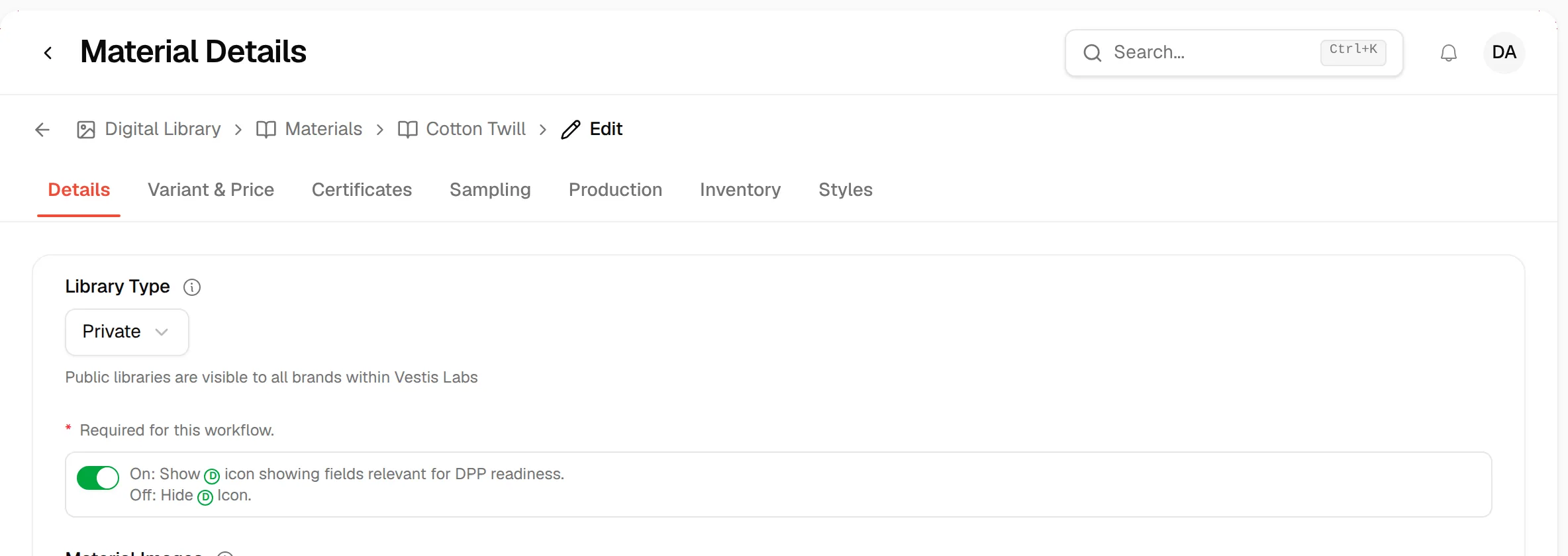
You can also arrive here from the pages that create a material for you. After you submit a material built with AI, Vestis opens it on Details.
The tabs
| Tab | What it is for |
|---|---|
| Details | The material form. This page. |
| Variant & Price | The price of each colour. See Set prices for colour variants. |
| Certificates | See Material certificates. |
| Sampling | Shown when sampling is turned on for your brand. |
| Production and Inventory | Shown when material production is turned on for your brand, and the material is private. |
| Styles | Shown for private materials. See See which styles use a material. |
Edit the details
The form has the same fields as the create form, listed in Every field on the material form. A few things work differently when you edit:
- The code is called Supplier Code (SKU) and there is a Material Code field.
- Created By shows who created the material when material invitations are on. Only that person can add or remove Invited Users.
- Price has an Edit pricing button. See Set quantity-break pricing for a material.
- When sampling is on, a Request Sample button offers Request Sample and Request Lab Dip for any colour. Vestis shows "Sample request created successfully".
What saves by itself
Changes to most fields are saved automatically about a second and a half after you stop typing. A small message shows Saving... and then Saved.
Autosave waits while something on the form is incomplete: the Name or Code is empty, a composition is missing its composition or percentage, a colour has no name, or a media row has no title, no URL or a file that has not been saved yet. Complete the row and it saves.
Some changes are never saved by autosave. For these, click Save at the bottom right:
- adding or removing Material Images, which shows "Image changes aren't saved automatically — click Save to apply them.";
- adding media from a file.
Change a field
For example, type a new Memo.

Watch for "Saved"
Wait for the Saved message.
Click "Save" for images and files
Click Save at the bottom right to apply image and media-file changes. You see "Updating product..." and then "Product updated successfully".

If Save cannot go ahead because a field is not valid, Vestis shows a message naming the first problem. Cancel takes you back to the library list.
Change the library type
The Library Type field at the top follows these rules:
- A private material can be made Public after you confirm Make Library Public.
- A public material cannot be changed back to private once another brand is using it. In that case the field is locked and explains that the library is public and cannot be changed to private. Contact support if you need help.
When a material is read-only
A public material that belongs to another brand opens read-only. Its fields show as plain text (Name, Supplier Code (SKU), Material Code, Category, price, colours and so on), nothing autosaves and Save is disabled. Only the owning brand can change it.
Troubleshooting
I cannot open a material. Opening a material needs the permission to update products, not only to view them. Ask your administrator.
My change did not stick. Check that no row on the form is incomplete (a composition without a percentage, a colour without a name, a media row without a title). Autosave skips the form until it is complete. Also remember that images and media files need Save.