
Product ID page
Product ID Page allows users to manage the product detail, product journey, and custom page.
Under review. This page is published while we check it against the live app, so some details may have changed.
Screenshots may be out of date.
Permission: PRE_SALE_CONTENT
Collection & StylesStyles(your style)Product ID
From the left bar menu, go to Collection & Style > Style. Select the created style and select Product ID in the style menu.
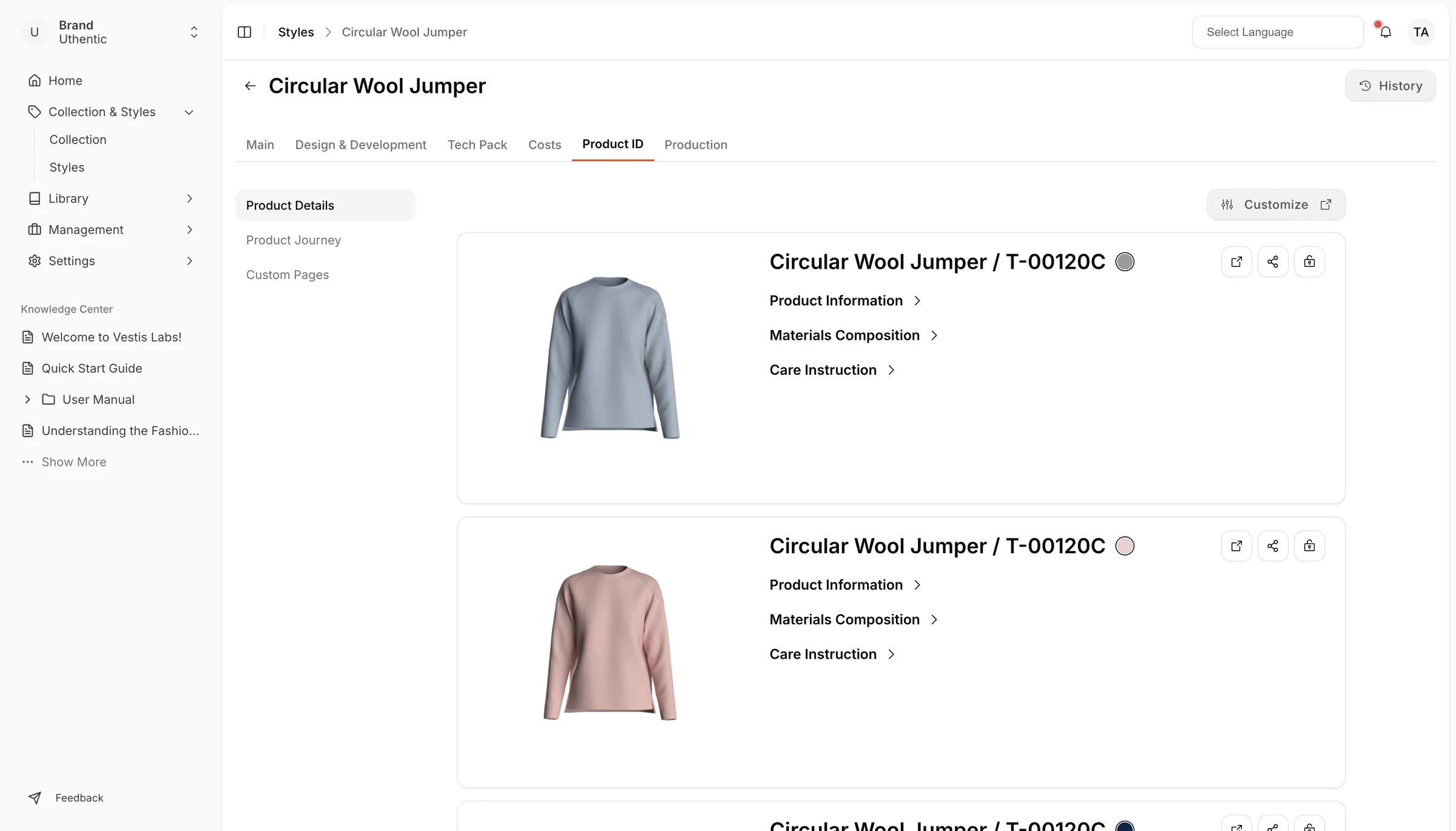
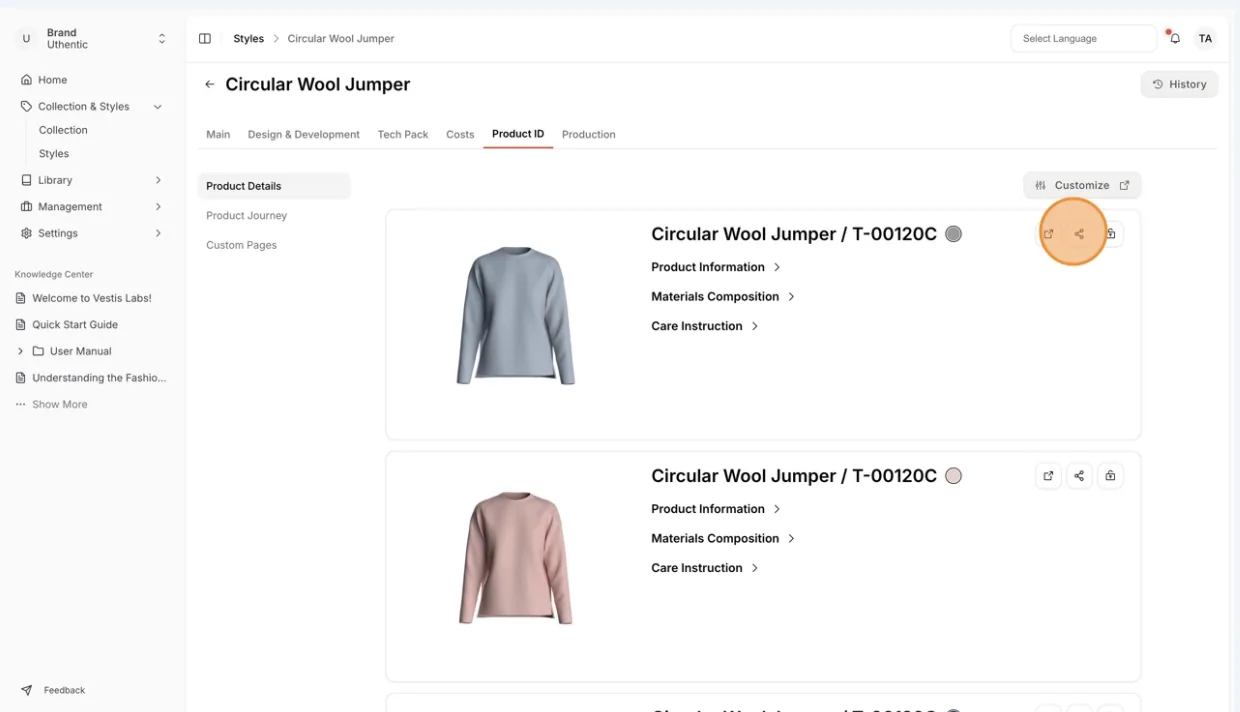
On the product detail page, you can see the product information, material composition, and care instructions.
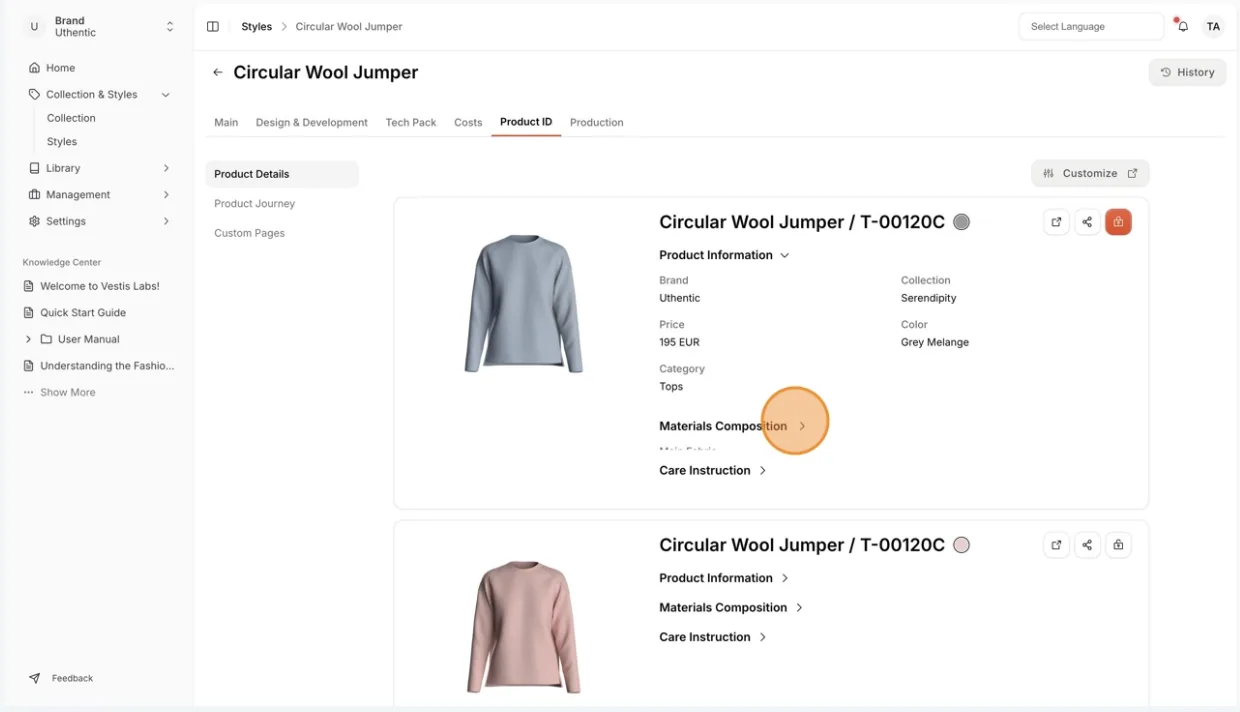
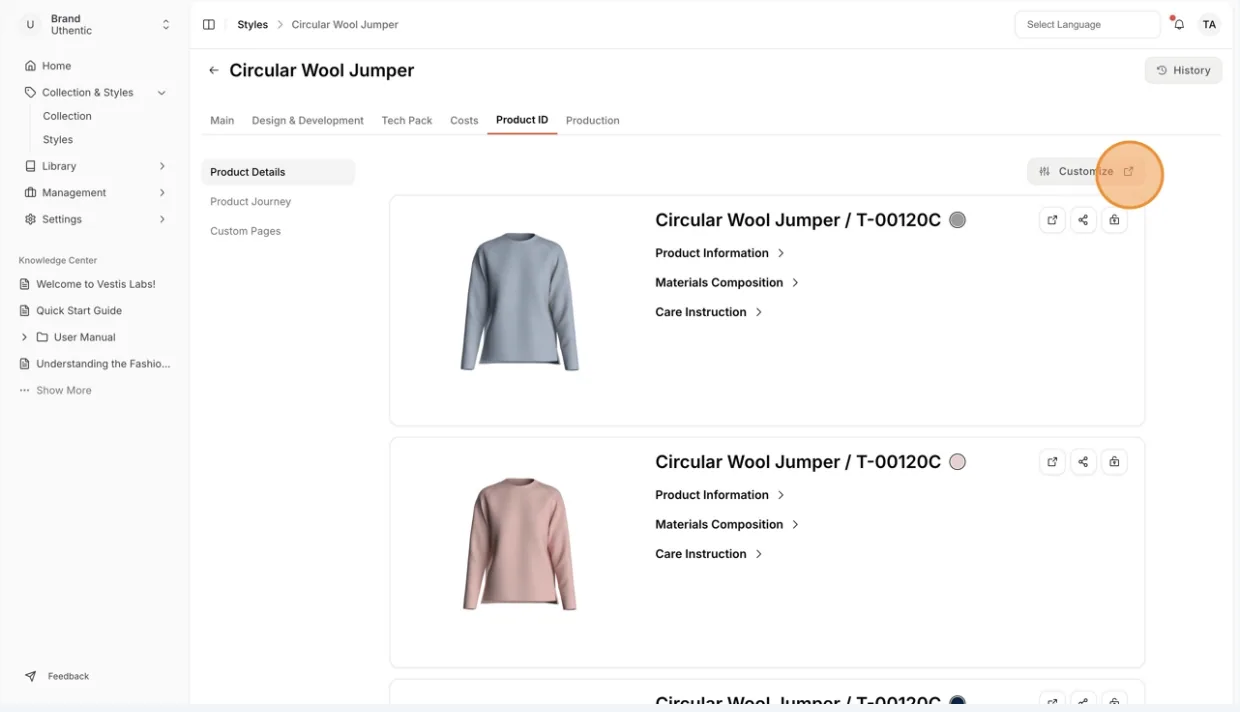
Customize: You can customize what you would like to show on the product details on the Product detail settings page.
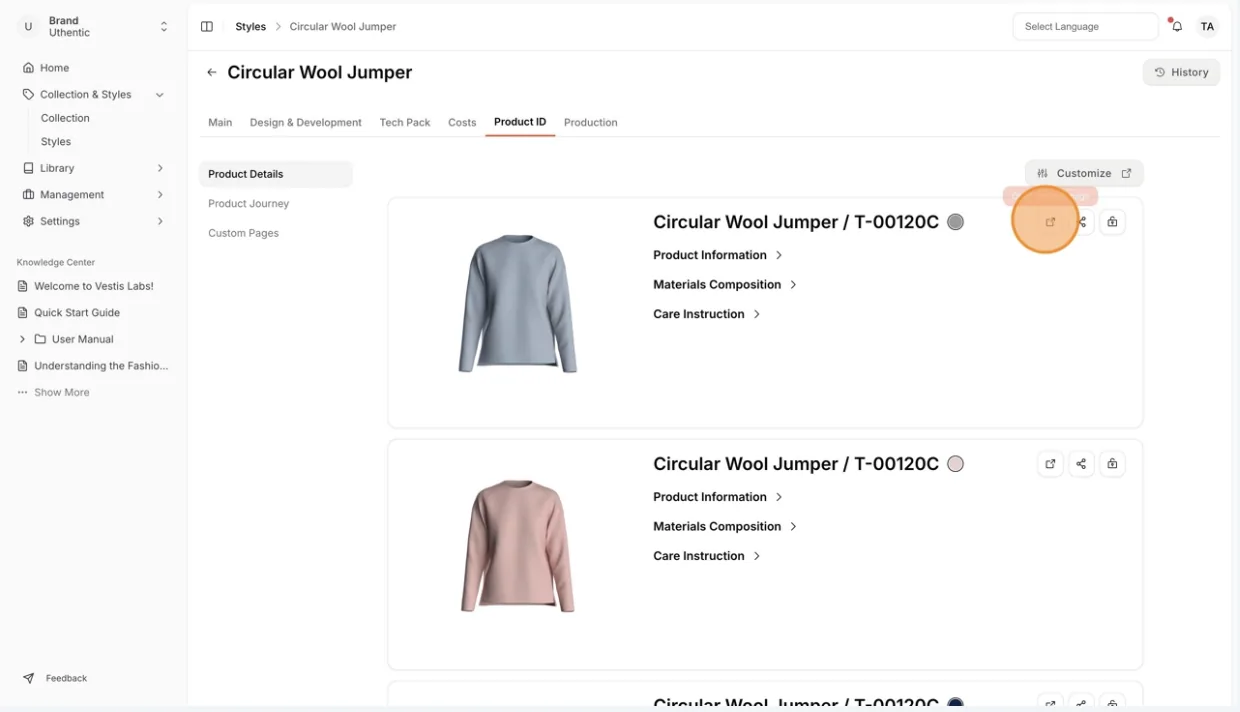
Open product page: You can open the created product Digital ID. This shows how the Digital ID will look like on the mobile device when someone scans the QR code.
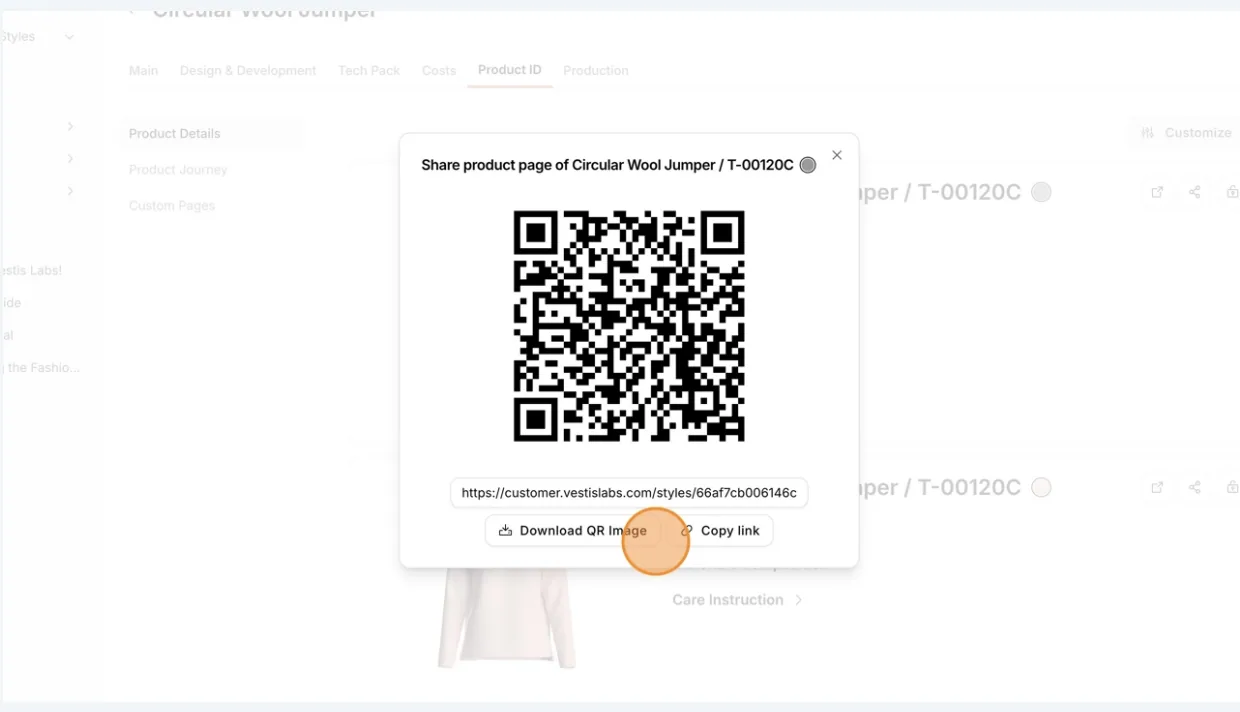
Share: You can share the product ID page using a link or QR Code. This QR code is also the QR code to be attached to the product as part of the DPP requirement.
Select Download QR Image to download the QR Code or select Copy link to copy the link address to your product digital ID.
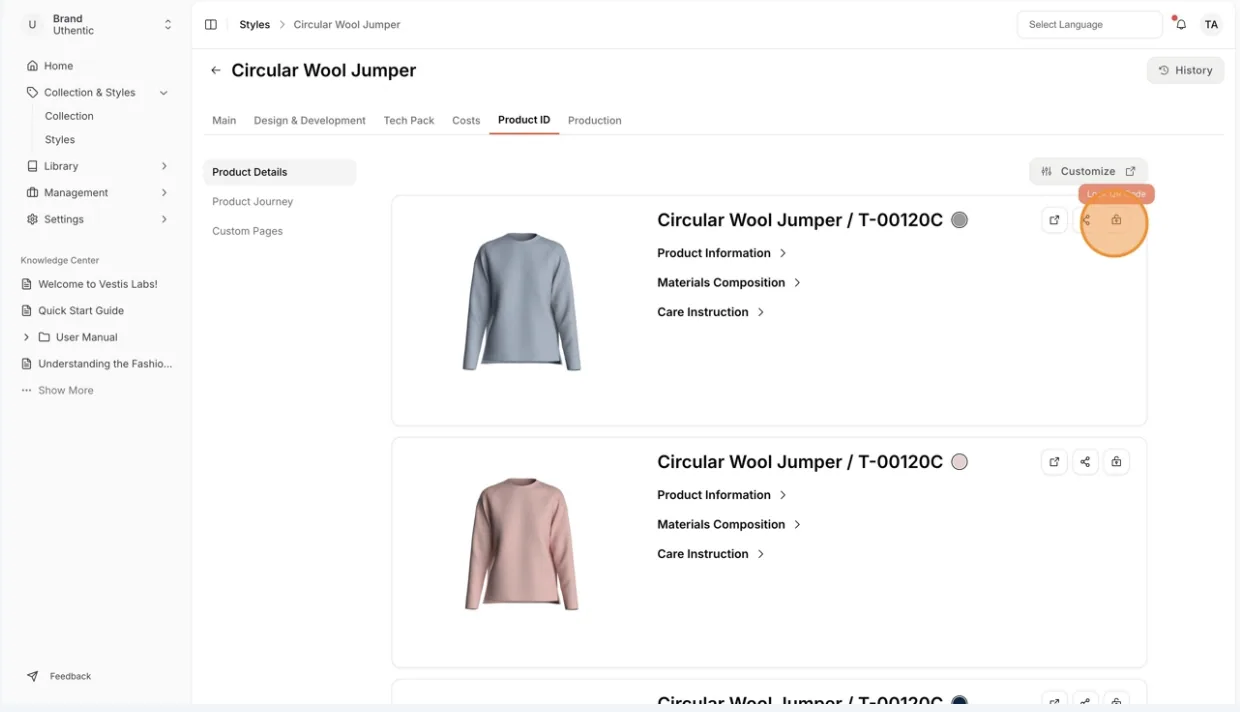
Lock Icon: to lock your QR Code. This feature allows users to make changes within the style without changing the QR code. This is useful to ensure that changes can be made after the QR code is printed.
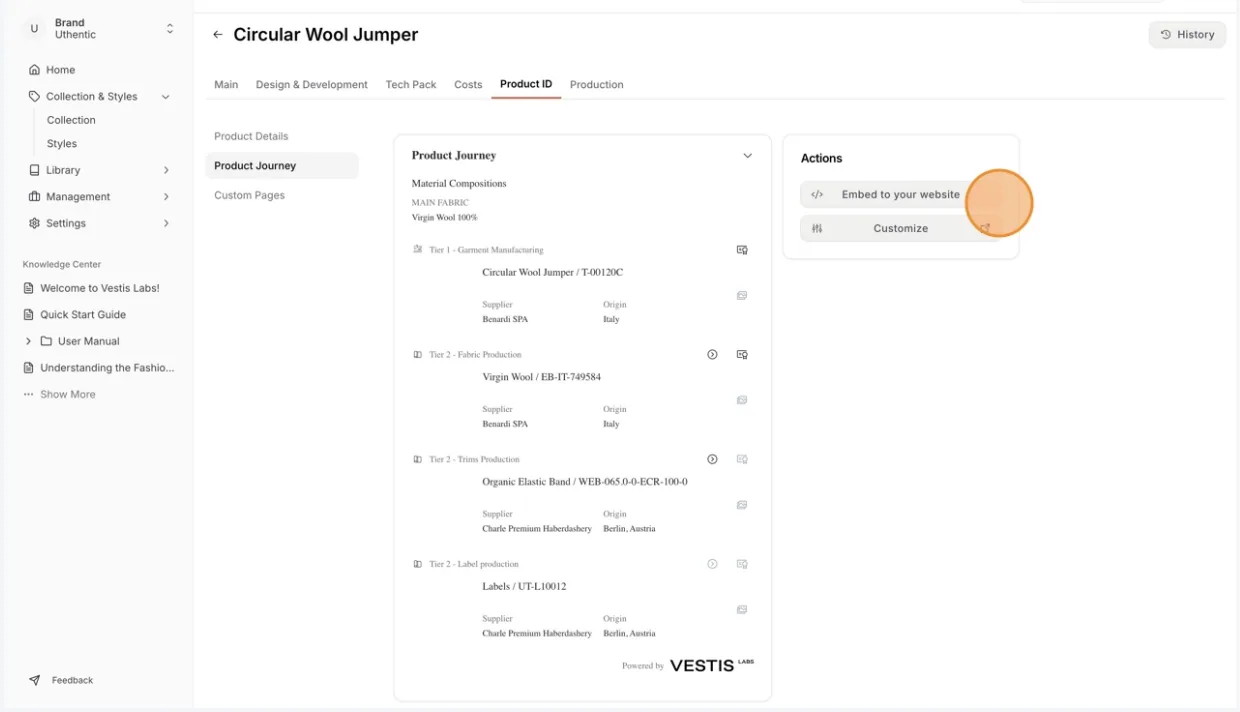
On the product journey page, you can see the created product journey preview in your Digital ID.
Select Embed to your website if you want to insert the content directly into your web page . Y ou can customize this page on the product journey settings page.
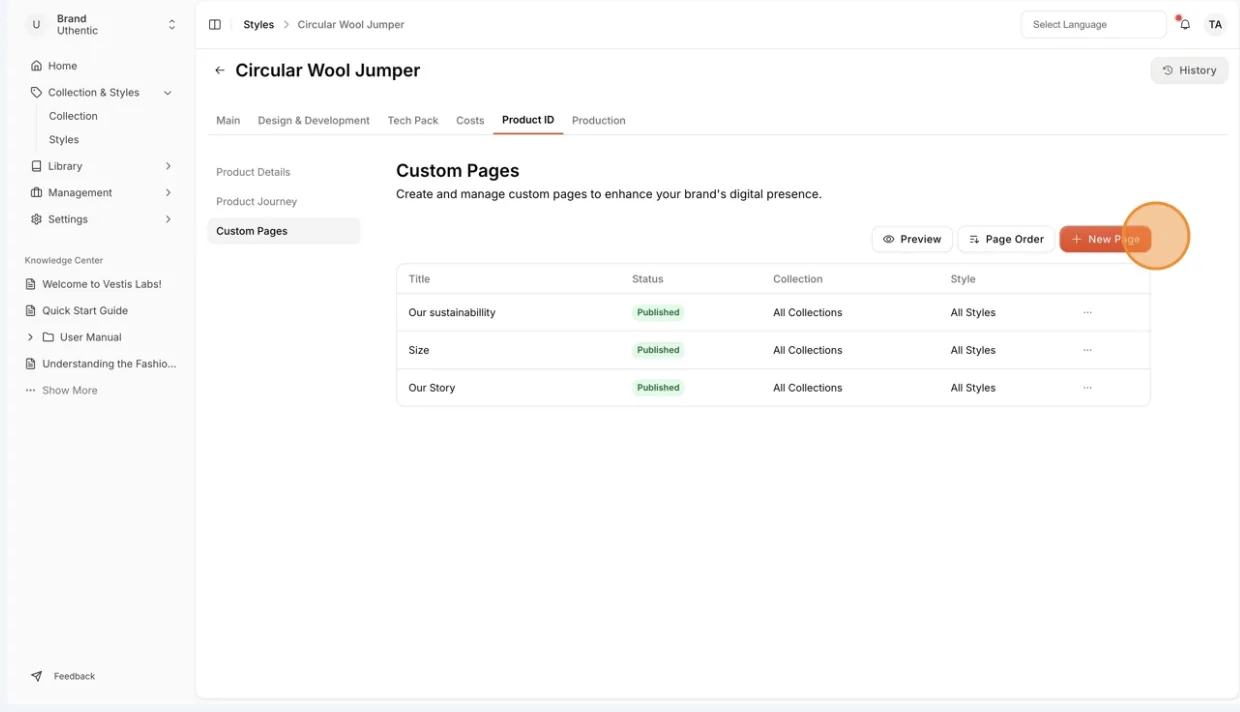
Custom Pages are customised pages that you can display on your Digital ID. Within this seciton, you can manage the contents that you have created or create new ones.
Nb: You can also manage your custom page in your custom page settings.
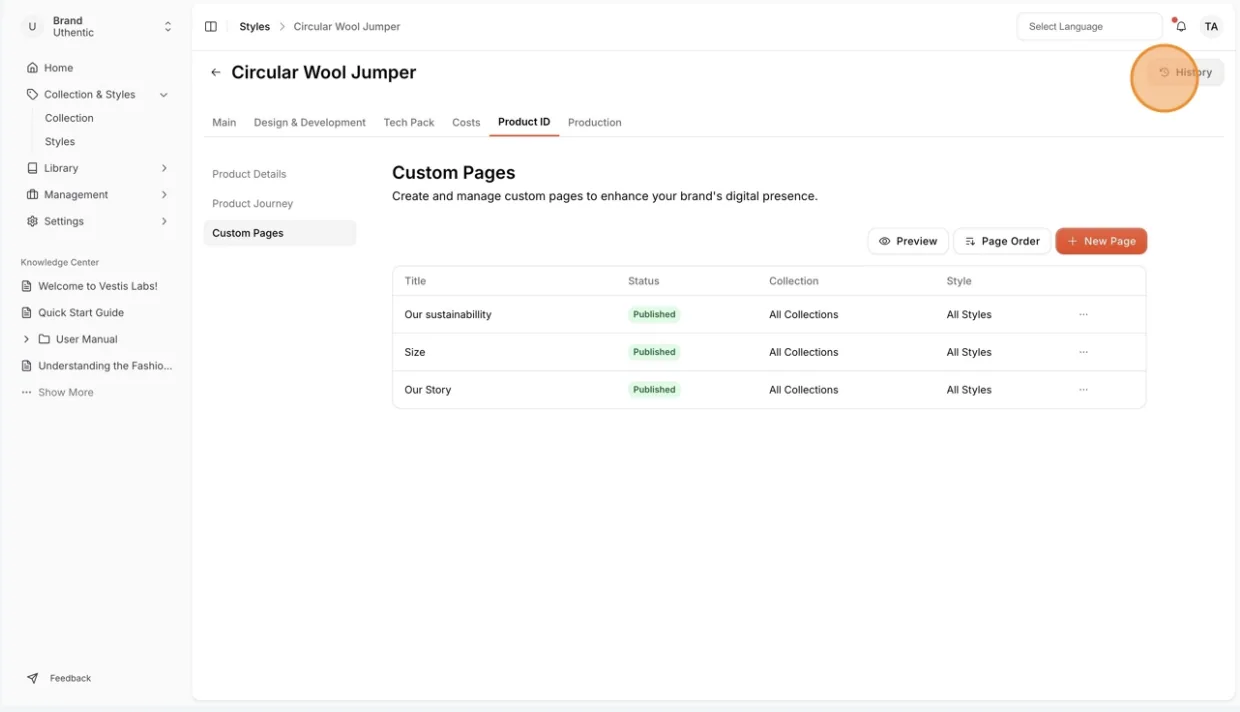
History: All the activities on this page will be recorded in this section.
Tabs on the Product ID page
The Product ID page has a menu on the left. Some tabs only appear when the feature is turned on for your brand.
- Product Details: The Digital ID of each colourway of the style.
- DPP Validator: The passport readiness check. Needs the DPP feature and the digital product passport permission.
- Product Journey: The supply chain preview. Needs the product journey feature.
- Size Chart: The measurements shown on the Digital ID.
- Custom Pages: The custom pages for the style. Needs the style pages feature.
- Environmental Cost: The environmental cost calculator. Needs the environmental cost feature and the Ecobalyse integration.
Note
Hover over a tab name to see a short description of the tab.
Note
GEO Readiness is no longer part of this menu. Old links to it open the GEO readiness tab of the style.
Share and lock the QR code
The Open product page, Share product page and lock buttons sit at the top of each colourway card. Share product page and the lock need the permission to view QR codes.
Click the share icon
Click Share product page to open a window with the QR code and the link to the Digital ID.
Click "Download QR Image"
Select As SVG file, As JPG file or As PNG file. The file is named after the style name and style code.
Click "Copy link"
Click Copy link to copy the address of the Digital ID. A Copied to clipboard message confirms it.
Click the lock icon
Click the lock to switch between Lock QR Code and Unlock QR Code. The lock uses the QR Code Level set in Product Details.
Check passport readiness (DPP Validator)
The DPP Validator tab shows how complete the Digital Product Passport of the style is.
Permission: DPP_CIRPAS
- A Compliant or Incomplete badge shows how many required and recommended fields are filled, for example 10/12 required.
- The Sections list shows each group of fields. Click Expand all or Collapse all to open or close them. Sections that are complete start closed.
- Not yet covered lists categories the passport does not capture yet. They do not change the score.
- Click Export Passport to download the passport.
Note
The check uses a CIRPASS-2-aligned draft profile. The page says requirements may change when the official EU textile rules are published.
Choose the size chart for the style
The Size Chart tab shows the measurements that appear on the Digital ID of the style. If none are chosen it shows No Size Charts.
Select the version
In Select Version, choose the style version, for example V1.
Select the measurements
Under Select Measurements, check each measurement you want to show.
Click "Save Changes"
Click Save Changes to keep the selection.
Note
Save Changes and Customize only appear for users who can update the brand. Customize opens the size chart settings in a new tab.
Manage custom pages for a style
The Custom Pages tab lists the same table as the custom page settings: Title, Status, Collection and Style. Create, edit, preview, reorder and delete pages the same way as in Create custom pages.
Calculate the environmental cost
The Environmental Cost tab is the Environmental Cost Calculator. It uses Ecobalyse. If the Ecobalyse integration is not enabled for your brand, you are sent to a forbidden page instead.
Enter the non-physical details
In Non-physical Sustainability, fill in Mass of the finished product (Kg), Category, Number of references, Price (EUR), Business and Marketing Duration (Day). Turn on Traceability displayed if it applies.
Add the materials
Choose each material and its Location. Click Add Material to add another. The shares must add up to 100%.
Set the transformation steps
Choose the Location for Transformation - Spinning, Transformation - Weaving / Knitting, Transformation - Ennoblement (also Dye On and Printing) and Transformation - Manufacturing (also Air transport and Wash out).
Click "CALCULATE"
Click CALCULATE. The score and the impact per lifecycle stage appear. Click RE-CALCULATE after you change a value.
Click "Embed to your website"
Once a score is saved, click Embed to your website to embed the score on your site.
Important
Embed to your website is only shown to users with the Shopify product journey widget permission.