
Shipping
Users can manage shipping details and track the delivery status of style production orders to ensure timely and accurate shipment updates.
Under review. This page is published while we check it against the live app, so some details may have changed.
Collection & StylesStyles(your style)ProductionShipping
Permission: UPDATE_PRODUCT,VIEW_BRAND_PRODUCTION,VIEW_STYLE
On the Style Shipping & Tracking page, there are four sub-menus designed to help users manage and monitor shipment activities efficiently:
- Active Shipments – View and track all ongoing shipments that are currently in transit or being processed.
- Delivered – Review completed shipments that have been successfully delivered to their destination.
- Analytics – Analyze shipment performance, shipment volume, and overall logistics efficiency.
- Documents – Access and manage shipping-related documents such as invoices, packing lists, and delivery receipts.
Users can also create new shipments directly from this page to manage and track the delivery process efficiently.
The shipments on this page are the production shipments that include this style. The brand-wide list is in Production → Shipping & Tracking; see Shipping and tracking of the production orders.
Before you start
- The Shipping tab only shows when production is turned on for your brand.
- The Create Shipment and Columns buttons need permission to update brand production. Deleting a shipment or a document needs permission to delete brand production.
Active shipments
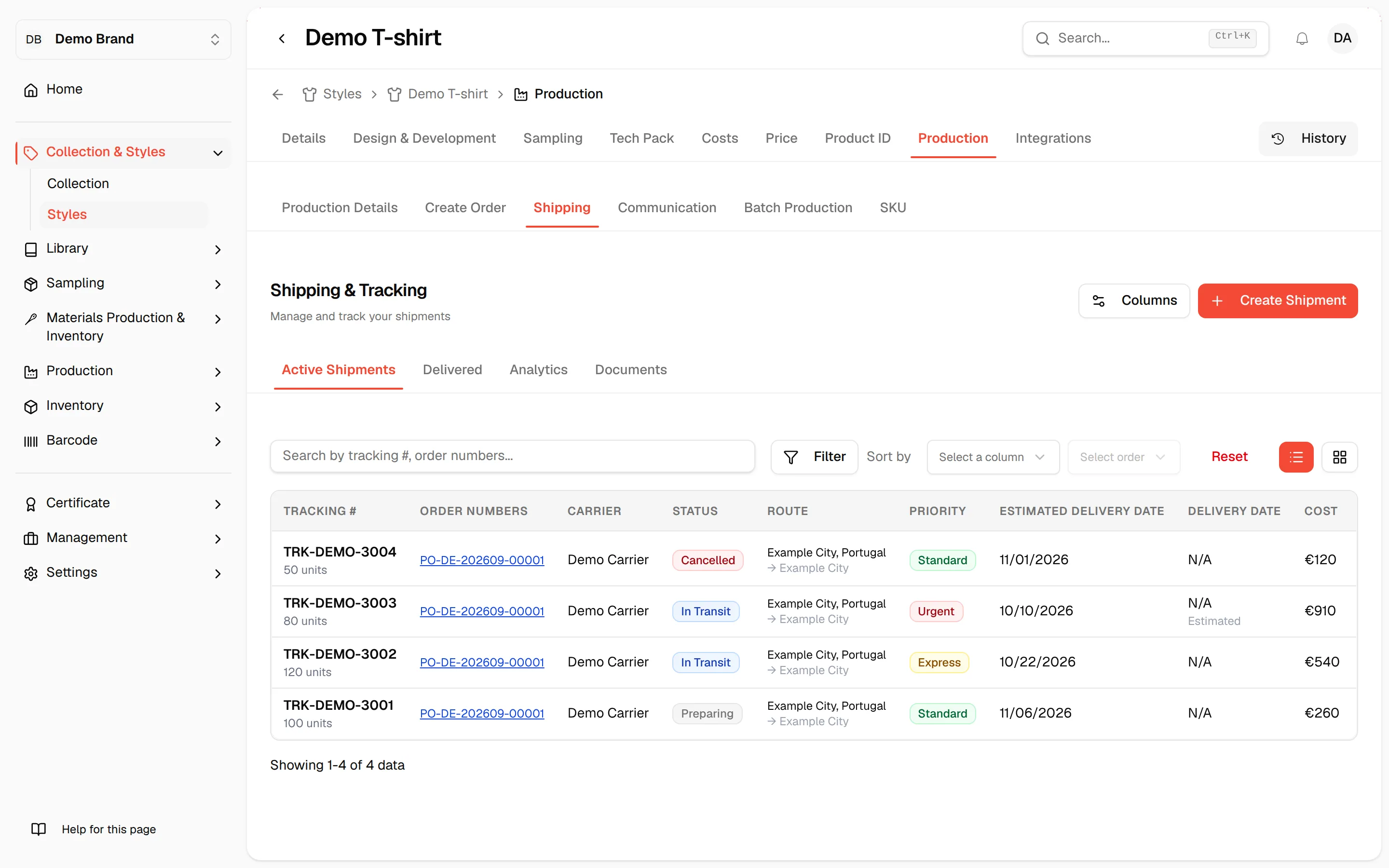
The Active Shipments sub-menu lists the shipments of this style that are Preparing, In Transit or Cancelled.
Open Shipping
On the Production page of the style, click the Shipping tab. Active Shipments opens first.
Choose the view
Use the two buttons at the top right to switch between the table view and the board view. The board has the columns Preparing, In Transit, Delivered and Delayed (past the estimated delivery date).
Find a shipment
Use the search field, and the filters for Status, Priority and Supplier, to narrow the list. The status options are Preparing, In Transit, Cancelled and Overdue.
Choose the columns
Click Columns at the top of the page to show or hide the columns. The default columns are Tracking #, Order Numbers, Carrier, Status, Route, Priority, Estimated Delivery Date, Delivery Date, Cost and Actions.
If the style has no shipments, the page says "No shipments found".
Shipment actions
Click the menu in the Actions column of a shipment:
- View Details: opens Shipment Details with the tracking number, status, carrier, priority, sender, origin, destinations, estimated and actual delivery, order details, total items, total quantity, shipping cost and notes.
- Track Package: opens the tracking link of the carrier. It is disabled when the shipment has no tracking URL.
- Edit Shipment: opens Update Shipment to change the shipment details.
- Documents: opens the documents of the shipment, with the number of documents in brackets.
- Delete: removes the shipment after you confirm in Delete Shipment. The message reads "Are you sure you want to delete this shipment? This action cannot be undone."
Create a shipment
Click "Create Shipment"
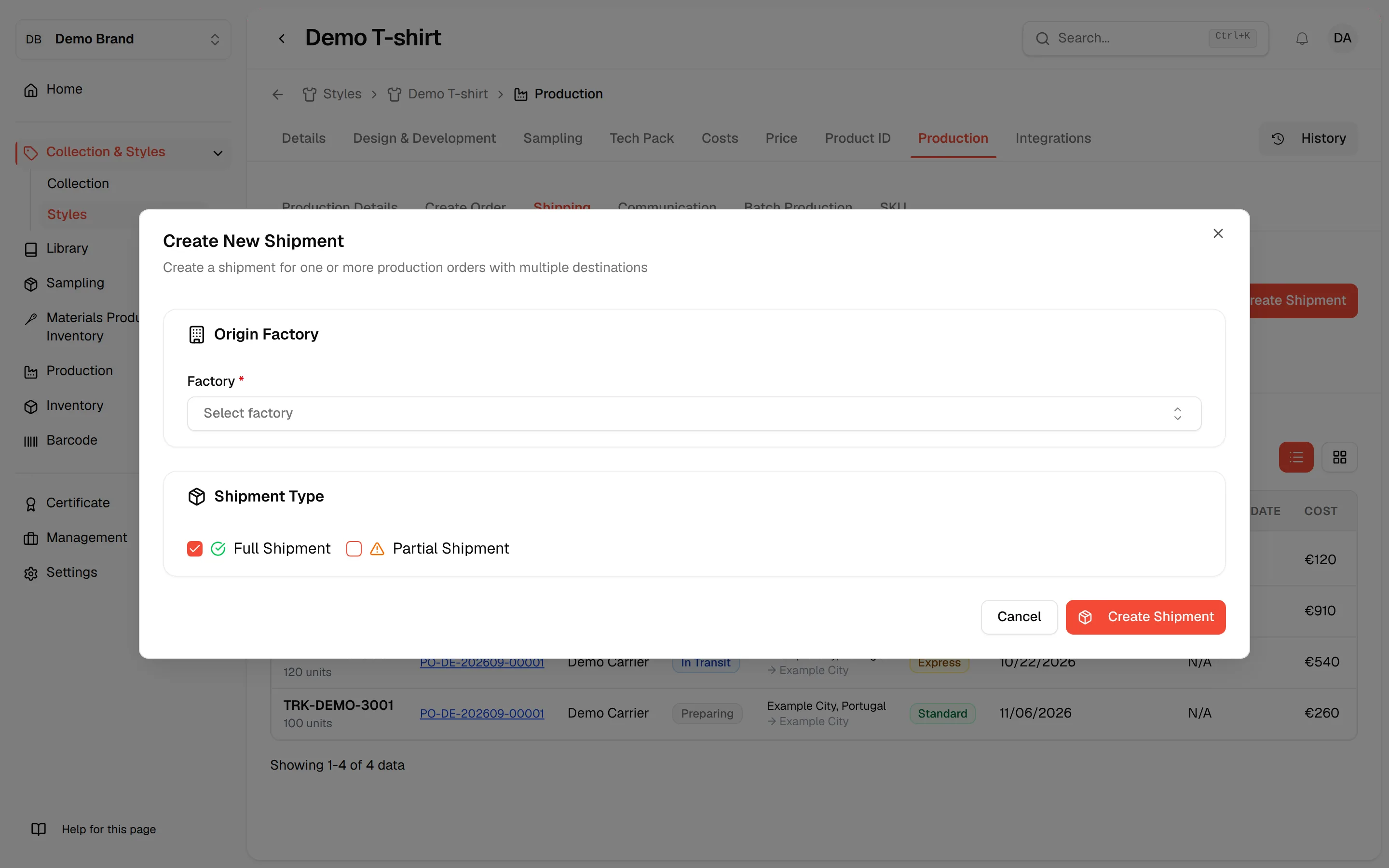
Click Create Shipment at the top right of the page.
Select the factory
Under Origin Factory, select the Factory the goods ship from. It is required.
Select the shipment type
Under Shipment Type, check Full Shipment or Partial Shipment.
Select the production orders
Under Select Production Orders, check the orders of that factory to include. Only orders that are not delivered yet, and that include this style, are listed. At least one order is required.
Add the destinations
Click Add Destination. For each destination, select the Delivery Location and enter the quantity to allocate under Allocate Orders to this Destination. At least one destination is required. If you allocate fewer units than you selected, the form shows how many selected units are not allocated.
Enter the shipment details
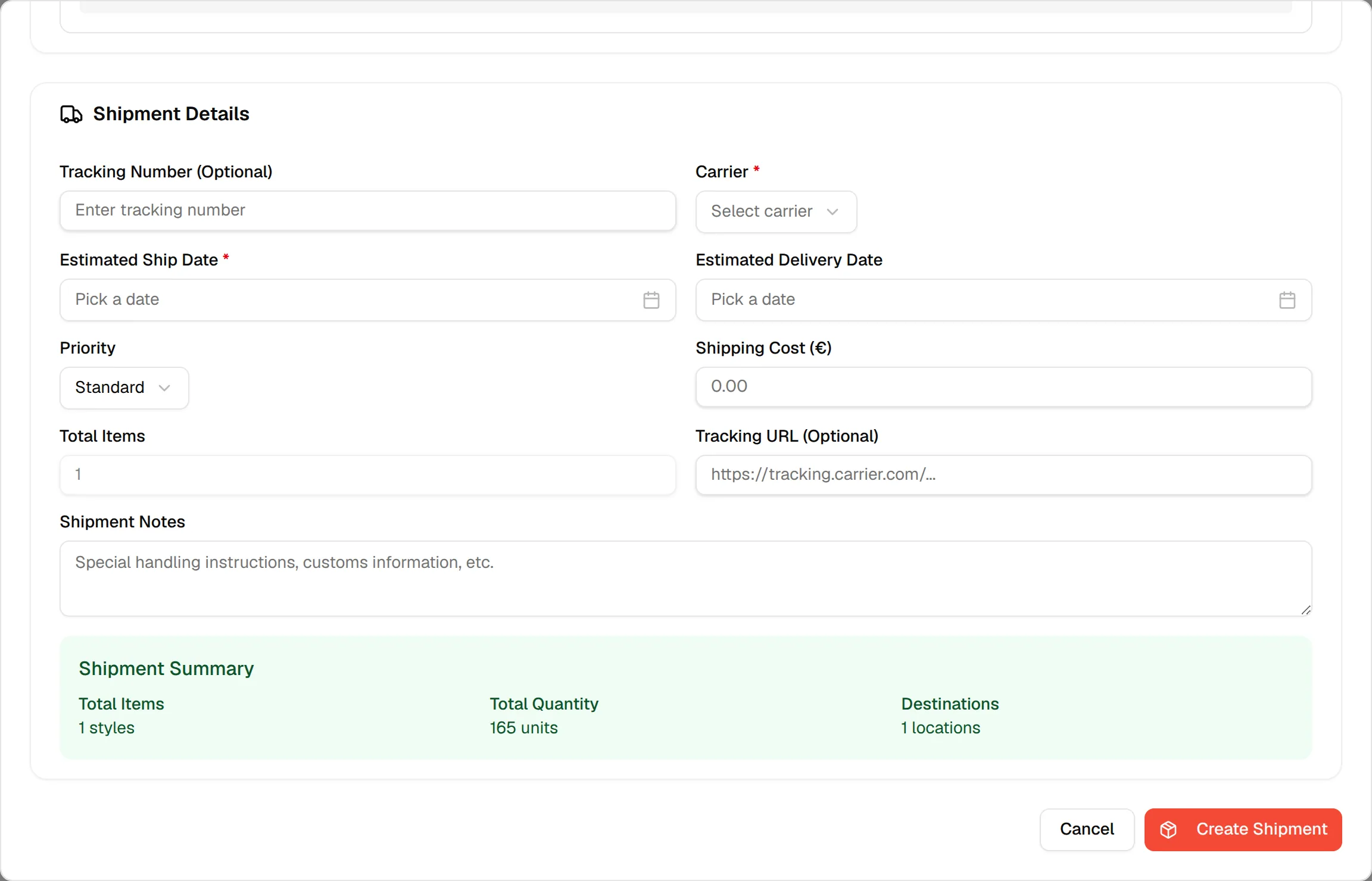
Under Shipment Details, select the Carrier and the Estimated Ship Date and Estimated Delivery Date; these three are required. Optionally enter the Tracking Number, Priority (Standard, Express or Urgent), Shipping Cost (€), Tracking URL (Optional) and Shipment Notes.
Click "Create Shipment"
Review Total Items, Total Quantity and Destinations, then click Create Shipment at the bottom right. Click Cancel to close the window without saving.
Delivered shipments
The Delivered sub-menu lists the shipments of this style whose status is Delivered. It has the same search, the Priority and Supplier filters, the table and board views and the shipment actions as Active Shipments.
Shipping analytics
The Analytics sub-menu shows Shipping Analytics ("Performance metrics and insights") for the shipments of this style: the Total Shipments and one count for each status.
Shipping documents
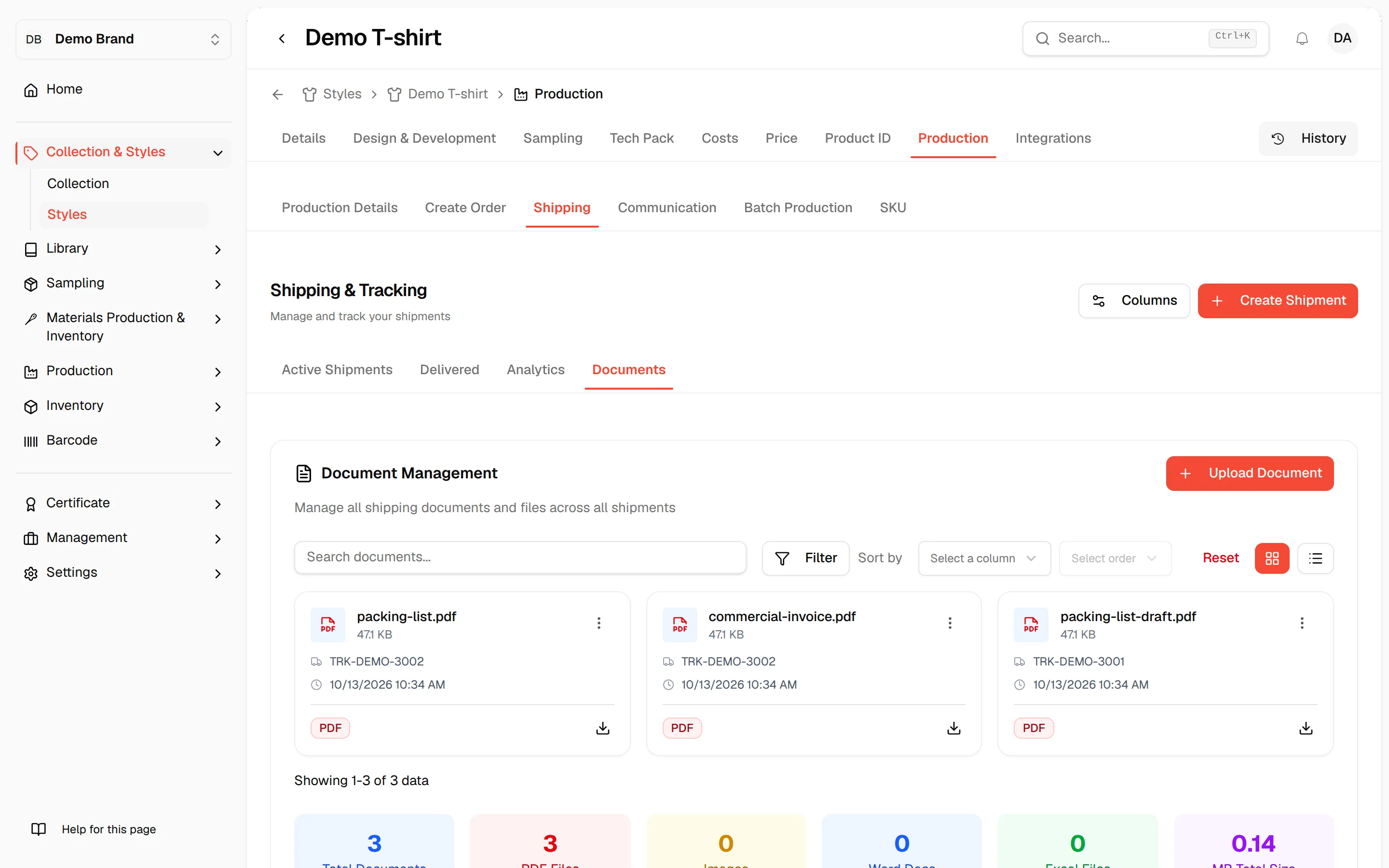
The Documents sub-menu shows Document Management ("Manage all shipping documents and files across all shipments") for this style.
Open Documents
Click Documents in the Shipping sub-menu. Switch between the card view and the table view with the two buttons at the top right. The table shows Document Name, Type, Shipment, Size, Upload Date and Actions.
Upload a document
Click Upload Document, select the shipment, then upload your file in the Upload Document window. If no document has been uploaded yet, the page says "No documents uploaded".
Download or delete
In the Actions menu of a document, select Download, or Delete and confirm in Delete Document.
Under the list, a summary shows the Total Documents, the Word Docs, the Excel Files and the total size in MB.