
Step 6 of 15 in Publish a Digital ID and product passport
Digital ID customization in product journey
Users can manage Product Journey Information, which will be displayed on the Digital ID.
Under review. This page is published while we check it against the live app, so some details may have changed.
Screenshots may be out of date.
Permission: PRE_SALE_CONTENT, PRODUCT_JOURNEY_MAPPING
SettingsDigital IDProduct Journey
To access the Digital ID Customization Page, go…
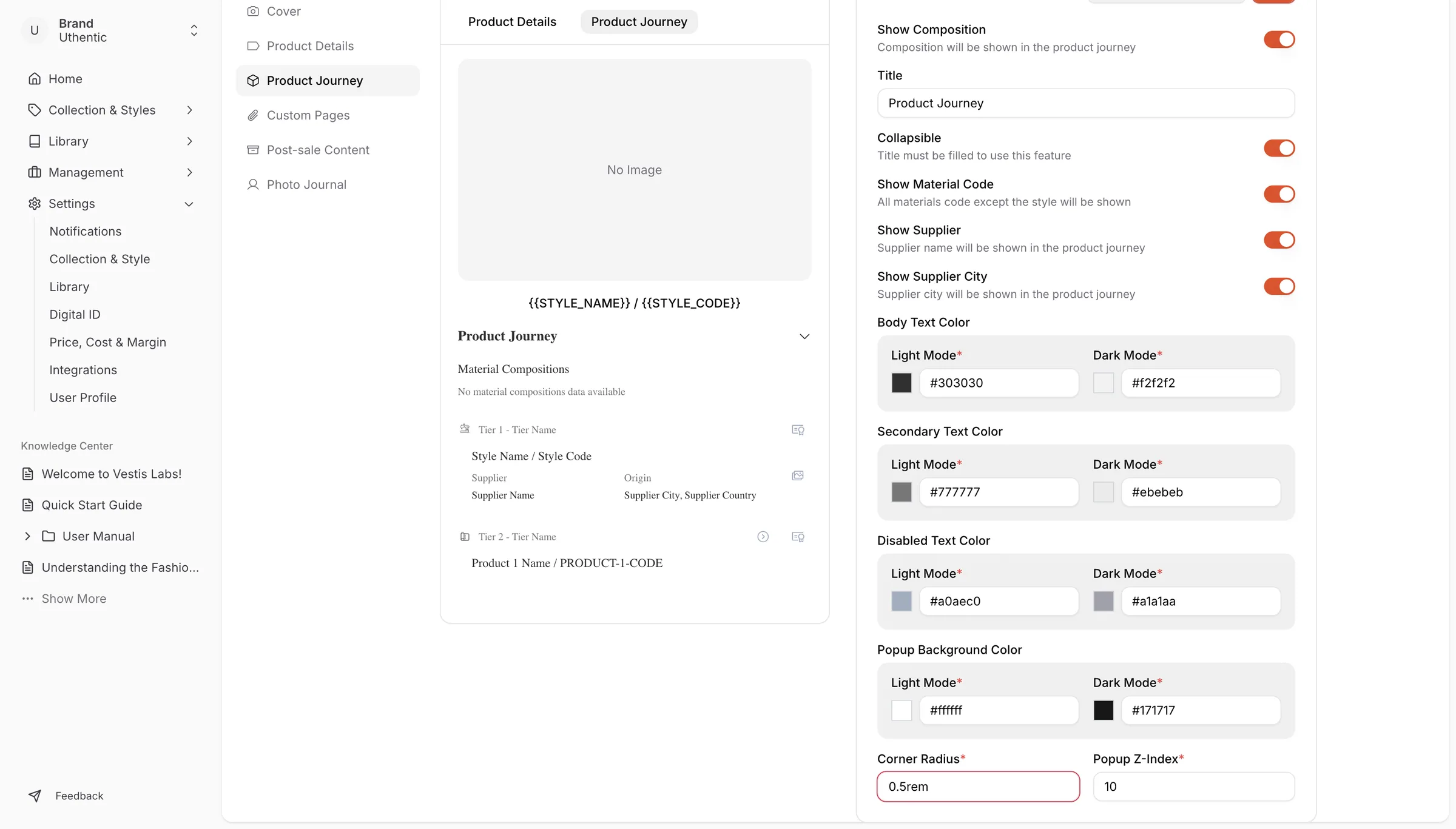
To access the Digital ID Customization Page, go to Settings > Digital ID on the left bar menu . Select Product Journey.
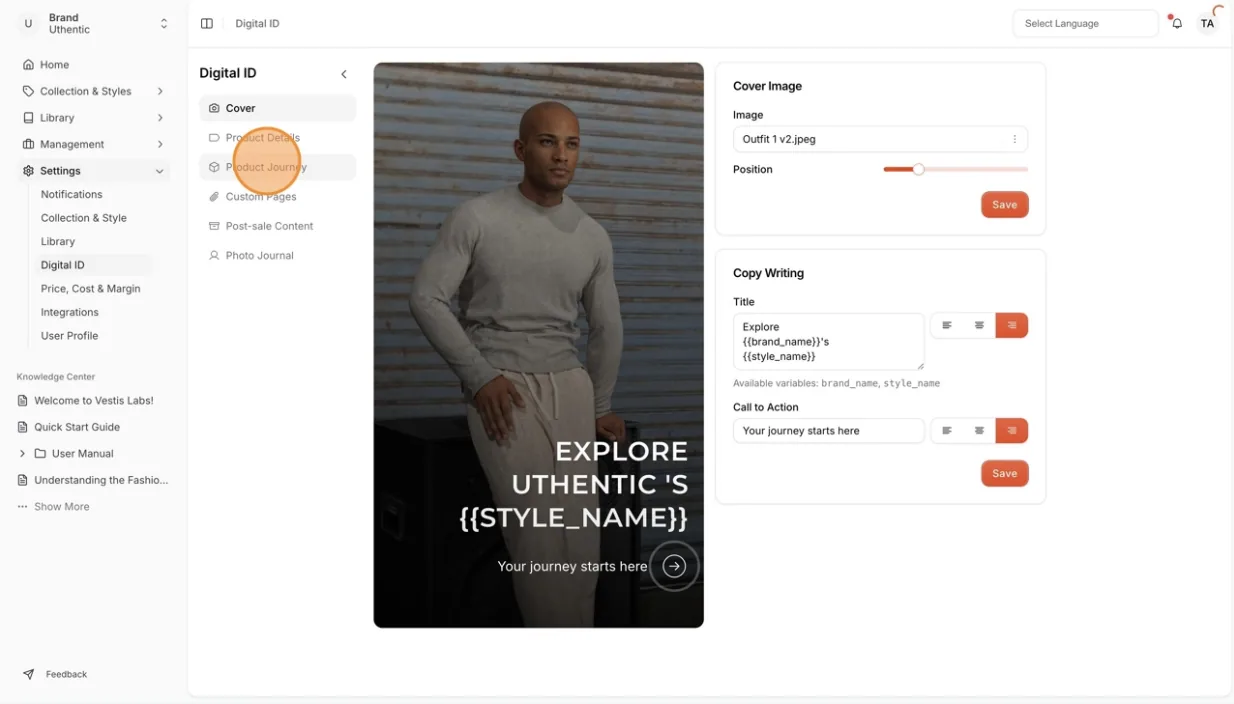
Users can customize it using the "Switch Icon" to show or hide the customized Product Journey.
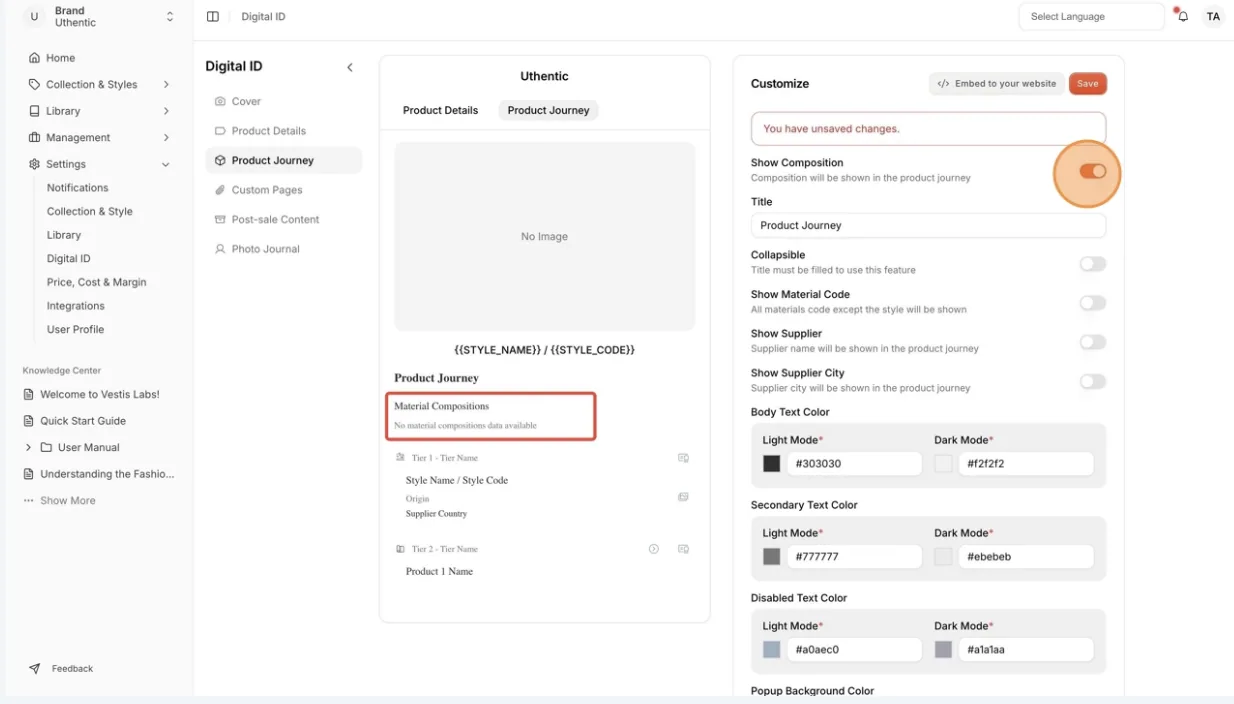
Show Composition: Users can show or hide the…
Show Composition: Users can show or hide the composition of the Style/Product in the product journey. The Composition will shown on the product journey preview on your Digital ID.
Title: Enter the Title of the product journey page for the Digital ID.
The Title will show on the product journey preview on your Digital ID.
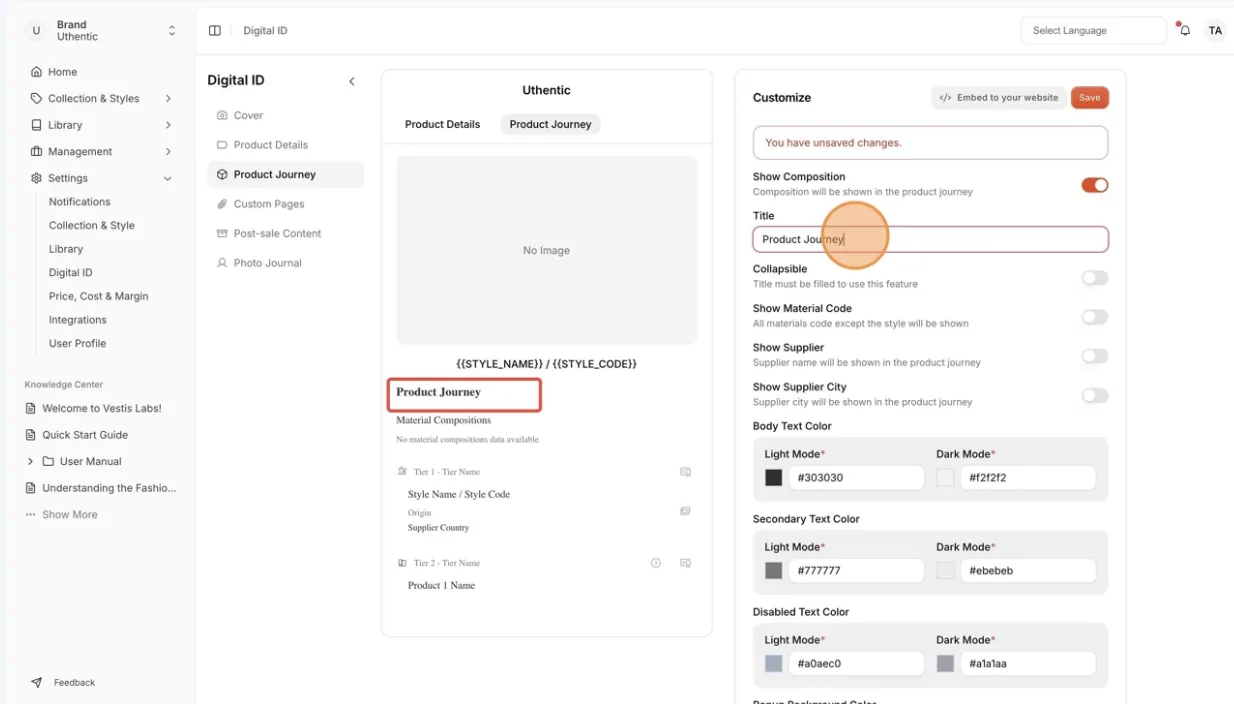
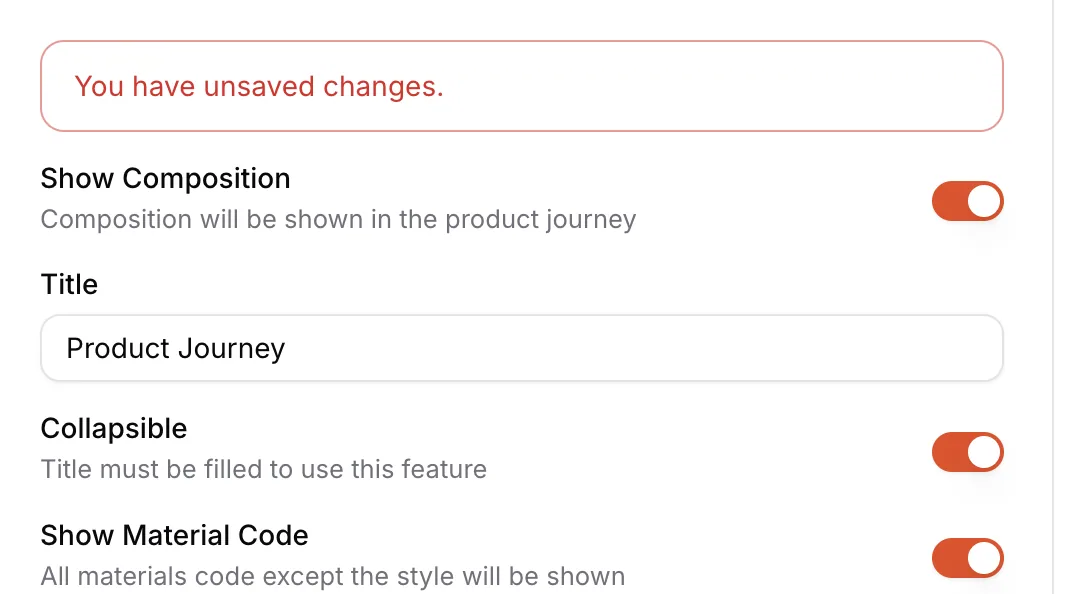
Nb: The "Title" must be filled in to use the Collapsible features.
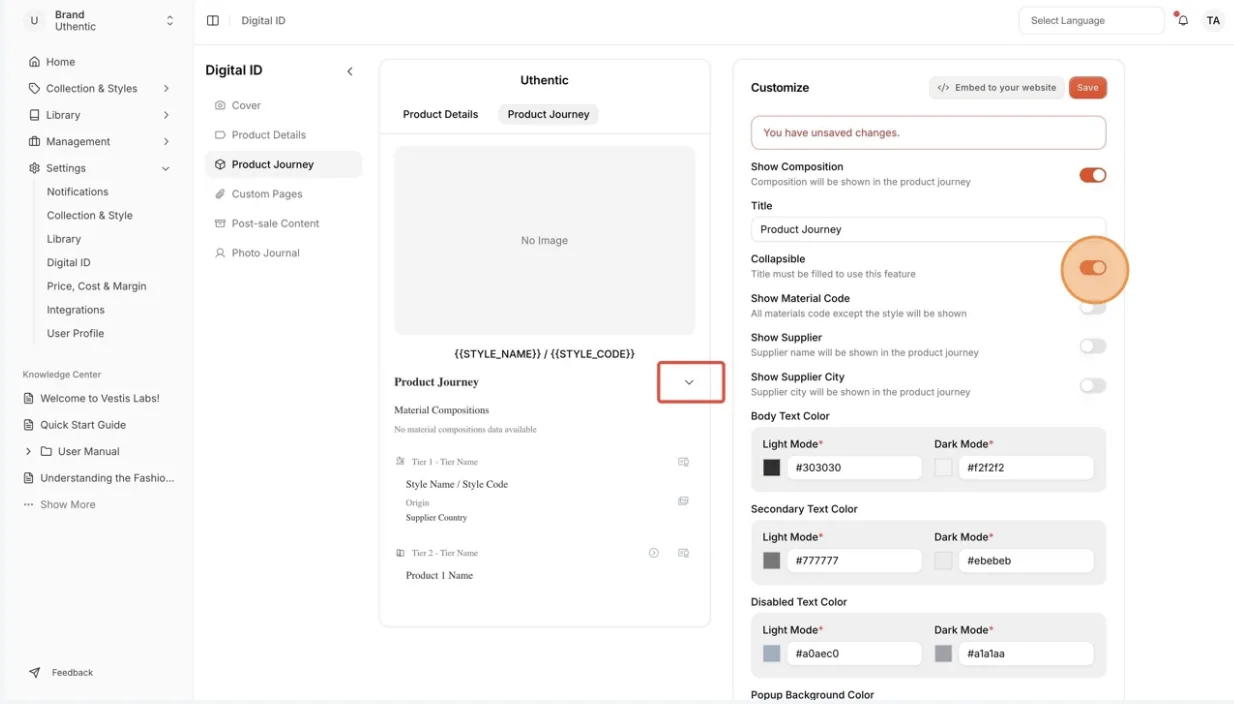
Collapsible: Users can show or hide the tier…
Collapsible: Users can show or hide the tier supply chain of the style of the product journey on Digital ID. Click the "Dropdown" icon to show or hide the tier supply chain of the style on your Digital ID.
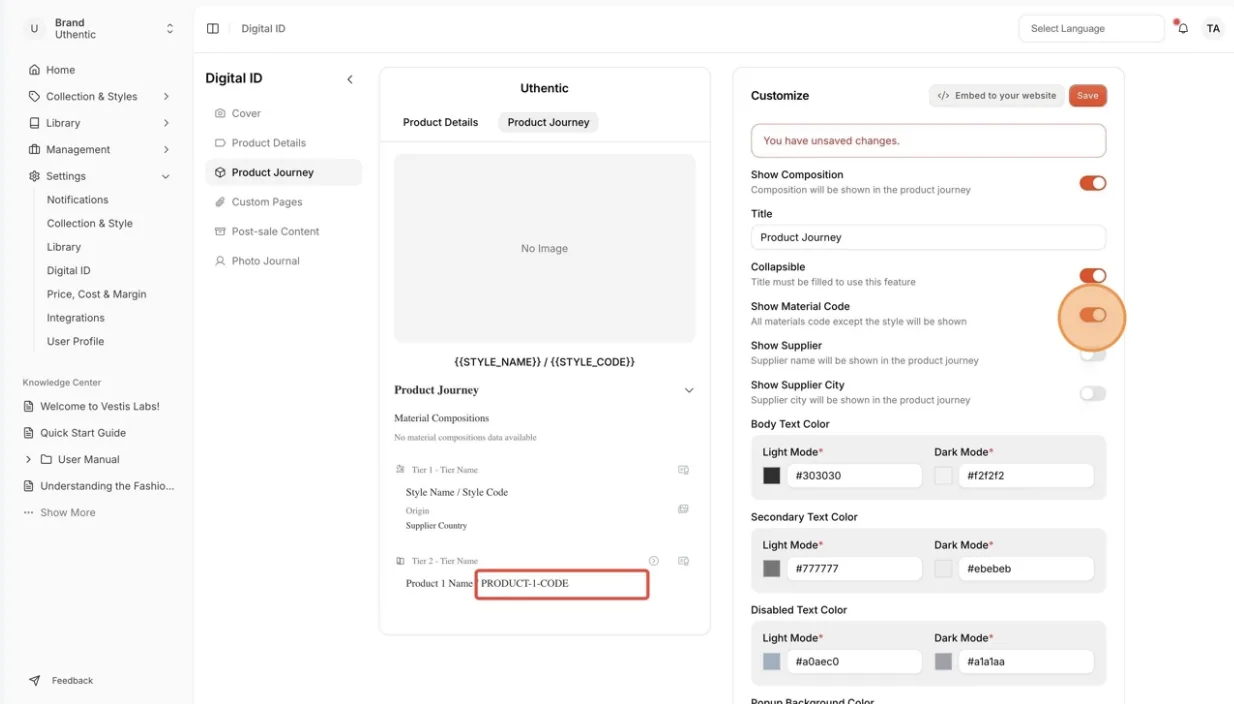
Show Material Code: The material code will be…
Show Material Code: The material code will be displayed in the product journey next to the product name. The Material Code will show on the product journey next to the Style/Product Name preview on your Digital ID.
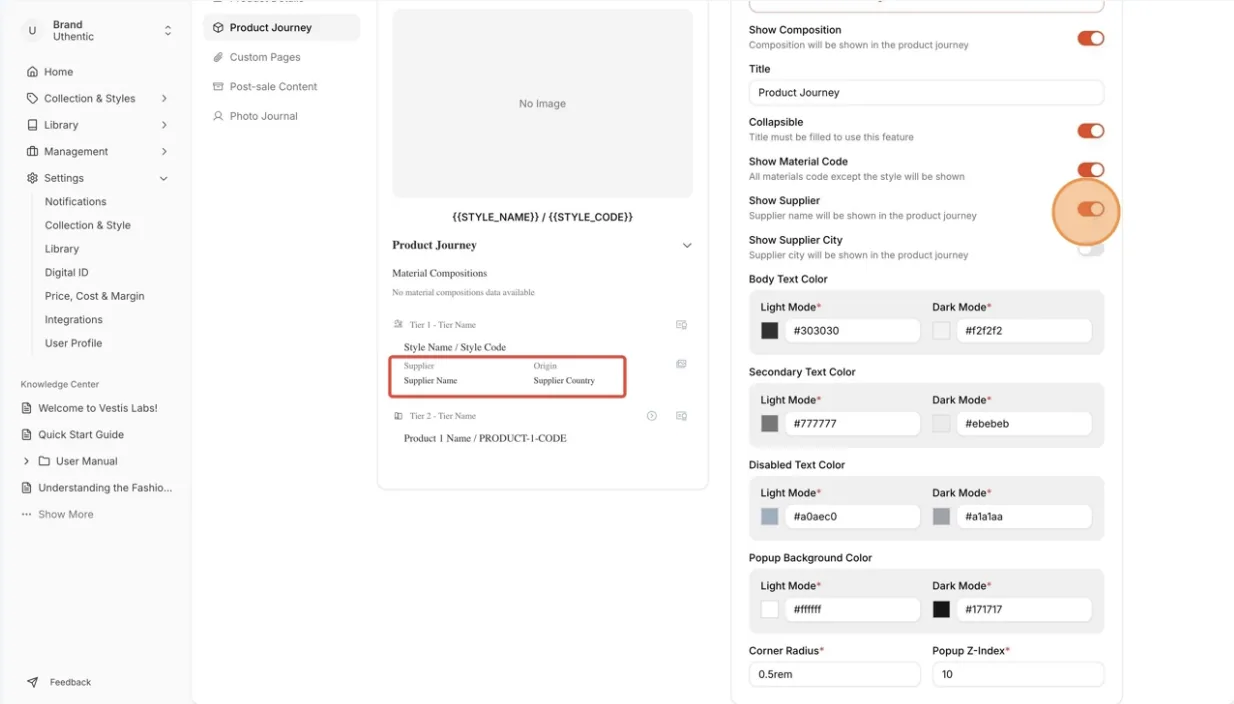
Show Supplier: The supplier name will be displayed in the product journey.
The Supplier Name will show on the product journey preview on your Digital ID.
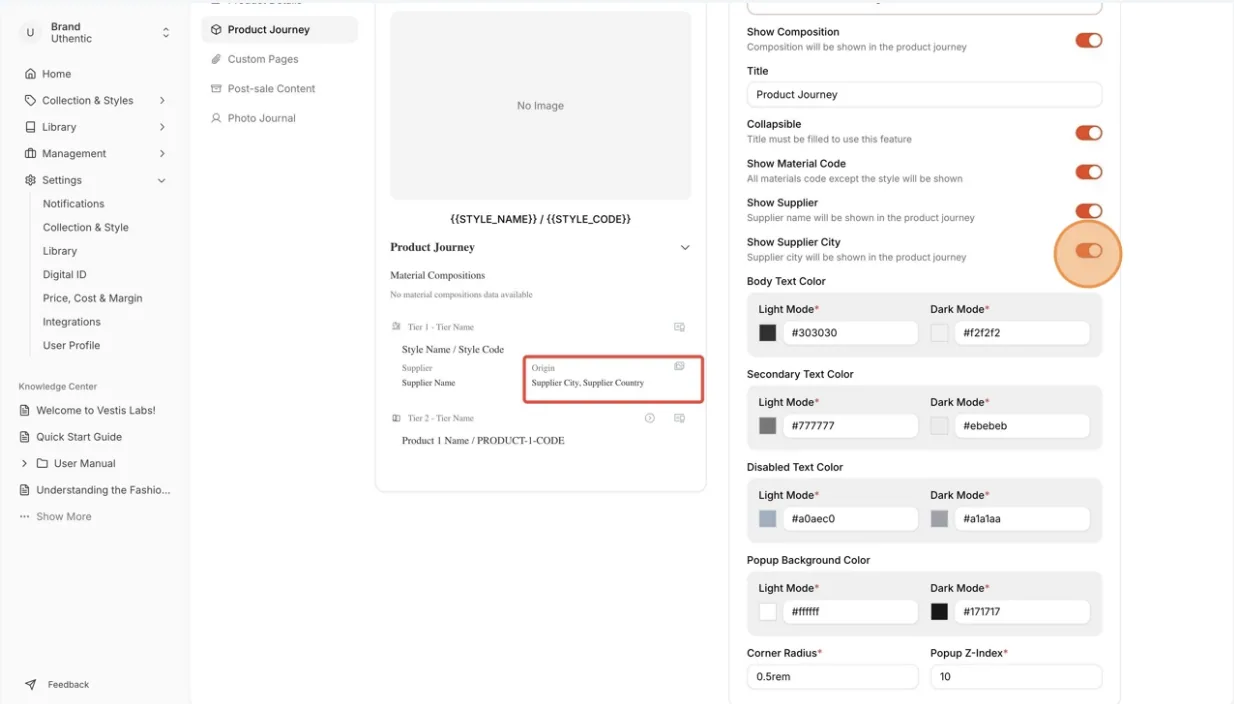
Show Supplier city: The supplier city will be displayed in the product journey.
The Supplier City will show on the product journey in the Origin Section of the preview your Digital ID.
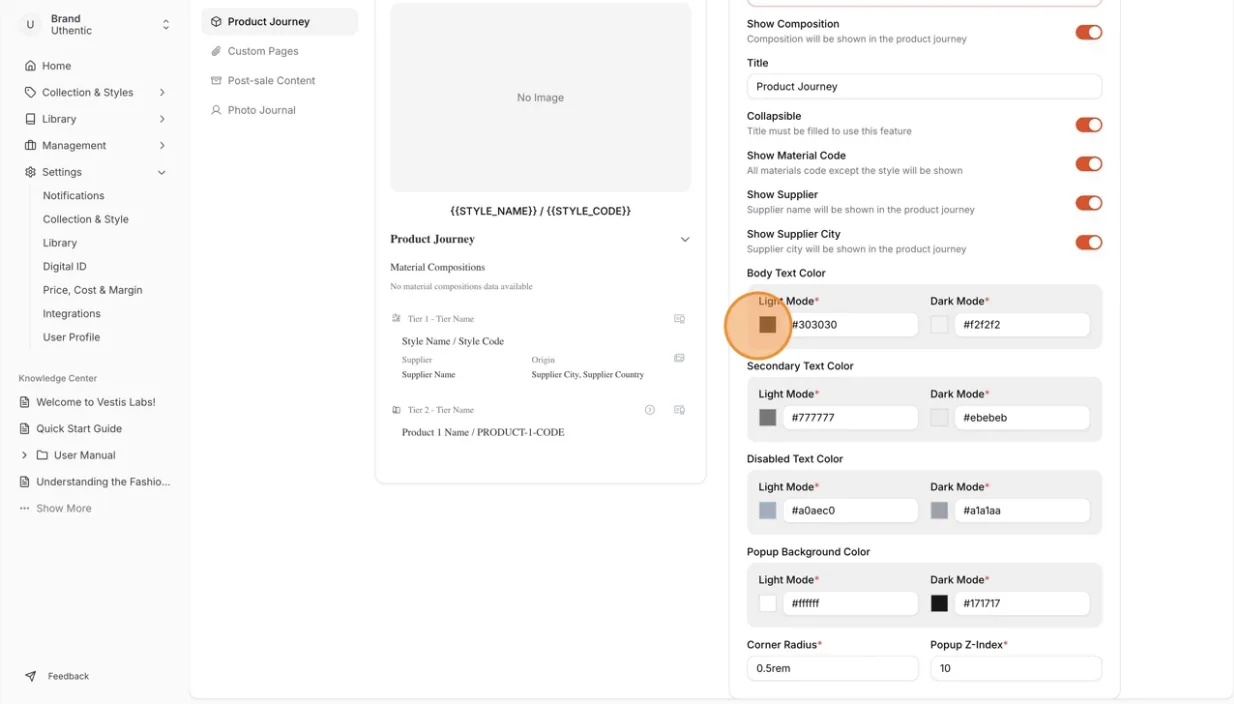
Users can edit the body text color, secondary…
Users can edit the body text color, secondary text color, disabled text color, and the Popup Background Color in light mode or dark mode.
The corner radius and Popup Z-Index are mandatory.…
The corner radius and Popup Z-Index are mandatory. Enter the Corner Radius as a size such as 0.5rem, and enter a number in Popup Z-Index. The colour fields cannot be left empty either.
Users can embed your product journey to the…
The Embed to your website button is not on this settings page. Open a style, go to Product ID, then Product Journey. In the Actions card, click Embed to your website. The Customize button in the same card brings you back to these settings.
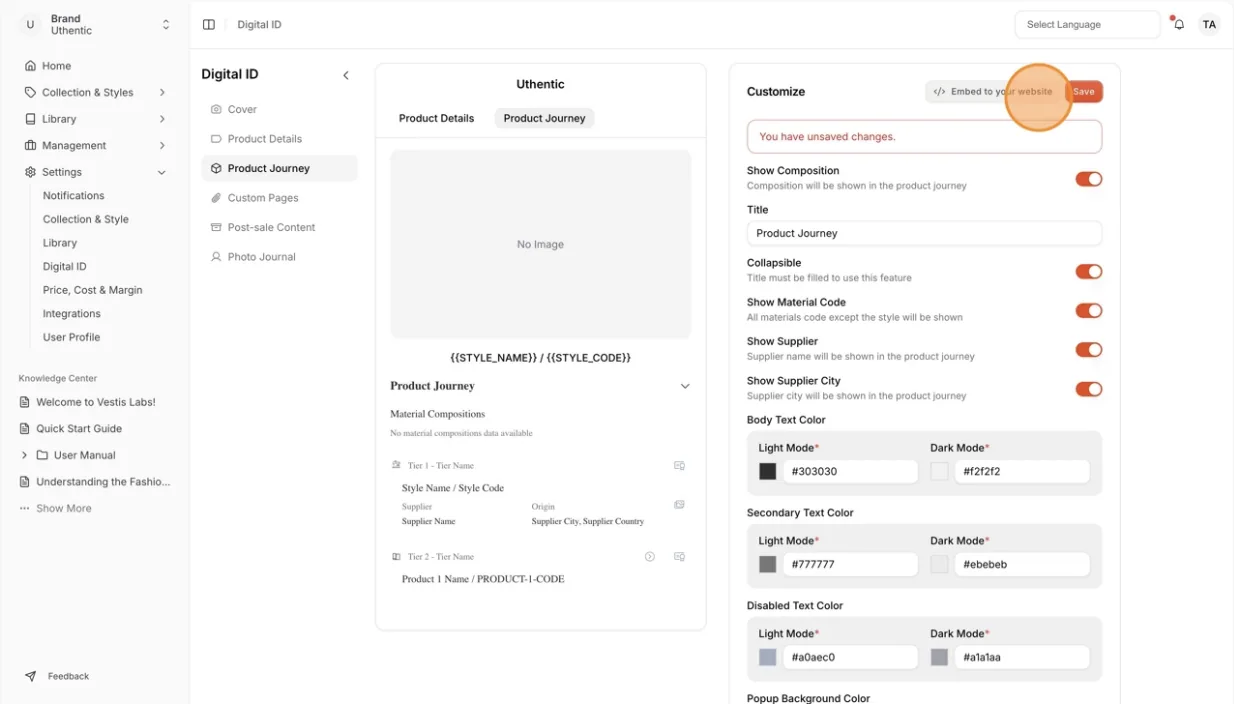
Select save on the lower right side every time you make the changes.
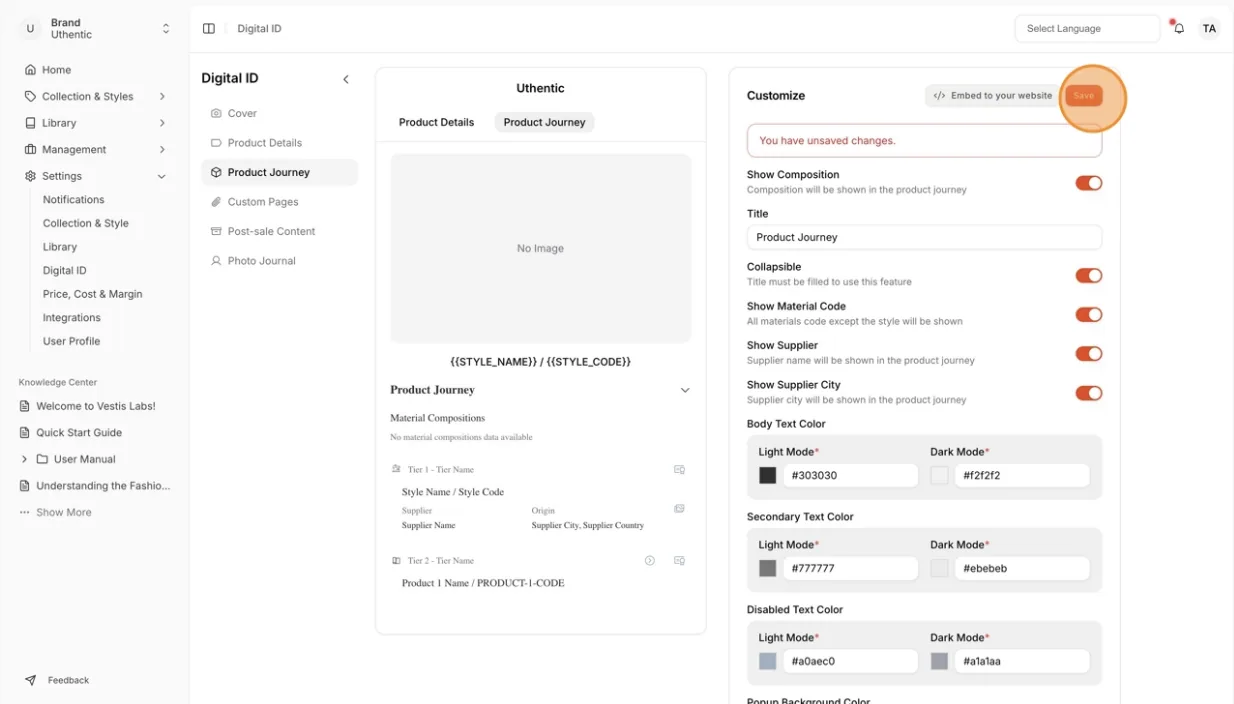
When you update the customize section and the changes haven't been saved, there will be a display the message You have unsaved Changes under the save button.
Global map
Use Global Map to show a world map with the supplier locations connected by their journey. Select Hidden, Top of journey or Bottom of journey to choose where it appears.
Note
Embed to your website is only available if you have the permission to use the Shopify product journey widget.