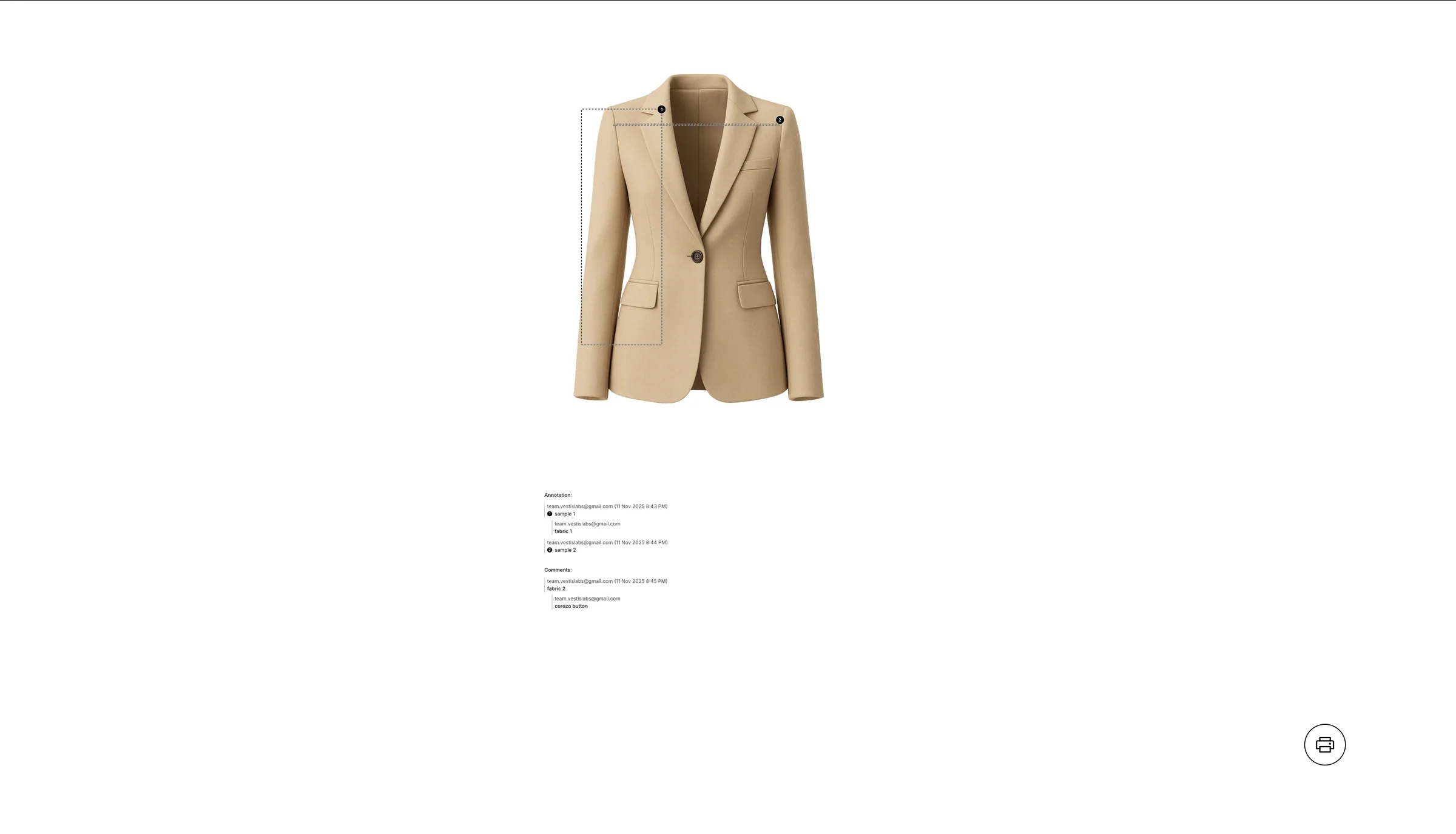
Download function in design and development
Users can Download the Attachment File from Design & Development of the Style using the Download Function.
Under review. This page is published while we check it against the live app, so some details may have changed.
Screenshots may be out of date.
Collection & StylesStyles(open a style)Design & Development(click a card)
Permission: VIEW_FILE_MANAGEMENT
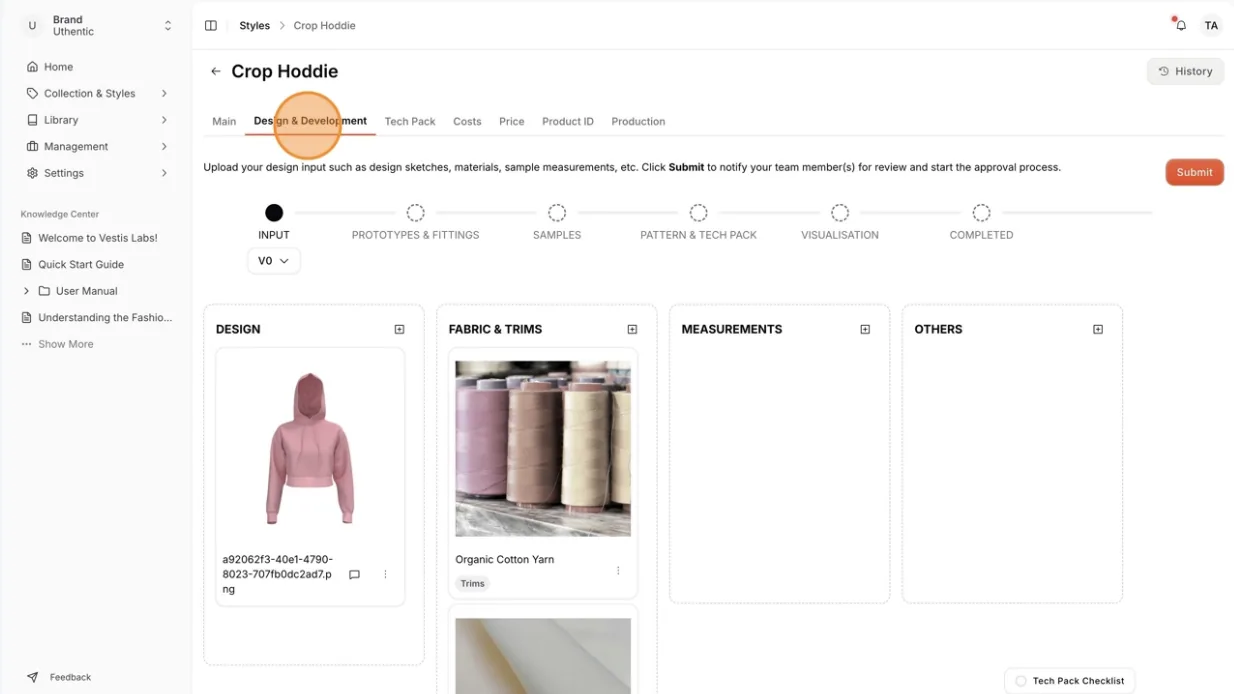
Select Design & Development on the edit style menu.
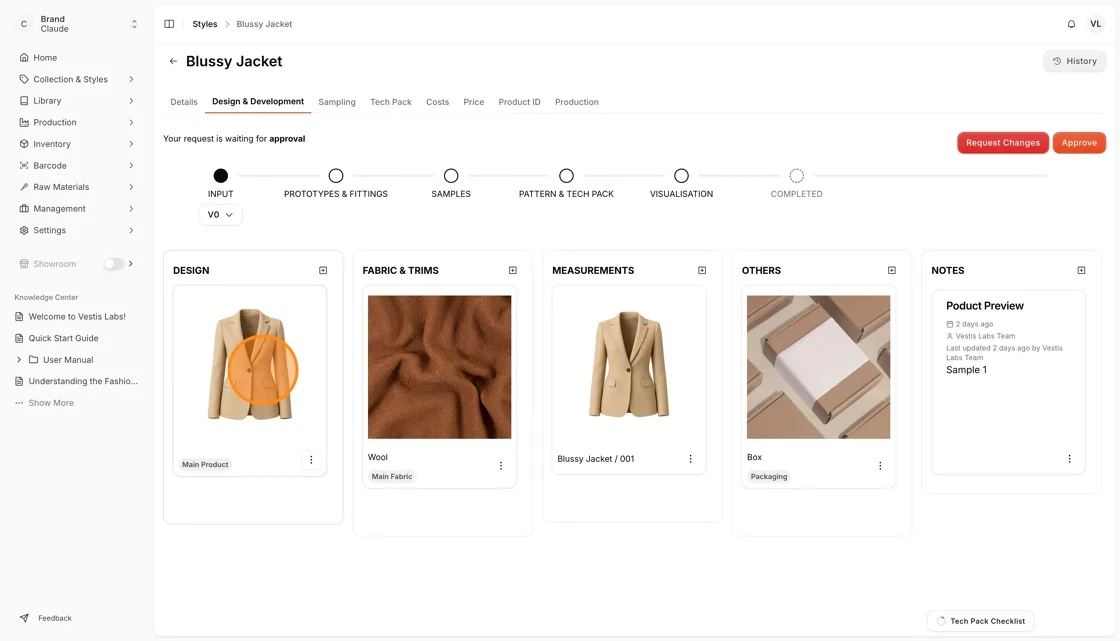
Select the Card in the Design & Development Page
Click Download on the left side of the workspace.
The dropdown will display an option with a selection of Download Types.
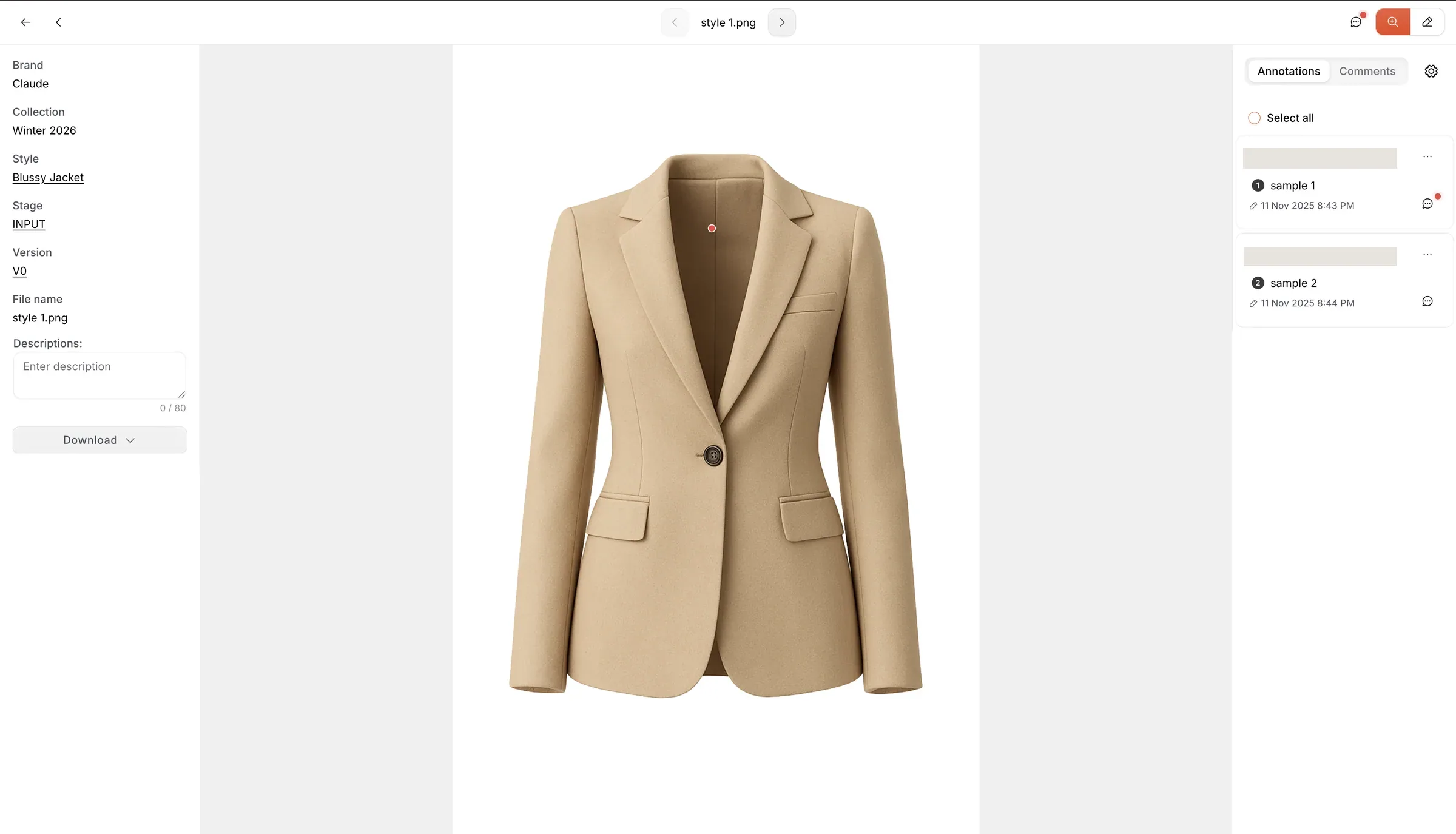
Select Original File on the left side of the dropdown in the workspace.
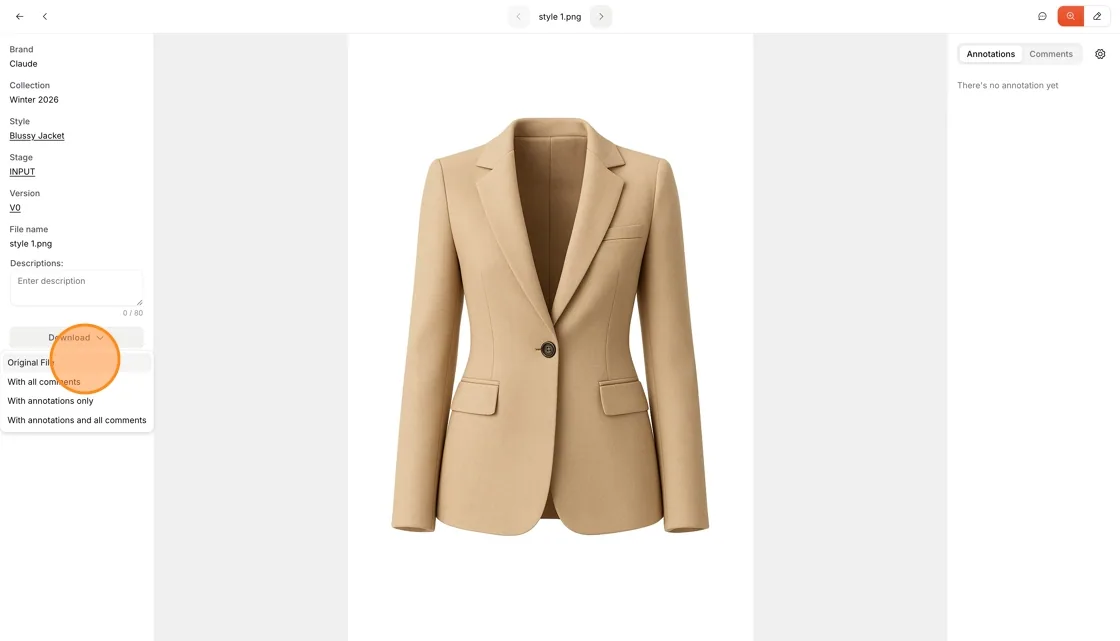
Original File: Users can download only the Original Image without the Annotations and Comments from the Design & Development of the Style
The Original Image will be Downloaded to your Computer
Select With all Comments on the left side of the dropdown in the workspace.
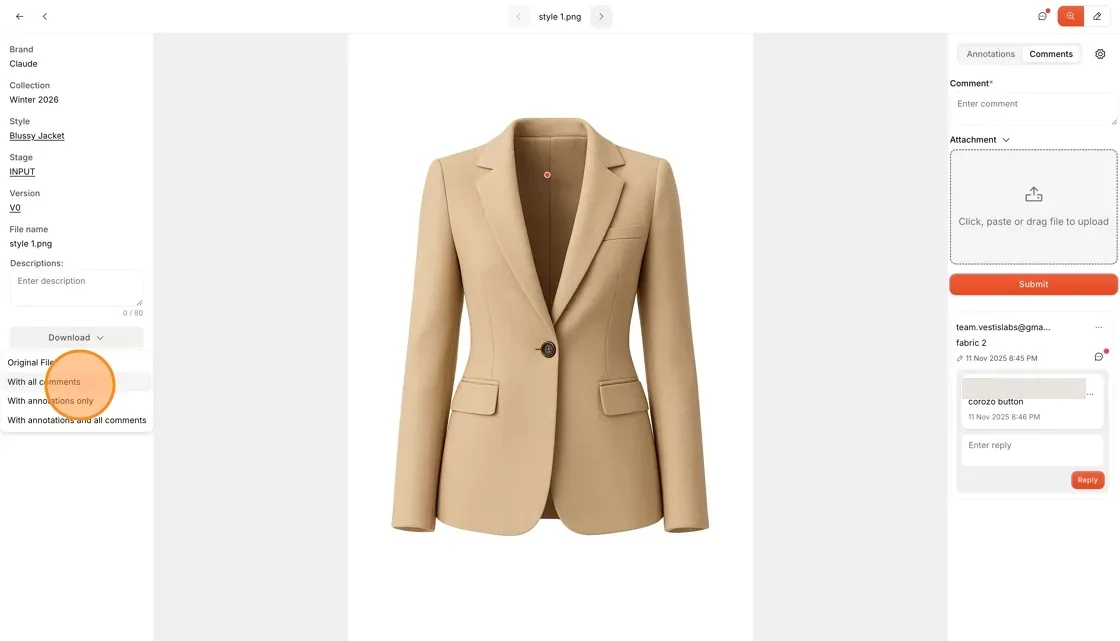
With all Comments: Users can download the Original Image with all Comments from the Design & Development of the Style
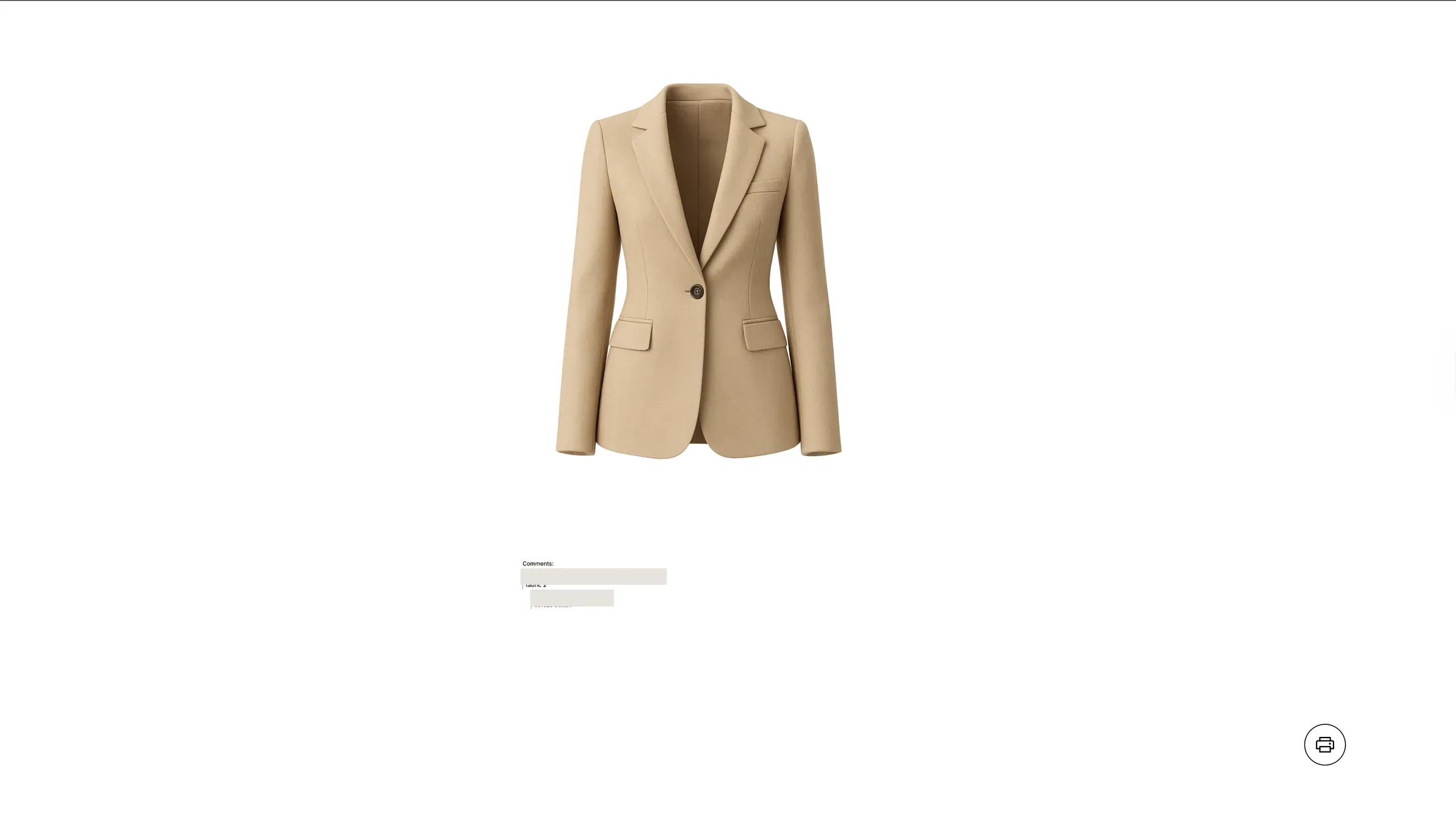
Users will go directly to a new tab browser to see the Download File.
All comments will be displayed under the Image from the Design & Development of the Style. Click Print Icon to Print out the File
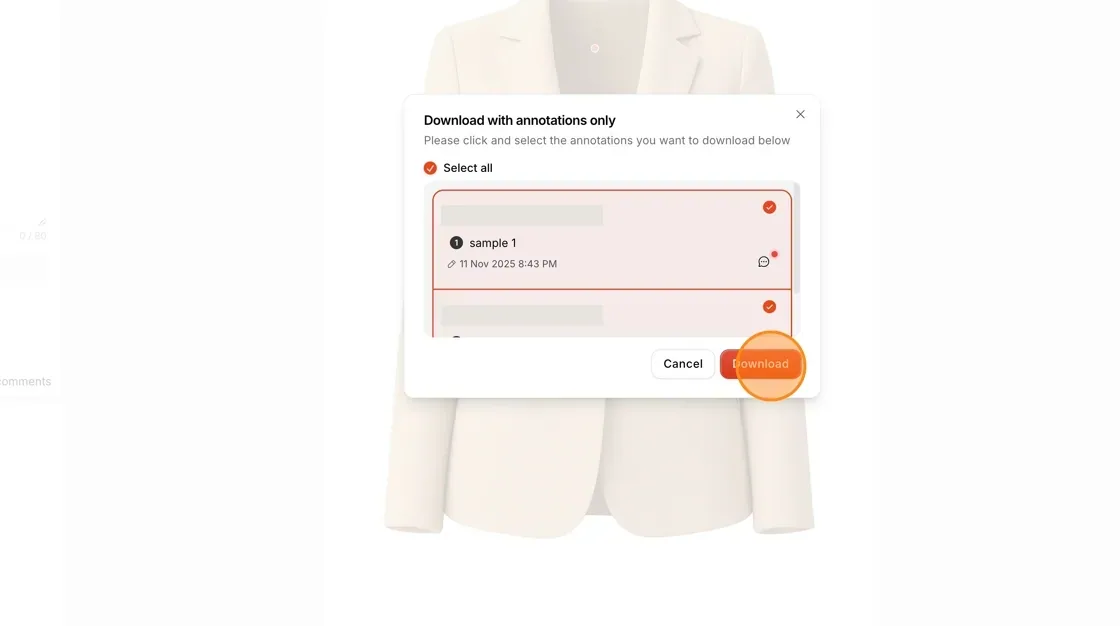
Select With Annotations Only on the left side of the pop-up window in the workspace.
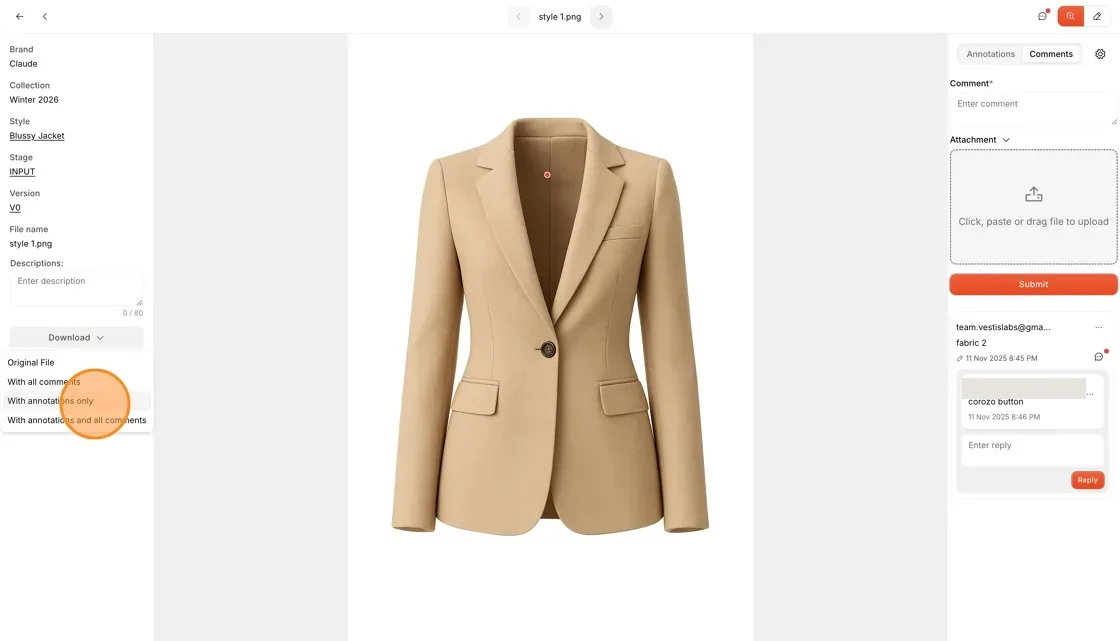
With Annotations Only: Users can download the Original Image only with Annotations from the Design & Development of the Style.
Users can select all annotations or only the annotations they want to download.
Select Download on the lower left corner of the confirmation window
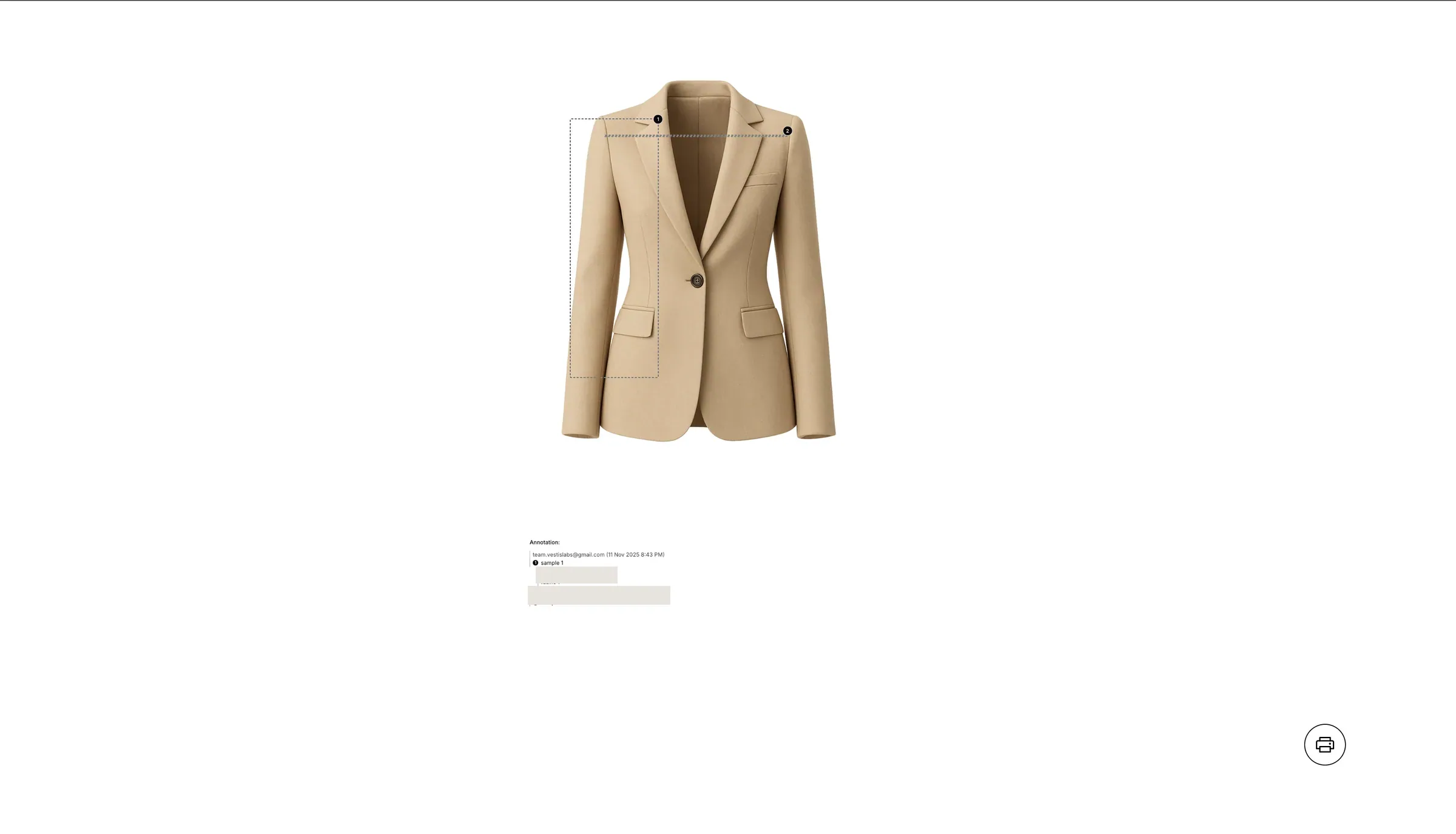
Users will go directly to a new tab browser to see the Download File.
The annotated Style will be displayed on the Image. All annotations will be under the Image from the Design & Development of the Style
Select With Annotations and all comments on the…
Select With Annotations and all comments on the left side of the dropdown in the workspace.
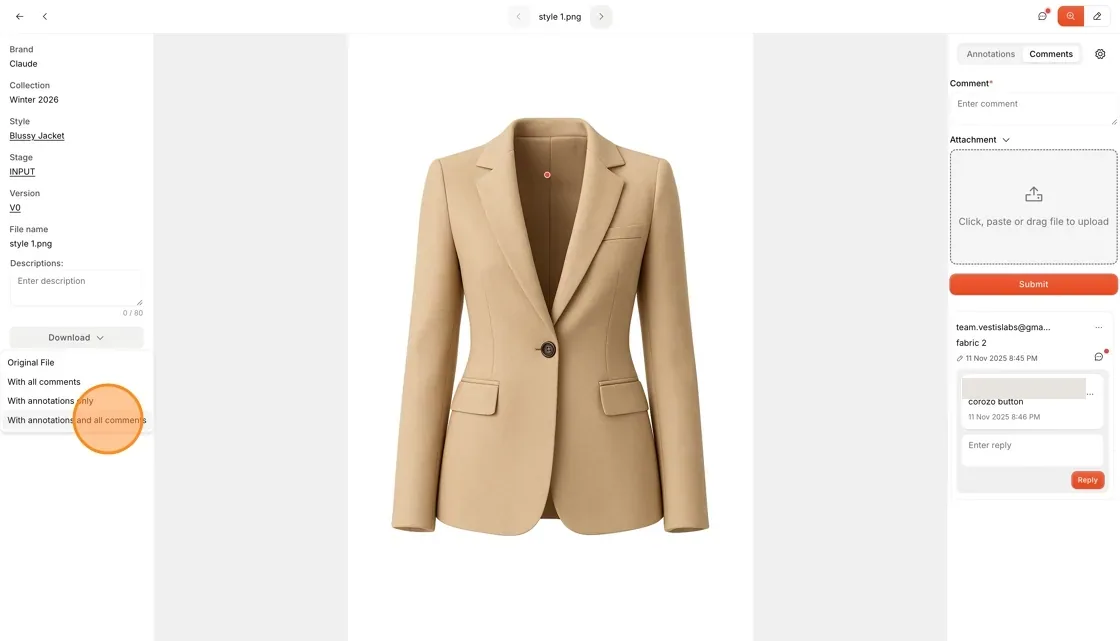
With Annotations and all comments: Users can download the Original Image with Annotations and all Comments from the Design & Development of the Style.
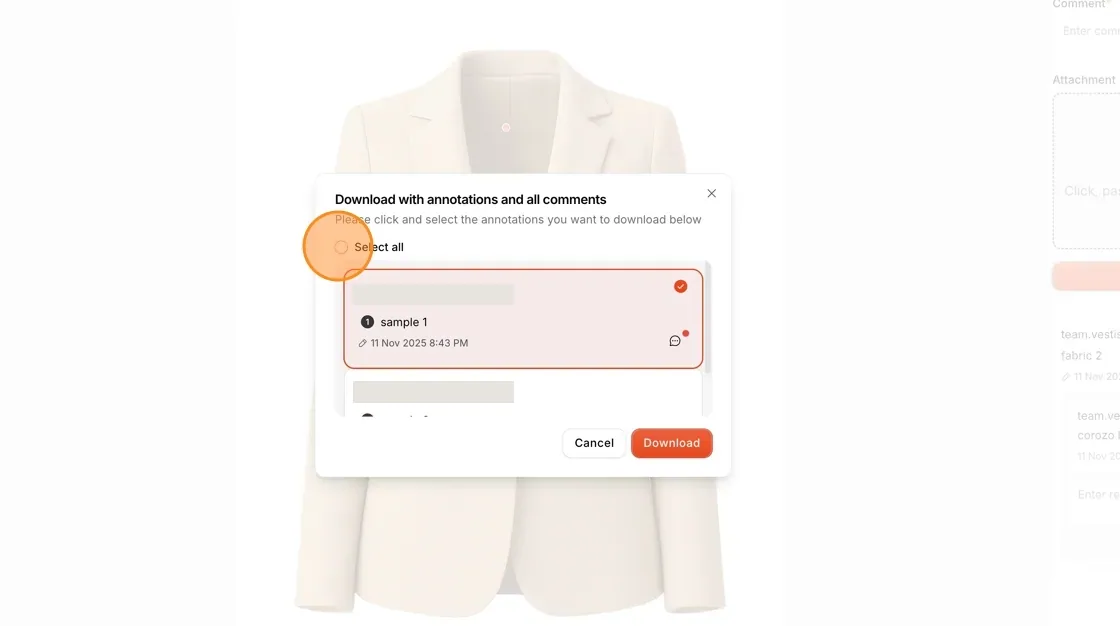
Users can select all annotations or only the annotations they want to download.
Select Download on the lower left corner of the confirmation window.
Users will go directly to a new tab browser to see the Download File.
Users will go directly to a new tab browser to see the Download File. The annotated Style will be displayed on the Image. The annotations and All comments will be displayed under the Image from the Design & Development of the Style