
Step 7 of 13 in Onboard your brand
Understanding role and permission
Access on Vestis Labs is governed by three layers that stack together.
Under review. This page is published while we check it against the live app, so some details may have changed.
Screenshots may be out of date.
How permissions work
Access on Vestis Labs is governed by three layers that stack together. A feature must clear all three before a user can interact with it.
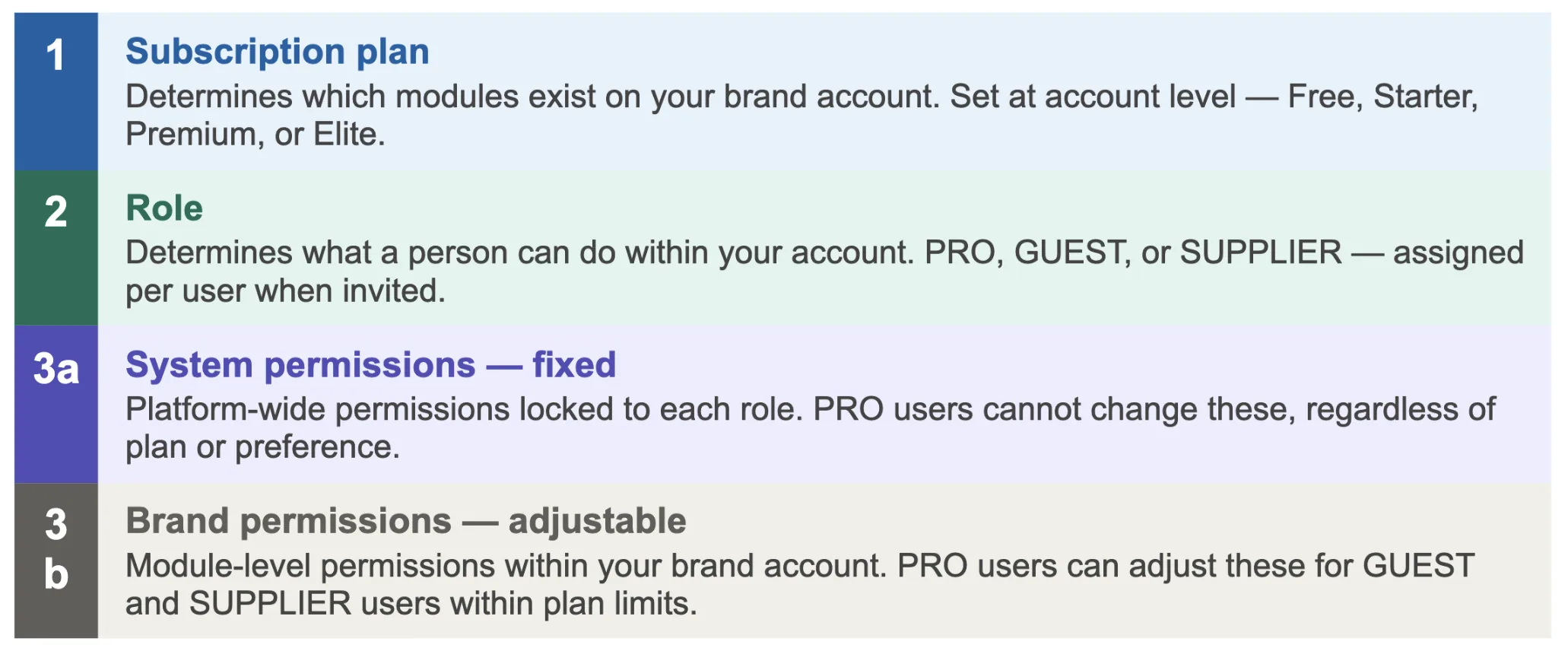
Brand permissions
This is the most important concept to understand when managing your team. Brand permissions are the ones the PRO user can adjust in User Management. Some capabilities are fixed by role and cannot be changed by anyone on your team.
Note
When a GUEST or SUPPLIER can't access something, first check whether it is a brand permission. If it is, the PRO user can adjust it in User Management.
Subscription plans
Plans are set at the brand account level and control which modules are available to everyone on the account. Only the subscription owner can subscribe, upgrade or change the plan. Every plan includes one PRO user plus an allocation of external seats. To see your current plan and what it includes, go to Management → Subscription. See Subscription management.
Roles & external seats
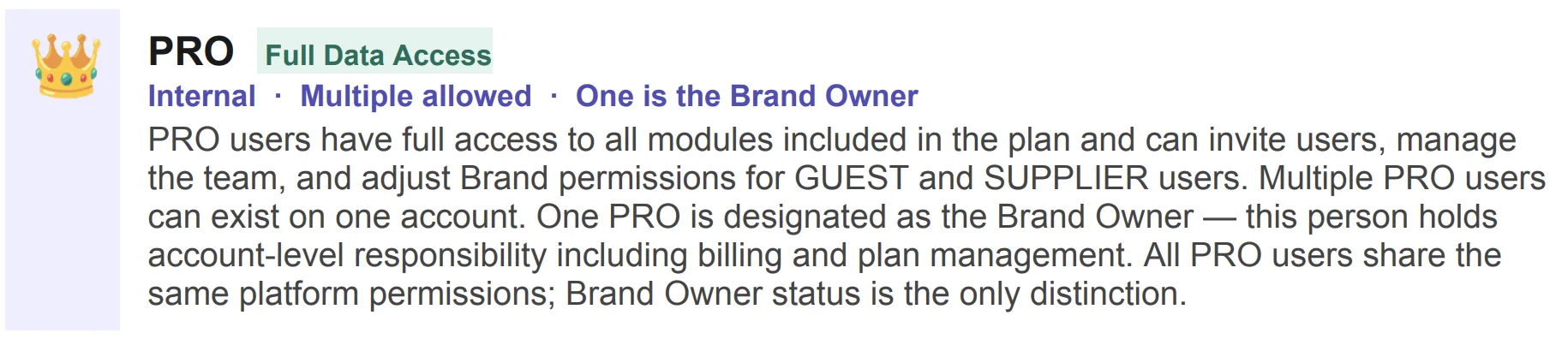
Every person on Vestis Labs has a role that determines their default capabilities. There are three client-facing roles: PRO (the highest level), GUEST, and SUPPLIER. Multiple PRO users can exist on one account — one is designated as the Brand Owner, responsible for billing and account management, but all PRO users share identical platform permissions.
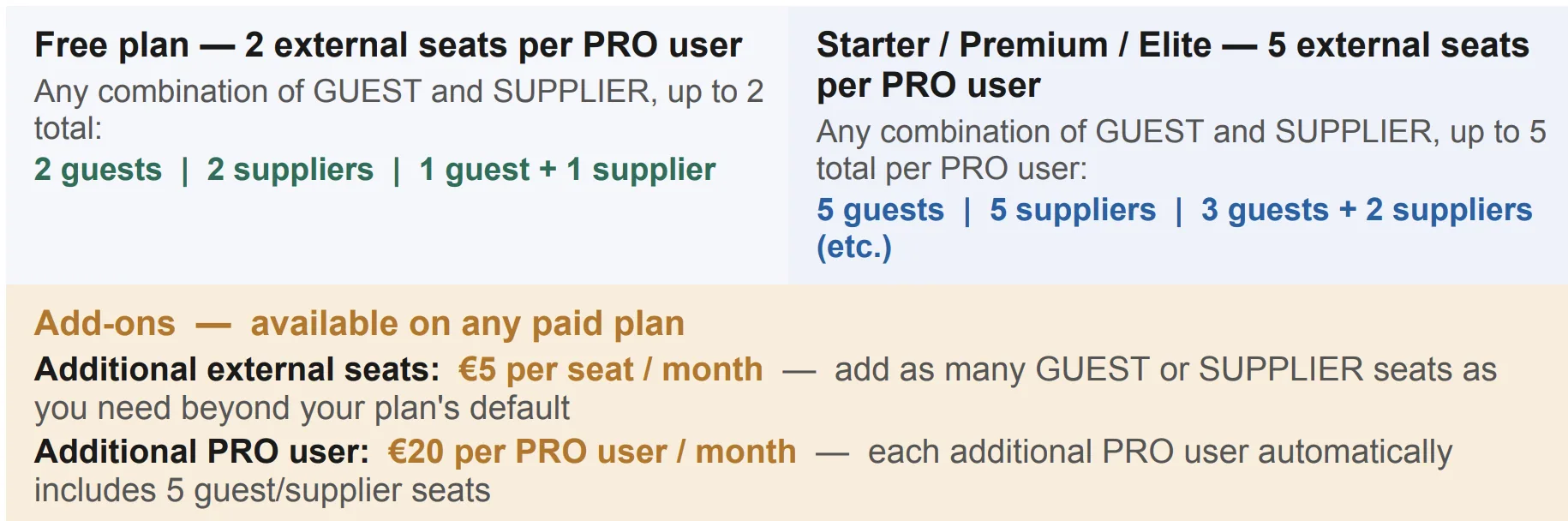
External Seat Pool
GUEST and SUPPLIER roles draw from the same seat allocation. Use any combination.
⚠ **Important
Each PRO user gets their own seat allocation. On Multi-Brand plans (Premium+), each brand's PRO users have their own separate pool.**
Full data access
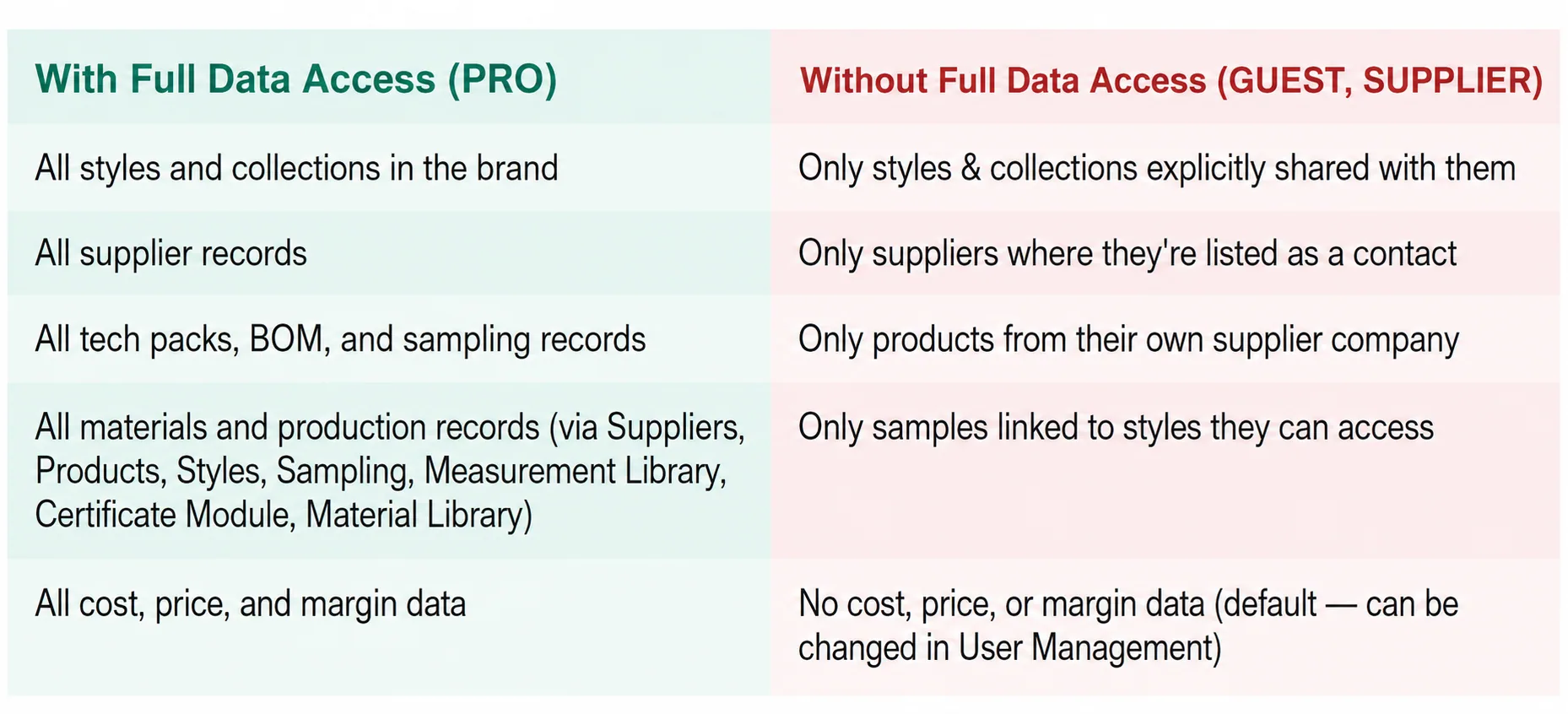
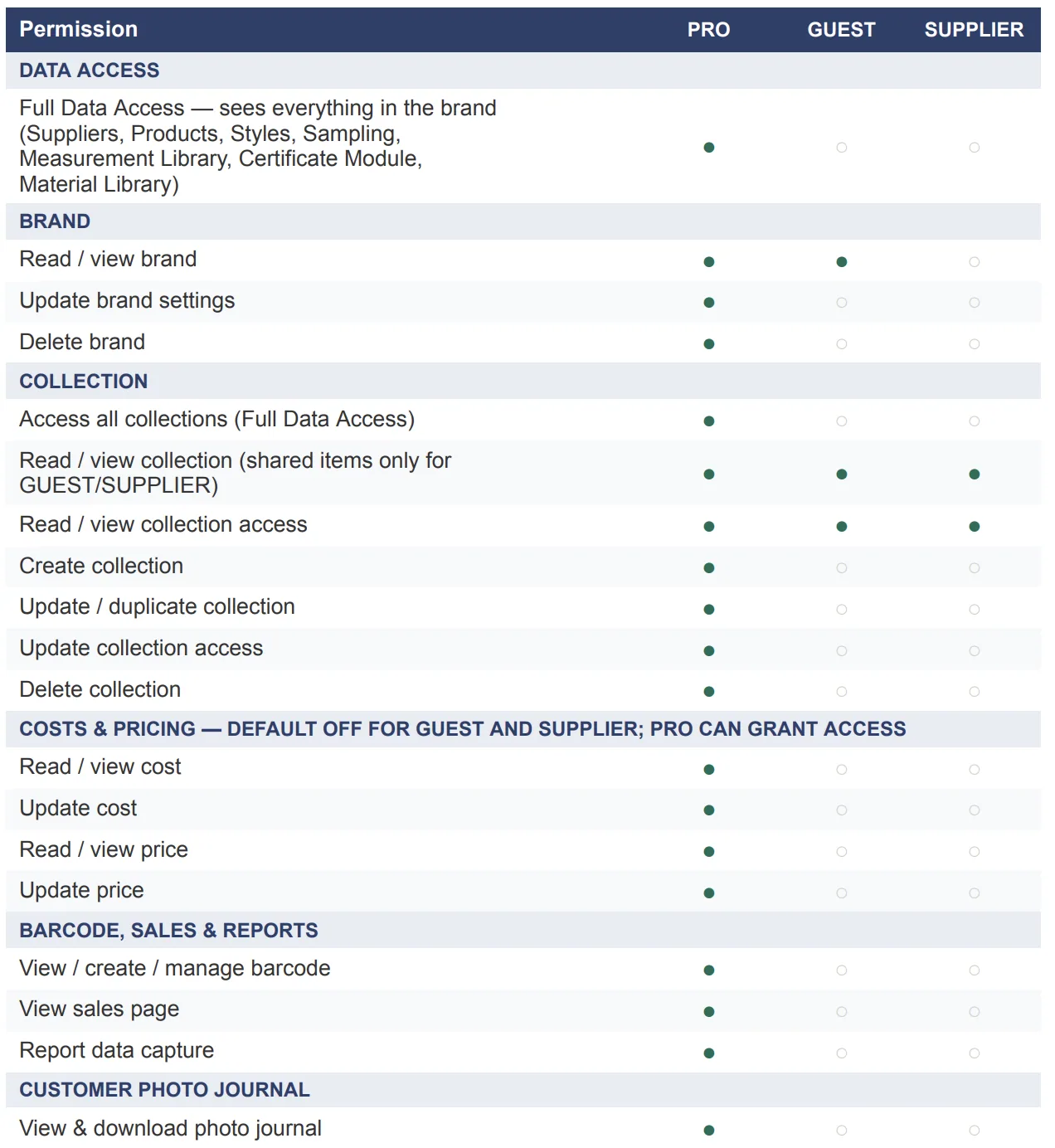
Full Data Access is a brand-level permission — not a fixed permission. By default, only PRO users have it. However, the PRO user can grant Full Data Access to individual GUEST or SUPPLIER users through User Management if their workflow requires it.
It controls what a user can see within your brand account. Without it, GUEST and SUPPLIER users are scoped to only the items explicitly shared with them.
⚠ **Important
Full Data Access is off by default for GUEST and SUPPLIER. The PRO user can enable it per individual user in Management → Users. Note: even with Full Data Access enabled, GUEST and SUPPLIER still cannot see cost, price, or margin data by default — but that restriction can also be lifted by the PRO user through User Management.**
✓ **Tip
Within what they can see, GUEST and SUPPLIER have meaningful active permissions — not just read-only. See Section 6 for the full picture.**
What each role can do
GUEST
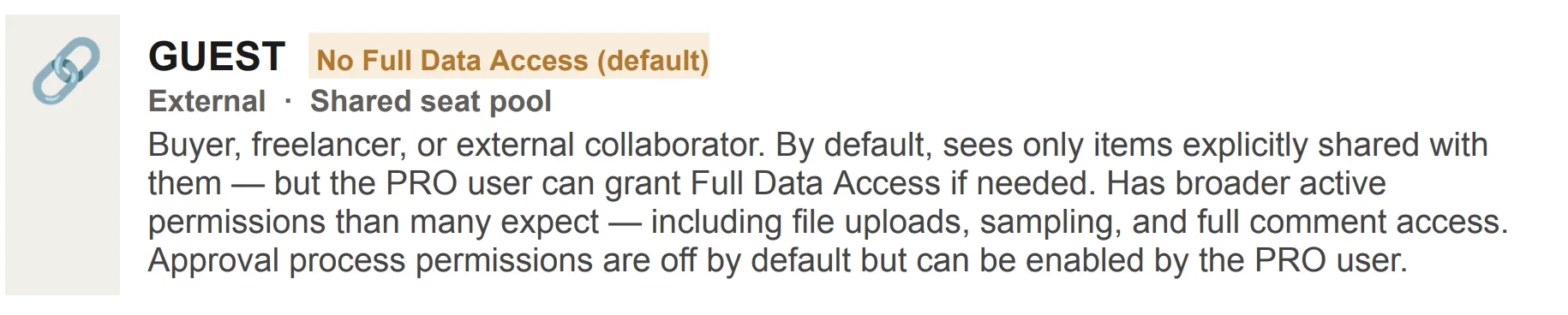
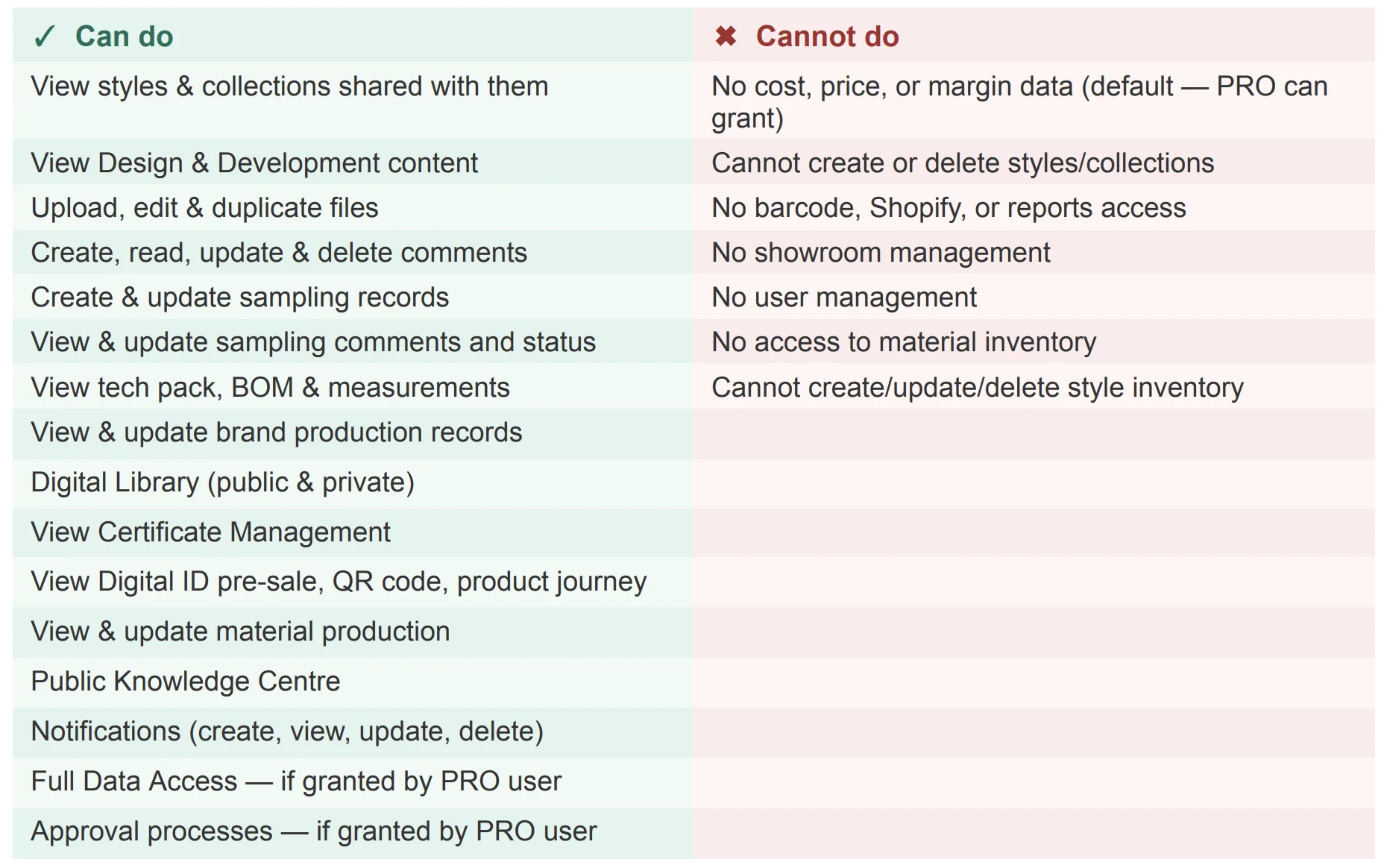
GUESTs see only items shared with them by default, but the PRO user can grant Full Data Access if needed. Within accessible items they have active participation rights. Approval process permissions and Full Data Access are off by default but adjustable by PRO.
SUPPLIER
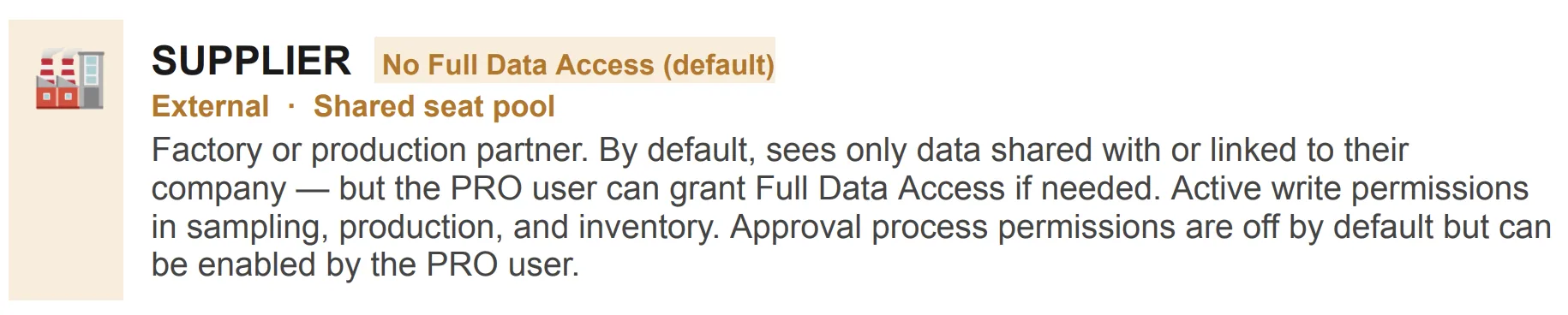
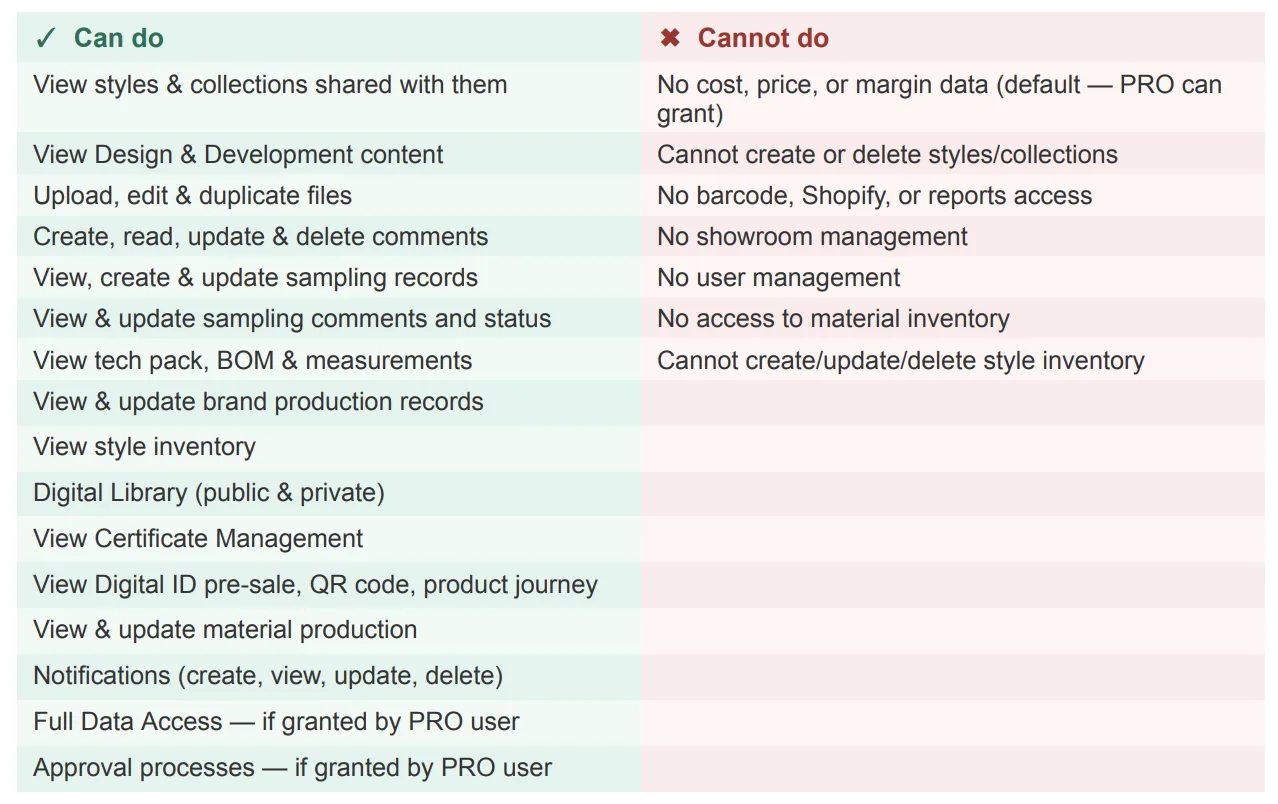
SUPPLIERs automatically see styles and materials directly linked to their company. The PRO user can also explicitly share additional items with them, and can optionally grant Full Data Access. Approval process permissions are off by default but adjustable by PRO.
Brand permission reference by module
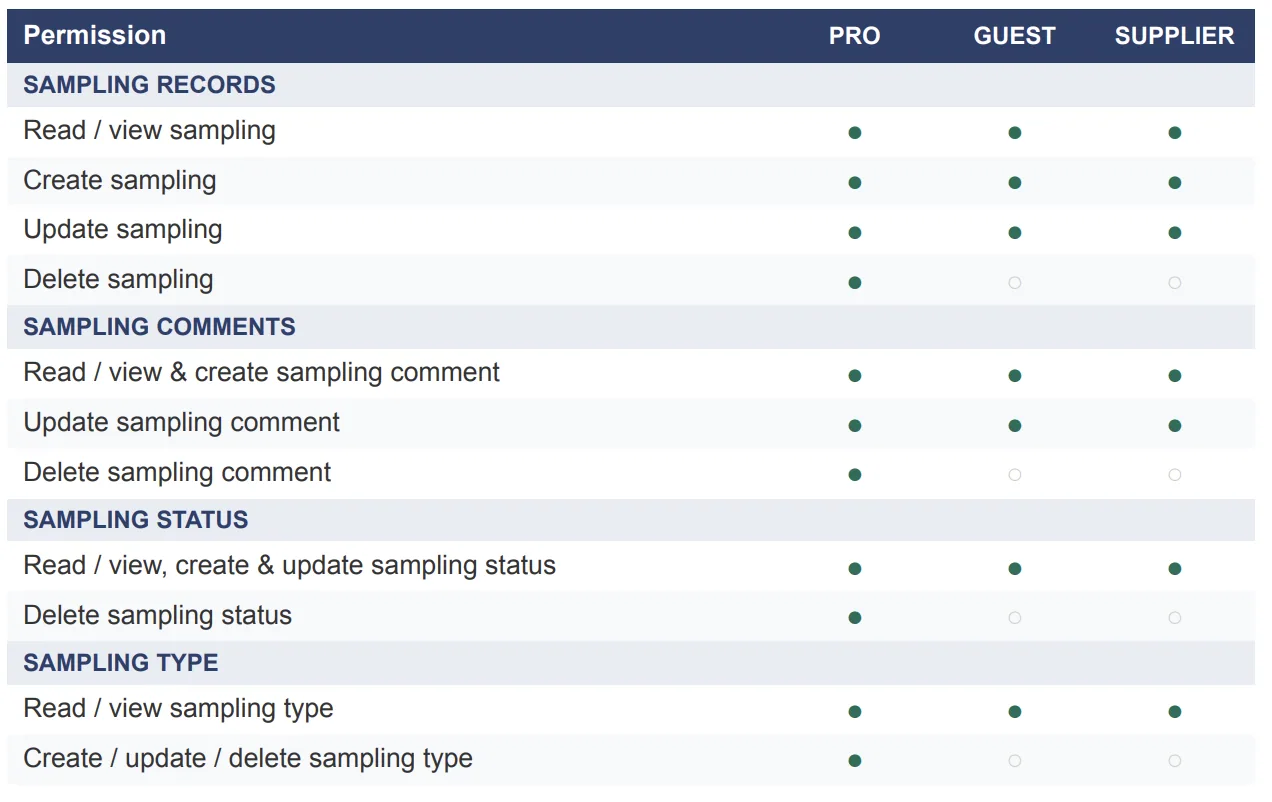
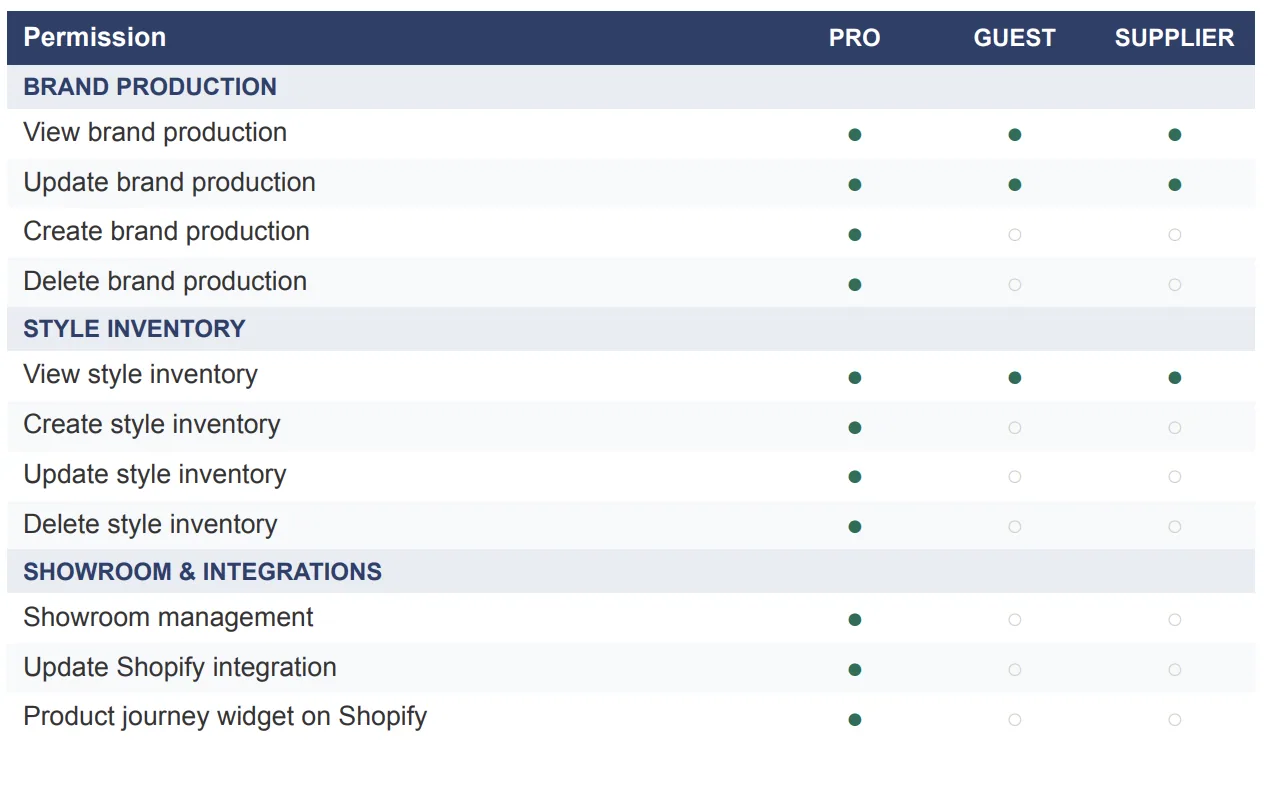
These are the default permissions for each role within your brand account. The PRO user can adjust the GUEST and SUPPLIER columns for individual users.
**Note
These are defaults. The PRO user can tighten or expand Brand permissions for individual GUEST and SUPPLIER users in Management → Users, within the limits of the subscription plan.**
Platform & brand
**⚠ Important
Full Data Access and cost/price/margin access both default to off for GUEST and SUPPLIER. The PRO user can enable either independently per individual in User Management**
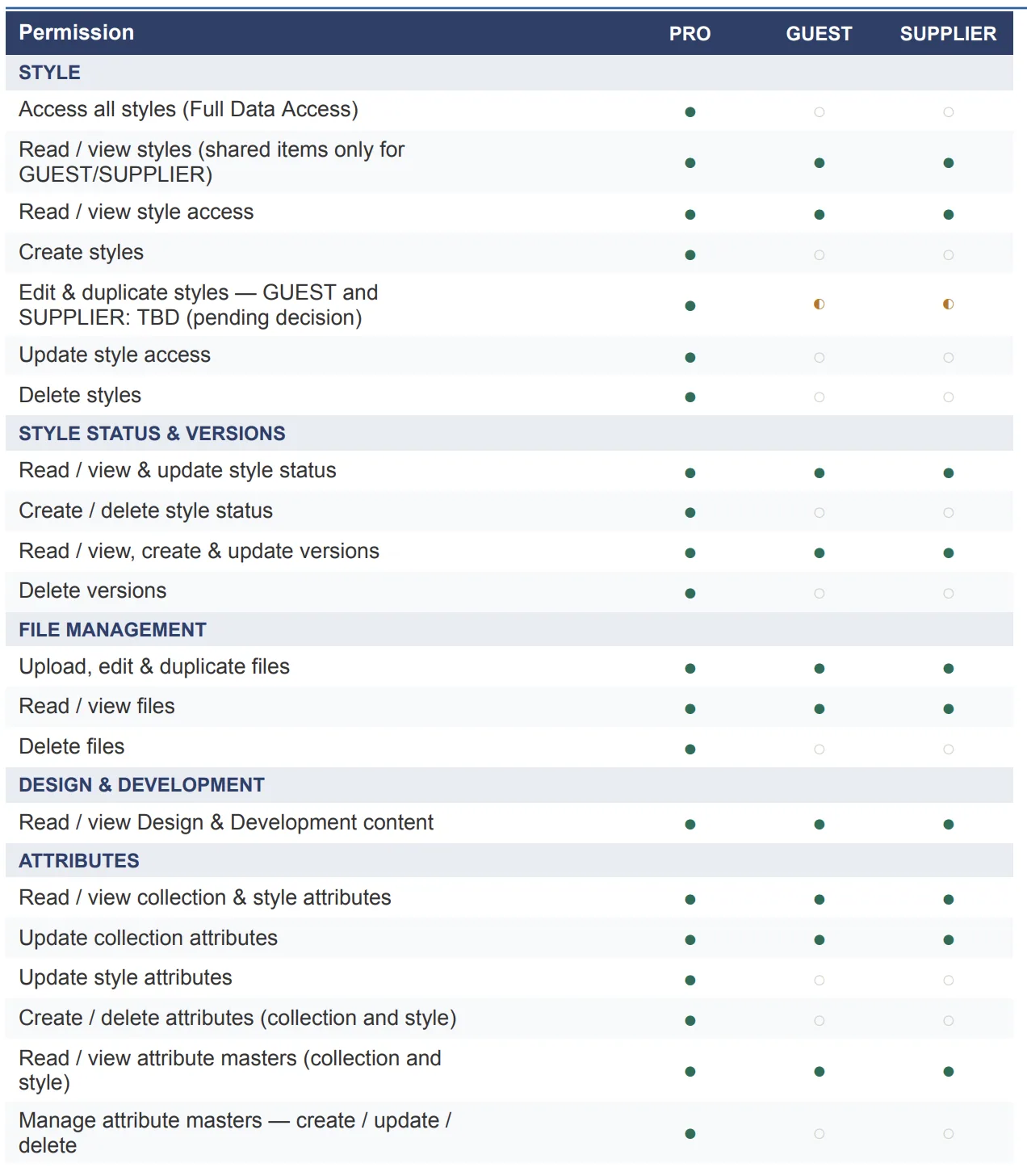
Tech pack
**Note
GUEST and SUPPLIER can view tech packs, BOM, and measurements only for styles explicitly shared with them.**
Sampling
**✓ Tip
GUEST and SUPPLIER can actively participate in sampling — creating records, adding comments, and updating statuses — within the styles they have access to.**
Production
Digital library & materials
**Note
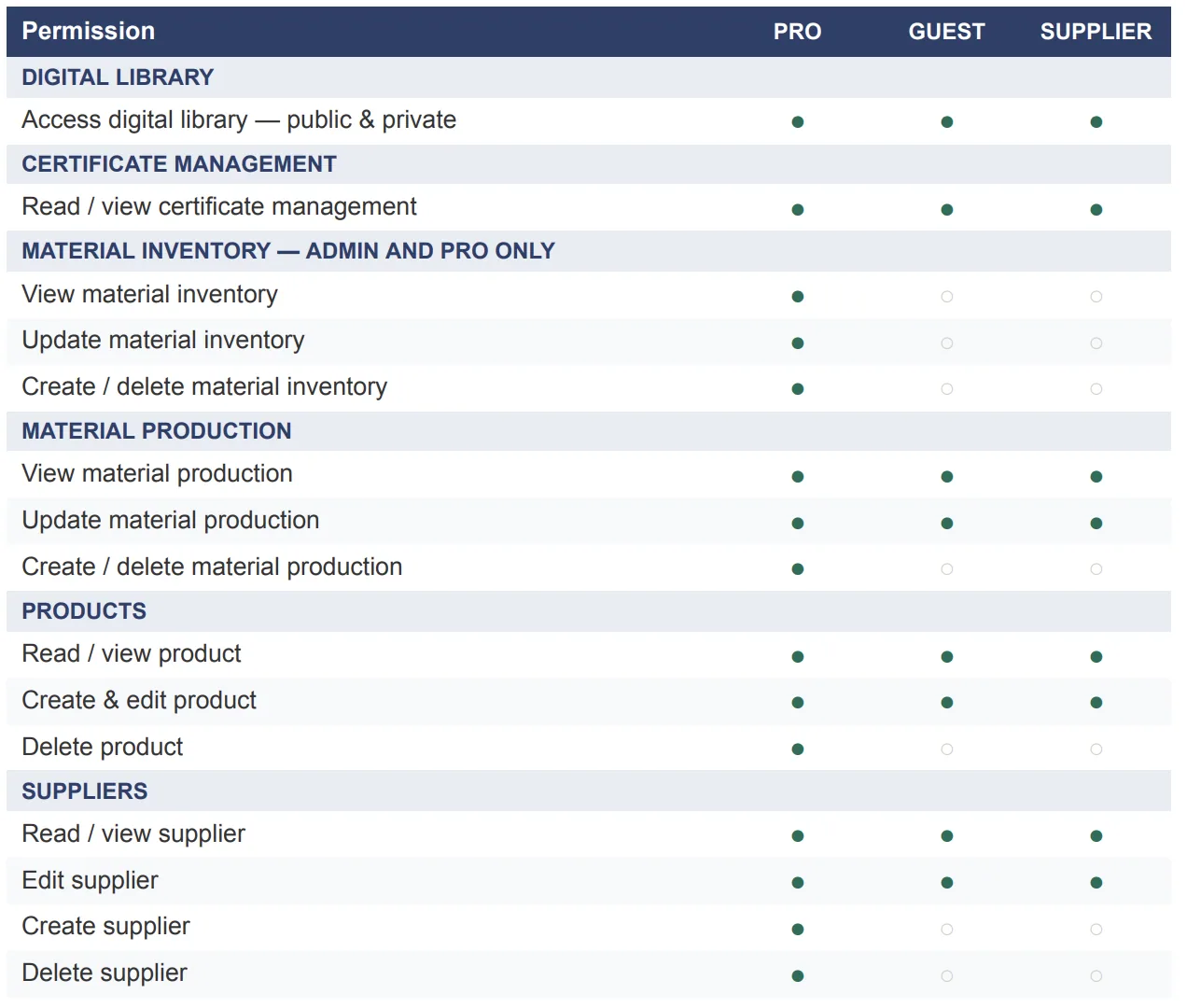
All four roles can access the Digital Library (public and private) and view Certificates Management as long as the account subscribes to Certificates Module. These areas are designed for sharing across your full network.**
Approval processes
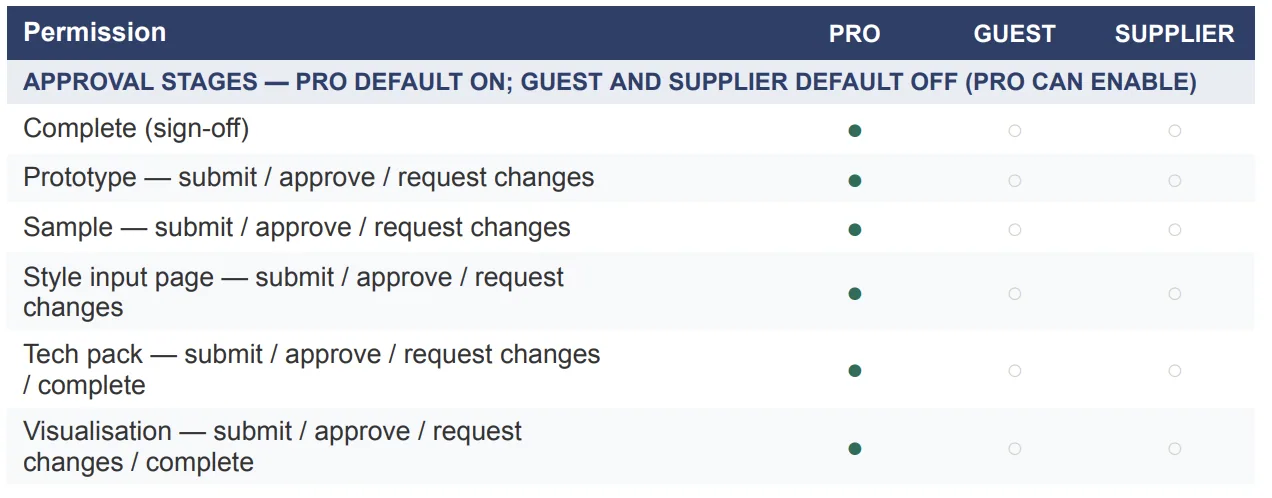
By default, GUEST and SUPPLIER have no approval process permissions. The PRO user can enable these on a per-user basis through User Management, based on their specific working relationship and workflow needs.
**⚠ Important
Approval process permissions for GUEST and SUPPLIER are off by default — the ○ dots above reflect the default state, not a permanent restriction. The PRO user can enable any of these for individual GUEST or SUPPLIER users in Management → Users, based on the working relationship and trust level with that person.**
Comments & user management
**Note
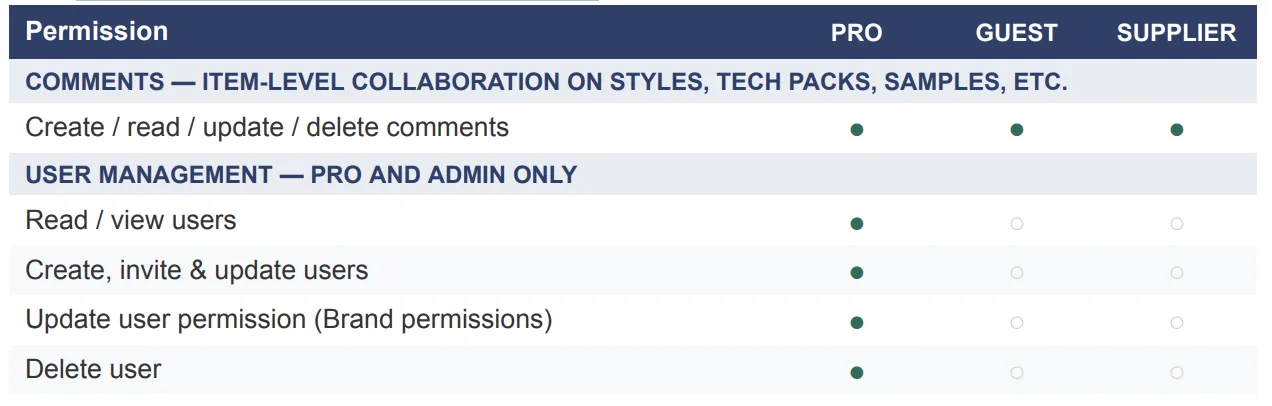
Comments are fully open to all four roles — everyone can create, read, update, and delete comments on items they have access to. This is different from Feedback, which is a system-level channel for sending product feedback to Vestis Labs.**
Adjusting permissions for guests & suppliers
The PRO user can customise Brand permissions for individual GUEST and SUPPLIER users from User Management. This lets you tighten or expand their default access based on your specific working relationship with each person.
**⚠ Important
Two firm limits apply: (1) Only brand permissions can be adjusted; the rest are fixed by role. (2) You cannot grant access to modules not included in your subscription plan.**
How to adjust permissions
Users can adjust their guests’ or suppliers’ permissions on their permission profile.
- Step 1 Go to Management → Users
- Step 2: Click the (⋮) next to the guest’s or supplier’s name to open their individual permission profile.
- Step 3 Adjust their Brand permissions and save. Changes take effect immediately — the user does not need to log out.
Why is a feature locked?
Use these steps to find out why you or a team member cannot access something.
- Is the module included in your brand's subscription plan? If not, the feature does not exist on your plan, and only the PRO user can upgrade to unlock it. If it is, continue.
- Is it a brand permission? If the capability is fixed by role, check what your role allows in the permission reference below. The PRO user cannot change it.
- Has the PRO user enabled this brand permission for your user profile? If not, ask the PRO user to update your permissions in Management → Users. If it is enabled and you still cannot access it, contact support.
Managing your team
- Step 1 Go to Management → Users (you need the View user permission).
- Step 2 Click 'Invite' and select a profile. For clients, choose PRO, GUEST, or SUPPLIER. External profiles (GUEST, SUPPLIER) draw from your seat pool.
- Step 3 Optionally adjust their Brand permissions. Role defaults apply immediately. Adjust individual permissions before or after they accept if needed.
- Step 4 For GUEST and SUPPLIER: share specific items. Inviting someone does not give them access to your data. Share specific styles, collections, or production records separately.
**⚠ Important
Inviting a supplier or guest does not automatically share any data with them. Your brand data is private by default — sharing must be done explicitly, item by item.**
Changing permissions after inviting
You can update any user's Brand permissions at any time without re-inviting them.
- Step 1 Go to Management → Users
- Step 2 Click the (⋮) next to the guest’s or supplier’s name to open their individual permission profile.
- Step 3 Adjust their permissions and save. Changes take effect immediately.