
Step 13 of 13 in Place and track a production order
Production dashboard
The Production Dashboard provides a real-time overview of all production orders and activities in Vestis Labs.
The Production Dashboard provides a real-time overview of all production orders and activities in Vestis Labs. It helps teams quickly understand production status, track order progress, and monitor key milestones from creation through shipment.
ProductionDashboard
Permission: VIEW_BRAND_PRODUCTION
In the left sidebar, expand Production and click Dashboard.
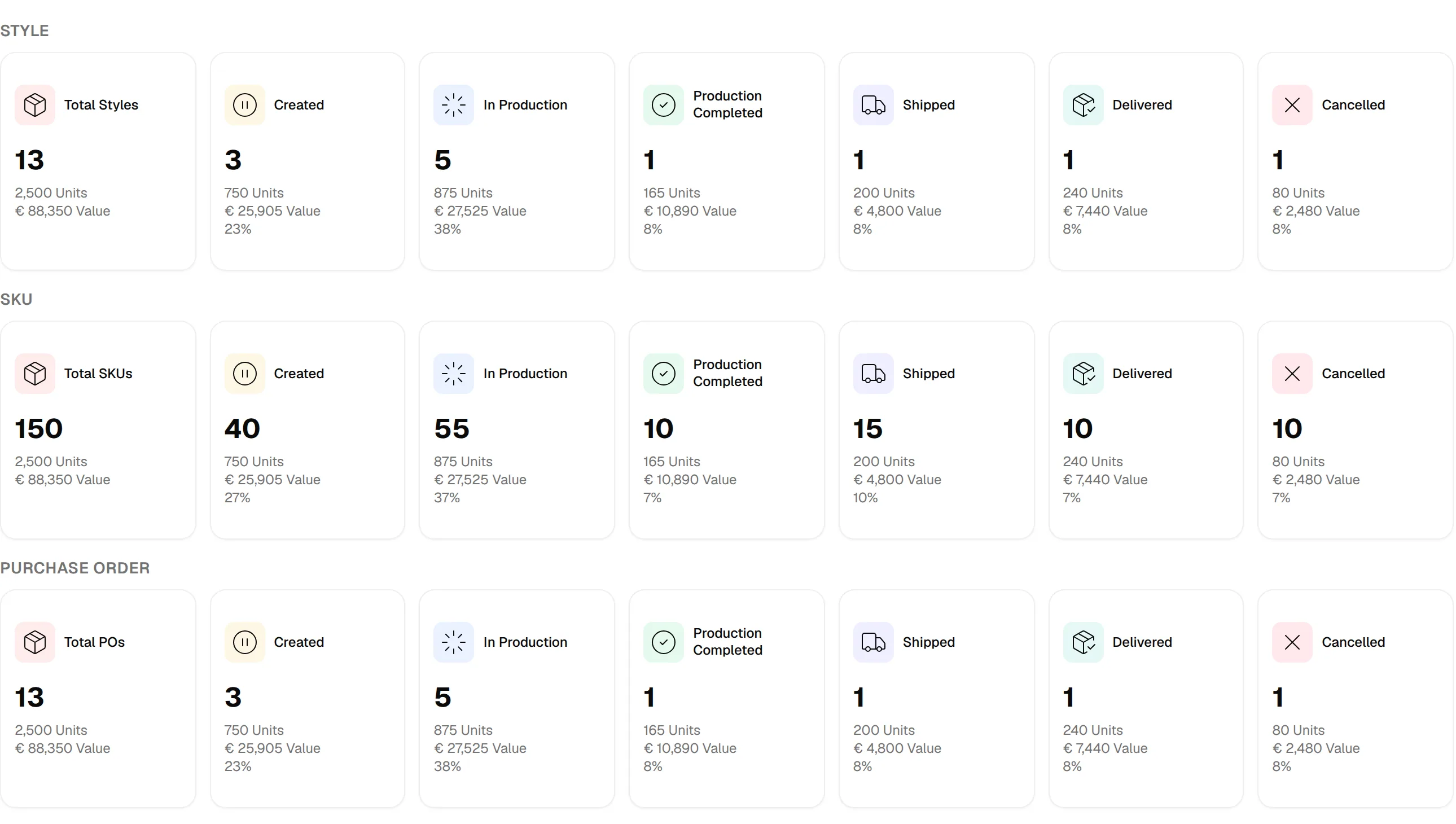
Statistic groups
The top of the dashboard shows three statistic groups.
Style
Tracks production progress at the style/design level. Shows how many styles are in each stage of the production lifecycle from creation through delivery.
SKU
Monitors individual product variants (size, colour combinations). Provides granular tracking below the style level to understand specific product availability and production status.
Purchase Order
Tracks the actual purchase orders placed with factories. Reflects the commercial and logistics side of production including shipping and delivery confirmation.
Each group is a row of cards: Total, Created, In Production, Production Completed, Shipped, Delivered and Cancelled. Each card shows:
- Count of styles/SKUs/POs
- Number of units
- Total value (in your brand's base currency)
- Percentage of total (on every card except the total)
Production health summary
Below the statistic groups, Production Health Summary shows how many Purchase Orders, Styles, Style Options and SKUs are On Track, At Risk or Delayed, with the count and percentage for each. Click any line to open the Production overview already filtered to that level and health.

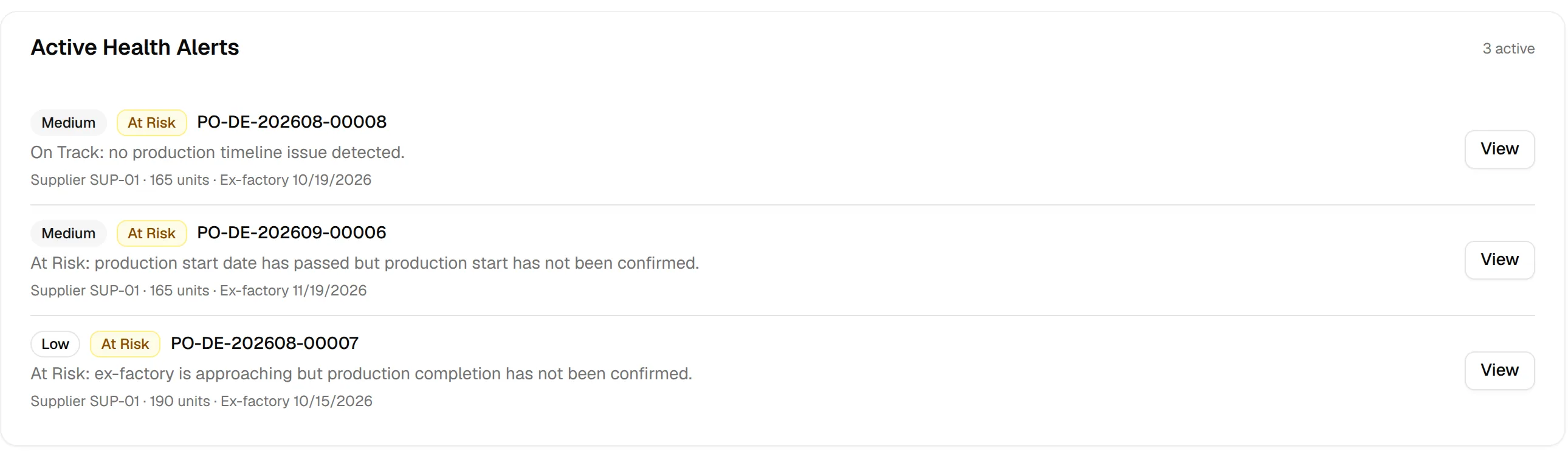
Active health alerts
Active Health Alerts lists production orders that are At Risk or Delayed right now. Each entry shows its priority (Critical, High, Medium or Low), the health badge, the production number, the reason, the supplier, the units affected, the ex-factory date, how many days it is overdue, and a note when the agreed dates were recently amended. Click View to open the order details. When nothing needs attention, the card says No At Risk or Delayed production orders right now.
Recent orders and upcoming milestones
Recent Orders is a quick-access panel showing the three most recent production orders created in the system. Each entry displays:
- Production number (the PO reference)
- Supplier name and number of styles included
- Current status badge (for example Created, In Production)
Provides immediate visibility into the latest activity without navigating away from the dashboard.
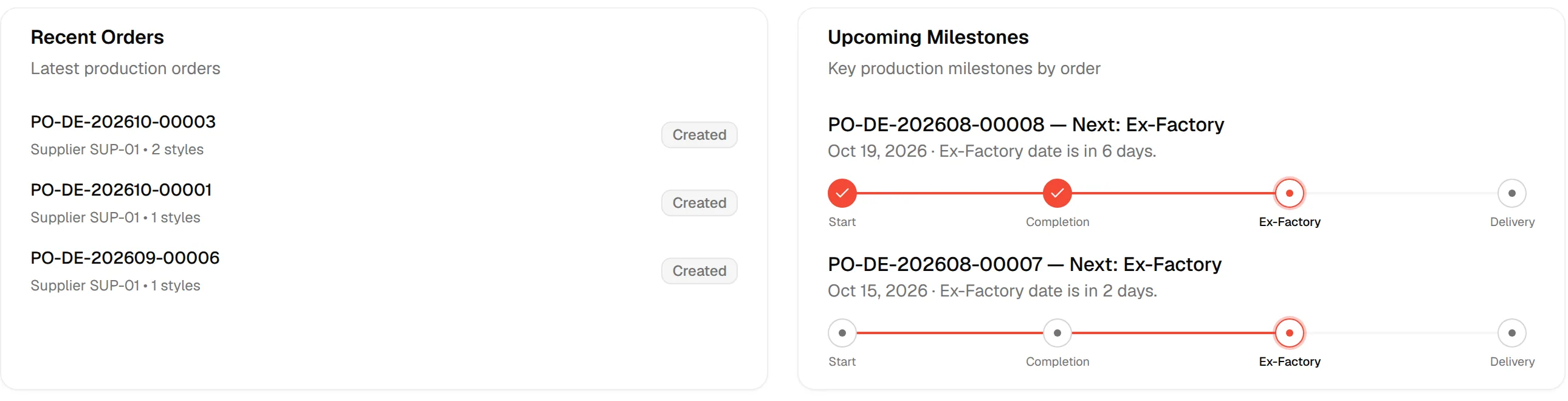
Upcoming Milestones lists the next key milestone for each order, with its date and a timeline of the order's progress. When there is nothing coming up, it shows No upcoming milestones.
Alerts & Notifications
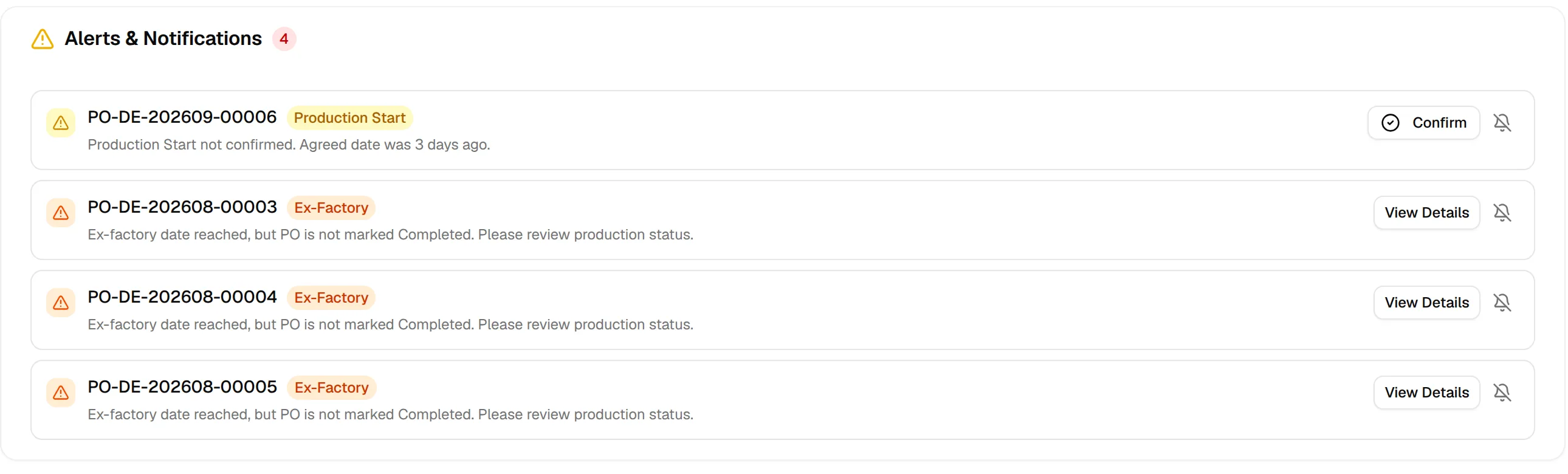
When a milestone date has passed without confirmation, an Alerts & Notifications card appears. It displays a numbered badge indicating the total active alerts and lists all items requiring attention. The production number in each alert opens the order details.
Alert types:
Confirm alerts (production start, production completion, ex-factory and delivery)
- Triggered when the agreed date for a milestone has been reached or has passed without confirmation. The four milestones are Production Start, Production Completion, Ex-Factory and Delivery.
- The message says how long ago the agreed date was.
- Action: Confirm that the milestone happened. This moves the order to the next status: In Production for Production Start, Completed for Production Completion, Shipped for Ex-Factory and Delivered for Delivery.
- Confirm only appears if you can update brand production.
Review alerts
- Triggered when a completion date has been reached but the order is still Created, or when the ex-factory date has been reached but the order is not yet Completed.
- Indicates a potential tracking or status update gap.
- Action: View Details to review the order and take action.
The alert badge count decreases when alerts are resolved.
Click "Confirm"
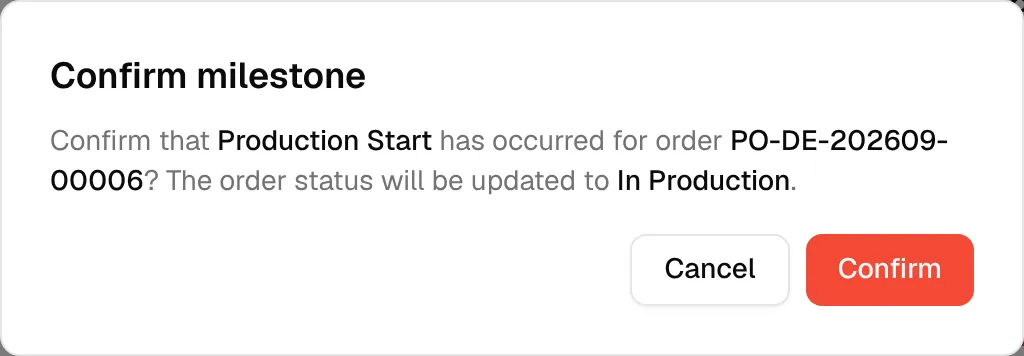
Click Confirm on the alert. A Confirm milestone dialog opens before anything is finalised. It names the milestone, the production order, and the status the order will change to. This two-step confirmation prevents accidental status updates.

Confirm the milestone
In the dialog, click Confirm. The milestone is marked as confirmed and the order status is updated with the note "confirmed via dashboard".
Snooze a reminder (optional)
Click the bell icon on an alert. Hovering shows the Snooze reminder tooltip. Snoozing lets your team temporarily dismiss alerts they are aware of but cannot action immediately.

Click "View Details"
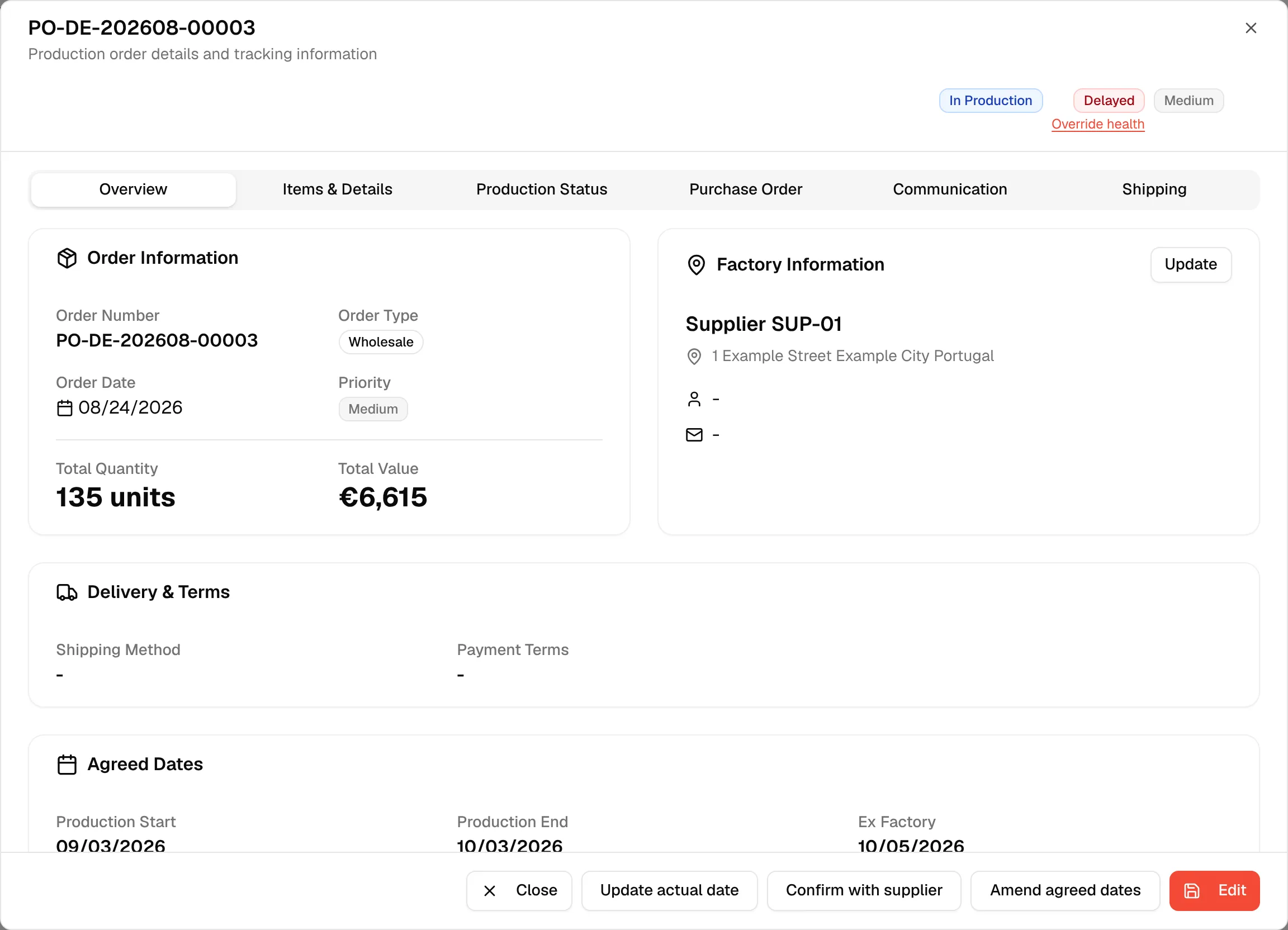
On a review alert, click View Details to open a full Production Order dialog with complete order information including dates, factory details, quantities, and values.

Manage columns
A dashboard customisation tool accessible via the Manage Columns button in the top toolbar.
Open Manage Columns
Click Manage Columns at the top of the dashboard.
Choose statistic groups
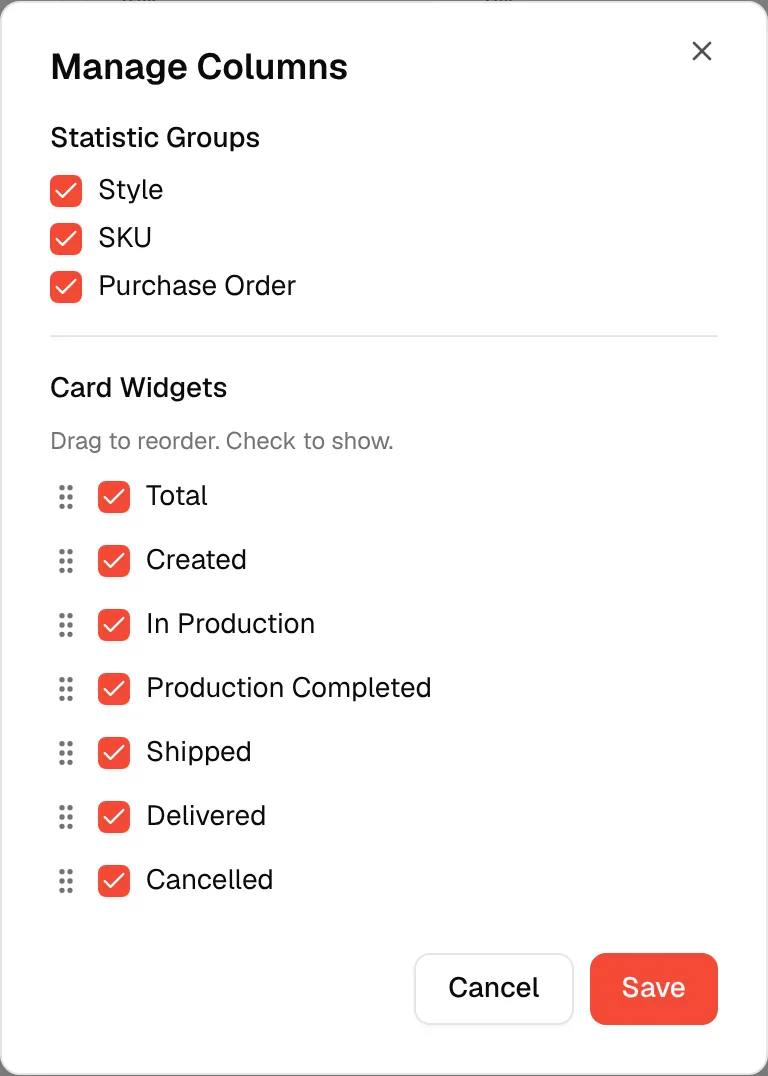
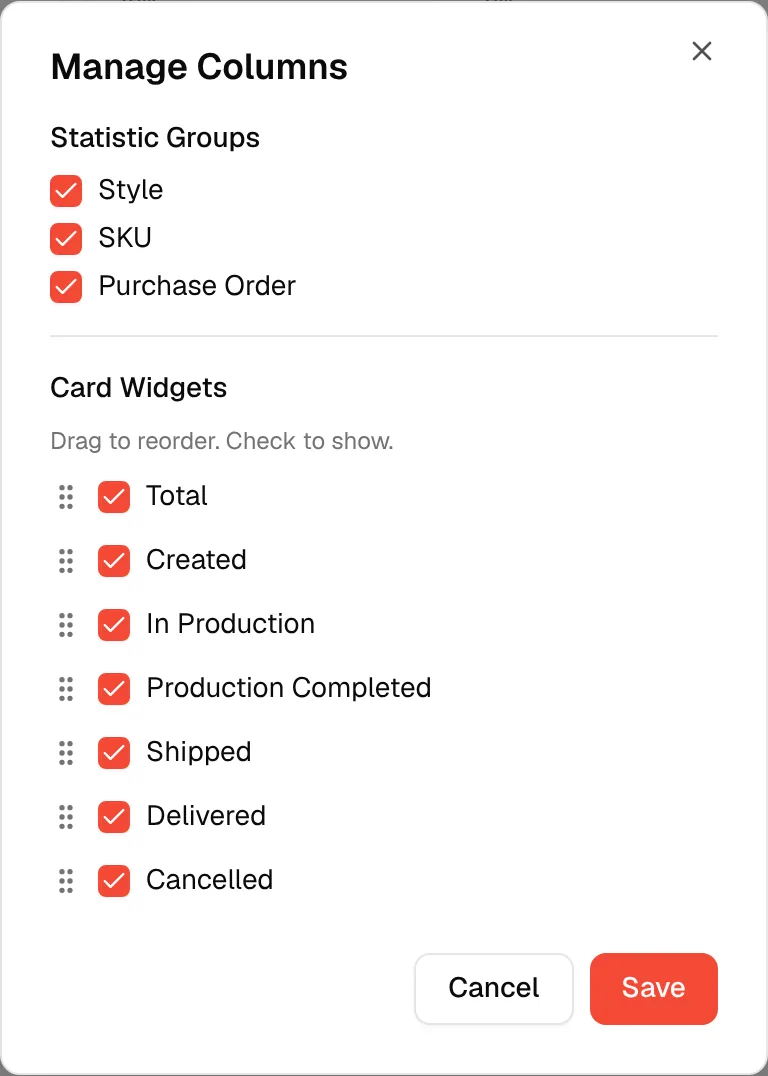
The Manage Columns dialog appears over the dashboard, with two sections. Under Statistic Groups, check or uncheck Style, SKU and Purchase Order to show or hide entire groups.
Choose and reorder the cards
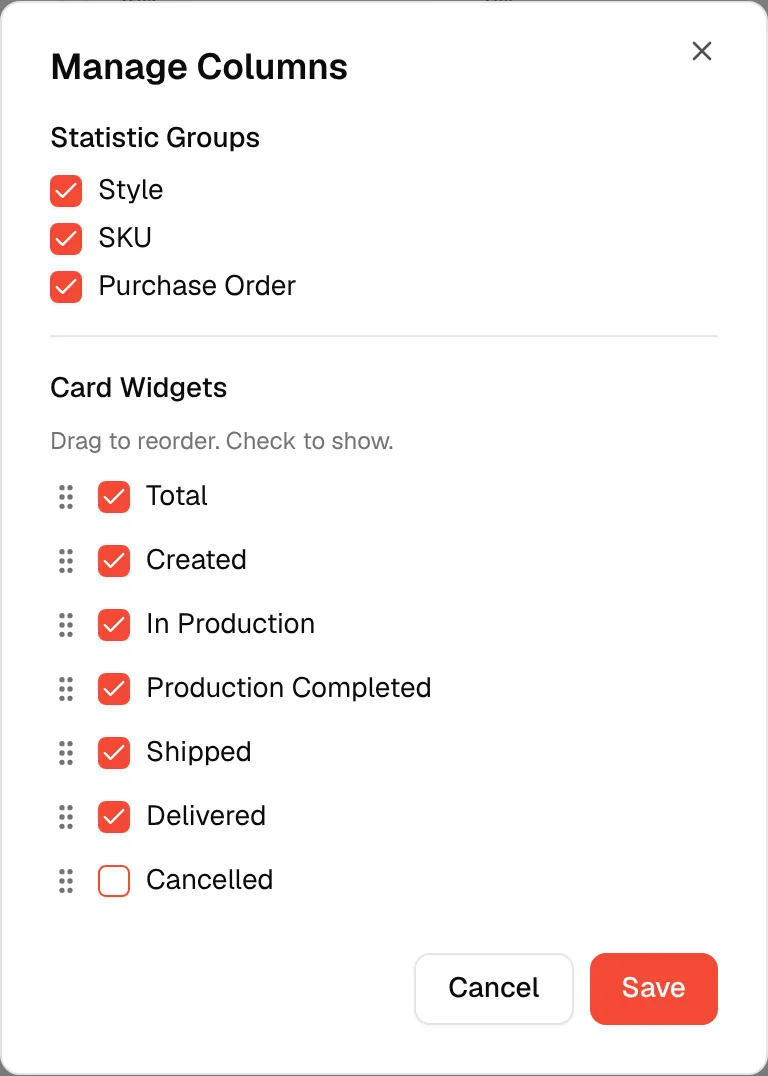
Under Card Widgets, uncheck any status card you want to hide. Drag a card by its handle to reorder; the helper text reads Drag to reorder. Check to show.
Save
Click Save to confirm the new arrangement, or Cancel to discard it.
Filter the statistics
The toolbar filters change the statistic cards only.
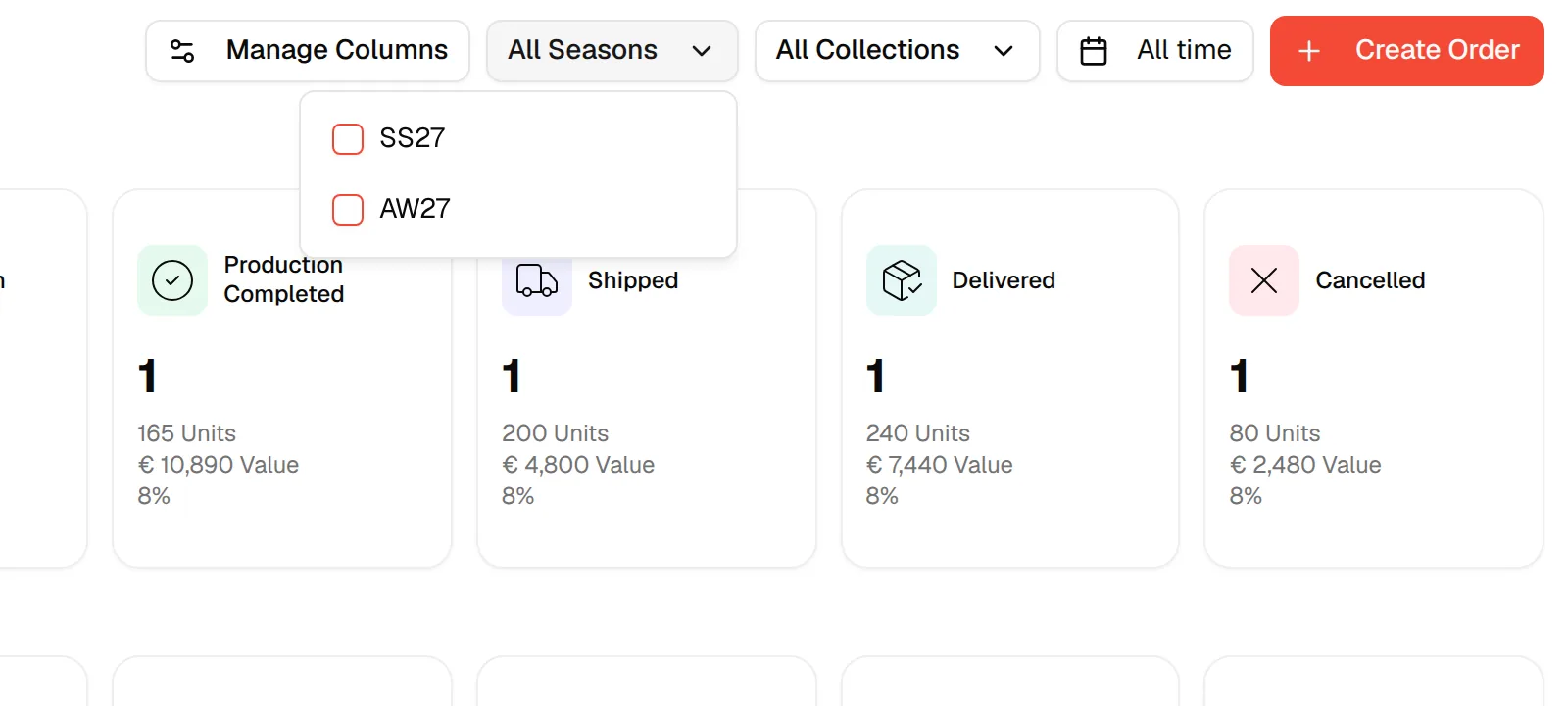
Click the All Seasons dropdown. A list of your seasons appears. Check one or more to filter the stats to those seasons; the button then reads, for example, 2 Seasons. Click Clear to reset.
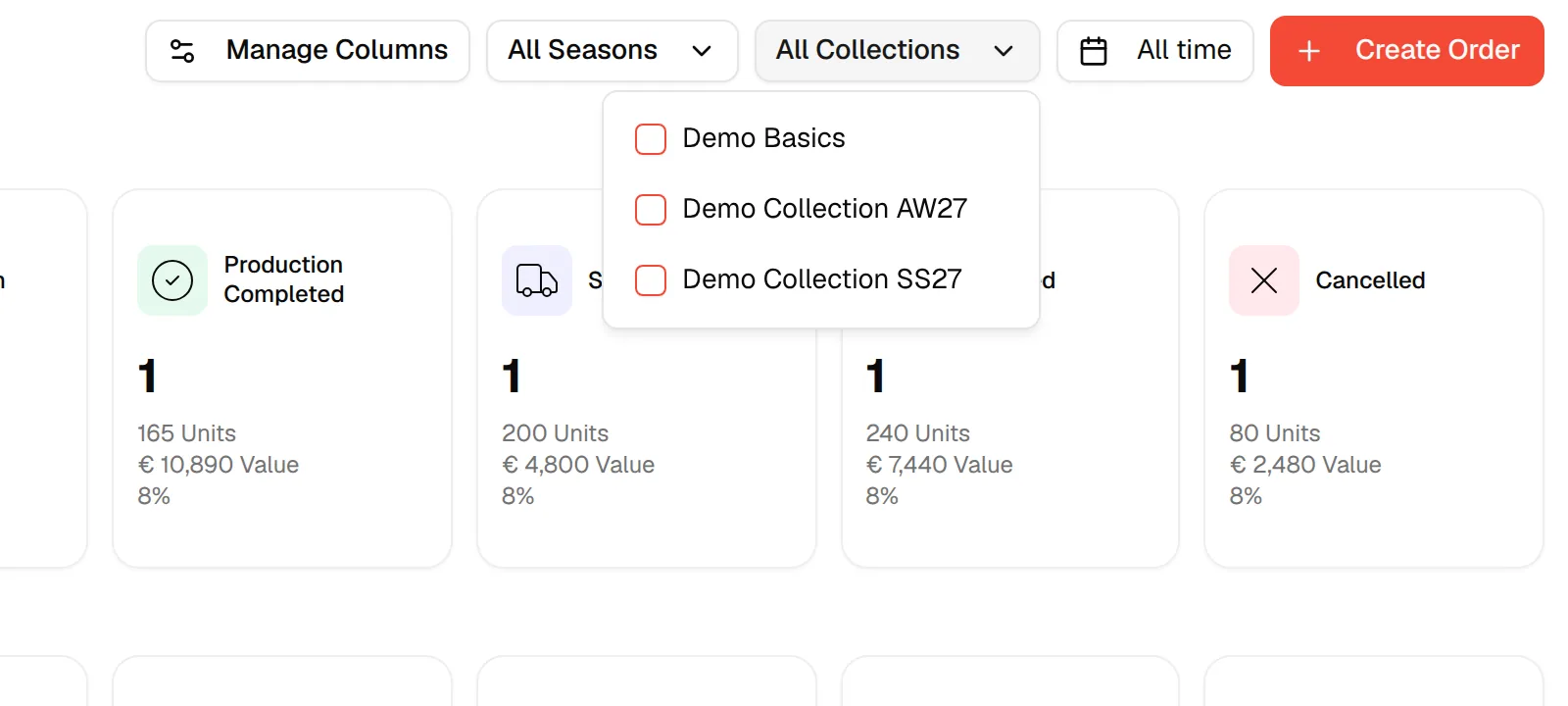
Click the All Collections dropdown. Check one or more collections to scope the stats to them. Click Clear to reset.
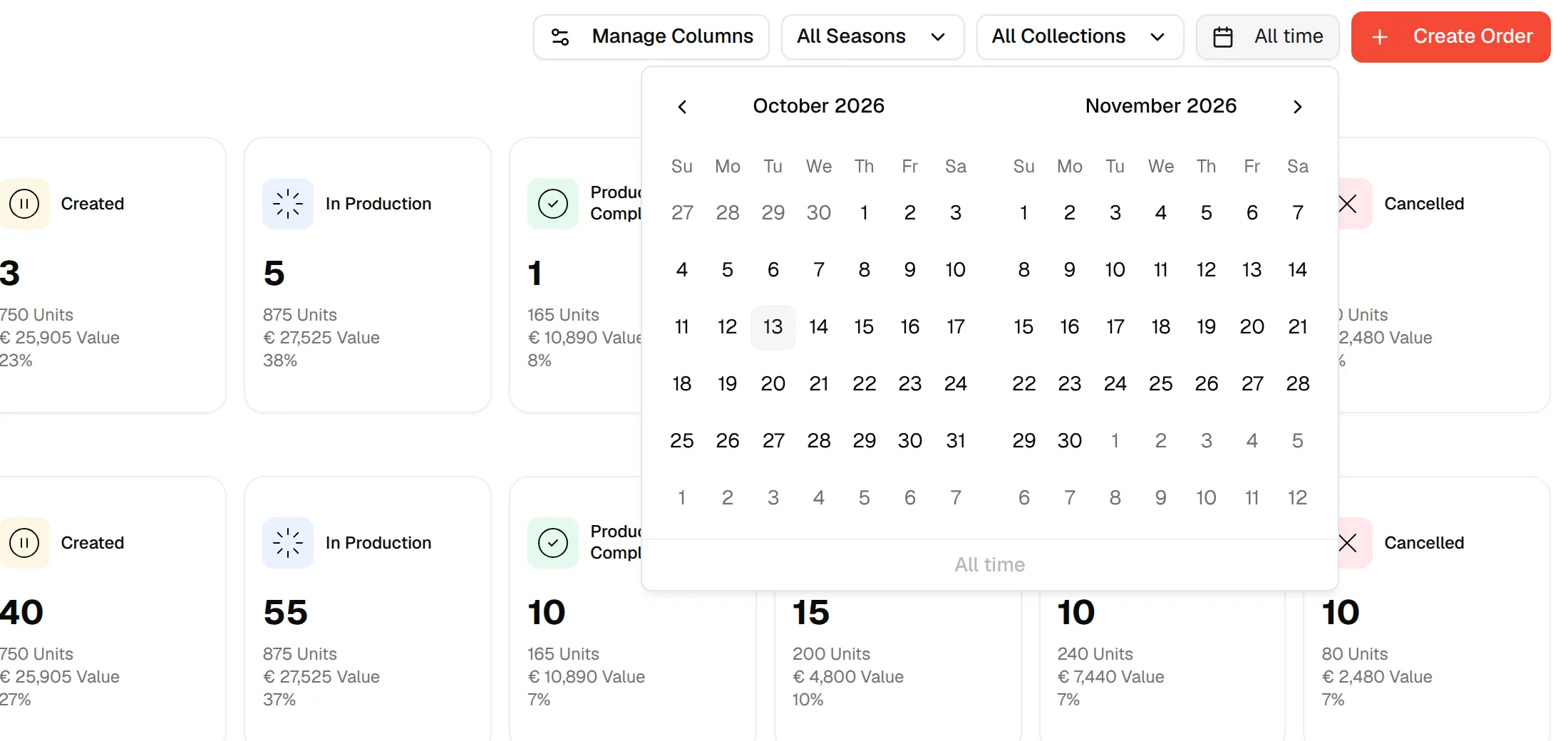
Click the All time button (calendar icon). A date picker opens showing two months side by side. Select a start and end date to restrict stats to that window, or click All time at the bottom to reset.
Create an order from the dashboard
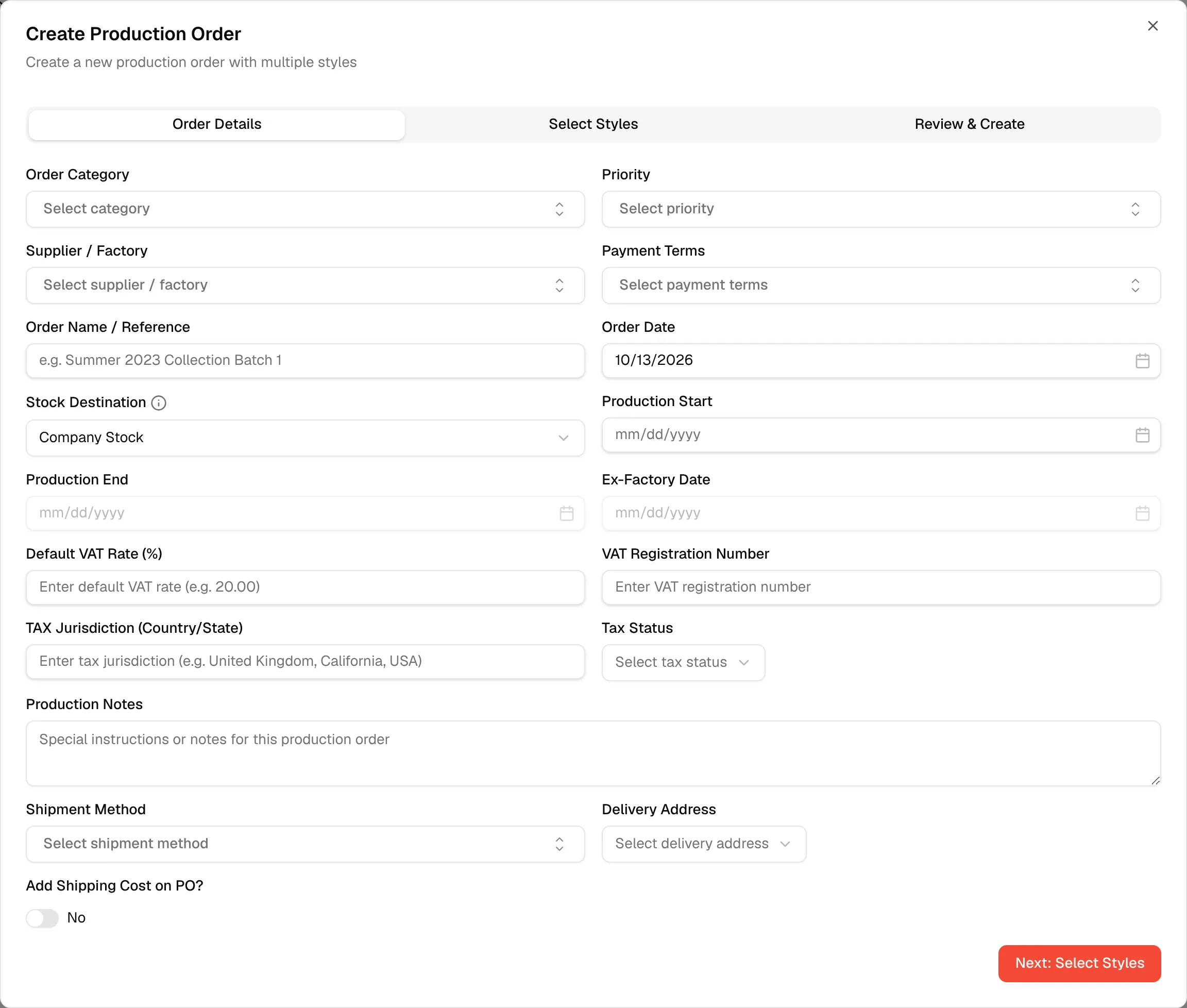
Click the + Create Order button in the top right. The Create Production Order modal opens with three steps: Order Details → Select Styles → Review & Create. The button only appears if you can update brand production.

Fill in the Order Details: category, priority, supplier/factory, payment terms, order name/reference, order date, stock destination, production start/end, Ex-Factory date, VAT rate, VAT registration number, tax jurisdiction, tax status, production notes, shipment method, and delivery address. Then proceed through the next steps to add styles and review before creating.
When the order is created, you are taken to Order Management. See Create production order for every field.