
Step 7 of 13 in Place and track a production order
Update the production status
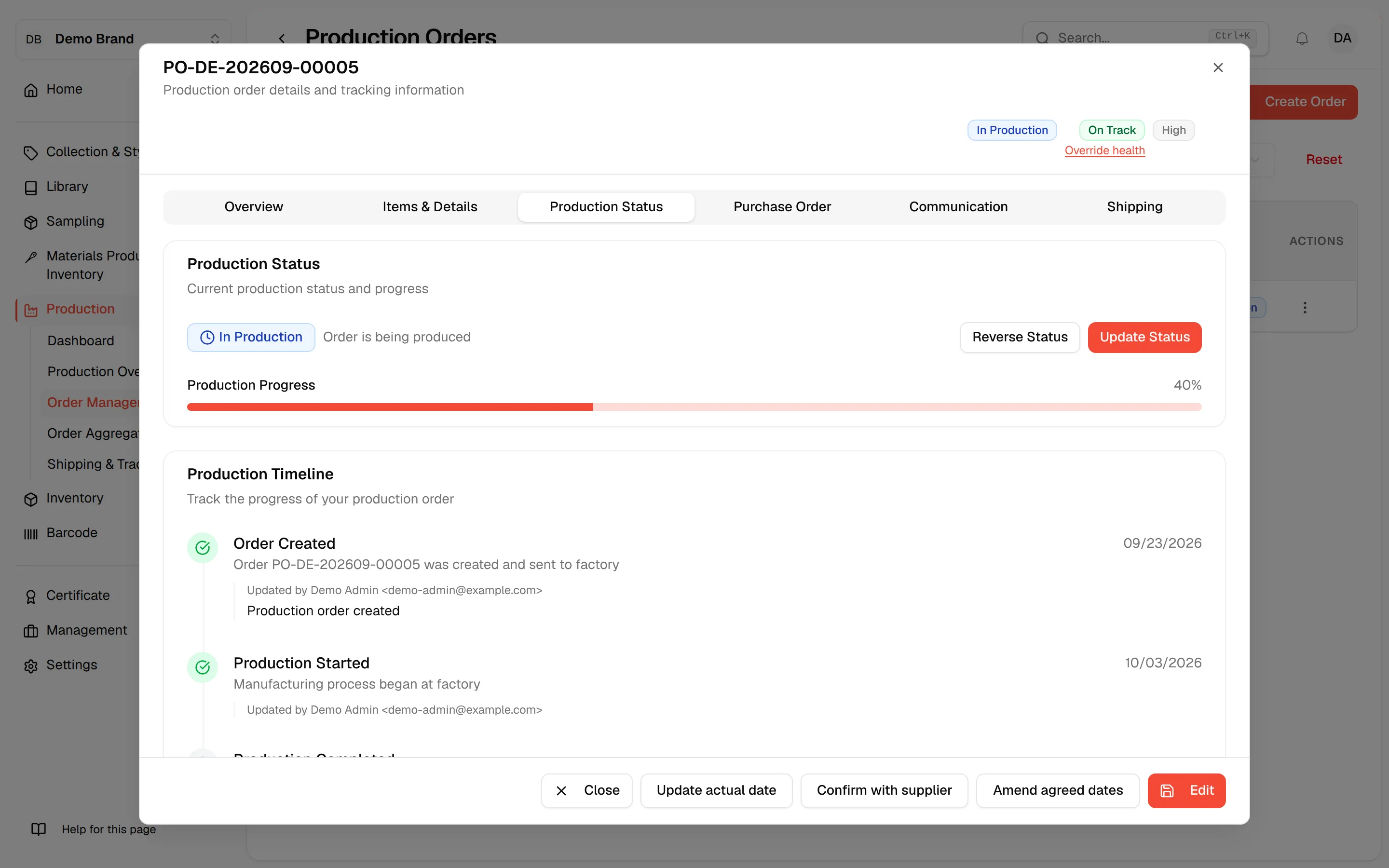
Move a production order through its statuses, add a note for the factory and team, reverse a status, or cancel the order.
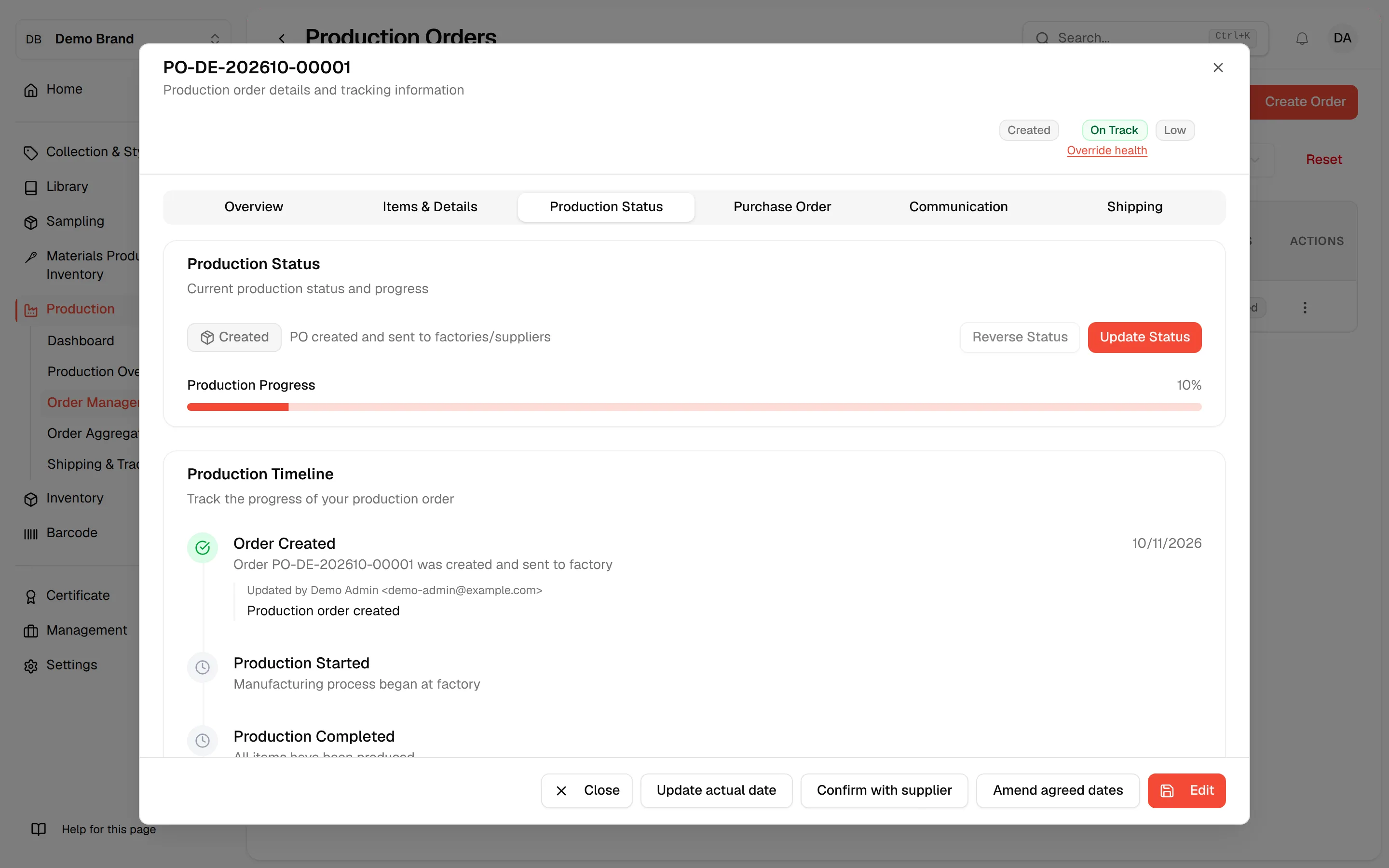
The Production Status tab of an order shows where the order is, how far it has progressed, and the timeline of every status change. From here you update the status, reverse it, or cancel the order.
ProductionOrder Managementthree-dot menuView/EditProduction Status
Permission: VIEW_BRAND_PRODUCTION
The statuses
| Status | Meaning |
|---|---|
| Created | PO created and sent to factories/suppliers |
| Delayed | Production is delayed |
| In Production | Order is being produced |
| Completed | Production is completed |
| Shipped | Production order has been shipped |
| Delivered | Production order has been delivered |
| Cancelled | Production order is cancelled |
The Production Progress bar shows a percentage for the current status: 10% for Created, 30% for Delayed, 40% for In Production, 70% for Completed, 90% for Shipped and 100% for Delivered.
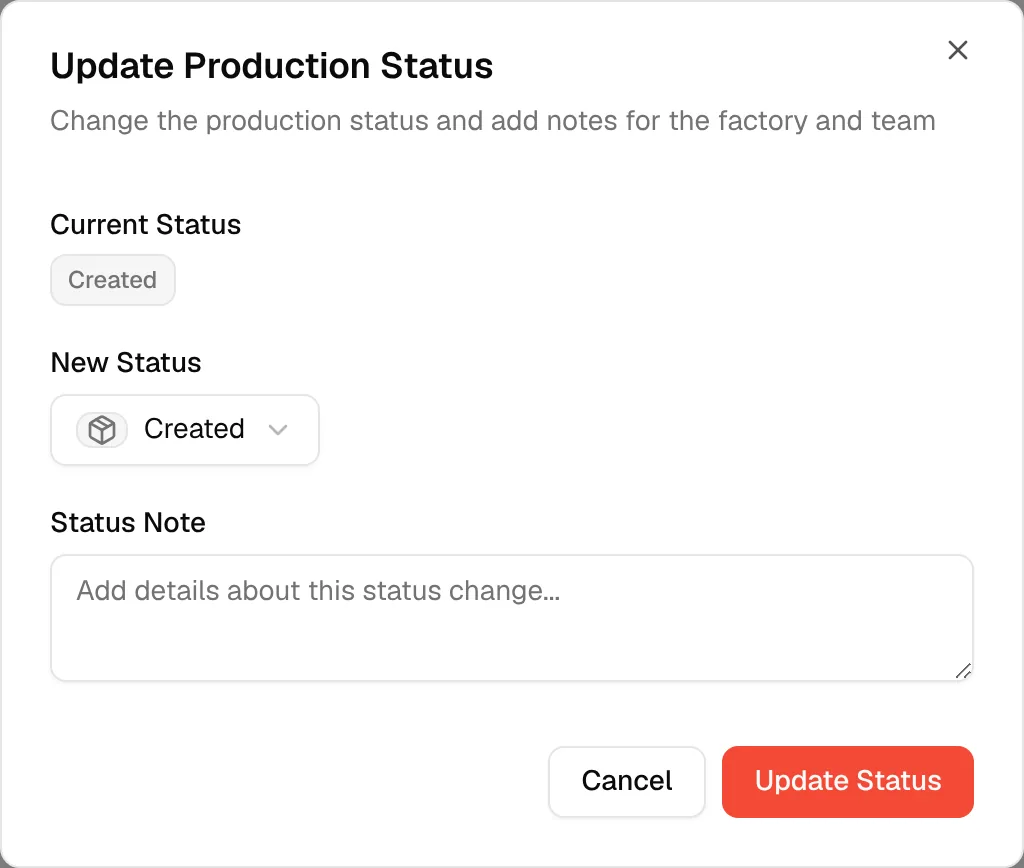
Not every status can follow every other status. In the New Status list, the statuses you cannot move to are greyed out:
| From | You can move to |
|---|---|
| Created | In Production, Delayed, Cancelled |
| Delayed | Created, In Production, Completed, Cancelled |
| In Production | Completed, Delayed, Cancelled |
| Completed | Shipped |
| Shipped | Delivered |
| Delivered | None |
| Cancelled | None |
Update the status
Open the Production Status tab
Open the order with View/Edit and click the Production Status tab.
Click "Update Status"
Click Update Status in the Production Status card. The Update Production Status dialog opens with the description "Change the production status and add notes for the factory and team".
Select the new status
In New Status, select the status you want to apply. The current status is shown above the list.
Add a status note
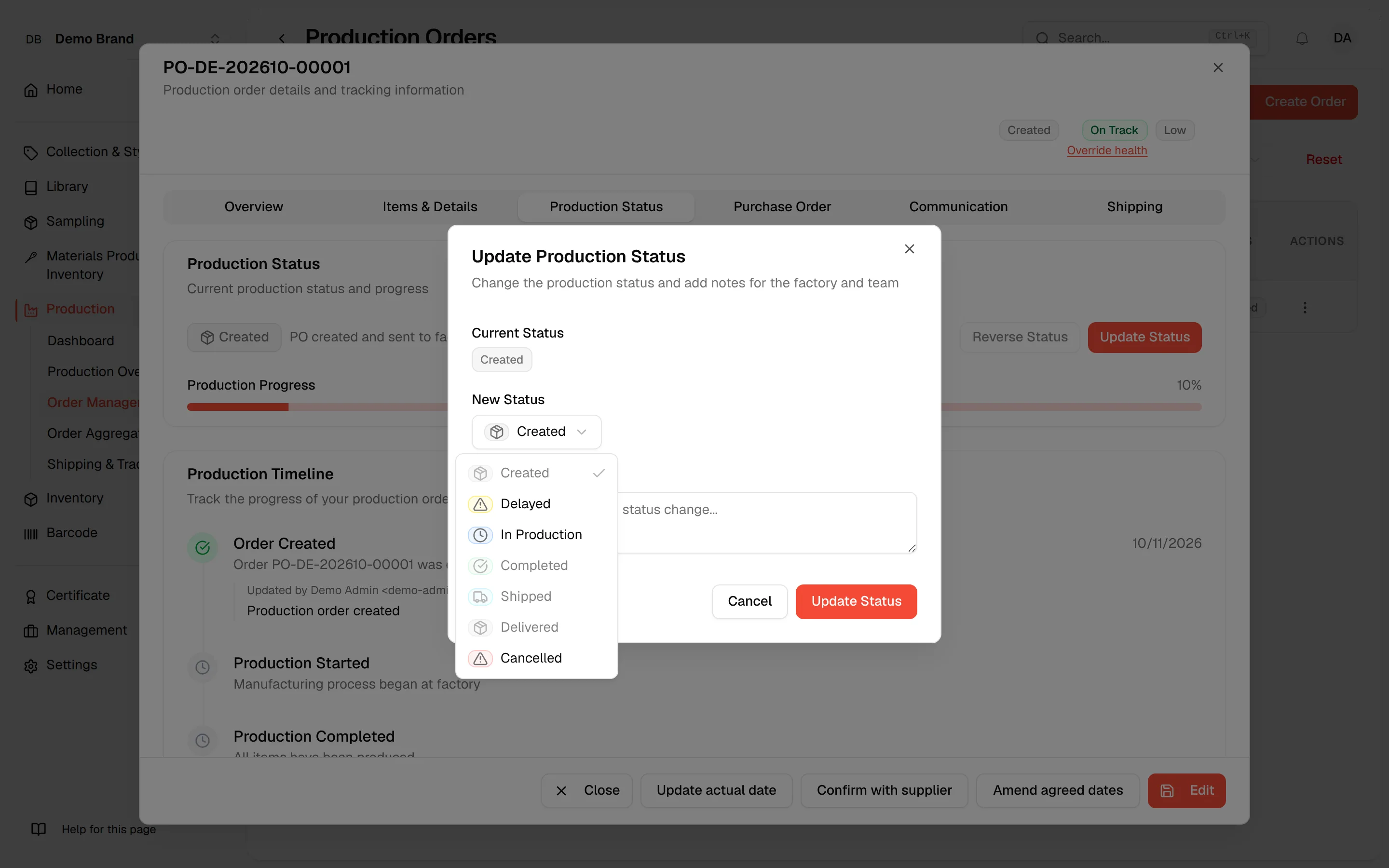
Type details about the change in Status Note. The field is optional.
Click "Update Status"
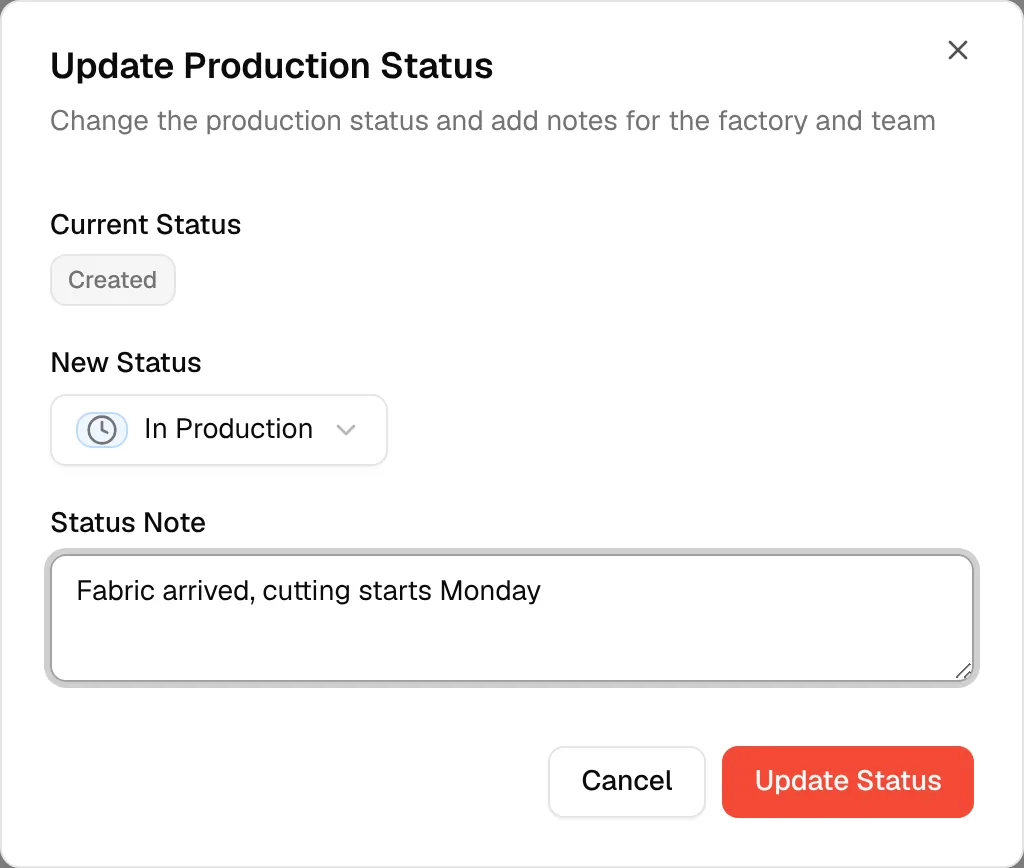
Click Update Status to save.
The Production Timeline now shows the new status with the date, the name of the person who made the change, and your note. The timeline lists Order Created, Production Delayed, Production Started, Production Completed, Shipped from Factory and Delivered; a Cancelled order has no step of its own on it, and its progress bar shows 0%.
Note
Delayed appears on the timeline only after the order has been delayed at least once.
Cancel an order
Choose Cancelled as the New Status. The dialog warns: "Cancelled POs will no longer receive production milestone reminders." The confirm button changes to Cancel PO; click it to cancel the order. A cancelled order cannot move to any other status.
Warning
Cancelled has no way forward. You can still use Reverse Status to go back to an earlier status if one is available.
Reverse a status
Click "Reverse Status"
Click Reverse Status next to Update Status.
Select the status to return to
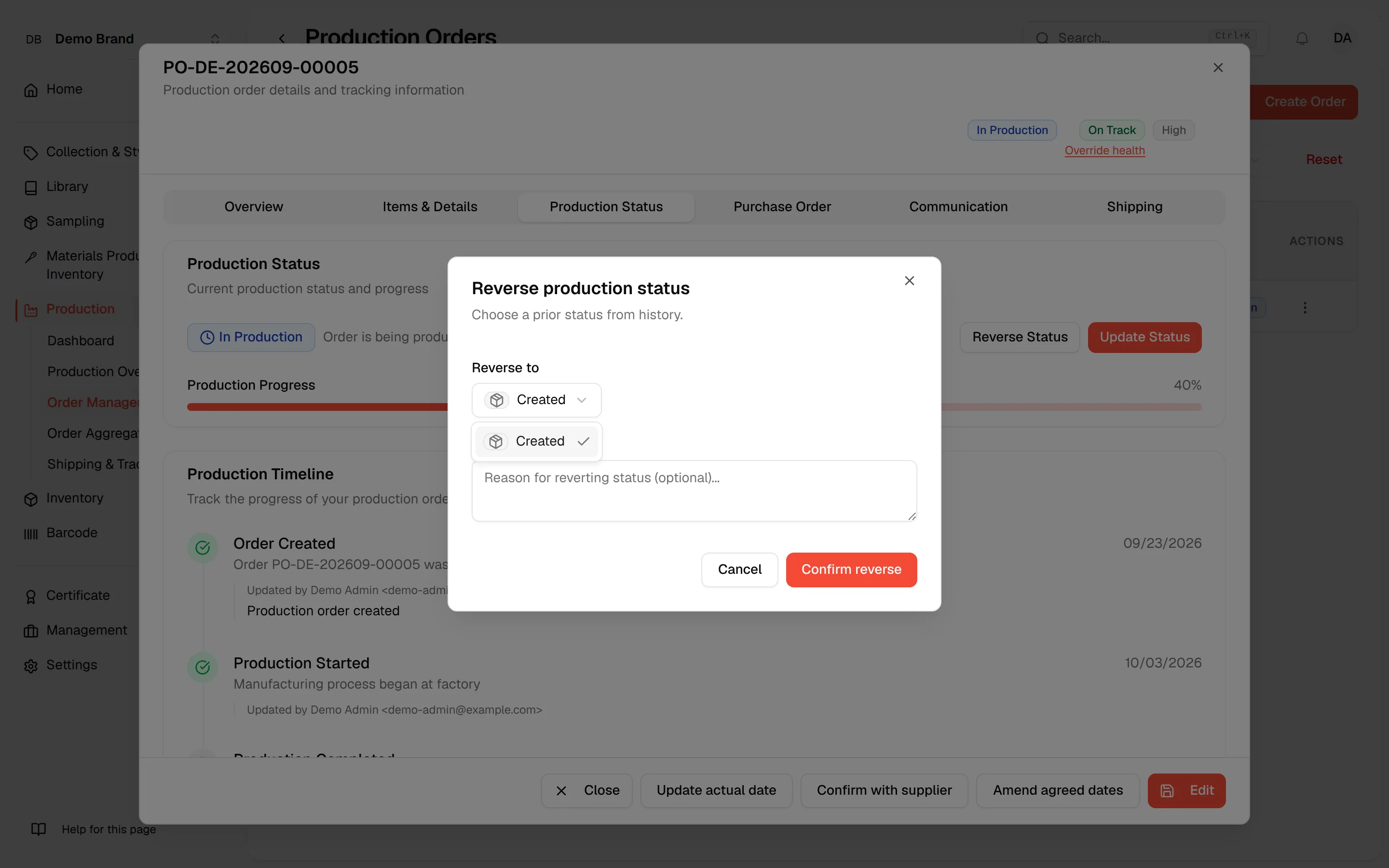
In the Reverse production status dialog ("Choose a prior status from history."), select a status in Reverse to. The list contains the earlier statuses of this order, newest first.
Add a note
Optionally type the reason in Note. If you leave it empty, the note "Reverted production status" is recorded.
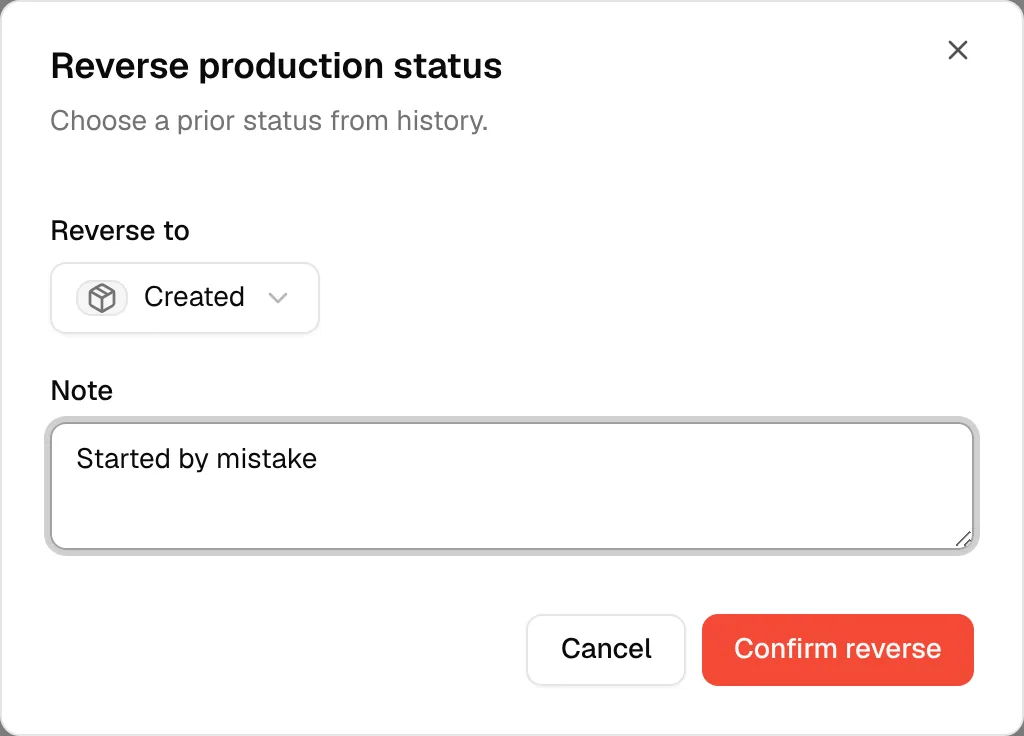
Click "Confirm reverse"
Click Confirm reverse to save.
Reverse Status is disabled, with an explanation when you hover over it, in these cases:
- While shipment data is loading: "Loading shipment data..."
- When shipments exist for the order: "Cannot reverse status while shipment records exist for this production order."
- When there is nothing earlier to return to, for example for a new order still at Created: "There is no prior status to revert to."