
Step 6 of 13 in Place and track a production order
Create and manage purchase orders
Create a purchase order for a production order, open or download it, export its material order details, and delete it.
A purchase order (PO) is the document you send to the factory for a production order. A production order can have several purchase orders. One is generated when you click Create Order & Generate PO, and you can create more at any time.
ProductionOrder Managementthree-dot menuPurchase Orders
Permission: VIEW_BRAND_PRODUCTION
Where to find the purchase orders
There are two ways to the same list:
- On the Production Orders page, select the three-dot action button on the order's row and click Purchase Orders. The list opens in a dialog.
- Open the order with View/Edit and click the Purchase Order tab.
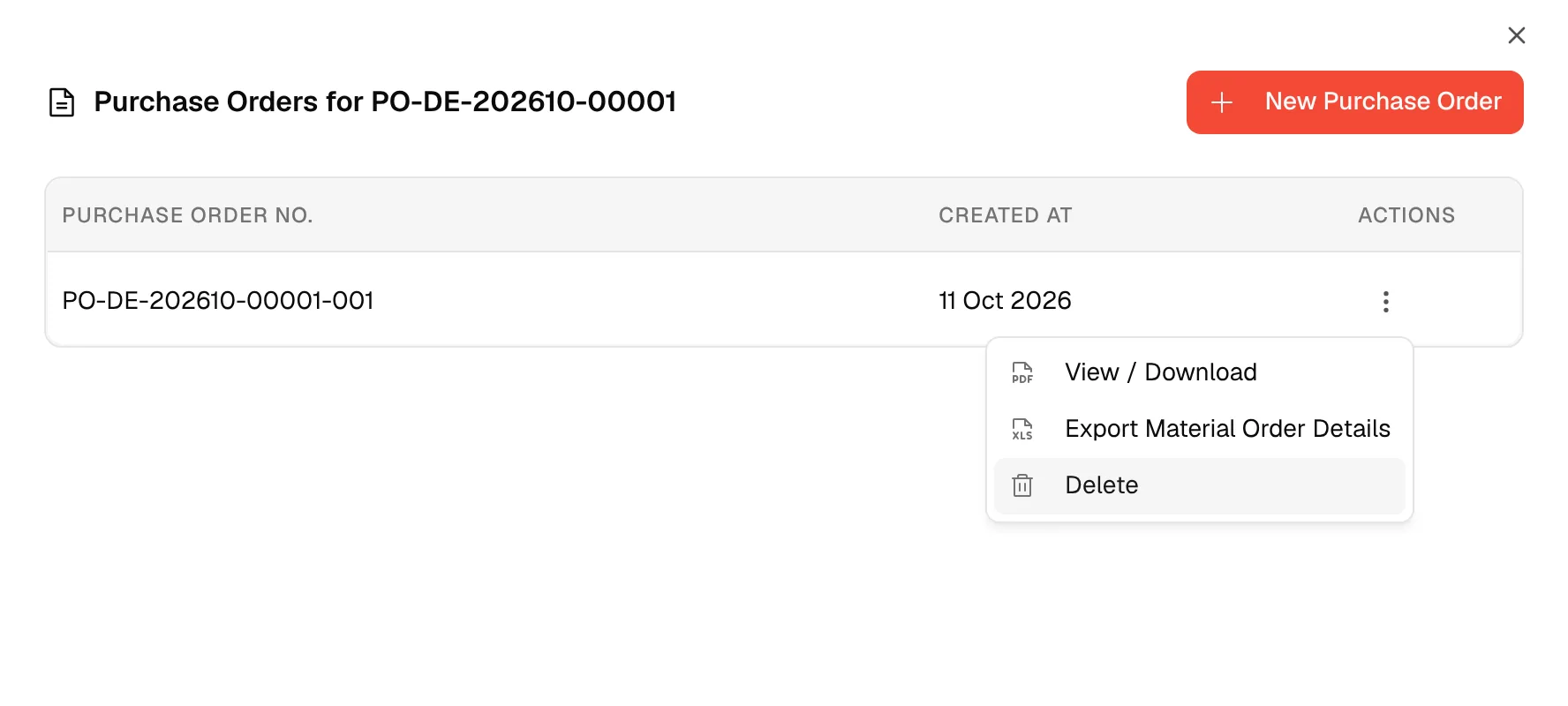
The list is titled Purchase Orders for followed by the production number. Each row shows the Purchase Order No., Created At and Actions. If the order has none, the list shows No purchase orders found: "You don't have any purchase orders yet. Start by creating a new purchase order."
Create a purchase order
Open the purchase orders
Open the Purchase Order tab of the order, or the Purchase Orders dialog from the three-dot menu.
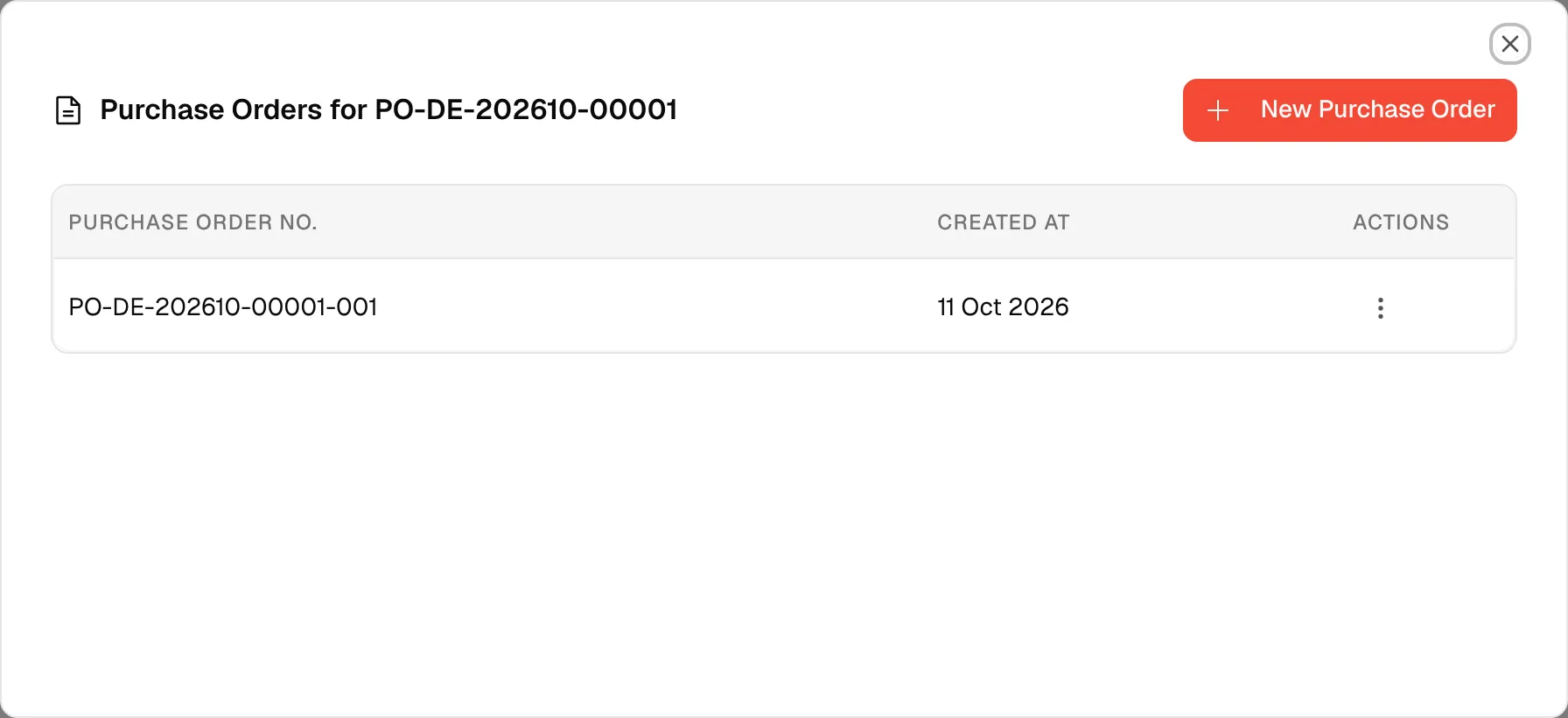
Click "New Purchase Order"
Click New Purchase Order at the top right of the list, or in the empty state.
Check the production details
The Create Purchase Order dialog says "Create a purchase order for production" followed by the production number. It shows the Production Number, the Category and the Supplier of the order.
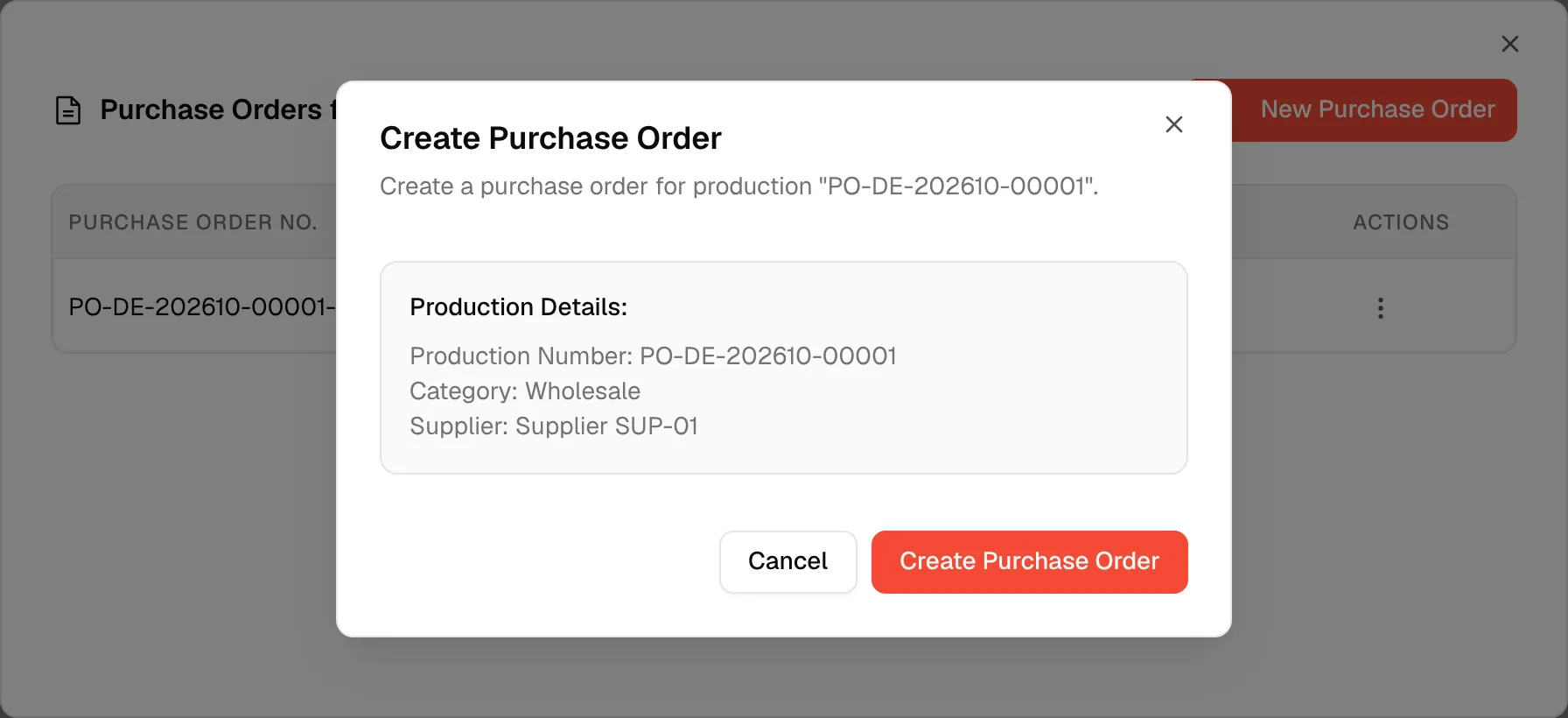
Click "Create Purchase Order"
Click Create Purchase Order. The button reads Creating... while it works.
The new purchase order appears in the list.
Open or download a purchase order
Open the actions menu
Select the three-dot action button in the Actions column of the purchase order.
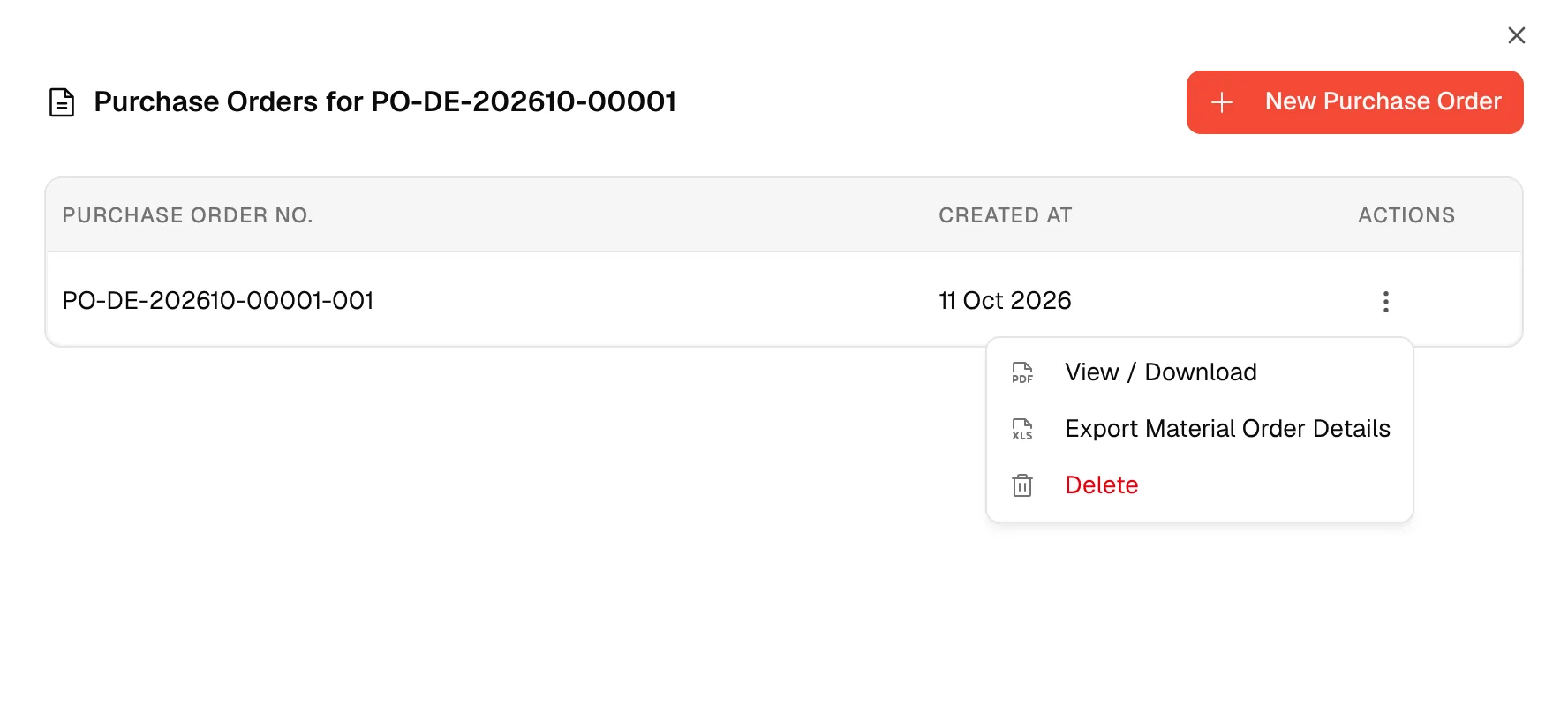
Click "View / Download"
The purchase order document opens in a new browser tab. See The purchase order document to print it or save it as a PDF.
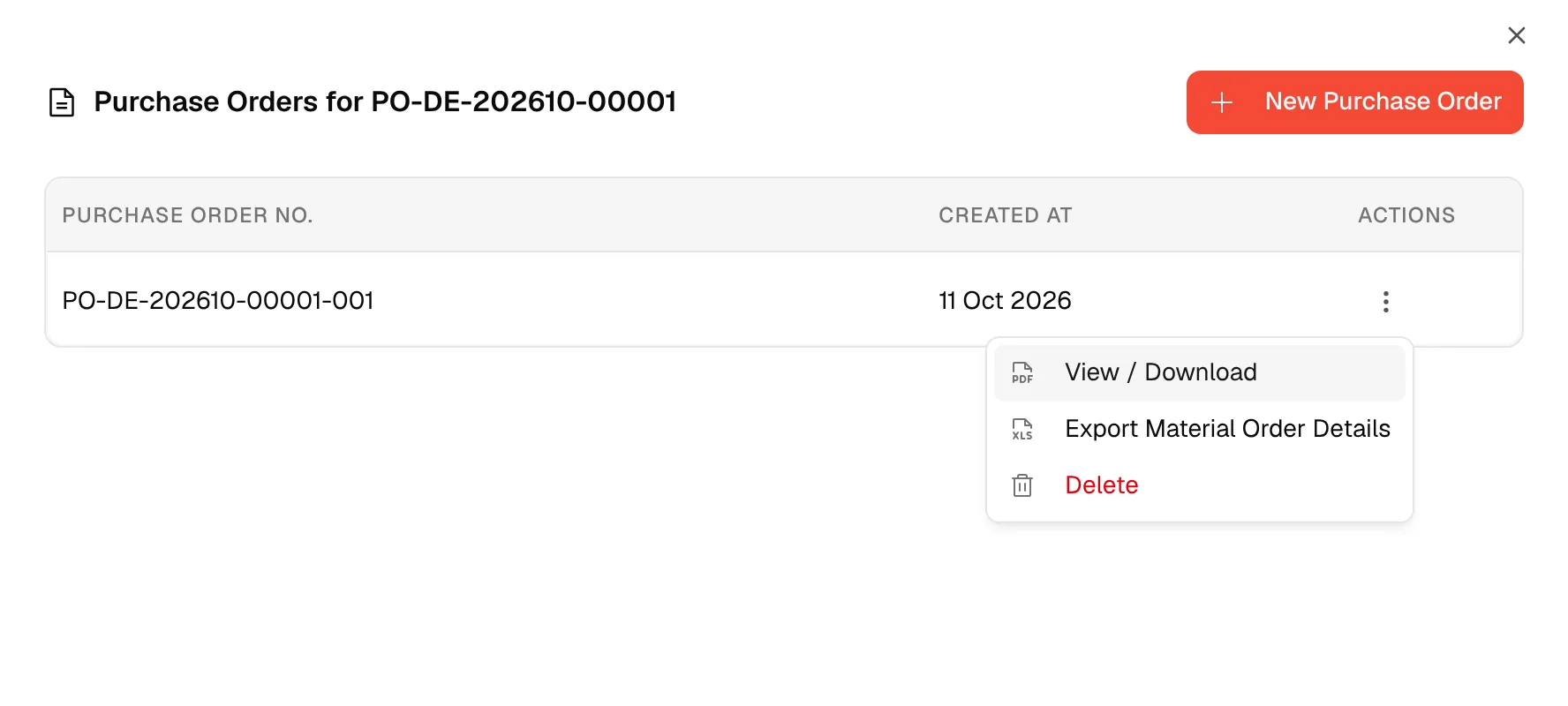
Export the material order details
Select the three-dot action button of a purchase order and click Export Material Order Details. The platform downloads the material order details of that purchase order as an Excel file. The action is disabled while a download is running.
Delete a purchase order
Click "Delete"
Select the three-dot action button of the purchase order and click Delete, shown in red.
Confirm
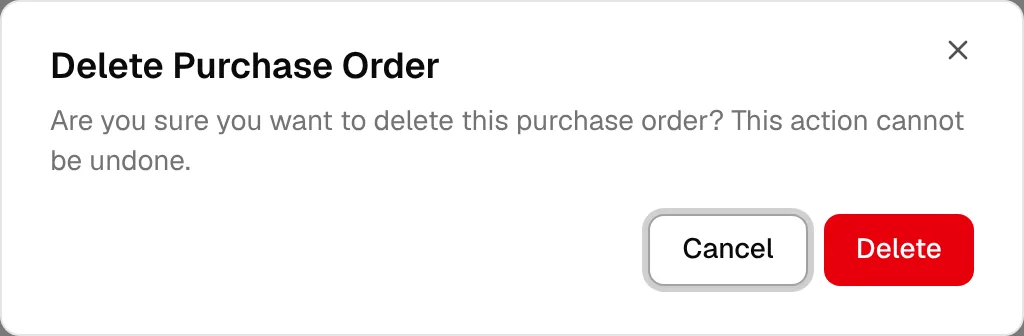
The Delete Purchase Order dialog asks: "Are you sure you want to delete this purchase order? This action cannot be undone." Click Delete to confirm, or Cancel to keep it.
Warning
Deleting a purchase order cannot be undone. The production order itself is not deleted.