Digital passports
Review the Digital Passports issued for your allocated stock, track claim and activation rates, and deactivate unclaimed passports.
Under review. This page is published while we check it against the live app, so some details may have changed.
The Digital Passports page lists every Digital Passport created for your stock. You can see how many have been claimed or activated, search and filter the list, and deactivate a passport that has not been claimed.
InventoryDigital Passports
Permission: VIEW_STYLE_INVENTORY
Read the summary
Four cards at the top show:
- Minted: the total number of passports.
- Claimed: with the claim rate.
- Unclaimed: with the number that are aging (30 days or more).
- Activated: with the activation rate.
Claim rate by channel shows, for each channel, how many passports are claimed out of the total. It shows No passports yet. when there are none. Engagement shows Times worn and Times washed.

Find a passport
Search
Type a passport code or a claimant's email in Search by passport code or claimant email....
Filter the list
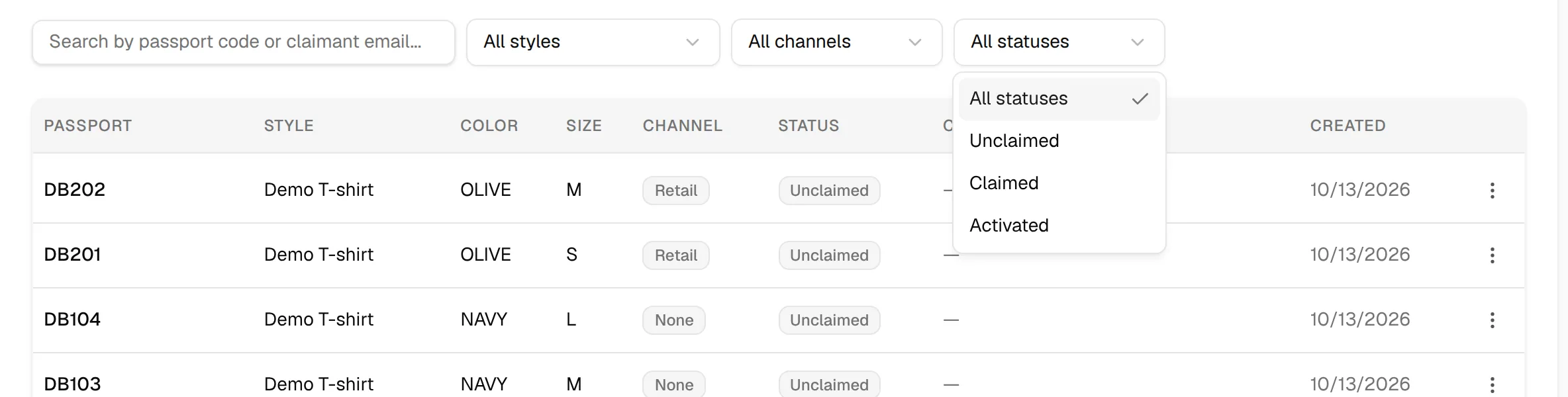
Use the Style, Channel (Shopify, Retail, None) and Status (Unclaimed, Claimed, Activated) dropdowns. Select All styles, All channels or All statuses to remove a filter.
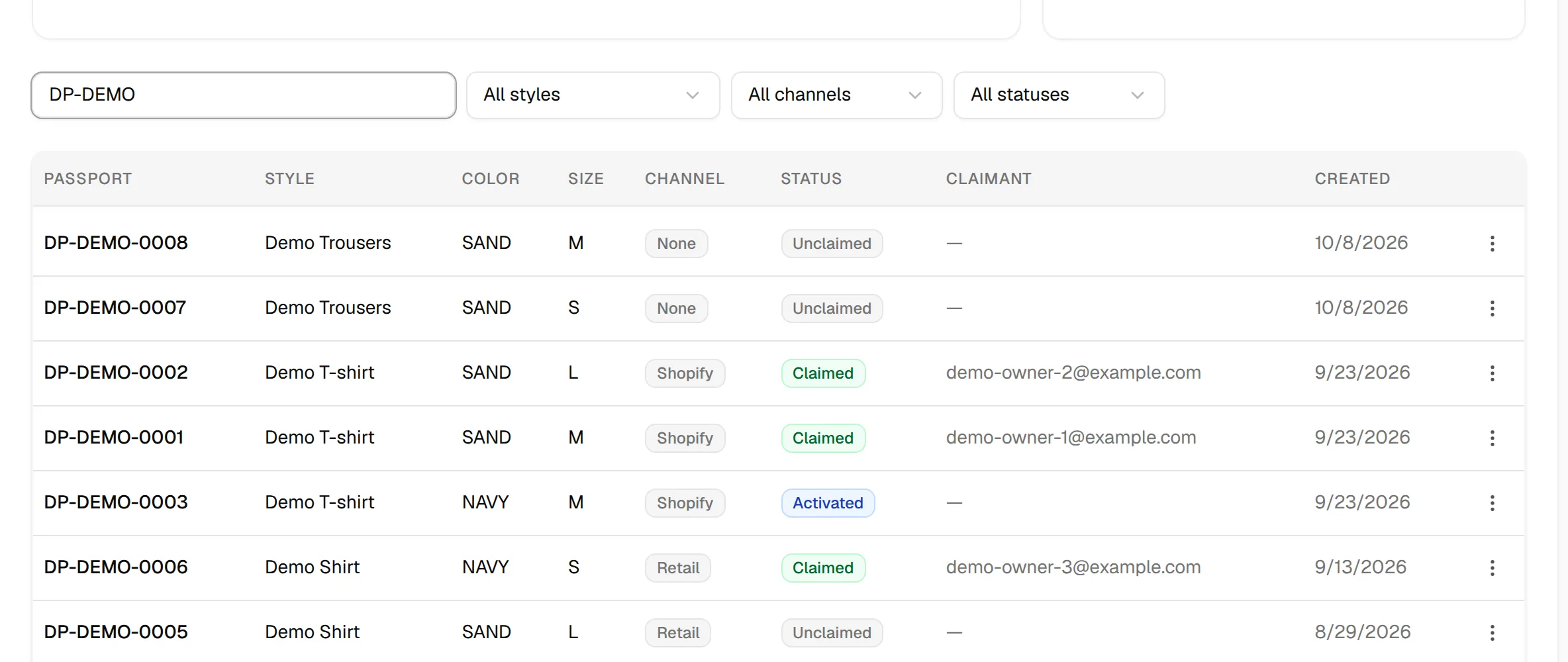
The list shows Passport, Style, Color, Size, Channel, Status, Claimant and Created. When nothing matches you see No digital passports found.
Note
Claimed means the owner has registered the item. Activated means the unit has sold but is not yet claimed.
Deactivate a passport
Important
The actions menu only appears if your role includes permission to update style inventory.
Open the actions menu
Click the actions menu at the end of the passport's row.
Click "Deactivate"
Click Deactivate. The option is disabled for passports that are already claimed or activated.
Confirm
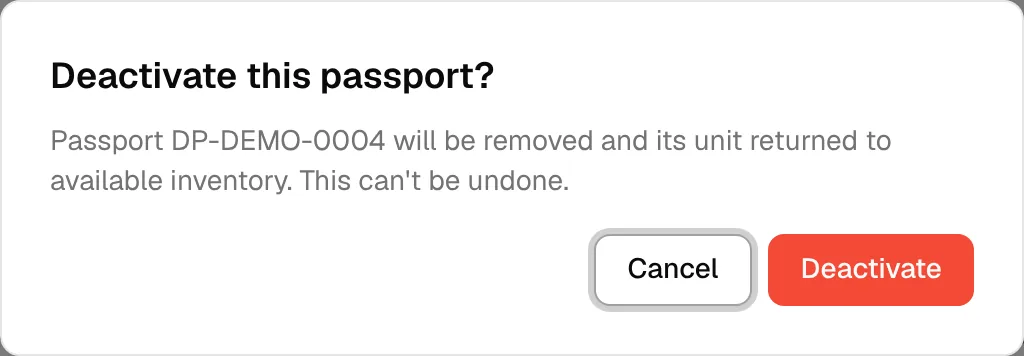
In Deactivate this passport?, click Deactivate. The passport is removed and its unit returns to available inventory. This cannot be undone.