
SKU codes
Set the SKU code of every colour and size of a style by typing it or generating it from your code generation rules, then save the codes.
Under review. This page is published while we check it against the live app, so some details may have changed.
The SKU tab of the style Production page lists one SKU code for every colour and size of the style. Type the codes yourself, or let Vestis generate them from the code generation rules of your brand.
Collection & StylesStyles(your style)ProductionSKU
Permission: UPDATE_PRODUCT,VIEW_BRAND_PRODUCTION,VIEW_STYLE
Before you start
- The style needs a size range. The page lists a row for each colour and each size of that range.
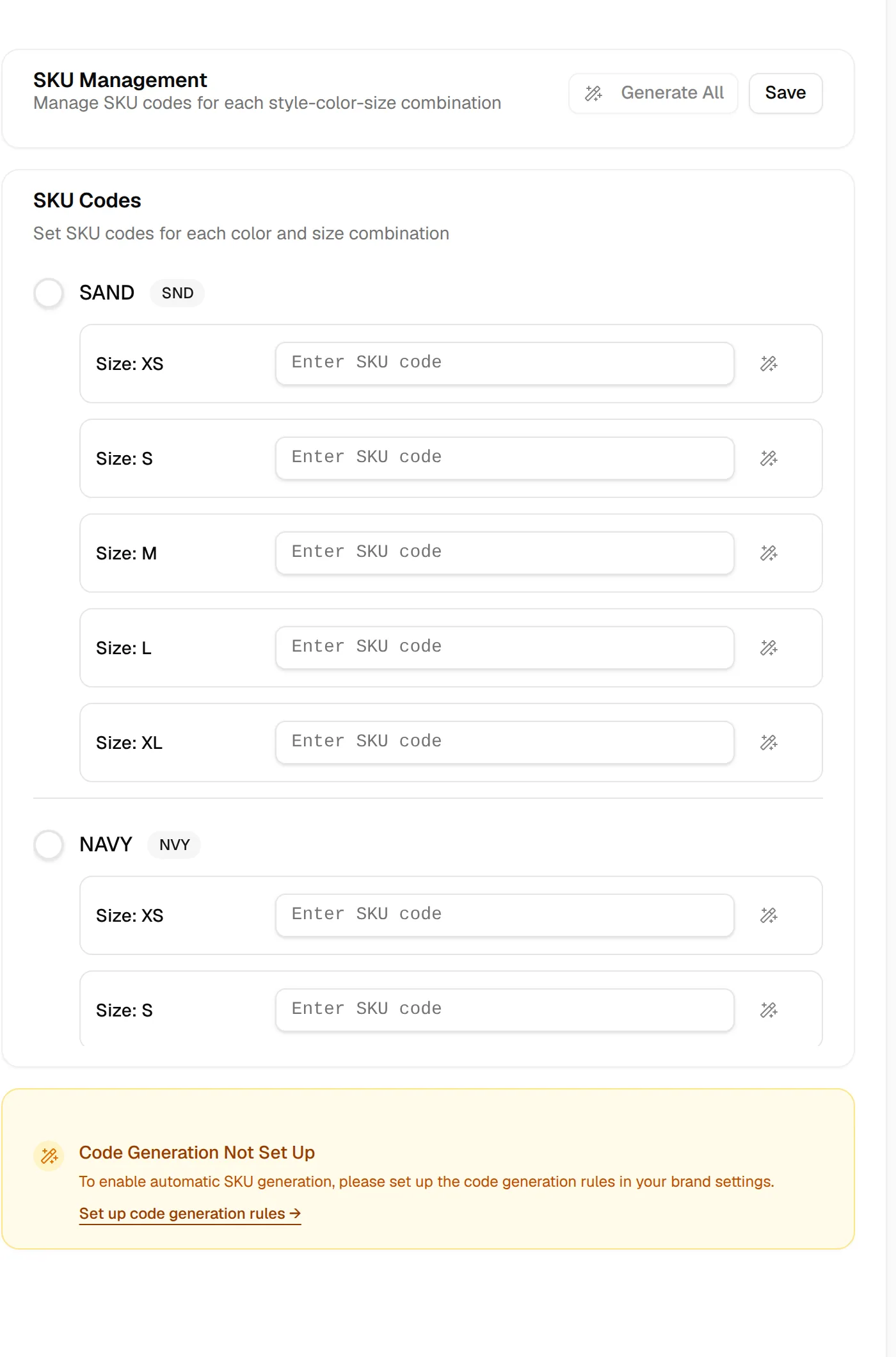
- To generate codes, your Brand Admin must first set up the SKU formula in the code generator settings. See Code generator overview. Without it, Generate All is disabled and the page shows Code Generation Not Set Up with a Set up code generation rules → link that opens the code generator settings in a new tab.
Set the SKU codes
Open the SKU tab
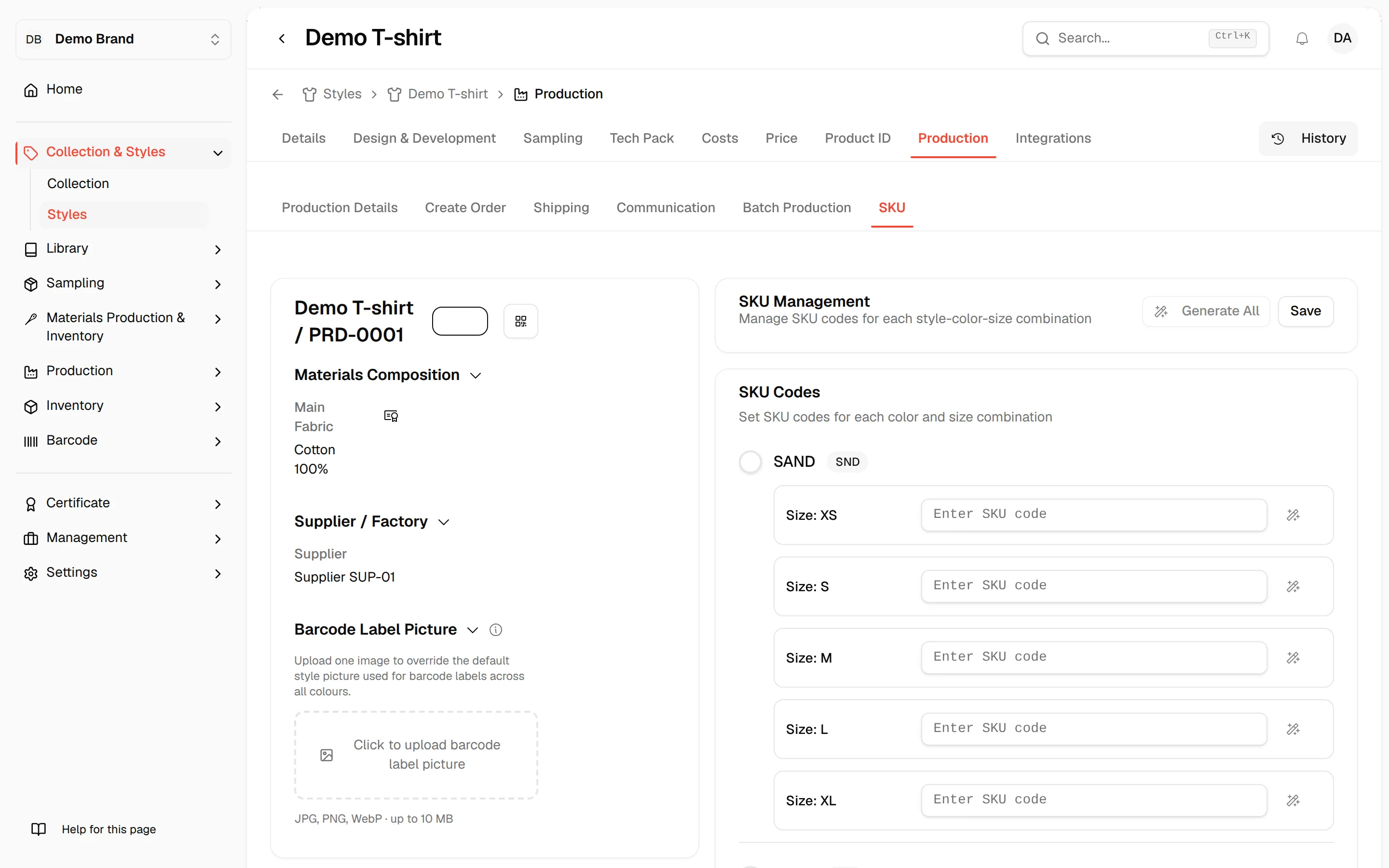
Open the style, click Production, then click the SKU tab. SKU Management ("Manage SKU codes for each style-color-size combination") and SKU Codes ("Set SKU codes for each color and size combination") appear on the right.
Enter a code
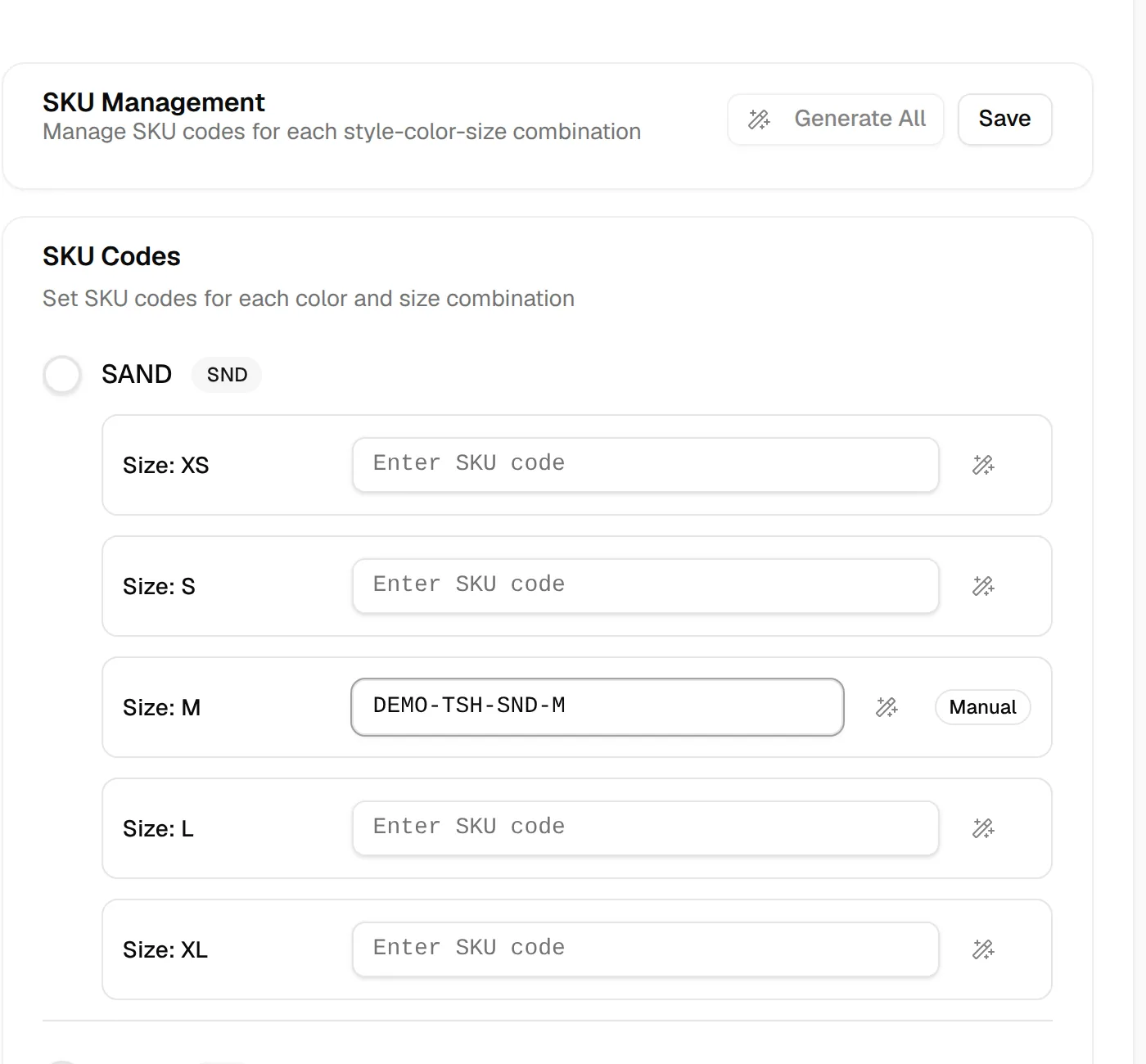
In the row of a colour and size, type the code in the field that reads Enter SKU code. A badge next to the row shows Manual for codes you typed and Auto for generated codes.
Generate one code
Click the generate button at the end of a row ("Generate SKU automatically") to fill in that row from your rules.
Generate all codes
Click Generate All at the top to fill in every row. This replaces every code in the list, including the ones you typed.
Click "Save"
Click Save to store the codes. Nothing is saved until you click Save.
Questions Vestis may ask when generating
Depending on your SKU formula, a window can open before the codes are generated:
- Select Season for SKU Code Generation: shown when the style has more than one season. Select the Season to use and click Select Season.
- Material missing: shown when the formula uses the material and the style has no material yet. Click Add Material to go to the style, or Continue Without to generate without it. If the style has no style inputs at all, the window No Style Inputs Available asks you to add some first.
- Duplicate Codes Detected: shown when the data manager contains duplicate codes. Fix the duplicates in the Data Manager, or click Proceed Anyway.
- Style Code Conflict: shown when several sources give a different style code. Select the value to use and click Use Selected.
Barcodes of a SKU
When barcodes were already generated for a SKU, its row shows Show Barcodes with the number of barcodes in brackets. Click it to preview them. To create barcodes, see Generate your barcode.