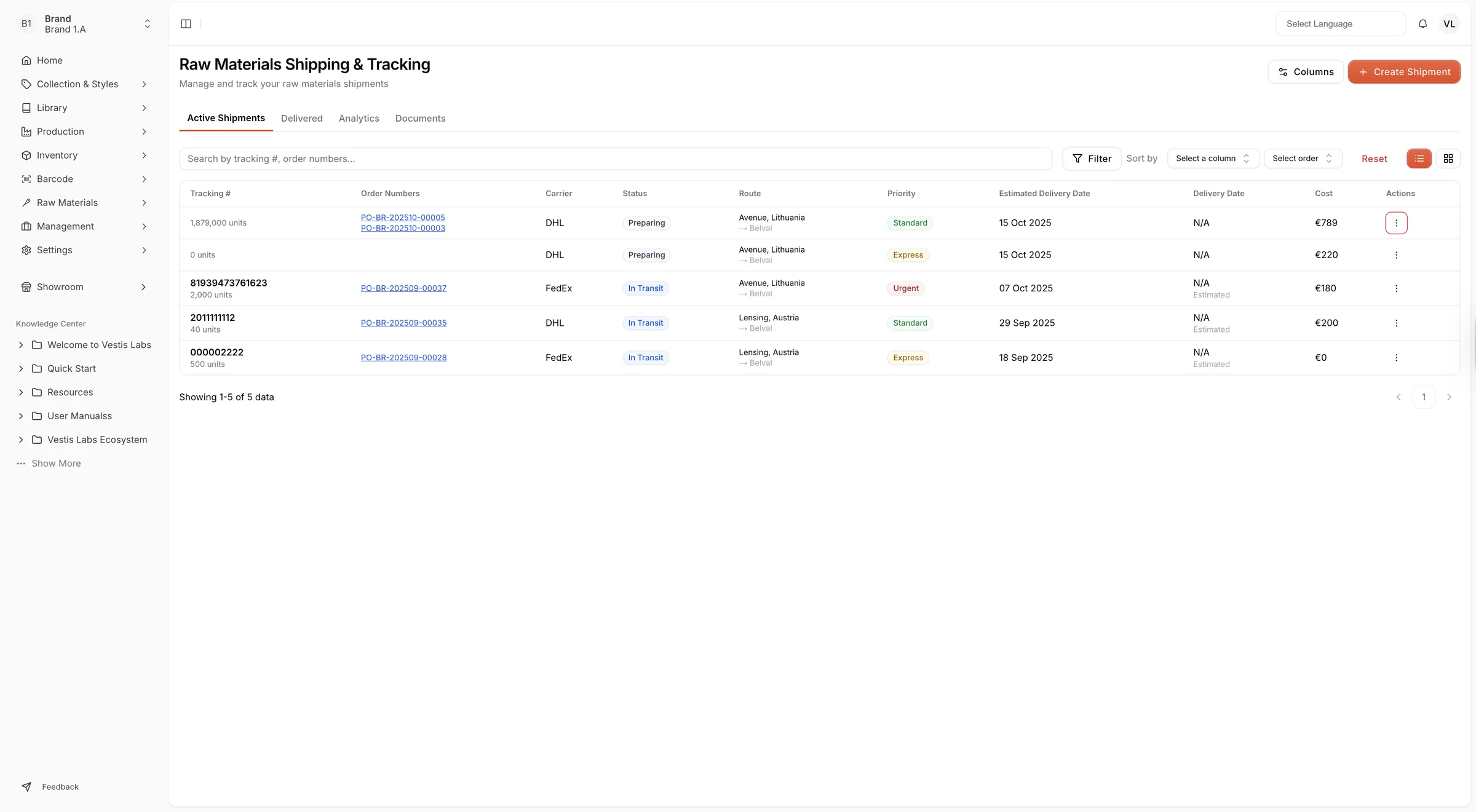
Active shipments on raw materials shipping & tracking page
The Active Shipments section displays all ongoing shipments for raw materials.
Under review. This page is published while we check it against the live app, so some details may have changed.
Screenshots may be out of date.
The Active Shipments section displays all ongoing shipments for raw materials. Users can view shipment details, track delivery progress in real time, and manage updates to ensure smooth and timely delivery.
Materials Production & InventoryProductionShipping & Tracking
Permission: VIEW_MATERIAL_PRODUCTION
Active shipments are the ones with the status Preparing, In Transit or Cancelled. Delivered shipments move to the Delivered tab. Use the list and board buttons at the top right of the table to switch between a table and a board view.
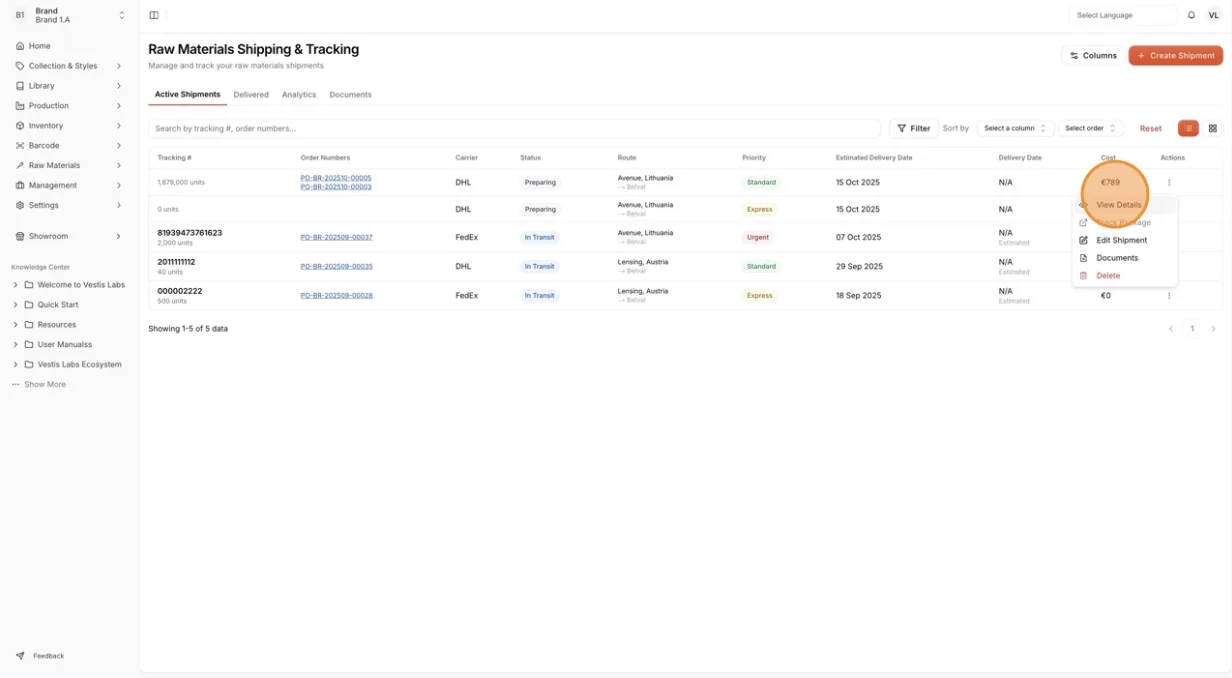
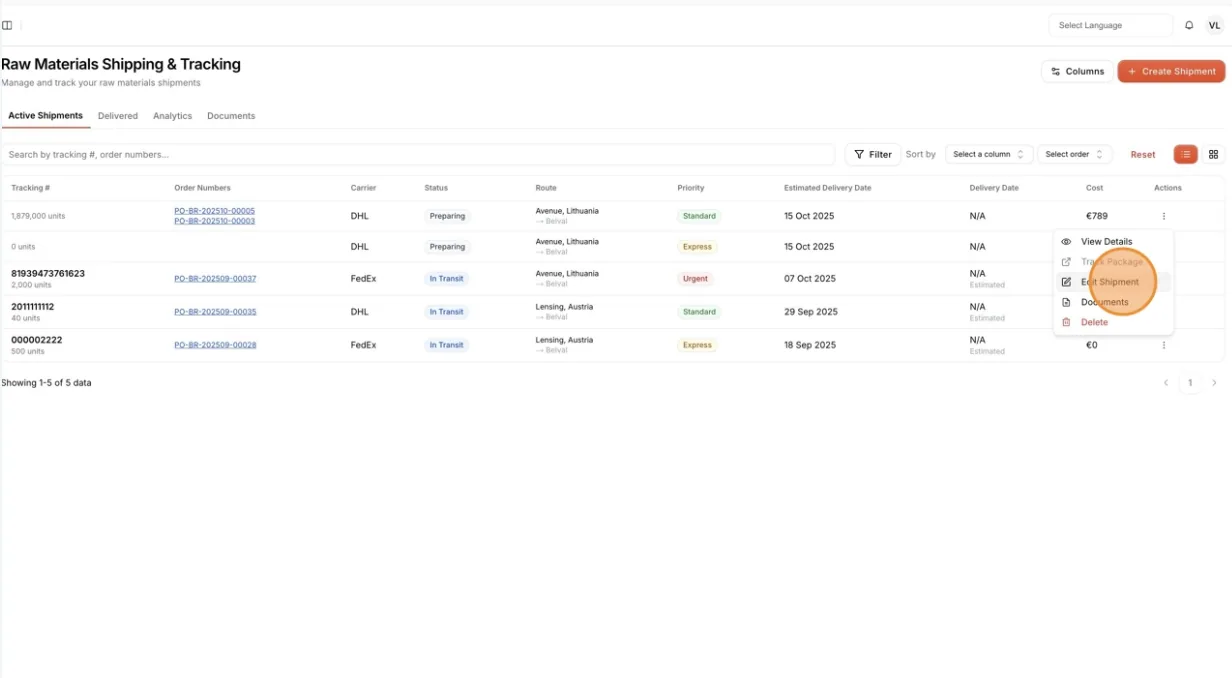
Click the three-dot action button to access more options:
- View Details – Check the full shipment information.
- Track Package – Monitor the shipment’s delivery progress. It is unavailable when the shipment has no tracking link.
- Edit Shipment – Update shipment details if needed.
- Documents – View or manage shipment-related documents.
- Delete – Remove the shipment record if it’s no longer needed. Only users who can delete material production orders see this option.
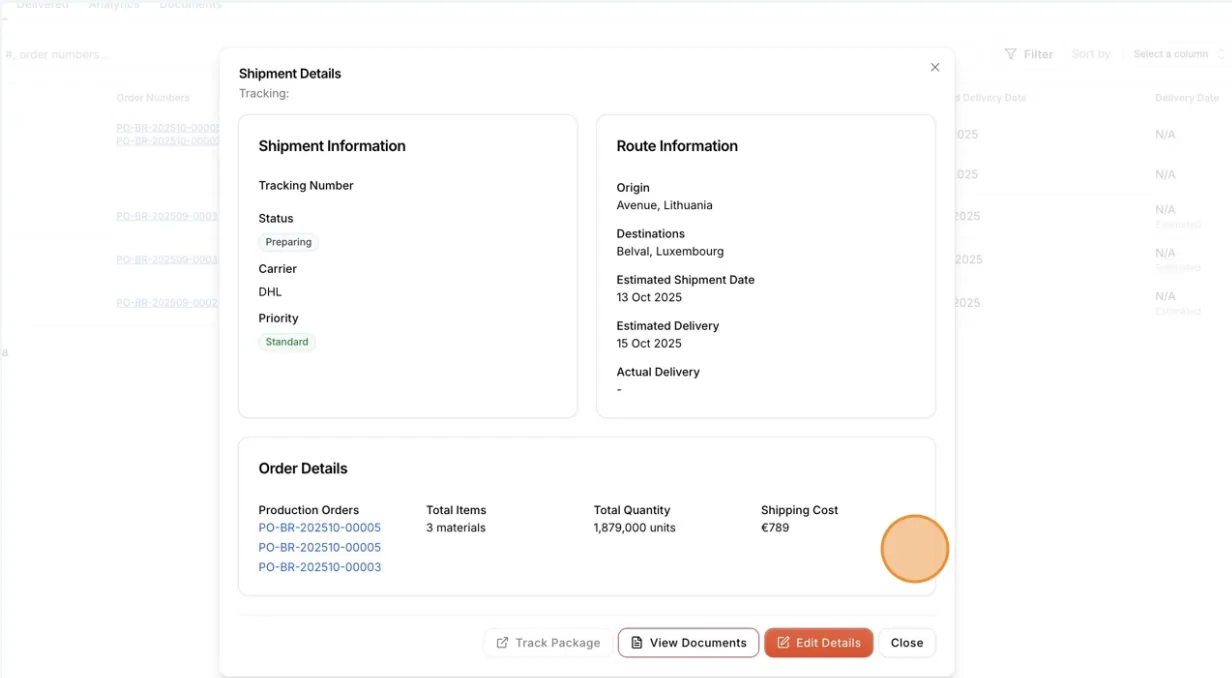
Select View Details
The Shipment Details window shows the shipment information, route, order details and notes. Its buttons are Track Package, Documents, Edit Details and Close.
Select Edit Details
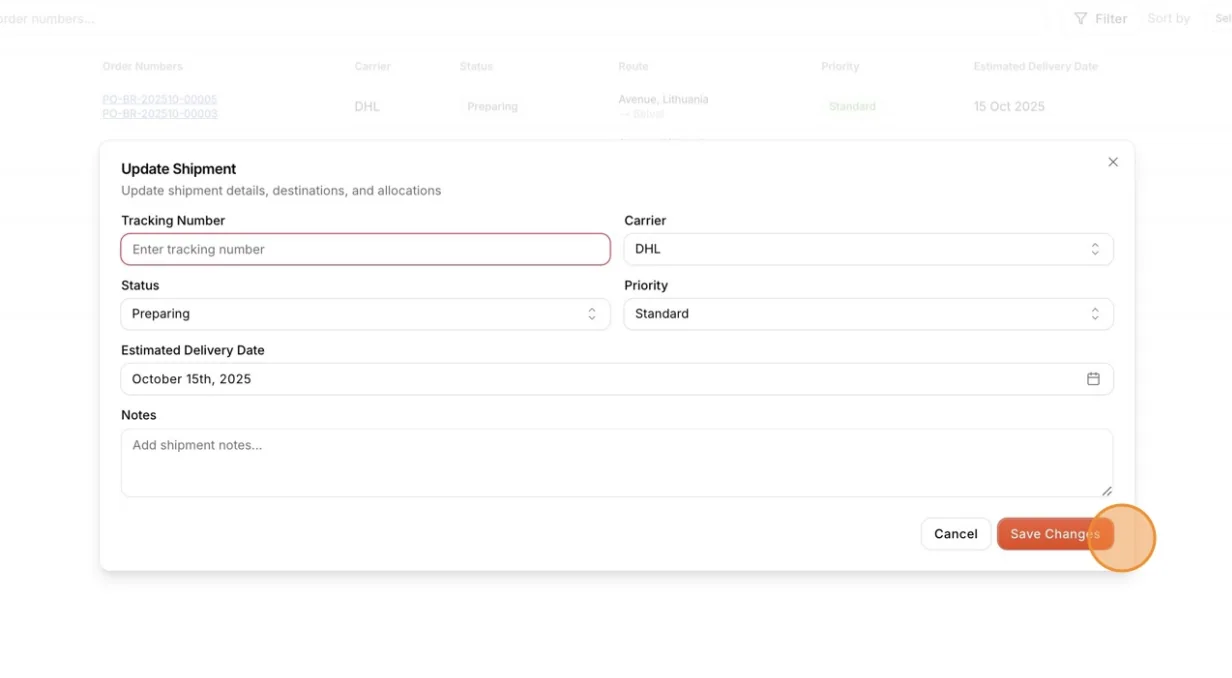
Click Edit Details in the Shipment Details window (or Edit Shipment in the three-dot menu). The Update Shipment window opens.
Update the shipment
In the Update Shipment window, change the Tracking Number, Carrier, Status, Priority, Estimated Delivery Date or Notes as needed, then click Save Changes to apply your updates.
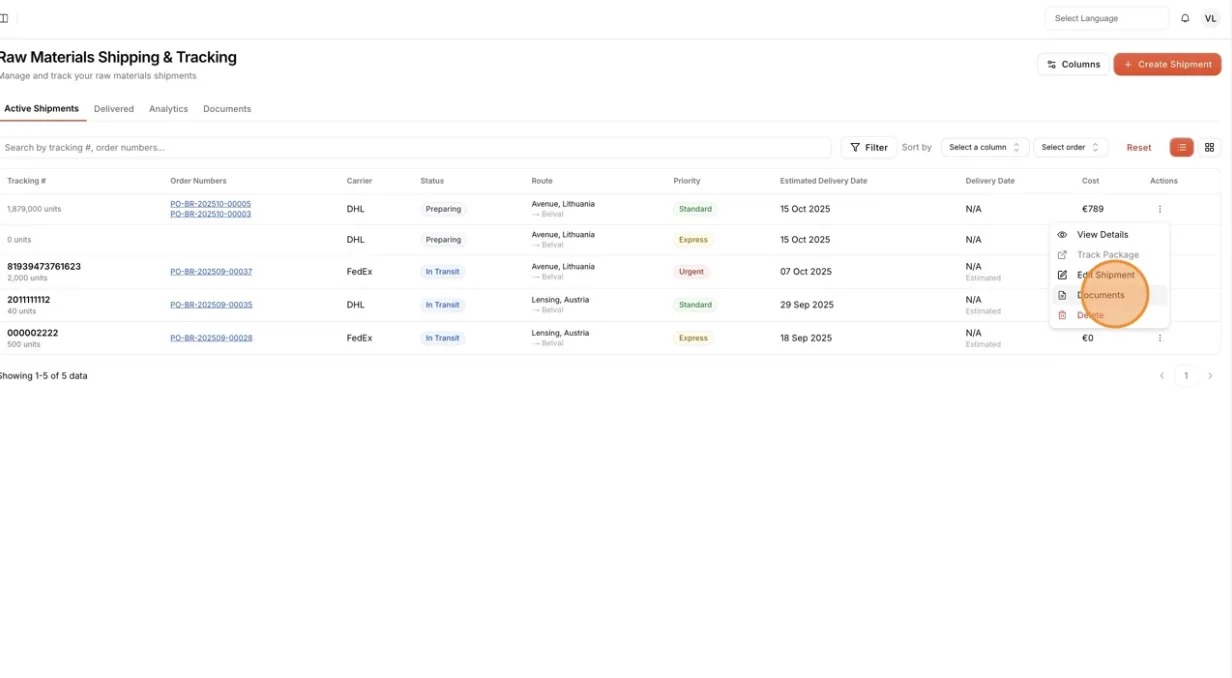
Open the shipment documents
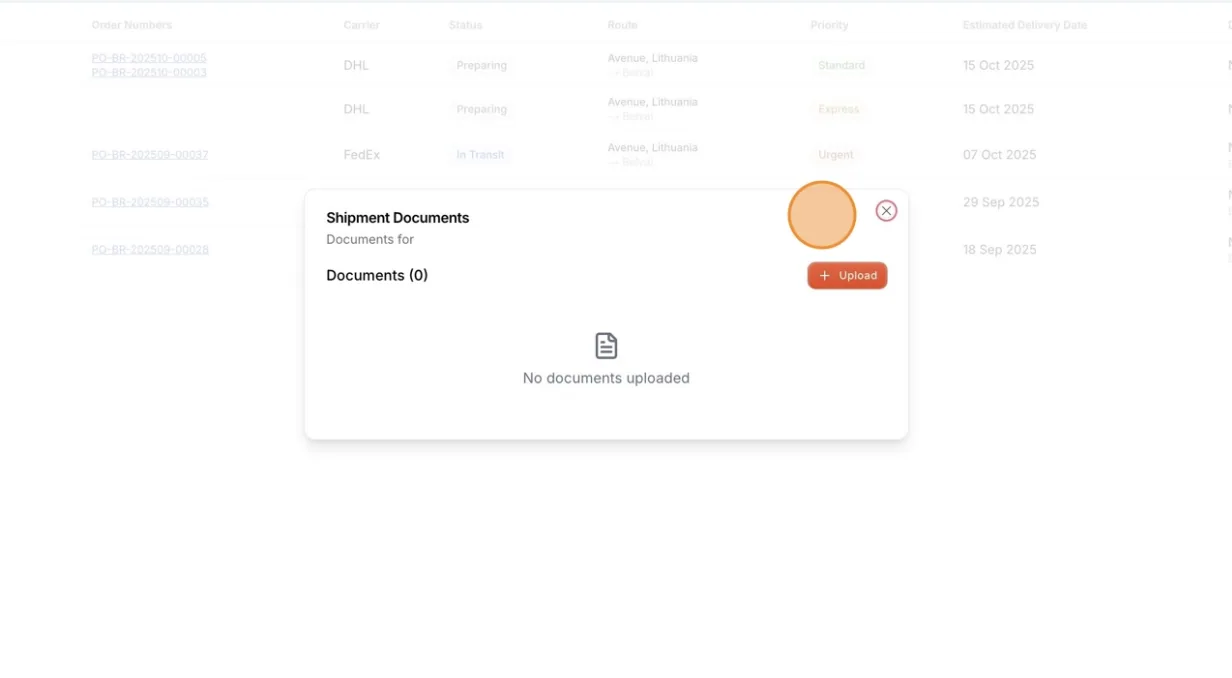
Click Documents in the three-dot menu. The Shipment Documents window lists the files for the shipment, with a download button and a delete button for each file.
Select Upload to store your document
Click Upload and add the file in the Upload Document window. Supported file formats include PDF, DOC, XLS, JPG, and PNG, with a maximum file size of 20MB.