Step 9 of 10 in See the business view: reports, pricing and margin
Target margin setting
Set up and manage the target margins used in Vestis Labs to support accurate costing, pricing alignment, and consistent profitability tracking across your seasons and styles.
Under review. This page is published while we check it against the live app, so some details may have changed.
Screenshots may be out of date.
Target margin – admin setup
Set up and manage the target margins used in Vestis Labs to support accurate costing, pricing alignment, and consistent profitability tracking across your seasons and styles.
Introduction & best practice
Target margin settings in Vestis Labs allow you to define the margin percentages that guide your costing and pricing decisions during product development. By establishing target margins—such as wholesale, retail, or internal profit requirements—you create a clear framework that helps teams evaluate product feasibility, assess cost efficiency, and maintain profitability standards across your assortment.
Target margins are applied in the Cost Section of each style, where they help users quickly calculate recommended price points based on cost inputs. These predefined margins ensure consistent financial targets across teams and seasons, supporting more accurate planning, clearer communication with suppliers, and better-informed decision-making.
SettingsPrice, Cost & MarginTarget Margin
Permission: UPDATE_BRAND
Step-by-step guide
Create target margin
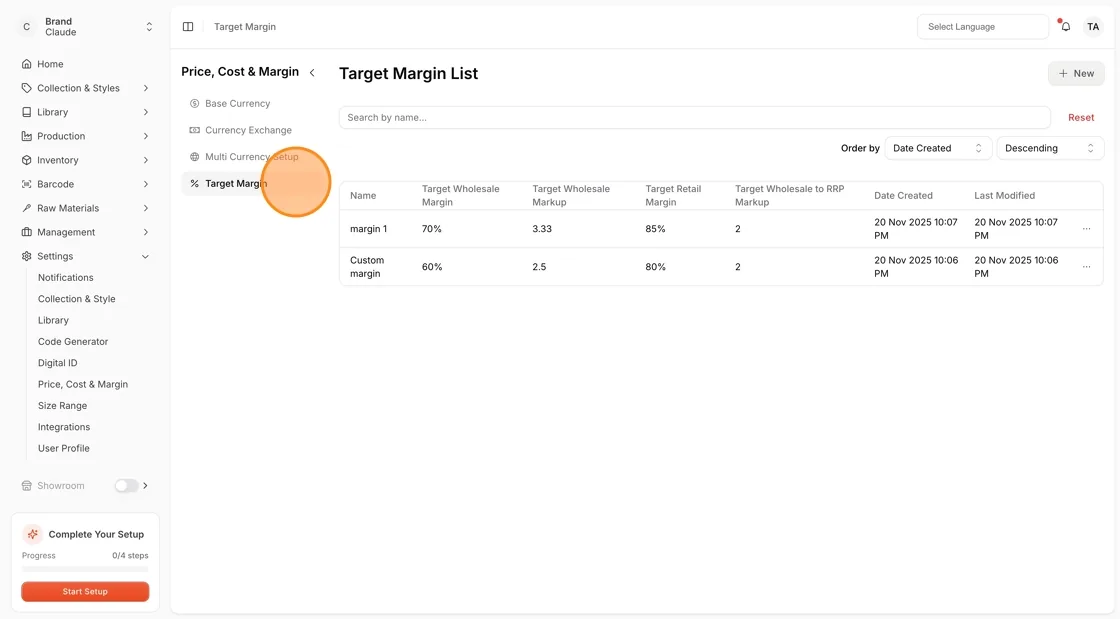
Navigate to Settings > Price, Cost & Margin.
- Choose the header 'Target Margin'. The page is called Target Margin List and shows each margin with its Wholesale Margin, Wholesale Markup, Retail Margin, Wholesale to RRP Markup, Created and Modified values.
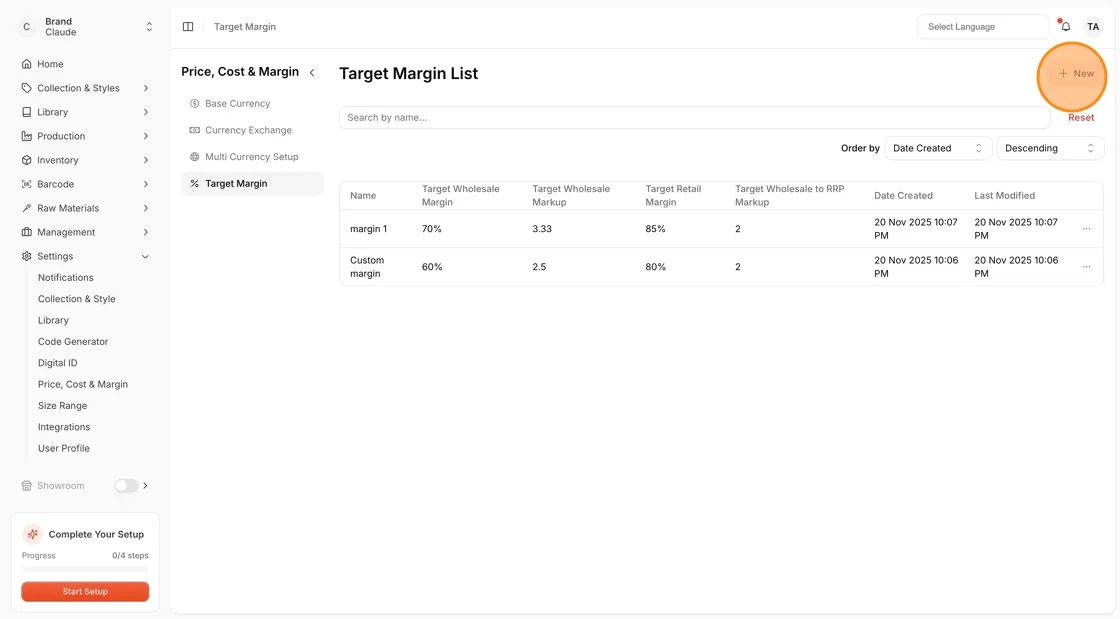
- Click the '+ New' button - a Target Margin Page will show up.
- Name - mandatory ("Name is required" if left empty). The Brand and Base Currency shown below it are read-only. If no base currency is set yet, the page shows "Base Currency is not set" with a link to set it first.
- Each target margin has one or more rows under Target Margins. Click Add Target Margin to add another row, for example to give different suppliers different wholesale and retail margin values.
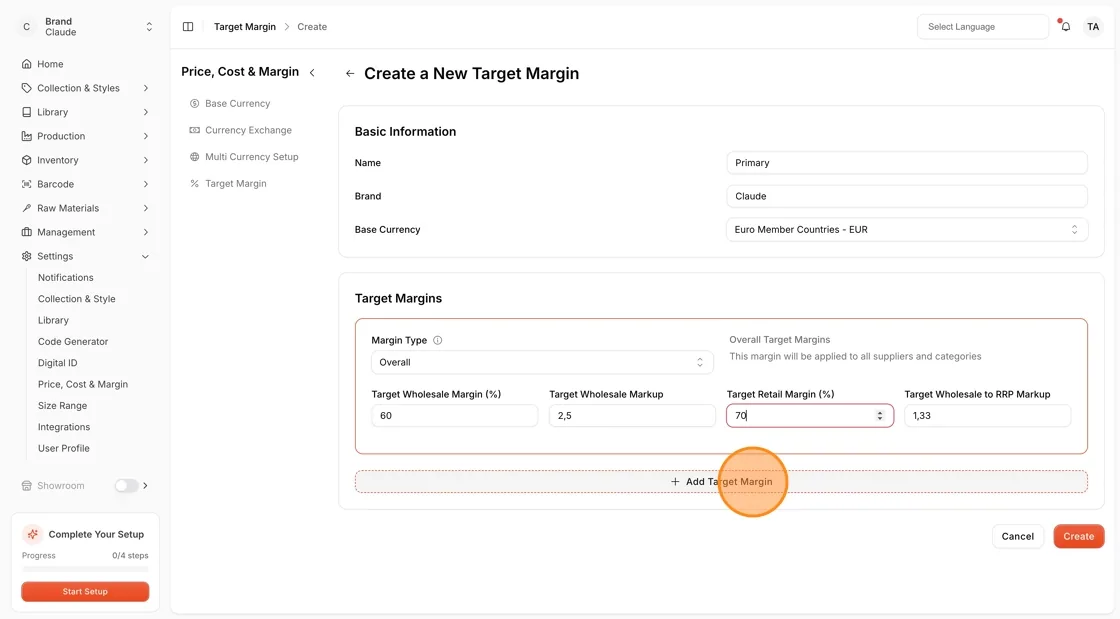
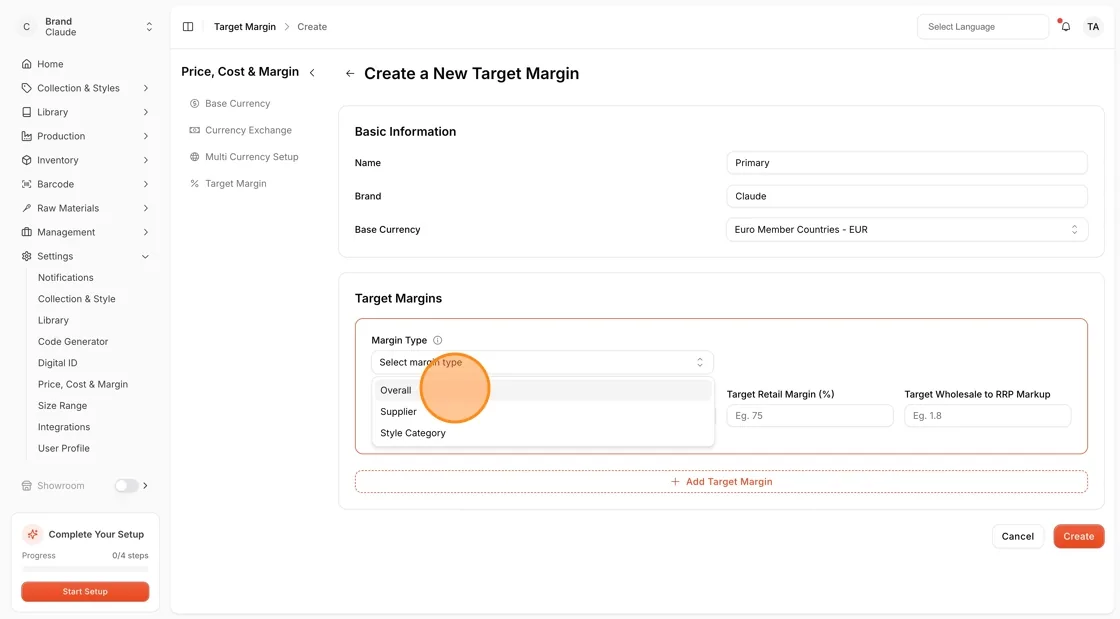
- Margin Type - choose the type of margin you want to apply, such as Overall, Supplier or Style Category, to define how the product's pricing structure is calculated. Supplier shows a Suppliers field and Style Category shows a Categories field where you select one or more values.
Note
Overall: This margin will be applied to all suppliers and categories
Supplier: This margin will be applied to selected suppliers.
Style Category: This margin will be applied to selected style category.
- Type in the Target Wholesale Margin (%) and Target Retail Margin (%) values (0 to 100).
- Target Wholesale Markup and Target Wholesale to RRP Markup are filled in automatically from the margins. You can also type a markup, and the matching margin is then calculated for you.
- Click Create to finish
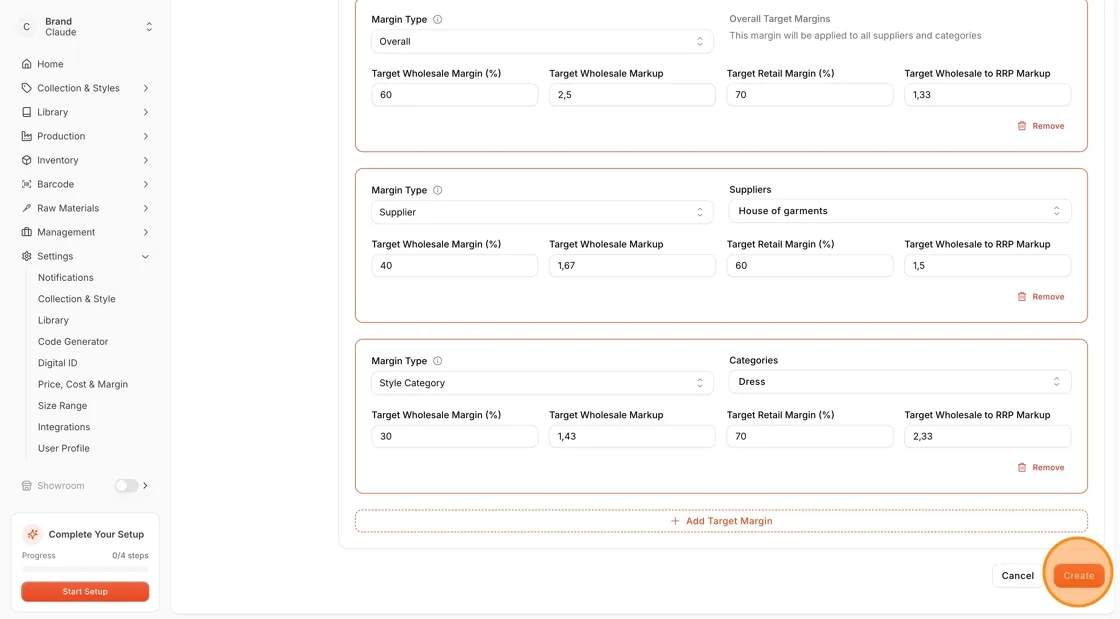
- Click Remove at the bottom right of a row to remove that row from the target margin. It only appears when the target margin has more than one row.
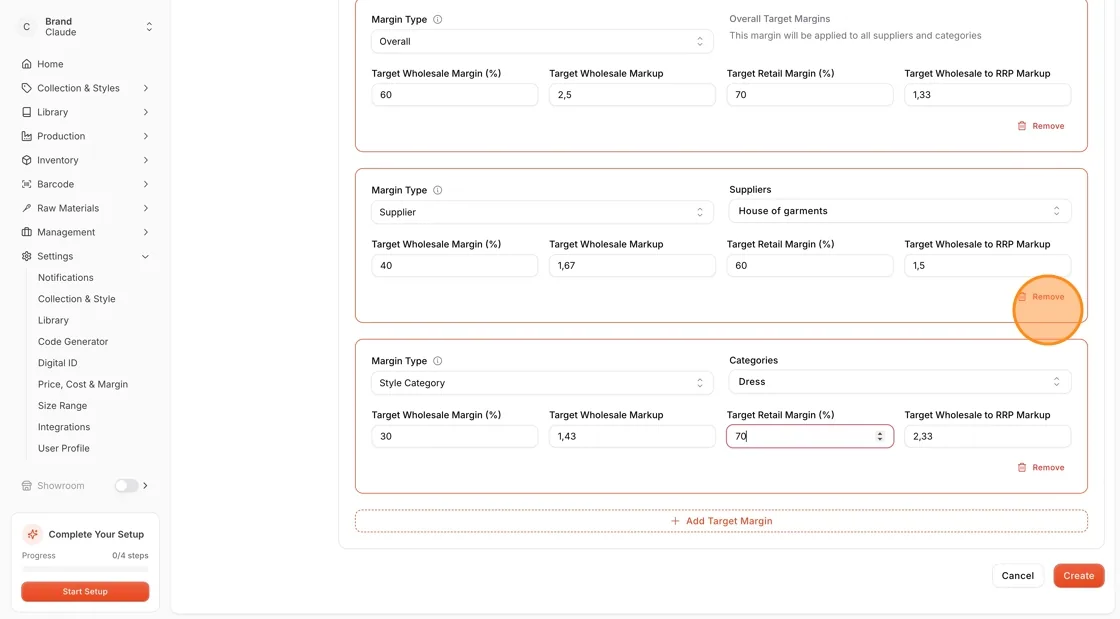
- Repeat the same steps until you have created all Target Margin.
Edit target margin
The Target Margin List Page stores all information related to the target margins created in Vestis Labs.
- To change the Target Margin - Click on the pencil icon on its row to open it in edit mode
- The page will be in edit mode
- Click Save Changes to finish
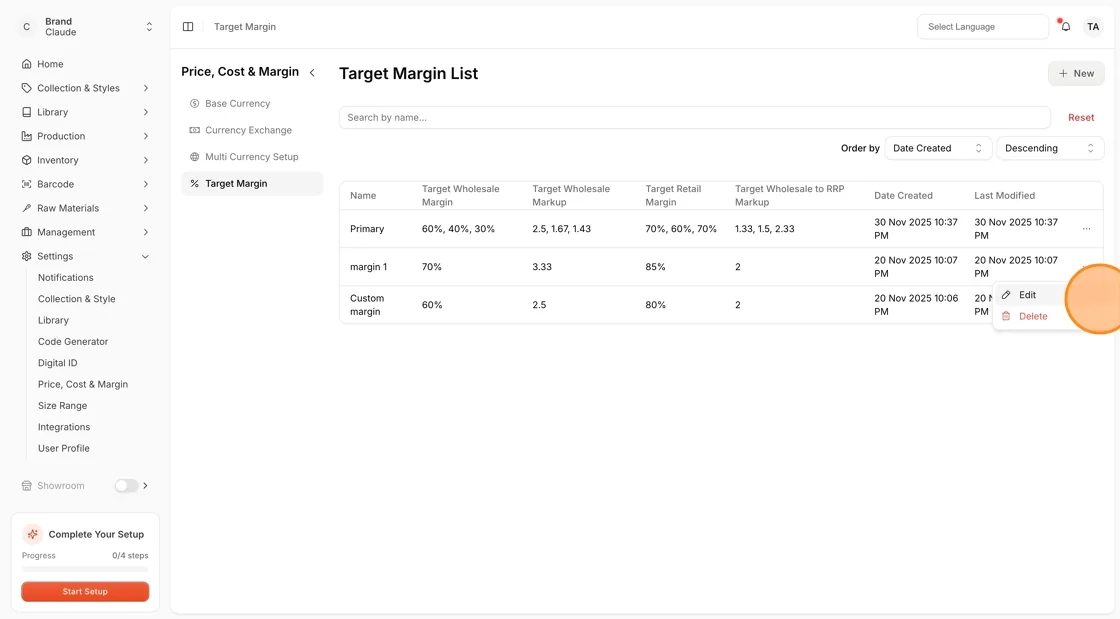
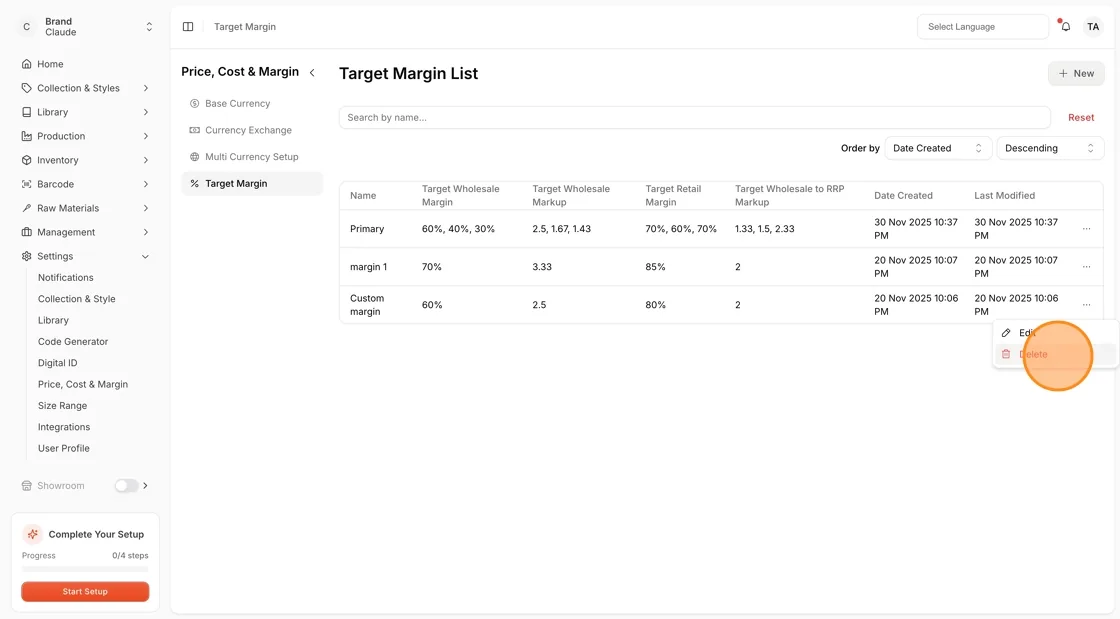
- Select the trash icon, then Delete in the "Are you sure?" window, to remove the selected Target Margin from Vestis Labs. This cannot be undone.